SwiftUI foundations
SwiftUI: exploring views and modifiers
Learn how views and modifiers work in SwiftUI, how a modifier like font() returns a brand new view, and why the order you apply modifiers matters.
SwiftUI is all about views. Everything you see on screen is a view, and views are built out of other views.
In the introduction to SwiftUI we wrote the Hello World app. Here it is again:
import SwiftUI

struct ContentView: View {
    var body: some View {
        Text("Hello World")
    }
}
ContentView is the main view. Its job is to say which views compose our app.
Here we have a single view, Text.
Run this in Xcode and this is what you get:
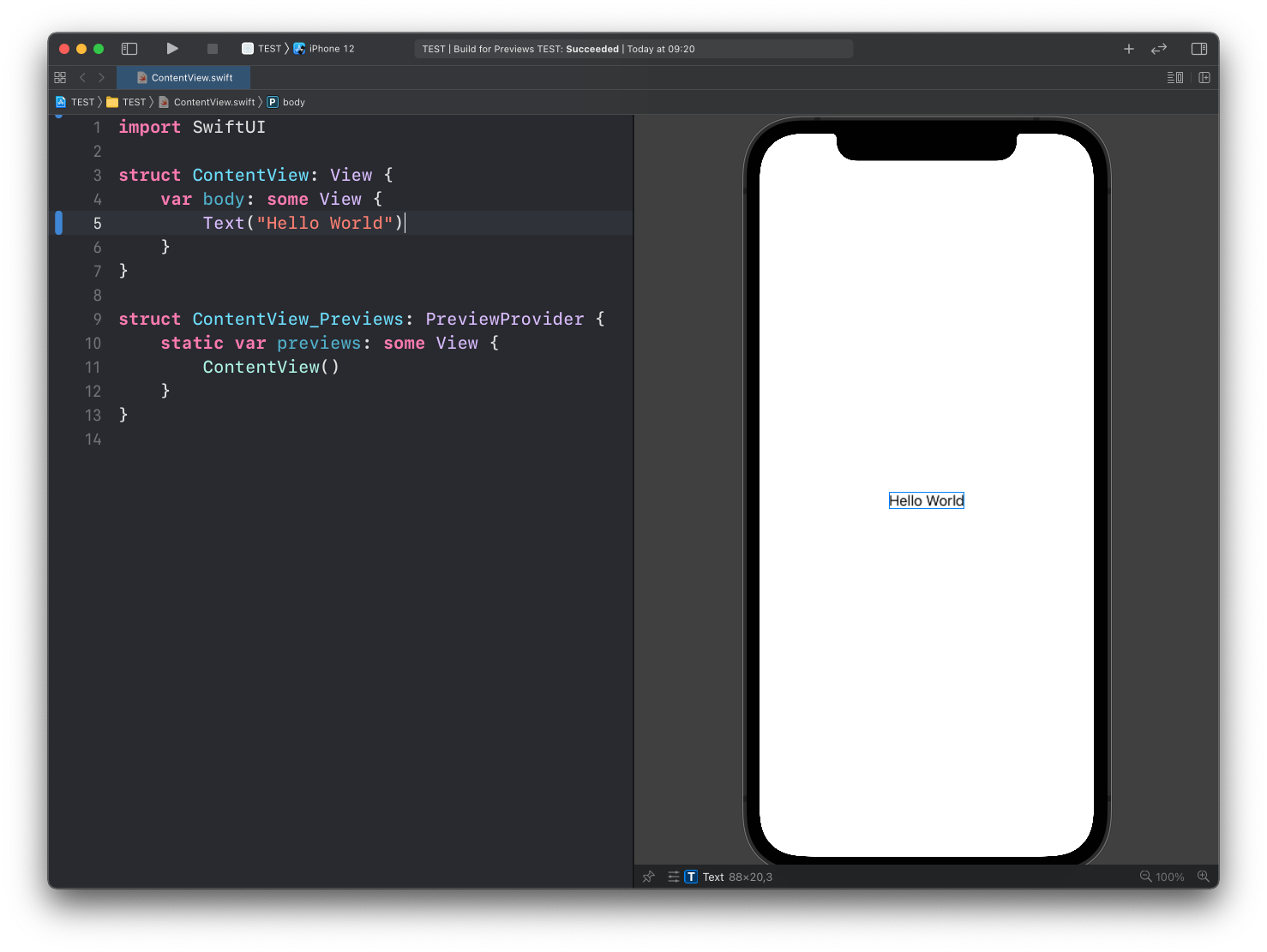
Notice the extra code after the
ContentViewstruct. That’s how we tell Xcode what to show in the preview panel on the right. It’s not part of the app, we only use it while developing.
Modifiers
A view can have modifiers. A modifier is a method you call on a view to change how it looks or behaves.
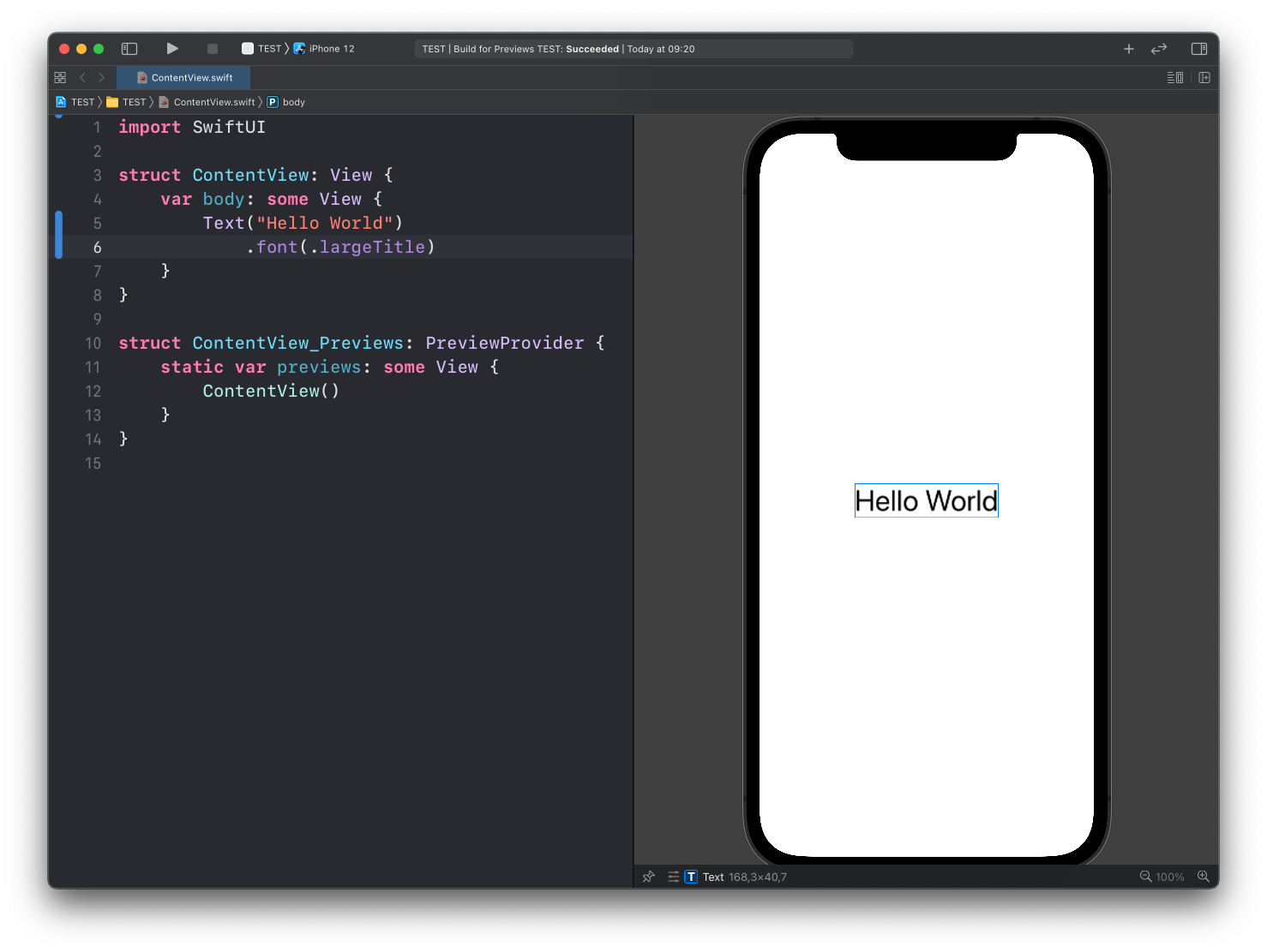
Here’s font(), a modifier of the Text view:
struct ContentView: View {
    var body: some View {
        Text("Hello World")
            .font(.largeTitle)
    }
}
It takes the Text view we created and makes the font larger:
Different views have different modifiers. Text alone has many, including:
font()sets the font of the textbackground()sets the view backgroundforegroundColor()sets the color of the textpadding()adds space around the view, on all edges
… and many more. You can see the full list for Text in the Apple docs: https://developer.apple.com/documentation/swiftui/text-view-modifiers.
You can chain as many modifiers as you want, one per line.
A modifier creates a new view
Here’s the thing to remember. A modifier does not change the existing view. It takes the view and returns a new view that wraps it.
Why does this matter? Because it means the order of modifiers matters.
Say you want to give the Text a blue background and some padding. Try padding first, then background:
Text("Hello World")
    .padding()
    .background(Color.blue)
Here’s the result:
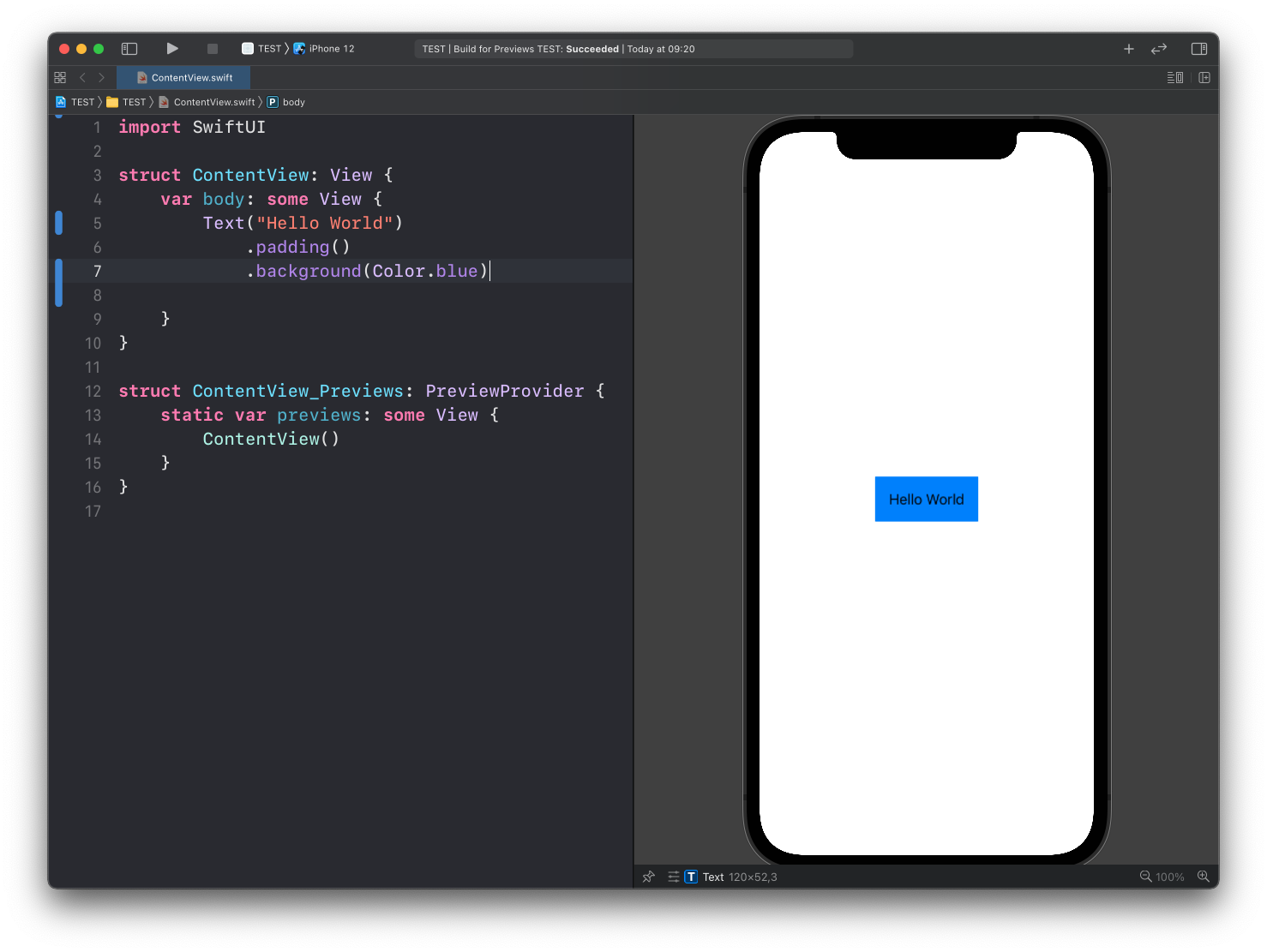
The padding was added to the text, and then the background was painted behind the padded view. So the blue extends past the letters.
Now invert the two modifiers:
Text("Hello World")
    .background(Color.blue)
    .padding()
And you get this:
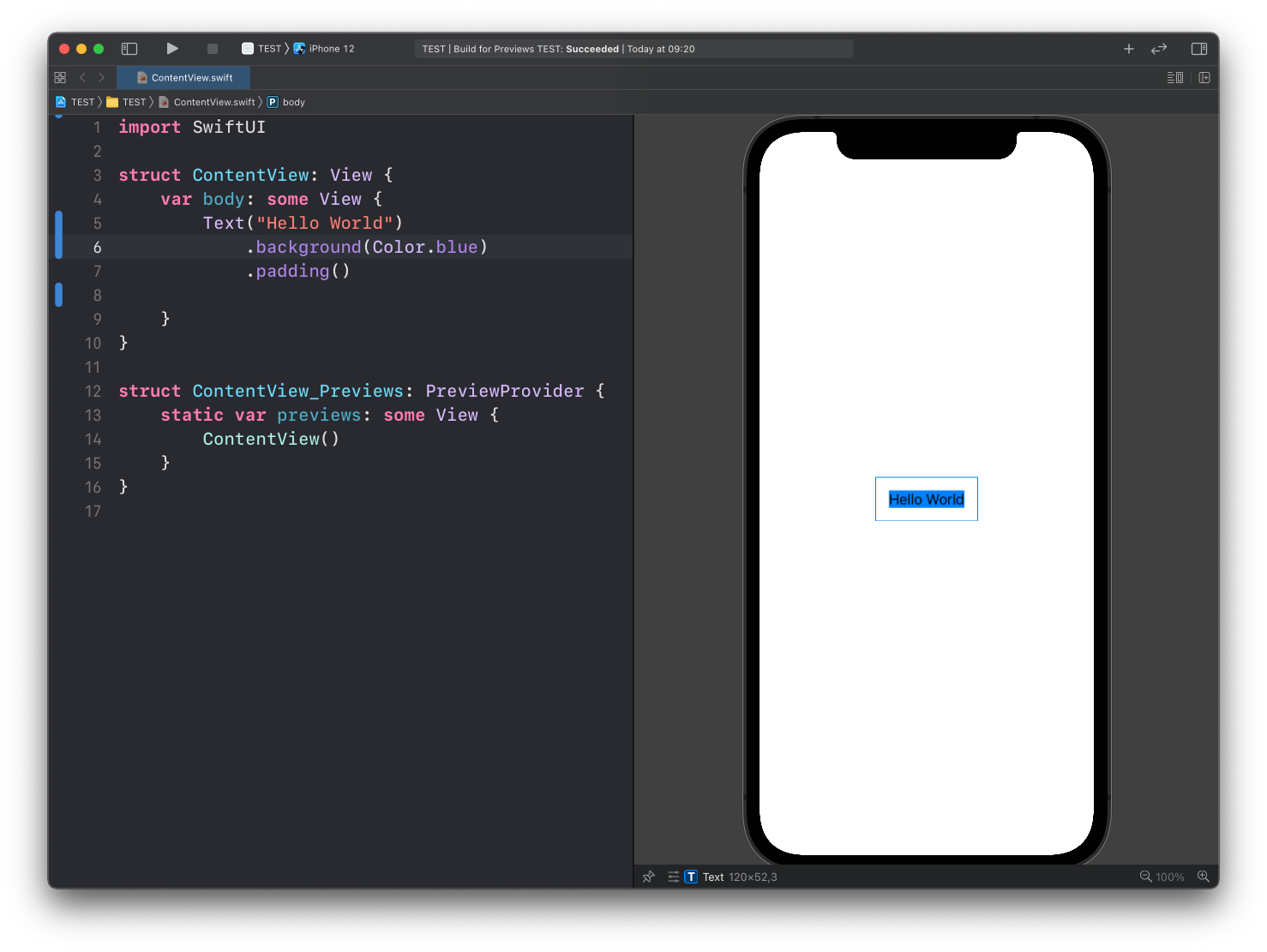
This time the blue hugs the text, and the padding sits outside it, transparent.
Same two modifiers, different picture. Each one wrapped whatever came before it.
My advice: when a view doesn’t look like you expect, read the modifier chain top to bottom and picture each step as a new layer. Often the fix is swapping two lines.
Lesson completed