State and actions
SwiftUI: the Button view and updating the app state
Learn how to use the Button view in SwiftUI to run an action when tapped, and why you need the @State property wrapper to update your app's state.
The Button view shows an interactive button. You give it a label and a closure, and the closure runs when the user taps it.
The short way to declare it:
Button("Button label") {
    //this happens when it's tapped
}
And the long way:
Button {
   //this happens when it's tapped
} label: {
   Text("Button label")
}
The long way is for when the label is not plain text. An image, for example, or an icon next to some text.
Let’s use the short way in a SwiftUI program:
struct ContentView: View {
    var body: some View {
        Button("Test") {

        }
        .font(.title)
    }
}
See? There’s a blue text in the app, and you can tap it. It’s interactive.
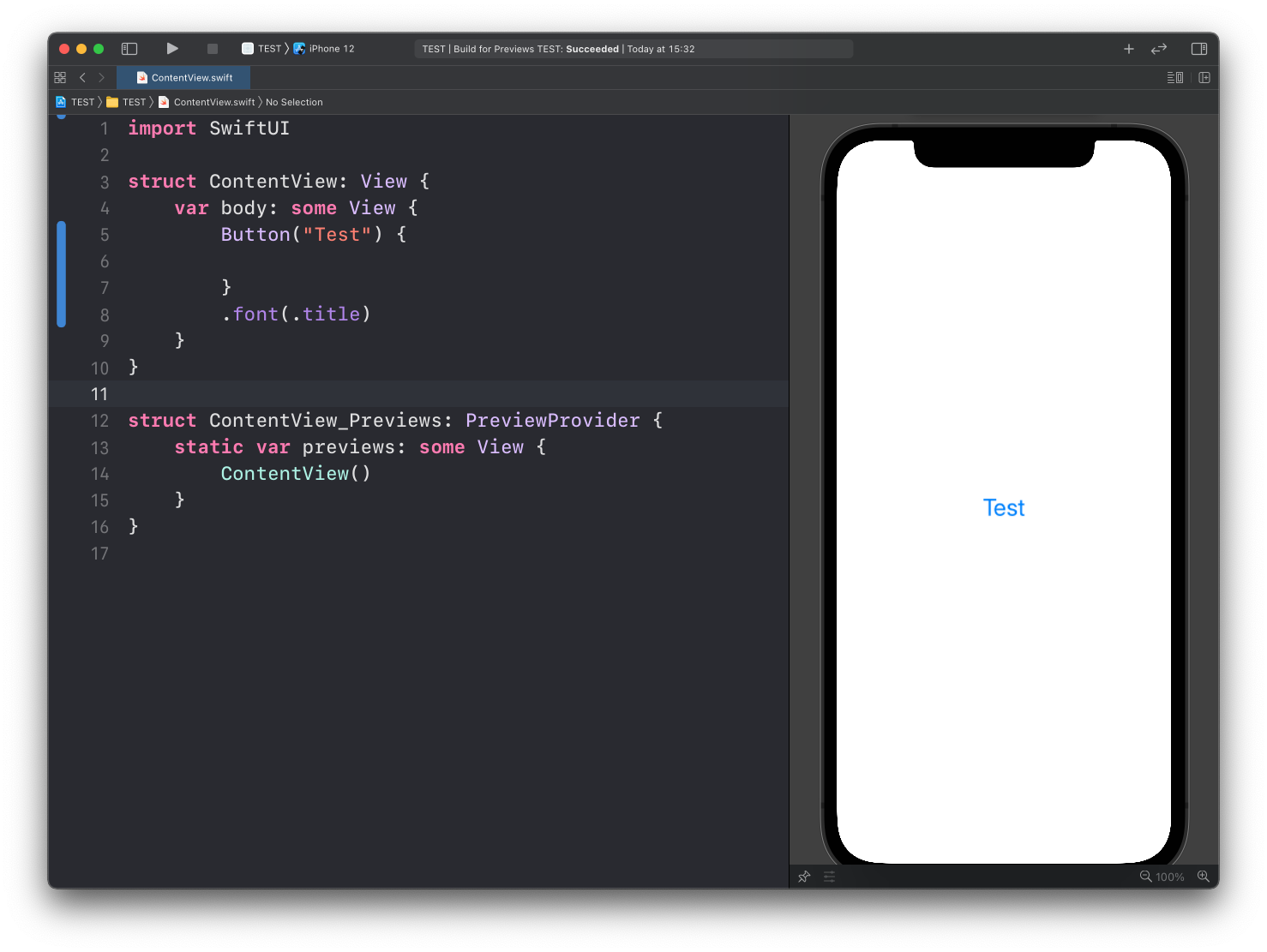
We haven’t told it to do anything when tapped, so it does nothing.
The simplest action is printing to the debug console:
struct ContentView: View {
    var body: some View {
        Button("Test") {
            print("test")
        }
        .font(.title)
    }
}
Run the app, tap the button, and test appears in the Xcode console at the bottom of the window.
This works only when you run the app. The Xcode preview doesn’t show console output.
Updating state from a button
Now let’s make the button do something visible. We’ll show a property value in the label:
struct ContentView: View {
    var count = 0

    var body: some View {
        Button("Count: \(count)") {

        }
        .font(.title)
    }
}
And when it’s tapped, we increment the count:
struct ContentView: View {
    var count = 0

    var body: some View {
        Button("Count: \(count)") {
            self.count += 1
        }
        .font(.title)
    }
}
This does not compile. Xcode shows this error:
Left side of mutating operator isn't mutable: 'self' is immutable❌
We saw why in the properties lesson. A view is a struct, and a struct can’t change its own properties from inside body.
The fix is the @State property wrapper in front of the declaration:
struct ContentView: View {
    @State var count = 0

    var body: some View {
        Button("Count: \(count)") {
            self.count += 1
        }
        .font(.title)
    }
}
Now the app compiles. Tap the label and count goes up, and the label updates with it:
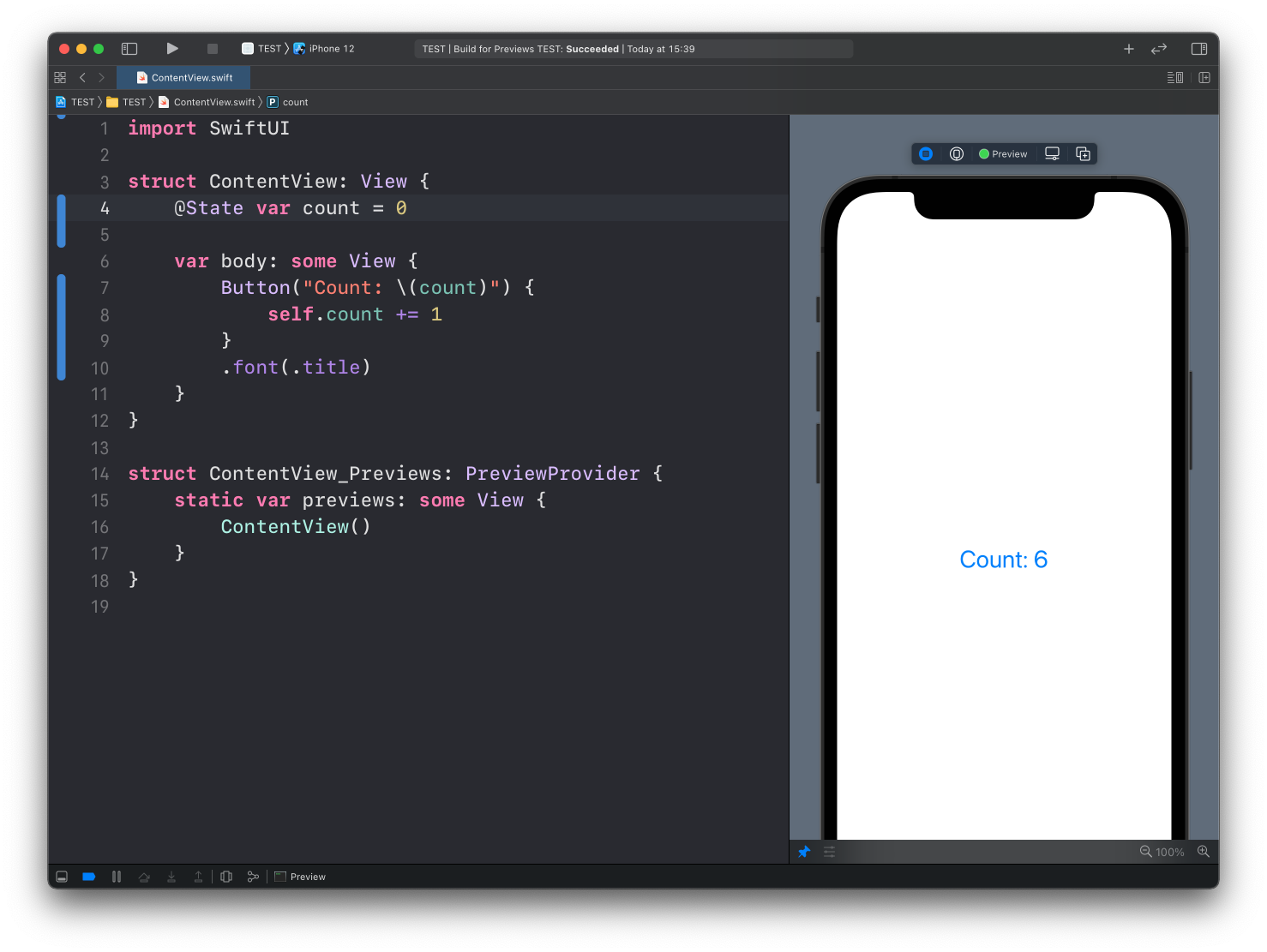
Notice we never told the label to refresh. We changed count, and SwiftUI re-rendered the button because its label reads count. That’s the declarative model at work.
Of course the counter starts from 0 again the next time you run the app. We’re not persisting the state anywhere. We’ll get to that later.
Lesson completed