SwiftUI foundations
SwiftUI: stacks and groups
Learn how to lay out multiple views in SwiftUI using HStack, VStack, and ZStack to align them on each axis, plus Group to bundle views together.
No real SwiftUI app has just one view. As soon as you want two views on screen, you need a stack.
There are 3 kinds of stacks:
HStacklines up views on the X axis, horizontallyVStacklines up views on the Y axis, verticallyZStacklines up views on the Z axis, one on top of the other
Let’s go back to the Hello World app:
import SwiftUI

struct ContentView: View {
    var body: some View {
        Text("Hello World")
    }
}
To add a second Text view, you might try this:
struct ContentView: View {
    var body: some View {
        Text("Hello World")
        Text("Hello again!")
    }
}
Don’t. You’d be leaving the layout to chance, and older Xcode versions refuse to compile it. You have to embed those views into a stack.
Let’s try with VStack:
struct ContentView: View {
    var body: some View {
        VStack {
            Text("Hello World")
            Text("Hello again!")
        }
    }
}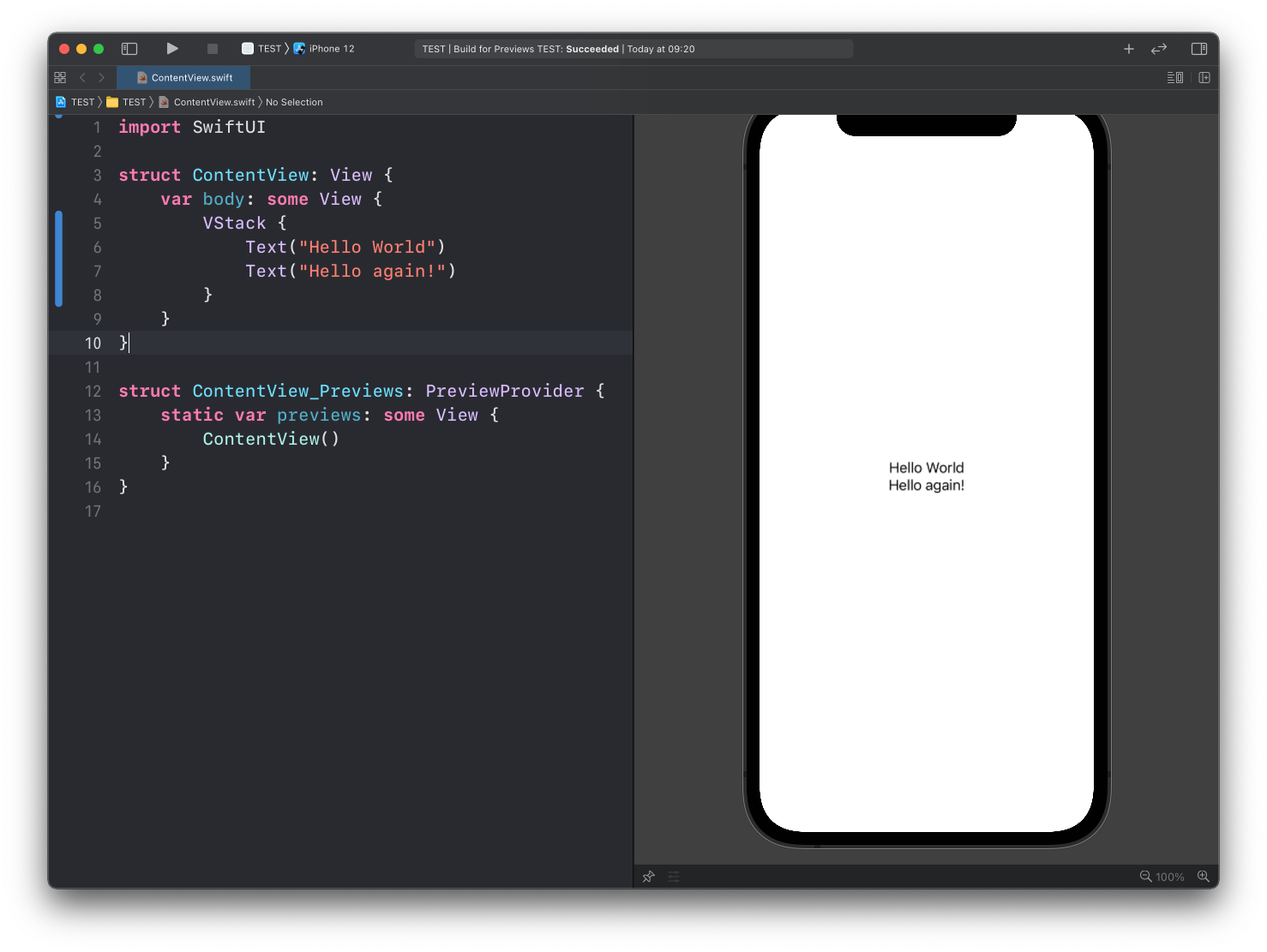
See? The views are aligned vertically, one after the other.
Swap VStack for HStack and they sit side by side:
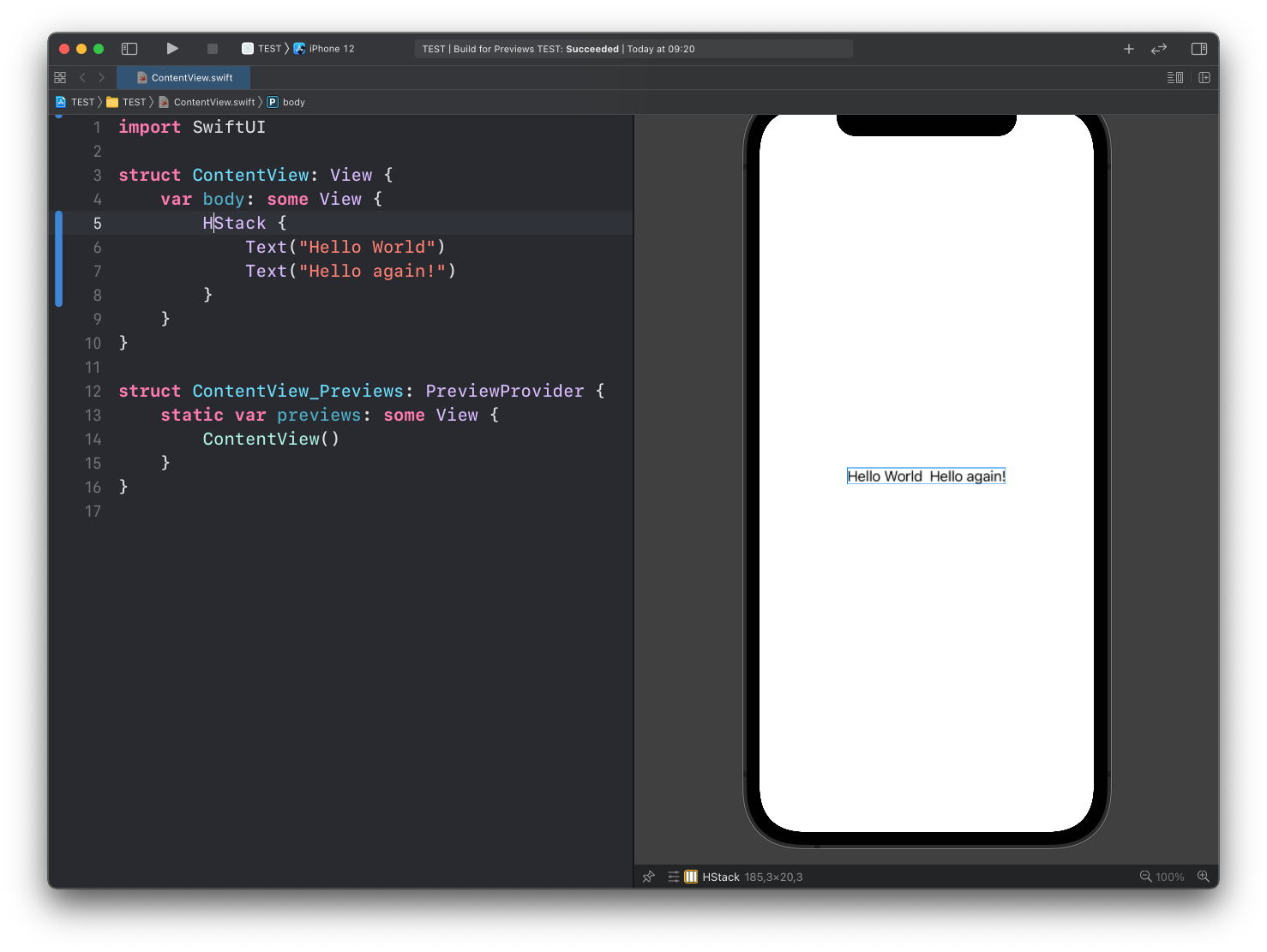
And here’s ZStack, which puts views one in front of the other. With two texts it makes a mess:
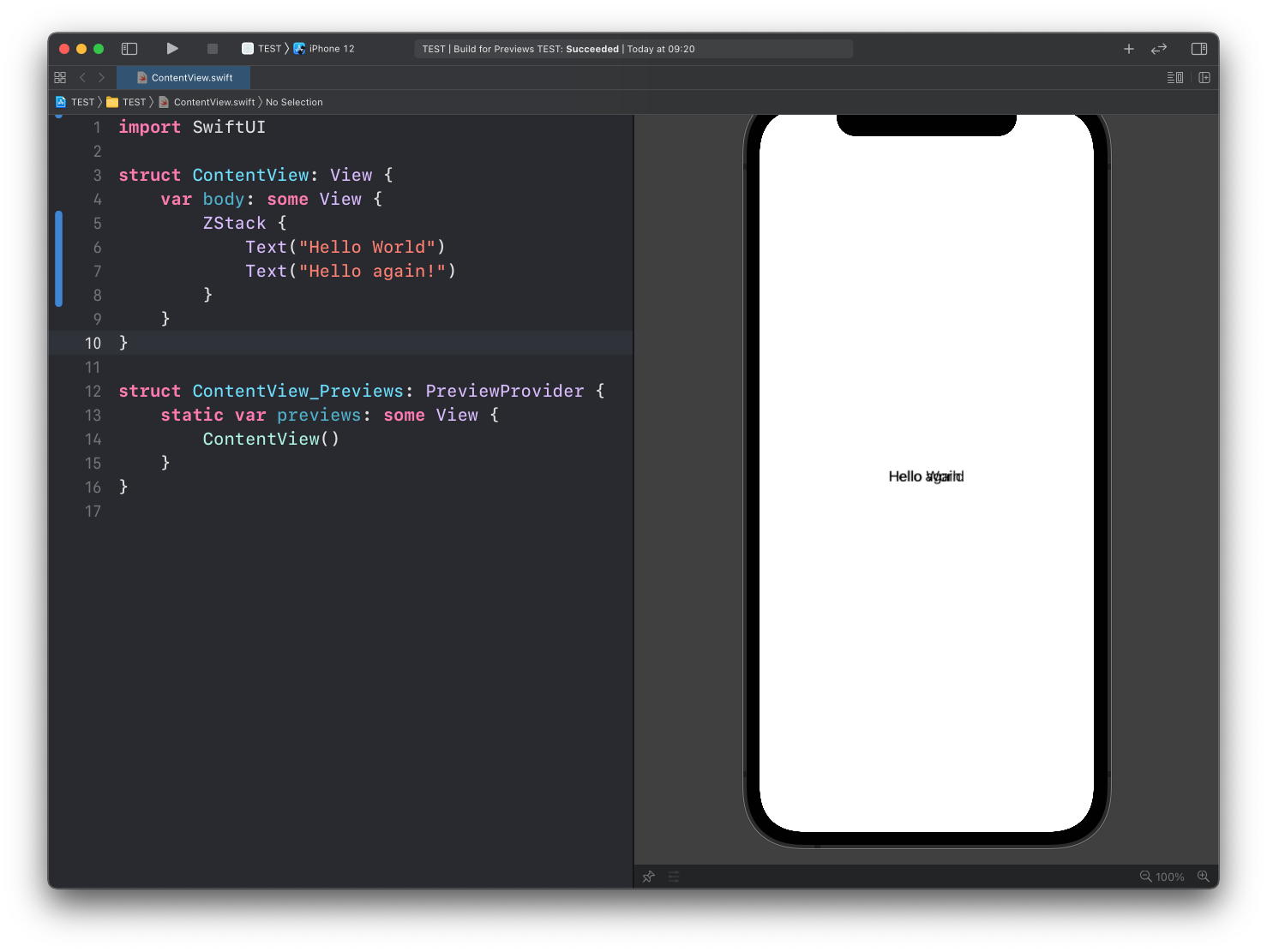
ZStack shines when the overlap is the point. The simplest case: a background image with some text on top of it.
In SwiftUI we organize the whole UI with these 3 stacks, nested inside each other.
Group
There’s a fourth container worth knowing: Group. Like a stack, it bundles several views together. Unlike a stack, it does not affect layout at all.
VStack {
    Group {
        Text("Hello World")
        Text("Hello again!")
    }
}
The two texts still stack vertically, because the VStack decides that. The Group is invisible.
One handy use for
Group: a view can have at most 10 children. If you need more, group them, and eachGroupcounts as one child.
Modifiers on containers
Group and the stacks are views too, so they accept modifiers.
Some modifiers only affect the view they’re applied to, like here:
Text("Hello World")
.font(.largeTitle)
Others can apply the same setting to every view inside a container at once.
Like this:
VStack {
    Text("Hello World")
    Text("Hello again!")
}
.font(.largeTitle)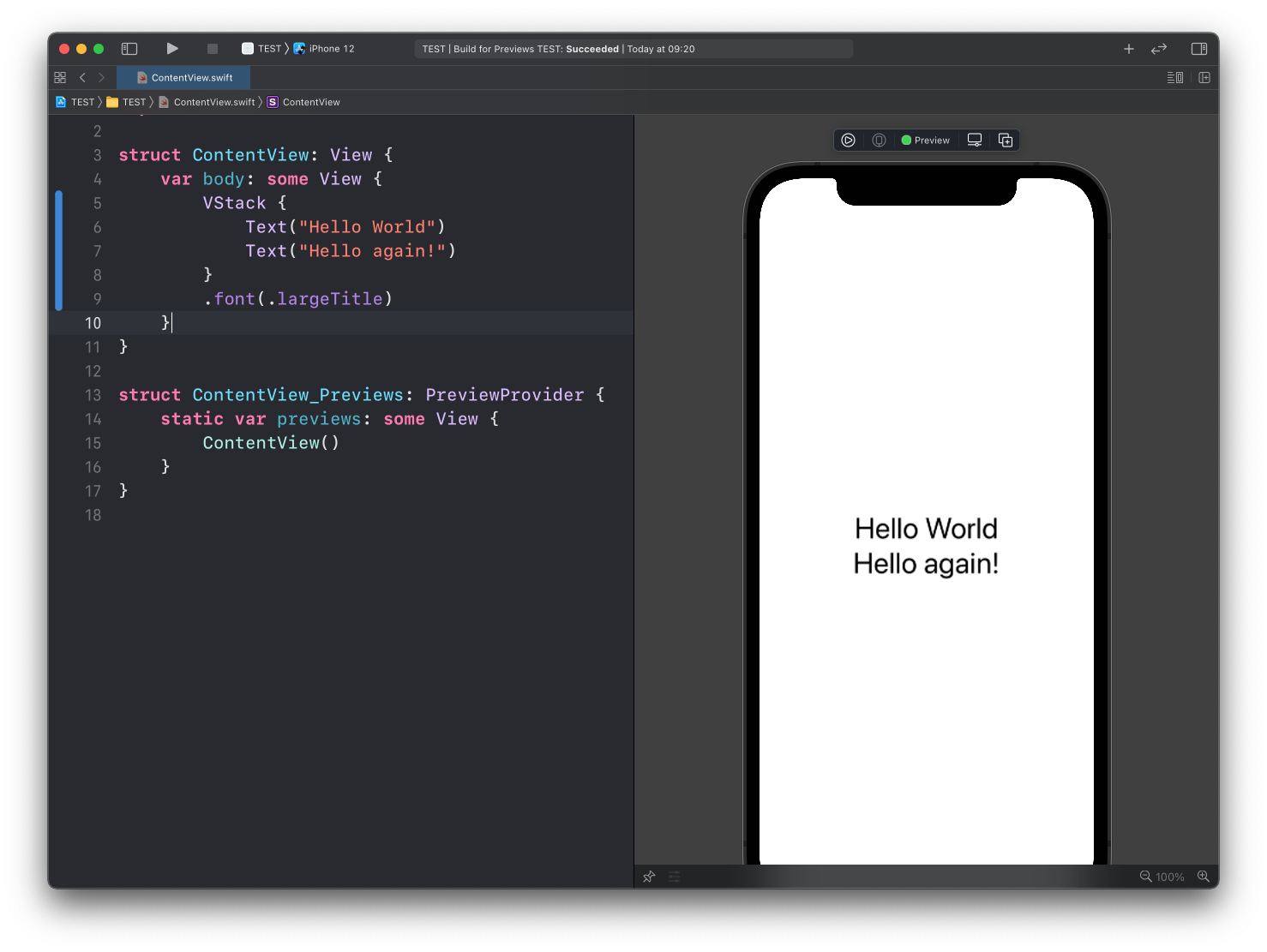
See? We applied font() to the VStack, and both Text views got the .largeTitle font.
Modifiers that work this way are called environment modifiers. They push a value down to every child. Not every modifier does this, but font() does, and it saves a lot of repetition.
Lesson completed