A deep dive into T3 Code
By Flavio
Updated
Tagged: AI
Master T3 Code (v0.1.12): providers, multi-repo worktrees, orchestration, browser, simulators, PR guides, workflows, remote access, and cheat sheets.
T3 Code is a free, open source control plane that puts the coding agents you already use behind one interface. A server on your machine starts Codex, Claude Code, Cursor, Antigravity, and the rest, while you supervise them from a desktop app, a browser, or your phone.
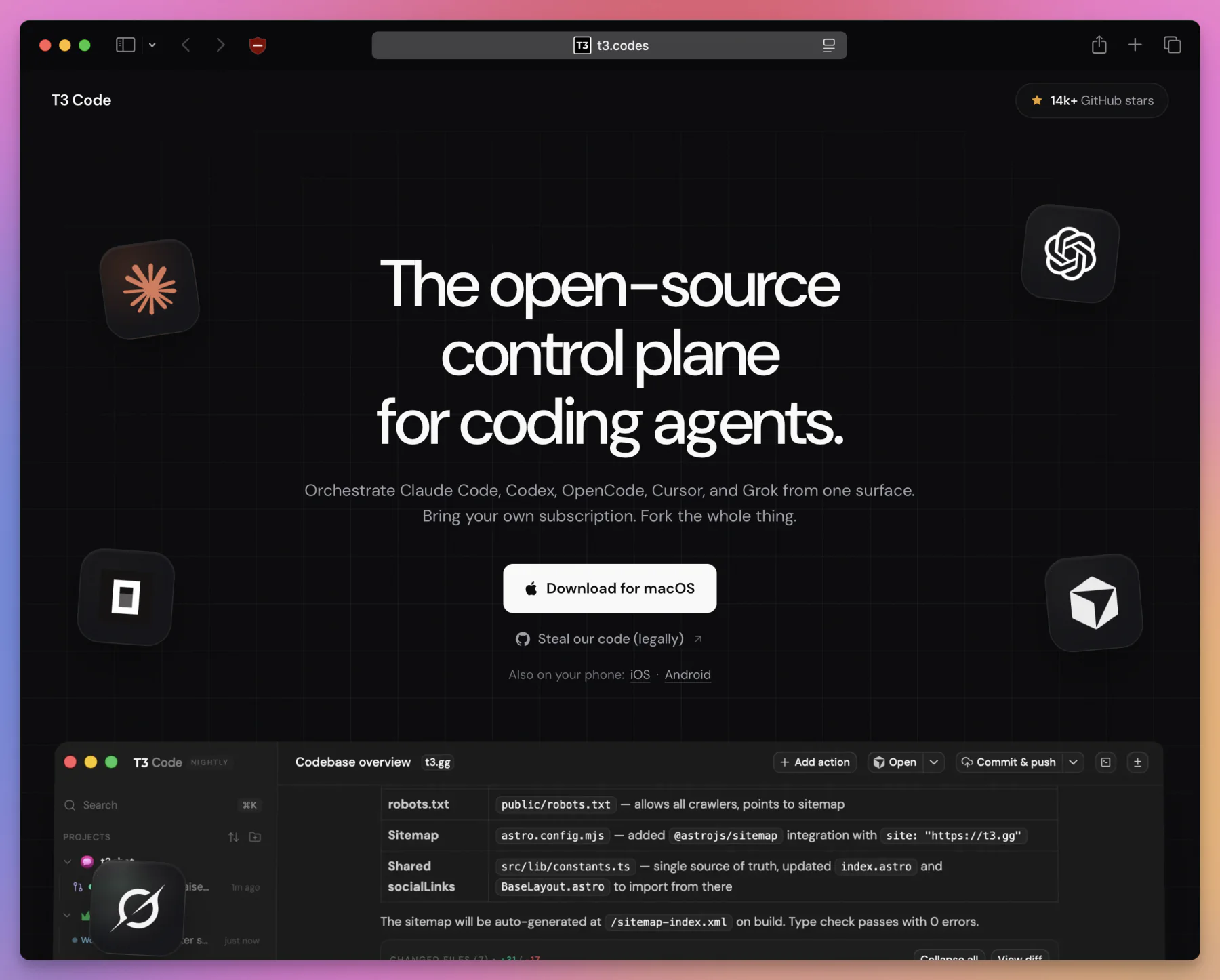
It was created by @theo and @jullerino and lives in pingdotgg/t3code under the MIT license. The desktop app is called T3 Code (Beta), and development moves fast: on August 27, 2026 it passed 20,000 GitHub stars, and recent releases regularly pull in hundreds of contributors.
I use several coding agents. Codex is strong on some tasks, Claude Code on others, Cursor and Antigravity have their own strengths, and OpenCode, Pi, Grok Build, and fx add even more options. I wrote down how I pick among them.
Starting one agent in a terminal is easy. Keeping track of five agents across three repositories, checking which one is waiting for approval, reviewing their diffs, and verifying their changes in a browser or simulator is the real bottleneck.
T3 Code brings all of them into one interface. The work still happens on your machine, using your existing provider logins and subscriptions.
This guide covers T3 Code through v0.1.12 (November 25, 2026). You can also watch several of these workflows live in Theo’s T3 Code walkthrough.
Find your way around this guide
This is a long guide, so jump straight to what you need:
What T3 Code is (and isn’t)
Running one agent in a terminal is simple: open a repo, run codex or claude, describe the task, and wait.
The trouble starts when several jobs run at once. Suddenly you have to track which agent owns which branch, who is waiting on a permission prompt, which edits came from which turn, where the dev server is listening, which thread has an open pull request, and how much weekly quota is left.
T3 Code solves that by running a local server beside your repositories. That server starts each provider’s own tool, runs Git commands, hosts terminals and browser tabs, reads files, and streams normalized events to every connected client. Here’s how the pieces fit together:
The project calls itself an agent harness control surface. A model generates text, while a harness like Codex CLI or Claude Code wraps it with file tools, shell commands, approvals, and session state (OpenAI also offers the Codex harness directly, covered in my guide to the OpenAI Agents API). T3 Code sits one layer above those harnesses, translating each provider’s structured protocol into one shared interface.
Before you set it up, it helps to be clear about what T3 Code isn’t:
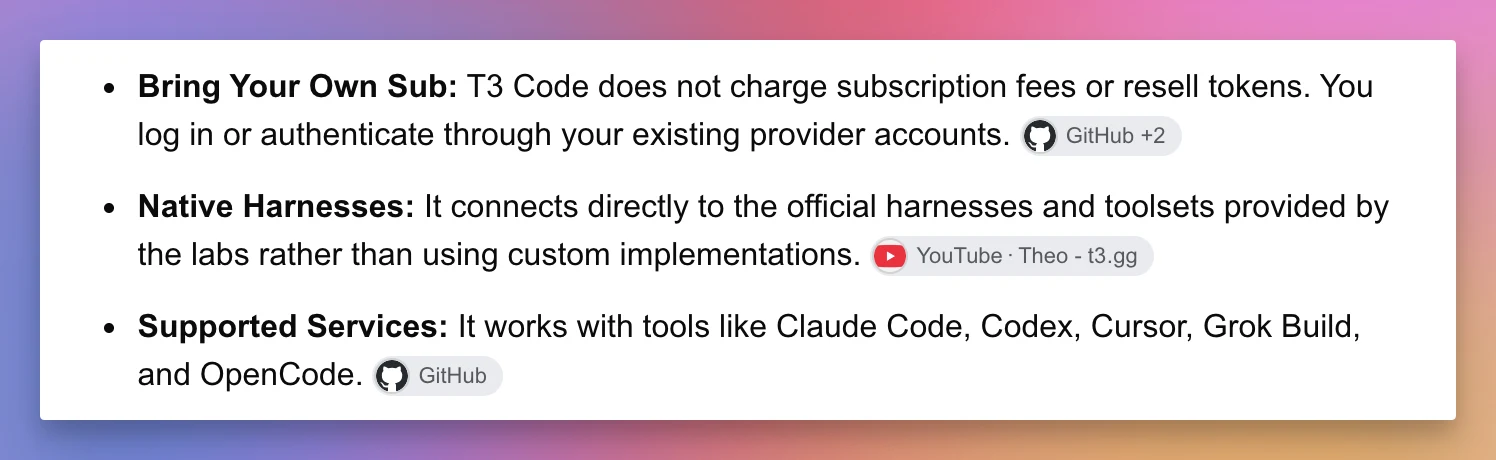
- Not a model provider. T3 Code doesn’t sell tokens or credits. You bring your own subscriptions or API keys and authenticate each provider on the server machine.
- Not a generic wrapper. Provider-specific models, thinking levels, permission classifiers, and tools stay visible. Switching providers changes the agent runtime underneath.
- Not a hosted cloud sandbox. Everything runs on a machine you control. Close your laptop and its local server stops. Use an always-on Linux box or Mac if you want background jobs running while your laptop sleeps.
- Not a local inference engine. Even though T3 Code stores state locally, your prompts, code context, and tool results still go to whichever cloud provider you picked (unless you point OpenCode or a text generator at a local model).
- Not a security boundary on its own. Permission modes reduce mistakes, but Full access still gives commands full access on the server machine. Choose workspaces and permissions with the same care you use in the provider CLI.
The mental model
T3 Code is built around six concepts. Once you know how they relate, almost every button in the app makes sense:
- Environment: one running T3 Code server and the machine behind it. It owns the filesystem, projects, threads, credentials, terminals, Git state, and local SQLite database. Your MacBook Pro can be one environment and a Linux VPS another. The client displays what’s happening, while the environment does the work.
- Project: a directory tracked by an environment (such as
/Users/flaviocopes/www/flaviocopes.com). A project can cover a single Git repository, a plain folder containing several repositories, or external folders tracked alongside it, plus checked-int3.jsonconfiguration. - Workspace: the directory a thread edits, either the current checkout or an isolated new Git worktree.
- Thread: the persistent conversation for one task, holding provider/model state, messages, approvals, artifacts, linked issues, and linked pull requests. If you close the client, the thread stays intact on the server.
- Turn: one user-agent cycle, wrapped in hidden Git checkpoints so you can inspect per-turn diffs or rewind to before a message.
- Provider: the underlying coding agent runtime (Codex, Claude Code, Cursor, Antigravity, or an ACP agent).
Install T3 Code
You can run T3 Code as the t3 command-line server or as the desktop app. The desktop app bundles the t3 command and sets it up on first launch (or anytime from Settings → About → t3 command).
Command line
On macOS or Linux:
curl -fsSL https://t3.codes/install.sh | shOn Windows PowerShell:
irm https://t3.codes/install.ps1 | iexThis installs t3 into ~/.local/bin. Start the server and open the web interface with:
t3To try T3 Code once without installing it, run npx t3@latest (requires Node.js 22.16+, 23.11+, or 24.10+). Set T3CODE_CHANNEL=nightly before running the installer to install nightly builds, or T3CODE_VERSION to pin an exact build. Intel Macs have no standalone t3 executable, so use the desktop app or build from source.
Desktop and mobile apps
Download installers from GitHub Releases or install through a package manager:
| Platform | Command or source |
|---|---|
| macOS | brew install --cask t3-code |
| Windows (Winget) | winget install T3Tools.T3Code |
| Windows (Scoop) | scoop install extras/t3code |
| Debian / Ubuntu | sudo apt install ./T3-Code-*.deb (or AppImage for x86_64 / ARM64) |
| Arch Linux | yay -S t3code-bin (nightly: yay -S t3code-nightly-bin) |
| Nix (unstable) | nix profile add github:NixOS/nixpkgs/nixos-unstable#t3code |
| iOS & Android | App Store and Google Play |
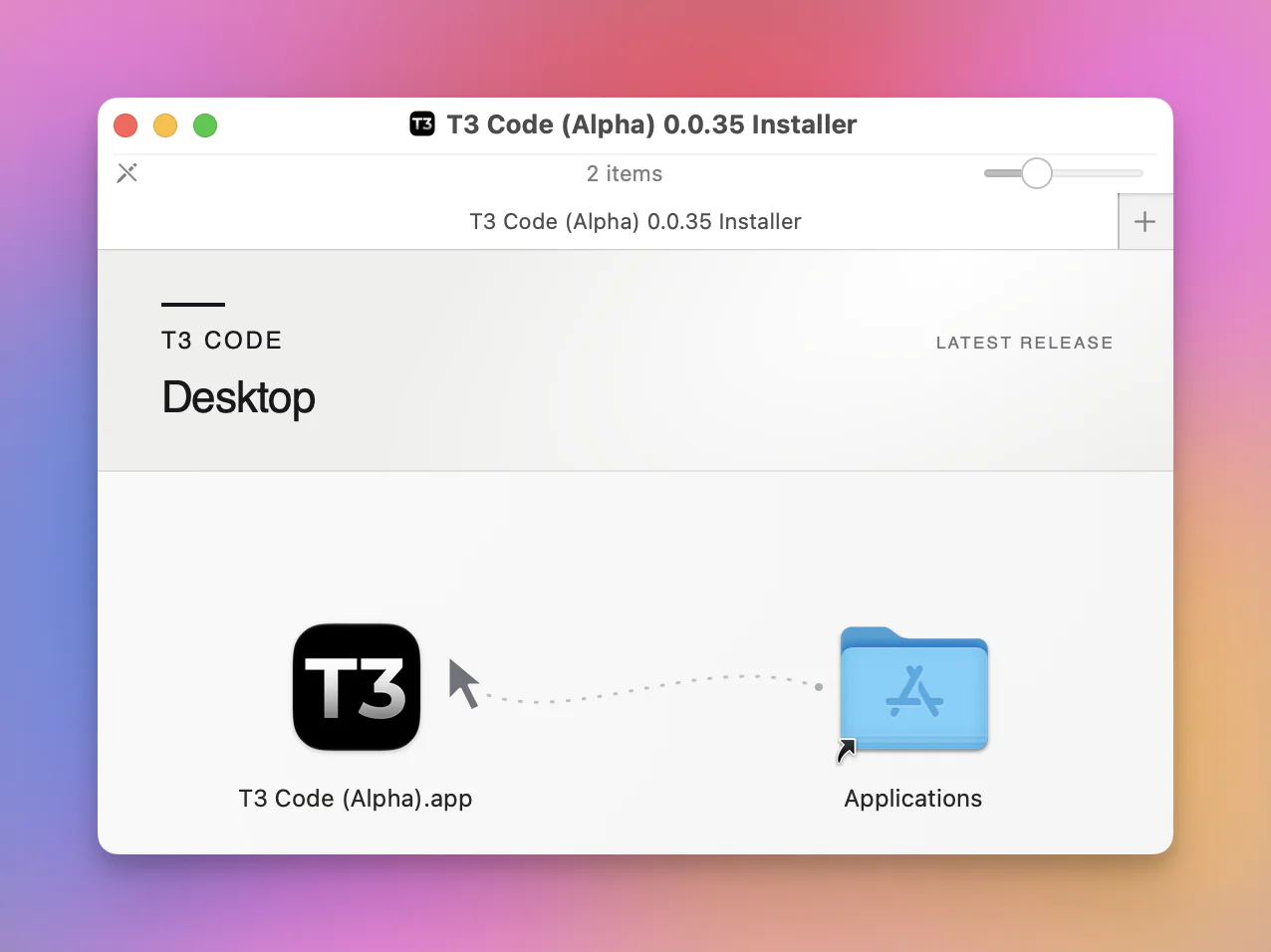
The direct macOS build uses a standard drag-to-Applications installer:
A few desktop shortcuts that save time right away:
- Open any folder from your terminal: run
t3 app(ort3 app ../my-project) while the desktop app is open to jump straight into a new thread for that folder. - Drag folders onto the sidebar: drop one or more folders from Finder or Explorer directly onto the sidebar to add them as projects.
- Windows Subsystem for Linux (WSL): pick a WSL distro in Settings → Sharing & access to run agents and repositories inside WSL; T3 Code installs its own server runtime there automatically.
Connect providers, ACP, secrets, and text generators
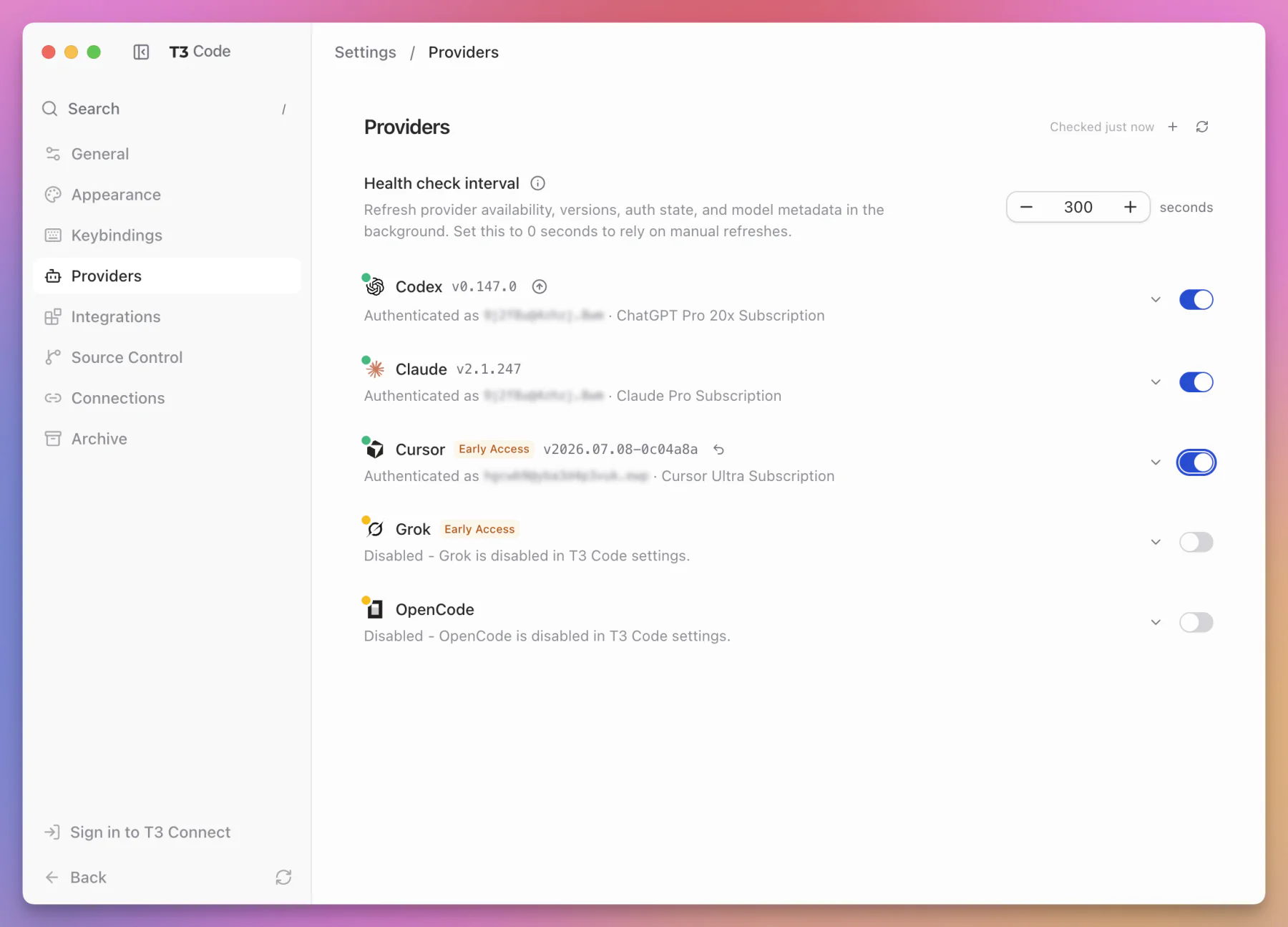
You install and authenticate providers on the server machine, not on your phone or browser. Open Settings → Providers, pick the environment, and turn on the ones you use.
Built-in providers and capability matrix
T3 Code comes with ten built-in providers plus generic ACP Registry support. Codex and Claude are enabled by default, and you can turn on the rest in Settings → Providers.
| Provider | Setup & sign-in | Transport | Permission modes | Edit from here | Extra notes |
|---|---|---|---|---|---|
| Codex | Connect with ChatGPT or codex login (0.159+) | App-server JSON-RPC | All 4 (AI Auto) | Native rewind | MCP Apps, /goal, native resume |
| Claude Code | claude auth login (2.1.280+) | Claude Agent SDK | All 4 (Auto) | Native rewind | MCP Apps (2.1.301+), /goal, native resume |
| Cursor | agent login (cursor-agent) or browser sign-in | Official Cursor SDK | All 4 (Auto) | Native rewind (v0.1.11) | Native resume, 40+ models |
| Antigravity | Install runtime & Google sign-in in Settings | Antigravity ACP (1.5+) | All 4 (Auto on eligible accounts) | Fresh-session replay (v0.1.11) | Gemini, Claude & GPT models, /goal, video inputs |
| Grok Build | grok login (1.0.13+) | ACP | Supervised, Auto, Full | Provider-dependent | Blocked Auto commands escalate to you |
| OpenCode | opencode auth login (2.0.18+) | OpenCode SDK | All 4 (Auto asks) | Native rewind | Native resume, /goal (2.2.5+); don’t mix 1.x & 2.x |
| Pi | pi, then /login (0.80.5+, Node 22.19+) | Pi CLI | Supervised, Auto-accept, Full | Provider-dependent | Session cost tracking |
| fx | curl -fsSL https://fx.sh/setup.sh | bash, fx login | fx CLI | Supervised, Auto, Full (0.0.14+) | Provider-dependent | Vercel’s agent, uses your existing skills |
| Muse Code | muse login | Muse CLI | Supervised, Full | No | Session/weekly limits appear after first turn |
| Kiro | kiro-cli login (beta) | Kiro CLI | Supervised, Full | Provider-dependent | Reviews turn file changes in Supervised |
| ACP Registry | Settings → Providers → Add provider → Show more | ACP v2 / v1 | T3 answers by mode | Fresh-session replay | GitHub Copilot, GLM Agent, custom ACP CLIs |
Settings → Providers flags outdated CLIs and lets you click Update now for installs managed by Homebrew, mise, npm, pnpm, Yarn, Bun, Volta, or Vite+.
Antigravity and Gemini subscriptions
T3 Code installs and drives Google’s real Antigravity binary instead of mimicking its API. That means a Google Gemini subscription works inside T3 Code without tripping the account bans aimed at third-party shims. Theo summed this up on X:
T3 Code → Antigravity binary → Google API (allowed)
Pi → fake Antigravity shim → Google API (not allowed)
In Settings, Antigravity gives you four sign-in methods: a personal Google account, Gemini Enterprise (with a GCP project and location), a Gemini API key, or Vertex AI / Agent Platform. You can check your remaining Gemini and shared Claude/GPT quotas under Usage → Limits. Antigravity reads global skills from ~/.gemini/config/skills instead of ~/.agents/skills, unless you list shared skill folders in ~/.gemini/config/skills.json.
Adding agents from the ACP Registry
Outside the ten built-in providers, open Settings → Providers → Add provider → Show more to install agents from the ACP Registry (like GitHub Copilot or GLM Agent) or point to any local ACP command (like dsh --profile acp for DeepSeek Harness).
T3 Code tries ACP v2 preview first so it can show richer plans, usage, compaction, and terminal updates, then falls back to ACP v1 automatically if needed. Registry agents install under ~/.t3/tools/<agent-id>/<version>/, with SHA-256 verification when provided. If an ACP agent supports session listing, expand its provider card and click List sessions to pull existing native sessions straight into T3 threads.
Multiple accounts for one provider
You can configure multiple instances of the same provider, which is handy when you want to keep personal and work subscriptions separate:
- Codex: keep the same
CODEX_HOMEso session history stays shared, and use a shadow home for separate login credentials. Existing threads stay reachable when you switch accounts. - Claude Code: Claude isolates sessions by
CLAUDE_CONFIG_DIR, so switching accounts keeps each account’s session state separate instead of mixing them. - Antigravity: add one instance per Google account. All instances share the downloaded runtime.
Secrets, 1Password, and request_secret
Sensitive environment variables and tokens stay on the server. Once you save them, T3 Code never sends them back to clients.
If you use 1Password, connect the 1Password CLI (op) on the server machine under Settings → Secrets. After that, any credential field (provider keys, source control tokens, usage keys, device host tokens) lets you switch from Value to a secret reference like op://vault/item/field. On a headless Linux host, sign op in with a 1Password service account or Connect server instead of desktop biometric approval.
When a running agent needs a password, API key, pairing code, or sudo password, it triggers request_secret. Rather than having you paste secrets into chat history, T3 Code shows a private card (on web, desktop, or mobile) where you type the value or pick a 1Password reference. That value never enters the transcript. If a shell command needs it, T3 Code writes it to a temporary private file that stays readable by that command for about 24 hours.
Offload titles and commits to a text generator
By default, T3 Code uses a coding agent (like Codex or Claude) to write thread titles, branch names, commit messages, PR descriptions, and cleaned-up voice transcripts. That works, but it’s slower and burns coding-agent turns.
Open Settings → Providers → Text generators → Add generator to hook up a faster, cheaper text-only API:
- OpenAI, Anthropic, or OpenRouter with an API key (or a 1Password reference)
- Custom (OpenAI-compatible) for local models like Ollama (
http://localhost:11434/v1) or LM Studio (keep in mind thatlocalhostresolves on the environment server)
Once it’s added, assign it under Settings → Threads → Text generation model, Settings → Source control & issues, or Settings → Voice. PR Review Guides are the one exception: they walk through code across multiple steps, so they always need Codex or Claude instead of a text generator.
Start your first thread and master the composer
When you first open T3 Code, you can add a project or jump straight into a scratch thread with Start without a project (Cmd+Alt+N on macOS, Ctrl+Alt+N elsewhere):
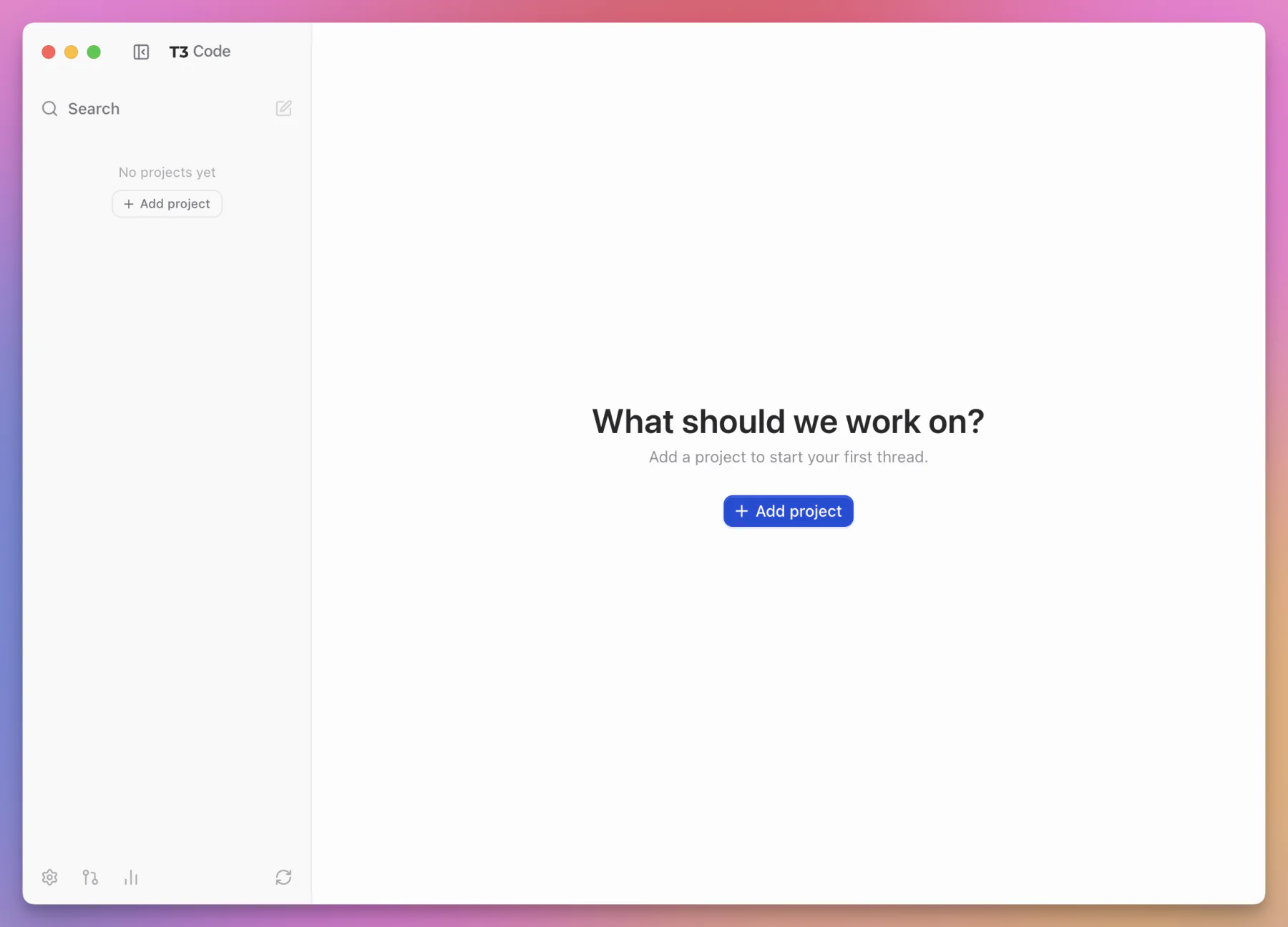
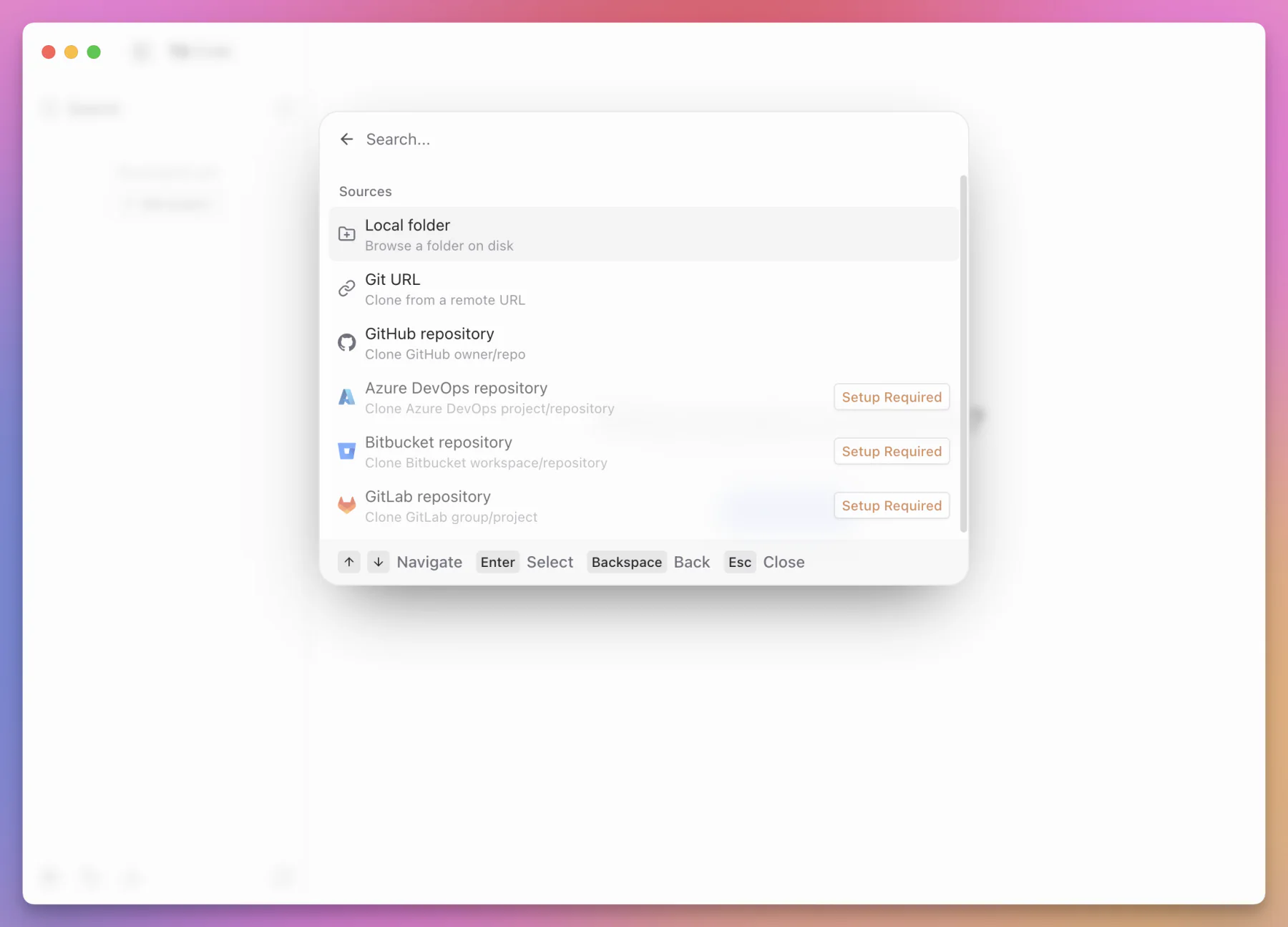
Add project lets you create a new Git repository under ~/.t3/projects, open a local folder, paste any Git URL (even a GitHub/GitLab branch or file URL), or browse connected hosts. Clones run in the background while you start typing your first prompt.
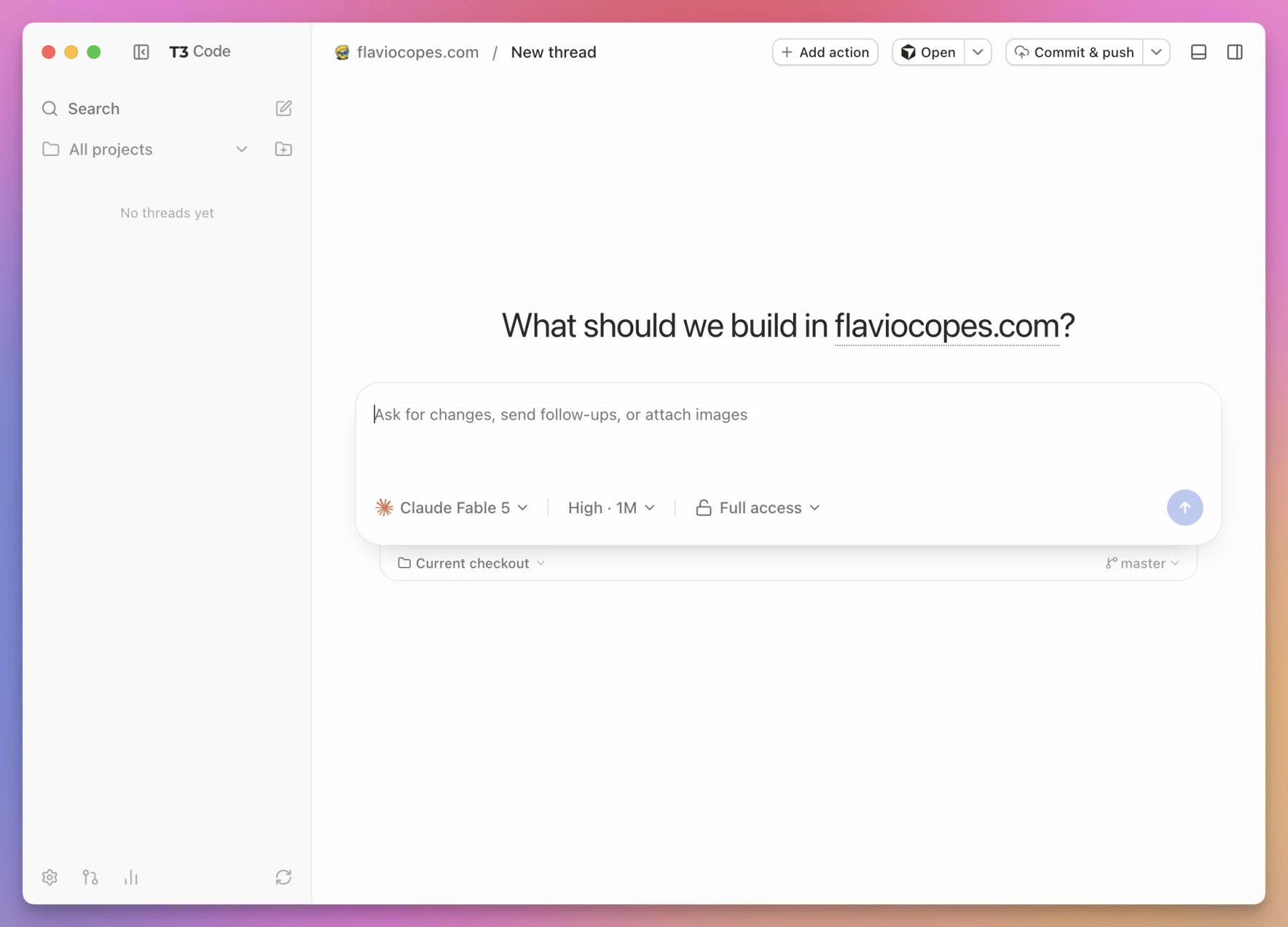
Inside a project, the composer puts the model, reasoning effort, permission mode, workspace, and branch on one bar:
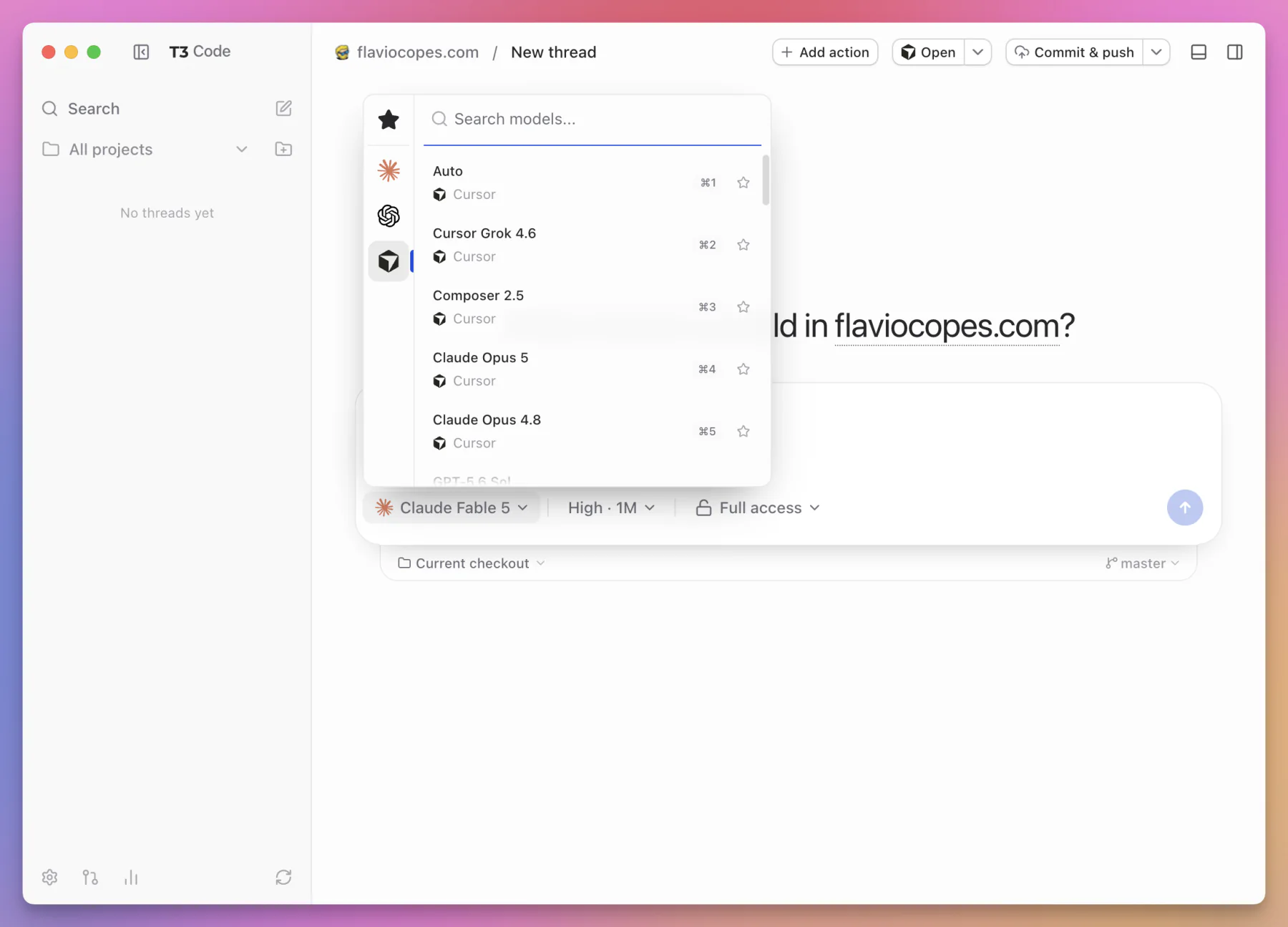
The model picker (Cmd+Shift+M) groups models by provider, supports search and favorites, and lets you move straight to reasoning effort and speed with the right arrow key:
On your first run in a real repo, pick Supervised mode and start with a read-only prompt:
Read this repository and explain how a request moves from the HTTP route to the database. Do not edit any files.That checks provider startup, file reads, streaming, and thread persistence without touching any files. Next, ask for one small edit and a test run so you can inspect the per-turn diff and try Edit from here.
Composer power features
A few composer features are worth knowing early on:
- Large prompts and attachments: up to 120,000 characters and 100 files per message (10 MiB per image, 80 MiB total images; 50 MiB per other file). Pasting 32 KiB or more automatically turns it into a text-file attachment so it doesn’t blow up context (
Cmd+Shift+Vkeeps it inline). HEIC/HEIF photos from iPhone convert to JPEG automatically, and you can send a message while uploads finish. - Rich Markdown: headings, lists, task checklists, and fenced code blocks format live as you type (turn off Settings → Chat → Rich text composer if you prefer raw Markdown).
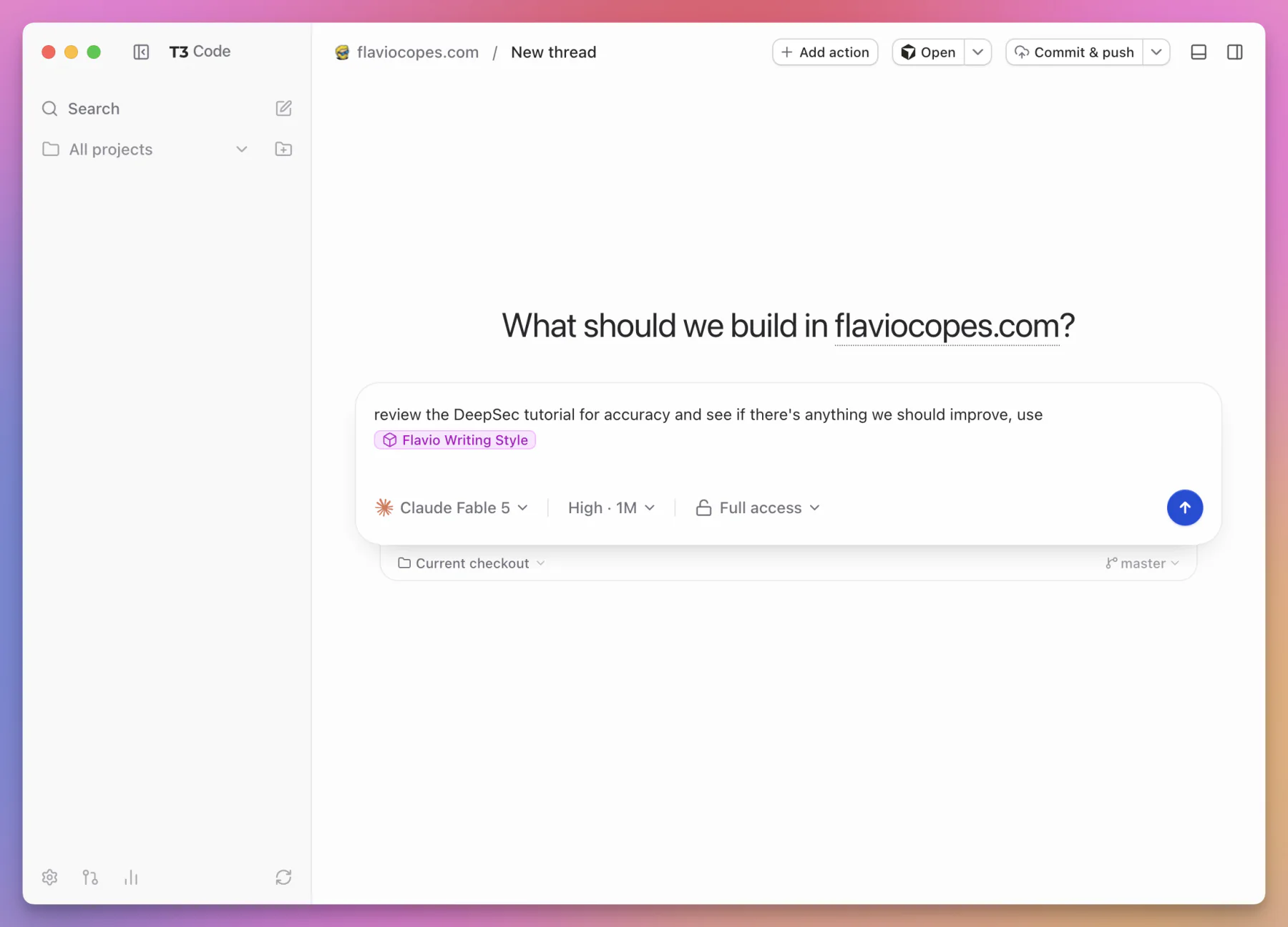
- Commands and skills: type
/for commands and$to search System, Personal, Project, and App skills. After installing new skills, plugins, or MCP servers, run Restart agent session from the command palette to pick them up without losing the thread.
- Context chips (
@,#, citations, and files):- Type
@plus part of a thread title (or drag a thread from the sidebar) to reference another thread from the same server or a linked machine. The agent reads that thread’s history only if needed, so attaching a long thread doesn’t cost any tokens up front. - Type
@plus a model or provider name (like@opusor@opus:opencode) to tell an agent which model to delegate to without changing the current thread’s model. - Type
#to search recent or exact pull request numbers and insert them as live status chips. - Highlight any text in an assistant reply and choose Cite in composer (or long-press Cite on mobile) to quote that passage with an inline comment.
- Type
- Session controls in chat:
/clearstarts a fresh provider session inside the same thread while keeping earlier messages and diffs visible./compactshrinks context when the provider supports it./usage-limitschecks remaining subscription limits for the active model without burning a turn./goal <definition of done>(Codex, Claude, OpenCode 2.2.5+, and Antigravity) keeps the agent iterating across turns until the goal is met. Use/goal clear,/goal pause, and/goal resumeon Codex and OpenCode.
- Prompt stash and recall: press
Cmd+S(Ctrl+S) to stash a half-written draft and its attachments for later (uploads are kept for 24 hours). PressCmd+Sin an empty composer to bring it back. PressArrowUpin an empty composer to cycle through previous prompts, or turn on Settings → Labs → Suggest next prompt forTab-to-accept predictions on Claude and Codex.
Side chats (/side and /btw)
Start a prompt with /side or /btw to ask a side question without pausing or cluttering the main thread:
/side Which file holds the retry logic?The side chat opens in the right panel with its own composer and doesn’t clutter the sidebar:
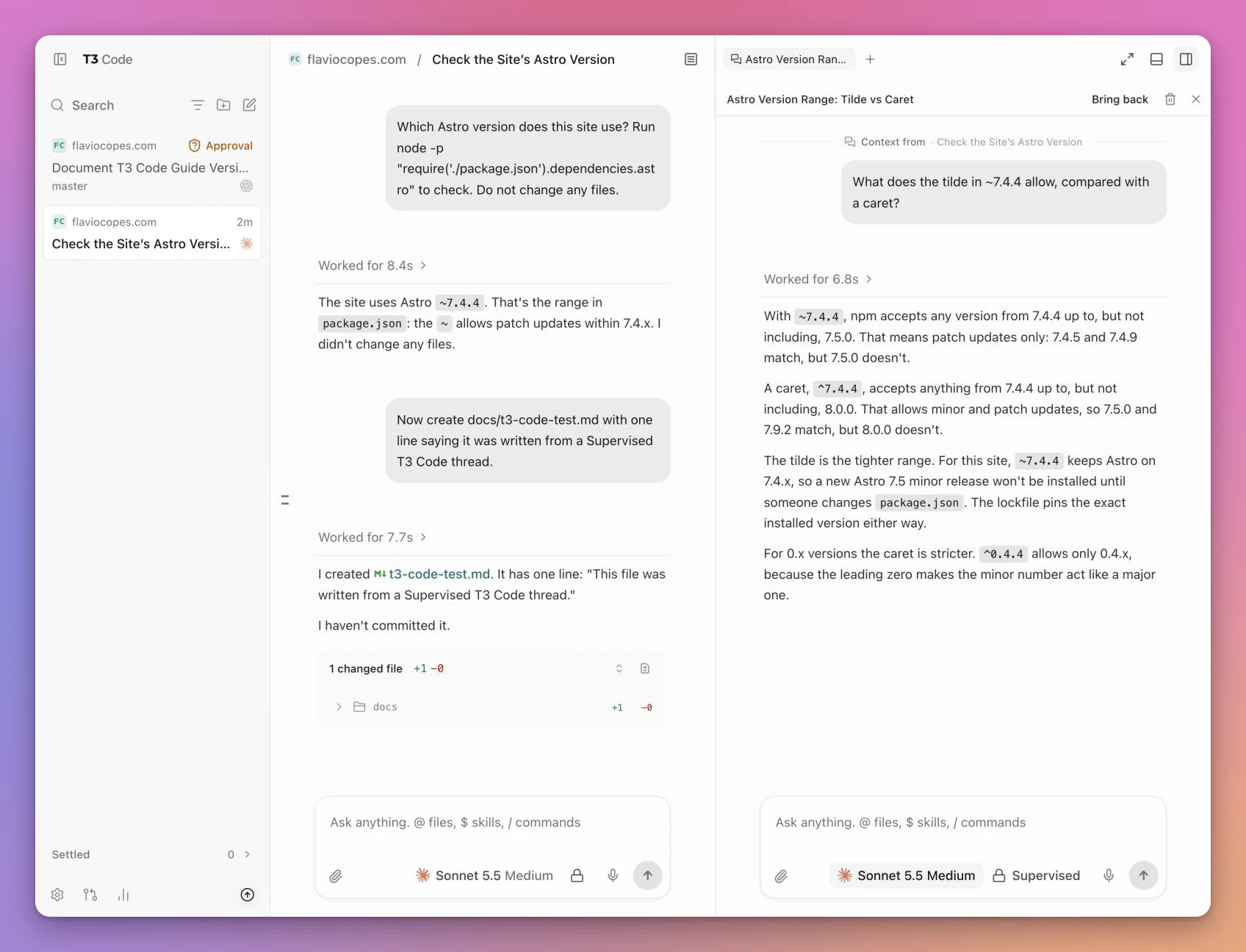
If the answer turns out to be useful, click Bring back to attach the side chat to your next message in the main thread. Since v0.1.11, you can also reference side chats directly from the main thread.
Background dispatch, server-side queue, and steering
Pressing Cmd+Enter (Ctrl+Enter) on a new thread, or Cmd+Alt+Enter on an existing one, sends the prompt in the background and opens a fresh composer right away.
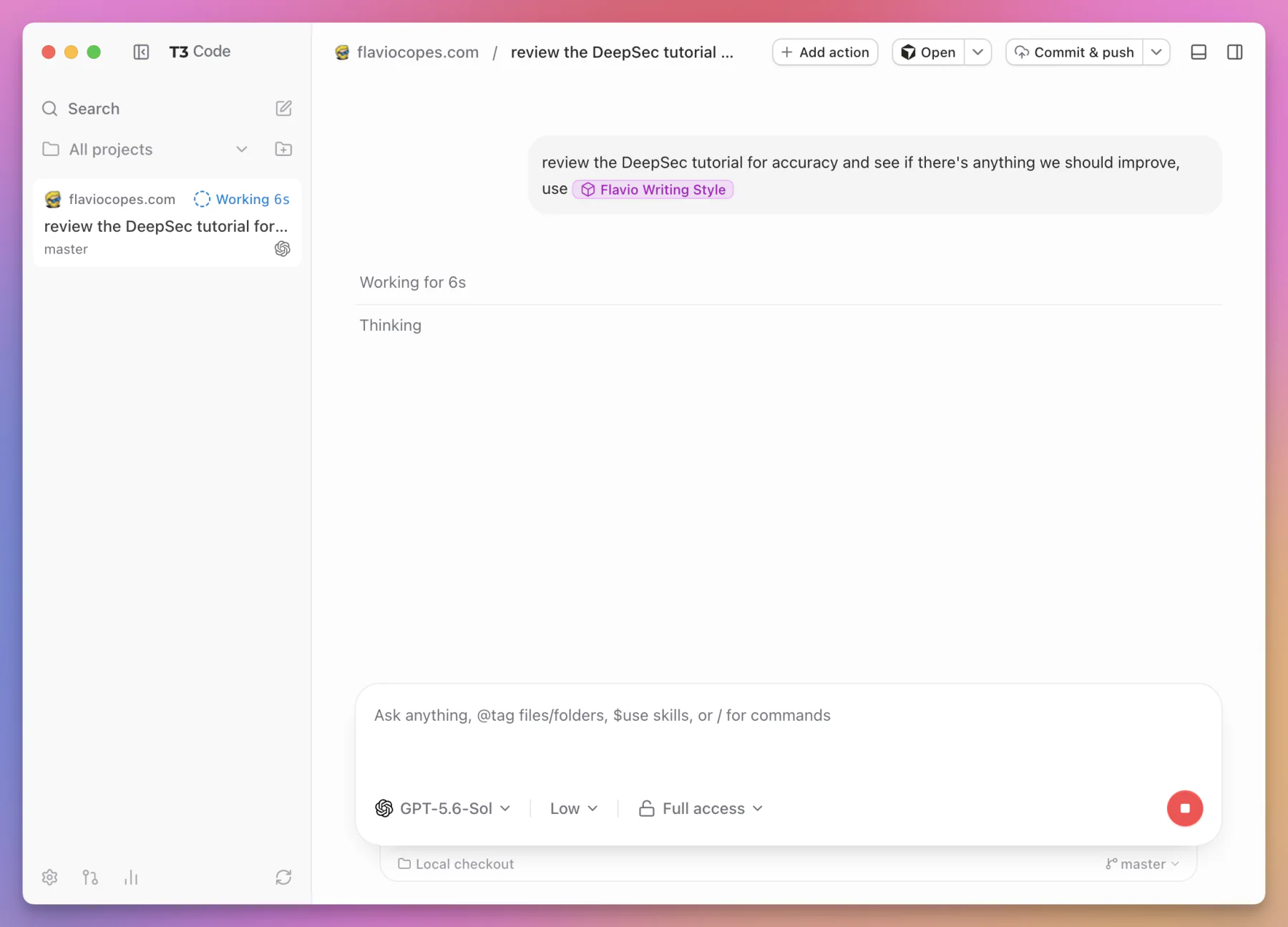
While a turn is running, Settings → Chat → Follow-up behavior decides whether sending another message Queues it for the next turn or Steers the active turn right away. Use Cmd+Enter to flip your default for one message, Option+Up to edit the latest queued message, and Cmd+Shift+Enter to send the oldest queued message as an immediate steer.
Because the queue lives on the server, queued messages survive restarts. If you stop a turn or hit a usage limit, pressing Resume (or letting auto-resume kick in when the quota resets) uses native continuation on Claude, Codex, OpenCode, and Cursor without injecting a fake user message.
Voice input and dictation
Press Cmd+Shift+D (Ctrl+Shift+D) or click the microphone to dictate into the composer, diff annotations, PR comments, or browser annotations.
In Settings → Voice, you choose where your audio goes:
- On-device: Apple Speech on macOS 26+ (desktop app), iOS 26+, or Android 12+, so no audio leaves the device.
- Self-hosted on an environment: download a local speech model onto your Mac or Linux server (T3 Code even reuses models already cached by Handy or Hugging Face) with GPU/CPU controls and streaming preview.
- Cloud opt-in: OpenAI, Grok Voice Transcribe, or OpenRouter (with zero data retention requested).
You can also set up a Project dictionary so domain names and library terms transcribe right, and turn on Transcript cleanup (with a custom correction cue like "scratch that") backed by a fast text generator.
Workspaces, worktrees, and multi-repo projects
Every thread runs in a workspace: either the current checkout or an isolated new Git worktree.
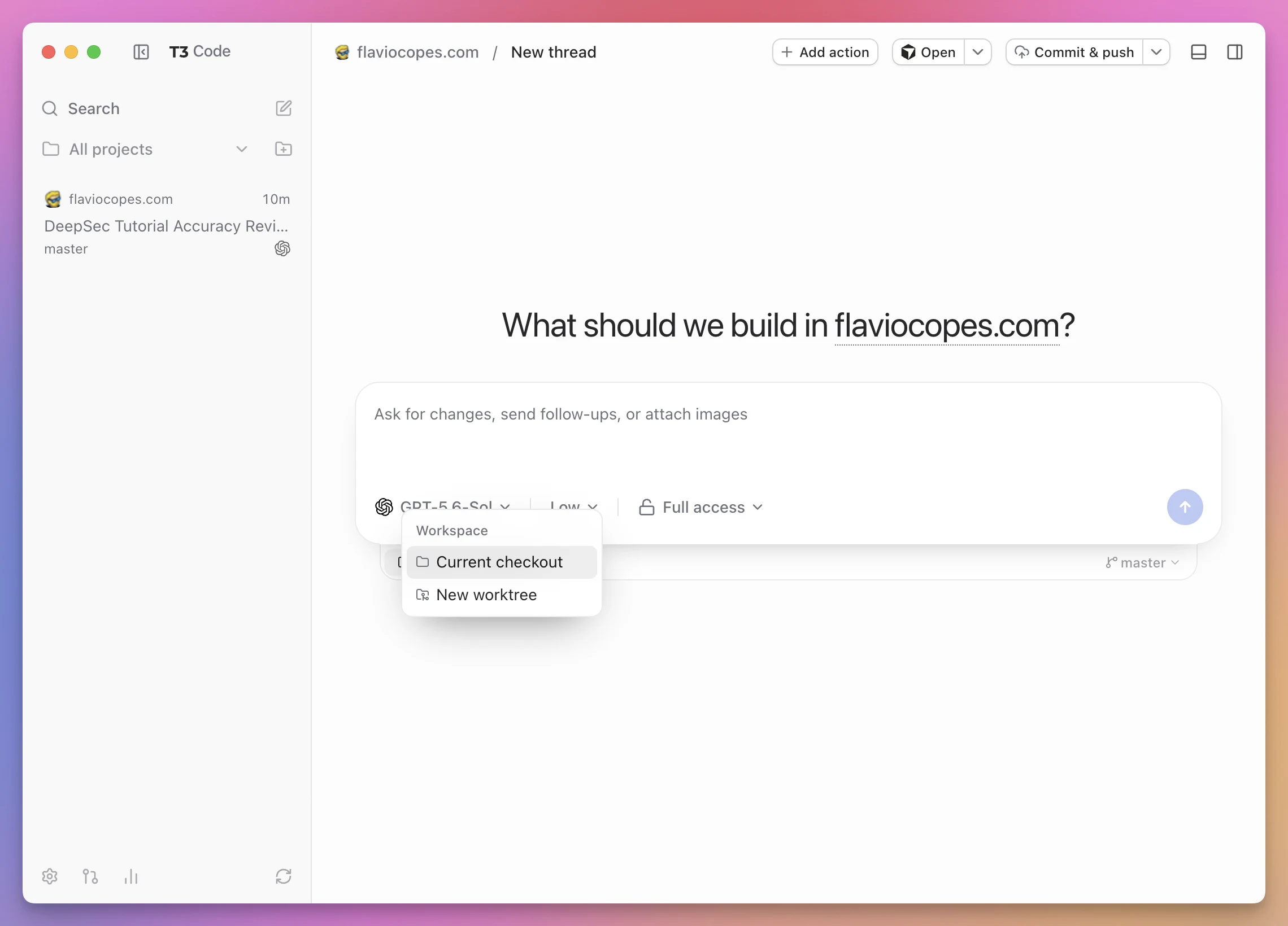
Current checkout vs. isolated worktrees
Use Current checkout when you only want one agent editing files, need it to see your uncommitted local changes, or work in a repo that doesn’t allow worktrees. Keep any other threads in that checkout read-only so two agents don’t overwrite each other’s files.
Use New worktree when you’re running separate tasks in parallel. Each worktree gets its own directory and branch while sharing Git’s object database:
If Git worktrees are new to you, see my Git worktrees tutorial or the free Git course. Keep in mind that worktrees only isolate files and branches, not shared resources like port 3000, a local Postgres database, or Docker container names.
You’ll find more worktree options under Settings → Worktrees and Settings → Labs:
- Worktree handoff: if a thread started in the current checkout and turns into a bigger edit, ask the agent to move it into a new Git worktree (
t3_worktree_handoff). T3 Code creates the branch and worktree, runs your setup script, and picks up there. - Fast worktree checkout on macOS (Labs): uses APFS copy-on-write clones from a warm local cache (Git 2.42+), roughly doubling worktree creation speed and keeping the first
git statusinstant. - Custom branch naming: pick a static prefix (
t3/), automatic semantic prefixes (feat/,fix/), or custom prompt instructions (like including issue IDs). - Large repositories: tune
"worktreeSubmodules"(recursive,top-level, ornone) or pass"worktreeSparsePatternsPath"int3.jsonfor Git sparse checkouts (Git 2.35+). - Automatic cleanup: delete T3-managed worktrees after a thread settles, merges into the default branch, or goes inactive, while protecting uncommitted tracked and untracked changes.
- Keep default branch fresh: turn on Automatically pull under Settings → Source control & issues to fast-forward clean default-branch checkouts automatically.
Multi-repo projects (v0.1.12)
A T3 Code project doesn’t have to be a single Git repository. Starting in v0.1.12 (announcement demo), one project and one thread can span several repositories across three setups:
- A plain folder of repositories: T3 Code scans the project folder on disk every time, looking one level down (such as
shop/apiandshop/web) and one level deeper inside non-repo folders likesrcorpackages. Clone a new repo there and it joins the project right away. - External folders and
.code-workspacefiles: repositories outside the project folder are never granted automatically. Add them under Settings → Projects → Repositories → Add folder or accept the folders suggested from a.code-workspacefile (up to 128 folders per project). - Submodules: submodules initialize inside their parent worktree rather than getting separate worktrees. Once a thread edits a submodule, it appears as its own repository with its own diff and Git actions while the parent repo shows the updated pin.
You can also track an external repository from the CLI:
t3 project add ~/dev/shop --track ~/dev/shared-typesTo exclude a noisy repository inside the folder on every machine, list it under "ignoreRepositories": ["vendor/big"] in the project folder’s t3.json. Note that only the project folder’s t3.json is loaded, not scripts inside individual child repos.
New worktree works across multi-repo projects too. One worktree thread creates a matching project folder and checks out a linked worktree for each selected repository on the same branch, so a single turn can change your API, frontend, and shared package together. Every repository is selected by default when the project has eight or fewer; above eight, you pick which ones to include from the repositories control before sending (and you can bring more in mid-thread under Other repositories). Each repo branches from the thread’s base branch if it has one, otherwise its own default branch. If you need custom setup, t3.json accepts a worktreeLayout block with create and remove commands that you approve once on web or desktop (agents only run them in Full access).
Keep two limits in mind when working across repos:
- In a plain folder, files sitting outside every repository are shared links to the originals, not copies, so editing them changes them for every thread.
- Review and Git actions still run one repository at a time. Turn diffs group changed files by repository, the Diff pane adds a repository picker on web and desktop, and commit, push, and PR actions live under each repository in thread details (or the mobile Git controls sheet). Rewinding restores each repository from its own checkpoints and flags any repo that had no earlier snapshot.
Permission modes, approvals, and checkpoints
T3 Code separates permission mode (what an agent can run without asking) from interaction mode (Normal vs. Plan).
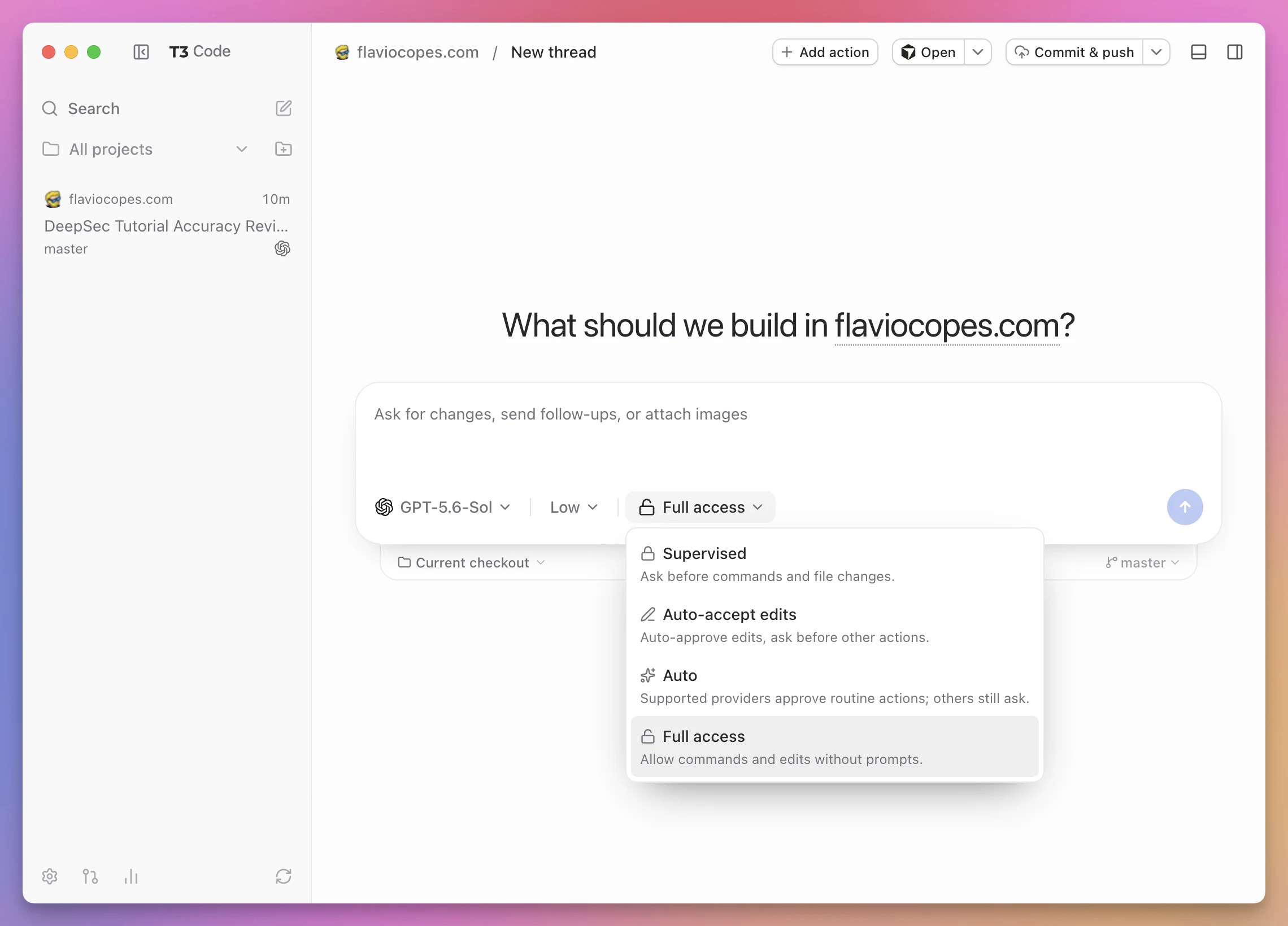
| Mode | File edits | Shell commands & actions | Best use |
|---|---|---|---|
| Supervised | Ask first | Ask first | Valuable checkouts, unfamiliar repos, learning T3 Code |
| Auto-accept edits | Automatic | Ask when needed | Routine code edits while gating shell commands |
| Auto | Provider review | Routine runs; risky actions ask | Everyday trusted work in a controlled repo |
| Full access | No prompts | No prompts | Disposable worktrees or isolated environments |
New threads start in Full access by default. You can change the global default under Settings → Threads → New threads → Permissions (Cmd+Shift+A toggles it for the current thread), or set a stricter default per project. Admins on shared machines can enforce hard limits with a managed policy.
There are a few differences across providers:
- Auto mode uses the provider’s native safety reviewer on Codex, Claude, Cursor, Grok, Antigravity (when the Google account includes Antigravity Auto), and fx. OpenCode falls back to asking.
- Full access still respects native safety guards: Claude still checks dangerous-removal rules (and any Claude settings that disable bypass permissions), Codex still checks restricted network destinations, and Antigravity can still send native approval prompts.
- Grok, Muse Code, Kiro, and fx each expose only the subset of modes their CLI supports. If you pick a mode a provider doesn’t support, T3 Code drops down to Supervised.
Approvals from any device
When an agent asks to run a command or edit a file, the thread pauses with an Approval badge in the sidebar and inline Decline / Approve buttons:
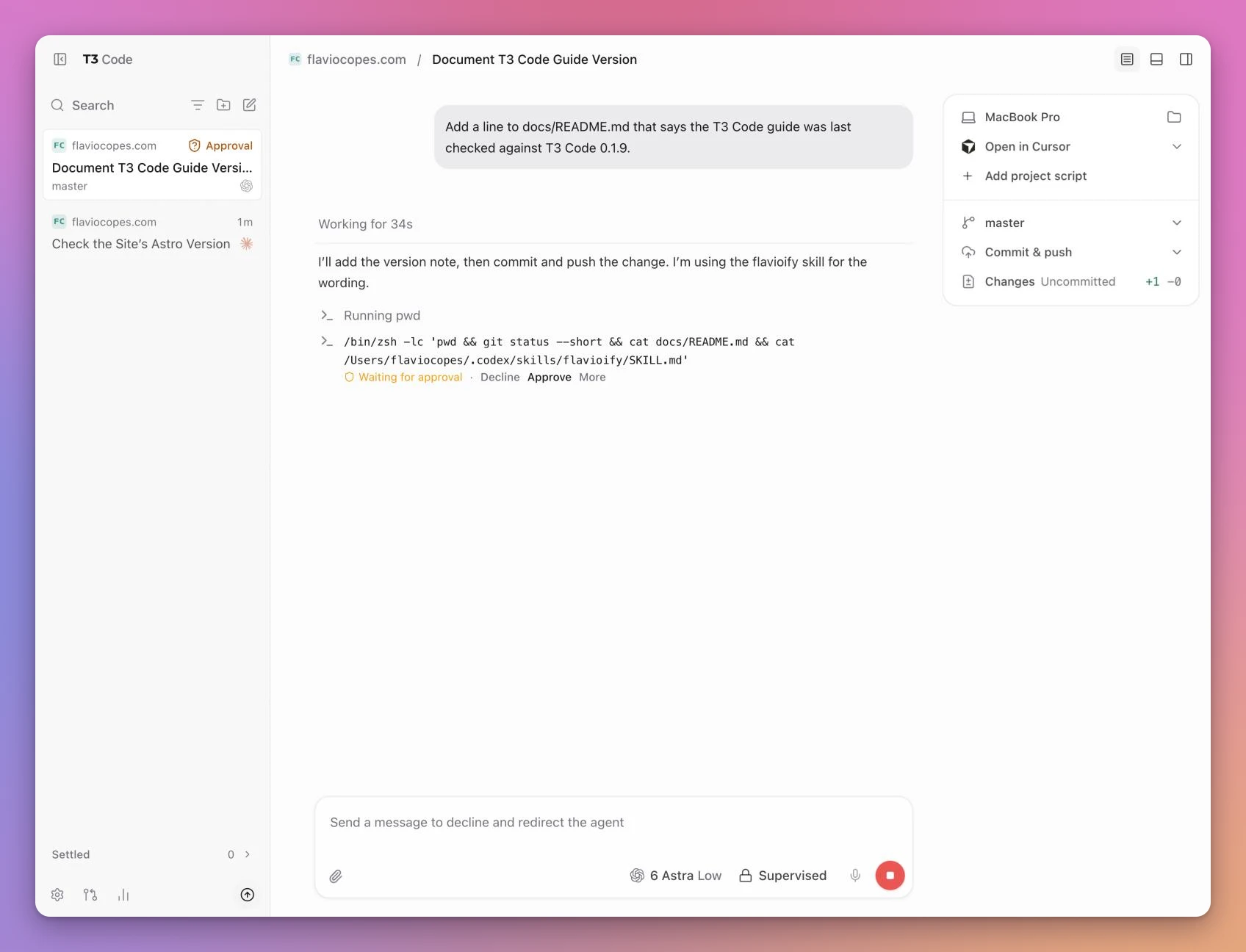
You can approve or decline from desktop, web, or mobile. Typing a reply into the composer while a request is waiting declines that request and redirects the agent (including for a delegated subagent, whose approval card shows up right inside the parent conversation). For Claude, you can approve an MCP app once for the whole session.
Plan mode vs. default mode
Switch the interaction mode to Plan when a task spans several parts of the codebase, or when a wrong first guess would mean redoing work. Because it uses the provider’s native planning mode, the agent inspects the repo and lays out a plan before touching any files. Skip it for quick one-line fixes where planning just slows you down.
Checkpoints and Edit from here
T3 Code saves workspace checkpoints as hidden Git refs around every turn. Under any earlier message you sent, click Edit from here to rewind:
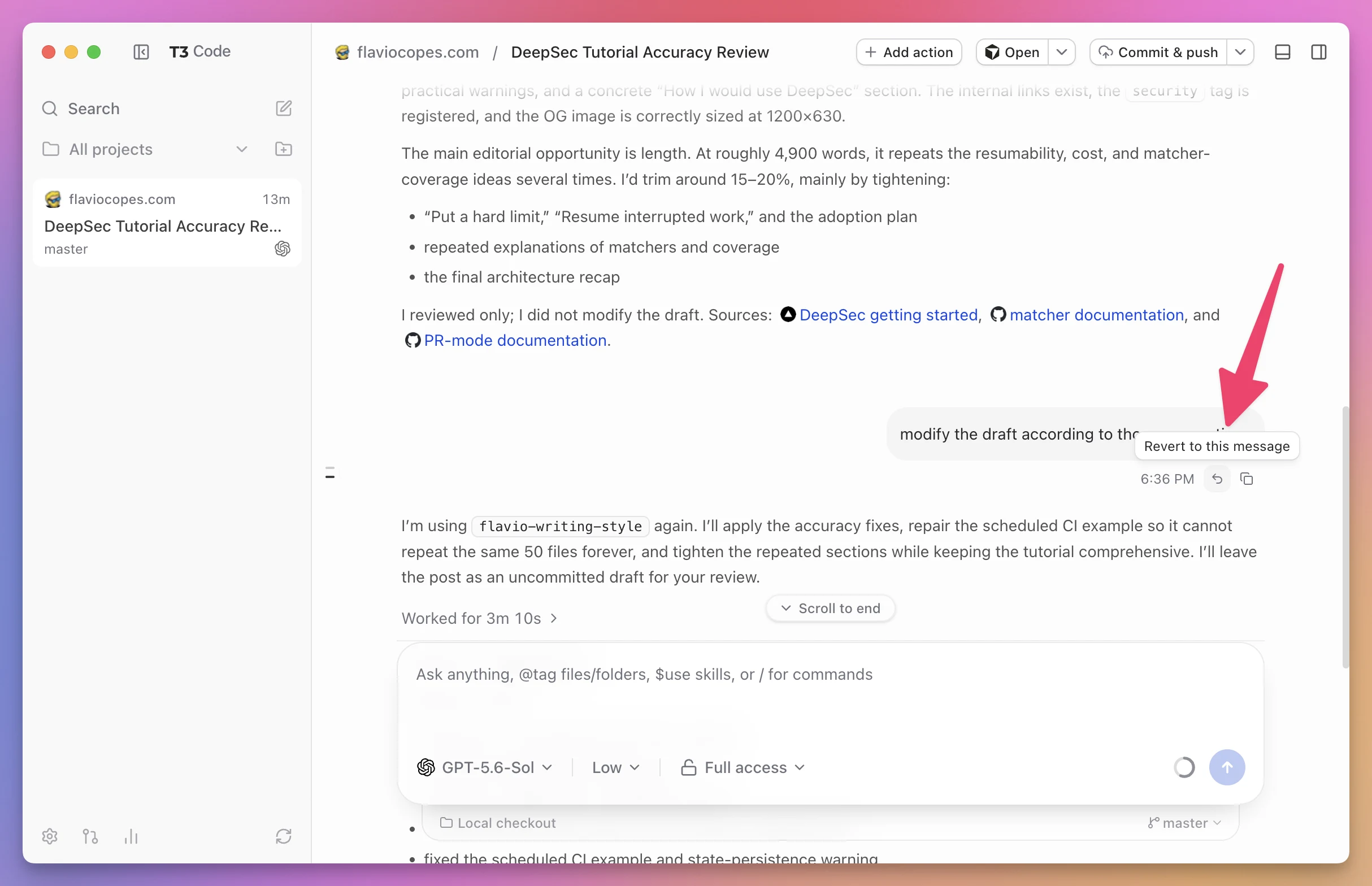
- Revert files too restores the workspace checkpoint and rewinds the conversation (including any manual edits you made after that turn). File restore works only in isolated worktrees and refuses to run if another active thread shares that directory.
- Revert and keep changes rewinds only the conversation while leaving the files on disk.
On providers without native rewind (Antigravity and ACP Registry agents), T3 Code restores the files and starts a fresh session carrying the kept conversation history. Treat checkpoints as a fast local undo, and still commit and push work you want to keep to Git.
Multi-provider orchestration and portable handoffs
Most people start using T3 Code as a tabbed inbox for separate chats. You get a lot more out of it once you start combining providers in the same workflow.
Cross-provider delegation (delegate_task)
Inside any supported thread, the agent can call delegate_task to spin up child tasks on other enabled providers, optionally in their own worktrees. In his walkthrough, Theo asks a Codex thread to review the T3 Code repo, and it kicks off four parallel reviewers across Codex, Muse Code, Antigravity, and Claude Code.
You can follow those child tasks from the thread’s Agents view and answer their approval prompts right inside the parent thread. Once every child finishes, the parent thread wakes back up automatically with their results.
Providers that support native subagents (like Claude Code) also show subagent cards in the timeline and under Lineage in thread details, with elapsed time, model, effort, and the tools they used:
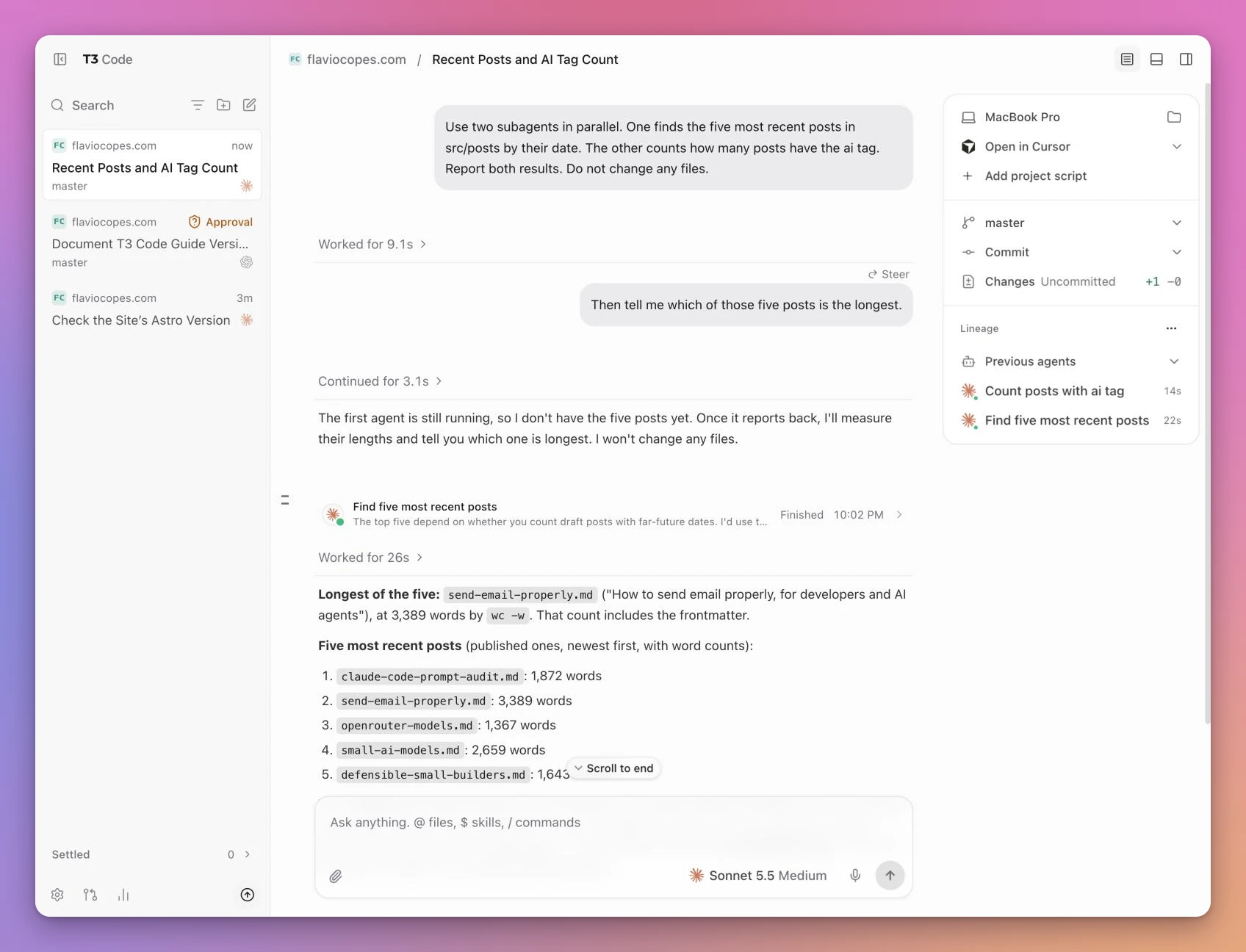
Switching providers mid-thread and portable handoffs
You can switch model or provider right in the middle of a thread (watch Theo switch mid-test on an iOS device). The timeline marks exactly where the model or effort level changed.
When you switch providers, fork onto another runtime, or hit a context limit, T3 Code runs a portable handoff:
- Short threads carry over intact. Longer threads send a budgeted selection (the default cap is
T3CODE_CONTEXT_HANDOFF_TOKEN_CAP=16000, tunable from 1,024 to 64,000) that prioritizes your original request, recent turns, and key command results. - Your newest prompt is never truncated to make old history fit.
- The outgoing provider’s private reasoning, tool-call internals, and attachments stay behind. Instead, the handoff includes references to omitted messages so the new agent can fetch exact earlier turns on demand with T3’s thread-reading tool.
- If a target session runs out of context room, T3 Code automatically opens a fresh provider conversation with a trimmed slice of history and sends your prompt, so you don’t have to compact manually.
Forking, context transfer, and Activity Log modes
You can fork any thread from its latest stable turn or an earlier checkpoint to try another approach without touching the original branch, and later merge the context back (merge_back) into a related thread in the same project.
In busy threads, consecutive tool calls collapse into compact summaries in the Activity log (like Ran 2 commands and sent messages to 3 threads). Under Settings → Chat → Tool calls in chat, you can leave everything visible, choose Hide successful (show live calls, keep only failures), Hide all, or switch to Zen mode to show just your prompt and the agent’s final reply while keeping approvals, questions, and errors visible. Settings → Chat → Screen reader announcements can also narrate turn status and steps live without leaving the composer.
Review changes: files, diffs, visual replies, browser, and devices
You can’t just trust an agent’s summary and call it a day. T3 Code puts terminals, files, diffs, visual replies, a browser, and mobile simulators right next to the conversation so you can inspect the work yourself.
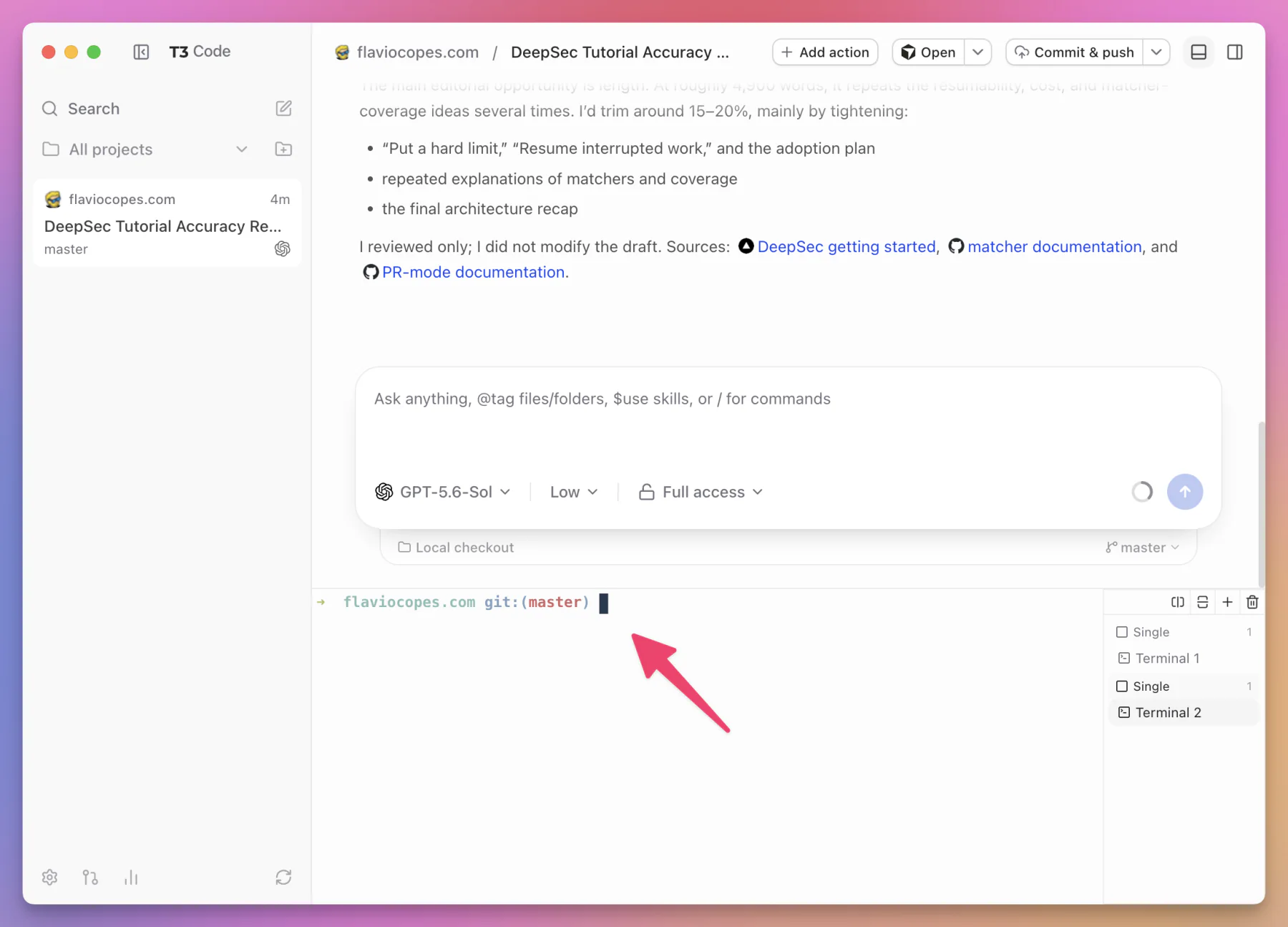
Terminals and file browser
Each thread gets its own terminal drawer running on the server machine inside the thread’s directory, even if you open it from your phone:
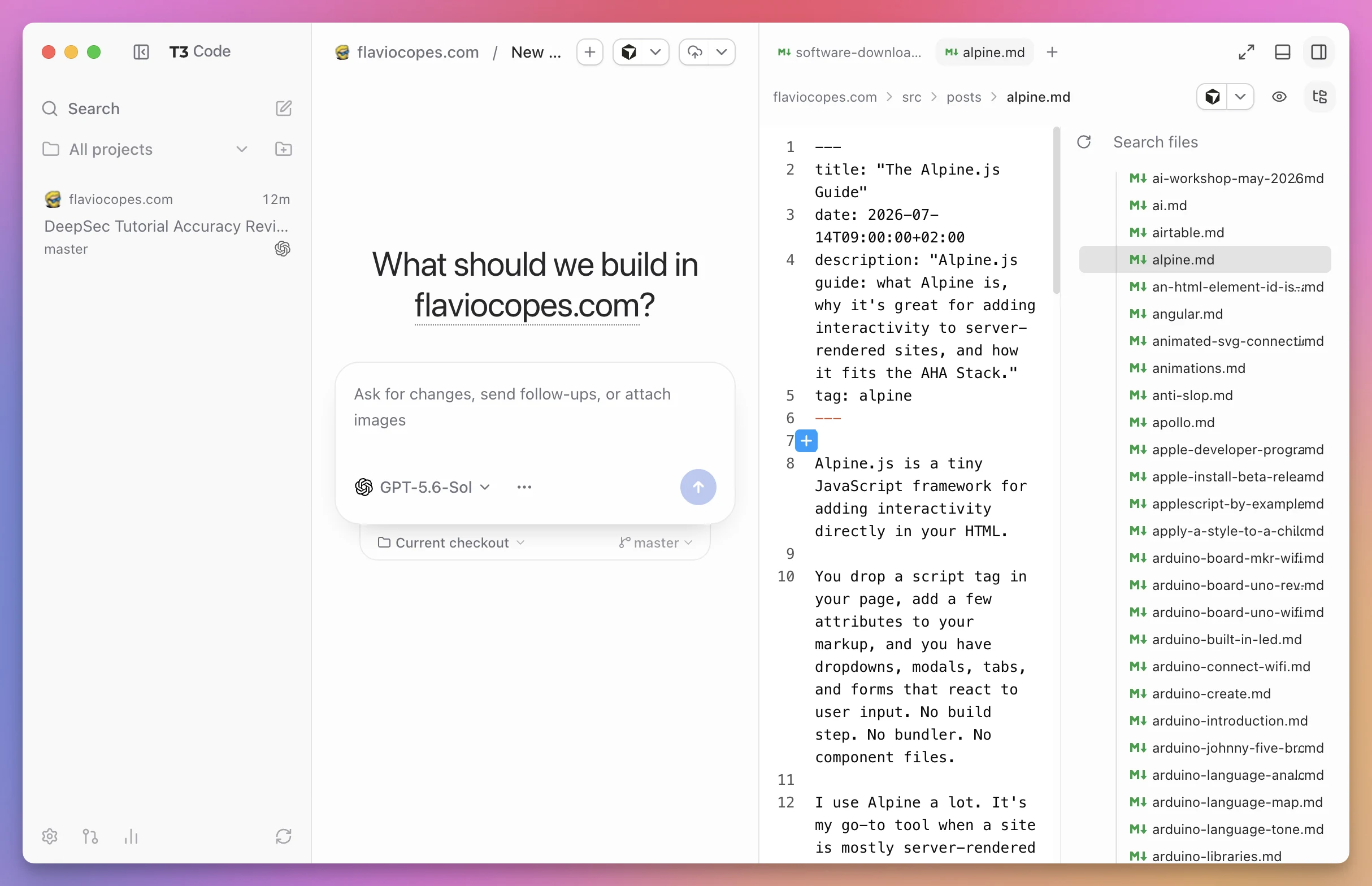
The file panel lets you browse the workspace and preview Markdown, images, HTML, PDFs, Office docs, and ZIP archives (up to 50 MB). Since v0.1.12, large files open in full without freezing the preview and include a copy button. It also opens read-only links when an agent points to a file outside the workspace, and you can select lines to attach an inline comment straight to the composer:
Four diff scopes (plus global diff search)
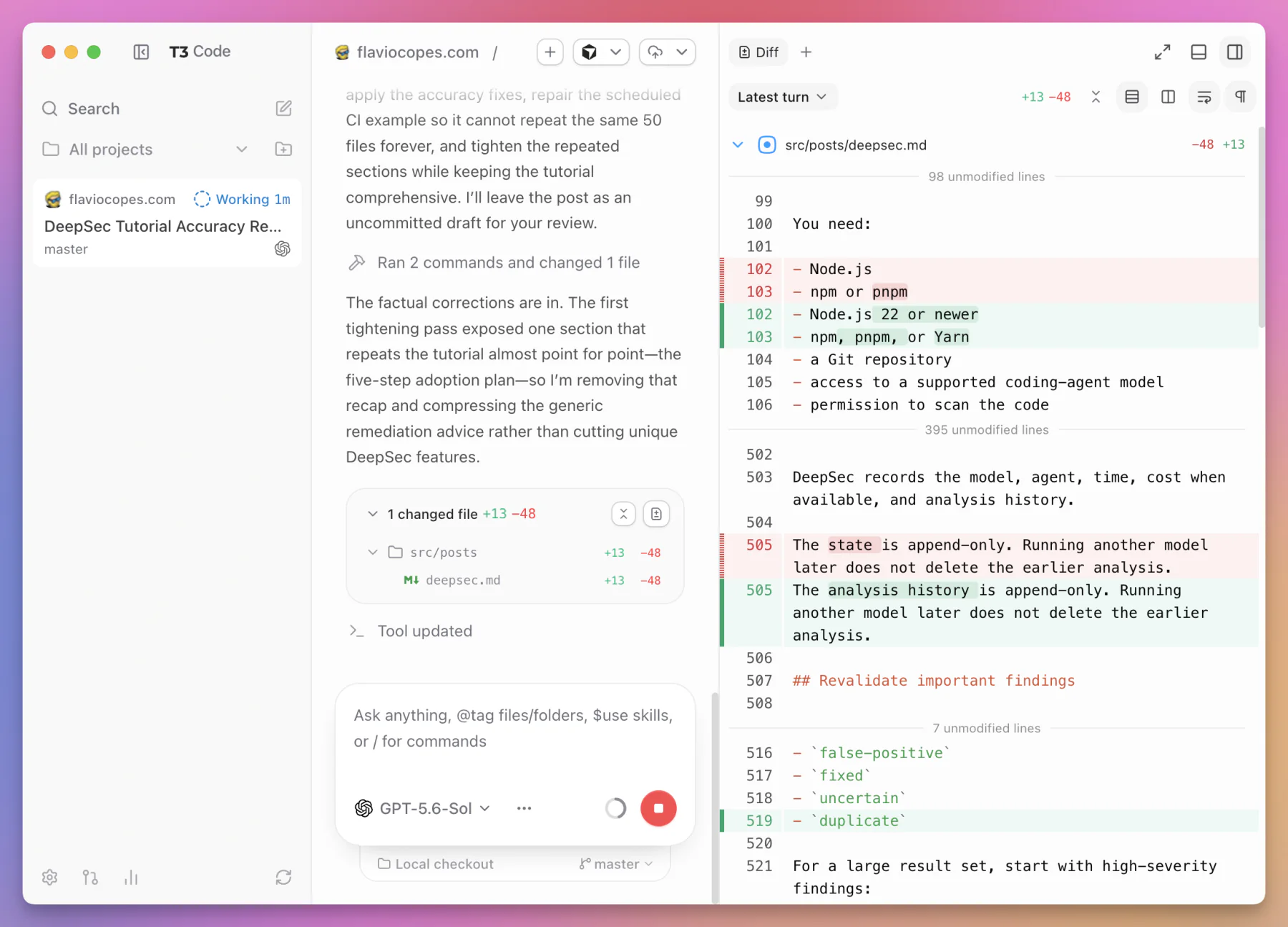
The Diff panel gives you four scopes depending on what you want to check:
- Latest turn / Turn: only what that specific prompt changed (pulling or rebasing doesn’t pollute the list with unrelated upstream files).
- Commits: inspect one local commit at a time (up to the newest 100 commits in the branch comparison).
- Uncommitted: everything currently modified on disk across turns.
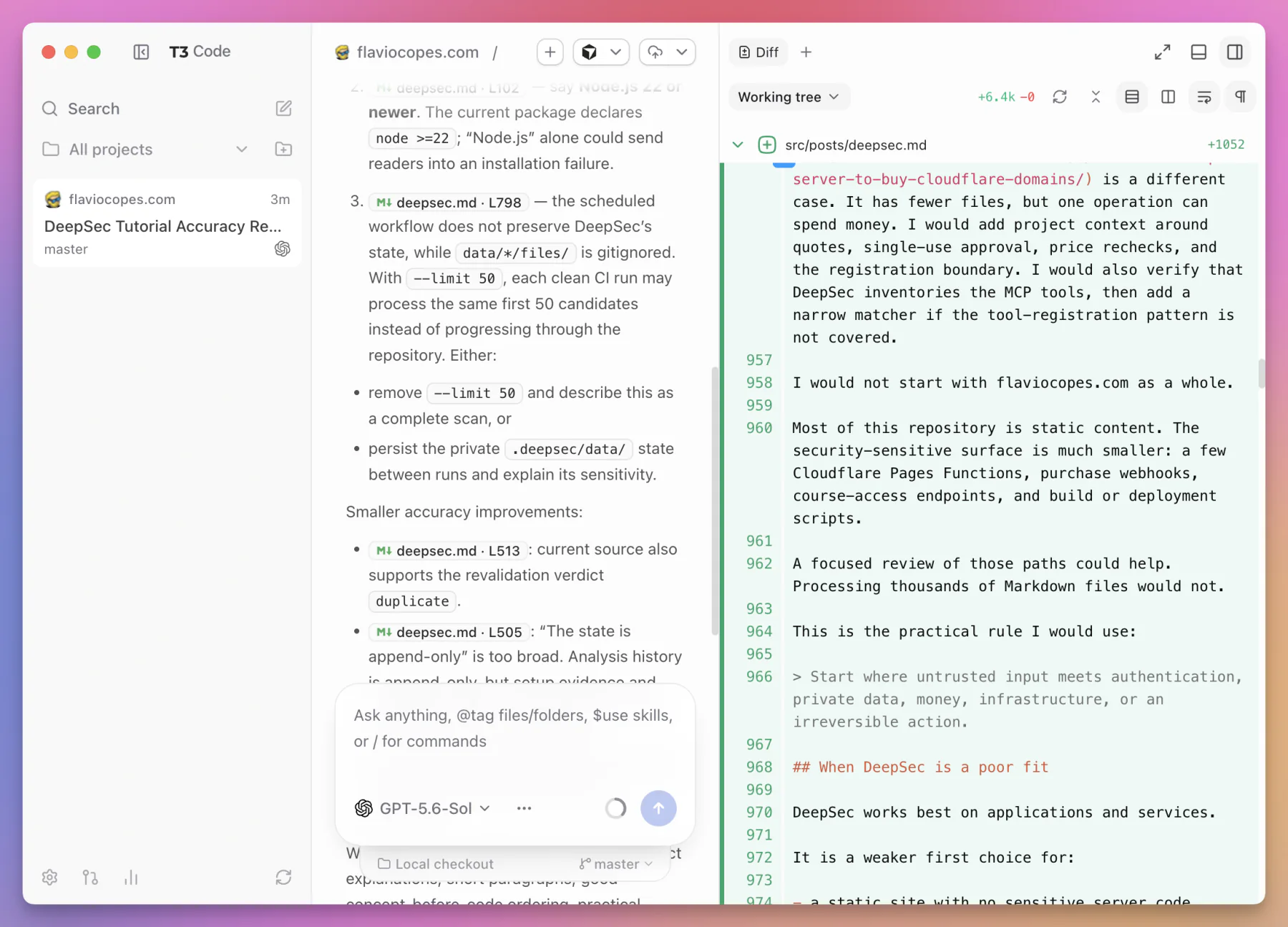
- Changes (Branch): the full diff against your base branch before committing or opening a PR.
Click into any diff and press Cmd+F (Ctrl+F) to search across every file in the diff, including folded files and hidden unchanged lines. Select any lines in a diff to drop a review comment chip directly into your next prompt.
Visual replies and inline MCP Apps
Any agent, on any provider, can publish a Visual reply instead of dumping a long text response. It’s a self-contained, sandboxed HTML page rendered right inside the thread (above the written summary) on web, desktop, and mobile. You can ask for a chart, comparison table, interactive mockup, or collage of screenshots. It matches your light or dark theme, embeds local images permanently, and supports full-screen zoom.
On Codex and Claude Code (2.1.301+), MCP servers that implement the MCP Apps spec also render interactive mini-apps right under their tool call. Read-only calls run automatically, while mutations and chat posts ask for approval first. When a Codex or Claude Code MCP server needs OAuth authentication, v0.1.12 puts a Sign in button straight on the thread warning (including on remote servers and mobile): open the login page in your browser, paste back the callback URL, and T3 Code finishes the sign-in on the server machine and reconnects the server.
Built-in browser, remote tunnels, port forwarding, and session import
A project action with previewUrl opens your dev server right inside T3 Code’s browser panel, and the Servers list automatically detects ports opened by your agents and terminals.
Beyond previewing a local URL, the built-in browser handles agent automation, remote tunneling, and signed-in sessions:
- Shared agent browser: agents can snapshot the accessibility tree, click elements, run JavaScript, test mobile viewport presets (iPhone, Pixel, iPad), flip light/dark mode, and record preview videos. You can take control of an agent’s tab to type or sign in, then release control so the agent keeps going.
- Browser tunnels and one-click port forwarding (
v0.1.11): when an agent starts a dev server on a remote machine, opening it in your desktop app loads it locally while tunnelinglocalhosttraffic straight to the remote server. If you want to hit that server from Chrome,curl, or a database client on your laptop, click the forward button in Servers,⌘-clickthe remote server, or open Forwarded ports in the command palette to forward the remote port to your local loopback. On iPhone, iPad, or Android, choose Open on this device on any remotelocalhostpage for native touch scrolling. - Import signed-in browser profiles: open Settings → Browser → Browser profiles → Add profile → Import from to do a one-time cookie import from Safari, Firefox, Zen, or Helium, so agents can test authenticated pages without logging in from scratch.
- Default browser on macOS: you can even set T3 Code as your macOS default web browser so clicked links open in a browser panel beside a ready agent.
- Linux headless setup: macOS and Windows work out of the box. On Ubuntu 23.10+ or minimal Linux servers, run
sudo t3 browser setuponce to install missing libraries, fonts, and the Chrome sandbox AppArmor profile.
Live iOS Simulators and Android Emulators (Devices)
Open the right panel and choose Device to watch and tap a live iOS Simulator (macOS with Xcode) or Android Emulator (Android SDK + ffmpeg with libx264 for emulator video) right beside your thread, or float it in a resizable window over chat.
You also get controls for testing states, letting agents drive the device, and streaming simulators from another Mac:
- Interactive Tools drawer: toggle light/dark mode, scale text size, overlay accessibility element frames, set fake GPS coordinates, flip app permissions, send test iOS push notifications, or fold and unfold supported foldables in interactive 3D view.
- Agent control: turning on Agents can use devices under Settings → Devices gives agents the
device_*tools and theagent-deviceCLI so they can boot simulators, tap through screens, take screenshots, and verify fixes automatically. - SSH device hosts: even if your main T3 server runs on Linux, you can add a Mac over SSH under Settings → Devices → Add source → Machine over SSH to stream its iOS Simulators directly into your threads.
SnapShots: global window capture with accessibility data
Turn on Settings → SnapShots in the desktop app (macOS, Windows, or Linux Wayland) and press the global shortcut (both Shift keys together by default on macOS and Windows) from any app on your computer.
T3 Code grabs the active window screenshot, drops it straight into your current draft, and when Include app text is on, attaches the window’s accessibility tree (app name, window title, controls, visible text, and coordinates). That way the agent gets both the pixels and the structured UI hierarchy, instead of having to guess tiny UI labels in a screenshot.
Issues, pull requests, review guides, and PR watch
You can manage issues, branches, diffs, reviews, and merges without leaving T3 Code.
Nine supported source control hosts
Configure Git and your host credentials on the server machine, then hit Rescan under Settings → Source control & issues:
| Host | How to authenticate on the server | Highlights |
|---|---|---|
| GitHub (incl. Enterprise) | Token in Settings, GH_TOKEN, or gh auth login (2.81+) | Native API, PR stacks, viewed-file sync, merge queue, fork workflow approvals |
| GitLab | glab auth login | Merge requests, auto-merge, one-click revert of merged MRs |
| Forgejo / Gitea | fj or tea (0.16+) | Shared integration (Codeberg included); uses tea for subpath URLs |
| Bitbucket | Access token or Atlassian email + API token in Settings | Full clone, publish, and PR review |
| Azure DevOps | az extension add --name azure-devops + az login | PR listing, auto-merge (comments are read-only) |
| GitCafe | cafe auth login or token in Settings | Stack merges and restacking |
| Cursor Origin | origin auth login | Private repos (origin.cursor.com); see my Cursor Origin post |
| TanStack Source | Private beta (T3CODE_FEATURE_FLAGS=tanstack_source), src auth login | Live CI logs, private PRs on public repos |
If you’re about to commit straight to the default branch, T3 Code catches it and lets you move your changes onto a feature branch instead:
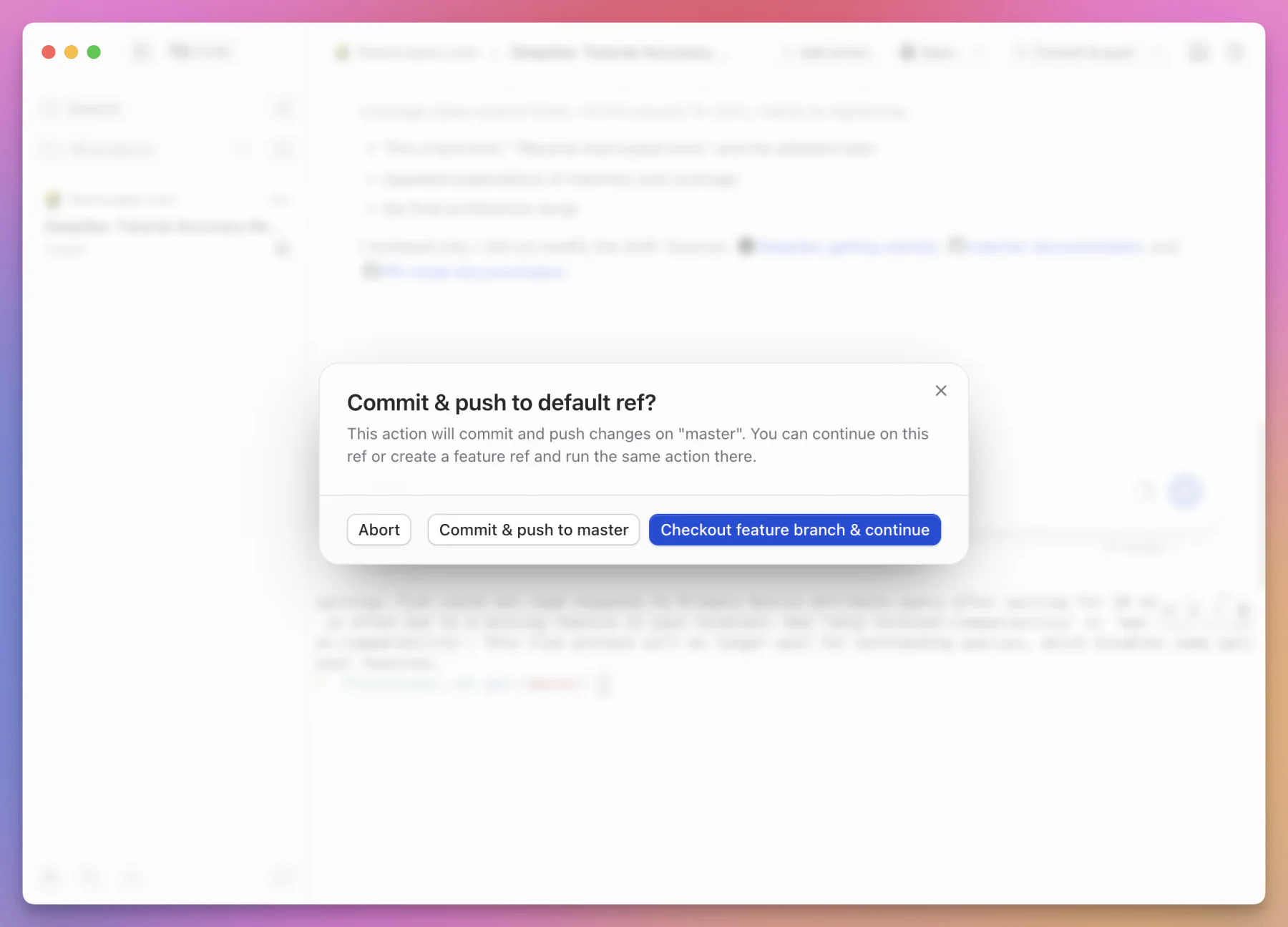
Under Settings → Source control & issues → Commits & pull requests, you can choose Repository conventions (which reads your AGENTS.md and recent commits), conventional commits, or custom instructions. There’s also a Remove agent credits when merging toggle that strips agent Co-Authored-By trailers on GitHub merge and squash commits while keeping human co-authors intact.
The Issues page (v0.1.11)
Open Issues from the sidebar (or run Open issues from the command palette) to browse open and closed issues across GitHub, GitLab, Azure DevOps, Forgejo, and Linear (connect one or more Linear accounts with API keys and bind several teams per project).
You can filter by involvement or tracker, save Views, edit titles, labels, and assignees, leave comments, and link an issue straight to a thread (agents can also call link_issue and create_issue). Clicking an issue badge in the sidebar opens that issue and its linked pull requests right next to the conversation.
PR Review Guides, viewed marks, and GitHub stacks
Opening Pull requests gives you saved filter views, offline-readable mobile PR diffs, and a few tools that speed up reviewing agent-written code:
- Review Guides (beta): enable this under Settings → Source control & issues to add a Guide tab to every PR. Click Write guide (or ask an agent to generate guides for a batch of PRs), and Claude or Codex inspects the diff in a temporary checkout to put together a reading-order tour. Important design choices get flagged Look closely, mechanical renames are grouped at the end, and every changed file is accounted for. You can select lines inside any stop to leave a review comment, or click Ask about this stop to open a thread with that context already loaded.
- Mark files as viewed: check files off in the Code tab to collapse them. If a new push touches a viewed file, it pops back up marked Changed. On GitHub, viewed ticks sync both ways with github.com.
- GitHub stacks: move through stacked PR layers from the stack badge, run Rebase stack remotely from bottom to top, or use Merge stack (including auto-merge for the stack on GitHub) to land a PR along with every unmerged layer underneath it.
- Pull request sharing: if you have several connected machines signed into the same host account, turn on Read PRs or Read and act under Settings → Environments → Pull request sharing. That lets a fast local environment serve PR data for slower remote ones without moving credentials off their machines.
Watch a pull request
Ask an agent to watch a linked pull request (or enable Watch in the Linked items menu). The server polls every two minutes (checking GitHub’s change watermark first to stay within rate limits) and wakes the agent if:
- a CI check fails, waits for maintainer approval, or passes
- someone else leaves a review or comment
- the branch develops a merge conflict or gets dropped from a GitHub merge queue
While checks are still running, the watched thread stays in Working and never auto-settles. Once every check finishes and it’s your turn to decide what to do next, the thread moves back to your inbox (watch Theo explain PR Watch).
The thread sidebar and Usage dashboard
Theo treats the sidebar like an inbox (watch how he clears it), and the controls follow that idea:
- Pin active threads and projects so they stay at the top of pickers.
- Snooze a thread until a set time. The agent keeps working in the background, and if it needs an approval or has a question, the thread pops back early.
- Settle finished work so it clears out of your active inbox while staying searchable under Settled. That’s different from Archive, which freezes the thread and blocks scheduled tasks.
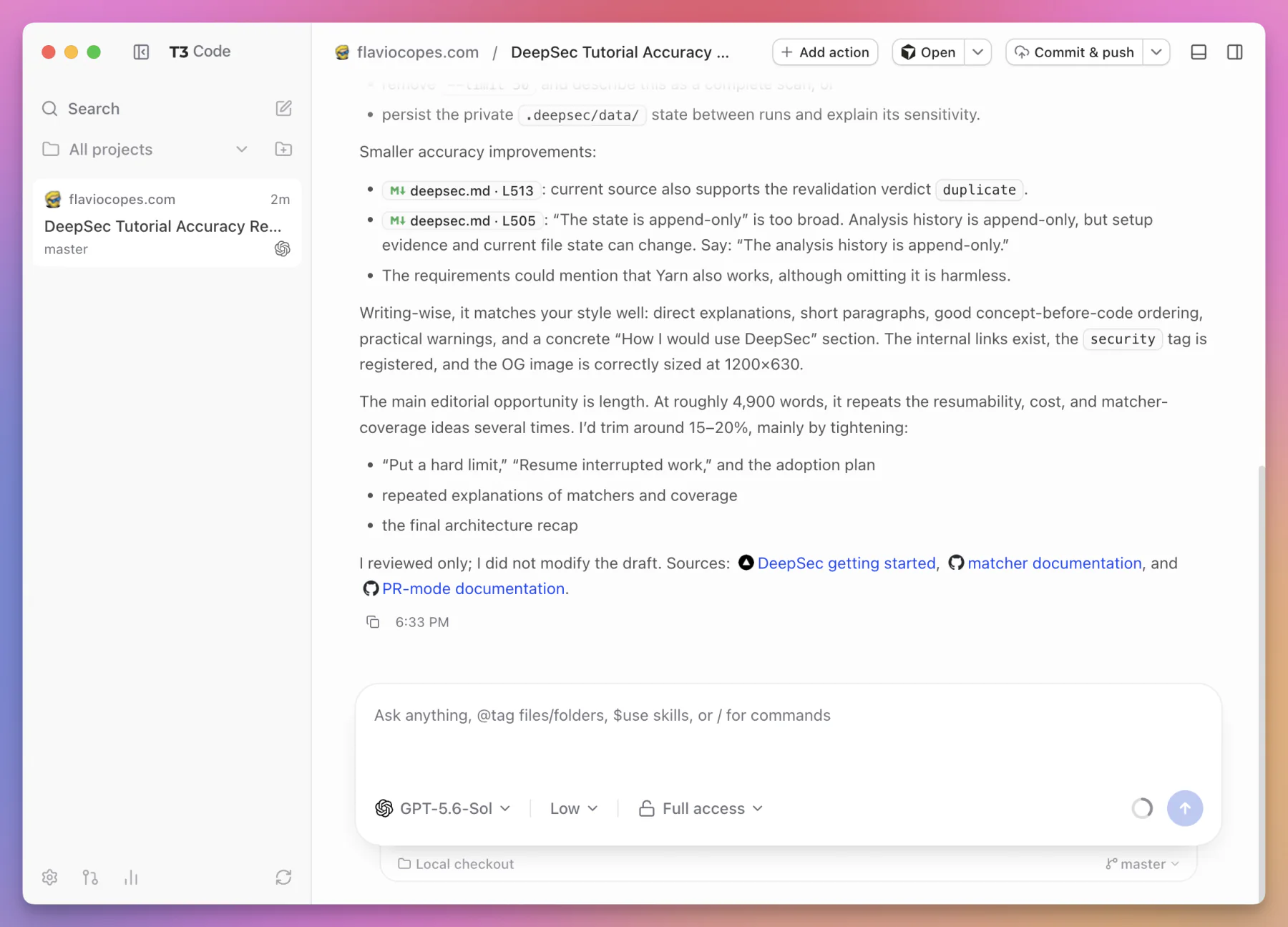
By default, threads auto-settle after seven days of inactivity or when their linked pull request merges. You can change those rules under Settings → Threads. Settings resolve in this order: project override → environment setting → t3.json → built-in default, which you can check via the layers icon at the top of Settings.
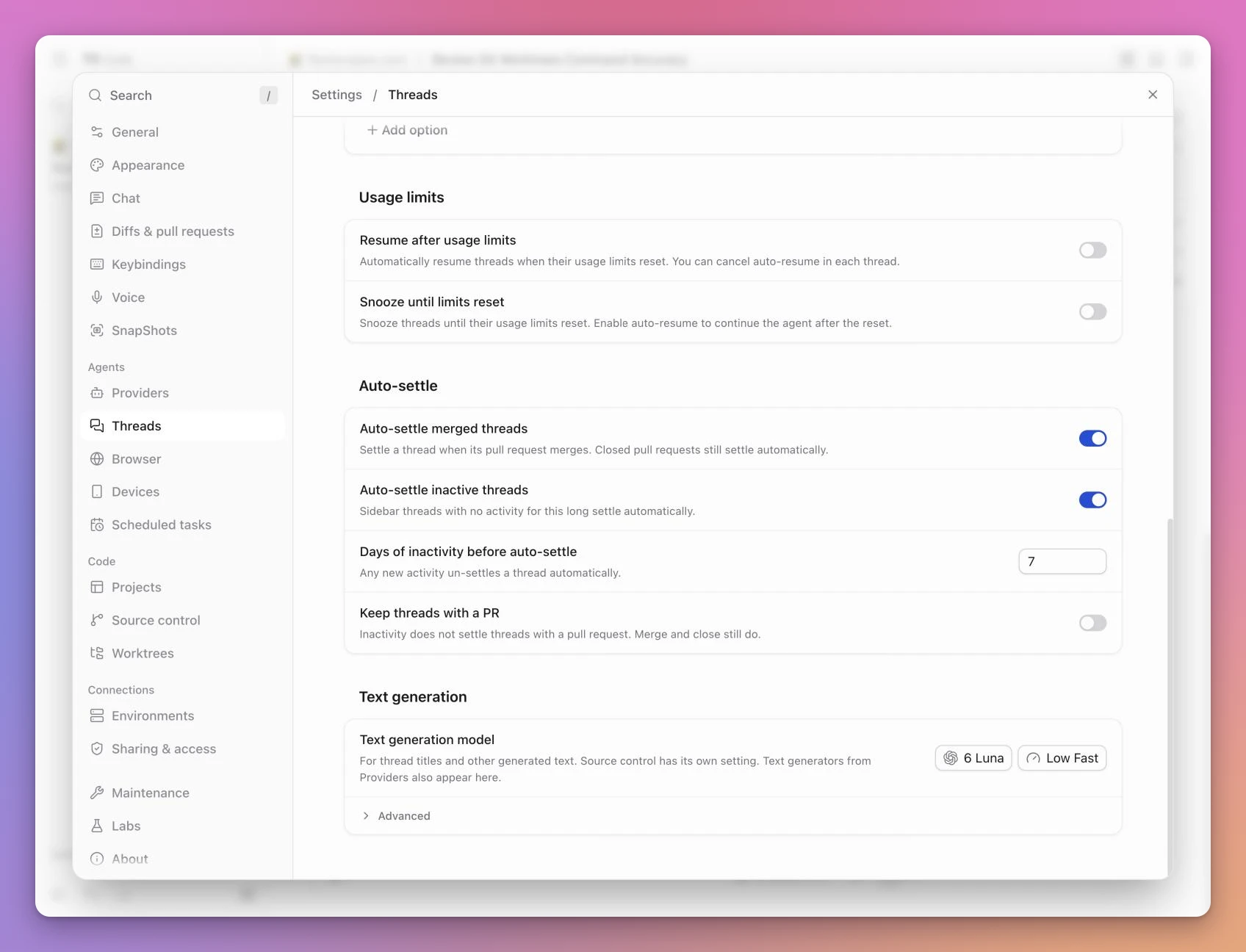
Search in the command palette (Cmd+K) works across every connected environment and indexes thread titles, projects, branches, user prompts, and final replies. Even if you forgot what you named a thread three weeks ago, you can still dig up the decision.
Usage and pooled subscription Limits
Press Cmd+U (Ctrl+U) to open Usage. It pulls together session history from Codex, Claude Code, Grok, OpenCode, Antigravity, Pi, Muse Code, and Cursor across all your connected environments:
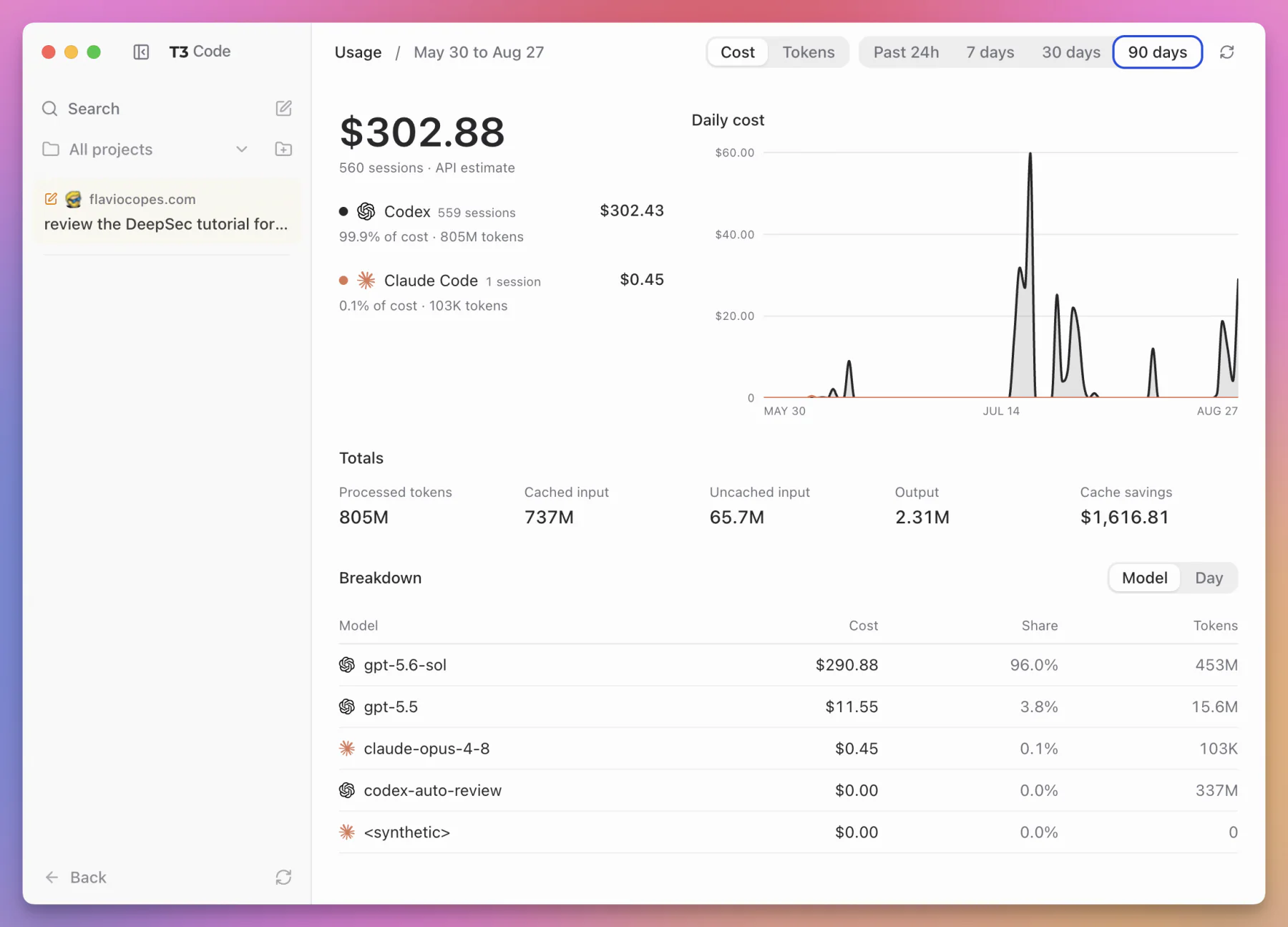
A few things on this page are easy to miss:
- 92-day local archive: T3 Code keeps scanned usage for 92 days by default, longer than Claude Code’s 30-day transcript cleanup. If you want more, set
"usageHistoryRetentionDays"in~/.t3/userdata/settings.json(up to"unlimited"). - Custom model prices and mapping: click Model prices in the environment dropdown to price private or unpriced models, or map a preview model ID to its release name.
- Pooled
Usage → Limits: combines all your Codex, Claude, Antigravity, Cursor, Grok, OpenCode Go, and Muse accounts across environments (or a connected CLIProxyAPI hub) into one set of remaining-quota bars with reset countdowns, even-spend pace lines, and banked reset credits. - Visible quotas while you work: turn on Usage limits and Context window under Settings → Appearance → Thread details to keep live bars inside every thread, or add the Subscription usage widget to your iPhone or Android home screen.
Keep in mind that these are API-equivalent cost estimates for comparing workloads across providers. Check each provider’s billing portal for your actual invoice.
Projects, t3.json cookbook, and automation
Once you’re comfortable working in single threads, you can automate repetitive work in four ways, from checked-in project scripts up to durable TypeScript pipelines.
Project actions and t3.json cookbook
You can add project commands in the UI with Add Action, or commit a t3.json file (schema: https://t3.codes/schema/t3.json) to the repository root so every machine gets the same setup, up to 50 actions per project:
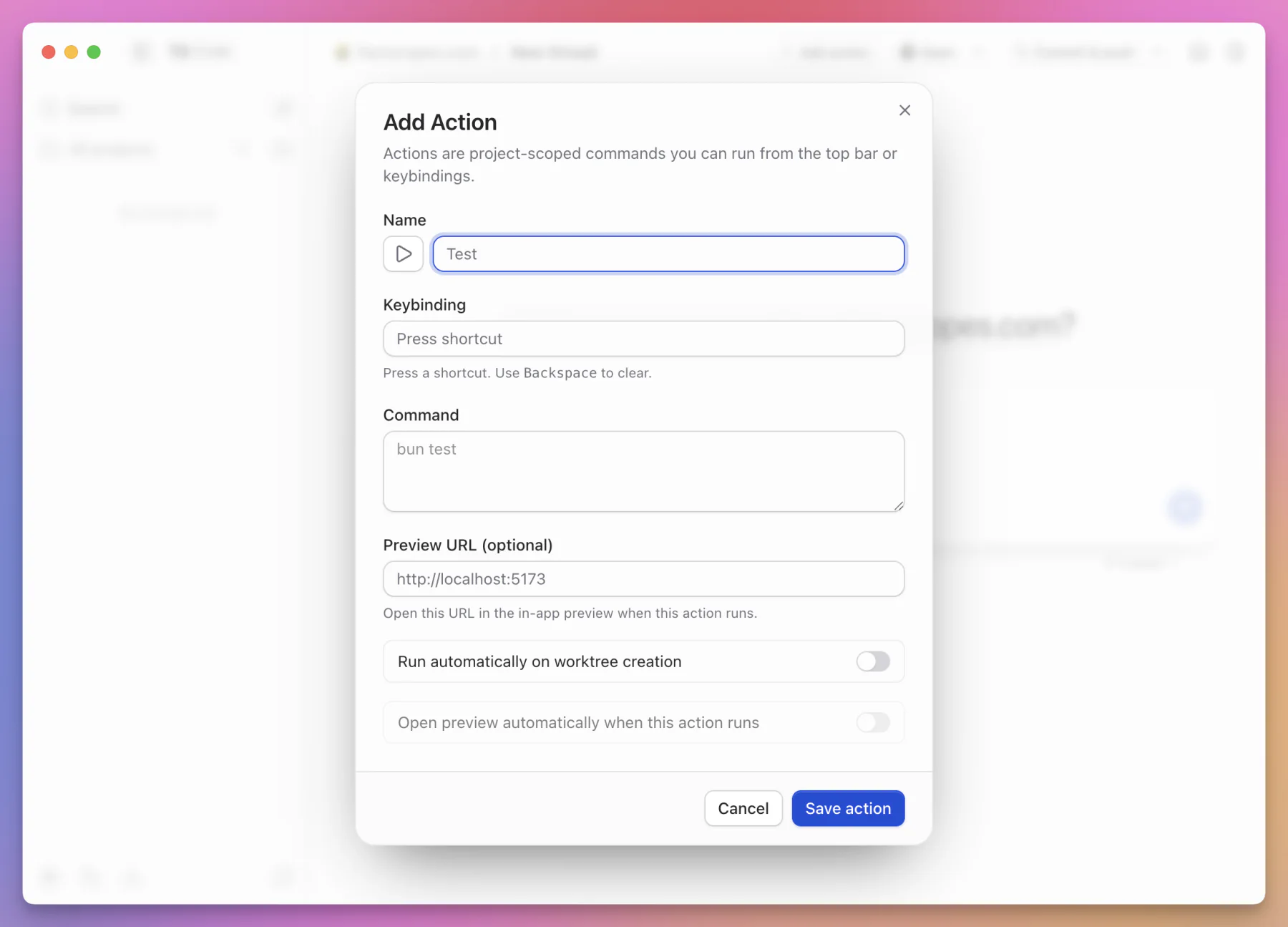
Scripts get T3CODE_PROJECT_ROOT and T3CODE_WORKTREE_PATH in their environment, and you can hook them into thread lifecycle events instead of clicking Play every time:
runOnWorktreeCreate: runs automatically when a new worktree spins up. Set"async": falseif you want the agent to wait until setup finishes.stopOnSettle: stops a dev server’s terminal and child processes when the thread settles.runOnSettle: runs cleanup, like deleting build output, in a worktree when the thread settles.previewUrlandautoOpenPreview: opens the app straight in T3 Code’s browser panel.
Here are three t3.json setups you can copy and adapt.
First, a single-checkout site like flaviocopes.com:
{
  "$schema": "https://t3.codes/schema/t3.json",
  "defaultThreadEnvMode": "local",
  "scripts": [
    {
      "name": "Start Astro",
      "command": "npm run dev",
      "icon": "play",
      "previewUrl": "http://localhost:3000",
      "autoOpenPreview": true,
      "stopOnSettle": true
    },
    {
      "name": "Build site",
      "command": "npm run build",
      "icon": "build"
    },
    {
      "name": "Visuals check",
      "command": "npm run posts:visuals:check",
      "icon": "test"
    }
  ]
}
Second, a web app using parallel worktrees, with automatic setup when a worktree is created and cleanup when the thread settles:
{
  "$schema": "https://t3.codes/schema/t3.json",
  "defaultThreadEnvMode": "worktree",
  "worktreeSubmodules": "top-level",
  "scripts": [
    {
      "name": "Prepare worktree",
      "command": "npm ci && cp \"$T3CODE_PROJECT_ROOT/.env.local.example\" .env.local",
      "icon": "configure",
      "runOnWorktreeCreate": true,
      "async": false
    },
    {
      "name": "Dev server",
      "command": "npm run dev -- --port 0",
      "icon": "play",
      "stopOnSettle": true
    },
    {
      "name": "Clean build cache",
      "command": "rm -rf .next dist",
      "icon": "debug",
      "runOnSettle": true
    }
  ]
}
Third, a multi-repo folder ignoring a heavy vendored repo:
{
  "$schema": "https://t3.codes/schema/t3.json",
  "defaultThreadEnvMode": "worktree",
  "ignoreRepositories": ["vendor/legacy-sdk"],
  "scripts": [
    {
      "name": "Run API + Web tests",
      "command": "(cd api && npm test) && (cd web && npm test)",
      "icon": "test"
    }
  ]
}
Don’t put secrets in t3.json, since it belongs in Git.
Scheduled tasks and webhook automations
Open Settings → Scheduled tasks on desktop, web, or mobile to run prompts on a schedule or from webhooks.
For timed runs, you can set a repeating cadence or pick Once for a single date and time. If the server is offline at that moment, it runs as soon as the machine comes back. You also choose where each run lands: a New thread each run, one ongoing thread, or one thread with a fresh session each run so the timeline stays readable without the context growing forever.
For webhook automations (On webhook), pair your server with T3 Connect to get a webhook URL. You can verify payloads with Require signature (like GitHub’s x-hub-signature-256 with sha256= hex), filter on fields such as headers.x-github-event or body.action, deduplicate by {{headers.delivery-id}}, or coalesce rapid bursts over a 10 to 3,600 second window. If your machine goes to sleep, turn on Settings → Sharing & access → Hold webhooks while offline so T3 Connect buffers incoming webhooks for up to 24 hours.
Every templated value like {{body.pull_request.html_url}} reaches the agent wrapped in <webhook-data-...> untrusted-data tags, with $, @, and leading / neutralized so incoming webhook text can’t silently trigger skills or slash commands.
Durable Workflows (beta)
When a job needs multiple stages, plain code, human approvals, and crash recovery, turn on Settings → Labs → Workflows (v0.1.12) and save TypeScript files into ~/.t3/workflows/. The server hot-reloads changes automatically, and you can inspect and approve runs on both web and mobile.
Workflows run on Effect, with T3, Effect, Schema, and Option injected globally. Here’s a minimal release approval workflow saved as ~/.t3/workflows/release.ts:
const { workflow, step, ask, stop, title } = T3

export default workflow(
  'release',
  { version: 1, payload: Schema.Struct({ name: Schema.String }) },
  Effect.fn(function* (payload) {
    yield* title(`Release ${payload.name}`)
    const notes = yield* step('notes', { returns: Schema.String }, Effect.succeed('3 fixes'))
    const answer = yield* ask('ship', {
      title: `Ship ${payload.name}? ${notes}`,
      choices: ['Ship', 'Hold'],
    })
    if (Option.isNone(answer) || answer.value.choice !== 'Ship') return yield* stop('held back')
    return { shipped: payload.name }
  }),
)
Start it with an idempotent --key so re-running the same key returns the existing run instead of duplicating work:
t3 workflow start release --input '{"name":"v1.4"}' --key v1.4Workflows can run agent steps (even targeting projects on linked machines), trigger on every/daily schedules, expose secret webhook paths (t3 workflow hooks), or poll new issues and pull requests without configuring webhooks. Every finished step is persisted. Failed code steps back off and retry after 5, 20, and 80 minutes, while failed agent steps pause for you instead of looping blindly. If you want an agent to write workflows for you, grab the official t3-workflows skill.
Outside agents (/mcp), CLI scripting, Guest links, and Prompt links
You can also drive T3 Code from other tools or bring teammates into a thread.
To control T3 Code over MCP (/mcp), open the command palette and choose Use T3 Code in another app (MCP). That connects Claude Desktop, ChatGPT, Poke, or terminal Claude Code and Codex via OAuth. You pick the maximum permission cap (Read only through Full access) per client, and bots that support MCP Events (io.modelcontextprotocol/events) can subscribe to turn completions, approvals, and workflow milestones instead of polling.
On the server host itself, you can script threads directly from shell scripts with t3 thread, with no extra login:
id=$(t3 thread start . "Find why the newsletter test is slow" --worktree master)
t3 thread send "$id" "Fix the bottleneck and run the test suite" --wait
t3 thread show "$id"
To share an active thread with a teammate, turn on Settings → Labs → Guest links (requires T3 Connect), right-click the thread, and pick Share with guest. One teammate can follow the thread streaming live in their browser for 24 hours with no account and submit questions or files. Every guest message waits as a Request until you click Send or Dismiss. Guests never see diffs and can’t touch your files or settings.
You can also share a draft prompt as a URL. Copy one from the command palette (Copy prompt link or Copy prompt link with repo and model), or craft one by hand for a PR comment or tutorial:
https://app.t3.codes/new?pr=flaviocopes/flaviocopes.com/123&prompt=Fix%20the%20failing%20checkPrompt links always open as a draft using your permission and workspace defaults and never auto-run. They also strip hidden zero-width Unicode characters with a warning if someone tried to sneak prompt injection into the URL.
Remote access, linked environments, and mobile
With remote access, you can drive one or more dev machines from any laptop, browser, or phone instead of being tied to a local dashboard.
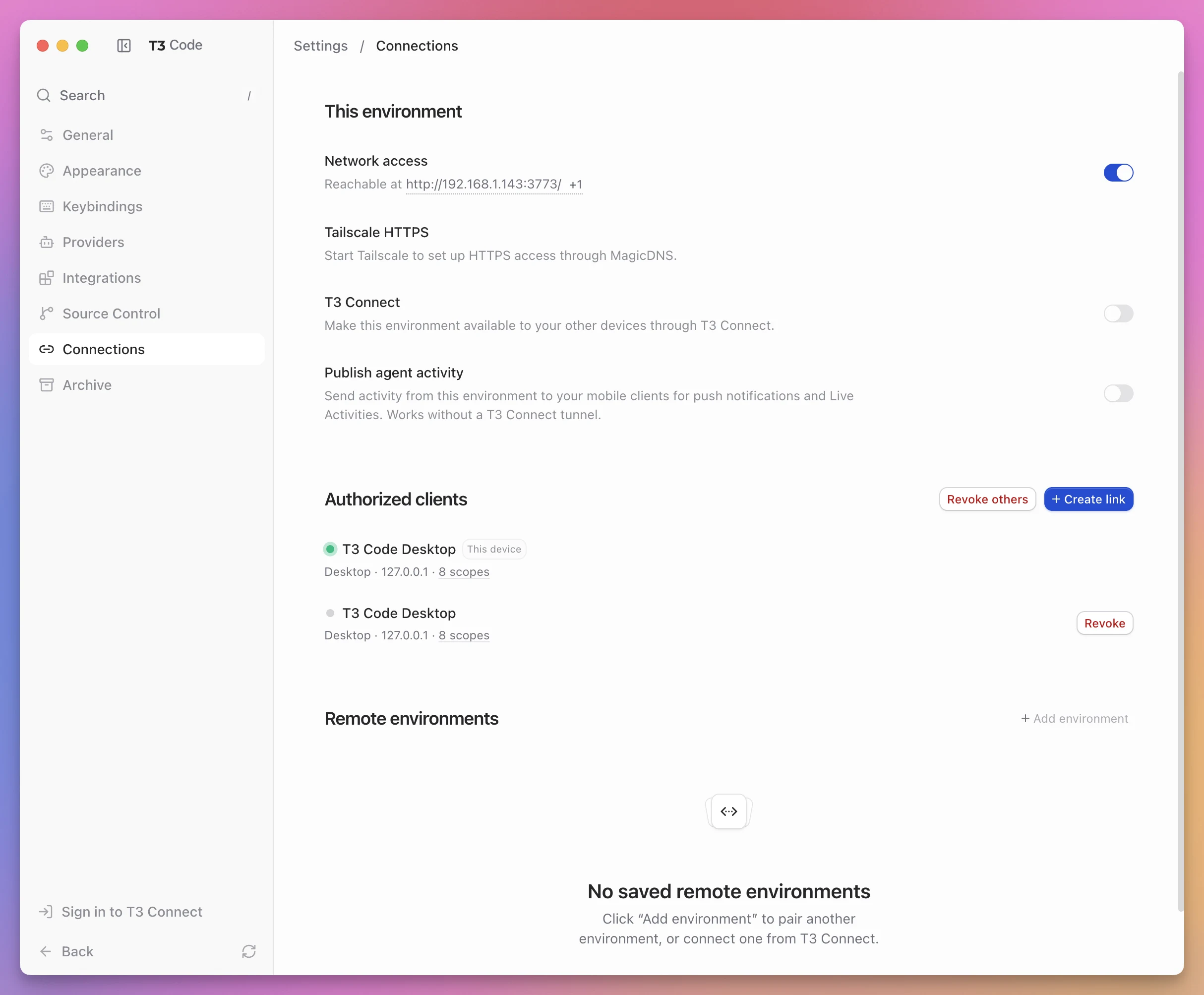
In Settings, remote setup lives in two places: Settings → Sharing & access controls how this machine is reached and who can connect, and Settings → Environments manages your remote servers and machine links:
Comparing the remote paths
| Path | Best for | Setup on host | Tradeoff |
|---|---|---|---|
| LAN / Tailscale | Devices you own on a private network | t3 up --lan or t3 serve --host "$(tailscale ip -4)" | No relay; needs HTTPS (--tailscale-serve) to use app.t3.codes |
| T3 Connect | Access from anywhere without manual config, plus mobile push | t3 up (choose T3 Connect) | Managed Cloudflare tunnel discovery; 3 free machines (10 Pro / 100 Premier with T3 Chat) |
| Desktop SSH | Linux dev boxes already reachable over SSH | Add SSH host in desktop Settings → Environments | Desktop manages remote server + port forward; desktop-only |
A useful networking detail is multi-route failover. A single machine can have LAN, Tailscale, SSH, and T3 Connect routes set up at the same time. When you connect through T3 Connect, T3 Code learns the host’s LAN and Tailscale addresses too. At home it switches straight to local Wi-Fi, and once you leave the house it falls back to T3 Connect on its own.
Connect your phone on the same Wi-Fi
If you already have the T3 Code desktop app running and your phone is on the same Wi-Fi network, you don’t need T3 Connect or Tailscale.
- Open Settings → Sharing & access and turn on Network access. T3 Code restarts and listens on your local Wi-Fi IP (port
3773by default). - Click the blue + Create link button in the bottom-right corner of the same screen (on the Authorized clients row) to generate a one-time pairing link.
- Open that link on your phone while connected to the same Wi-Fi. It signs you in automatically and adds the phone under Authorized clients, where you can revoke it anytime.
If you’d rather scan a QR code with your phone’s camera, run t3 pair in your terminal instead (or ~/.t3/bin/t3 pair if t3 isn’t on your PATH yet):
~/.t3/bin/t3 pairIt prints a one-time QR code, pairing URL, mobile app link (t3code://pair?...), and token valid for five minutes:
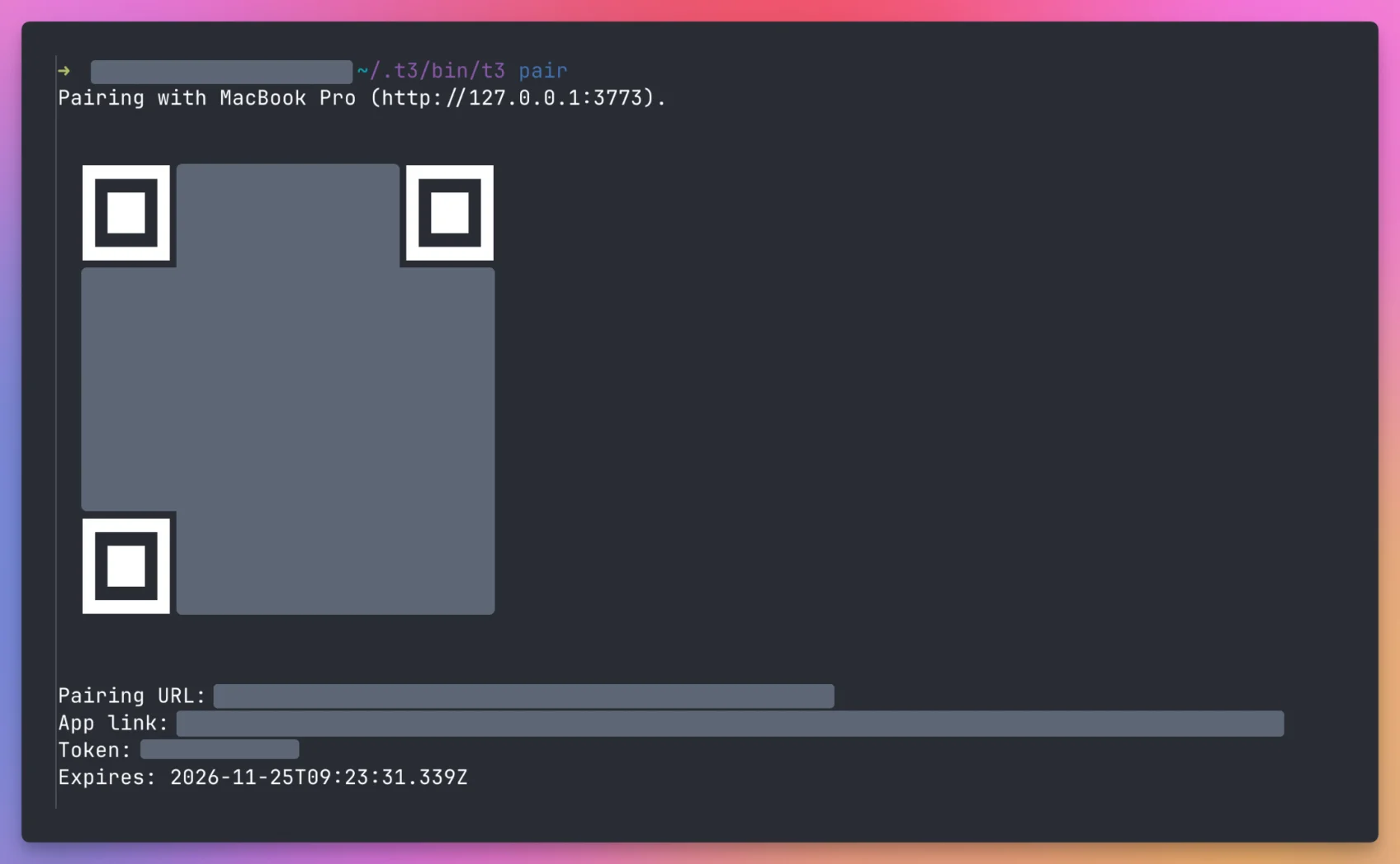
If your phone can’t reach the Mac on macOS, check System Settings → Network → Firewall → Options… and make sure T3 Code (Beta) allows incoming connections.
Headless setup, pairing, and device approval
On a headless Linux box or Mac mini, one interactive wizard configures both remote access and the background service:
t3 upOr you can start a server manually and print a one-time pairing URL and QR code:
t3 serve --lan
t3 pair --tailscale
Pairing tokens travel in the URL hash so servers don’t log them, and since v0.1.11, directly paired devices automatically renew their sessions while you use them (expiring after 30 days unused). If you want least-privilege clients, pass explicit scopes:
t3 pair --scope orchestration:read --scope relay:readIf you use T3 Connect, turn on Require approval for new devices under Settings → Sharing & access (v0.1.10). Any new device signing into your T3 Connect account then shows a short code like K7QM-2XFD that you approve on an existing device or with t3 auth connect-device approve K7QM-2XFD. You can also keep a laptop as a thin remote-only controller by turning off Settings → Environments → Local environment.
Linked environments, Linked threads, and Connections map (beta)
Turn on Settings → Labs → Linked environments on two machines, say your MacBook and a beefy Linux VPS. In v0.1.12, Settings → Environments displays a visual Connections map of your machines where you drag to link them (or ask an agent “delegate this to my vps”). If one connected environment already holds a full-access link to a third machine, you can link another machine to it through the map without copying a pairing code by hand.
From there, agents on your laptop can launch, message, wait on, and delegate threads onto the VPS with delegate_task. With Linked threads, you can read a linked machine’s thread in a right-panel tab without pairing that machine to your client first, then click Connect to interact if you want to take over. If a project exists on two or more connected machines, turn on Settings → Environments → Load balancing → Auto balance so new drafts pick whichever machine has free CPU and memory. You can also weight each machine as Prefer, Normal, Less often, or Manual only.
Running as a background service (Linux, macOS, Windows)
Install T3 Code as a background service so your threads keep running after you close your terminal:
t3 service install
t3 service status
t3 update
t3 service restart- Linux: installs a systemd user service with lingering enabled (
sudo loginctl enable-linger "$(id -un)"if needed). Runt3 service protectto protect the T3 server (and optionally SSH and Tailscale) from the Linux OOM killer when heavy agent builds eat all RAM. - macOS: installs a LaunchAgent (runs while logged in and awake).
v0.1.10also added automatic sleep prevention so your computer stays awake while agents are actively working. - Windows (
v0.1.10): runs windowless via Task Scheduler (t3code-<domain>-<user>), restarting automatically within a minute if it exits, and supports remote updates.
Put persistent server env vars (T3CODE_PORT, T3CODE_HOST, Bitbucket tokens, T3CODE_PORT_DISCOVERY=0) in ~/.t3/service.env (chmod 600 ~/.t3/service.env) so service updates don’t wipe them out. Over time, reclaim freed SQLite disk space from Settings → Maintenance or by running t3 doctor when the server is stopped.
Keep your servers, desktop apps, and mobile apps updated together, and don’t run t3 update mid-turn since restarting the server interrupts active provider sessions.
Mobile app, notifications, and themes
The iOS and Android apps share the same client runtime as desktop and web, adapted for touch:
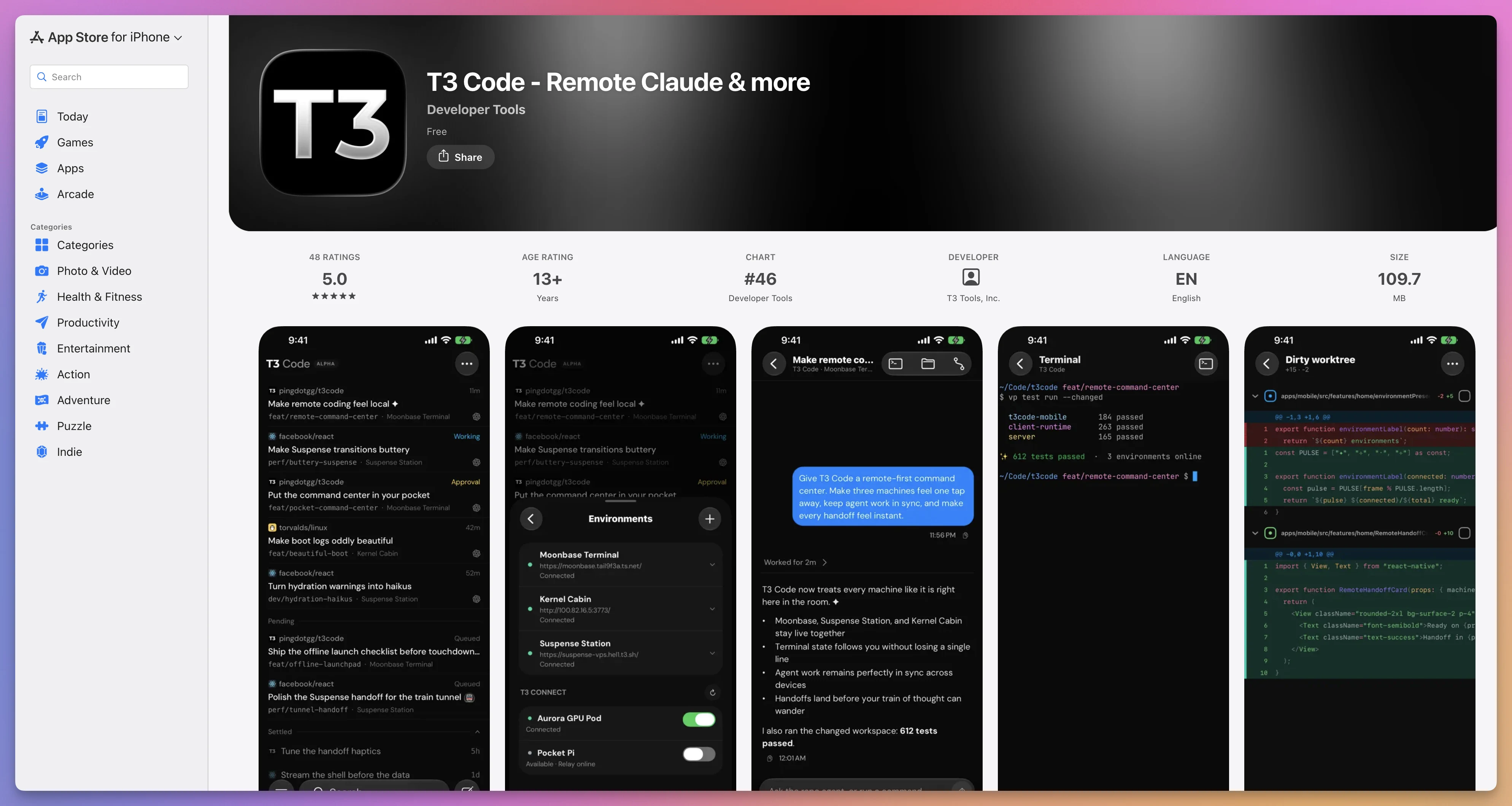
- Push alerts and Live Activities: link the environment with T3 Connect and enable Settings → Notifications → Device Notifications. You can follow running agents right on your lock screen with iOS Live Activities or Android 16+ Live Updates.
- Working offline: queue prompts and attachments on your phone while offline (they upload and send once you reconnect), and read previously opened PRs, Review Guides, and diffs with no connection.
- Themes, Custom CSS, and agent restyling (
v0.1.10): pressCmd+Option+A(Ctrl+Alt+A) to switch themes, import VS Code themes, or add Custom CSS targeting stabledata-slotattributes (externalurl()calls are blocked for safety). In a Full access thread on the local server, you can even ask an agent “give T3 Code a solarized theme” or “use ~/Pictures/wallpaper.jpg as T3 Code’s background” and it’ll publish a live environment theme. Runt3 theme set t3-chatto reset it anytime.v0.1.11also adds localization for 10 languages.
Inside the architecture
Four design choices explain most of how T3 Code behaves. Here’s how the pieces fit together:
- The server is the execution boundary. Clients never run providers, Git, terminals, or filesystem edits. Every client speaks typed Effect RPC over a single authenticated
/wsWebSocket (pairing token → session → 5-minute WebSocket ticket, with DPoP-bound relay sessions on T3 Connect and per-operation scopes). - Event-sourced SQLite (
~/.t3/userdata/statev2.sqlite). Every action enters a serialized worker as a typed command (thread.create), passes through a pure decision function, and writes events and UI projections in the same SQLite transaction using Node’s built-innode:sqlite. Queue-backed reactors run the side effects (spawning providers, running Git, updating files) and emit outcome events back. That gives you multi-client sync, crash recovery, and clean timelines without needing an external database:
- Adapters preserve each provider’s native behavior. Instead of scraping terminal ANSI output, each driver translates structured native events (tool calls, approvals, plans, usage, subagents) into canonical T3 events and sends decisions back down:
- Hidden Git refs for checkpoints. Rather than copying your repo into SQLite after every turn, T3 Code writes Git trees under hidden refs and computes diffs straight from Git objects.
What stays local vs. what leaves the machine
- Stays on your T3 Code server: project files, Git worktrees, shell commands, terminals,
statev2.sqlite, attachments, provider binaries, saved secrets, checkpoints, and logs. - Sent to your selected AI provider: prompts, file context the provider reads, tool outputs, conversation history, and prompt attachments.
- Crosses your chosen remote route: streamed thread events, approvals, requested diffs/files, terminal I/O, and browser/device streams.
Managed policy for teams and admins
If you’re deploying T3 Code on managed team laptops, you can drop in a JSON policy file (including via Windows Group Policy) to lock settings, cap the broadest allowed permission mode, restrict allowed providers, or disable browser and preview tunnels across every client connected to that machine. Validate policies with t3 policy check policy.json and inspect active rules with t3 policy show.
Build from source
The repo uses Vite+ (vp) across its TypeScript monorepo:
curl -fsSL https://vite.plus | bash
git clone https://github.com/pingdotgg/t3code.git
cd t3code
vp i
Read the internal architecture overview before making changes. The maintainers prioritize small bug, reliability, and performance fixes, so open an Ideas discussion before building a large feature PR.
My real setup and five playbooks
On my MacBook Pro, I have T3 Code connected to five active providers at once: Codex (gpt-6.2-sol, gpt-6.2-astra), Claude (Opus 5.5, Sonnet 5.5, Fable 5.2), Cursor, Antigravity (Gemini 4 Neon alongside its shared models), and GLM Agent (glm-5.3) installed from the ACP Registry.
In my server preferences, I set newWorktreesStartFromOrigin: true, backgroundActivity: balanced, enableProviderUpdateChecks: true, and sourceControlWritingStyle: repo_conventions with followChangeRequestTemplates: true, so commits and PRs match each repository’s rules instead of generic boilerplate.
For flaviocopes.com, this repo forbids Git worktrees, so threads run in the current checkout with one writer at a time while other threads run read-only reviews or comparisons across providers (the screenshots throughout this guide come from those threads). Long-lived rules still live in AGENTS.md, CLAUDE.md, and shared skills under ~/.agents/skills/, the same contract I use in my fstack software factory and my review workflow for T3 Code threads.
Here are five playbooks that work well in practice:
1. Multi-provider second opinion on a risky diff
Start a thread with your main coding agent (say Claude Opus 5.5 or Codex). Once the diff is ready, ask the thread to run delegate_task with two independent reviewers on different providers (for instance Codex + Antigravity, or Claude + GLM Agent), each checking the uncommitted diff for edge cases and regressions. Compare both reports side by side in the parent thread before committing.
2. Issue to merged PR without leaving T3 Code
Open Issues, filter to a saved view (like your Linear or GitHub triage queue), and start a linked worktree thread. After the agent finishes, check the Commits and Changes diffs and verify the behavior in the in-app browser (or Device simulator). Push and open the PR, generate a Review Guide if the diff is large, and tell the agent to watch the pull request. T3 Code keeps the thread in Working while CI runs, wakes the agent if a check fails or a reviewer comments, and settles the thread and cleans up the worktree after merge.
3. Fast UI bug reports with SnapShots
Enable Settings → SnapShots with Include app text turned on. Whenever a layout bug or broken dialog pops up in any desktop app or browser window, tap both Shift keys. T3 Code drops both the window image and its accessibility tree into your draft, so you can type two words (“fix this overlap”) and hit Enter.
4. Stop burning coding-agent turns on titles and commit messages
Open Settings → Providers → Text generators → Add generator, add a fast API key (OpenRouter, OpenAI, Anthropic) or local Ollama (http://localhost:11434/v1), and assign it to thread titles, commit messages, PR descriptions, and voice cleanup. Every new thread names itself in a second without spinning up a full Codex or Claude session.
5. Remote Linux server + laptop browser tunnel + phone approvals
Run t3 up and t3 service protect on an always-on Linux box, link it through T3 Connect (with Require approval for new devices turned on), and connect from your laptop and phone. Heavy builds and worktrees stay on Linux. When an agent starts a dev server there, it opens in your laptop’s in-app browser (or you can ⌘-click to port-forward it to your local localhost), and iOS Live Activities keep you updated when you’re away from your desk. One rule helps on mobile: use your phone to monitor progress, answer clear questions, and block risky commands, and save deep diff reviews for a real screen (more on this in running coding agents from your phone).
T3 Code compared with the alternatives
| Tool | Built around | Agents it runs | Where code runs | Phone client | Pick it when |
|---|---|---|---|---|---|
| Provider CLI | One terminal session | Its own | Your machine | No | One quick task, or you need a provider’s brand-new feature today |
| IDE | Manual code editing | Mostly its own | Your machine | No | You write and debug most code yourself |
| cmux | Native Mac terminal & programmable browser | Any CLI | Your Mac | No | You want a native Mac terminal + scriptable browser workspace |
| Herdr | Persistent terminal panes | Any CLI | Any reachable host | Yes (SSH) | You want tmux-style persistent, scriptable terminal agents |
| Hosted agent platform | Cloud sandboxes | Platform’s own | Cloud VMs | Varies | You want elastic background compute with no machine to maintain |
| T3 Code | Structured threads & environments | 10 built-in + ACP Registry | Machines you control | Yes (iOS & Android) | You supervise several providers across desktop, web, and phone |
How it pairs with other tools:
- With a direct CLI: keep both. The raw CLI has no translation layer when a provider ships a feature an hour ago. T3 Code pulls ahead once you’re running multiple threads, multiple providers, or remote devices.
- With an IDE: T3 Code is built for supervising agents, while VS Code, Cursor, and Zed are still better for heavy manual refactoring and interactive debugging. Open the worktree in your editor whenever you need to take over by hand (see IDE, CLI, or vibe coding tool?).
- With cmux or Herdr: cmux and Herdr work at the terminal layer, so any CLI works right away. T3 Code sits higher in the stack with typed events, checkpoints, Review Guides, mobile simulators, and cross-provider delegation (more comparisons in Herdr alternatives and Conductor alternatives).
Where T3 Code fits well (and where it doesn’t)
Good fit: you juggle two or more providers, use existing subscriptions, run parallel worktrees, want browser and simulator checks plus PR tracking in one place, or supervise an always-on dev machine from your laptop and phone.
Poor fit: you run one five-minute CLI task at a time, spend all day editing by hand in an IDE, need a multi-tenant hosted cloud platform with org-wide cloud compute, or can’t keep a host machine online and isolated from shared local databases.
Recommended first-day setup order
- Install the desktop app (
brew install --cask t3-code) and make sure thet3command works. - Enable one provider you already use and run a read-only thread to confirm it works.
- Set your default new-thread permission mode to Supervised or Auto until you trust your setup.
- Add a small test repo, run one small edit, inspect the per-turn diff, and test Edit from here.
- Add a
t3.jsonwith your dev server (pluspreviewUrlandstopOnSettle: true) and test command. - Wire up a cheap Text generator for titles and commits.
- Connect GitHub/GitLab/Linear under Settings → Source control & issues and try one test PR.
- Add Tailscale or T3 Connect last, once everything works reliably locally, and pair your phone.
Pre-flight safety checklist
Before letting a thread touch an important repo:
- Right environment (local Mac vs. remote server) and right project folder?
- Current checkout (one writer only) or isolated worktree?
- Appropriate permission mode (
SupervisedorAutofor valuable code,Full accessonly in disposable workspaces)? - Shared ports, local databases, or production credentials isolated from parallel worktrees?
- Clean Git commit before starting so Git stays your real recovery net?
Quick-reference cheat sheets
Keyboard shortcuts and composer syntax
(mod is Cmd on macOS, Ctrl on Windows and Linux. Customize everything in Settings → Keybindings or ~/.t3/userdata/keybindings.json.)
| Action | Shortcut / syntax |
|---|---|
| Command palette / cross-environment search | mod+K |
| Jump to threads 1–9 (desktop) or models in picker | mod+1 … mod+9 |
| Send in background & open a fresh thread | mod+Enter (new thread) / mod+Alt+Enter (active thread) |
| Invert Queue / Steer for one message | mod+Enter while a turn runs |
| Promote oldest queued message to steer | mod+Shift+Enter |
| Edit most recently queued message | Option+Up (Alt+Up) at composer start |
| Stash or restore draft + attachments | mod+S |
| Model / Effort / Permissions / Workspace / Branch / Host | mod+Shift+M / E / A / X / G / H |
| Reuse previous worktree directly | mod+Shift+L |
Start or finish voice dictation (Esc discards) | mod+Shift+D |
| Global SnapShot (window + accessibility tree) | Both Shift keys together (default) |
| Search active thread / diff / desktop preview page | mod+F |
Open Usage page (C Cost, T Tokens, L Limits) | mod+U |
| Theme picker / cycle Light, Dark, System | mod+Option+A / mod+Option+Shift+A |
Copy PR URL or thread chip / copy #PR number | mod+Shift+C / mod+Shift+K |
| Undo sidebar action (settle, snooze, archive) | mod+Z (within 5s) |
| Reopen last closed panel tab | mod+Shift+T |
| Commands / Skills / Thread or model mention / PR chip | / · $ · @ · # |
| Side chat / Fresh session / Compact / Goal / Limits | /side or /btw · /clear · /compact · /goal · /usage-limits |
t3 CLI reference
| Task | Command |
|---|---|
| Start local server and open web UI | t3 |
| Open folder in running desktop app | t3 app [path] |
| Run headless server (optional LAN/Tailscale) | t3 serve [--lan | --tailscale-serve] |
| Interactive remote + background service setup | t3 up [--connect | --lan] |
| Check server and remote exposure status | t3 status [--json] |
| Print one-time pairing link & QR code | t3 pair [--tailscale] [--scope <scope>] |
| Manage background service | t3 service install | status | restart | uninstall |
| Protect Linux server/SSH/Tailscale from OOM killer | t3 service protect |
| Manage sessions & T3 Connect device approvals | t3 auth connect-device list | approve <code> | revoke <code> |
Update t3 and background service | t3 update [--channel nightly] |
| Script threads from the host shell | t3 thread start | send --wait | show | list |
| Add a project with extra tracked repo folders | t3 project add <path> --track <folder> |
| Link environments from the terminal | t3 environment link <addr> --pairing-code <code> --access <mode> |
| Run & steer durable Workflows | t3 workflow start | list | show | resume | signal | hooks |
| Fix Linux headless Chrome sandbox & fonts | sudo t3 browser setup |
| Manage environment themes | t3 theme set <id> | show | clear |
| Reclaim SQLite disk space offline | t3 doctor [--dry-run | --fix] |
| Validate or inspect enterprise managed policies | t3 policy check policy.json · t3 policy show |
| Launch self-triage agent when T3 won’t start | npx t3 triage |
Troubleshooting and common gotchas
| Problem | Why it happens & how to fix it |
|---|---|
app.t3.codes refuses to connect to a LAN/Tailscale IP | Browsers block plain HTTP/WS from an HTTPS page (mixed content). Use T3 Connect, --tailscale-serve (HTTPS), or the desktop/mobile app directly. |
Upgraded to V2 (0.1.0+) and an old client won’t connect | V2 servers and V1 clients reject each other. Update every server, desktop app, and mobile app (2.0+) together. V2 copies state.sqlite to statev2.sqlite one way. |
| Browser tabs or HTML renders fail on Ubuntu 23.10+ / Linux | Ubuntu restricts Chrome’s sandbox or lacks fonts/libs. Run sudo t3 browser setup (don’t run the T3 server as root). |
| 1Password secrets fail on a headless Linux box | Desktop op sign-in needs local biometric approval. Configure a 1Password service account or Connect server on the headless host. |
| Provider Auto mode still prompts on every step | OpenCode has no Auto classifier, and some personal Google accounts lack Antigravity Auto, so T3 falls back to Supervised instead of faking it. |
| Parallel worktree dev servers fight over port 3000 or one DB | Worktrees isolate Git files, not ports or databases. Assign dynamic ports (--port 0) or isolated DB names in your runOnWorktreeCreate script. |
t3 update interrupted an active agent | Restarting the server stops running provider processes. Wait until active turns finish before updating. |
| T3 Code won’t start at all | Run npx t3 triage (or search Triage an issue in the command palette when open) to launch Claude Code or Codex against your local logs and source version (watch the triage demo). |
Release history
The 0.1 Orchestrator V2 line started on October 15, 2026. Here are the releases covered in this guide, newest first:
| Release | Date | Headline additions |
|---|---|---|
| 0.1.12 | November 25, 2026 | Multi-repository projects & worktrees, Workflows (beta), Linked threads (beta), Connections map (beta), in-thread MCP OAuth sign-in, Apple Speech on macOS 26+, non-freezing large file previews |
| 0.1.11 | November 20, 2026 | Browser tunnels & one-click port forwarding, Issues page (Linear/GitHub/GitLab/Azure/Forgejo), Antigravity Auto & Edit from here, Cursor edit earlier messages, 10 app languages, auto-renewing paired sessions, side-chat references |
| 0.1.10 | November 17, 2026 | Custom themes, CSS & background images, Windows background service + remote updates, keep-awake while agents work, T3 Connect device approval, native resume on stopped threads, reply to responses |
| 0.1.9 | November 11, 2026 | T3 Connect sign-in for agents, session-wide MCP app approvals for Claude, GitLab MR revert, OpenCode goals, deep PR links, screen-reader turn announcements, send while attachments upload |
| 0.1.8 | November 9, 2026 | /clear, request_secret, inline MCP Apps, voice dictation, auto-settle after 7 days, t3 command installer, /mcp server for outside agents, Claude Fable 5.2 |
| 0.1.7 | November 4, 2026 | Kiro (beta), managed policies (incl. Windows Group Policy), one-time scheduled tasks, child approvals in parent thread, copyable thread links, Usage provider/model filters |
| 0.1.6 | October 31, 2026 | Side chats, pinned/archived projects, Commits scope in Diff pane, 1Password secret references |
| 0.1.5 | October 29, 2026 | Claude and GPT models through Antigravity with thinking controls |
| 0.1.0 | October 15, 2026 | Orchestrator V2: delegate_task, thread forks, server-side queue, scheduled tasks, auto-resume after quota resets |
Notable highlights in 0.1.12 and 0.1.11
- 0.1.12 (1,092 changes from 226 contributors, announcement post): added multi-repository projects (folders of repos,
.code-workspacesuggestions, and submodules) with one worktree branching all chosen repos together, Workflows (beta) on web and mobile, Linked threads and the Connections map (including linking a machine through another linked environment), in-thread MCP OAuth sign-in, Apple Speech dictation on macOS 26+, and full large-file previews without UI freezes. - 0.1.11 (643 changes from 138 contributors, announcement thread): added browser tunnels and one-click localhost port forwarding for remote dev work, a single Issues page covering five trackers, Auto mode and Edit from here for Antigravity, 10 UI translations, dragging file pills straight into Finder or Explorer, and automatic renewal for directly paired devices instead of re-pairing every 30 days.
- 0.1.10 (1,924 changes from 360 contributors): added Windows background services, keep-awake while agents are running, custom themes/CSS/wallpapers, T3 Connect new-device approval, direct replies to assistant messages, and native resume for stopped Claude, Codex, OpenCode, and Cursor threads.
Go deeper on the foundations
These guides cover the tools and concepts underneath T3 Code:
- The complete guide to Claude Code and How to use OpenAI Codex for provider-specific skills, hooks, and CLI flags
- Which AI model is best for coding for choosing models across providers
- How to write an Agent Skill and
AGENTS.mdfor keeping project rules portable across every harness - What is MCP for understanding both MCP Apps inside threads and controlling T3 Code over
/mcp - Tailscale and the free Git course for private remote networking, worktrees, and clean branch history
Want me to talk about your product? You can sponsor this site.
Related posts about ai: