How to use Vercel's fx coding agent
By Flavio
Updated
Tagged: AI
fx is Vercel Labs' coding agent, a small Zig binary. Run it in the terminal, call it from scripts, or embed the same agent in an app.
fx is a coding agent from Vercel Labs. It’s a native binary, written in Zig, under the Apache-2.0 license.
You run it in a terminal, call it from a script, or embed the same core in your own app. There’s no hosted fx service and no public HTTP API, just the binary.
I wrote this guide against fx 0.0.10, released on 14 September 2026. The project still marks itself experimental, and the binary for that release is about 6.17 MiB.
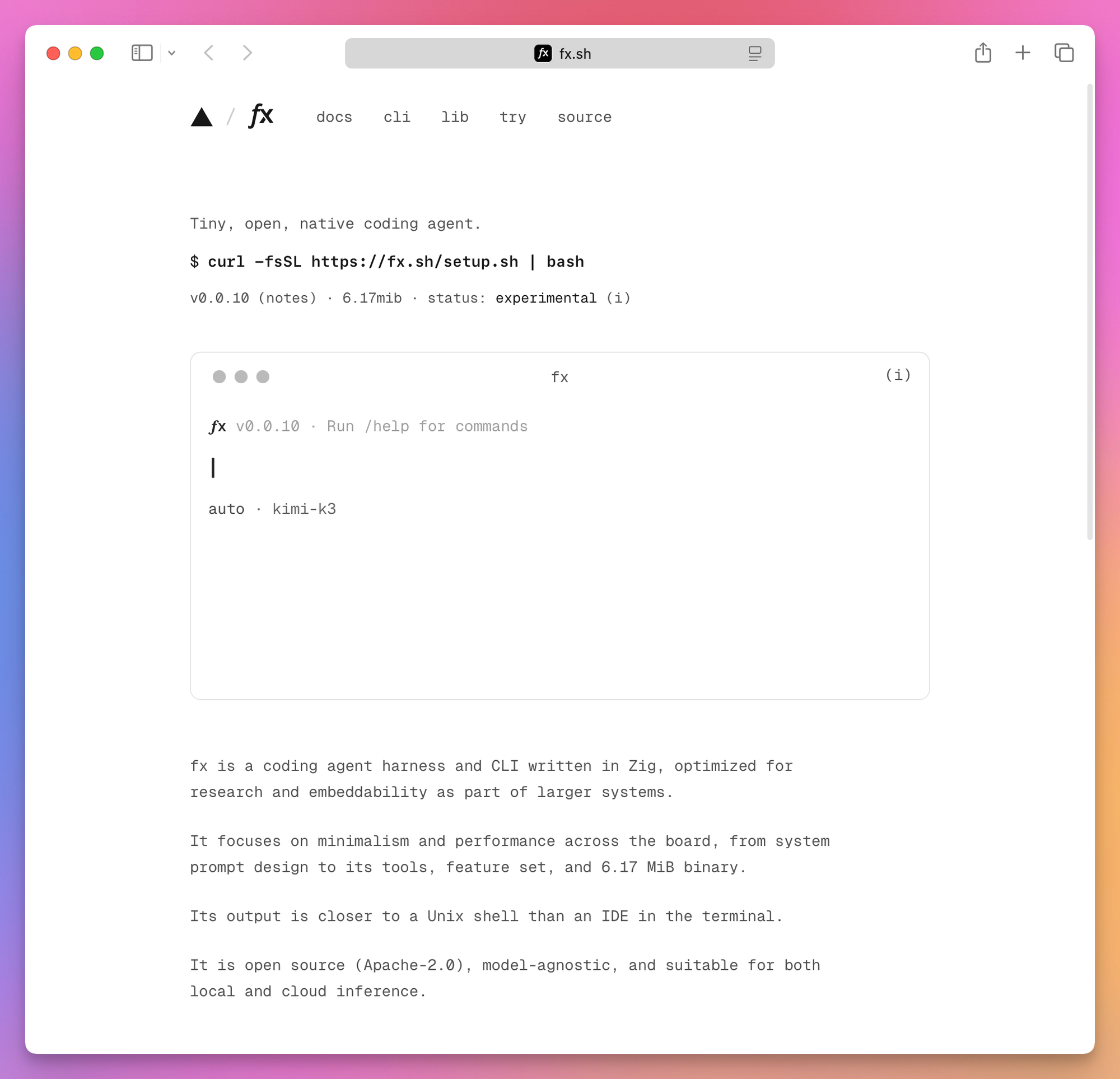
The output scrolls like a shell. fx doesn’t take over the terminal with a full-screen interface, so your existing scrollback stays readable.
fx 0.0.15
Since I ran the 0.0.10 session below, Vercel released fx 0.0.15 on 28 October 2026 (dated 27 October in the changelog). I haven’t upgraded to it yet, so the session later in this post is still on 0.0.10, though a few changes are worth knowing upfront if you install fx today.
The binary shrank to 6.15 MiB (7.66% down from 6.66 MiB), and long conversations use about 70% less memory. On a local 0.0.15 vs 0.0.14 test with 96 MiB of saved images, peak memory dropped from 381.8 MiB to 116.5 MiB (69.5% less), turns finished in 288 ms instead of 939 ms, and text sessions resumed about 18% faster.
Three slash commands also landed or improved:
/modelrefreshes the catalog in the background, so a model released while fx is open can show up without a restart (if the refresh fails, the cached list stays)./forkstarts a separate session before an earlier prompt and puts that prompt back in the composer, leaving the original conversation untouched./effortsets reasoning effort without switching models, either from its menu or by passing a supported level.
On the libfx side, each image is saved once, durable sessions can restore images from a finished tool call after a crash, and the turn’s result waits until that state is saved (if the save fails, the result fails too). Before queuing a turn, libfx rejects an empty prompt, a broken image, more than 8 images, or more than 6 MiB of image data. Sessions from earlier versions still open in 0.0.15, though older libfx builds can’t open a 0.0.15 session written with those image references.
Finally, a few 0.0.10 commands changed or went away: fx ask --continue-recovery is removed, fx mcp trust approve and fx mcp trust reject became fx mcp approve and fx mcp reject, and fx mcp auth is now fx mcp login. If you upgrade, you’ll need to sign in again to HTTP MCP servers that require a login, since fx leaves the old login files on disk instead of importing them.
Why should you care about fx?
There are a lot of coding agents now, and most of them come tied to an editor or to one vendor’s models. fx is a small open source binary you download, and the same agent runs in four places: the terminal, a shell script, an editor that speaks ACP, and your own Node app through libfx.
Most agents don’t offer the last one. The agent you try in the terminal is the same core you can put inside a product, with tools you write in JavaScript.
You’re also not locked into one model provider. Sign in with Vercel AI Gateway and you pick from its catalog, or reuse a ChatGPT or Grok subscription you already pay for. A preview even lets you point it at a local Ollama server.
And it’s careful about what a cloned repo can do to you. A project file can’t choose your model or set your permission rules, and the MCP servers it ships don’t start until you trust them.
Keep in mind it’s still a 0.0.x release marked experimental, so expect things to change between versions.
How could you use it?
Here are a few ways, from the smallest to the most involved:
- Ask questions about a codebase.
cdinto a repo you just cloned, runfx, and ask how a feature works, adding “do not change any files” to the prompt. See A first session. - Run it from a script.
fx ask --jsonreturns one JSON object, so a CI job or a git hook can ask for a summary of the uncommitted changes, or the failing tests, and readfinal_output. See One request from a script. - Use the subscription you already have. After
fx login codex, your ChatGPT plan pays for the requests, and you get another terminal agent without buying another plan. - Use it inside your editor. An editor with ACP support launches
fx acpand talks to the same agent. See Editors, through ACP. - Use it inside T3 Code. Vercel added fx as a built-in provider there on October 28, 2026, running on web, desktop, and mobile with the models and skills you already use.
- Build an assistant into your app. With
libfx, a Node script or a backend gets an agent whose only tools are the functions you pass it, like a docs helper that looks up your handbooks. Yourexecutefunction decides what it can touch. See Embed the agent. - Try a local model. The preview connection points fx at an Ollama server on your Mac, so the model runs on your own hardware. Check first that your build includes it. See A local model.
At the end of the post I explain how I would use it on this site.
How is fx different from pi and other coding agents?
The closest thing to fx is pi (I wrote a deep dive into Pi), the minimal terminal coding agent started by Mario Zechner. Both are open source, both live in the terminal, both read AGENTS.md and skills, and both can be embedded in your own code. Where they differ is how much comes built in.
pi ships almost nothing on purpose. By default the model gets four tools, read, write, edit and bash. There’s no MCP, no subagents, no permission prompts and no plan mode. If you want any of those, you write a TypeScript extension or install a pi package from npm or git. fx goes the other way: MCP, subagents, permission modes with a reviewer model, web search and ACP are all built in, and a project file can’t change most of them.
The rest is mostly about runtime and providers:
| fx | pi | |
|---|---|---|
| Written in | Zig, one native binary | TypeScript, runs on Node 22.19+ |
| License | Apache-2.0 | MIT |
| Models | Vercel AI Gateway, a Codex or Grok subscription, a local preview | API keys for dozens of providers, plus Claude Pro/Max, ChatGPT Plus/Pro and GitHub Copilot subscriptions |
| Safety | ask, auto and full-access modes, rules per command | No prompts, run it in a container or build a gate as an extension |
| Scripting | fx ask --json | pi -p, --mode json, --mode rpc |
| Embedding | libfx for Node and the browser | an SDK for Node apps |
| Windows | no native CLI | supported |
My advice is to pick pi if you like building your own tools and want every model provider available. Pick fx if you want the batteries included and a permission system you don’t have to write yourself.
The bigger agents are a different category. Claude Code, Grok Build, and Codex come from model companies, so they are built around their own models and plans. OpenCode is another open source terminal agent, with many providers and its own Plan and Build agents. Cursor is an editor first, with the agent inside it. How I choose among Codex, Claude Code, and Cursor is a separate post, and OpenCode vs Codex CLI on one bug fix applies the same idea to two terminal tools. fx is small, isn’t tied to one editor, and the same core that runs in your terminal can run inside your app. It’s also a Vercel project, so the default path goes through Vercel AI Gateway.
Install it
fx publishes builds for macOS and Linux, on x86_64 and arm64. There’s no Windows build of the CLI.
On a Mac, this installs the latest release into ~/.local/bin:
curl -fsSL https://fx.sh/setup.sh | bashOn this Mac that printed installed fx 0.0.10 and put the binary at /Users/flaviocopes/.local/bin/fx.
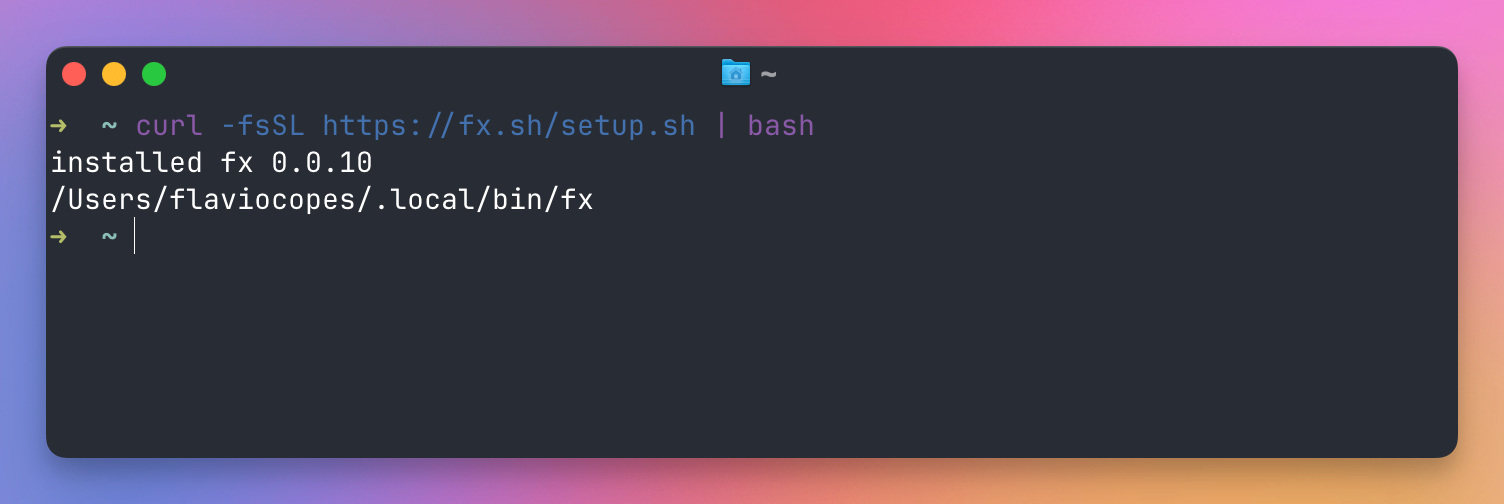
The script detects the platform, downloads a release archive over HTTPS, unpacks it, and copies the binary. If ~/.local/bin isn’t on your PATH, it appends a line to ~/.zshrc. I use fish on this machine, and on fish it edits ~/.config/fish/config.fish instead.
If you want to read the script before it runs, save it first:
curl -fsSL https://fx.sh/setup.sh -o setup.sh
less setup.sh
bash setup.sh
The installer doesn’t verify a signature or a published checksum. The 0.0.10 GitHub release does ship a .sha256 file next to each archive, so if you want an audited install, fetch the archive and verify it yourself. To pin a specific version in a script:
curl -fsSL https://fx.sh/setup.sh | bash -s -- 0.0.10Set FX_INSTALL_DIR if you want the binary somewhere other than ~/.local/bin.
The same installer works on Linux, including Omarchy. It picks the arm64 or x86_64 archive for your machine automatically, with no separate Omarchy package needed.
Then check that the binary is the one you think it is:
fx --version
fx doctor
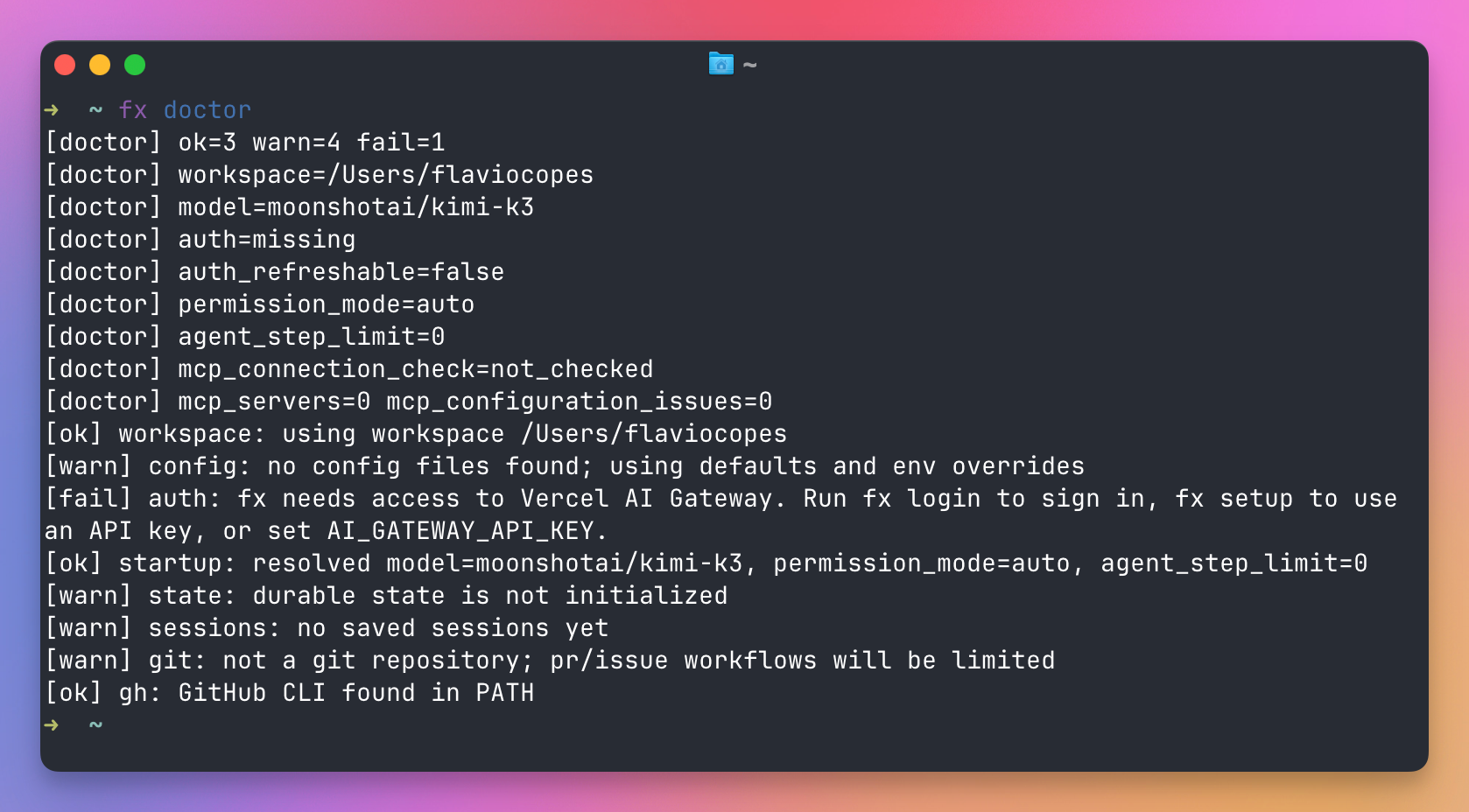
fx doctor reports your workspace, config, auth, and local session state without starting an agent turn.
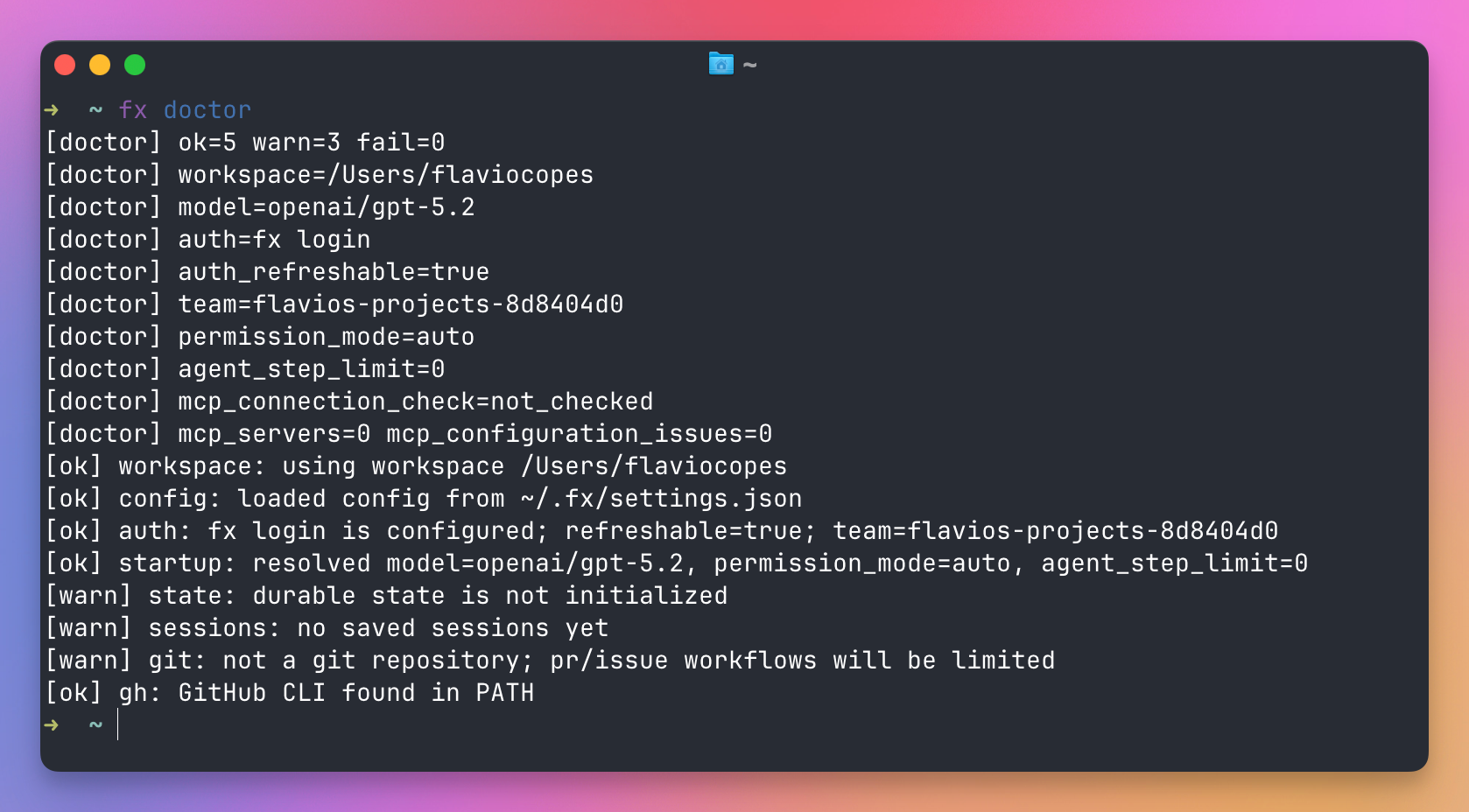
I ran it from my home directory before signing in. Auth was missing, the resolved model was moonshotai/kimi-k3, and it warned that ~ isn’t a git repo.
You can upgrade later with fx upgrade, or pass --channel stable or --channel dev to remember a channel. Automatic upgrade checks are on by default (set FX_AUTO_UPGRADE=0 to skip them for one run). They only fetch release metadata and don’t send a machine id.
To build it yourself you need Zig 0.16 or newer:
git clone https://github.com/vercel-labs/fx.git
cd fx
zig build -Doptimize=ReleaseSafe
./zig-out/bin/fx --version
You only need gh if you want fx pr --create or fx issue --create to publish through GitHub. The agent itself doesn’t need it.
If you want to try it without installing anything, open fx.sh/try to run 0.0.10 in your browser. It’s the CLI compiled to WebAssembly with a throwaway workspace, and it needs JavaScript Promise Integration (a current Chrome, or Safari 27 and newer), so your local files stay untouched until you install the binary.
Sign in
fx talks to one provider at a time. The default is Vercel AI Gateway. Sign in with:
fx loginThat opens a Vercel OAuth flow and stores the session in ~/.fx/auth.json. The browser page tells you when you can close the tab. In a headless shell, set FX_NO_OPEN_BROWSER=1 and it prints the URL instead.
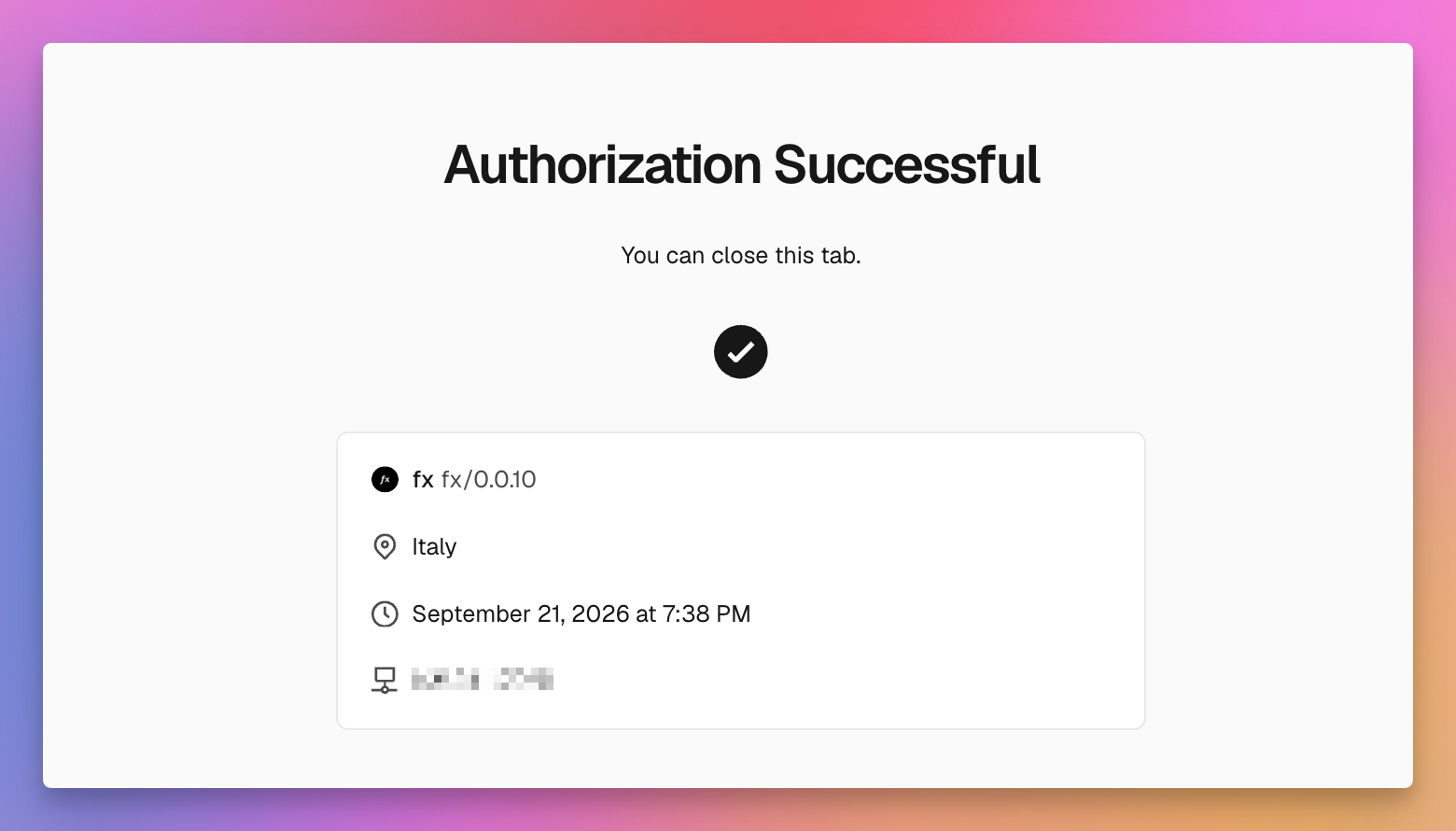
I ran fx doctor again from ~. It loaded ~/.fx/settings.json, showed the Vercel team from that login, and resolved openai/gpt-5.2. The git warning was still there because that directory isn’t a repository.
If you already have a Gateway API key, fx setup asks you to paste it. On macOS it saves the key in Keychain, and on Linux it writes it to ~/.fx/api-key with mode 0600. For CI, put the key in the job’s secret store and expose it as AI_GATEWAY_API_KEY. Don’t write it into the workflow file or .fx.json.
On Gateway, fx picks the first credential it can find, in this order:
VERCEL_OIDC_TOKEN, when a Vercel runtime sets itAI_GATEWAY_API_KEYin the current process- the saved
fx loginsession - the key stored by
fx setup
If you pick a source inside /provider and that source is missing, fx won’t silently fall through to the next one.
A Gateway login can belong to more than one Vercel team. fx teams picks the team, and that team decides which models you see and which credit balance fx credits reports.
Two other providers are built in. Both use a subscription you already pay for, and neither uses the Gateway key:
fx login codex
fx login grok
fx login codex prints a sign-in URL, waits for the browser, then prints Signed in with Codex.
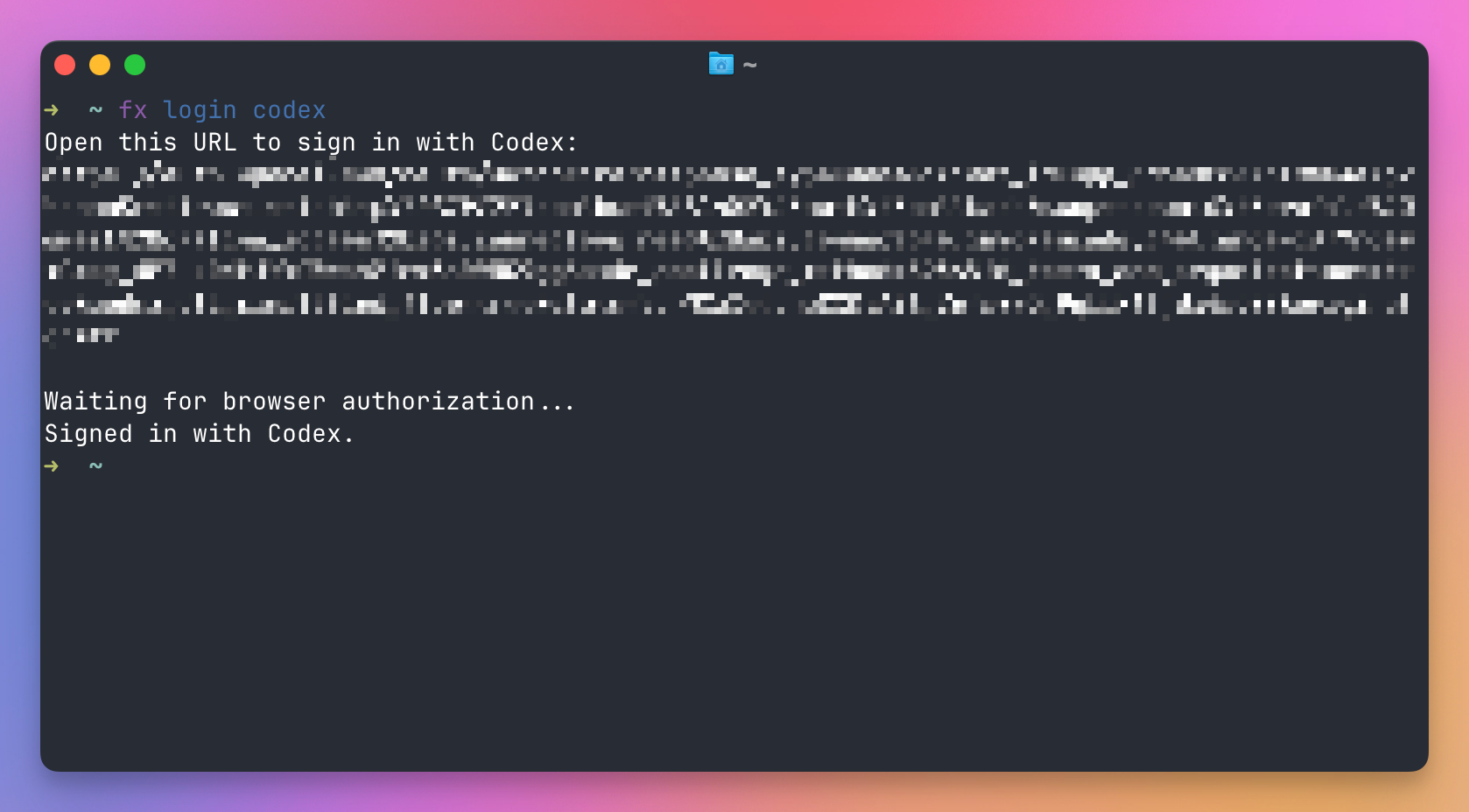
fx provider codex or fx provider grok switches the active provider and starts the browser login if you don’t have a saved session yet. I wrote a full Codex guide and a Grok Bot guide. Those products are separate from this login. Here, Codex means an eligible ChatGPT subscription used as the model source, and Grok means an eligible Grok subscription.
fx logout revokes the Vercel session and fx logout grok revokes the Grok token, while fx logout codex only removes the session from your machine. To drop fx from a ChatGPT account, remove it under that account’s connected apps. Logging out of Vercel doesn’t delete a key you saved with fx setup.
fx status shows which model and credential are active, which Vercel team Gateway is using, and the permission mode for this workspace. When something looks wrong, start there.
A first session
The directory you launch from is the primary workspace, where fx reads and edits files under the permission rules below. Start a session from your project folder:
cd /Users/flaviocopes/www/flaviocopes.com
fx
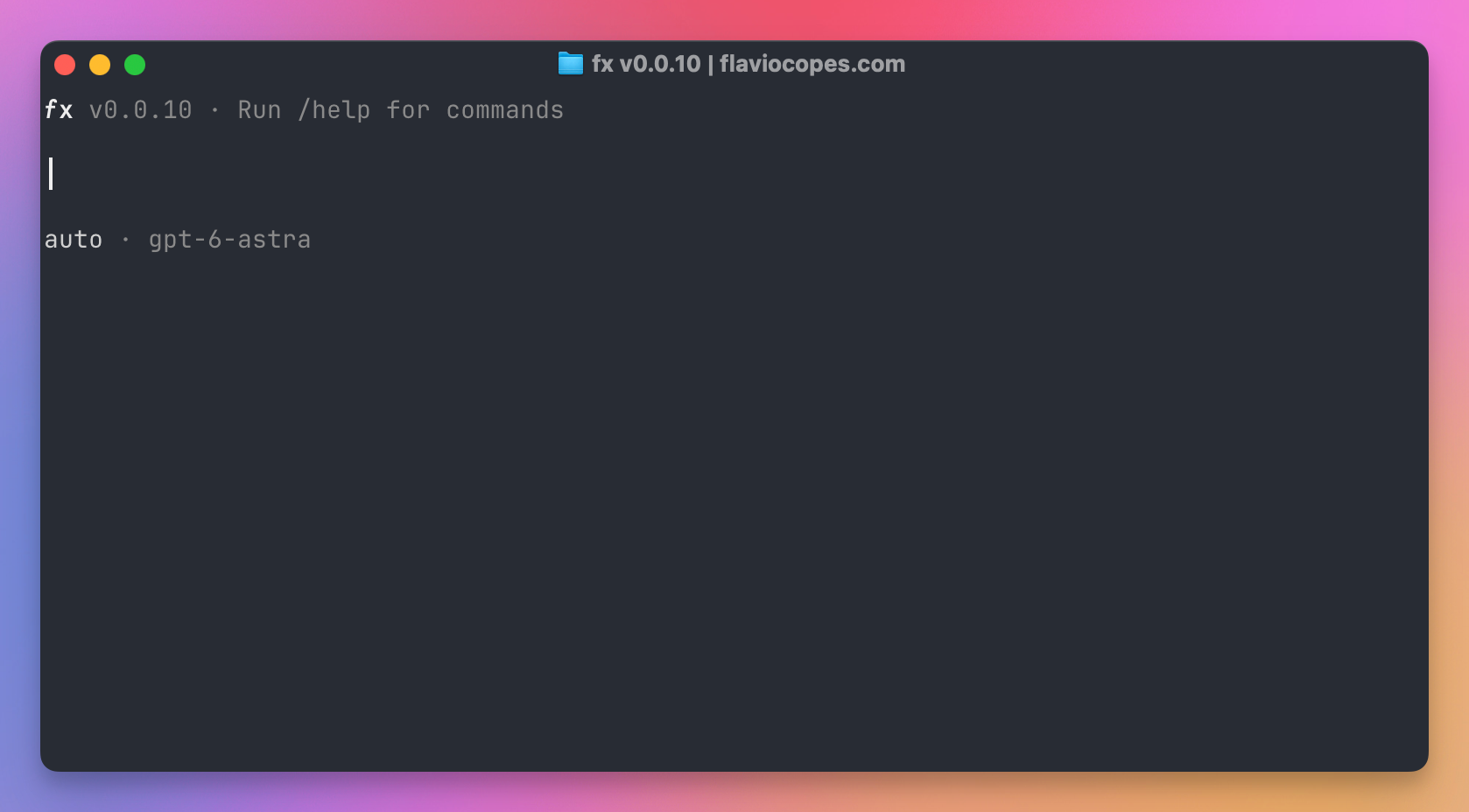
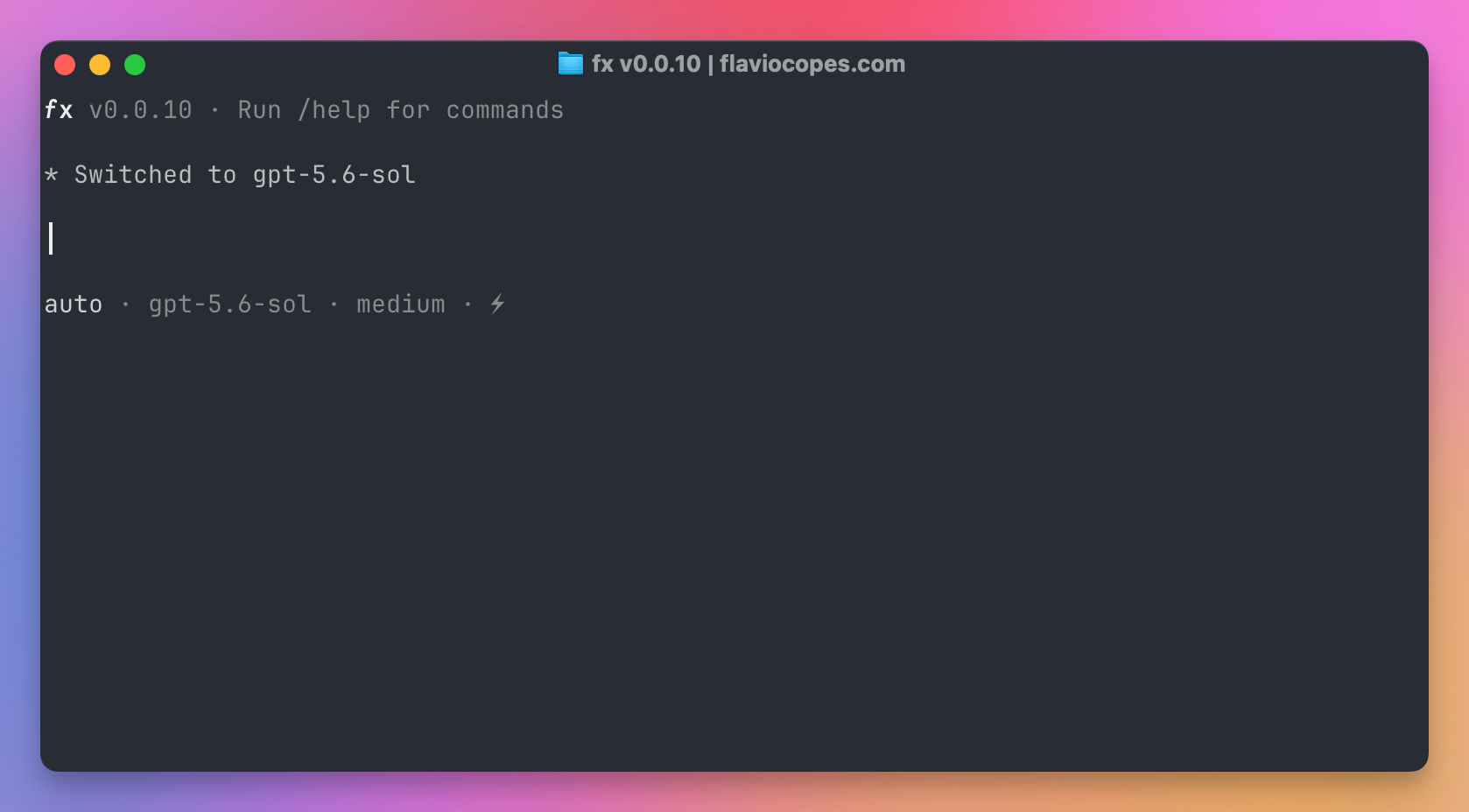
The title bar shows the version and folder, and the line under the prompt shows the permission mode and current model. Mine came up on gpt-6-astra in auto mode after I switched the provider to Codex.
Then try a request that names real files:
Read src/pages/[slug].astro and tell me how a blog post URL is built.
Do not change any files.
fx streams the reply and prints the tools it runs as it goes. You can type a follow-up and press enter while a turn is still running.
A few keys are worth learning before your first long session:
| Action | Key |
|---|---|
| Newline in the draft | shift+enter, alt+enter, or \ then enter |
| Interrupt the turn | escape twice, within one second |
| Clear the draft | ctrl+c |
| Full transcript | ctrl+o |
| Model picker, draft kept | ctrl+p |
Type / for the command list, @ to find a file, and $ to find a skill. /status shows the model, workspace, permissions, and session, and /new starts a fresh session. With an empty draft, ctrl+c interrupts the turn, and a second press exits fx.
Since 0.0.9, ! in the composer is ordinary prompt text, so shell commands still go through the agent and the permission check.
One request from a script
fx ask runs a single prompt and exits. The answer comes out as Markdown on stdout while progress stays on stderr, so you can pipe the result:
fx ask "Summarize the uncommitted changes in this repo"From a script, use --json. You get one JSON object back with the text, model, session id, token counts, and tool calls:
fx ask --json "List the failing test files, if any" | jq -r .final_outputThe fields a script will branch on are final_output, exit_code, session_id, usage, and tool_calls. resolved_provider is the Gateway provider that served the last request, or null when the route wasn’t reported. Token totals here cover the main agent only, leaving out subagent and review calls. For the local record of spend, check fx usage.
Attach a screenshot the same way you do in the shell:
fx ask --image ./ui.png "Describe what this screen is asking the user to do"--model and --effort only apply to that run and don’t change your saved defaults. --no-save skips creating a session, and --resume last continues the latest session for this workspace.
fx ask doesn’t sit and wait for an approval prompt. In auto mode, a call that fails review is held and the agent is told why. Pass --prompt-permissions to turn prompts back on when you’re at a real terminal. If stdin is a pipe, a call that needs a person fails instead of blocking, and an interrupted run exits 130.
--full-access turns permission checks off for that process. Don’t put that flag in a script that can see this repo’s env files.
fx pr and fx issue draft a pull request or an issue from the current git repo, and --create publishes it through gh. Both accept --auto for the same automatic review you get in the shell.
Pick a model
The catalog belongs to the provider you selected. On Gateway, before you’ve saved anything, the compiled default is moonshotai/kimi-k3 (the browser demo shows that same default). From the command line, you can inspect or set the model:
fx modelsInside the shell, /models opens the list and /model <id> selects one. The choice is stored per provider in ~/.fx/settings.json, so switching to Codex and back restores the Gateway model you had.
With Codex signed in, here’s the list I got: five models, each marked with a 272K context (gpt-6-astra, gpt-5.6-sol, gpt-5.6-terra, gpt-5.6-luna, and gpt-5.5). The footer said the catalog was authenticated with a subscription. That list belongs to the Codex provider, so a Gateway login shows a different one.
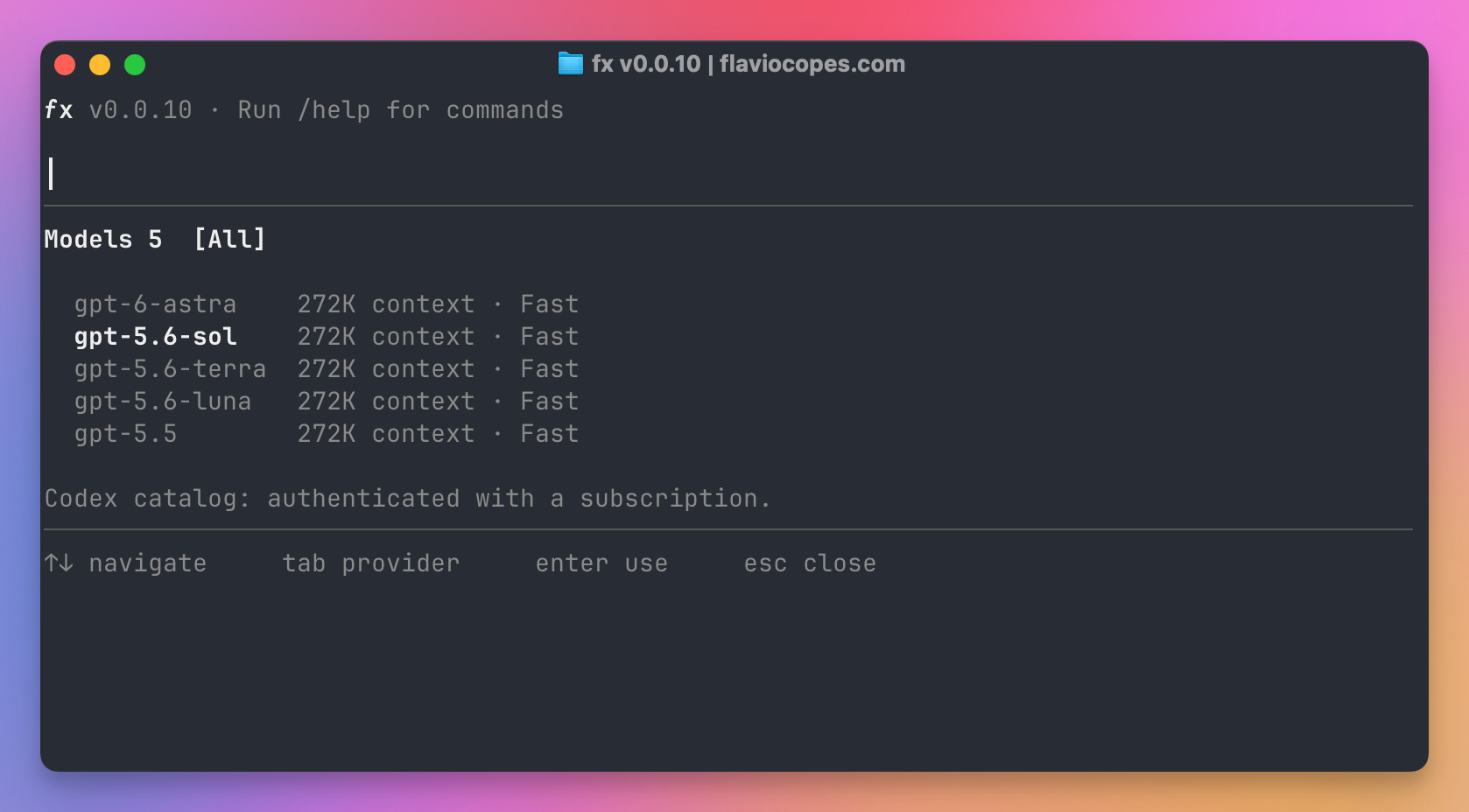
Picking gpt-5.6-sol prints Switched to gpt-5.6-sol, and the status line updates to auto, the model, and medium, with a bolt after the effort.
A project can’t set your model. .fx.json has no model field, which keeps a cloned repo from swapping the model out from under you.
To override the model for a single process:
FX_MODEL=moonshotai/kimi-k3 fxOr use this form:
fx ask --model moonshotai/kimi-k3 --effort high "Review the diff"effort accepts auto, none, minimal, low, medium, high, xhigh, and max, when the model supports them. /fast toggles fast mode for models that have it. Overriding the model for one run drops fast mode unless you also pass --fast.
Gateway can serve one model id from more than one inference provider. provider_order takes a list of up to eight provider slugs to try in order, and provider_strict limits the request to that list:
fx ask --model anthropic/claude-sonnet-5 \
  --provider-order bedrock,anthropic \
  "Review this change"
Unlike the model id, those two keys are allowed in .fx.json. The slug spelling matches Gateway’s, and case matters (vertexAnthropic keeps the capital A). Routing applies to Gateway only.
Permissions
fx starts in auto. Reading files inside the workspace is normally allowed, while edits, shell commands, and paths outside the workspace go through the policy.
| Mode | What happens |
|---|---|
ask | You get a prompt for an unresolved sensitive call |
auto | Rules apply, then a reviewer model judges what is left. This is the default |
full-access | Permission checks are off |
Switch modes inside the shell with /permissions ask, /permissions auto, or /permissions full-access. /permissions reset drops back to ask and clears any grants collected in this session.
In ask, the prompt gives you three choices: Yes runs this call once, “Yes, and don’t ask again” runs it and remembers that scope until the session ends, and No blocks it. That grant isn’t written to disk, and fx resume doesn’t bring it back.
In auto, the reviewer is a second model call, billed like any other call on that provider. On Gateway, the default reviewer is moonshotai/kimi-k3, and you can point it at another Gateway chat model with review_model in ~/.fx/settings.json or FX_REVIEW_MODEL for one process. typesafeai/jev sends the review to TypeSafe’s Jev evaluation model. On Codex the reviewer is fixed at gpt-5.4-mini, and on Grok it uses the session model. If the review can’t run, fx holds the action.
A narrow rule is cheaper than a review because it settles the call before a second request goes out. Rules live in ~/.fx/settings.json, not in the repo. The last match wins, so put the broad rule first:
{
  "permission": {
    "bash": {
      "git *": "allow",
      "git push *": "deny"
    },
    "edit": {
      "*": "deny",
      "docs/*": "allow"
    }
  }
}
That allows git and denies git push, while denying edits everywhere except under docs/. Workspace rules override user-global rules.
/allowlist edits the same rules from the shell. Stick to local rules tied to one repo over a user rule that applies everywhere.
fx --full-access flips the mode for that process only and leaves your saved mode alone. The old name yolo still works as a flag and as a settings value (saved JSON still writes "yolo", even though the interface says “full access”).
Tools, files, and the shell
Under the hood, fx gives the model a small, focused set of built-in tools: glob_files and grep_files to find files, read_file to inspect them, write_file and edit_file to make changes, shell for commands, and web_search and web_fetch for the web. If your chosen model can’t handle images natively, fx routes them through a vision tool that falls back to google/gemini-2.5-flash. Skills, subagents, and MCP each add their own tools, which I’ll get to in a moment.
That’s the entire web tool set: searching the web and fetching a URL. If a task needs a logged-in page, you’ll want an agent that can drive a browser instead.
Long command output doesn’t have to flood the prompt. fx stores a short preview and the byte count, along with a handle the model can inspect with read_tool_result. By default a single result caps out at 65536 bytes, and you can adjust that with max_tool_result_bytes (down to a floor of 1024).
The shell tool can also leave background processes running, then use interact to read output or send input and stop to shut them down. That’s how a dev server stays alive across turns. (Subagents, covered below, are separate fx sessions.)
You can cap the tool loop with max_agent_steps, where the default 0 means no limit. A repo can set that in .fx.json along with the tool-result cap, context, and the Gateway routing keys. Those are the only five fields a project config file is allowed to set.
If you need the agent to reach outside the current repo, pass --add-dir or run fx workspace add to attach up to 16 extra directories. They only expand file and tool access, though, so skills, sessions, and AGENTS.md still come exclusively from the primary workspace.
AGENTS.md and skills
fx reads AGENTS.md for project instructions. It loads ~/.fx/AGENTS.md first, then walks from your launch directory down into the primary workspace. If a tool touches apps/web/src/, a nested apps/web/AGENTS.md layers on top of the root file and wins on any conflict, while a direct instruction from you still overrides both.
Tool output is treated strictly as evidence, so a file the agent just read can’t override AGENTS.md. Don’t put secrets or tokens in that file, since its contents go out with every model request.
If you want to skip project instructions altogether, set "context": false in .fx.json or your settings. Each instruction file is size-capped, and fx tells you if one gets truncated.
A skill is a directory containing a SKILL.md file. fx reads only the name and description at startup and loads the full body when you or the agent invoke it, keeping long instructions out of prompts that don’t need them.
fx looks for skills walking upward from the primary workspace (stopping before your home directory) across skills/, .agents/skills/, .codex/skills/, .claude/skills/, .opencode/skills/, and .claw/skills/. After that it checks those same folder names inside your home directory, plus ~/.fx/skills/. Extra workspace directories aren’t searched.
Here’s the SKILL.md format it expects:
---
name: review-post
description: Use this when a draft post needs a pass for broken commands.
---

# Review a post

Read the post, run the commands it shows, and report what failed.
Only name is required, and unknown frontmatter fields are ignored, so skills written for other agents load without changes. You can invoke a skill with $ in the composer or via /skills.
Running /skills install vercel-labs/agent-skills --skill find-skills installs a skill into ~/.fx/skills/, and /skills create and /skills remove manage that same directory.
If you want to feed the fx documentation to an agent, fx.sh/llms.txt has the index and fx.sh/llms-full.txt bundles every page into a single file.
MCP
fx is an MCP client, and servers you add are available in the interactive shell, fx ask, ACP, and subagents.
Your personal config lives in ~/.fx/mcp.json. Here’s how you add a local stdio server:
fx mcp add local-tools npx -y @modelcontextprotocol/server-everythingYou can also point it at a remote Streamable HTTP server:
fx mcp add --transport http prisma https://mcp.prisma.io/mcpfx rejects a literal Authorization header in that JSON so secrets don’t sit around in plain text. Instead, use bearer_token_env or header_env to read from your environment, or configure oauth for an authorization-code login with PKCE (on macOS, OAuth tokens are stored in Keychain). Start that flow with /mcp login <name> (in 0.0.10 this was /mcp auth <name> --open).
A repo can also include a .mcp.json file using the same mcpServers structure other agents use. Those project servers stay disconnected until you explicitly trust them, and that approval is saved in your private settings under the workspace path rather than in the repo. Until you approve a server, fx won’t launch its process, call its URL, or read the environment variables it references. Approve or reject project servers from the CLI:
fx mcp approve prisma
fx mcp reject prisma
In 0.0.10 those commands were fx mcp trust approve and fx mcp trust reject.
If a project server shares a name with one in your personal profile, your profile wins in both the shell and fx ask. fx also avoids dumping every tool schema into the prompt upfront; it uses capability_search to look up a tool and loads the schema only if it fits the budget.
Treat MCP server output as untrusted text, and keep ~/.fx/mcp.json out of git since it can contain environment values.
Subagents
To delegate work, just ask in the same conversation:
Have a subagent review the parser tests and report missing cases. Do not edit files.Behind the scenes, the model calls the subagent tool. run spawns a one-off child that finishes and returns its result, while message creates a named child (or continues an existing one) so you can come back in a later turn and say “check the new tests against your earlier findings.”
Each child inherits the parent’s model, reasoning effort, and permission limits, so delegation never widens the allowlist. Because children share the same workspace, two of them editing the same file will step on each other; point them at separate directories instead.
A named child keeps its own conversation history, and you can even send it a follow-up while it’s still running a tool. Once it finishes, the final result comes back to the parent session.
Sessions
Running interactive fx starts a new session and saves it under ~/.fx/sessions/. You can list and resume sessions from the command line:
fx sessions
fx resume last
fx -r
After I opened fx once in this repo without sending a prompt, fx sessions listed one saved session with 0 turns.
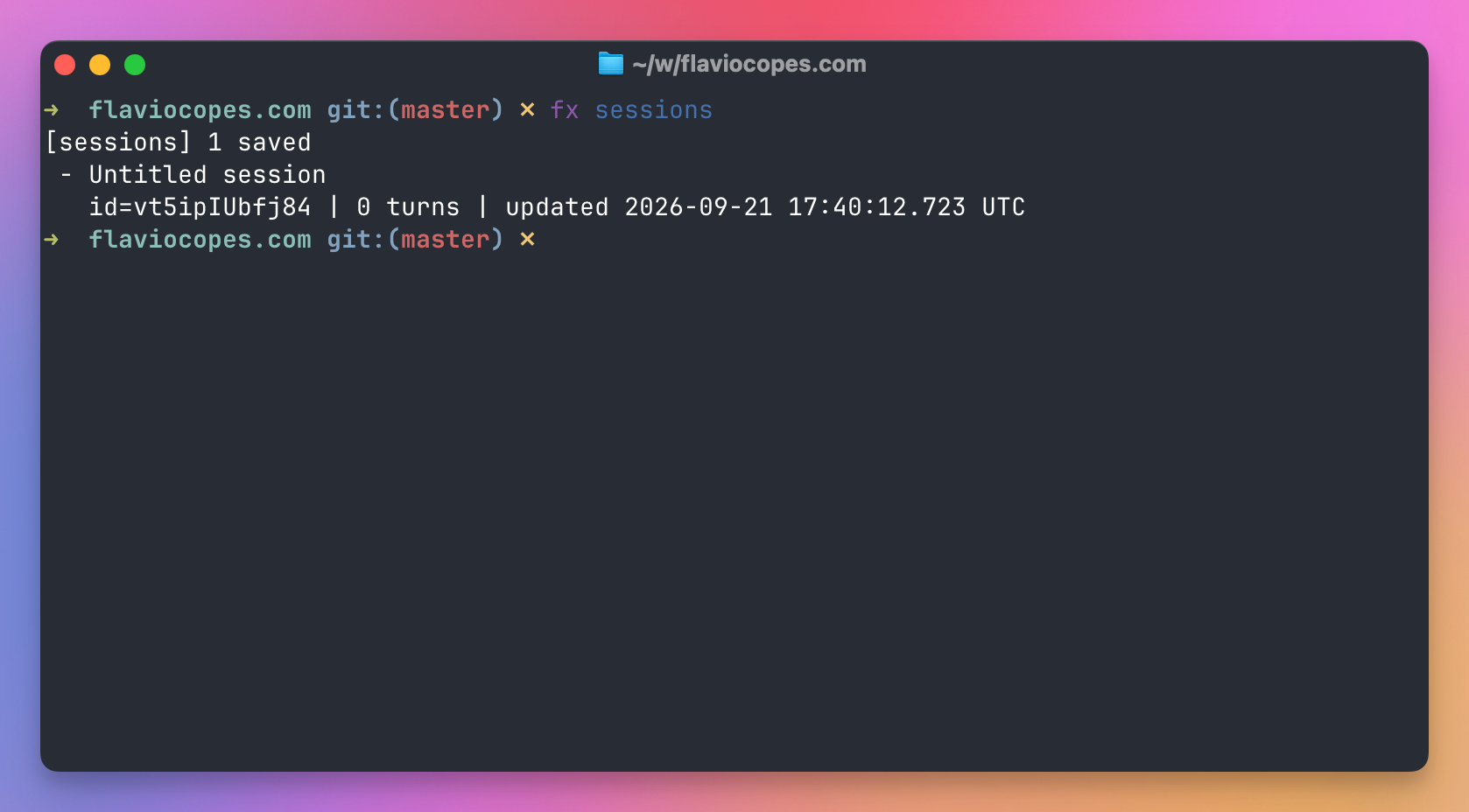
Pass -r to open a session picker, or -c to jump straight back into the latest session for the current workspace without scanning everything. If you want to continue that conversation without opening the interactive shell, run fx ask --resume last.
When a turn gets interrupted, /continue picks up a paused response inside the shell (0.0.15 removed fx ask --continue-recovery). Reopening the session preserves both the unfinished prompt and any tool work that already completed.
/fork branches from an earlier prompt into a fresh session without touching the original. If a session file gets damaged, fx session recover <id> copies and repairs it while leaving the original alone, and fx doctor will print the exact recovery command when it spots something it knows how to fix.
Once a request hits 80% of the model’s usable input window, fx automatically summarizes older context and continues the same turn in a fresh window. Recent tool exchanges stay intact, and the full transcript remains in the saved session. You can also trigger that summary manually with /compact, which waits for your next prompt afterward. If compaction fails, fx keeps the previous context untouched.
Editors, through ACP
fx acp speaks the Agent Client Protocol over stdin and stdout. Any editor with ACP support launches the binary like this:
{
  "command": "/Users/flaviocopes/.local/bin/fx",
  "args": ["acp"]
}
The editor’s working directory becomes the workspace, and you run one server process per workspace. Make sure you’ve already completed fx login before the editor starts it, since ACP reuses your saved credentials.
The server implements protocol version 1: create, load, resume, list, prompt, cancel, and setting the model or mode. In ask mode it prompts you for unresolved calls, while code runs the automatic reviewer. Any session-level grant still expires when the session ends.
Because stdout carries the JSON-RPC protocol stream, pass --log-file with an absolute path whenever you need diagnostics so logs don’t corrupt the stream. Individual messages are capped at 8 MiB.
ACP accepts text, images, and file resources, though audio isn’t supported. It uses whatever MCP servers the editor passes in along with project servers you’ve already trusted, and it doesn’t inherit ~/.fx/mcp.json.
Embed the agent
The CLI is just one host for the engine. libfx exposes the same core so you can run it inside your own process. The examples below target libfx 0.0.10, so pin that version if you want them to match:
npm install libfx@0.0.10It requires Node 20 or newer and has zero runtime dependencies. Native addons ship for macOS and Linux on both x64 and arm64 (Linux requires glibc 2.34 or newer), while Node on Windows falls back to WebAssembly.
Each agent instance holds a single in-memory conversation:
import { createFxAgent } from 'libfx'

const agent = await createFxAgent({
  apiKey: process.env.AI_GATEWAY_API_KEY,
})

try {
  const turn = agent.prompt('Explain how a database index speeds up a query.')
  for await (const event of turn) {
    if (event.type === 'text_delta') process.stdout.write(event.delta)
  }
  console.log(await turn.result)
} finally {
  await agent.close()
}
Make sure you consume the event stream before awaiting turn.result, or the turn can stall. Only one prompt runs at a time; breaking out of the loop cancels it, and so do turn.cancel() and an AbortSignal.
Unlike the CLI, the embedded agent doesn’t come with file tools, a shell, or permission prompts. You define tools in JavaScript, and your execute function acts as the permission check:
const agent = await createFxAgent({
  apiKey: process.env.AI_GATEWAY_API_KEY,
  instructions: 'Answer questions about the handbooks. Use lookup when you need a title.',
  tools: [{
    name: 'lookup',
    description: 'Look up a handbook by slug.',
    inputSchema: {
      type: 'object',
      properties: {
        slug: { type: 'string' },
      },
      required: ['slug'],
    },
    async execute(input) {
      const books = {
        javascript: 'The JavaScript Handbook',
        node: 'The Node.js Handbook',
      }
      return books[input.slug] || 'No handbook with that slug'
    },
  }],
})
instructions is the entire system context, capped at 64 KiB. Leave it out and the request goes out with no system message at all, because libfx doesn’t inject a default base prompt.
Once the agent is idle, checkpoint() returns opaque bytes that you store wherever you want. Credentials, tools, and instructions aren’t included in the checkpoint, so you pass them back in when restoring into a new agent.
If you want to embed the interactive UI itself, createFxTerminal() is a separate API that accepts custom storage and login adapters. That terminal layer runs on WebAssembly and requires JSPI even when the agent core uses the native addon.
You can try a short browser demo at fx.sh/try, and there are Node, browser, Next.js, and Nuxt examples in the embedding docs.
A local model
Out of the box, fx supports Gateway, Codex, and Grok. There’s also a preview feature that lets you point the CLI at any server speaking OpenAI-style Chat Completions, such as Ollama, vLLM, or OpenRouter.
Don’t assume your installed binary already includes this preview. After you add a connection, run fx status --json and look for provider_endpoint; if it’s missing, your build doesn’t have the preview yet. Define these connections in ~/.fx/settings.json, never in .fx.json, and keep the API key in an environment variable referenced by auth.env.
Here’s the configuration for a local Ollama server:
{
  "provider": "local",
  "providers": {
    "local": {
      "protocol": "openai-chat-completions",
      "base_url": "http://localhost:11434/v1",
      "auth": { "type": "none" },
      "model_metadata": {
        "qwen2.5:1.5b": {
          "context_window": 32768,
          "max_output_tokens": 2048,
          "supports_tool_use": true
        }
      }
    }
  },
  "models": {
    "local": "qwen2.5:1.5b"
  }
}
Leave /chat/completions off base_url, since fx appends that path automatically. Plain HTTP is allowed on loopback addresses, while any remote endpoint requires HTTPS. Set context_window too, or automatic compaction won’t have a threshold to trigger on. This adapter also doesn’t support native image input, even if you set supports_vision.
The names gateway, codex, and grok are reserved. Pick your custom connection with fx provider local, or scope it to a single run with FX_PROVIDER=local.
Usage, cost, and what stays on the machine
You can check your local usage from the CLI:
fx usage --period 7d
fx credits
fx usage reads a local log covering 24h, 7d, or 30d, and it only reflects this machine rather than the whole Vercel team. For team-wide totals, check Gateway billing and the team dashboard. Requests routed through Codex or Grok are billed by those subscriptions instead, and fx credits will tell you credits don’t apply to them.
Reviews and the vision fallback count as extra requests, and web search can add cost to the generation that calls it.
fx doesn’t upload your workspace, git history, or session files on its own. A prompt still carries whatever the turn loaded: the conversation, the applicable AGENTS.md, skill text, images, and tool output. web_fetch, web search, and any remote MCP server also send whatever you ask them to send.
Session files stay under ~/.fx/, and continuing a session sends that context again. If you want a one-off run that leaves no session file behind, use fx ask --no-save.
/trace builds a diagnostic report locally without sending a separate analytics event. Read through it before pasting it anywhere, since it can contain prompts, paths, and commands.
Under AI Gateway’s policy, prompts and outputs aren’t retained after a request, while metadata like the model, token counts, latency, and cost is kept for billing. A Pro or Enterprise team can turn on Zero Data Retention, which also limits routing to providers that support it, and fx follows whatever that team or API key is configured for.
Keep ~/.fx out of your repository, since your settings, transcripts, MCP config, and recordings all live there.
How I would use it
I installed fx 0.0.10 and signed in, first with Vercel and then with Codex. My daily editing still happens in Cursor, one task at a time, with the diff right in front of me. Cursor Projects is the long-lived version of that workflow, and I already know it doesn’t fit the way I work, so I’m sticking with my editor for everyday coding.
Where fx makes sense for this site is running fx ask against a draft post, either in ask mode or with rules that allow git status and npx astro build while denying git push. Keep the prompt narrow: read the file, run the commands in the fenced blocks, and report which ones failed. Adding --json lets a script pull out final_output and ignore the rest of the transcript. On a machine that holds newsletter and course credentials, --full-access is off the table.
libfx is also worth reaching for the day you want an agent inside a small Node script with custom tools, much like the handbook lookup above where the host controls what execute is allowed to touch. Keep a Gateway key out of client-side pages like the browser tools on this site, though. Those pages run entirely in the browser, and a model key doesn’t belong there.
Skip fx when the job needs a real browser, when you’re on Windows and need a native CLI, or when you want a full IDE session. The 0.0.x releases are still moving quickly, and the installer won’t verify a checksum for you.
Want me to talk about your product? You can sponsor this site.
Related posts about ai: