How to manage coding agents with Herdr
By Flavio
Updated
Tagged: AI
Herdr keeps coding agents in persistent terminals. Its desktop app, built on herdr-core, lets an agent change every part of the interface.
Herdr organizes coding agents into persistent terminal workspaces, with a sidebar showing which agents are working and which ones need an answer.
On October 29, 2026, Herdr announced a native desktop app built on a new runtime called herdr-core, followed by a mobile app for iPhone, iPad, and Android on November 9. The desktop app and herdr-core covers the app, the core, and what happens when you close the window. The terminal app in the rest of this guide isn’t going away and keeps getting updates.
I run several coding agents every day. One might be changing a website while another reviews the change and a third runs tests. This guide walks through installing the terminal app, arranging those terminals, and coordinating agents from its command line.
What is Herdr?
The Herdr homepage now leads with the desktop app. The terminal app in this guide is still a workspace manager for several coding agents at once, like Codex and Claude Code. It’s a single Rust binary that works like tmux rebuilt around agents: your sessions keep running after you close the terminal, and Herdr knows which agent is working, blocked, or done.
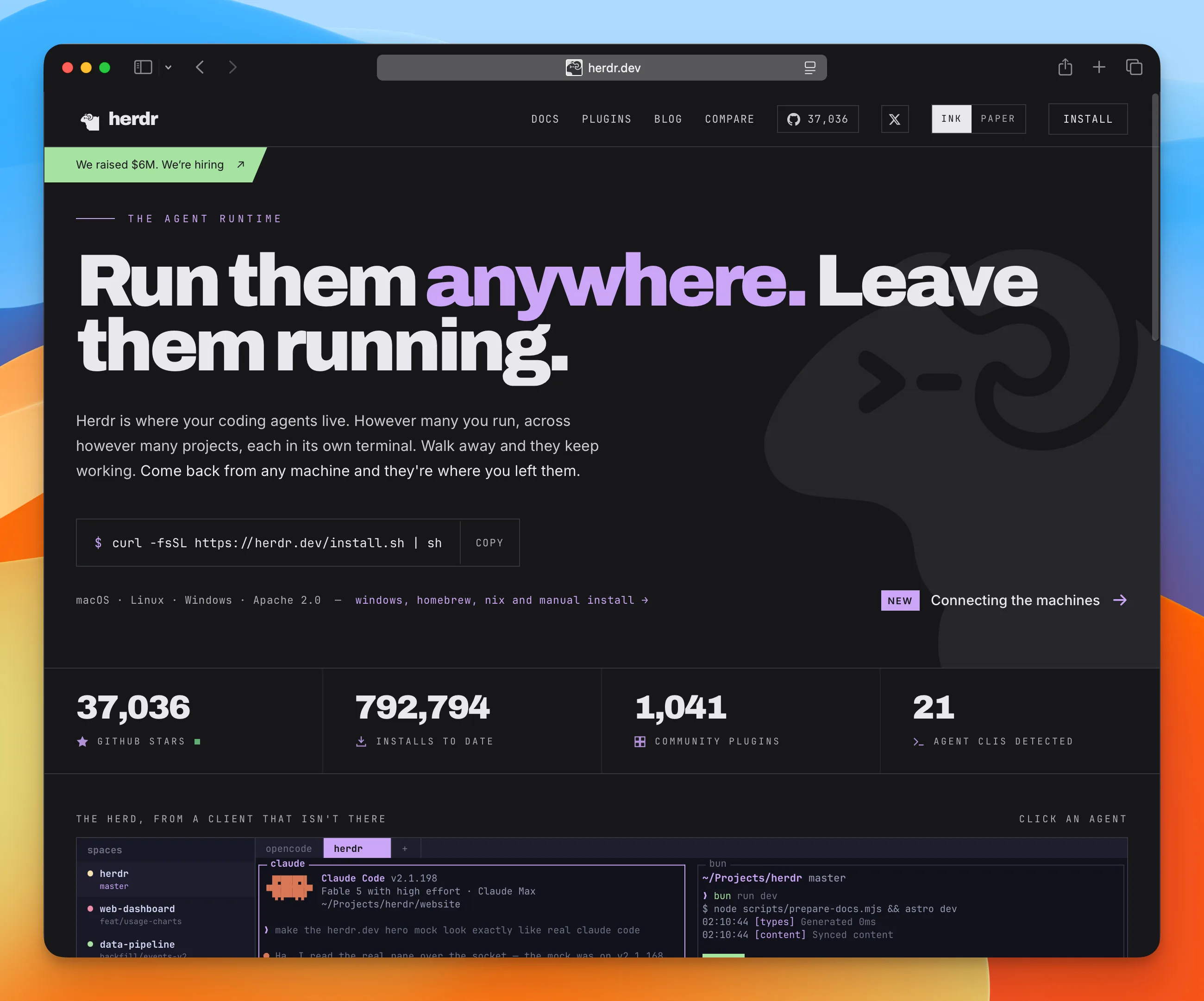
Every agent gets a real terminal, organized into workspaces, tabs, and panes, with a sidebar telling me which ones are working, blocked, done, or idle.
The session keeps running when I close the terminal. I can reconnect locally, over SSH, or from my phone. Since version 0.9, one client can also show local and remote machines together.
Herdr is scriptable through its CLI and local socket API. A script can create a workspace, split a pane, start an agent, send it a prompt, wait for it to finish, and read the result. Agents can do the exact same thing, which is how they talk to each other through Herdr: a coordinator talks to the local server, targets another agent, sends a prompt, waits for its state to change, and reads the response. I use that same interface to watch the agents and control them.
If you’ve used tmux, the shortest explanation is: Herdr is tmux rebuilt around coding agents.
If you’ve never touched a terminal multiplexer, that’s fine. Herdr is mouse-native, so you can start by clicking tabs, dragging pane borders, and using right-click menus.
The desktop app and herdr-core
On October 29, 2026, Herdr announced a native desktop app along with a new runtime called herdr-core (you can see both in the announcement thread). The desktop app, herdr-core, and the terminal app are all open source under Apache 2.0.
The source lives across three repositories: herdr-app, herdr-core, and the terminal app in herdr, with installers and docs on herdr.dev.
The desktop app
The desktop app gives your agents a native window. A space represents one project, usually a single repo on one machine. Each space has tabs you can split into panes, and the sidebar lists any agents waiting on you. The window only arranges those terminals while herdr-core runs them.
On Linux or an Apple Silicon Mac, install the app with:
curl -fsSL https://releases.herdr.dev/app/install.sh | shThe installer places the app on your machine and puts a command in ~/.local/bin (add that folder to your PATH if prompted). On macOS it installs to ~/Applications/Herdr.app, or you can download Herdr.dmg and drag it to Applications yourself.
The Mac download is Apple Silicon only, so on an Intel Mac you’ll need to build from the herdr-app repository. Linux ships x86-64 and ARM64 builds and needs a desktop session with a working Vulkan driver.
The installer also installs herdr-core when it’s missing, and the app can help install or update a core it can’t use.
On x64 Windows 10 (1803 or newer) with curl and tar, run this in PowerShell:
irm https://releases.herdr.dev/app/install.ps1 | iexAfter that, Herdr shows up in the Start menu.
Every part of the app is defined by files your agent can edit in ~/.config/herdr-app, alongside an AGENTS.md explaining what it’s allowed to touch.
~/.config/herdr-app/
├── AGENTS.md
├── settings.json
├── keys.json
├── layouts/
├── mods/
└── themes/
Running herdr-app --skill prints the guide for driving that window.
The app ships with three layouts: Herdr, Terminals, and Herdr 98. Duplicate a shipped layout or mod before editing its code, since the app refreshes the shipped copies on startup while leaving your copies alone.
In the announcement demo, the agent builds a mod from this prompt:
build a herdr mod that shows my PLAN.md next to you as a live checklist with a progress bar and open it beside this paneThe agent edits the app’s files and opens a plan pane beside the terminal with that checklist and a progress bar.
Herdr also publishes extra layouts that aren’t bundled in the download. Each layout page gives you one line to hand your agent, and adding one leaves your current layout untouched.
| Layout | What it adds |
|---|---|
| Board | Agents as cards: Needs you, Working, Done, and Idle. Click a card and its terminals open below. |
| Chat | Spaces look like channels. Agents post updates like teammates. |
| Mission | A green mission-control screen. The active tab is a set of command feeds. |
| Pasture | Agents as sheep in a meadow. Click a sheep and its terminal opens. |
Release builds send usage telemetry by default; you can turn it off under Settings, then Privacy.
Closing the window leaves your terminals running, while closing a pane or tab stops the terminals inside it.
herdr-core
herdr-core is the new runtime, billed as leaner and more capable than the terminal app’s engine. The desktop app is one client for it, while the terminal app continues running on its own server.
You interact with it through the hc command, which has no UI of its own and can be driven from a shell, an agent, or your own program.
The app installer already fetches the core if it’s missing. To install the core by itself on Linux or macOS, run:
curl -fsSL https://releases.herdr.dev/core/install.sh | shOn Windows, run this in PowerShell:
powershell -c "irm https://releases.herdr.dev/core/install.ps1 | iex"Linux and macOS ship x86_64 and aarch64 builds, and Windows ships x86_64. Running hc update updates the core without interrupting any terminals that are already running.
Because your terminals and agents live inside the core, you can close, update, or even crash the desktop app and they’ll keep going. Updating the core leaves them running too.
A reboot or a crash of the core itself is a different story. Running programs stop, and any panes you kept come back as fresh shells in their last folder. Herdr doesn’t restart the agent or the command that was running in the pane, so you’ll need to start that work again.
An agent running in a core terminal can start other agents, and those children report back with hc send. The parent gets notified whenever a child needs you or exits. By default, children stop when the parent exits unless you started them with --outlive-parent.
The herdr-core page shows starting a Codex review and steering it while it runs:
hc run --bg --name review codex "review src/x.rs. Done: hc send $HC_TERMINAL_ID"
hc send review "also check the tests"
From there, hc attach review lets you take over that terminal from a shell, a script, or another machine, and Ctrl+\ detaches while leaving the program running.
Other apps can talk to the same core too. hc schema prints the API as OpenRPC, and hc connect carries that protocol over stdin and stdout, including over SSH.
You can also run a command on any machine you can already reach with SSH, then attach using the address hc prints (box/t3 below is just an example of that format):
hc machine add my-ssh-host --name box
hc run --on box --cwd /srv/app cargo test
The program and its files stay on that remote machine, while your local core lists those terminals right beside your local ones.
Status in herdr-core comes directly from what each program reports through OSC 7501 rather than guessing from terminal output. The terminal app still detects agent state by watching the pane on its own server.
The mobile app
On November 9, 2026, Herdr released a mobile app for iPhone, iPad and Android. It’s free on the App Store and Google Play.
The phone talks to herdr-core on each machine over SSH. There’s no Herdr account and no Herdr server in between. Once you connect one machine, the app offers the others it knows about: the machines that core already uses, the hosts in your SSH config, and your Tailscale devices. Away from home, Tailscale or any VPN gets you there.
It only works with herdr-core. Agents you started in the terminal app run on that app’s own server, so they don’t show up on the phone. Both can run on the same machine.
The Inbox lists every agent on every machine, sorted by what it needs from you: needs you, done, working, idle. Swipe right to pin an agent or mark it read, left to send it Esc.
Tap an agent and you’re in its real terminal. A key bar adds Esc, Ctrl, Tab and the arrows. For longer replies, the compose sheet lets you write, paste a screenshot, attach photos, or dictate, and sends it all as one paste followed by Enter. Dictation can run on the phone with a speech model you download once.
The spaces from the desktop app show up too, each tab drawn as a small map of its panes, and watching from the phone doesn’t resize anything on your computer. On an iPad or an unfolded foldable you get the sidebar and the terminal side by side.
To look around before connecting a machine, tap Try the demo when the app opens. The mobile page has the details.
The terminal app stays
The terminal app stays and keeps getting updates. The install steps, keys, and workflows below are for that app, and its docs live at herdr.dev/tui.
Terminals you start in the terminal app stay there, while the desktop app tracks its own list through herdr-core.
Why use Herdr?
Use Herdr when you run several coding agents and lose track of their terminals. It shows in one sidebar which agent is working, blocked waiting for approval, or done. It keeps your agents running when you close the terminal or lose the SSH connection, and it lets scripts or other agents drive the panes through its CLI.
Running one coding agent is easy. Open a terminal, start Codex or Claude Code, describe the task, and watch it work.
The workflow changes once you run several agents at once. Organizing terminals doesn’t replace deciding what each conversation is allowed to change, and now you have a lot more to keep in your head:
- which terminal belongs to which project
- which agent is still working
- which one needs approval
- which one asked a question
- which one finished while you were looking elsewhere
- where the development server is running
- where the test output went
- what survives if you close the terminal or lose the SSH connection
Normal terminal tabs only solve the first part.
tmux and Zellij add persistent sessions, panes, and layouts. They’re great general-purpose tools, but they don’t understand the process inside a pane. To tmux, Codex is just another command. (I later wrote a direct Herdr vs tmux vs Zellij comparison.)
Graphical agent managers do understand agent state, but they usually put the terminal inside their own app. That can mean a wrapped terminal, a desktop-only workflow, or a tool that doesn’t follow me onto a remote Linux server.
Herdr sits between those two approaches. It keeps the real terminal and persistent-session model, then adds agent awareness, mouse controls, remote access, notifications, and automation.
The terminal app is a single Rust binary with no account, no hosted dashboard, and no telemetry. My code keeps running on the machine where I started it.
The table below compares the terminal app (the desktop app is covered above) against the main alternatives:
| Capability | Plain terminal tabs | tmux or Zellij | Graphical agent manager | Herdr |
|---|---|---|---|---|
| Real terminal processes | Yes | Yes | Depends on the app | Yes |
| Persistent detach and reattach | No | Yes | Usually different | Yes |
| Panes and tabs | Terminal-dependent | Yes | Yes | Yes |
| Agent lifecycle state | No | No | Yes | Yes |
| Works through normal SSH | Yes | Yes | Usually limited | Yes |
| Several machines in one client | One tab per machine | One client per server | Depends on the app | Yes, since 0.9 |
| Mouse-native workspace UI | Terminal-dependent | Limited | Yes | Yes |
| Local CLI and socket API | No shared layer | General terminal control | Product-dependent | Yes, agent-aware |
| Agent can control another agent | No | Possible, but manual | Product-dependent | Built in |
Herdr isn’t automatically the right pick for every row. I still use one shell when that’s all I need, and tmux is plenty on a machine where I want a battle-tested general multiplexer. For product-level tasks, isolated environments, and a full agent event history, a graphical agent platform makes more sense.
I reach for Herdr when I want persistence and agent awareness around real terminals, with commands I can automate.
In September 2026, Herdr announced a $6 million seed round led by Bessemer Venture Partners, with Y Combinator and E2 participating. Angel investors included Tobi Lütke, @dok2001, and @gorkem.
Herdr compared to cmux
Herdr and cmux sit at different layers, so it isn’t a question of one being strictly better than the other.
cmux focuses on being a great Mac desktop terminal, with a native interface, vertical workspaces, notification rings, and a built-in scriptable browser.
Herdr lives inside the terminal as a multiplexer. Its background server keeps processes alive across disconnects, tracks semantic agent states, and gives me the same interface on my Mac, a remote Linux server, or a small-screen terminal.
They work well together too. You can run Herdr inside cmux so cmux handles the Mac interface and browser while Herdr owns the persistent local or remote terminal session.
How does Herdr work?
The terminal app runs a background server that owns your terminals and the processes inside them, plus a client that draws the interface in your terminal window. Closing the client doesn’t stop anything. It groups terminals into workspaces, tabs, and panes, and checks the foreground process of each pane to recognize coding agents and read their state.
The mental model
Herdr has five main concepts:
A workspace is a project
A workspace is the top-level container. I use one workspace per repository or focused investigation.
For example, flaviocopes.com can be one workspace and hostingpicker.dev can be another. Switching workspaces changes the entire project context instead of mixing unrelated terminals in one long tab bar.
A workspace owns its tabs and panes, and rolls up the states of the agents inside it. If an agent inside a background workspace needs a decision, the workspace shows that state in the sidebar.
A tab is one view of the project
A tab is a layout inside a workspace. I might have tabs called:
agentsdevtestslogsreview
Each tab can hold one pane or a split layout. Tabs let me keep related terminals together without showing all of them at once.
A pane is a real terminal
A pane is a real terminal controlled by Herdr. It can run a shell, an agent, a development server, a test watcher, wrangler, ssh, or any other terminal program.
Herdr renders the program’s actual terminal screen and sends input back to it. Full-screen terminal interfaces keep working because Herdr isn’t converting their output into chat messages.
Panes also survive when the client detaches, since the background Herdr server owns them.
An agent is a recognized process inside a pane
Every pane starts as a normal terminal. An agent appears on top of it when Herdr recognizes a coding-agent process inside that pane.
A test runner belongs to the pane layer. Codex belongs to both the pane and agent layers. Herdr can send raw input to either one, but only the agent layer understands lifecycle states like working and blocked.
A session owns the complete runtime
A session is a persistent Herdr server namespace. The normal herdr command starts or attaches to the default session, and most people only need one session with several workspaces.
Named sessions come in handy when you want completely separate runtime state:
herdr session attach work
herdr session attach experiments
Each named session gets its own workspaces, tabs, panes, processes, and socket. My advice is to start with workspaces and add named sessions only when you need a hard separation between two groups of work.
The client and server architecture
Running herdr looks like launching one terminal app, but it starts two separate roles:
The server owns the pseudo-terminals, child processes, live pane state, and session layout. The client renders that state and sends keyboard or mouse input back to the server.
Closing a client doesn’t stop the work because the server owns the process tree. Multiple clients can also attach to the same session while the server remains the single owner of the live terminal state.
Until version 0.9, the split was less clean than this diagram suggests. The server rendered the whole interface, sidebar included, and the client just displayed it, so one client could only show one server.
Since 0.9, the client renders the outer UI while servers own their sessions and supply the terminal views. That’s what lets one client show several servers side by side, which I cover in the multi-machine section below.
How do you use Herdr?
To use the terminal app, install it with brew install herdr or its install script, then run herdr inside a project folder. Start Codex or Claude Code in a pane as usual, and Herdr lists it in the sidebar with its state. Split a pane with ctrl+b, then v. Detach with ctrl+b, then q, and run herdr again to reattach. If you want the desktop app instead, that’s a separate install covered in The desktop app and herdr-core.
Install Herdr
Herdr publishes stable binaries for macOS, Linux and Windows.
The direct installer is:
curl -fsSL https://herdr.dev/install.sh | shYou can also use Homebrew:
brew install herdrOr mise:
mise use -g herdrCheck the installation:
herdr --versionIf you use the CLI often, generate shell completions. For your current zsh session:
source <(herdr completion zsh)Herdr can also generate completions for Bash, Fish, PowerShell, and Elvish.
Then start it inside a project:
cd ~/www/flaviocopes.com
herdr
On the first run, Herdr creates or attaches to the default background session and sets up a workspace if the session doesn’t have one yet.
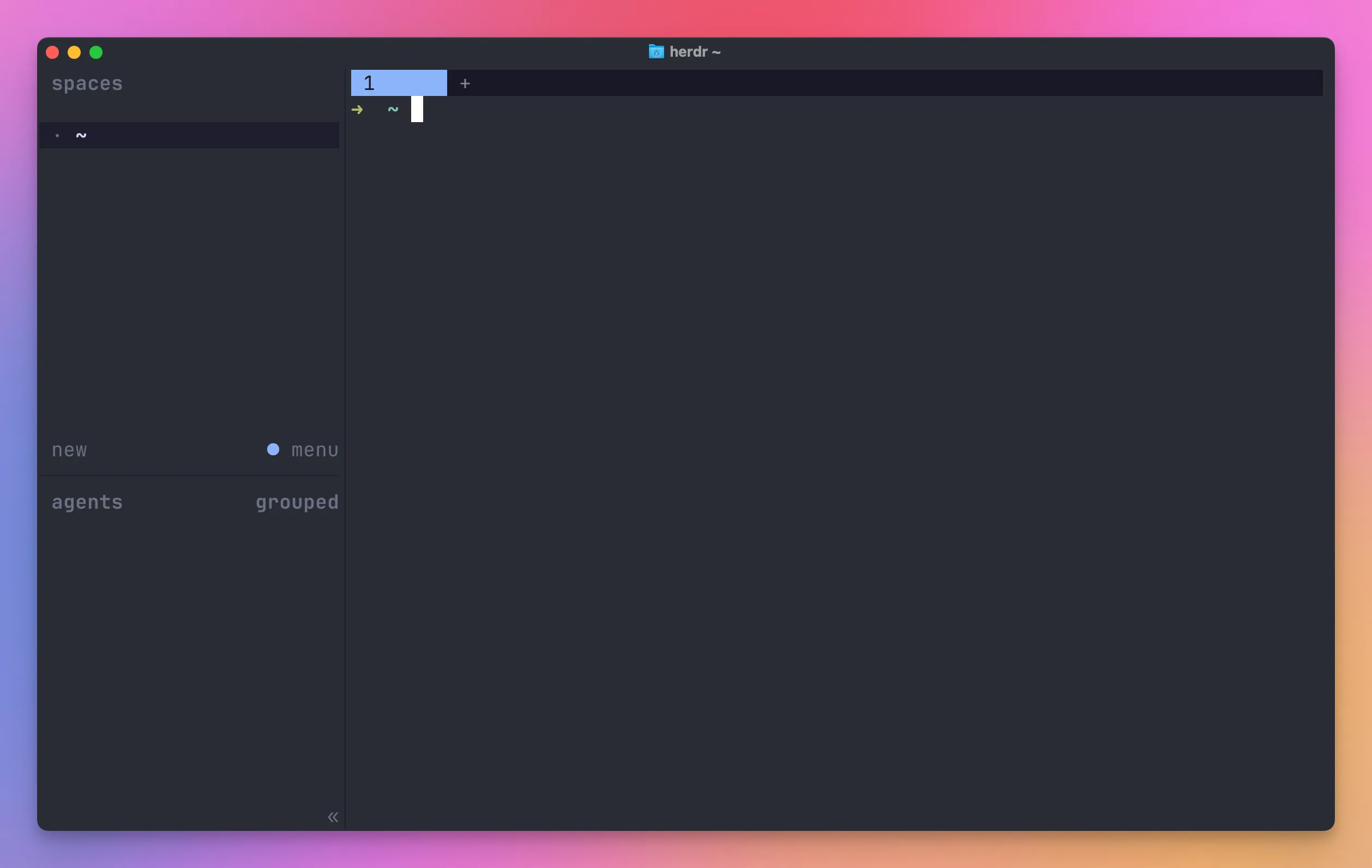
The sidebar on the left lists workspaces on top and agents below, both mostly empty at this point. The pane on the right is a normal shell, and there’s no socket setup to remember.
Herdr on Windows
Herdr also runs natively on Windows. Windows builds moved from the preview channel to stable releases in August 2026, so a new Windows install uses the stable channel, like macOS and Linux.
Install it from PowerShell:
powershell -ExecutionPolicy Bypass -c "irm https://herdr.dev/install.ps1 | iex"If your endpoint security blocks that command, the install docs have an install.cmd alternative for Command Prompt. An older preview install stays on preview until you run herdr channel set stable.
Native panes run through ConPTY, the Windows pseudo-console. New panes open PowerShell by default, and cmd.exe works too. The config file lives in %APPDATA%\herdr\config.toml.
If your projects and agents live in WSL, you can run the Linux build there instead. Open your WSL shell and use the curl installer above.
A few things don’t work on native Windows yet: direct terminal attach, live handoff with --handoff, and Herdr’s clipboard image bridge in local panes. Plugins are still in preview, and the binary isn’t signed, so SmartScreen can warn you. The Windows support page keeps the current list.
Update Herdr
Installer-managed copies update with:
herdr updateHomebrew, mise, and Nix installations update through their package managers instead.
An updated client binary can sometimes connect to an older compatible server that’s still running. Check both with:
herdr statusIf the protocol requires a server restart, remember that stopping the server exits its pane processes. Finish important work first, or use the experimental live handoff path when the installed version supports it:
herdr update --handoffUninstall Herdr
Herdr doesn’t have an uninstall command, so removing it takes a few manual steps.
First, stop the server. This ends every process running in your panes, so finish your work before you run it, and stop any named sessions too with herdr session stop <name>:
herdr server stopIf you installed agent integrations, remove each one while the binary is still around. This deletes the hooks Herdr wrote into that agent’s config folder:
herdr integration uninstall codexThe install script writes a single file, ~/.local/bin/herdr (or the folder in HERDR_INSTALL_DIR, if you set it). Delete it:
rm ~/.local/bin/herdrWith Homebrew, run brew uninstall herdr instead. With mise, run mise unuse -g herdr.
The last step is optional. ~/.config/herdr holds your config.toml, the logs, the server sockets, the saved session layout, named sessions and installed plugins. Delete it with rm -rf ~/.config/herdr if you don’t plan to come back. Worktrees created by Herdr live in ~/.herdr/worktrees by default. Those are code checkouts, so check them for unmerged work before you delete them.
Your first five minutes
You can use Herdr with the mouse right away. Click a pane to focus it, right-click to split it or create another tab, drag the border between two panes to resize them, and click a workspace or agent in the sidebar to jump to it.
Herdr also has a tmux-style prefix key, ctrl+b by default. Press it, release it, then press the action key.
These are enough to get started:
| Action | Key |
|---|---|
| Split right | ctrl+b, then v |
| Split down | ctrl+b, then - |
| New tab | ctrl+b, then c |
| Next tab | ctrl+b, then n |
| Previous tab | ctrl+b, then p |
| Workspace navigation | ctrl+b, then w |
| Zoom the focused pane | ctrl+b, then z |
| Detach | ctrl+b, then q |
| Show active bindings | ctrl+b, then ? |
The prefix keeps Herdr from stealing normal keystrokes from your shell, editor, or agent. The complete default keymap is in Herdr keyboard shortcuts.
Start an agent normally inside a pane:
codexHerdr detects the foreground process, adds the agent to the sidebar, and updates its state as it works.
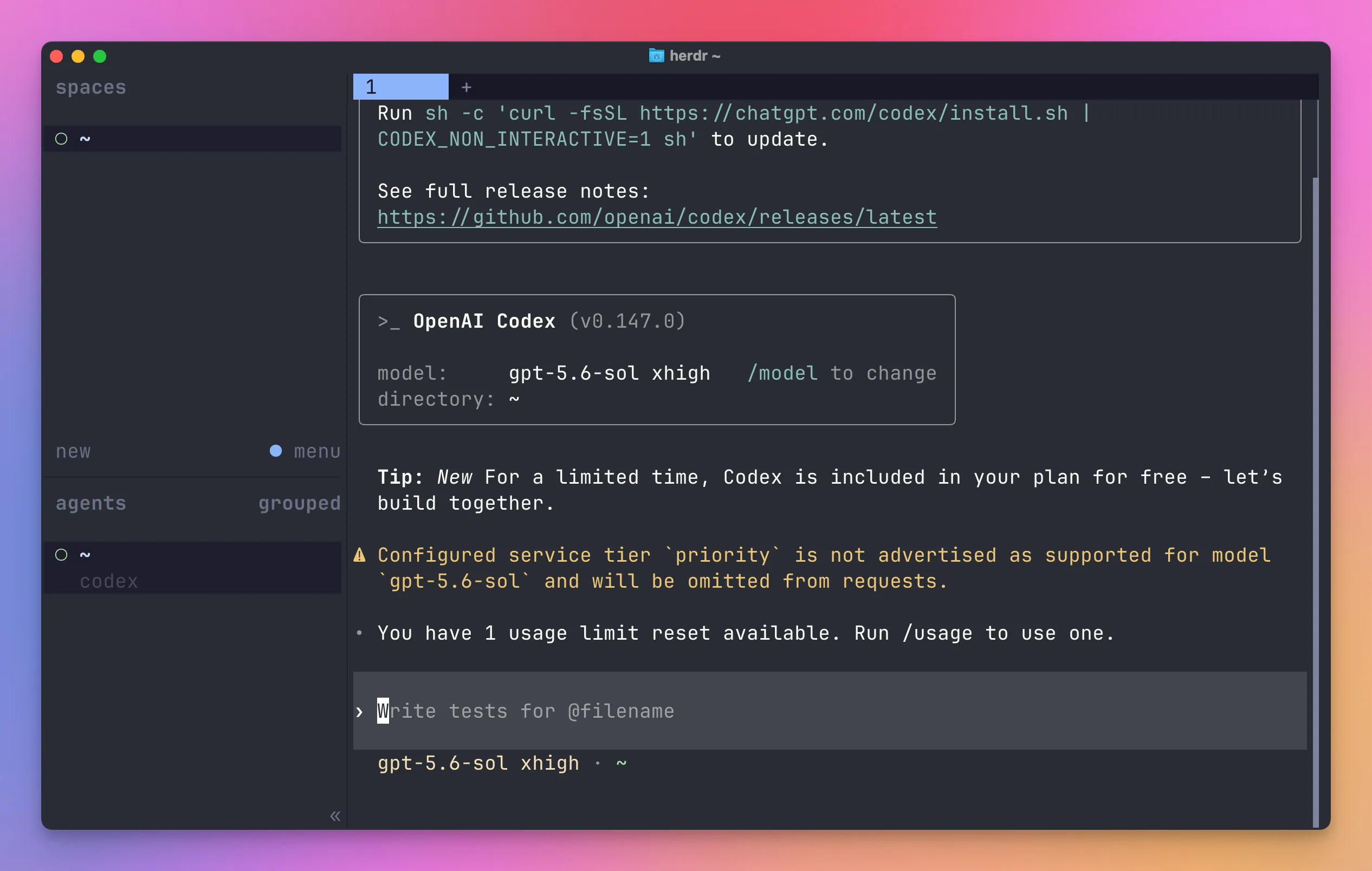
Here Codex just started in the ~ workspace. Herdr recognized it and added a codex row to the agents list without any configuration.
Detach with ctrl+b q. The terminal client closes, while the Herdr server, panes, agents, test watchers, and development servers keep running.
Reattach with:
herdrYou return to the same live processes. For the difference between detaching and stopping the server, see how to exit Herdr without losing work.
Agent state is the killer feature
Persistent panes are useful, but I rely on the agent sidebar to see where my attention is needed.
Herdr tracks five states:
| State | Meaning |
|---|---|
working | The agent is actively working |
blocked | The agent needs input, approval, or a decision |
done | The agent finished in the background and I haven’t viewed it yet |
idle | The agent is ready and its tab has been seen |
unknown | Herdr sees an agent but can’t classify it confidently |
The states roll upward:
done isn’t a separate condition reported by the agent. It’s an attention state for when an agent becomes ready while its tab is in the background. Once I view or focus it, it switches to idle.
When an agent is blocked, Herdr marks its pane, tab, and workspace. Working agents make their workspace active, and completed background agents stay visible as done until I look at them.
I don’t need to open six tabs every few minutes just to see if an agent stopped. I can read its state right in the sidebar.
How detection works
Herdr starts by detecting the foreground process in the pane. For many agents, it then reads the live bottom of the terminal screen and matches known interface states, using rules the project calls screen manifests. You don’t need to configure any hooks for this to work.
Herdr can recognize Codex, Claude Code, Cursor Agent CLI, Pi, OpenCode, GitHub Copilot CLI, Devin, Kimi, Droid, and many other agents. Unsupported agents still run as normal terminal programs; they just don’t get the richer lifecycle state automatically.
Some agents expose lifecycle hooks or plugins, so an official Herdr integration can report state directly. Others report the agent’s native session ID, which Herdr uses to resume the conversation after a full server restart.
Install the integrations for the agents you use:
herdr integration install codex
herdr integration install claude
herdr integration install cursor
herdr integration status
This is what the Codex one does on my Mac:
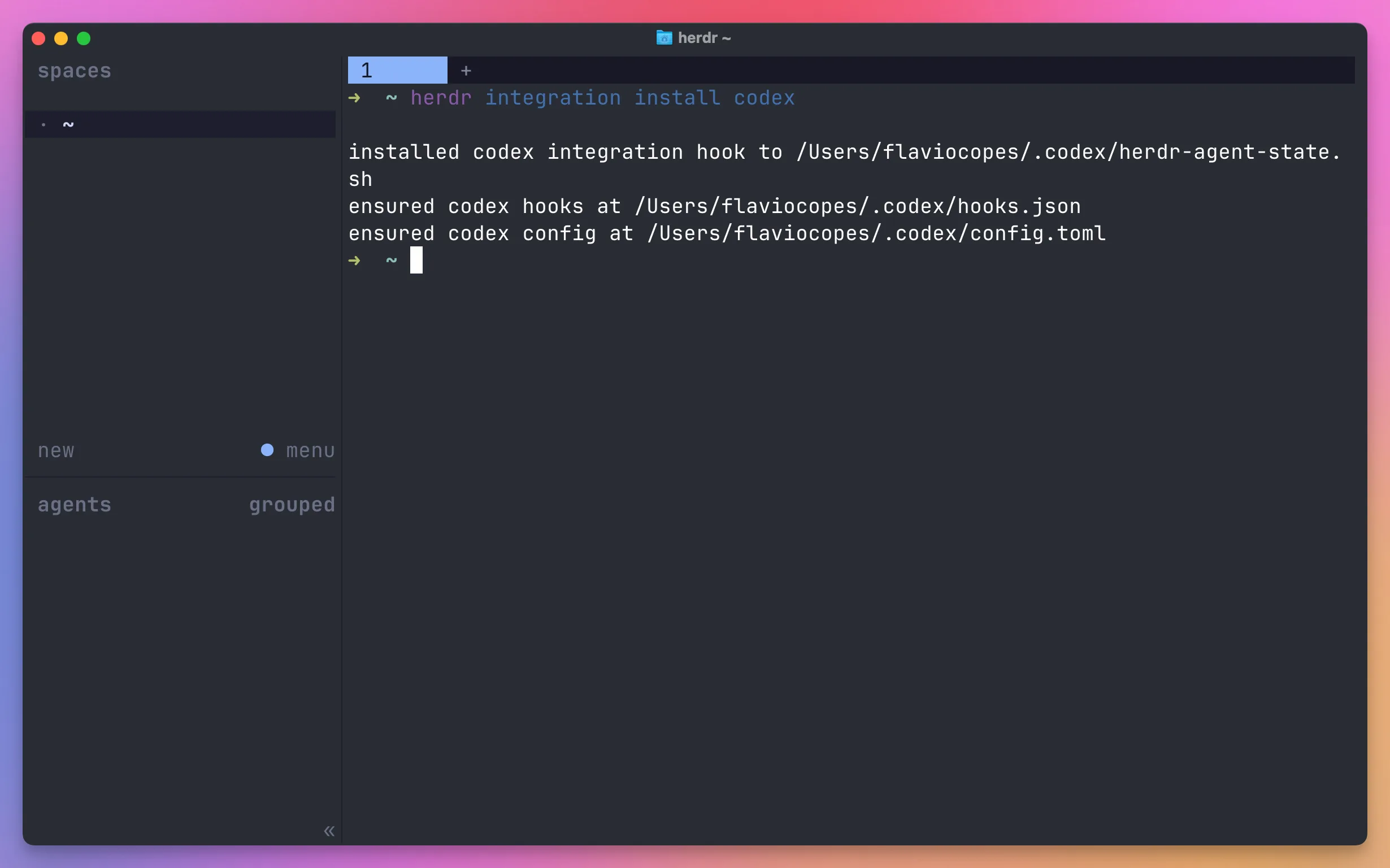
It writes a small hook script to ~/.codex/herdr-agent-state.sh, registers it in ~/.codex/hooks.json, and makes sure ~/.codex/config.toml loads hooks. Codex calls the hook as it runs, and the hook reports back to Herdr.
Codex and Claude Code still use screen detection for lifecycle state, while their integrations add native session identity for restore.
If a pane shows the wrong state, inspect the decision:
herdr agent explain reviewerThe output shows which detection source and rule produced the state.
Persistence has three different meanings
The word “persistent” can hide important details, so Herdr separates three cases:
Detach and reattach
When you detach normally, the server keeps running and every process stays alive. That’s real process persistence: close your terminal, reopen it, run herdr, and you’re back in the original shells and agents.
Restart the Herdr server
If the Herdr server stops, its child processes stop too. On the next start, Herdr restores the workspace, tab, pane, directory, layout, and focus structure, and normal panes come back as new shells. The layout returns, but the old processes don’t.
Supported agent conversations can still resume when an official integration previously reported their native session IDs. That means Codex can restart with codex resume <id> instead of opening an empty shell, as long as the integration was installed and current.
Restore terminal history
Herdr can save recent pane contents across a server restart, though it’s experimental and disabled by default.
Terminal output can contain prompts, source code, logs, API tokens, and secrets. Persisting the screen creates another sensitive file on disk, so leaving it off by default avoids writing that file without your knowledge.
Enable pane history only if you accept that tradeoff:
[experimental]
pane_history = true
Saved history brings back the text that was on screen, not the process that produced it.
Remote work feels local
Herdr runs where the work lives.
The simplest remote setup is normal SSH:
ssh you@server
herdr
The Herdr server, agents, and shells all run on the remote machine. Detach, disconnect SSH, reconnect later, and attach to the same session.
This also works from a phone. Herdr adapts its interface to a narrow terminal, so I can check which agent needs me from any SSH client. The mobile app only works with herdr-core, not with the terminal app.
There’s another mode that starts from the local machine:
herdr --remote workboxOr:
herdr --remote ssh://you@server:2222In this mode, the local binary acts as a thin client for the remote Herdr server. That keeps local desktop features working, like bridging an image from your local clipboard into a remote session.
For servers I visit often, I put the target in ~/.ssh/config and use its short name.
If SSH is new to you, my free SSH course covers host verification, keys, config, tunnels, automation, and troubleshooting.
Connect several machines in one client
--remote handles one machine at a time.
If agents run on my Mac and also on a server, each machine needs its own Herdr client. That means two terminal tabs, and I have to remember which agent lives where.
Herdr 0.9 (released in September 2026) fixes that: you save a remote machine once, and its workspaces, tabs, and agents show up in the same sidebar as your local ones.
Add a machine from an interactive terminal:
herdr machine add workbox --label "Build machine"workbox is a host from ~/.ssh/config, and a full target like ssh://you@server:2222 works too.
Herdr checks the SSH connection, the Herdr binary on the remote machine, and whether a compatible server is running. If something needs installing or replacing, it asks first. The default answer is No, because replacing a running server stops its pane processes.
The profile targets the remote default session. To use a named session instead:
herdr machine add workbox --label "Build machine" --remote-session agentsNow run herdr. The sidebar shows Local and Build machine, and you click a machine or one of its workspaces to switch. If a client is already open, the new machine shows up within a second without changing what you’re looking at.
When more than one machine is connected, agent rows gain a machine token. A blocked agent on the server stays visible while I type in a local pane.
When you switch machines:
- the selected machine receives your keyboard and mouse input and streams its pane screens
- the other machines keep sending workspace information, agent states, and notifications, but not their screens
Each machine keeps its own Herdr server, sessions, and processes. If the connection to one machine drops, its last known state stays visible but dimmed. That’s cached information, so you can’t type into those panes until the connection comes back. The other machines keep working, and Herdr won’t move your selection away from the machine you’re using.
Local opens immediately at startup, so a slow SSH connection can’t hold up local work.
You manage saved machines with the machine commands, reading profile IDs from the list rather than from labels:
herdr machine list
herdr machine rename <profile-id> --label "Mac mini"
herdr machine disable <profile-id>
herdr machine enable <profile-id>
herdr machine remove <profile-id>
Disabling or removing a machine only disconnects the client. The remote server and its agents keep running.
The saved profile holds an ID, label, SSH target, session name, and enabled flag, and it doesn’t store passwords or private keys. Authentication stays with OpenSSH, so a key with a passphrase needs to be loaded with ssh-add before Herdr opens its background connections.
This works on macOS, Linux, and Windows clients. The server can be macOS or Linux, or Windows on x86_64.
The 0.9 announcement makes a point I agree with: the laptop is turning into a client. Agents run for hours, so it makes sense to keep them on a VPS or a Mac mini that stays on and use the laptop as the window into that work.
What is still one machine at a time
The CLI still talks to one server.
Workspace, tab, and pane IDs are scoped to that server, so two machines can both have a w1:p1 and an agent named reviewer. Selecting a machine in the sidebar doesn’t retarget a CLI command running inside a pane. That command still uses the session and socket its pane inherited.
For remote automation, run the commands on the host that owns the agents and read the IDs there.
Having a coordinator on one machine prompt an agent on another is planned, not built yet.
The next planned piece is Herdr Cloud: a relay that connects your machines without you setting up SSH reachability, with terminal traffic end-to-end encrypted. You still bring your own machines because Cloud connects them instead of hosting the agents. Access is waitlist-only for now.
How I use Herdr
My Herdr configuration is deliberately boring.
I keep the default behavior and only disable onboarding after the first run:
onboarding = falseI prefer learning the defaults before customizing a terminal tool. I focus on the workspace structure first and change the keymap only when I need to.
Here’s how Herdr fits into the work I already do.
One workspace per active repository
I move between several repositories every day: this site, the AI Workshop site, Work Tracebook, and the individual products I build and ship. Every active repository gets its own workspace.
Inside flaviocopes.com, I might use:
workspace: flaviocopes.com
├── tab: agents
│   ├── pane: implementation agent
│   └── pane: review agent
├── tab: dev
│   └── pane: Astro development server
├── tab: checks
│   ├── pane: production build
│   └── pane: link or content audit
└── tab: deploy
    └── pane: Cloudflare Pages status and logs
This is that layout in Herdr, with the other repositories waiting in the sidebar:
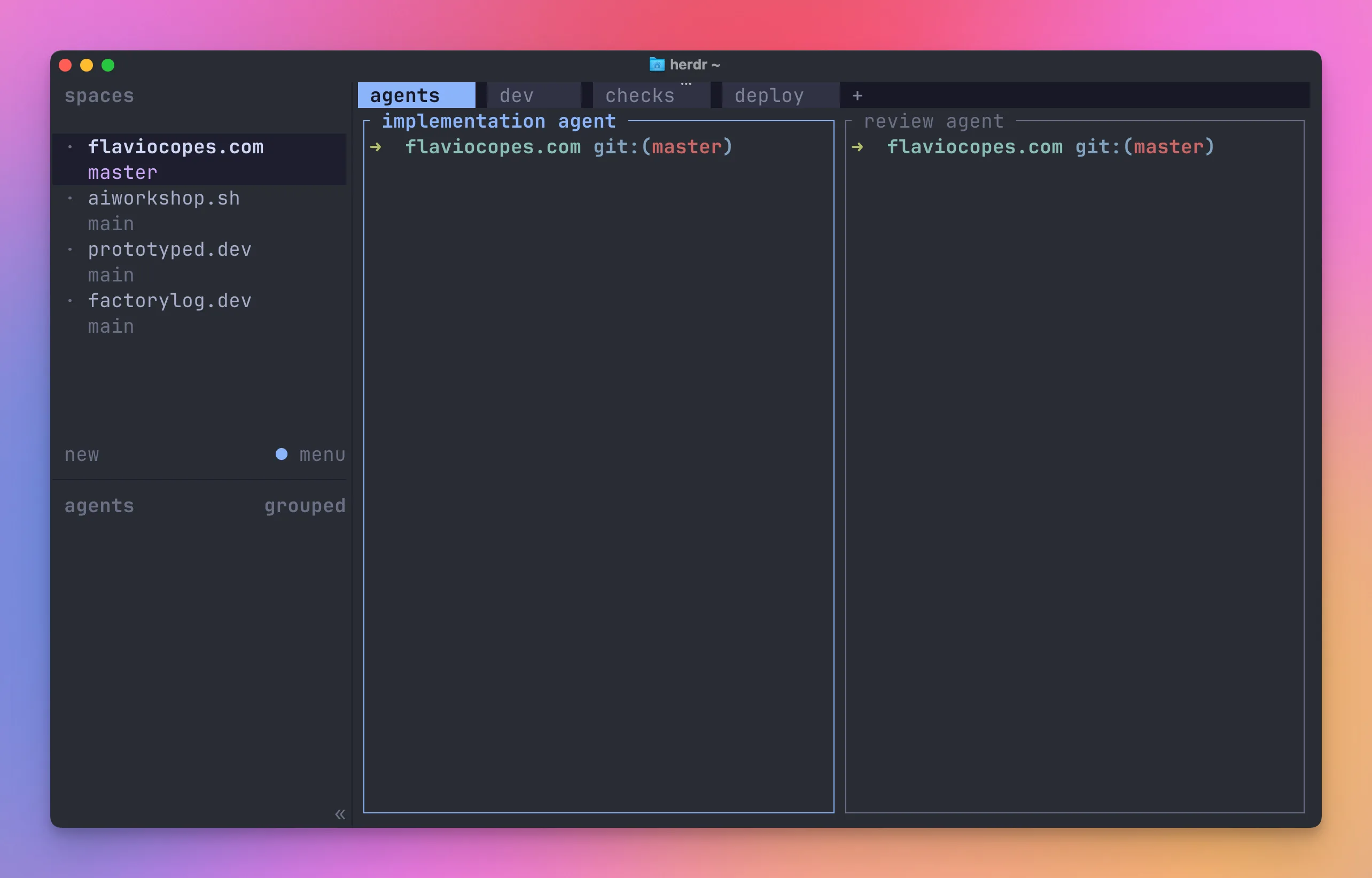
Every pane in that workspace can still point at the same working directory, so this setup doesn’t give you isolation. Two agents editing the same file can conflict, which means I still need task boundaries, Git, reviews, and project instructions.
I avoid solving that with automatic worktrees in this project. Instead, I keep agents in the main working tree and give each one a narrow scope. One agent might edit a post while another checks unrelated metadata, with shared files and architecture kept under one coordinator.
The sidebar tells me when each agent finishes, and Git tells me what changed.
If Git is new to you, my free Git course explains branches, diffs, commits, and the working tree. The command line course covers the terminal foundations behind panes and persistent processes.
If coding agents are new to you, my AI fundamentals guide covers agent loops, tools, permissions, and verification.
Separate building from reviewing
I often split implementation and review.
One agent makes a focused change, while another reads the diff and looks for factual mistakes, broken links, missing surfaces, or tests that don’t prove the behavior.
Herdr makes this visible:
agents tab
├── builder     working
└── reviewer    idle
When the builder hits done, I prompt the reviewer. If the reviewer gets blocked, I know the change needs a decision instead of more waiting.
This matches the workflow I described in my deep dive into bb, except Herdr stays much closer to the terminal. Instead of creating its own task database or agent runtime, it organizes and controls the terminal processes I already use.
Keep long-running processes beside the agents
Not every pane should contain an agent.
For an Astro project, I keep the development server in its own tab. Tests, build output, and deployment logs get their own panes.
The agent can work without owning the server process, so I can restart the server, inspect its logs, or leave it running while I replace the agent. When an agent finishes and I want the environment to stay alive, I can close that agent pane without tearing down the development server and its logs.
Keep several product repositories open without losing context
My software library means I often touch several small products in the same week.
Without a workspace layer, every terminal starts to look the same. The prompt shows a directory name, but I still have to scan it before typing.
Herdr gives each product a named workspace, keeping its tabs, panes, current directories, and agent states together. I can leave a test suite running in one product, switch to another repository, and come back later without rebuilding the terminal layout.
Detach instead of keeping a terminal window alive
Some tasks take a while: production builds, download generation, media processing, deployment monitoring, or a deep agent review.
I don’t want that work tied to the lifetime of a single terminal window.
Herdr lets me detach, close the window, and come back later. That’s especially useful on a remote server, where an SSH connection can disappear at any moment. The process belongs to the Herdr server and keeps running without the client.
Check remote work from another device
I maintain applications and infrastructure on remote servers.
For that work, Herdr gives me the good part of tmux: I can start an operation over SSH, disconnect, and return to the same terminal later.
The agent awareness makes coming back faster. Instead of only recovering the pane, I immediately see whether the remote agent is still working, waiting for approval, or done.
I can also attach from a smaller device for a quick check. I wouldn’t review a large diff on a phone, but I can answer a question, approve a safe command, or confirm that a deployment finished.
Let an agent build the workspace
One fun use case is to let the agent create the terminal layout itself.
Shopify co-founder and CEO Tobi Lütke shared his favorite Herdr demo: open a workspace, launch an agent, and tell it to read herdr --skill before splitting ten more panes into a sci-fi hacker terminal.
The sci-fi layout is playful, of course, but it shows what’s possible. Once an agent knows Herdr’s controls, it can create the panes it needs instead of waiting for me to arrange everything by hand.
I wrote a separate guide to Herdr skills and herdr --skill.
A complete practical workflow
Let’s put the pieces together with one concrete session: changing a feature, keeping the dev server visible, and asking another agent to review the result.
1. Start in the repository
Launch Herdr from your repository folder:
cd ~/www/project
herdr
Rename the workspace from the UI, or grab its ID and rename it from another Herdr pane:
herdr workspace list
herdr workspace rename w1 project
Your session’s IDs might differ, so always read them from the command response.
2. Create the working layout
I want an agents tab with two panes and a dev tab with one pane. In the UI, that’s a new tab, a vertical split, and another new tab. From the CLI, start with the agents tab:
agents=$(herdr tab create \
  --workspace w1 \
  --cwd "$PWD" \
  --label agents \
  --no-focus)

builder_pane=$(printf '%s\n' "$agents" |
  jq -r '.result.root_pane.pane_id')

review=$(herdr pane split "$builder_pane" \
  --direction right \
  --cwd "$PWD" \
  --no-focus)

review_pane=$(printf '%s\n' "$review" |
  jq -r '.result.pane.pane_id')
Then create the development tab:
dev=$(herdr tab create \
  --workspace w1 \
  --cwd "$PWD" \
  --label dev \
  --no-focus)

dev_pane=$(printf '%s\n' "$dev" |
  jq -r '.result.root_pane.pane_id')
3. Start the ordinary process
The dev server isn’t an agent, so I run it with the pane commands:
herdr pane run "$dev_pane" "npm run dev"I can check its output at any time:
herdr pane read "$dev_pane" \
  --source recent-unwrapped \
  --lines 80
4. Start the agents
Start the agents in those two panes:
herdr agent start builder \
  --kind codex \
  --pane "$builder_pane"

herdr agent start reviewer \
  --kind codex \
  --pane "$review_pane"
agent start needs an idle shell pane sitting at its prompt, with no editor, server, or other foreground command running.
5. Give the builder a bounded task
Send the builder its task:
herdr agent prompt builder \
  "Implement the requested change. Run the relevant tests and stop before committing." \
  --wait \
  --timeout 600000
The command returns once the agent reaches a settled idle, done, or blocked state. If it returns blocked, inspect the pane before replying:
herdr agent read builder \
  --source recent-unwrapped \
  --lines 120
6. Ask the reviewer to inspect the result
Now ask the reviewer to inspect the changes:
herdr agent prompt reviewer \
  "Review the current diff. Report only actionable findings with file and line references." \
  --wait \
  --timeout 600000
The review agent sees the same working tree here, so keep it read-only while it reviews. Otherwise two agents end up touching the same files.
7. Keep the final decision human
I still read the diff, build output, and review findings myself. Herdr handles the terminals and state coordination, while I decide whether the implementation is right and ready to ship:
Let one agent coordinate another
The CLI lets scripts and other agents control Herdr through three control surfaces:
- layout commands create workspaces, tabs, and panes
- pane commands control raw terminals and ordinary processes
- agent commands control recognized agents and lifecycle state
Say a coordinator wants a second Codex agent to review a change. First it splits the current pane:
split=$(herdr pane split --current \
  --direction right \
  --cwd "$PWD" \
  --no-focus)
Creation commands return JSON, so read the new pane ID from the response instead of guessing it:
review_pane=$(printf '%s\n' "$split" |
  jq -r '.result.pane.pane_id')
Start a named Codex agent in that pane:
herdr agent start reviewer \
  --kind codex \
  --pane "$review_pane"
Then send the task and wait for the agent to settle:
herdr agent prompt reviewer \
  "Review the current diff and report actionable findings." \
  --wait \
  --timeout 120000
Read the result:
herdr agent read reviewer \
  --source recent-unwrapped \
  --lines 120
The coordinator opened a terminal, started a known agent, prompted that exact agent, waited on its lifecycle state, and read its output without faking keystrokes or sleeping for 30 seconds.
Use agent wait for agent lifecycles and pane wait-output for servers or test commands. There’s no need to scrape terminal text when Herdr already knows whether an agent is working or blocked.
Pane commands are for ordinary processes
Reach for pane commands when the program isn’t an agent. For example, run tests in a pane:
herdr pane run w1:p3 "npm test"Wait for the expected output:
herdr pane wait-output w1:p3 \
  --regex "passed|failed" \
  --timeout 120000
Then read the recent unwrapped output:
herdr pane read w1:p3 \
  --source recent-unwrapped \
  --lines 120
Use agent commands when lifecycle state matters:
herdr agent wait reviewer \
  --until blocked \
  --timeout 120000
That waits for an approval or question prompt rather than a line of text that happens to contain the word “blocked”.
The IDs are stable handles
Herdr gives workspaces, tabs, and panes public IDs:
workspace: w1
tab:       w1:t1
pane:      w1:p2
Capture these values from the JSON responses in your scripts. Agent names like reviewer work as aliases for the live agent inside a pane; the name follows that agent and disappears when the process exits or gets replaced. Targeting an ID or agent name directly avoids a common automation bug where the next prompt goes to whichever terminal happens to have focus.
Start parallel agents in worktrees without naming anything
How do you handle several checkouts of the same repository with Herdr?
Typing a branch name and worktree folder before every task gets old. I want to type a prompt and have the checkout, branch, and agent appear, so I can kick off five of them and walk away.
I don’t use worktrees in this repository. I keep agents in the main working tree with narrow scopes, as I explained above. For repositories where isolated checkouts make sense, though, Herdr has all the pieces to automate this. Let’s wire them together.
A worktree is a workspace
Herdr treats a Git worktree as a normal workspace that tracks its parent repository. herdr worktree create runs git worktree add, opens the checkout as a new workspace, and groups it under the repo in the sidebar:
herdr worktree create --cwd ~/www/project --branch fix-header --no-focusIf fix-header already exists as a local branch, Herdr checks it out; otherwise it creates the branch from --base, or from HEAD when you omit it.
Without --path, the checkout lands under your configured worktrees directory:
[worktrees]
directory = "~/.herdr/worktrees"
Herdr creates <directory>/<repo>/<branch>. If you’d rather keep sibling folders next to the repository, point this at something like ~/www/worktrees.
The sidebar has the same actions if you right-click a Git workspace row for New worktree and Open worktree…. The dialog asks you to type a branch name, and that’s the step we want to skip.
Let a script pick the name
A branch name only has to be unique. You don’t need to remember it, because the sidebar label and the agent’s prompt tell you what the work is about. Generate it from the clock:
stamp=$(date +%Y%m%d-%H%M%S)Create the worktree and read the root pane ID from the JSON response:
created=$(herdr worktree create \
  --cwd ~/www/project \
  --branch "agent/$stamp" \
  --label "$stamp" \
  --no-focus)

pane=$(printf '%s\n' "$created" |
  jq -r '.result.root_pane.pane_id')
Start an agent in that pane and hand it the task:
herdr agent start "agent-$stamp" --kind codex --pane "$pane"
herdr agent prompt "agent-$stamp" "Fix the mobile header overlap"
Agent names have to match [a-z][a-z0-9_-]{0,31}, so the name uses a dash where the branch uses a slash.
agent start returns only when the agent owns the terminal and is ready for input, so the prompt can follow right away. It does need the new pane’s shell to be at its prompt; if your shell startup is slow, add a short wait before starting the agent.
One command per task
Put it in a script called spawn:
#!/bin/sh
set -e

repo=${REPO:-$PWD}
stamp=$(date +%Y%m%d-%H%M%S)

created=$(herdr worktree create \
  --cwd "$repo" \
  --branch "agent/$stamp" \
  --label "$stamp" \
  --no-focus)

pane=$(printf '%s\n' "$created" |
  jq -r '.result.root_pane.pane_id')

herdr agent start "agent-$stamp" --kind codex --pane "$pane"
herdr agent prompt "agent-$stamp" "$1"
Now each task is one line:
spawn "Fix the mobile header overlap"
spawn "Add a sitemap route"
spawn "Upgrade the test runner and fix what breaks"
This starts three checkouts on separate branches, each with its own agent, and all I type are the prompts.
The sidebar groups the three workspaces under the repository, so when one becomes blocked or done, you see it without opening its tab. A one-second stamp is unique enough when you’re typing commands by hand; a script that fires faster than that can add $$ or a random suffix.
Prepare the checkout automatically
A fresh worktree usually needs some setup: installing dependencies, copying an .env file, maybe starting a dev server on a free port.
Herdr plugins can hook the worktree.created event and run a command with the new workspace in context. That keeps setup out of spawn and runs it for worktrees created from the sidebar too.
The Herdr plugin examples include a worktree-bootstrap plugin built for this:
herdr plugin install ogulcancelik/herdr-plugin-examples/worktree-bootstrapRead it before installing, since plugins run with your permissions. My Herdr plugins guide covers manifests, event hooks, and how to write one for your own repository.
Clean up
Once a branch is merged, remove the checkout:
herdr worktree remove --workspace <workspace-id>This runs git worktree remove and closes the Herdr workspace without deleting the branch. If the checkout has uncommitted changes, Git refuses until you pass --force.
Closing the workspace from the sidebar doesn’t delete anything on disk. Use Delete worktree checkout… on the child workspace, or worktree remove, when you want the folder gone.
What this does not solve
Worktrees stop five agents on separate branches from overwriting each other’s files, but they can still make incompatible changes to the same module, which you’ll find out when you merge. You still need a plan that keeps the tasks apart.
Useful configuration
Herdr works without a custom config file. When you do want to change something, the file lives at:
~/.config/herdr/config.tomlReload it without restarting your session:
herdr server reload-configChange the keybindings
The default keymap is prefix-first:
[keys]
prefix = "ctrl+b"
new_tab = "prefix+c"
next_tab = "prefix+n"
previous_tab = "prefix+p"
focus_pane_left = "prefix+h"
split_horizontal = "prefix+minus"
Press ctrl+b ? to see the bindings active in your session, or check Herdr keyboard shortcuts for the full list of defaults.
Add notifications
Herdr can notify you when a background agent finishes or needs input:
[ui.toast]
delivery = "herdr"
delay_seconds = 1

[ui.toast.herdr]
position = "bottom-right"
You can route alerts through an in-app toast, the outer terminal, or the OS notification service, or disable them altogether. Herdr suppresses popups for the active tab so it only notifies you about work you aren’t already watching.
Customize the sidebar
By default, each agent row shows the state, workspace, tab, and agent name. You can also include status text or metadata reported by an integration:
[ui.sidebar.agents]
rows = [
  ["state_icon", "agent", "state_text"],
  ["workspace", "tab"],
]
Plugins and scripts can report custom tokens like the model name or a short task summary, turning the sidebar into a live status view instead of a list of anonymous terminals.
Plugins and the socket API
Under the hood, the CLI talks to a local socket API that can create and inspect layouts, read panes, send input, control agents, subscribe to events, and wait for state changes. Start with the CLI for most automation since it handles the socket details and returns structured JSON, and use the raw API when you’re building a long-running integration or need event subscriptions.
Herdr also supports plugins. I wrote a practical guide to Herdr plugins covering installation, inspection, configuration, and building one. A plugin is an executable workflow package with a herdr-plugin.toml manifest, written in Bash, JavaScript, Lua, Rust, or anything else your machine can run. There’s no separate plugin SDK because plugins use the same CLI and socket API, letting the core handle terminals and agents while plugins package reusable workflows around them.
A plugin can:
- create my preferred project layout
- open a development server and test watcher
- add a review agent beside the implementation agent
- report a task summary in the sidebar
- react when an agent becomes blocked or done
- open a deployment dashboard in a popup
Plugins run local commands with your permissions, so treat an installed plugin like any other executable code and inspect it before trusting it.
Troubleshooting
Start every investigation by checking the installed version and the client/server state:
herdr -V
herdr status
Also note the outer terminal, operating system, whether you’re in local or remote mode, and whether tmux is wrapping Herdr or running inside one of its panes.
Herdr does not detect the agent
Check the foreground process and the classification evidence:
herdr pane process-info --current
herdr agent explain <pane-or-agent>
If a shell framework automatically starts tmux inside the pane, Herdr sees tmux instead of the agent behind it. You can run Herdr inside tmux as the outer multiplexer if you need to, just don’t put another tmux session between Herdr and the agent you want it to detect.
Also check for detection manifest updates:
herdr server agent-manifests
herdr server update-agent-manifests
The state looks wrong
Inspect how Herdr classified the pane:
herdr agent explain <target> --verboseThat prints the active manifest, matching rule, visible evidence, fallback reason, and remote update status.
If you see an unknown state or an idle fallback, read the pane directly before deciding what to do, since the agent might still be working or waiting on something Herdr couldn’t match.
The binary updated but the session did not
The installed client can be newer than a compatible server that was already running. Run herdr status to check.
To replace the server normally:
herdr server stop
herdr
Keep in mind that stopping the server exits all of its pane processes, so use live handoff when you can, or finish your running work first.
Remote attach cannot authenticate
Test plain SSH before debugging Herdr:
ssh workboxIf your SSH key has a passphrase, load it into ssh-agent. Once regular OpenSSH works, try attaching with Herdr:
herdr --remote workboxA saved machine shows Attention
Background connections never answer interactive prompts. If a remote host needs host-key approval, authentication, or a compatible server, that machine shows Attention in the sidebar while your other machines keep working.
Run the standalone attach in an interactive terminal:
herdr --remote workboxIf the profile uses a named session, pass --session <name>. Answer the prompts, then restart the client so it retries the connection.
Don’t stop a running remote server just because its version differs from your client, since Herdr negotiates compatibility between the two.
A keybinding does nothing
Your operating system or outer terminal might grab the key combination before Herdr sees it.
Open the help panel with ctrl+b ? to confirm the binding, then check your terminal and OS shortcuts for conflicts.
Prefix bindings are the safest default. If you want direct shortcuts, start with unused ctrl+alt combinations and check for conflicts on your OS.
A pane refreshes when I switch back to the terminal
By default, Herdr redraws the full interface when the outer terminal regains focus. That repairs stale terminal content, though in some terminal emulators it shows up as a brief flash.
You can turn it off in ~/.config/herdr/config.toml:
[ui]
redraw_on_focus_gained = false
Then reload the config:
herdr server reload-configThe tradeoff is that a pane might occasionally show stale content until its next update.
Find the logs
The default log files live under ~/.config/herdr/:
herdr.log
herdr-client.log
herdr-server.log
For a more verbose diagnostic run, enable extra logging:
HERDR_LOG=herdr=debug herdrLogs can include terminal output and environment details, so check them before sharing them publicly.
Command cheat sheet
Keep these commands handy while learning Herdr:
| Goal | Command |
|---|---|
| Start or reattach | herdr |
| Check client and server | herdr status |
| List workspaces | herdr workspace list |
| Create a workspace | herdr workspace create --cwd ~/project --label project |
| List tabs | herdr tab list --workspace w1 |
| Create a tab | herdr tab create --workspace w1 --label tests |
| Create a worktree workspace | herdr worktree create --cwd ~/project --branch fix-header |
| Remove a worktree checkout | herdr worktree remove --workspace <id> |
| List panes | herdr pane list --workspace w1 |
| Split the current pane | herdr pane split --current --direction right |
| Run a command | herdr pane run w1:p2 "npm test" |
| Read pane output | herdr pane read w1:p2 --source recent-unwrapped --lines 120 |
| List agents | herdr agent list |
| Start a named agent | herdr agent start reviewer --kind codex --pane w1:p2 |
| Prompt and wait | herdr agent prompt reviewer "Review the diff" --wait |
| Wait for a question | herdr agent wait reviewer --until blocked |
| Explain detection | herdr agent explain reviewer --verbose |
| Install an integration | herdr integration install codex |
| Reload config | herdr server reload-config |
| Save a remote machine | herdr machine add workbox --label "Build machine" |
| List saved machines | herdr machine list --json |
| Detach the UI | ctrl+b, then q |
Use explicit IDs or unique agent names in scripts. Commands that target whichever pane happens to have UI focus are fine interactively, but they break easily in automation.
Where Herdr is a great fit
Herdr shines when your work already lives in the terminal. It fits especially well when:
- you run more than one coding agent
- you switch between several repositories
- you want real terminal interfaces instead of summarized transcripts
- dev servers and tests need to live right next to your agents
- you work over SSH
- you run agents across more than one machine and want a single view of all of them
- you want processes to survive terminal disconnects
- you want one agent or script to coordinate another
- you use different agent tools and want one shared view
You don’t need heavy automation to get value out of it. Two agents and one long-running server are already enough for persistent workspaces and visible state to pay off.
Where Herdr is not the answer
Herdr doesn’t solve every multi-agent problem.
It does not isolate file changes
Two panes in the same directory can still edit the same file at the same time.
Herdr can create worktrees, and I showed how to automate that earlier. Even so, keeping changes clean is a Git and architecture decision. I don’t use worktrees in every repo, and I don’t expect a terminal manager to sort out shared contracts for me. You still need clear task boundaries, narrow scopes, branches where they make sense, and a real review pass.
It does not provide shared memory
Herdr gives agents a local way to talk to each other through its socket API, so a coordinator or script can pick another agent, send a prompt, wait for it, and read its output.
It won’t merge agent context or sync project state for you, though. Agents share project data through files, Git, and commands just like regular terminal processes. Two agents in the same checkout see each other’s filesystem changes immediately, which also means they can step on each other. Agents in separate worktrees need an explicit handoff through commits, patches, or shared files.
It does not replace an agent platform
Herdr doesn’t store a task graph, issue database, approval policy, or full event history for every agent turn.
bb, Buzz, and T3 Code live at that higher application layer. My T3 Code guide compares it with Herdr if you’re deciding between an app interface and terminal workspaces.
Herdr stays close to the raw processes, which is great when I want a lightweight terminal tool, but less useful if you need a managed team workflow with durable task tracking and org-wide policies.
Detection is not perfect
Screen-based detection depends on recognizable agent interfaces, so an agent update with a new prompt shape, a wrapper hiding the foreground process, or an unsupported tool can all leave a pane marked unknown.
Official integrations and remotely updated detection manifests help, but when a pane shows unknown, check it yourself before assuming the job finished cleanly.
A server restart is different from a detach
Detaching leaves your processes running, while stopping the Herdr server shuts them down. Your layout can come back and supported agent sessions can resume, but any dev server or test watcher has to be started again from scratch.
More agents still create more coordination
Herdr makes agent state easy to see, but five overlapping tasks are still a bad plan.
Parallel agents can produce conflicting edits, overload CI, and pile up deployments. I cover how I manage that in Parallel coding agents, and I’ve already seen a burst of parallel pushes block a Cloudflare Pages build queue. A better dashboard lowers the cost of keeping track of everything, but you still need a clear plan and a proper review step.
Why I find Herdr compelling
Herdr doesn’t ask me to give up the tools I already use. Codex, Claude Code, the shell, Astro, tests, Git, SSH, and deployment scripts all keep running as normal processes.
Herdr just adds structure, visible agent state, and persistence around them. I work in it with my mouse and keyboard, while scripts and agents talk to the same live session through its CLI and API.
I can start an agent by hand, let Herdr recognize it, and then address it from a script. An agent can spin up a reviewer in another pane while I watch both in the sidebar, detach, and reconnect later over SSH.
I liked that same quality in bb: agents can operate inside the environment where I’m watching them. Herdr gives me that through workspaces, tabs, panes, processes, state, and a socket, and it fits the way I work today.
If you want to compare options, I also wrote a deep dive into cmux, a direct Herdr vs cmux comparison, and a wider list of Herdr alternatives.
To try it yourself, start with the Herdr quick start, then read the agent guide and agent automation guide.
Want me to talk about your product? You can sponsor this site.
Related posts about ai: