The definitive guide to debugging JavaScript
By Flavio Copes
Learn how to debug JavaScript: read stack traces, set breakpoints and logpoints, use source maps, and attach Chrome DevTools to Node.js.
Debugging is one of those skills that’s core to the activity of a programmer.
Sometimes we do our best work, yet the program is not working correctly, for example it’s crashing, it’s just slow or it’s printing wrong information.
What do you do when a program you wrote is not behaving like you expect?
You start debugging it.
Figuring out where the error could be
First reproduce the problem on purpose, before you open the debugger.
Can you make it happen every time, or only with some input? A crash that happens once after the tab has been open for hours is a different hunt from a button that always prints the wrong total.
Look at the Console and the Network panel before you touch the source. A red error in the Console often names the file and the line. A 404 or 500 in Network means the JavaScript might be fine and the server, or the URL, is the problem.
Ask where the failure lives:
- the environment (wrong URL, missing file, an extension interfering)
- the input (an empty field, a string where you expected a number)
- your code (a function returning
undefined, a listener that never runs)
Once you can trigger it, you can point at a specific part of the program instead of reading everything.
Read the code
The simplest way to debug, at least in terms of tooling, is by reading the code you wrote. Aloud. There is some magical thing in hearing from our own voice that does not happen when you read in silence.
Often times I found problems in this way.
Read the function the stack pointed at, not the whole file. Check what it receives, what it returns, and what you assumed those values were. A lot of JavaScript bugs are a string where you wanted a number, or undefined where you wanted an object.
Read the error and the stack trace
When JavaScript throws, the Console prints an error and a stack trace. Learn to read that message before you add logs.
A typical one looks like this:
Uncaught TypeError: Cannot read properties of undefined (reading 'price')
    at addToCart (cart.js:18:22)
    at HTMLButtonElement.<anonymous> (cart.js:41:3)
The first line is the failure: undefined has no price, so something you treated as a product is missing.
The lines under it are the call stack, top first. addToCart at cart.js:18 is where it threw. Line 41 is the click handler that called it.
Click cart.js:18 in DevTools. Chrome opens that line in the Sources panel. Frames from a library (react-dom, a bundler runtime) are usually noise. You can hide those with the Ignore List, which I cover later.
If there is no exception, just a wrong result, there is nothing to click. Then you move to logs and breakpoints.
Using the console
If reading the code reveals nothing to you, the next logical step is to start adding a few lines into your code that can shed some light.
In JavaScript frontend code what you’ll often do is to use alert() and console.log (and its cool friends).
Consider this line:
const a = calculateA()
const b = calculateB()
const result = a + b
Somehow the result is not correctly calculated, so you can start by adding alert(a) and alert(b) before calculating the result, and the browser will open two alert panels when it executes the code.
const a = calculateA()
const b = calculateB()
alert(a)
alert(b)
const result = a + b
This works fine if what you are passing to alert() is a string or a number. As soon as you have an array or an object things start to be too complicated for alert(), and you can use the Console API. Starting with console.log():
const a = calculateA()
const b = calculateB()
console.log(a)
console.log(b)
const result = a + b
The value is printed in the JavaScript console of the browser developer tools. For convenience I’m explaining debugging in the Chrome DevTools here, but the general concepts apply to all browsers, with some differences in terms of features supported.
console.log() is the starting point. For tables, stack traces from your own code, log levels, and timing, I already wrote a separate Console API post. Use that instead of stuffing every console.* method in here.
The Chrome Console also has helpers that are not part of your page. They only work when you type them in DevTools:
$0is the last element you inspected in the Elements panel$_is the last expression you evaluated in the Consolecopy(object)copies a string representation to the clipboard
So you inspect a node, then type $0 and copy($0.dataset) instead of adding more console.log() calls to the source.
The Chrome Dev Tools
The result of the console.log() calls is printed to the JavaScript console. This is a tool that’s more or less common to every browser:
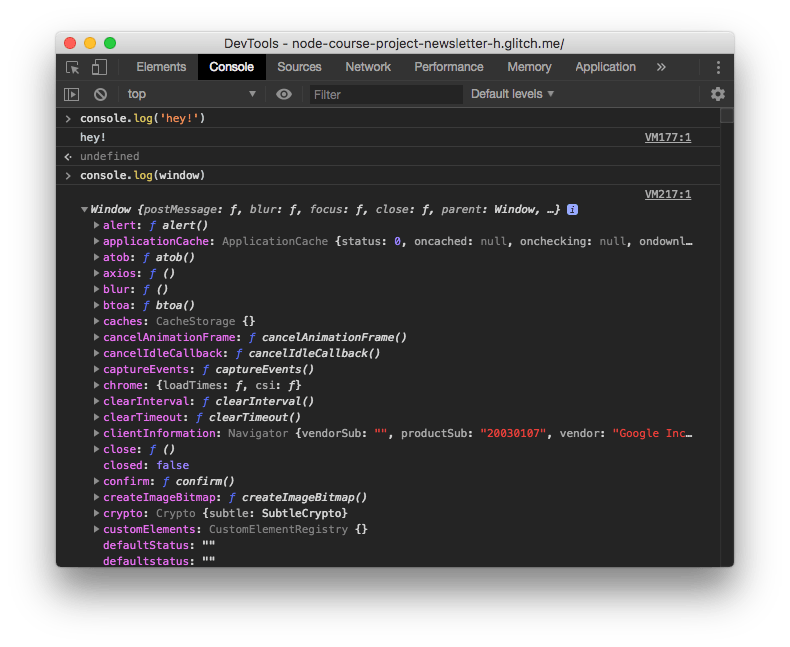
The tool is very powerful and lets you print complex objects or arrays and you can inspect every property of them.
In the Console API post you can see all the options and details of working with it, so I’m not explaining all the details here.
The debugger
The debugger is the most powerful tool in the browser developer tools, and it’s found in the Sources panel:
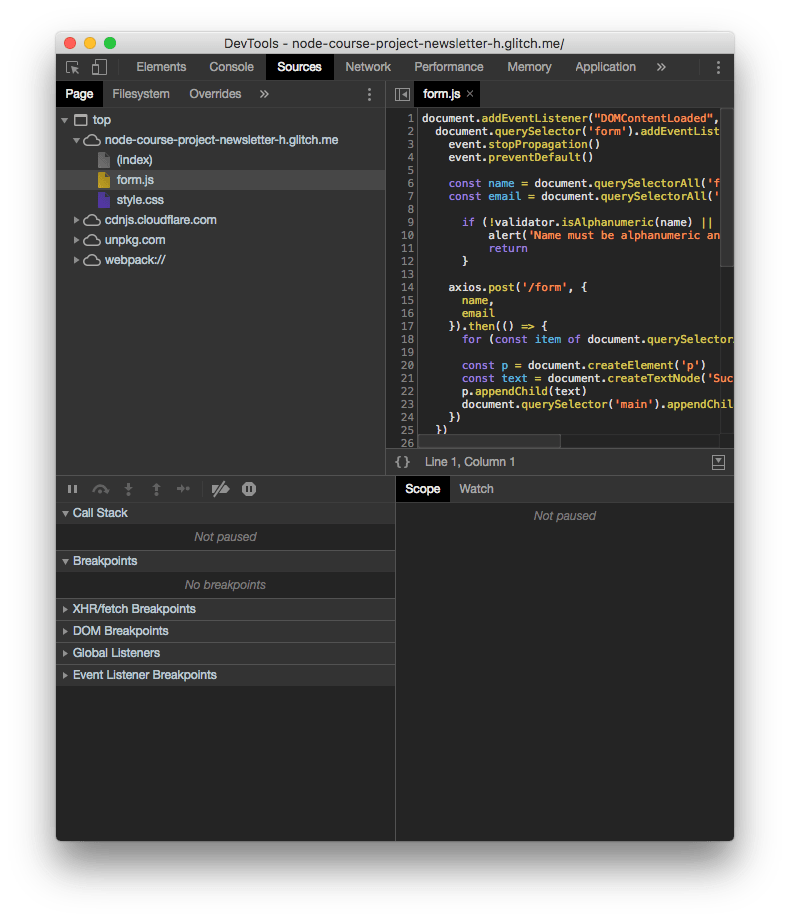
The top part of the screen shows the files navigator.
You can select any file and inspect it on the right. This is very important to set breakpoints, as we’ll see later.
The bottom part is the actual debugger.
Breakpoints
When the browser loads a page, the JavaScript code is executed until a breakpoint is met.
At this point the execution is halted and you can inspect all about your running program.
You can check the variables values, and resume the execution of the program one line at a time.
But first, what is a breakpoint? In its simple form, a breakpoint is a debugger statement put in your code. When DevTools is open, the browser pauses there.
This is a good option while developing. Another option is to open the file in the Sources panel and click the number on the line you want to add a breakpoint:
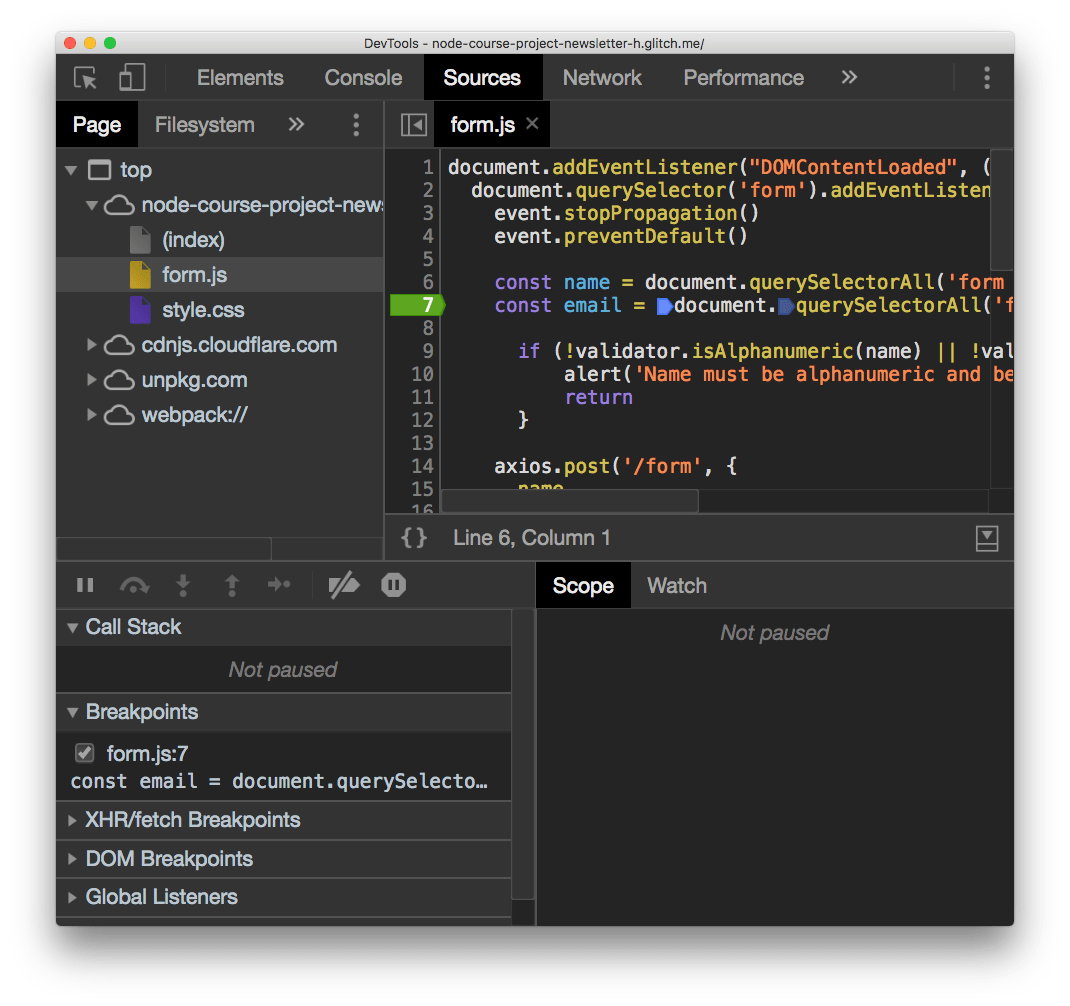
Clicking again the breakpoint will remove it.
After you add a breakpoint you can reload the page and the code will stop at that execution point when it finds the breakpoint.
As you add the breakpoint you can see in the Breakpoints panel that form.js on line 7 has the breakpoint. You can see all your breakpoints there, and disable them temporarily.
There are other types of breakpoints as well:
- XHR/fetch breakpoints: triggered when any network request is sent
- DOM breakpoints: triggered when a DOM element changes
- Event listener breakpoints: triggered when some event happens, like a mouse click
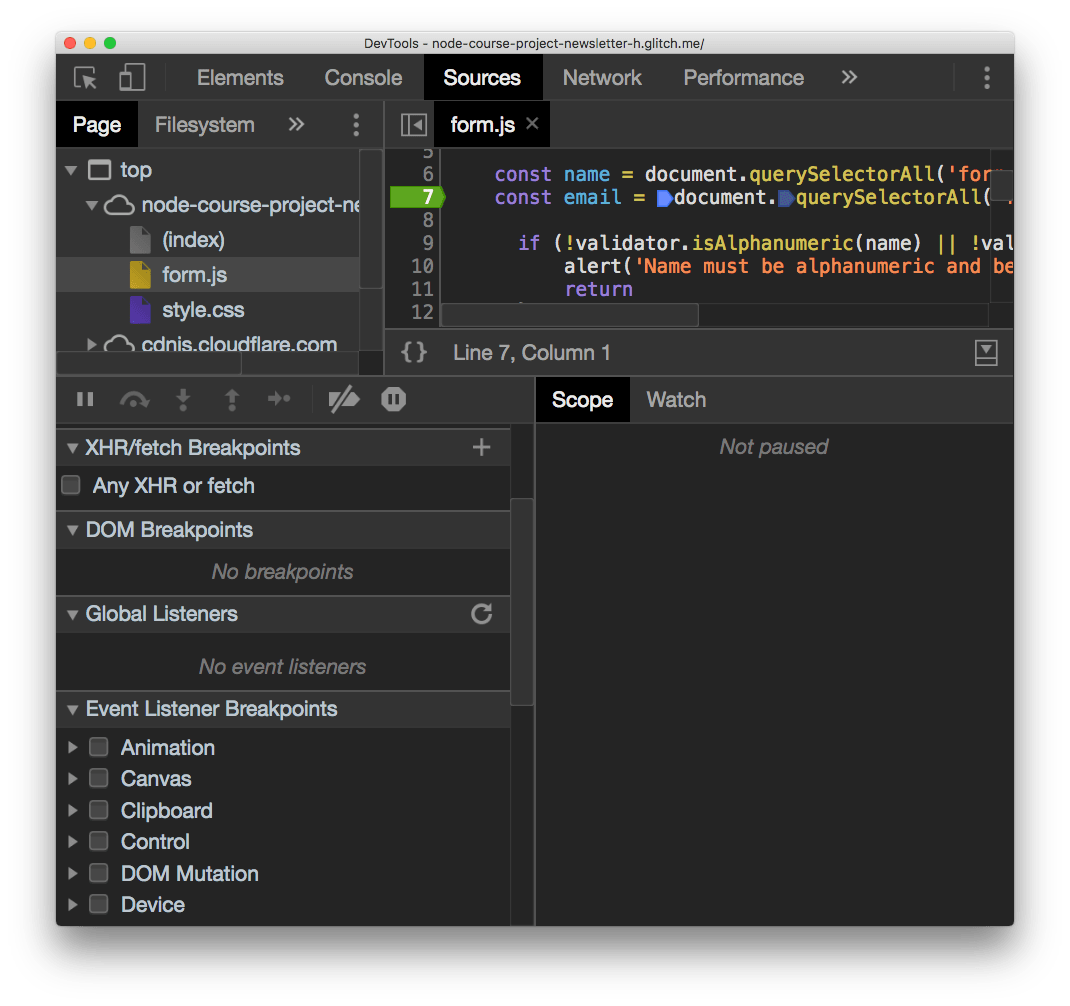
A line breakpoint that always pauses is often too noisy. Two extra kinds sit on the same line number.
Conditional breakpoint. Right-click the line number, choose Add conditional breakpoint, and type an expression. Chrome pauses only when that expression is truthy. In a loop that runs a hundred times, item.id === 'sku-42' is the difference between a useful stop and a marathon of clicks. The marker turns orange with a question mark.
Logpoint. Right-click the line number and choose Add logpoint. Type a message the same way you would pass arguments to console.log(). Chrome prints it in the Console and does not pause. The marker is pink with two dots. You get the log without editing the file and without leaving a console.log() behind.
Pause on exceptions
Sometimes the only thing you know is that something throws, not which line to break on.
In the Breakpoints section of the Sources panel, enable Pause on uncaught exceptions. Reload, or repeat the action. Chrome pauses on the throw, with the local variables still in Scope. That is more useful than reading the stack after the function has already unwound.
Enable Pause on caught exceptions as well when the failure is swallowed by a try/catch (or a .catch() on a promise) and never reaches the Console as an uncaught error. This one is noisier. Libraries catch a lot. Pair it with the Ignore List so you don’t stop inside validator.min.js on every validation miss.
Scope
In this example I set a breakpoint inside an event listener, so I had to submit a form to trigger it:
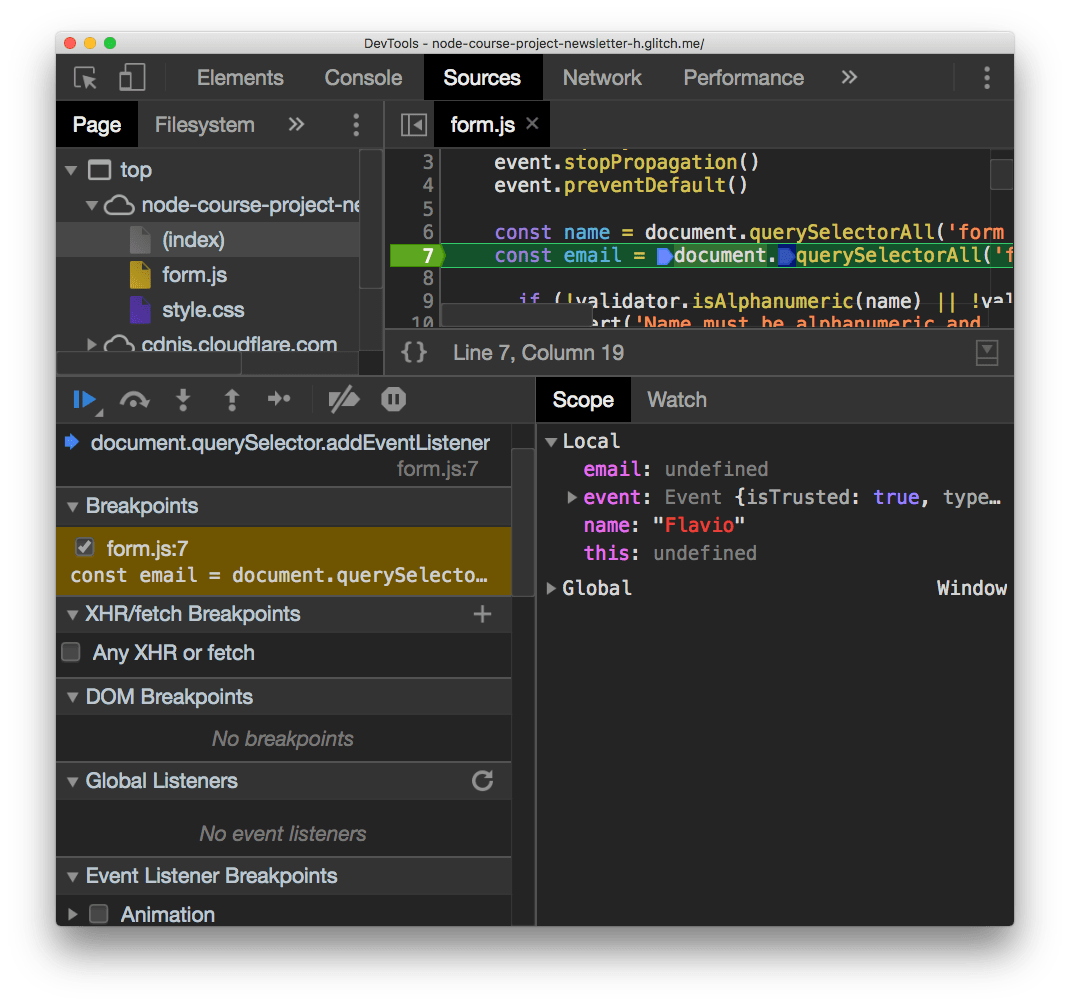
Now all the variables that are in the scope are printed, with their respective values. You can edit those variables by double clicking them.
Watch variables and expressions
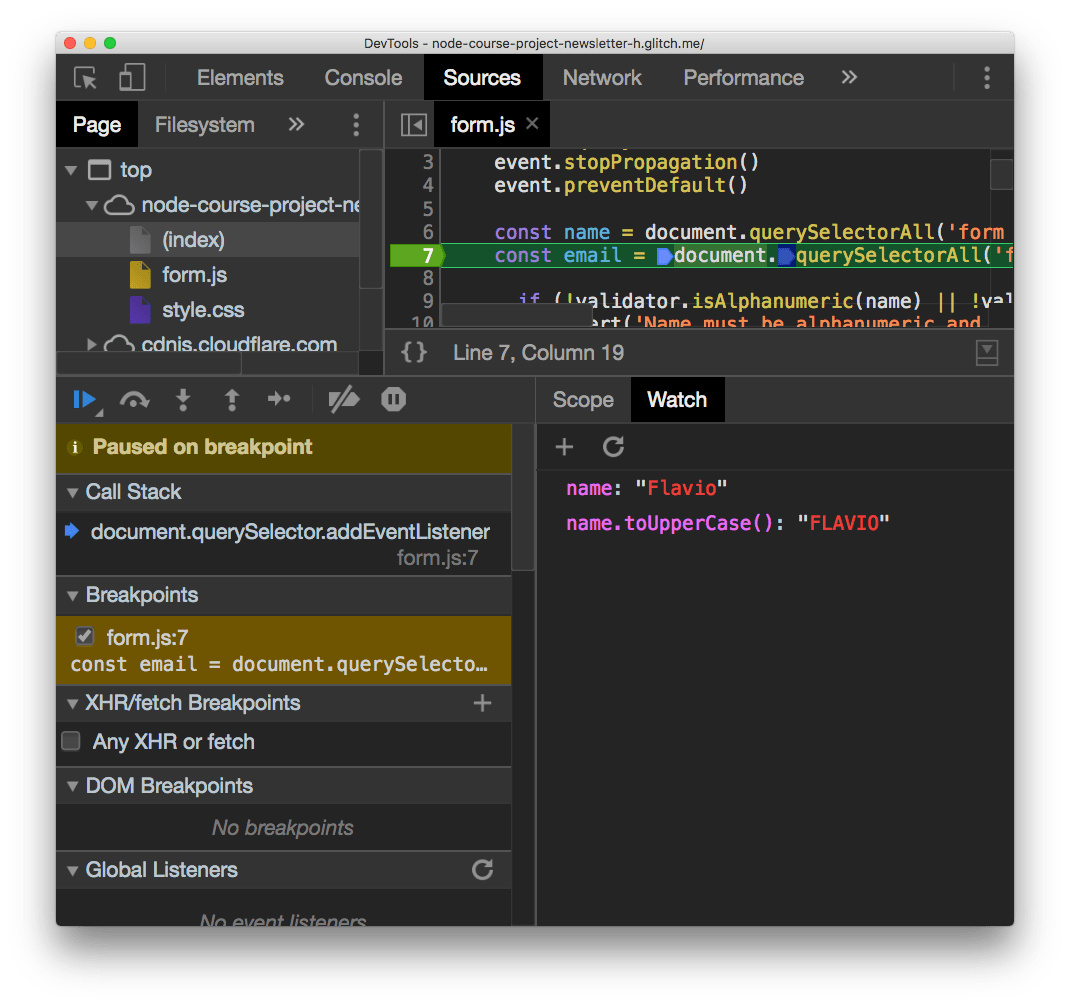
Right to the Scope panel there’s the Watch panel.
It has a + button which you can use to add any expression. For example adding name will print the name variable value, in the example Flavio. You can add name.toUpperCase() and it will print FLAVIO:
Resume the execution
Now the scripts are all halted since the breakpoint stopped the execution.
There is a set of buttons above the “Paused on breakpoint” banner that let you alter this state.
The first is in blue. Clicking it resumes the normal script execution.
The second button is step over, and it resumes execution until the next line, and stops again.
The next button perform a step into operation: goes into the function being executed, letting you go into the details of it.
Step out is the opposite: goes back to the outer function calling this one.
Those are the main ways to control the flow during debugging.
Edit scripts
From this devtools screen you can edit any script, also while the script is halted in its execution. Just edit the file and press cmd-S on Mac or ctrl-S on Windows/Linux.
Of course the changes are not persisted to disk unless you are working locally and set up workspaces in the devtools, a more advanced topic.
Inspect the call stack
The call stack is great to see how many functions levels you are deep into the JavaScript code. It lets you move up in the stack too by clicking each function name:
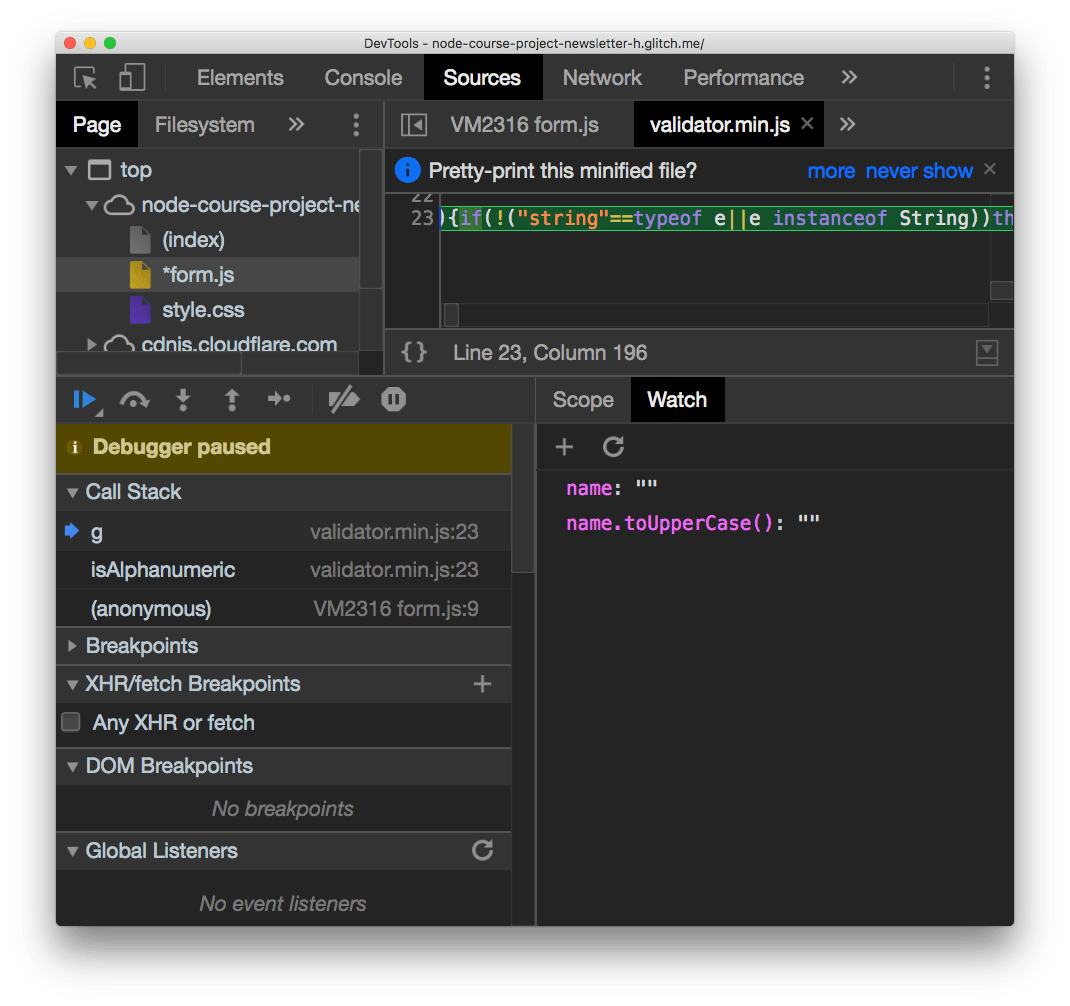
The same stack you saw as text in the Console is now interactive. Click a frame, and Scope and Watch update to that function.
Ignore scripts
Often times you work with libraries where you don’t want to “step into”, you trust them and you don’t want to see their code in the call stack, for example. Like in the above case for validator.min.js, which I use for email validation.
I trust it does a good job, so I can right-click it in the call stack and press Add script to ignore list. From then on, it’s impossible to step into this script code, and you happily work on just your own application code.
Source maps
Production JavaScript is often bundled and minified, so Chrome runs one long file instead of the short files you wrote.
A source map is a JSON file that maps positions in the generated file back to the original. Bundlers such as Vite, webpack, esbuild, and Parcel can emit one. The generated file points at it with a comment:
//# sourceMappingURL=app.js.mapIn Chrome, open Settings > Preferences > Sources and keep JavaScript source maps enabled (it is on by default).
Then in the Sources file tree, group Authored and Deployed. Open your original file under Authored. Set breakpoints there. The Console, the Call stack, and logpoints follow the original names too.
If maps are missing, you debug the minified file. Confirm the bundler wrote a .map, and that the server actually serves it (a 404 on app.js.map is a common reason DevTools stays on the bundle).
Use the browser DevTools to debug Node.js
Since Node.js is built on the same engine of Chrome, v8, you can link the 2 and use the Chrome DevTools to inspect the execution of Node.js applications. I wrote a longer guide on debugging Node.js with Chrome DevTools.
Open your terminal and start the app with the inspector:
node --inspect app.js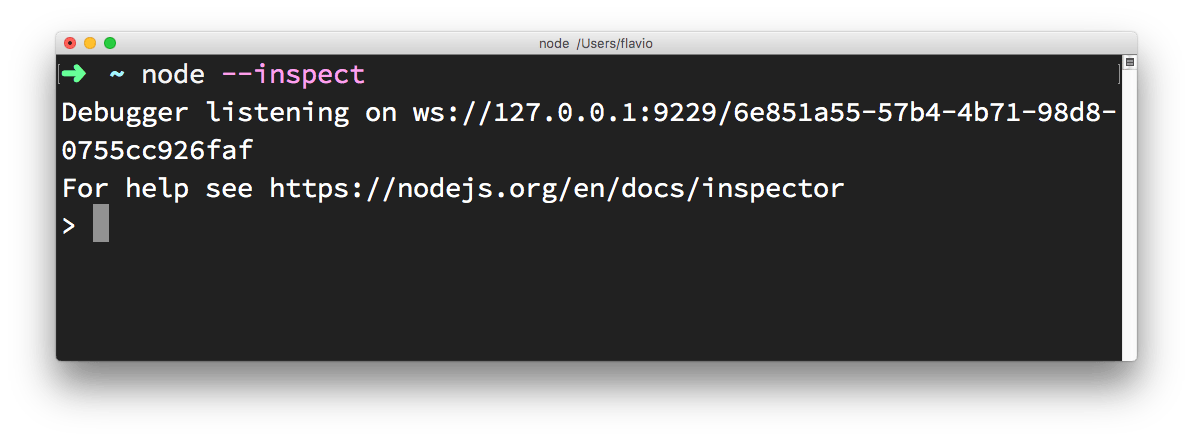
Node listens on 127.0.0.1:9229 and the program starts immediately.
If the bug happens at startup, pause on the first line instead:
node --inspect-brk app.jsThen in Chrome open chrome://inspect.
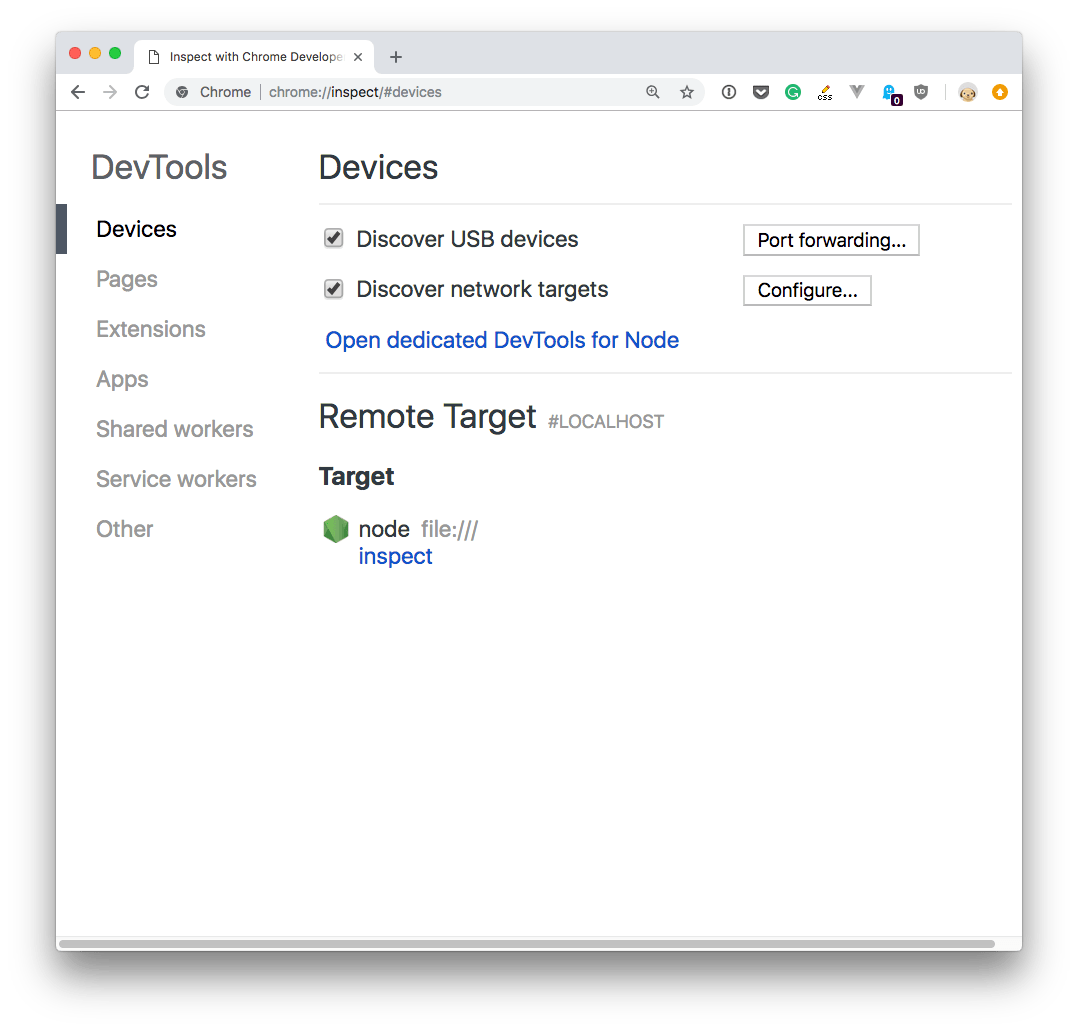
Click Open dedicated DevTools for Node under Devices. That window reconnects when you restart the Node process. The inspect link next to a single target does not.
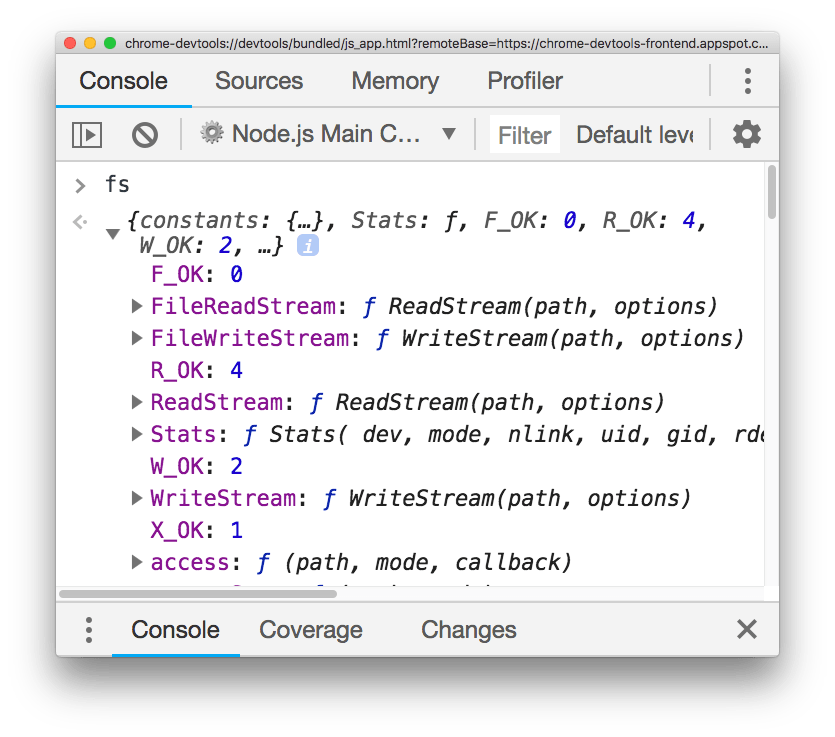
Breakpoints, the Console, and the Sources panel then work like they do for page scripts. The Node guide covers --inspect-wait, source maps, and debugging a process that is not on localhost.
Want me to talk about your product? You can sponsor this site.
Related posts about js: