What is tldraw? The canvas, SDK, MCP, Offline and Flash
By Flavio
Tagged: AI
A practical guide to tldraw: the infinite canvas, React SDK, AI integrations, local agent workflows, Flash animations, and software development use cases.
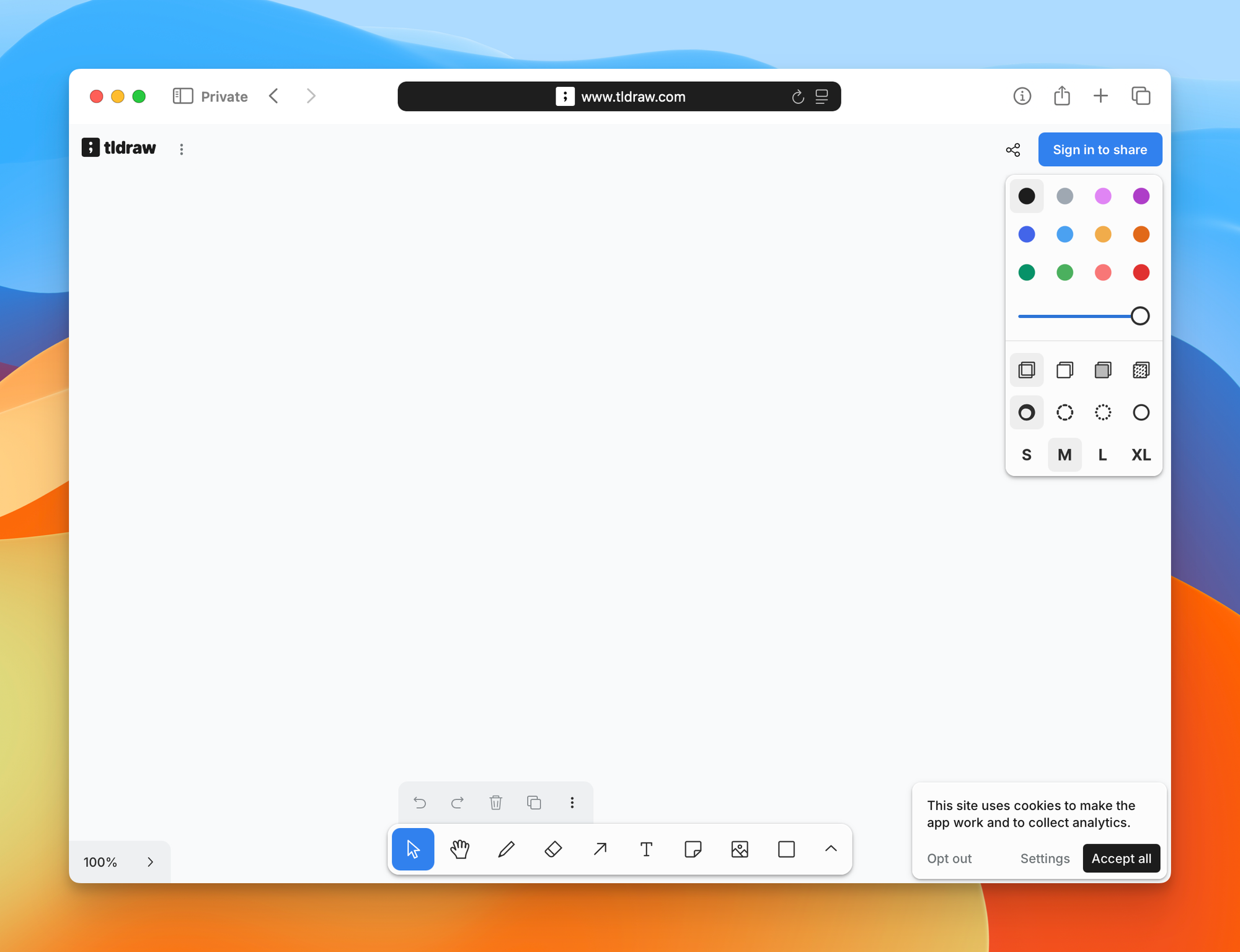
tldraw is an infinite canvas for sketching and organizing ideas.
I think of it as a fast way to put together low-fidelity diagrams when you want to explain an idea, map out a system, or sketch a flow without spending an hour making it look polished. You can share those boards, drop them into docs, or just keep them for yourself. Half the time, drawing something out is the fastest way to understand it now and still make sense of it months later.
It gets even more interesting once you pair it with AI agents. An agent can draw what it found in a codebase or lay out a process on the canvas, and you can move boxes around, fix what’s wrong, and keep the conversation going from the updated board.
Picture a whiteboard that never runs out of room. You sketch with a pen, drop in shapes and text, connect pieces with arrows, paste images, and drag everything around as your thinking changes.
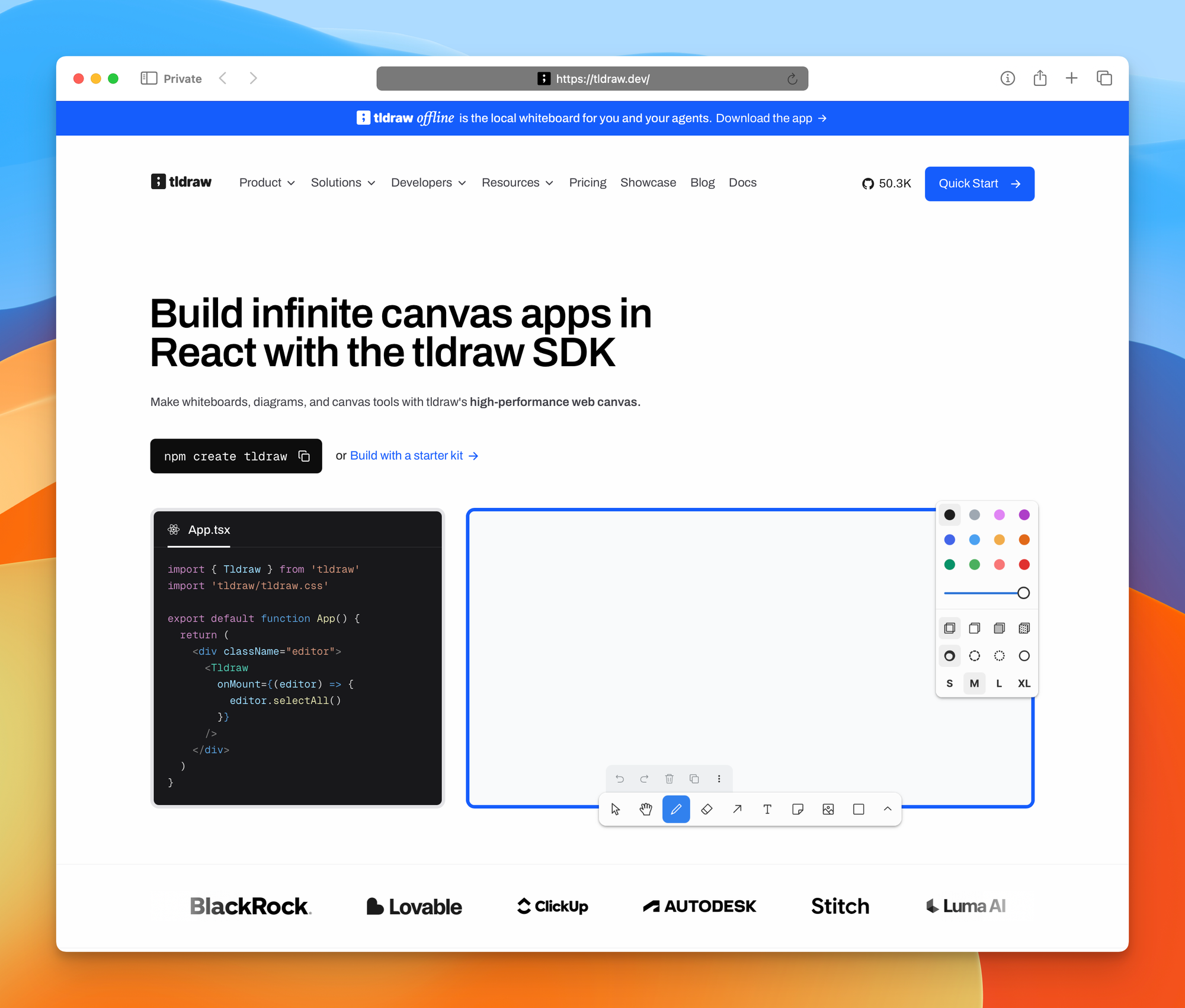
You can open tldraw.com and use it as a free online whiteboard, or grab the tldraw SDK if you want to build your own canvas-based app.
What is an infinite canvas?
Documents lock you into pages, and slide decks box you into fixed rectangles. An infinite canvas gives you one open surface and a camera you move across it.
Pan to shift around the board, zoom to switch between the big picture and the details. You can keep a rough brainstorm in one corner and a detailed flow next to it, without splitting your work across separate files.
That freedom fits diagramming well, because ideas almost never show up in the right order. You start with two boxes, realize a step is missing in the middle, shove half the diagram over, and reattach the arrows.
I’ve always loved whiteboards. Years ago I wrote that a big physical whiteboard is one of the best investments you can make, mostly because laying an entire problem out in front of you makes it easier to think. tldraw brings that same open space to a screen, minus the physical wall limit.
What can you do with tldraw?
All the usual whiteboard tools are built in. You can sketch freehand, drop in geometric shapes, type text, stick up notes, and wire things together with arrows. Once the board gets busy, you can group items, align and distribute them, reorder layers, and duplicate whole sections in one go.
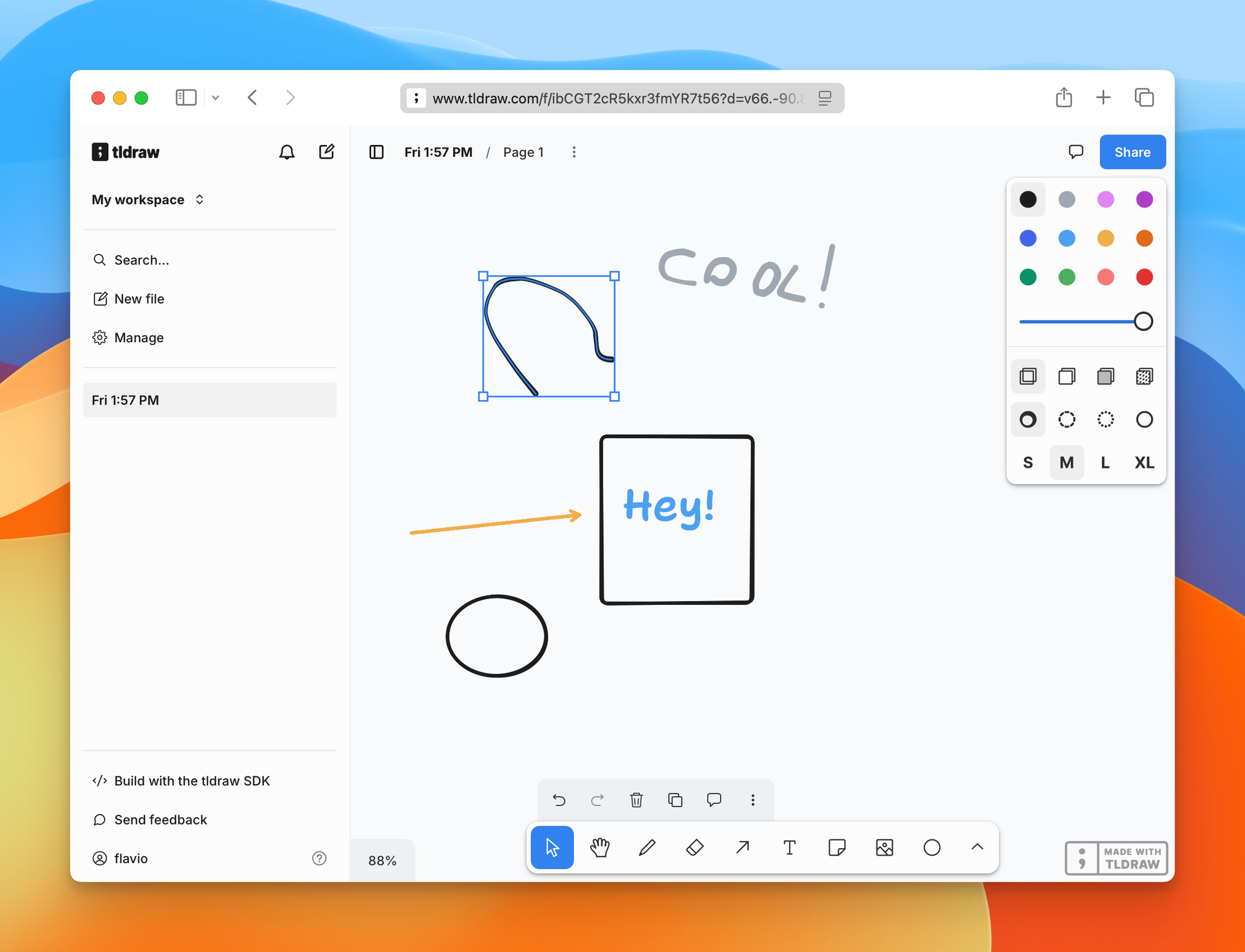
You can also drag images and videos onto the board, which makes tldraw handy for mood boards, screenshot feedback, quick wireframes, presentations, and visual docs.
Collaboration comes included too. Share a board and you get live cursors, presence indicators, real-time updates, and the option to follow someone else’s viewport as they walk you through part of the canvas.
tldraw is also an SDK
The online whiteboard is just one app built with the tldraw SDK.
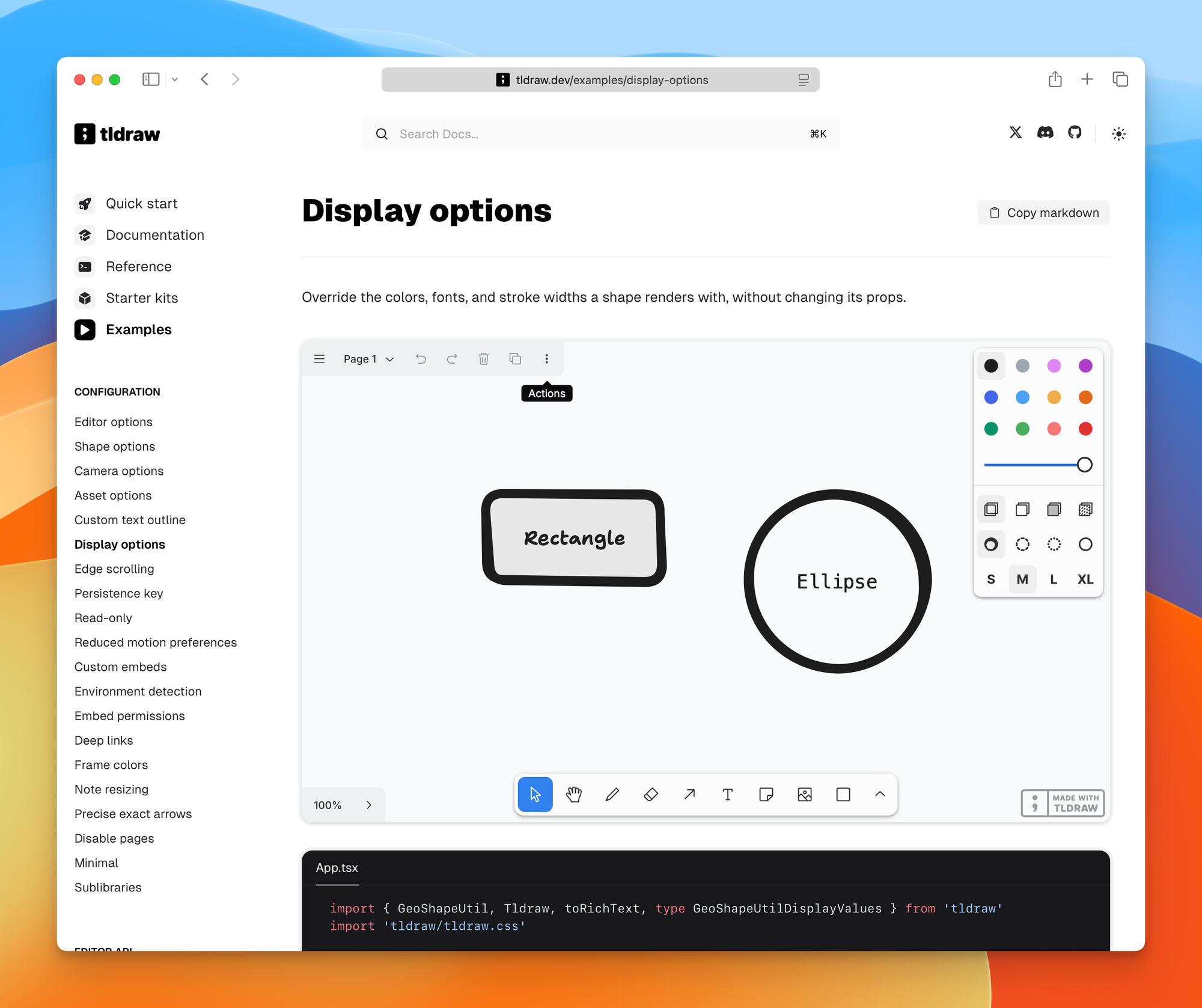
Underneath, the SDK is a React and TypeScript toolkit for building your own infinite-canvas software. Out of the box, it gives you selection, resizing, rotation, snapping, arrows, text editing, images, undo and redo, camera controls, persistence, and multiplayer sync.
Building that kind of UI from scratch is much harder than it looks at first glance. Every shape has to respond properly to mouse, touch, and keyboard input. Arrows have to stay glued to nodes as you drag them around, and selection has to work through nested groups. Pile on copy and paste, history, zoom math, and real-time collaboration, and the edge cases multiply fast.
Using tldraw means you skip rebuilding all of that plumbing and spend your time on what’s unique to your app.
Because the canvas renders with React and normal DOM elements, a custom shape can hold almost anything: a button, a text input, a video, a live chart, or another web interface. You can add custom tools, reshape the menus, wire up new interactions, and control the editor programmatically through its runtime API.
That makes it useful well beyond whiteboards. You can build a diagram editor, a visual workflow tool, a floor planner, a node-based app, a collaborative teaching tool, or any interface that doesn’t fit neatly into rows and columns.
How tldraw is built
The SDK is written in TypeScript and React. Powering the canvas is Signia, tldraw’s own reactive state library, paired with a store that holds each document as a flat set of records: shapes, pages, assets, bindings, and the presence of each connected user. Undo, saving, and multiplayer sync all work as diffs on those records. In the browser, boards save to IndexedDB, and on disk they live as .tldraw files.
On the server side, tldraw.com runs on Cloudflare. In the tldraw sync announcement, Steve Ruiz explained that the team wrote their own sync engine because none of the existing options could keep up with a live canvas. Each shared board gets its own Durable Object backed by SQLite, reached through a Cloudflare Worker over WebSockets. Because Cloudflare guarantees a single Durable Object instance per board ID, there’s always one authoritative copy of the document. Snapshots, document history, and uploaded images go to R2, and the sync engine itself is open source as @tldraw/sync.
App data around the boards (users, workspaces, file lists, comments) lives in Postgres on Supabase. The browser reads that data through Zero, Rocicorp’s sync engine, with its cache running on Fly.io. The tldraw team wrote that layer themselves first and replaced it with Zero in August 2026.
The web client is a React 19 app built with Vite, using Clerk for sign-in and deployed on Vercel.
If you want a similar stack for your own canvas app, run npm create tldraw@latest -- --template multiplayer. That pulls down the Multiplayer starter kit, extracted from tldraw.com with the Durable Object, SQLite storage, and R2 uploads wired up (without authentication or long-term history). If Workers, Durable Objects, and R2 are new to you, my complete Cloudflare guide covers all three.
Why tldraw is interesting for AI agents
A chat thread works fine when you have one focused question. Once an app involves routes, queues, databases, background jobs, and failure paths, I want to see how all the pieces connect.
With tldraw, you can ask an agent to draw the system out. Then you drag a box into place, delete a wrong arrow, circle the part that looks off, and let the agent read your edits. Both of you end up working on the same diagram.
The tldraw team uses this same canvas foundation across several separate products and starter kits:
- an MCP App that embeds a live canvas inside an agent conversation
- an Agent starter kit for models that can read and change a canvas
- a Chat starter kit for sending sketches and annotated images to a model
- a Workflow starter kit for executable node graphs
- a Branching Chat starter kit for visual conversation trees
- tldraw Offline, where local agents can change file-based boards and write scripts
- tldraw Computer, an experimental visual computing environment
- tldraw Flash, a separate application for recording canvas animations
Why text is not enough for software work
Say you ask an agent to explain how a purchase webhook works. It’ll usually hand back a numbered list like this:
- verify the signature
- identify the product
- write access to storage
- subscribe the buyer
- send the email
That list hides the exact things you care about when reviewing or debugging code. You can’t see what happens if storage succeeds and email fails, which calls are safe to retry, where human approval belongs, or which branch catches a duplicate webhook.
Put the same flow on a canvas and it clicks immediately. The main path runs across the middle, failure paths branch off underneath, external side effects stand out in another color, and you can mark the point where the system can’t safely roll back.
This matches how I already use AI to understand code. I start at the entry point, trace the data, and look for side effects and failure paths. An editable canvas puts that map on the screen, and whenever the agent gets part of the system wrong, you can fix the drawing and let it continue from your changes.
The tldraw MCP App in Cursor and Claude
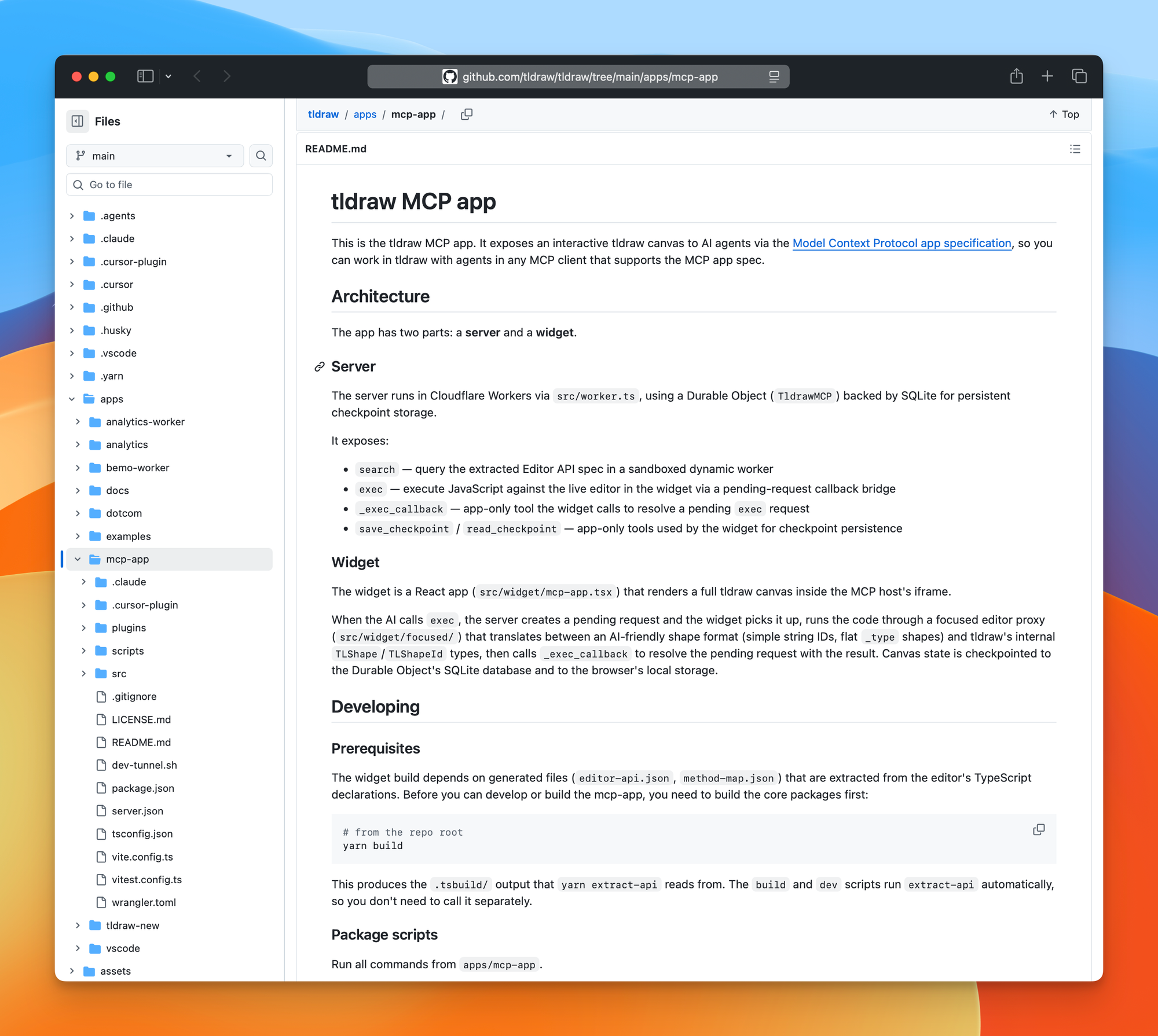
If you want to try this without building an app yourself, tldraw ships an MCP App for Cursor and Claude. MCP Apps extend the Model Context Protocol with interactive UI, so instead of returning another wall of text, a tool can open a working tldraw canvas inside your chat.
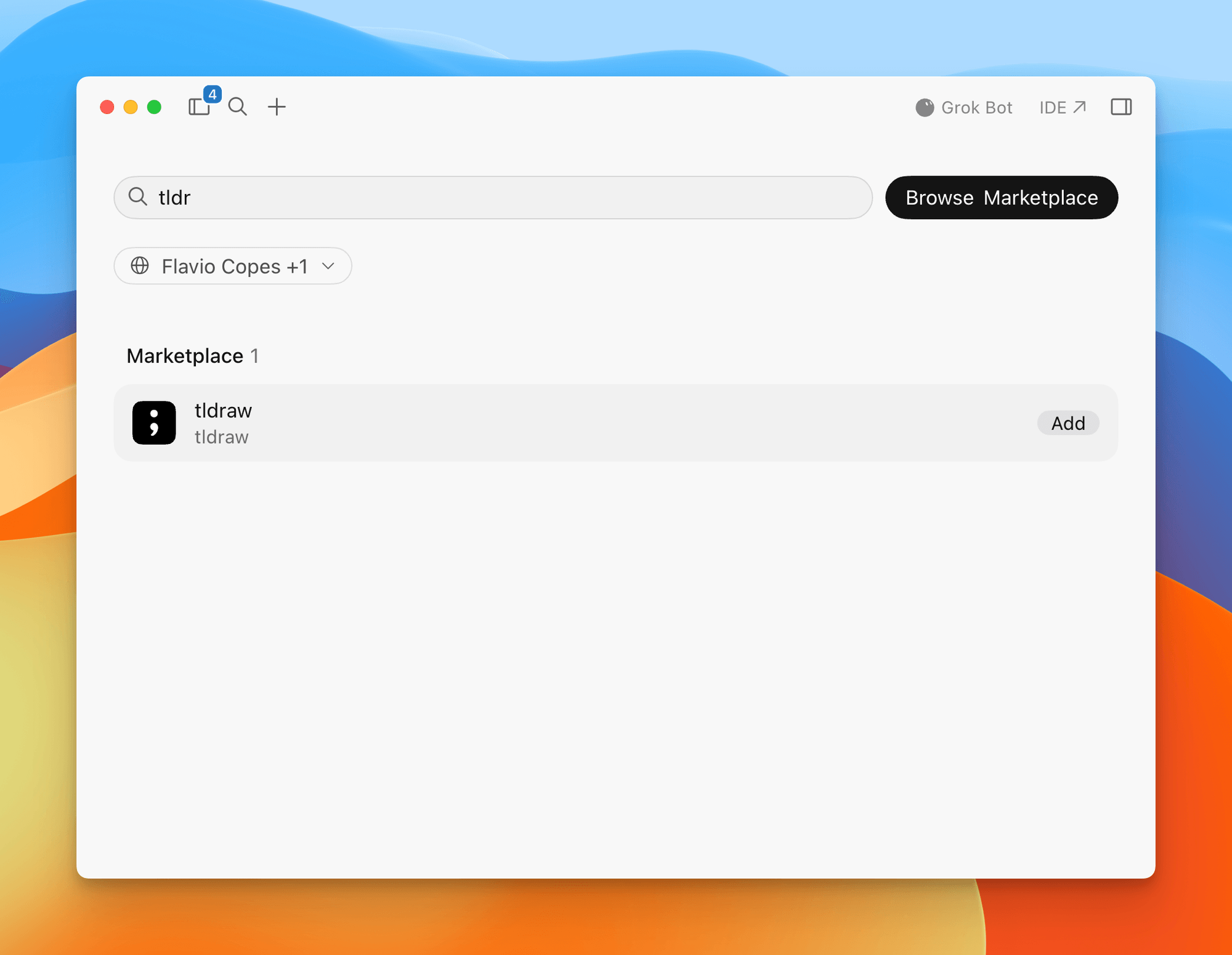
In Cursor, open the Marketplace, search for tldraw, add it, and restart the editor.
Once it’s installed, Cursor lists the tldraw MCP server and the tools it exposes:
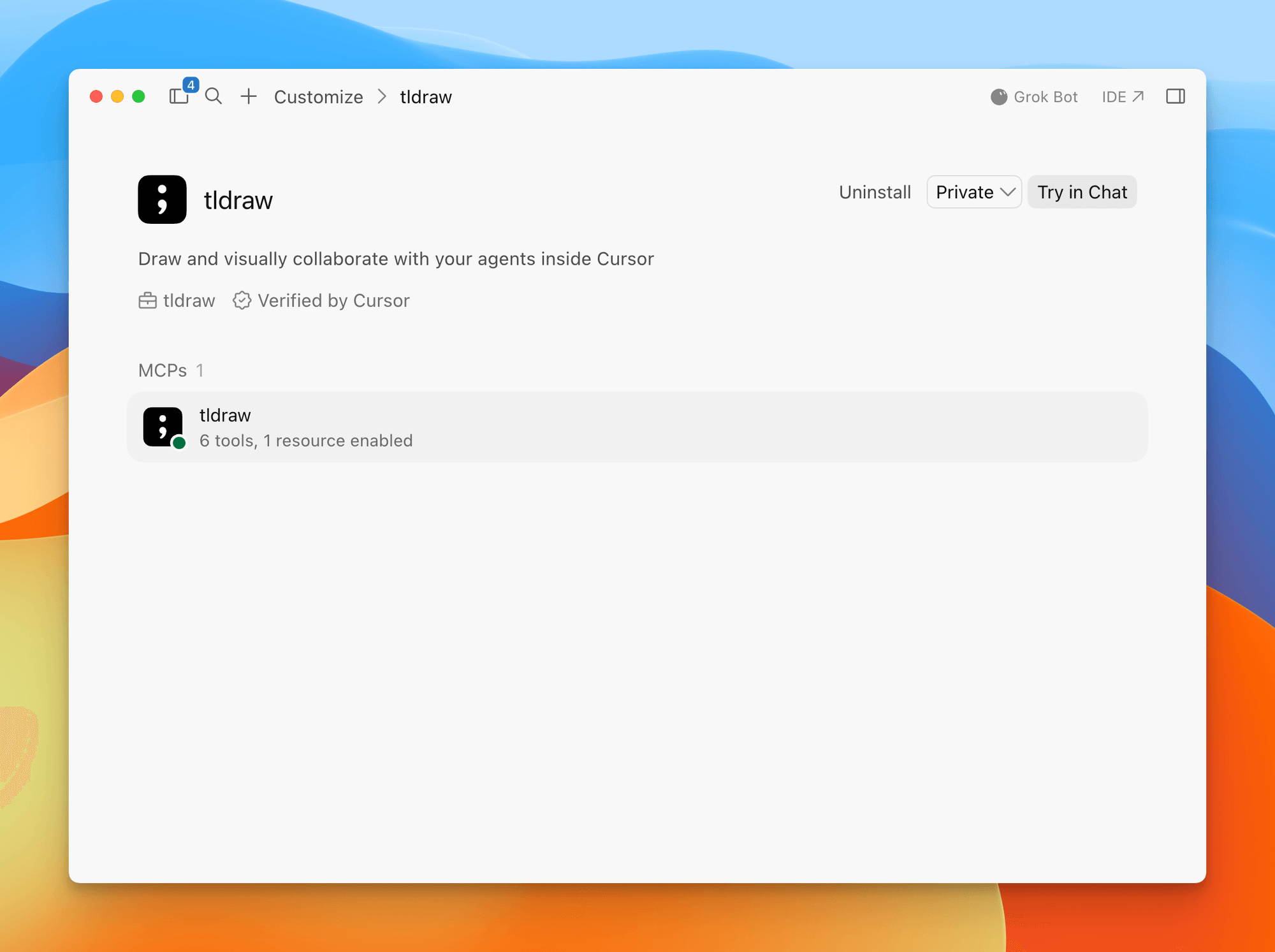
You can use it in the Claude web and desktop apps too. Open Settings, choose Connectors, then Browse Connectors, search for tldraw, and connect it.
Once it’s hooked up, you can ask the agent to draw a diagram with a prompt like this:
Read the current repository.

Draw the complete request path for POST /purchase.
Include every external call, database write, email, and early return.
Put the file path and function name in each box.
Use a separate branch for each failure path.

Do not change code.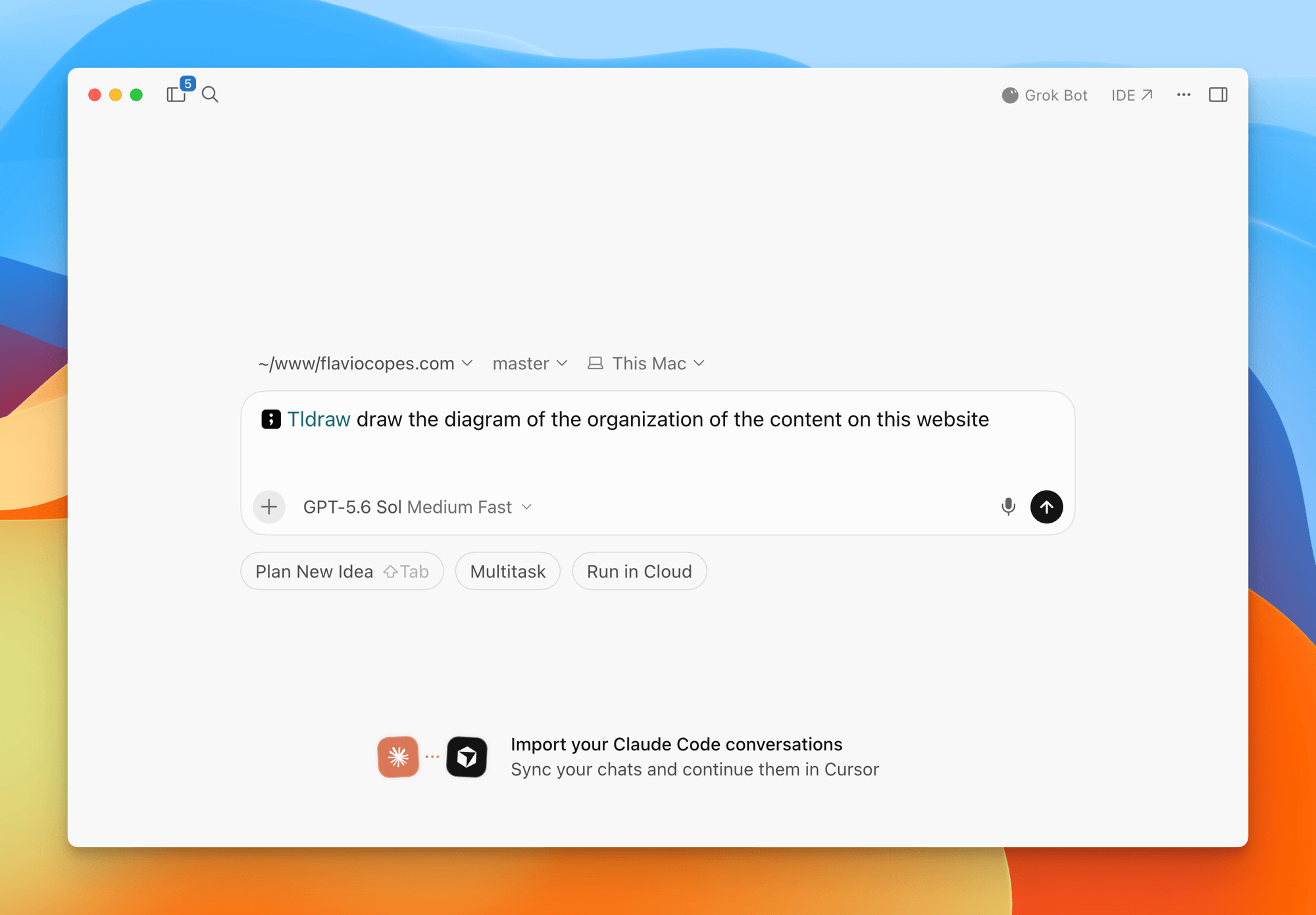
The agent creates and updates shapes on the board, and you can edit them yourself. Whatever changes you make go back into the conversation context.
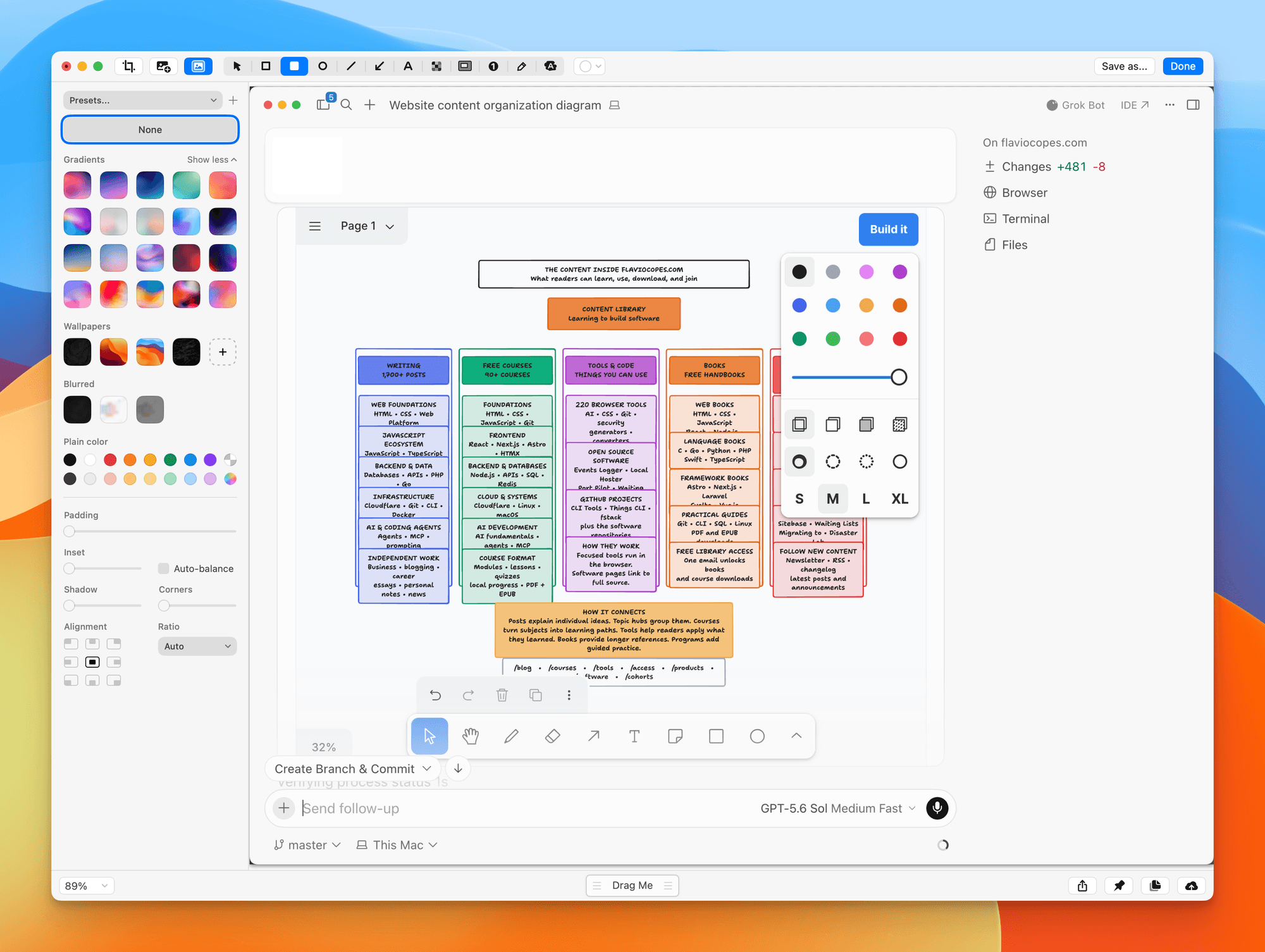
For example, you can drag the email step in front of the database write and ask, “Is this what the code really does?” Or you can delete a branch and tell the agent that behavior doesn’t exist. Instead of pointing back at “step three in your previous answer,” you both point at the exact box on the canvas.
Steve Ruiz used the MCP App on real engineering work at tldraw. In the MCP App write-up, he describes asking Cursor to compare an old curve algorithm against a new one visually. The agent drew both versions and annotated the optimization, and he used that diagram to steer the implementation.
How an agent sees the canvas
A plain screenshot gives a model the rough layout, but it still needs exact text, shape IDs, and coordinates to edit the board reliably.
To handle that, tldraw’s AI integration combines a screenshot with structured context about the board and the conversation:
- a screenshot of the current viewport
- simplified shape records with text, type, position, and bounds
- details about shapes outside the viewport
- the current selection and recent actions
- the conversation history
The image gives the model spatial layout, while the structured records hand it exact values to work with.
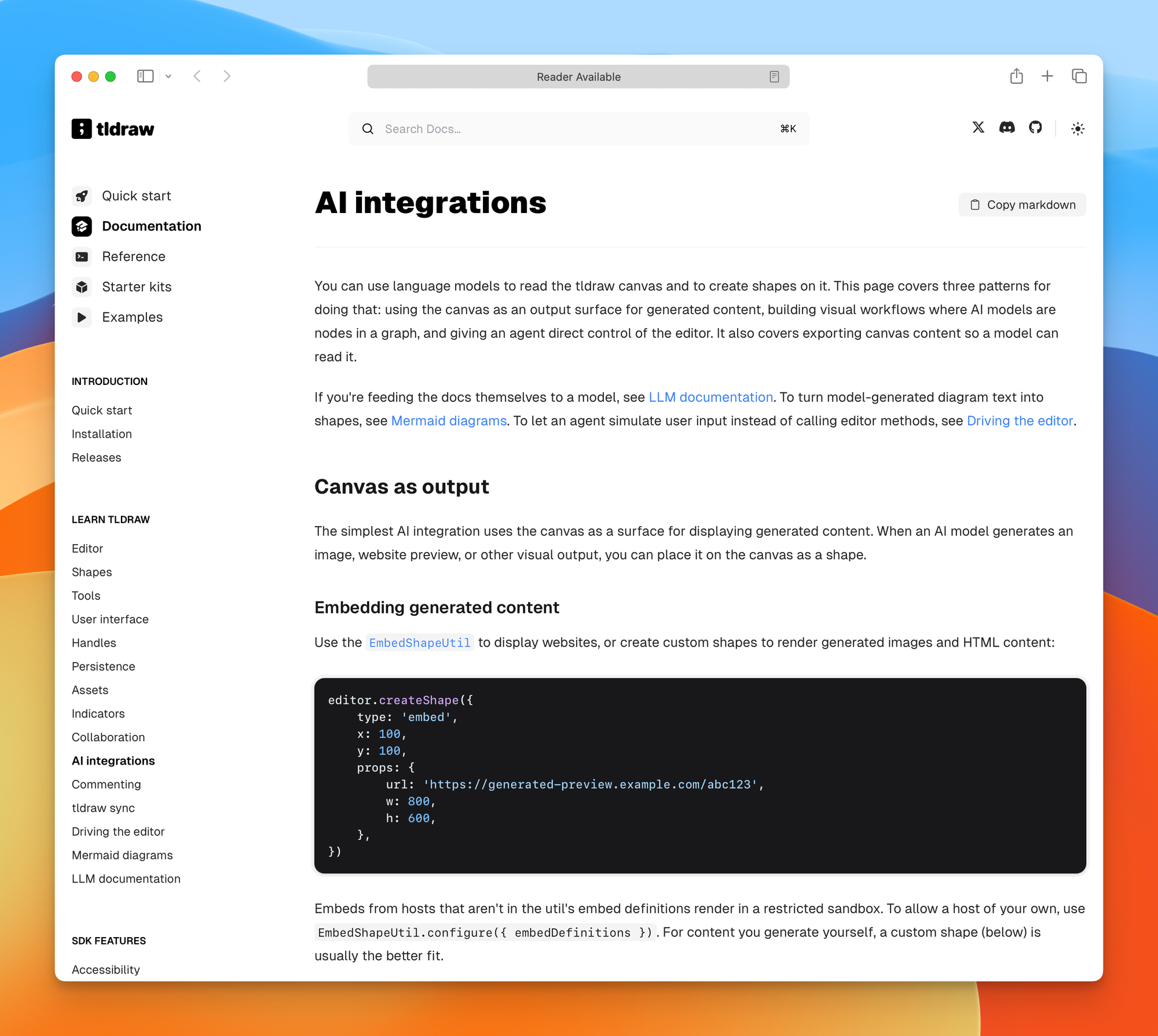
When the model updates the board, it performs typed canvas actions instead of generating an opaque image. The Agent starter kit validates and cleans those actions before applying them, catching common model mistakes like duplicate IDs, missing shapes, and invalid coordinates.
The Agent starter kit
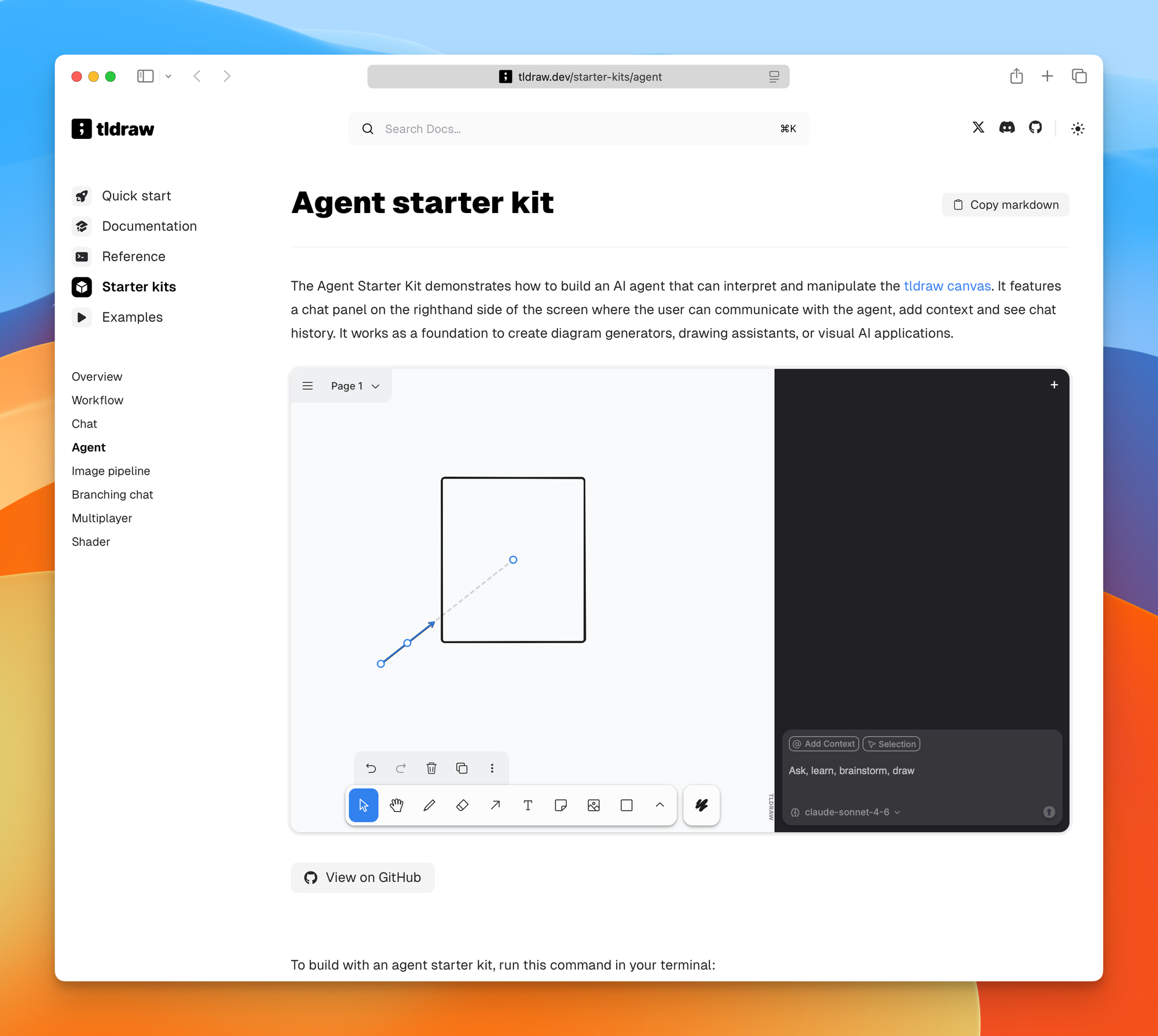
The Agent starter kit gives you a starting point for an app where an agent drives the canvas directly.
Spin up a new project from the template with:
npm create tldraw@latest -- --template agent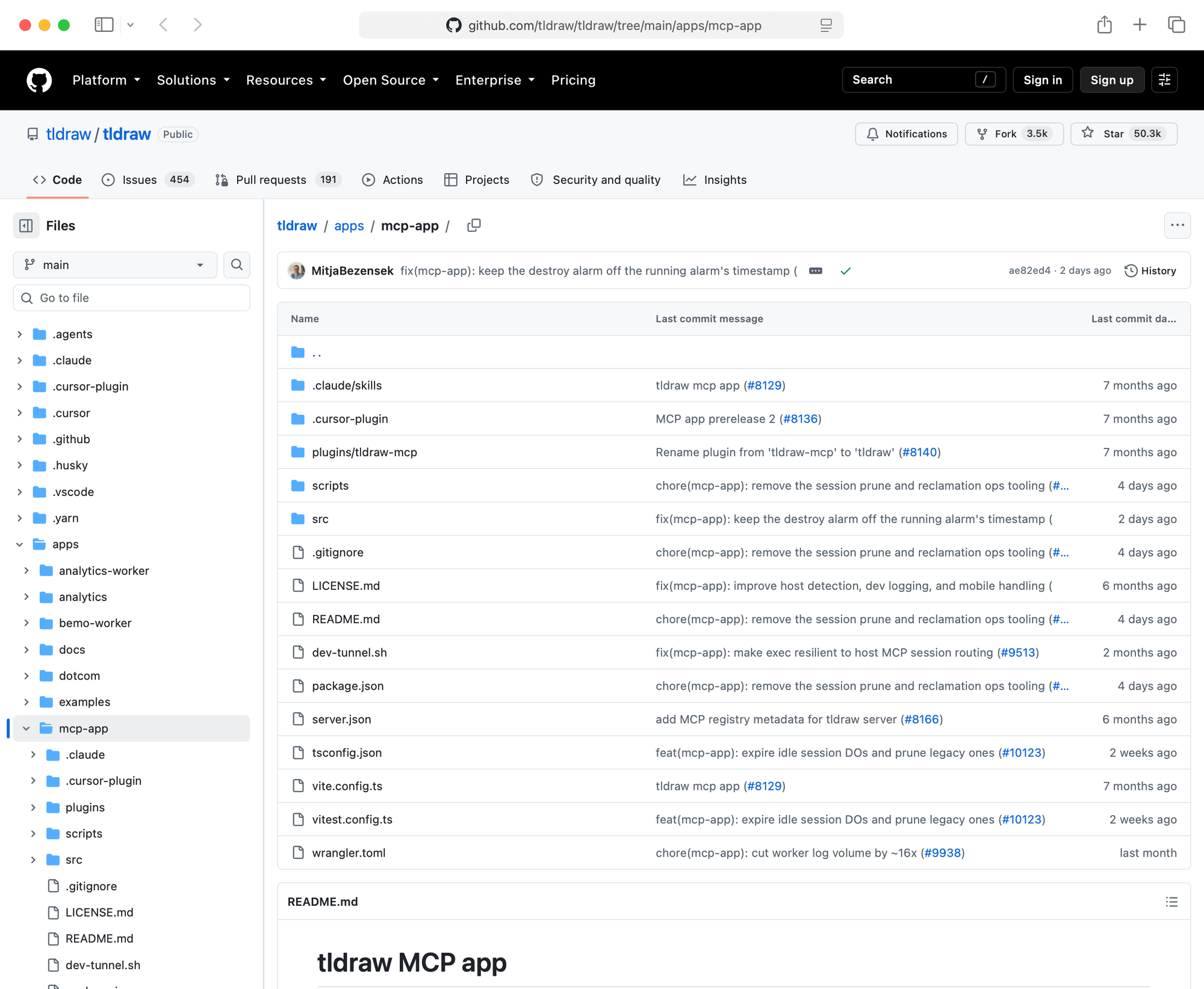
Out of the box, the agent can create, update, and delete shapes, arrange groups, move its viewport, count matching shapes, keep a todo list, schedule follow-up steps, and call external APIs.
You can also split permissions by mode. Set up a planning mode that reads the board without drawing, a working mode that edits shapes, and a review mode that strips out most editing tools so the agent sticks to critique.
I like that separation for coding agents in general. A model doesn’t need every capability in every phase. You don’t want a planning agent deploying code, and you don’t want a review agent quietly rewriting the work it’s supposed to critique.
The starter kit supports several model providers behind a common interface, so swapping models is straightforward. My advice when building on top of it is to focus more on keeping the action layer narrow than on which model draws the arrows. Let the model propose a node, a connection, or an annotation, and let your application code validate the operation and decide whether it’s allowed.
The Chat starter kit
The Chat starter kit embeds a whiteboard inside a chat app. You upload an image, crop it, sketch right over it, and send the annotated version to the model. The app saves both a PNG and the tldraw snapshot, so you can reopen the drawing later without flattening its shapes.
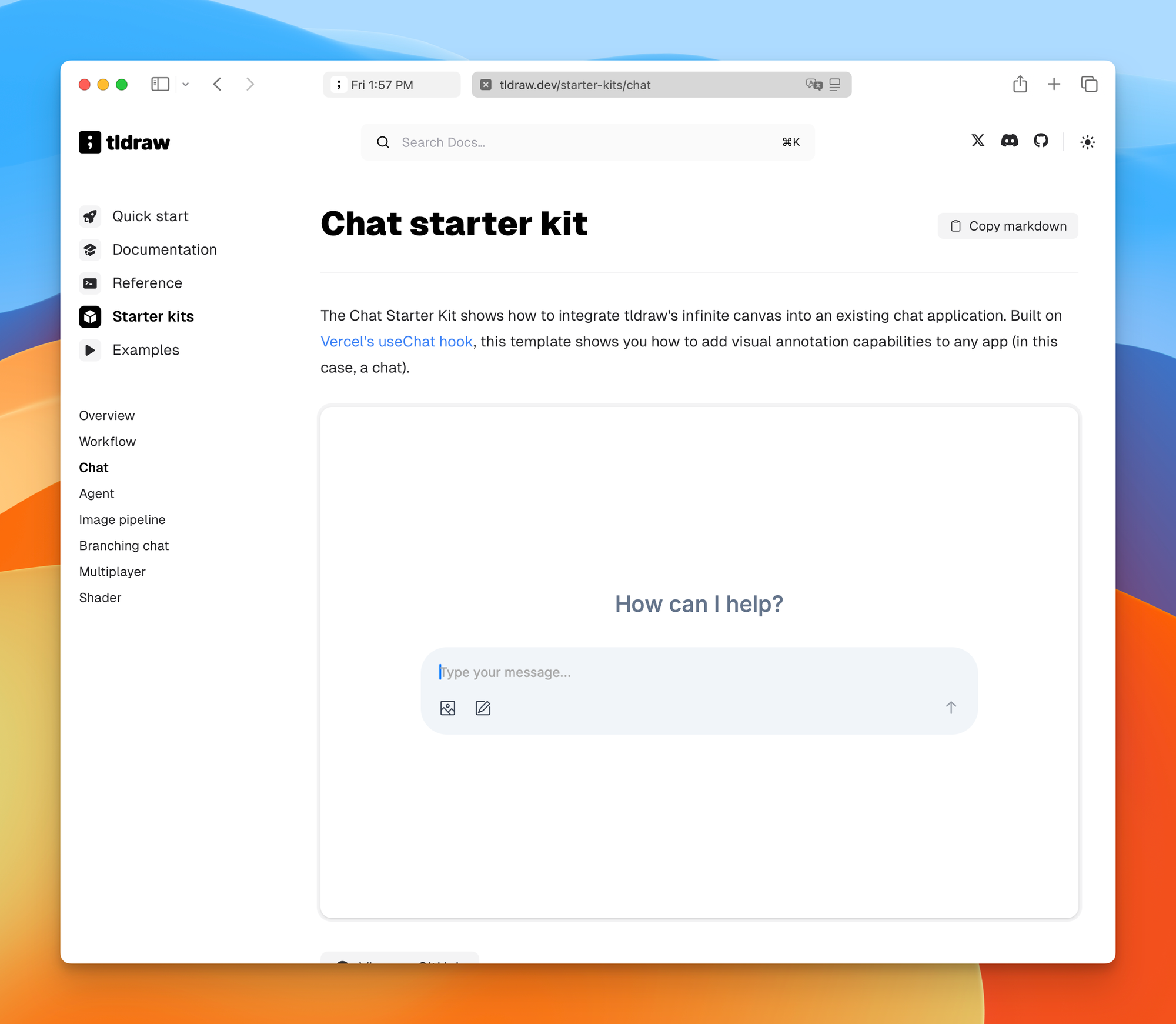
Take a visual bug report as an example. Paste a screenshot of a mobile page, circle the clipped button, sketch the spacing you want, and drop a note beside the broken state. The model gets the exact image with your markups on it.
Compare that to trying to describe the same layout bug in plain text:
The second box on the right should be a little lower,
but only on screens around 390 pixels wide.
The Workflow starter kit
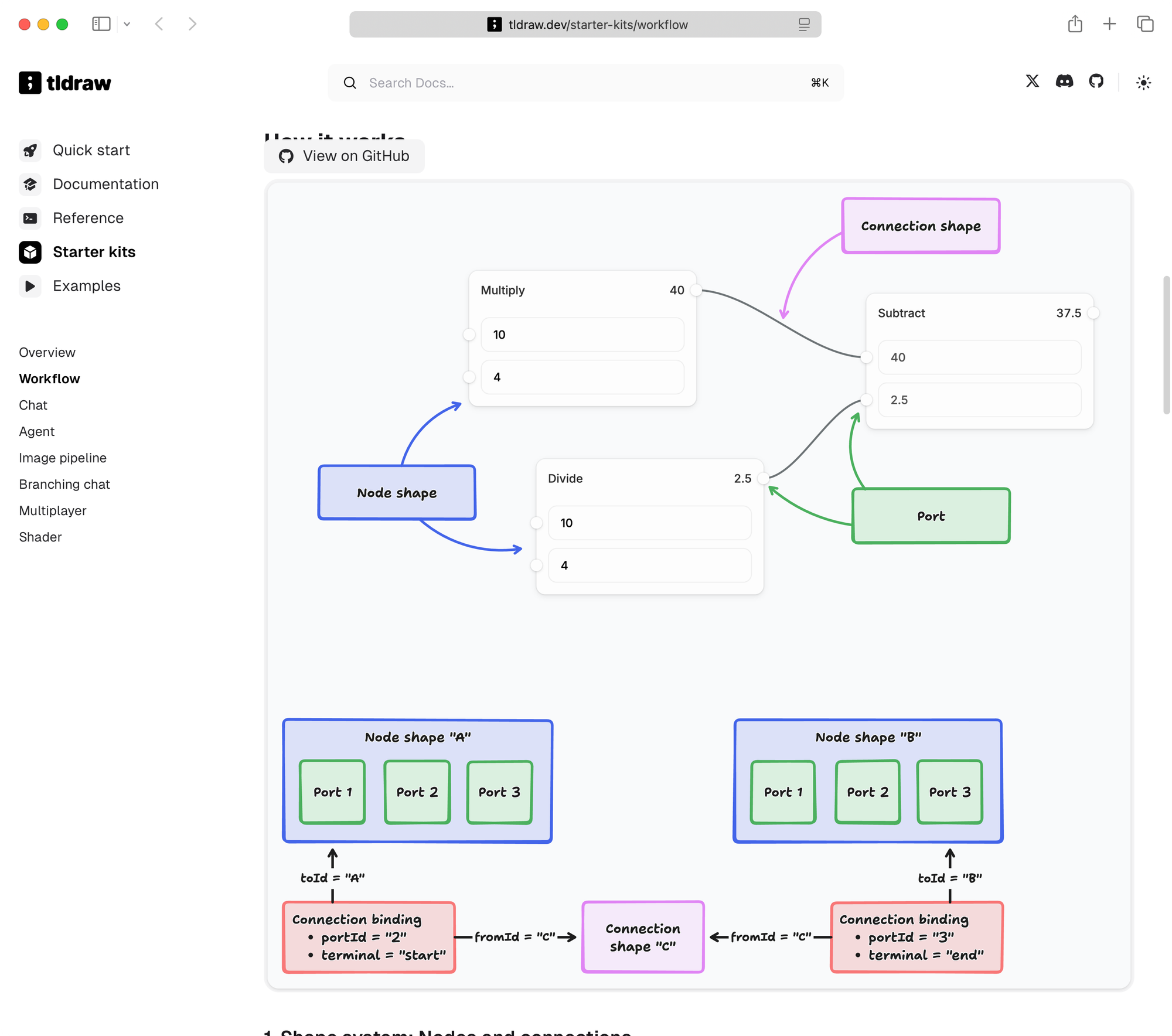
The Workflow starter kit turns the canvas into a node-based programming interface. You build custom node shapes with input and output ports, bindings keep connections attached when nodes move, and an execution engine resolves dependencies so each node runs in the right order.
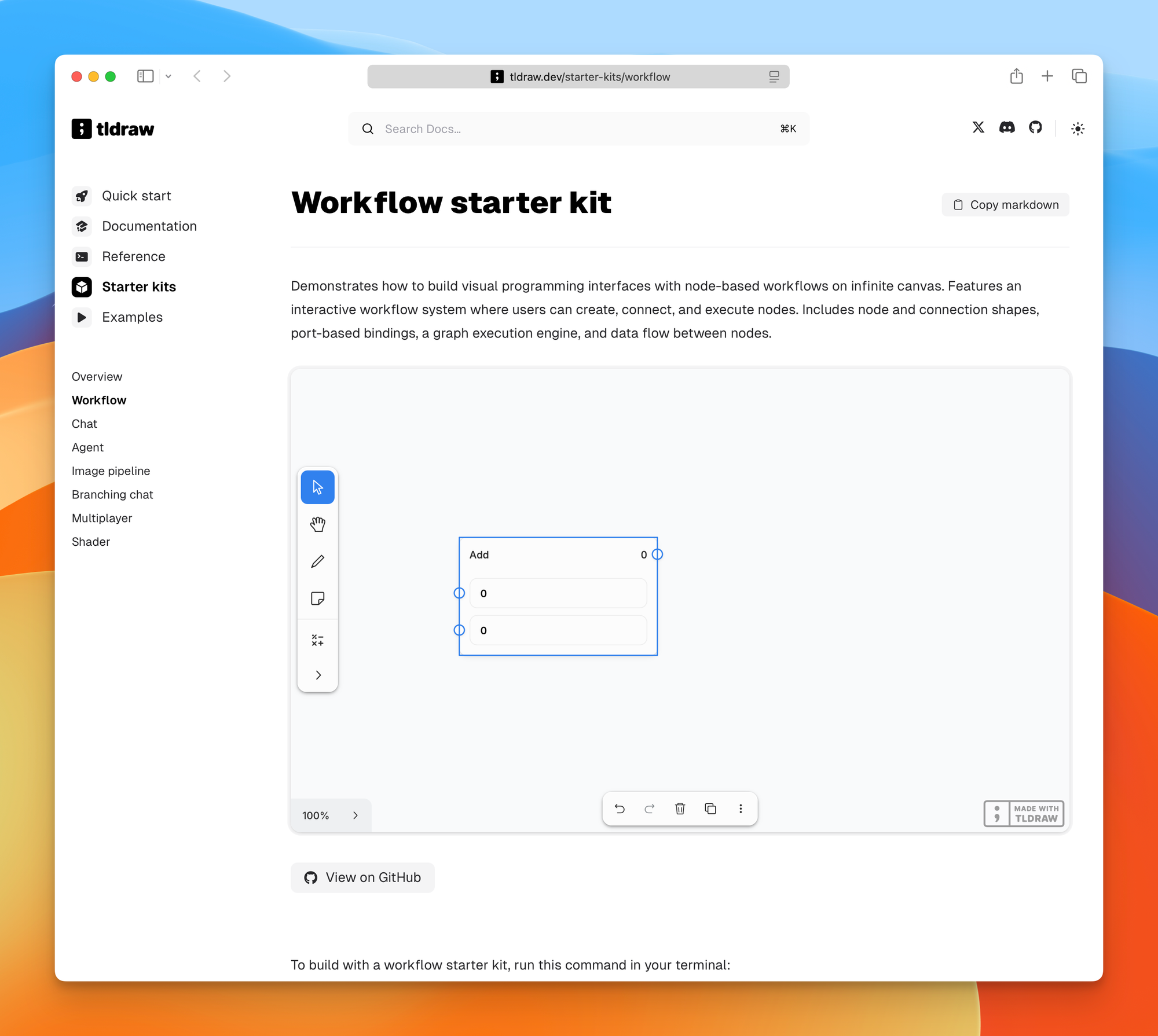
You can scaffold a starter project with:
npm create tldraw@latest -- --template workflowThe included engine is just a demo. Replace it with your own business logic running in the browser or on a server.
Keep in mind that the visual graph only describes the execution flow. Your app still needs authentication, retries, idempotency, logs, rate limits, and approval boundaries.
Say you’re modeling a release workflow with a chain of nodes like this:
build → test → preview → visual check → deploytldraw manages the visual graph and its connections, while your execution layer decides what each node runs. That deploy node still needs real checks and permissions enforced in code.
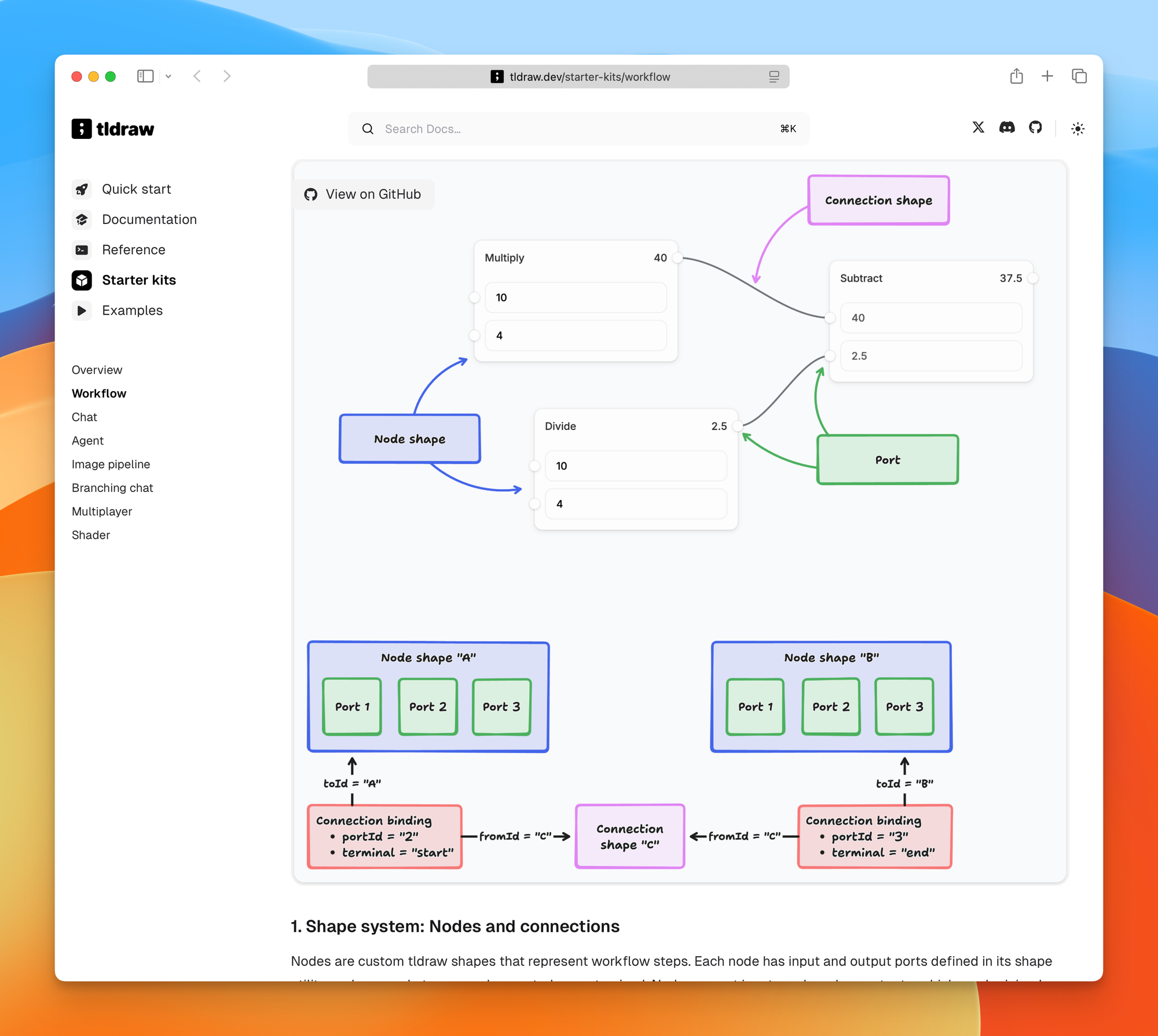
For agentic software, a graph like this makes it clear which agent handles each step, which artifact moves forward, and where a person has to approve the result.
You can turn this into a visual front end for a software factory, though it pays to wait until you have a real need for it. For most small tasks, a plain plan and a single local agent still get the job done faster.
Branching conversations
Normal chat threads hide alternative paths. The moment you ask a follow-up and head down one direction, the other answer scrolls out of sight.
The Branching Chat starter kit lays messages out as connected nodes on the canvas. You can branch from any point, put results side by side, and keep each path’s context visible at once.
That layout works well for software architecture decisions where you want to weigh a few options together:
- keep the current architecture
- move the work into a queue
- replace it with a scheduled job
- remove the feature
Each branch holds its own consequences, risks, and implementation plan, so you can compare them directly instead of asking a model to summarize an hour of chat from memory.
tldraw Offline and local agents
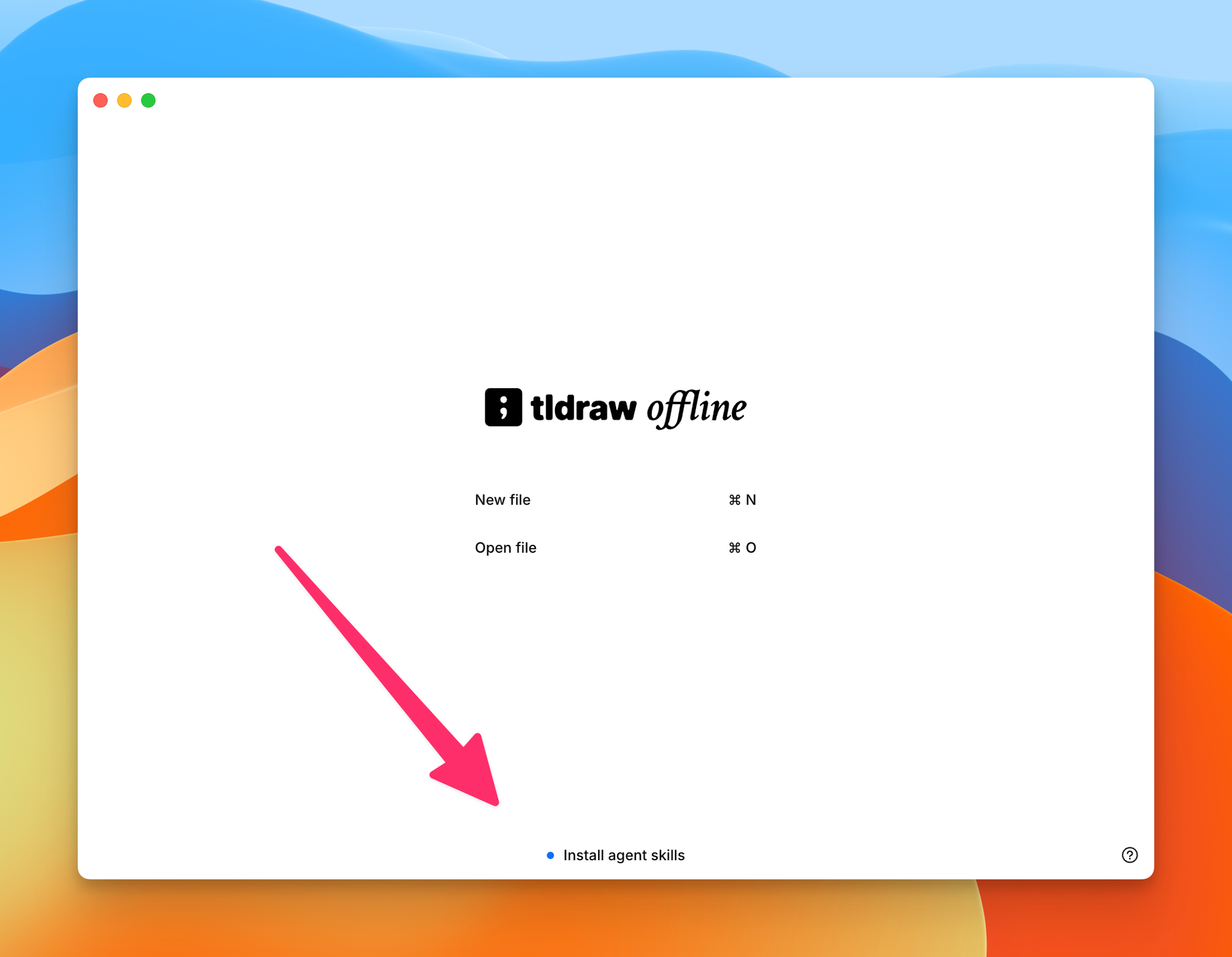
tldraw Offline is the desktop version of tldraw, built for local files on macOS, Windows, and Linux.
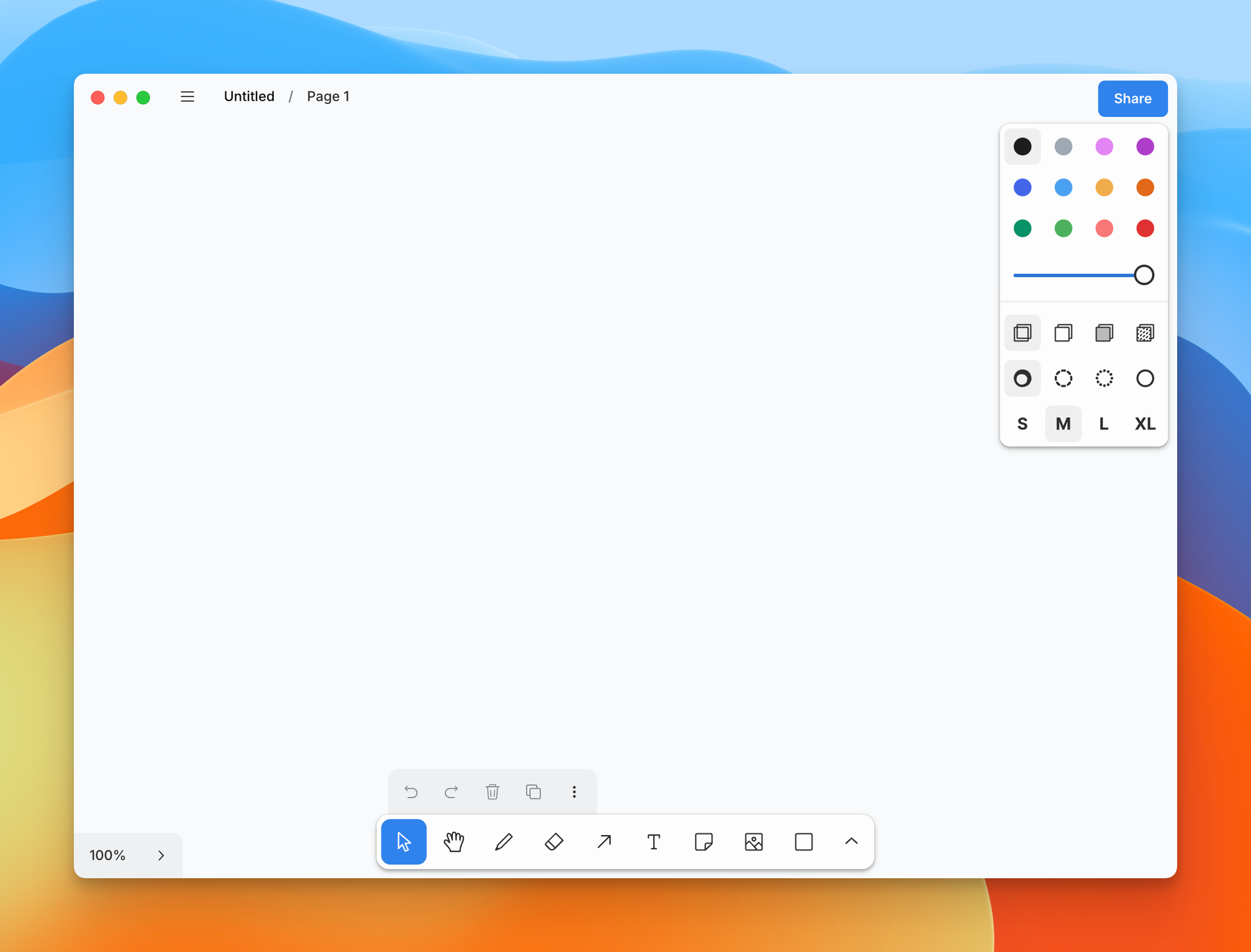
There’s no account to sign into and no cloud document server. Boards live in self-contained .tldraw files wherever you put them on disk.
A single file can pack multiple canvas pages, images, videos, and a document script. You can keep it private, back it up, drop it beside a code repository, or send it to someone else.
Drawing, editing, local media, saving, and exporting all work offline. Only web embeds and scripts that fetch remote data need a network connection.
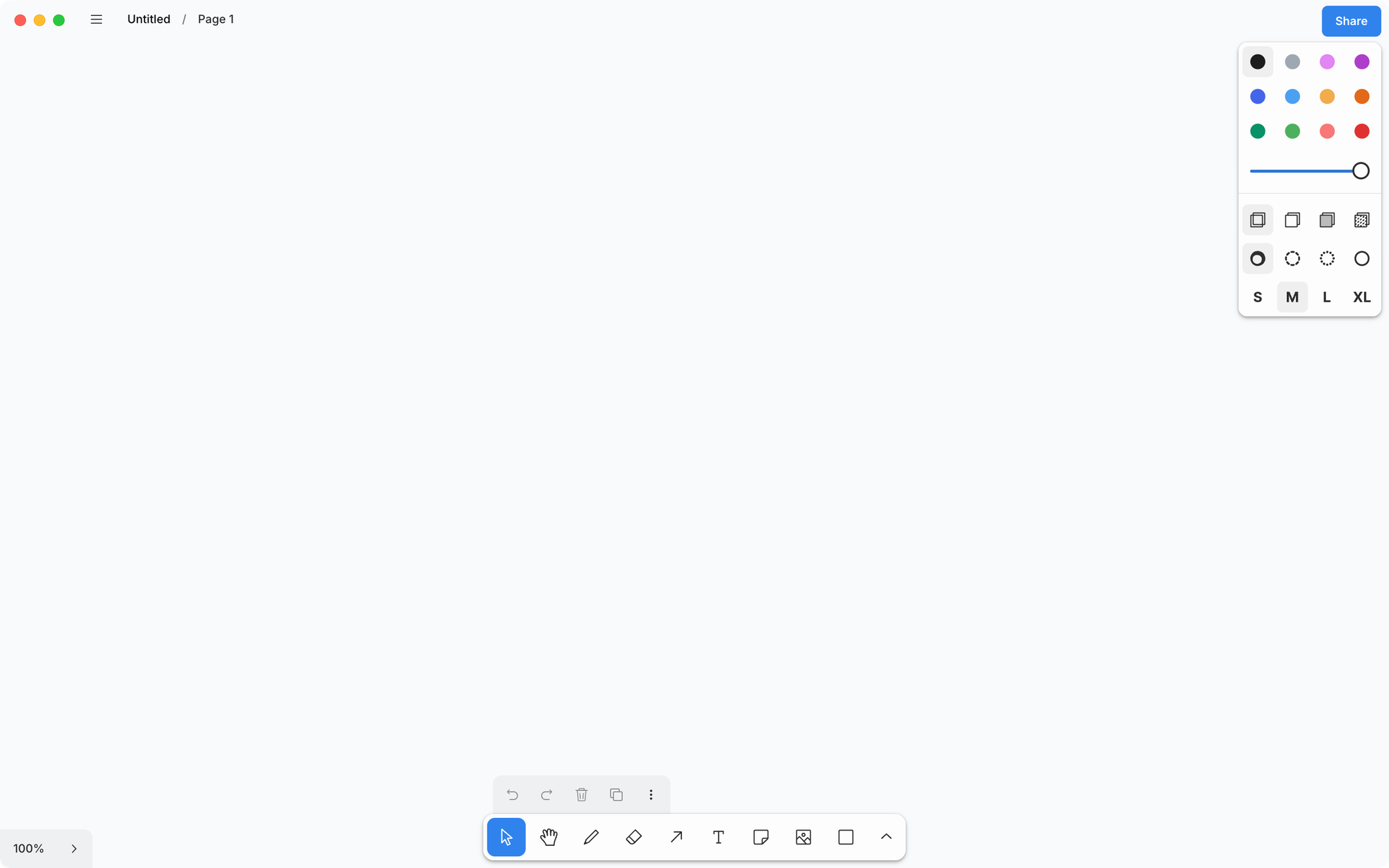
tldraw Offline is the piece that interests me most here. I prefer local coding agents with access to my computer, and a local canvas file fits right into how I work.
Connect tldraw Offline to a coding agent
tldraw Offline installs its own agent skills. Open the Develop menu and choose Install Agent Skills to set up instructions for supported local tools, including Cursor, Claude Code, and Codex. Restart or reload your coding agent so it discovers them.
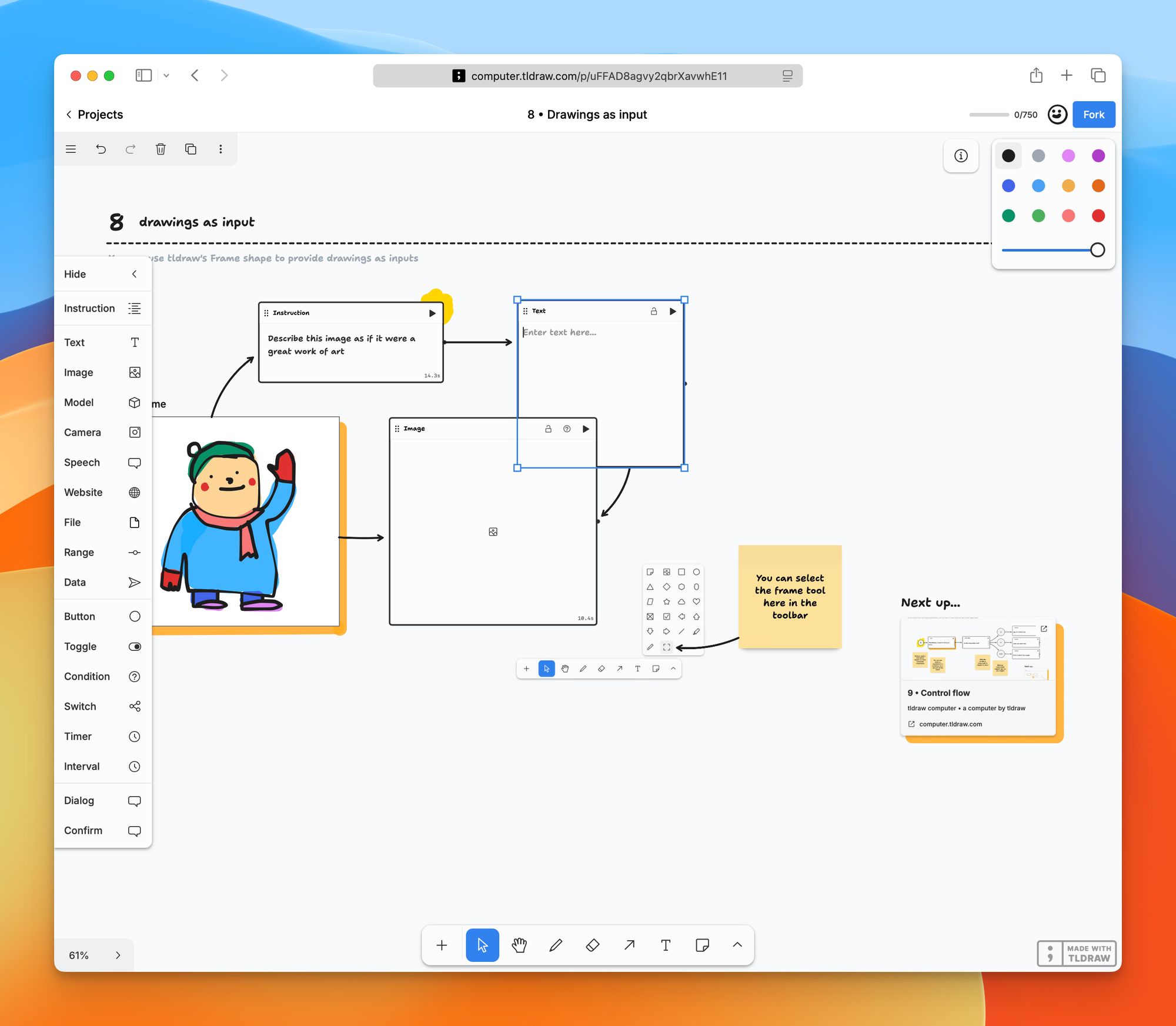
Keep tldraw Offline and the target document open while the agent works. If you have several boards open at once, name the one you want it to use.
Through the open editor, the agent can inspect shapes and connections, grab a screenshot, edit the canvas, and add document scripts for new behavior.
Every agent change comes in as a normal unsaved edit. Review the board and hit save yourself once it looks right, while the agent inspects your repository as code and uses the canvas as its visual map.
Keep a canvas beside the repository
Drop an architecture.tldraw file right inside a project and hand the agent a prompt like this:
Compare the open architecture.tldraw board with the current repository.

Mark outdated nodes in red.
Add missing external services in orange.
Do not remove anything.
Include the source file beside every change you propose.
From there, review the board, fix anything that’s off, and ask the agent to turn the accepted changes into a short PLAN.md.
Rather than replacing the code or project documentation, the diagram acts as a map you can sanity-check before asking an agent to make a large change.
You can also keep one board per feature, with the existing system on the left, the proposed version on the right, and open questions or assumptions visible between them.
Turn a board into a small application
A .tldraw document can include JavaScript in script/main.js. The script can create and update shapes, react to canvas events, add controls, import data, or run animations, and it travels inside the document whenever you share the file.
Use Develop → Reveal Script to open the script workspace. Saving main.js reloads it in the open board, though you still need to save the tldraw document itself to embed the updated script in the file.
That lets a coding agent read a local CSV and plot a chart, wire up a presentation mode, or refresh an architecture board from repository data.
The script workspace supports tldraw, React, and React DOM, and that’s it. Because it isn’t a general Node.js project, keep external build systems and complex application logic outside the board.
Share a board without a cloud service
tldraw Offline lets you share an open file directly with people on the same network. The host keeps the file, guest edits flow into that copy, and those changes become permanent when the host saves.
Under the hood, it’s the same sync package that runs tldraw.com, started as an in-process server on the host’s laptop instead of in a Durable Object. Kostya Farber described the build in August 2026.
It’s a handy setup for an in-person planning session since nobody needs an account or an internet connection.
Local network sharing isn’t encrypted, and anyone with the invitation link can view or edit the board. Only use it on a network you trust.
Watch out for external file changes
tldraw Offline doesn’t merge file changes made on disk by Git, a sync service, another program, or another computer while the document is open. A later save from the desktop app can overwrite those external changes.
Let the installed agent skill work through the open editor instead. If another tool needs to replace the .tldraw file itself, close the document first and reopen it afterward.
The native .tldraw format works across macOS, Windows, and Linux. To open a board in tldraw.com, the tldraw VS Code extension, or the Obsidian extension, export it in the older .tldr format, which strips out document scripts.
Because a .tldraw file can contain scripts, inspect an unfamiliar board before running it, especially if its script might call external services. When you open an unfamiliar scripted file, choose Open Without Script so you can review the board first and approve the script later.
What tldraw Computer is
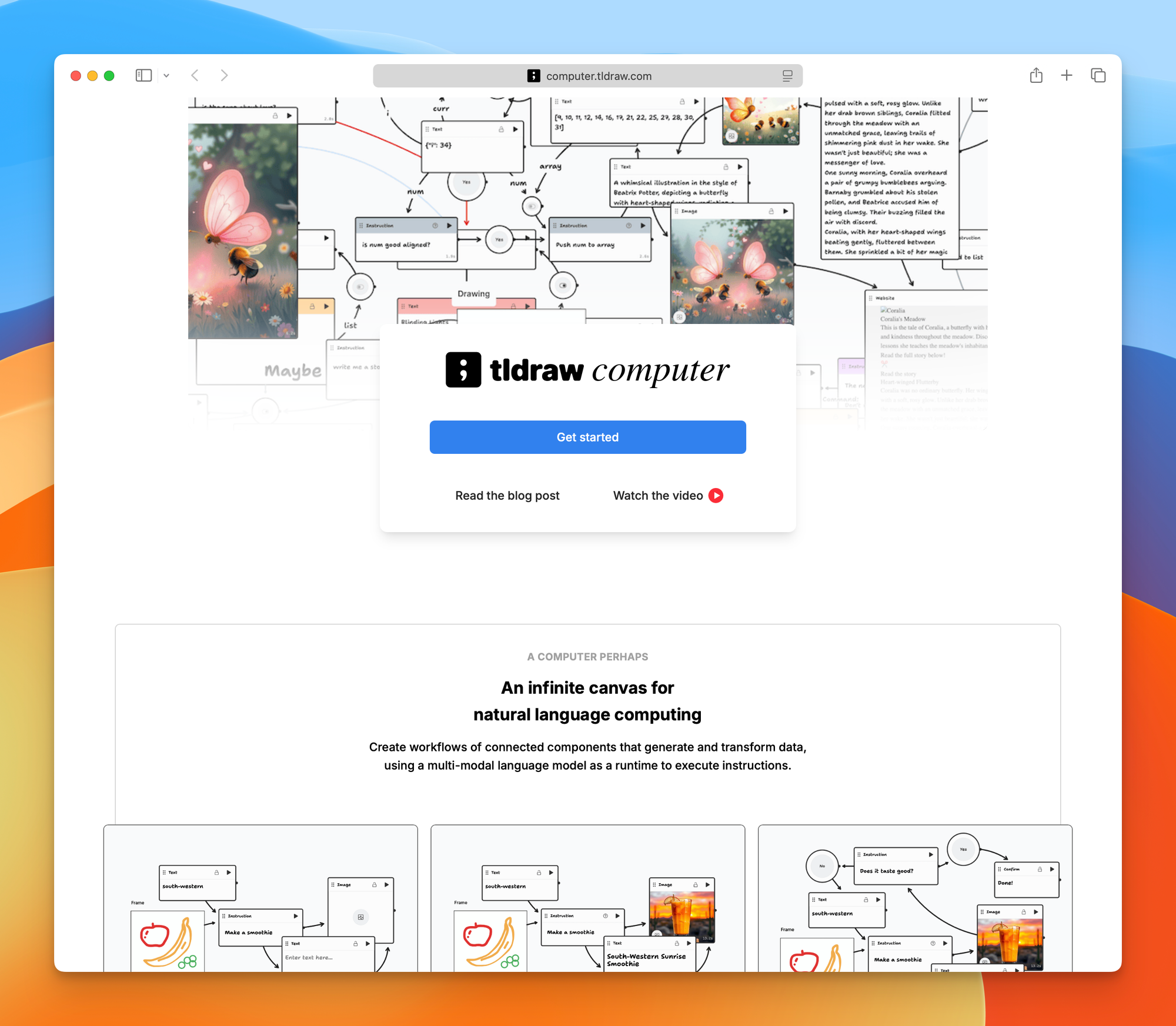
tldraw Computer is an experimental infinite canvas for natural-language computing.
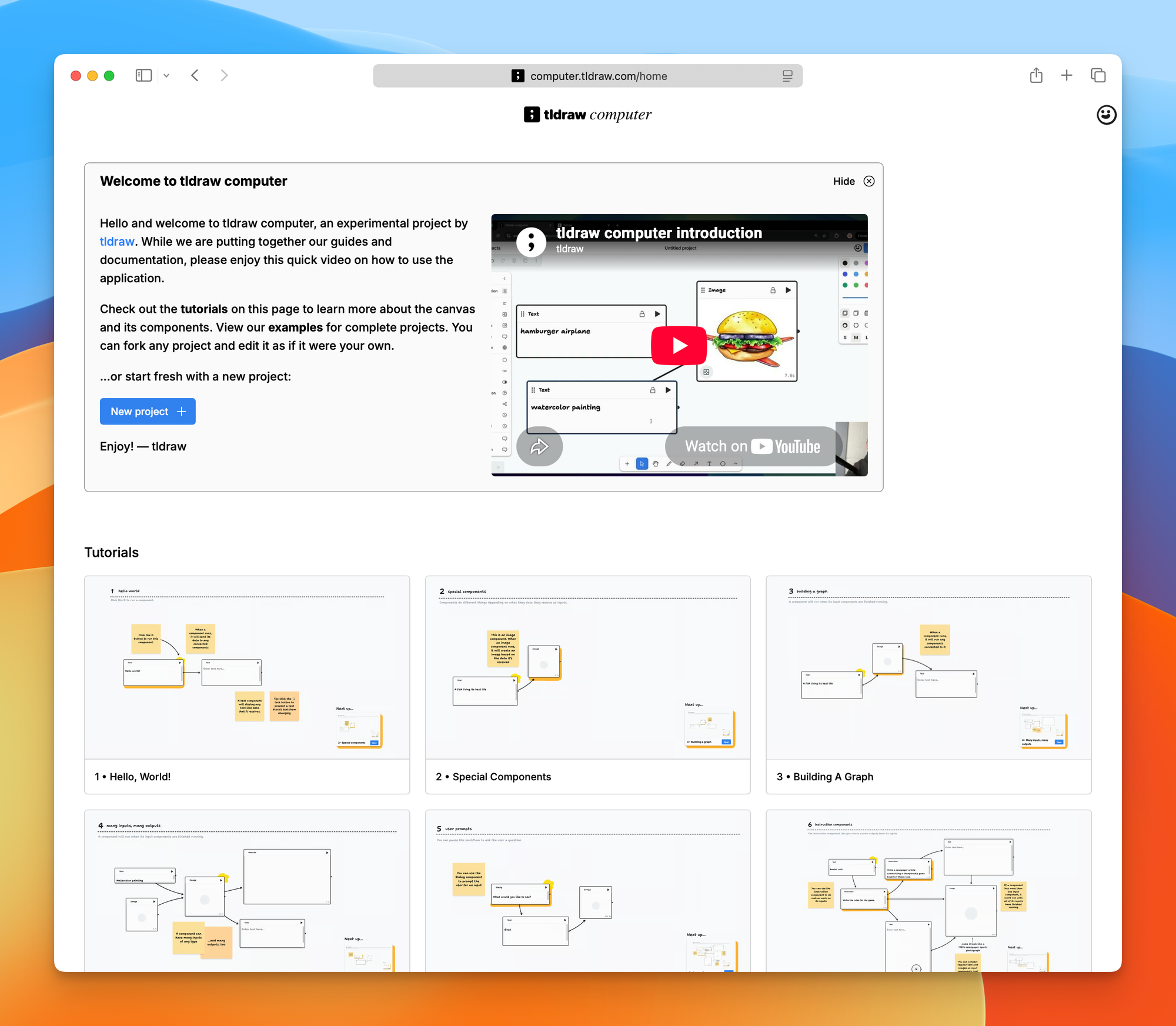
You connect components that generate and transform data, with a multimodal model acting as the runtime. Workflows can branch and loop, and the canvas shows the data right beside the operations that produced it.
It’s much closer to visual programming than desktop “computer use”.
Despite the name, this doesn’t automatically hand an agent control of your Mac, browser, or terminal. The word computer refers to the canvas itself as a place where computation happens.
Input, operation, and output live together on the same board. You can place a prompt beside the image it generated, wire a transformation between two versions, and spin off another branch to compare outputs from different models.
tldraw Flash
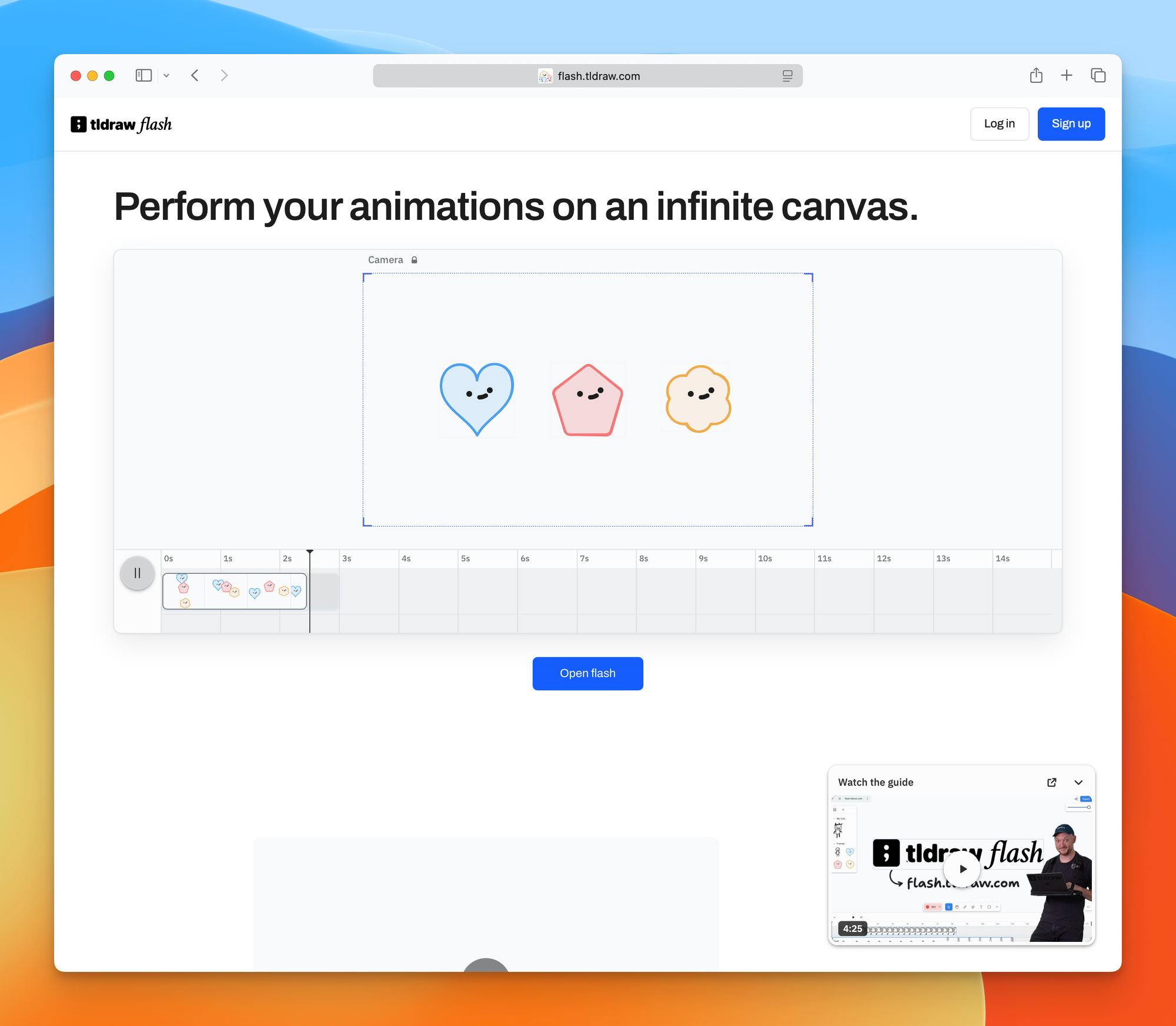
tldraw Flash is a newer, separate web app for making short animations on a tldraw canvas.
Draw something, press record, and move it. Flash captures your actions as a clip on a timeline.
You can trim and split clips, change their speed, arrange them on tracks, record voiceover, add audio, and export H.264 MP4 video at 60 frames per second (the Flash user manual covers all the controls). You can also publish a watch link that other people can remix into their own project.
Flash sits outside the agent frameworks, and it works best for explaining a flow. Let an agent help plan a deployment diagram or a request flow, then use Flash to turn that idea into a short animated walkthrough:
request enters → signature is checked → record is written → email is sentAnimations like this fit right into a tutorial, course lesson, product walkthrough, or release note. Instead of panning across a large static architecture diagram, the animation reveals the path in order.
Treat Flash as the final presentation step. Neither the tldraw MCP App nor tldraw Offline has a documented direct handoff into Flash, so keep your workflow independent of importing between them.
How I would use tldraw
The easiest starting point is the MCP App in Cursor on a codebase you already have. Before building anything new, use it to map out how the project works.
Understand one path through a real system
Take this site’s purchase flow as an example. A single webhook verifies a signature, assigns course access, updates the mailing list, writes to storage, and sends an email.
Start by asking the agent to draw one successful request. Once that’s on the board, add the failure branches: a duplicate delivery, a storage write failing, and the email call failing.
Require a file path and function name on every box. If the agent can’t point to the code, leave that box marked as an assumption so you can tell right away what came from the repository and what the model inferred.
Review an agent’s plan before it writes code
When a feature crosses several systems, a text plan makes it easy to miss a bad boundary.
Ask the agent for two diagrams: the system today, and the proposed system. Move the nodes around until the responsibilities sit in the right places, then have the agent regenerate its written plan from the board you accepted.
Annotate UI changes
Small alignment bugs can take lots of chat messages to describe, especially on responsive layouts or dense landing pages. For visual fixes, paste the real screenshot onto the board and draw the correction right on top of it.
After the agent implements the change, ask it to drop its proposed screenshot beside yours so you can compare them side by side.
Map dangerous actions
When I built an MCP server that can buy a domain, the API call was easy compared to the boundary before the irreversible action.
A diagram fits that problem well. The agent prepares the quote, your code checks the price and expiry, and a person approves one exact purchase before the server registers the domain. Putting approvals, retries, and irreversible steps on the same board makes the flow much easier to audit.
Keep one local board per product
For a product like Port Pilot, keeping one .tldraw file right beside the repository is worth trying.
Put the current architecture, external services, important data flows, and the handful of invariants an agent must never break on that board. Whenever the architecture changes in a meaningful way, a local agent can update it.
Don’t try to map every component. A board with 200 boxes is just another form of unreadable documentation, so stick to the boundaries you need to remember.
Create short animated explanations
A queue retry, a webhook arriving twice, a deployment moving between environments, or an agent stopping for approval all play out as a sequence. Flash can show that sequence faster than a page of prose.
Keep each animation focused on one flow and under a minute.
Building your own tldraw application
Don’t reach for the SDK right away. Wait until the same visual workflow keeps coming up in your day-to-day work.
When it does, pick the starter kit that fits the job: the Chat kit for repeated screenshot annotation, the Agent kit when an agent needs to maintain a diagram, or the Workflow kit when the nodes need to execute.
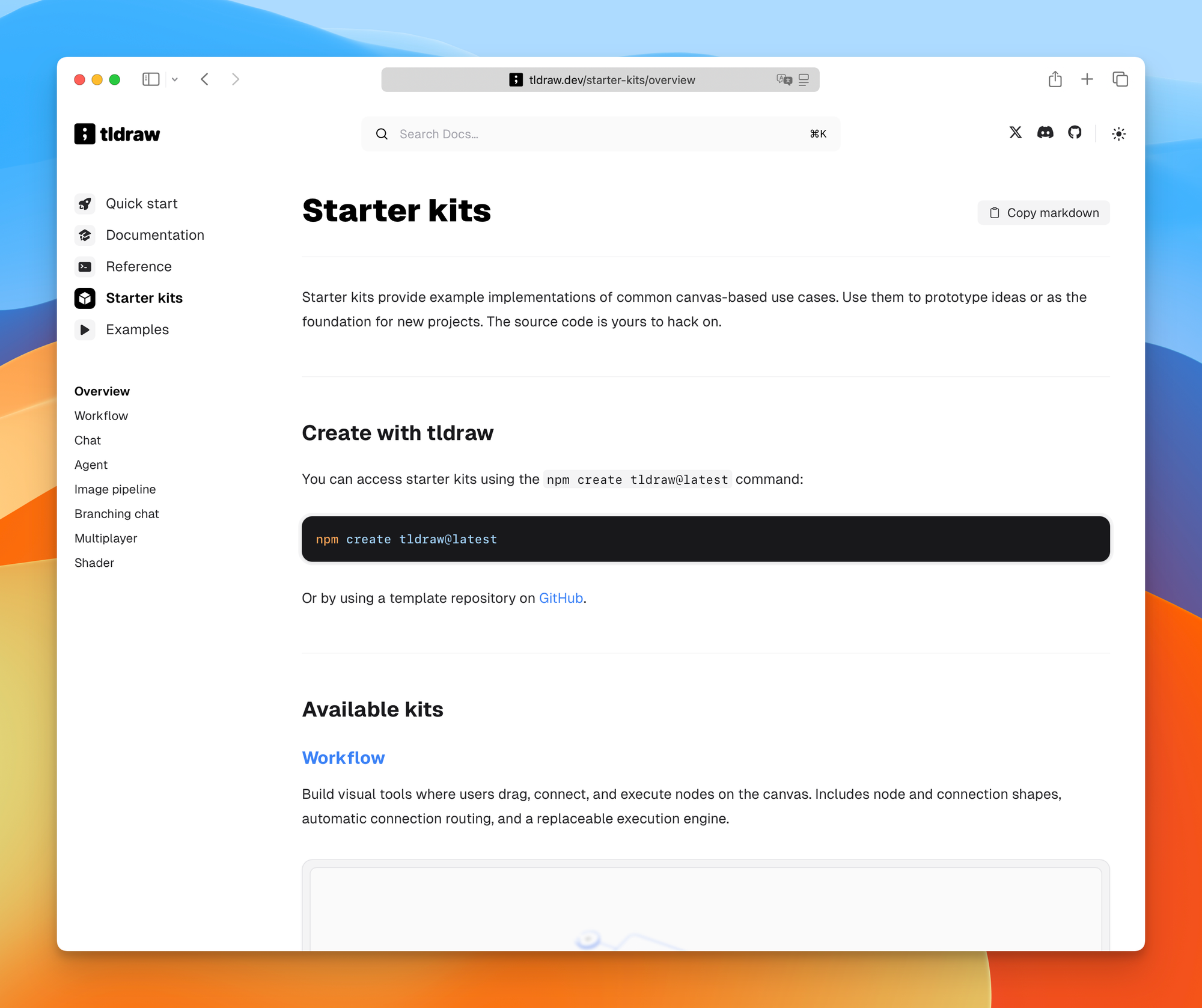
The SDK uses React and TypeScript. If either one is new to you, my free React Handbook and TypeScript Guide cover the foundation.
tldraw also publishes documentation bundles for language models, so you can hand an agent the SDK docs, examples, or release notes directly instead of making it scrape the documentation site.
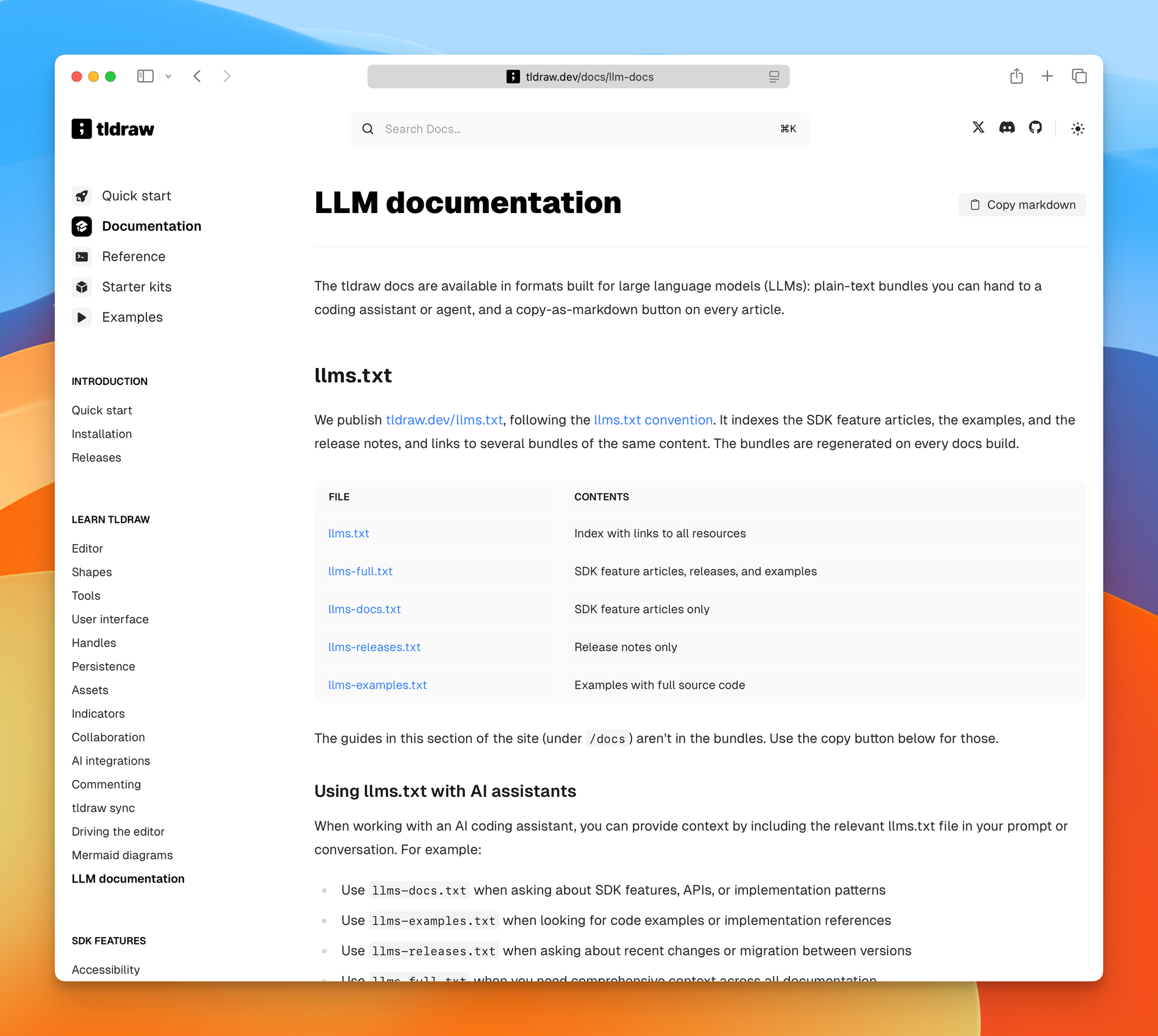
You can spin up the smallest starter with:
npm create tldraw@latestFrom there, replace the generic board with your own shapes, actions, and rules.
Under the hood, the SDK exposes a large Editor API for creating shapes, reading state, changing selection, controlling the camera, and exporting content. For automation and tests, @tldraw/driver simulates pointer, keyboard, wheel, and pinch input through the editor’s normal tool state machines.
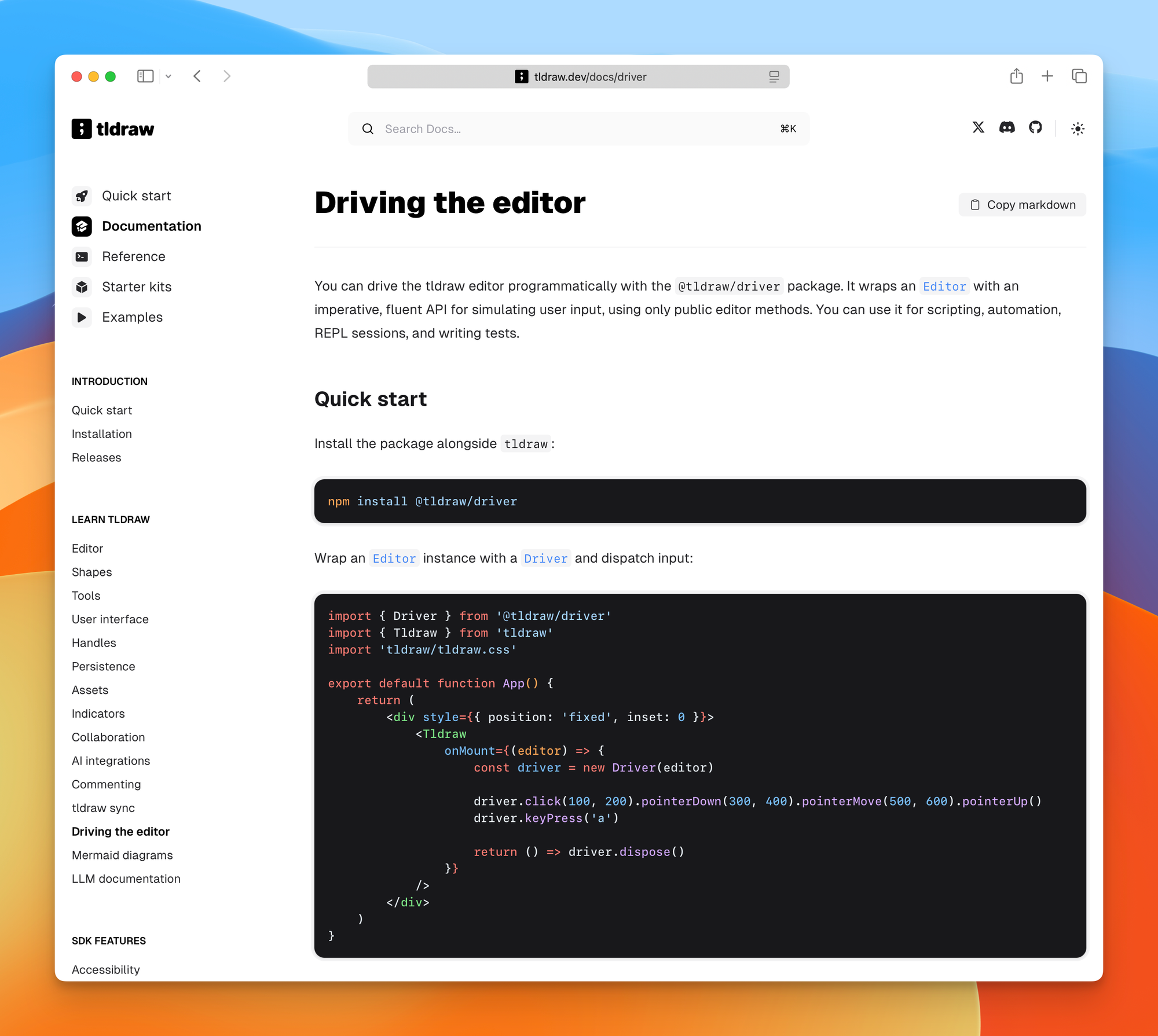
Unless the drawing tool itself is your product, using tldraw beats rebuilding all those canvas interactions from scratch.
Check the license before building a product
Before you build something you plan to ship, keep in mind that the tldraw SDK is source available, not open source under a permissive license.
Under the current SDK license, the default terms only cover development use. Production requires an active trial, commercial, or hobby license key.
The trial lasts 100 days, commercial pricing is discussed with the tldraw team, and hobby licenses are discretionary, non-commercial, and keep the “made with tldraw” watermark.
Many starter kits and examples use the MIT license, which doesn’t change the license of the SDK they depend on.
You can prototype on localhost under the development terms. If you’re building a product, settle the license decision near the start instead of finding out right before launch.
The first experiment I would run
If you want a quick way to test this, install the tldraw MCP App in Cursor and open a repository you already know well.
Ask the agent to map one real request from entry point to final side effect, then correct the diagram by hand. Once it looks right, ask the agent to explain every difference between its first map and your corrected version.
That answer shows you what the agent misunderstood before it touches any code. It’s the first thing I plan to try the next time I work on a feature that crosses more than one system.
Want me to talk about your product? You can sponsor this site.
Related posts about ai: