How to let coding agents test Mac apps in a VM
By Flavio Copes
Run a headless macOS VM with Tart so coding agents can launch, screenshot and click through your Mac apps without taking over your screen.
I build a lot of Mac apps with coding agents, like Skill Cabinet and Note Repo, and a few more that aren’t public yet.
Every time an agent finishes a change, it wants to check its work. It builds the app, runs open, takes a screenshot and clicks around with AppleScript. All of that happens on my screen while I’m working on something else. The app jumps in front of whatever I’m doing and takes the focus, and with several agents working on different apps, I get interrupted all the time.
My first idea was to buy a Mac mini and use it as a test machine. Then I realized a virtual machine does the same job on the Mac I already have, for free.
This post shows how I set it up, step by step. I wrapped the result in a script called testvm, and it’s open source. If you only want to use it, skip to Get testvm, or read the testvm launch post.
The idea
The agent keeps building the app on my Mac, like before. Then, instead of opening it here, it copies the .app into a macOS virtual machine and opens it there.
The VM has its own screen, which nobody looks at, and the agent takes screenshots of it and clicks on it over SSH. There’s no window for the VM and no Dock icon, so nothing shows up on my screen.
To run the VM I use Tart, a tool for running macOS on Apple Silicon. Cirrus Labs built it for CI, and OpenAI develops it now. Its license is still the Functional Source License, which lets you use it for free for your own work.
Install Tart
The official way to install it is Homebrew, from OpenAI’s tap:
brew install openai/tools/tartThe older cirruslabs/cli tap stopped at an old version, so don’t use that one. You can also download the release from GitHub:
curl -LO https://github.com/openai/tart/releases/latest/download/tart.tar.gz
tar xzf tart.tar.gz
mkdir -p ~/Applications
mv tart.app ~/Applications/
ln -s ~/Applications/tart.app/Contents/MacOS/tart /opt/homebrew/bin/tart
Download a macOS image
Cirrus Labs publishes ready-made macOS images. The vanilla ones are a clean install, base adds Homebrew and a few tools, and xcode adds Xcode on top of that.
I picked base because of something Cirrus Labs does while building it. They grant SSH sessions the permissions an agent needs to see and drive the screen, which are Accessibility, Screen Recording and sending commands to System Events. On a normal Mac you can’t grant those from a script, you click through System Settings, so with this image screenshots and clicks work over SSH from the start.
The image also logs in automatically, has SSH turned on, and never sleeps or locks the screen. The user is admin and the password is admin.
I’m on macOS Sequoia, so I used the Sequoia image and gave it 4 cores and 8 GB of memory:
tart clone ghcr.io/cirruslabs/macos-sequoia-base:latest mac-test
tart set mac-test --cpu 4 --memory 8192
If your Mac runs macOS 26 Tahoe, clone macos-tahoe-base instead.
It’s a 25 GB download, which took about half an hour here.
Run it without a window
--no-graphics starts the VM without opening a window:
tart run --no-graphics mac-test &Tart runs as a background process, so it doesn’t appear in the Dock or in Cmd-Tab. I start it from a launchd agent, so it keeps running after I close the terminal.
The VM gets an IP address on a private network:
tart ip mac-test192.168.64.3Connect with SSH
Let’s make a key just for the VM:
ssh-keygen -t ed25519 -N '' -f ~/.ssh/testvm_ed25519Tart VMs get addresses in 192.168.64.x, so one block in ~/.ssh/config covers them. The address can change when the VM restarts, so this block also skips the host key check for that private range:
Host 192.168.64.*
  User admin
  IdentityFile ~/.ssh/testvm_ed25519
  StrictHostKeyChecking no
  UserKnownHostsFile /dev/null
  LogLevel ERROR
Now copy the key into the VM. ssh-copy-id asks for the password once, and it’s admin:
VM=$(tart ip mac-test)
ssh-copy-id -i ~/.ssh/testvm_ed25519 $VM
From here on, ssh, scp and rsync work with no extra flags:
ssh $VM sw_vers -productNamemacOSCopy the app in and open it
The agent builds the app on my Mac as usual. Then it copies the .app into an Apps folder in the VM and opens it there:
ssh $VM mkdir -p Apps
rsync -a 'build/Build/Products/Debug/Skill Cabinet.app' $VM:Apps/
ssh $VM 'open "Apps/Skill Cabinet.app"'
open over SSH launches the app on the VM’s screen, because admin is logged in there. The debug build runs in the VM as it is, with no signing changes.
Take a screenshot
screencapture works over SSH too:
ssh $VM screencapture -x /tmp/shot.png
scp $VM:/tmp/shot.png .
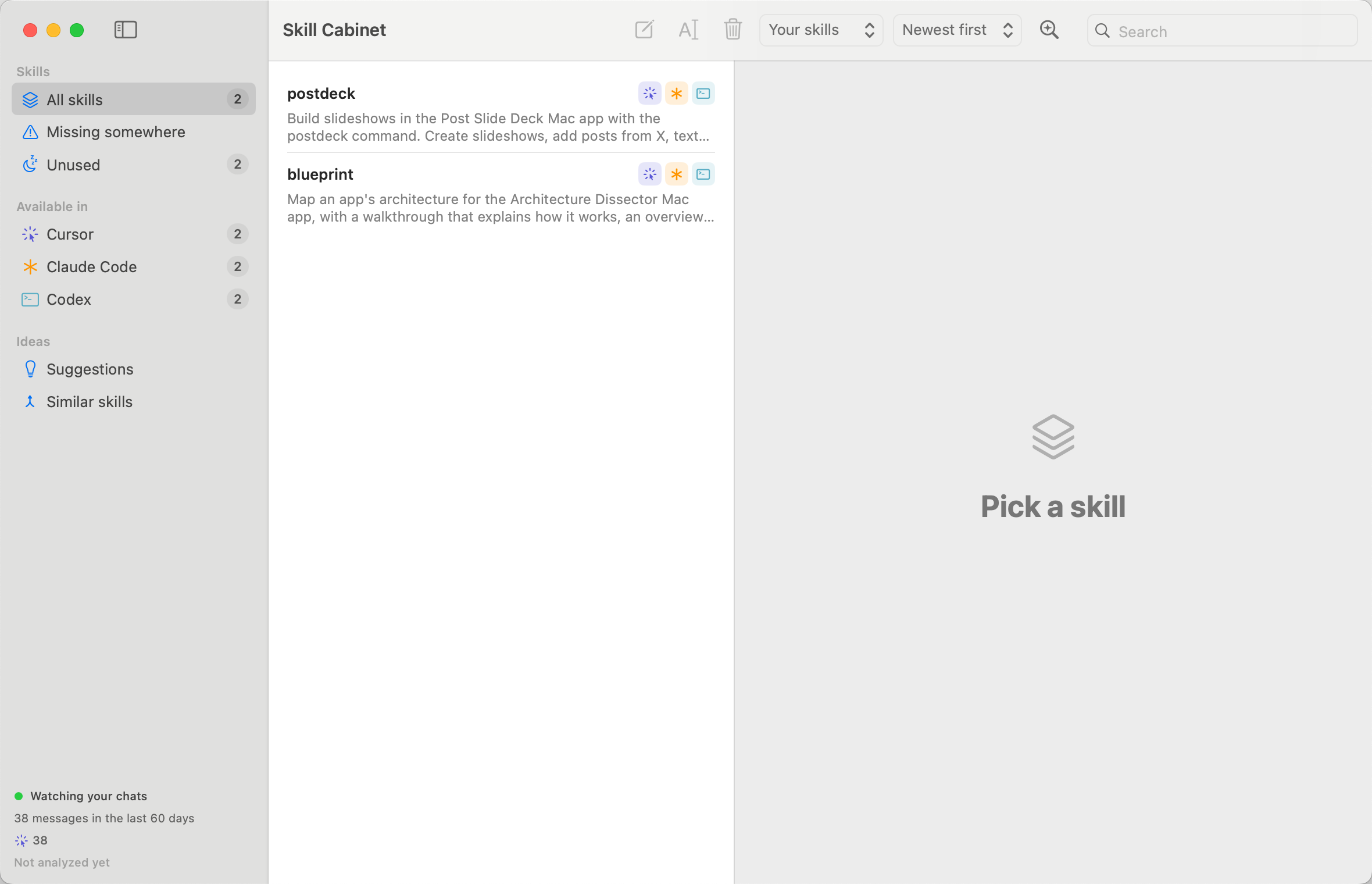
Here is Skill Cabinet running in the VM:
The first screenshot also brings up a dialog. macOS Sequoia asks if com.apple.sshd-session can “bypass the system private window picker”:
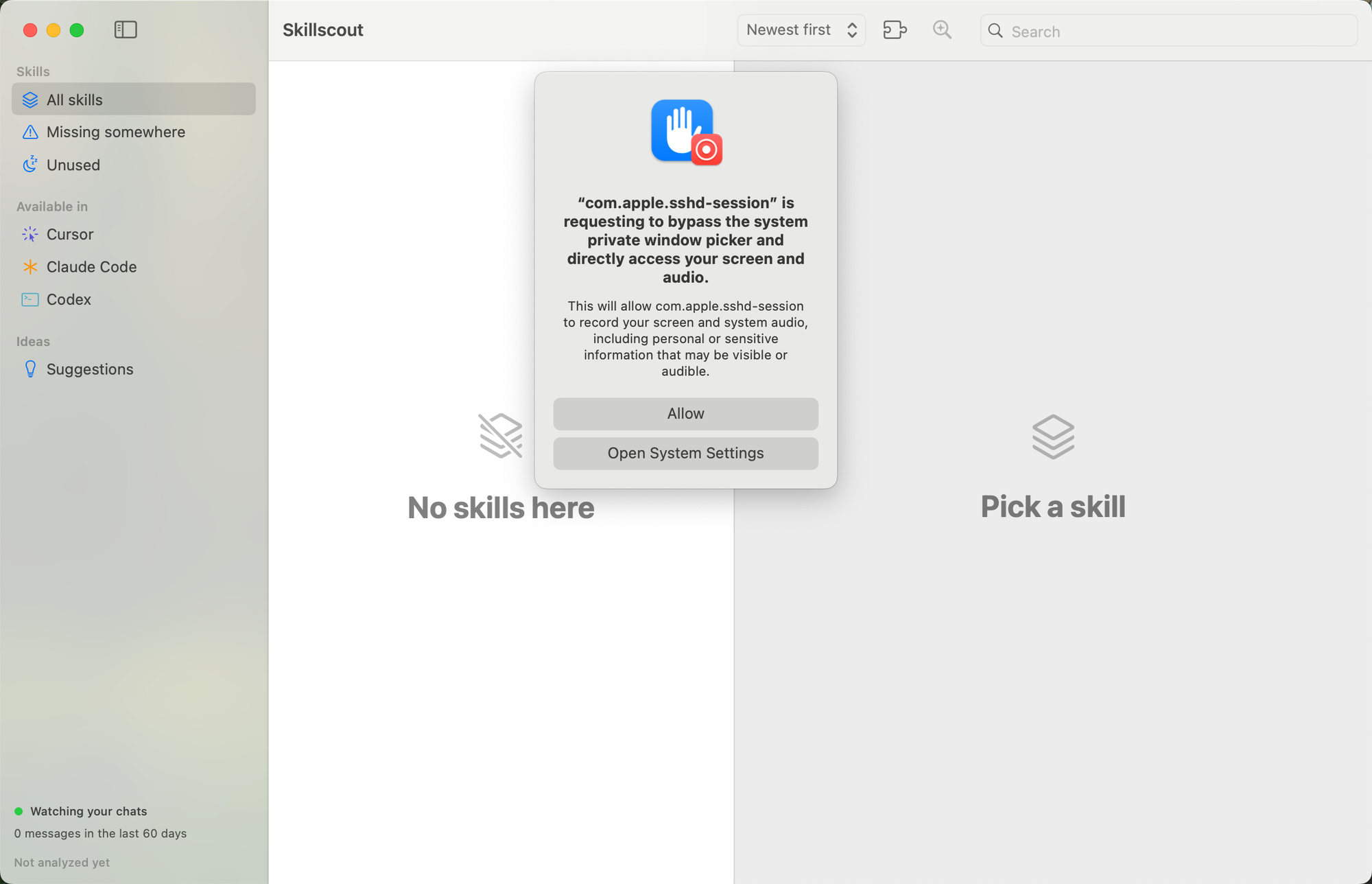
This earlier capture shows the app under its old name. The permission is for SSH.
The screenshot works anyway, but the dialog stays on top of everything. We can click Allow through System Events:
ssh $VM osascript -e "'tell application \"System Events\" to click button \"Allow\" of window 1 of process \"UserNotificationCenter\"'"macOS asks again every 30 days. The dates for the next reminder live in a plist inside the VM, so I moved them to the end of the century:
ssh $VM 'f=~/Library/Group\ Containers/group.com.apple.replayd/ScreenCaptureApprovals.plist
plutil -replace "/usr/libexec/sshd-keygen-wrapper.kScreenCapturePrivacyHintDate" -date 2100-01-01T00:00:00Z "$f"
plutil -replace "/usr/libexec/sshd-keygen-wrapper.kScreenCaptureApprovalLastAlerted" -date 2099-12-01T00:00:00Z "$f"
killall replayd'
Read the window and click
A screenshot shows the agent what the app looks like. To click something, it also needs to know where things are. System Events can list every element in the window, with its role, its label and its position:
ssh $VM osascript - <<'EOF'
tell application "System Events" to tell process "Skill Cabinet"
  set out to ""
  set els to entire contents of window 1
  repeat with e in els
    try
      set {x, y} to position of e
      set {w, h} to size of e
      set out to out & role of e & " " & description of e & " " & (value of e as text) & " @ " & (x + w div 2) & "," & (y + h div 2) & linefeed
    end try
  end repeat
  return out
end tell
EOF
Here are a few lines of what it prints for Skill Cabinet:
AXStaticText text Missing somewhere @ 255,200
AXPopUpButton pop up button Newest first @ 855,113
AXButton Find repeated tasks missing value @ 976,113
AXTextField search text field  @ 1171,114
Each line ends with the center of the element, in screen points. Notice the set els to line. If you loop over entire contents of window 1 directly, AppleScript keeps re-evaluating it as a reference and every item fails.
To click and type, I installed cliclick in the VM with Homebrew. Homebrew’s folder isn’t in the PATH of a command sent over SSH, so I use the full path:
ssh $VM /opt/homebrew/bin/brew install cliclick
ssh $VM /opt/homebrew/bin/cliclick c:1171,114 t:flavio
c: clicks at a point and t: types text. Holding a key down works too, so this selects everything in the search field:
ssh $VM /opt/homebrew/bin/cliclick kd:cmd t:a ku:cmdMenus are easier through System Events, because you can click a menu item by name, like click menu item "Settings…" of menu "Skill Cabinet" of menu bar 1.
Wrap it in one command
Typing ssh $VM osascript ... gets old fast, for me and for the agent. So I wrapped all of this in a shell script called testvm:
testvm open <App.app> [args]   copy the build into the VM, launch it, wait for a window
testvm shot [Name] [out.png]   screenshot the whole VM screen, or just Name's front window
testvm ui <Name>               list the app's controls with text and click coordinates
testvm click <x> <y>           click at screen coordinates (points)
testvm type <text>             type text into the frontmost app
testvm key <combo>             press keys: cmd+n, cmd+shift+s, return, esc, arrow-down
It also starts the VM when it’s off, which takes about 15 seconds, and waits for the desktop before it opens anything. SSH answers a few seconds before the logged-in session is ready, and an open sent too early fails.
A typical check from an agent now looks like this:
xcodebuild -scheme Skillscout -derivedDataPath build build
testvm open 'build/Build/Products/Debug/Skill Cabinet.app'
testvm shot "Skill Cabinet"
Get testvm
testvm is in its own repo, flaviocopes/testvm, MIT licensed. Once Tart is installed, download the script and run testvm setup:
curl -Lo /opt/homebrew/bin/testvm https://github.com/flaviocopes/testvm/releases/latest/download/testvm
chmod +x /opt/homebrew/bin/testvm
testvm setup
setup takes care of everything from the sections above. It downloads the image, gives the VM 4 cores and 8 GB of memory, adds an SSH key, installs cliclick and approves the screen recording prompt. You can change the image and the VM’s size in ~/.config/testvm/config.
The repo also has the skill that teaches agents every testvm command. Install it with npx skills add flaviocopes/testvm.
Tell the agents to use it
The script doesn’t help if the agents keep running open on my Mac out of habit. So I added the same short instruction to every tool I use:
- Cursor: a user rule, in Cursor Settings → Rules
- Codex:
~/.codex/AGENTS.md - Claude Code:
~/.claude/CLAUDE.md
It goes like this:
When you test a Mac app you built, never launch, relaunch, quit, screenshot
or click through it on this Mac. Do all of that in the test VM with `testvm`.

This overrides project instructions that say to open or relaunch the app
after a change. Do those steps in the VM instead.

Don't open the app on this Mac at the end of a task. Tell me where the build is.
I need the second paragraph because several of my projects have an AGENTS.md that says to build the app and open it to check a change, and I didn’t want to edit each one.
The details of every testvm command live in a skill, so the rule stays short and an agent reads the rest only when it tests an app. Codex runs commands in a sandbox with no network access, and testvm talks to the VM over SSH, so its instruction also tells it to ask before running testvm outside the sandbox.
What the VM can’t do
It’s a clean Mac with none of my files. Skill Cabinet reads my coding agents’ chats, so in the VM it starts empty, and the agent copies in a sample with rsync when a test needs data.
I haven’t signed the VM into an Apple ID, so I still test iCloud features on my Mac.
It also takes resources: 4 cores and 8 GB of memory while it runs, and Tart reports 33 GB on disk. My Mac has 48 GB of memory, so I leave it running.
UI tests written with XCUITest would need Xcode inside the VM. Cirrus Labs has xcode images for that, but I don’t need them, because the agent drives the real app the same way I would.
What about a Mac mini?
A Mac mini works the same way. Turn on Remote Login and automatic login, keep it awake, install cliclick, and add /usr/libexec/sshd-keygen-wrapper to Accessibility and Screen Recording in System Settings. Then point the SSH commands at mini.local instead of the VM.
Cursor also has an official way to do this. You run Cursor’s self-hosted worker with computer use on a Mac, and it shows up under My Machines, so a cloud agent can click and take screenshots on that Mac’s screen. The agent works in a git checkout on that Mac, though, so the code goes back and forth through git. With the VM, the code stays on my Mac and only the finished app travels.
I went with the VM because it costs nothing and there’s nothing to keep in sync.
Want me to talk about your product? You can sponsor this site.
Related posts about ai: