How to authenticate to GitHub using username and password
By Flavio Copes
Learn how to authenticate to GitHub when username and password no longer work, by creating a personal access token to use as the password in your editor.
You can’t authenticate to GitHub with your account password any more, at least not for Git operations. GitHub removed password authentication for Git in August 2021. What you do instead is create a personal access token and paste it wherever the password used to go.
Here’s how I ran into this, and how I fixed it.
I was setting up a new editor and I was trying the GitHub push workflow.
I committed my changes, pressed “Push” and I got a dialog window to enter my GitHub username and password.
On GitHub I have 2FA set up, so you can’t just login using those credentials. And even without 2FA, GitHub stopped accepting the account password for pushes and pulls. The dialog still says “password”, but what it really wants is a token.
Why did GitHub do this?
A password unlocks your whole account. A token doesn’t. You can give it only the permissions it needs, revoke it at any time without changing your password, and create a separate one for each app.
That’s why the fix is a personal access token that’s tied to the app, with the permission needed.
How to create a personal access token
GitHub now has two kinds of personal access tokens, and it recommends the fine-grained kind. When I wrote this post in 2021 only the classic kind existed, so I’ll show both.
Fine-grained token
In the GitHub settings, open Developer settings, then Personal access tokens, then Fine-grained tokens, and click Generate new token.
Give it a name and an expiration. Pick the resource owner (your account, or an organization) and limit Repository access to the repositories your editor needs.
Under Permissions, nothing is selected by default. To push and pull, give it Contents: Read and write. GitHub selects Metadata: Read-only for you, that one is mandatory.
Generate the token and copy it right away. GitHub shows it only once.
Classic token
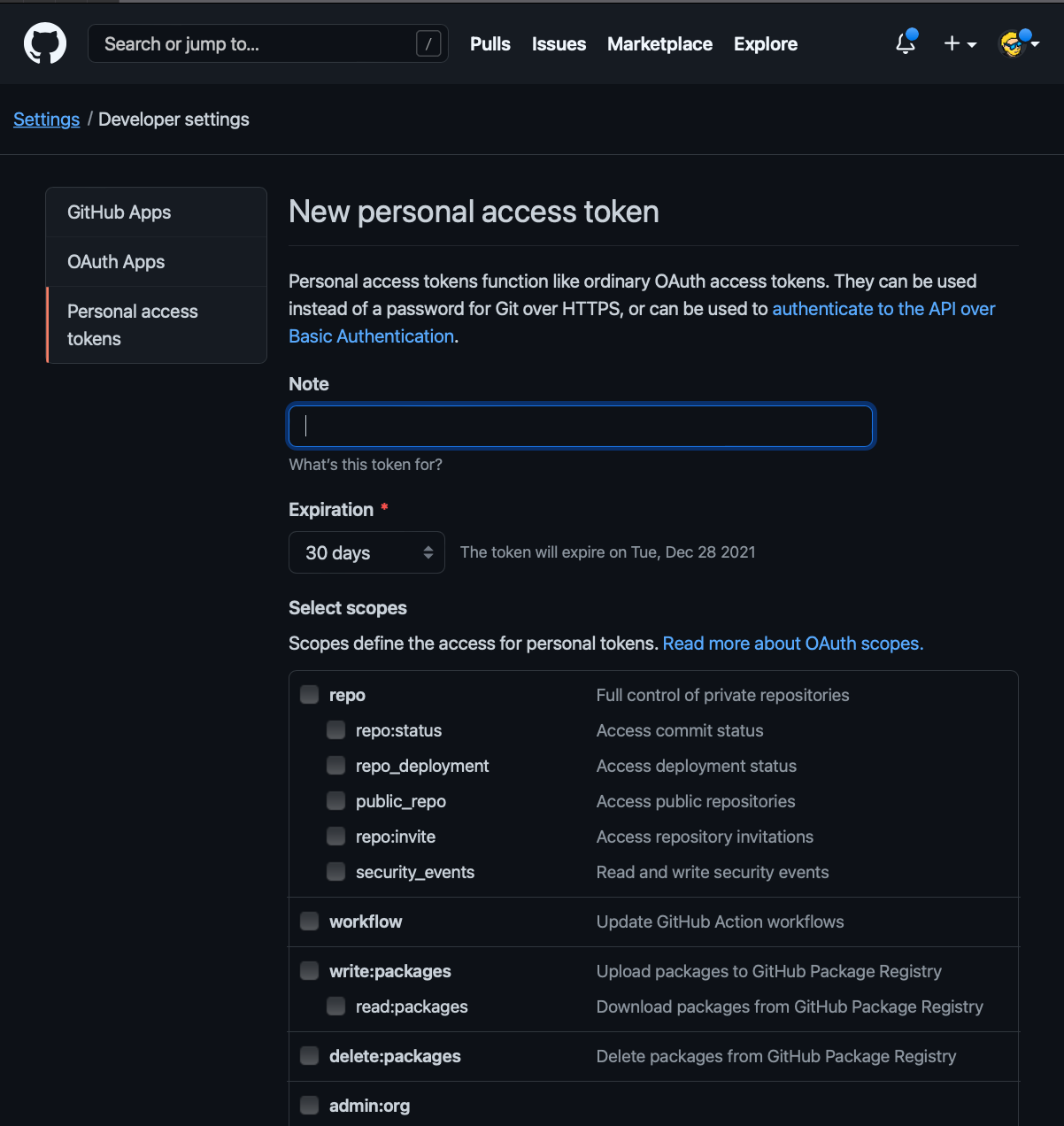
Some tools still expect a classic token. In that case go to Developer settings, then Personal access tokens, then Tokens (classic), and generate a new token.
Add a name so you’ll remember what this token is for, set an expiration and enable the repo scope. That’s the only one you need to push and pull:
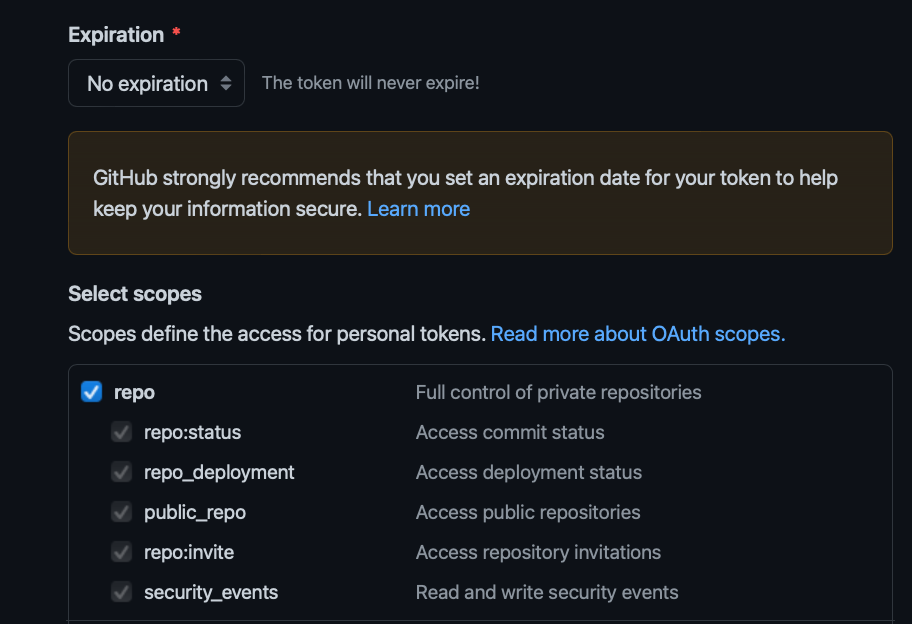
I picked “No expiration” because this was for my own editor on my own machine. An expiring token is safer, but then you have to repeat this dance when it runs out. Your call. Note that GitHub removes tokens that haven’t been used for a year anyway.
Save and you’ll be able to see the token.
Copy it now. GitHub shows the token only once, on this page. If you close the tab without copying it, there’s no way to see it again, and you’ll have to regenerate it.
Use the token as the password
Now enter this token as the password in the username/password dialog window. The username stays your normal GitHub username.
Most editors and operating systems store the credentials after the first successful push, so you won’t be asked again. On macOS they end up in the Keychain.
You’re set.
Want me to talk about your product? You can sponsor this site.
Related posts about git: