A keyboard shortcut to merge Chrome windows, and what to do when it does nothing
By Flavio
Updated
Merge every Chrome window into the current one with Option+Shift+M, or Alt+Shift+M on Windows and Linux. If the keys do nothing, check them and set your own on Chrome's Keyboard shortcuts page.
Chrome has no shortcut to merge windows, and no menu command either. Tab Reunion adds one: press Option+Shift+M on a Mac, or Alt+Shift+M on Windows and Linux, and the tabs of every other window move into the one you’re in.
If the keys do nothing, open Chrome’s Keyboard shortcuts page for extensions, look at the Tab Reunion row, and type the keys you want there. It’s all done with the mouse, from Chrome’s menu.
This tutorial is about the shortcut. For moving tabs by hand, see how to put a tab back into a Chrome window. For what the merge keeps and closes, see merge all Chrome windows into one.
What happens when I press the keys?
The same thing as a click on the Tab Reunion button in the toolbar, whose tooltip reads “Merge all windows into this one”. The window you’re in is the one that stays, so click into the window you want to keep before you press the keys.
Here are four windows before a press:
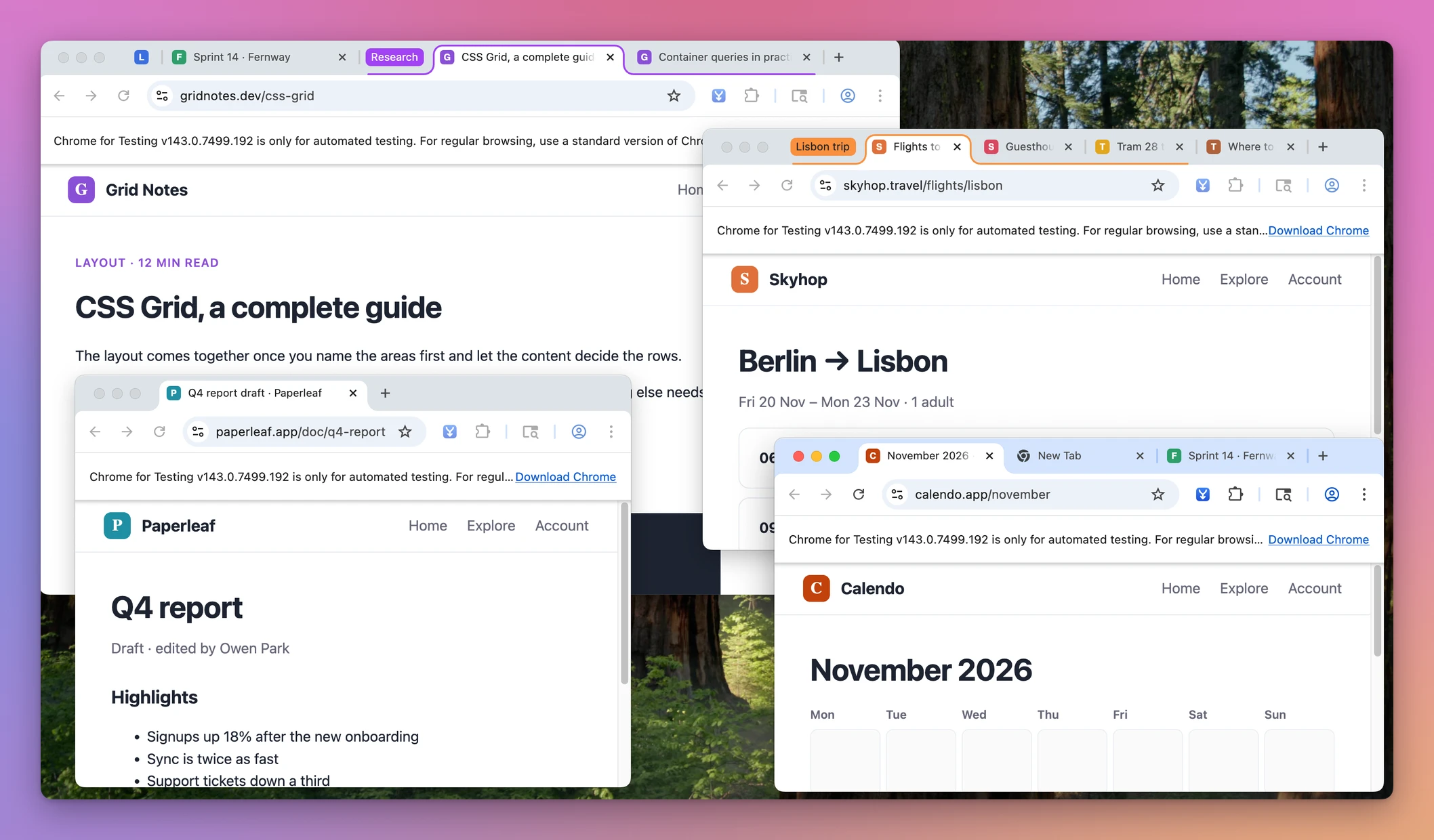
And the same tabs after it, in one window:
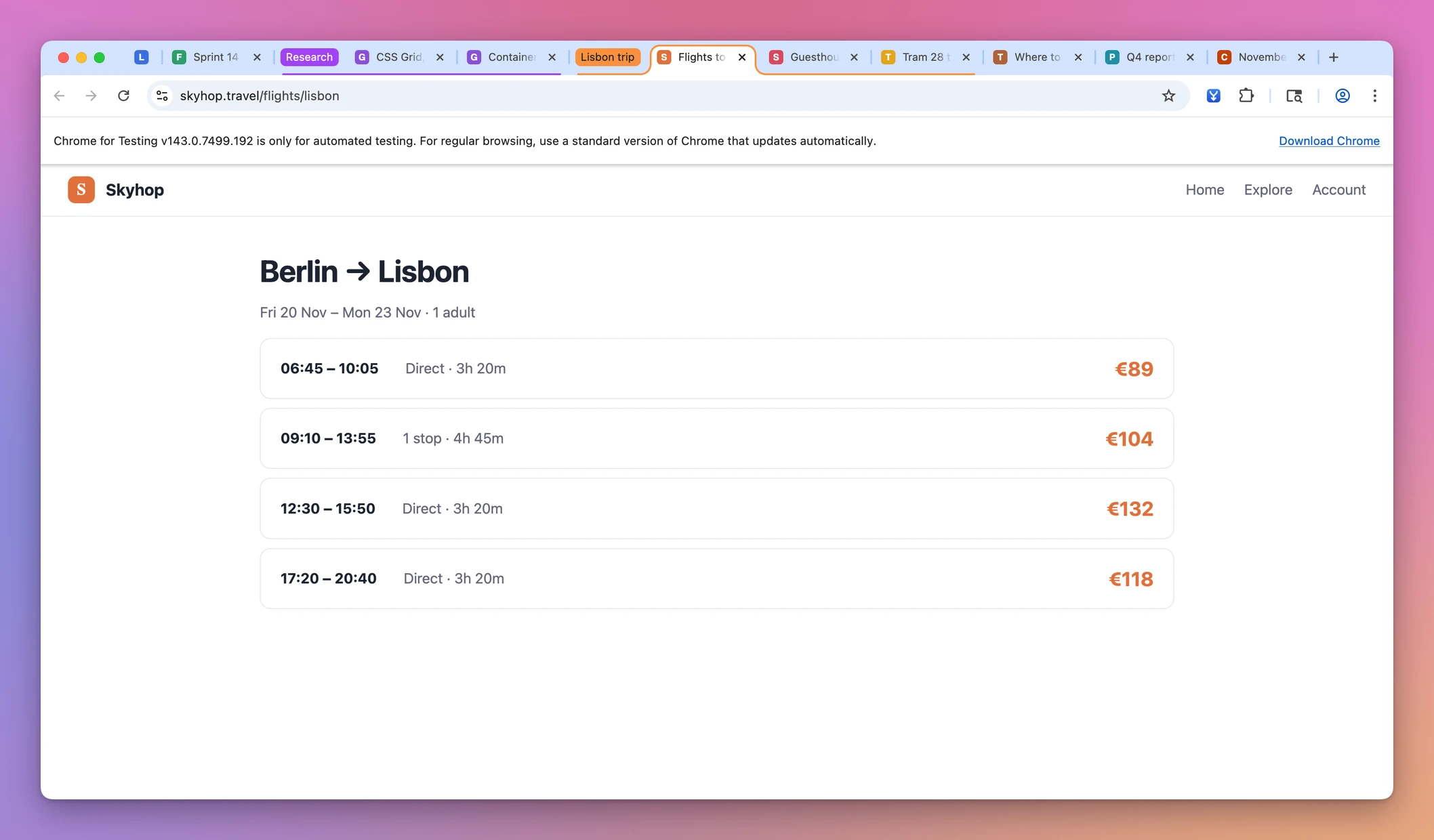
The tabs, sites and windows in these screenshots are made up. The steps below ran in Chrome 143 on a test Mac with macOS 15 Sequoia, with Tab Reunion 1.2.0.
What a press does depends on the window you’re in:
| Window in front | What happened on the test Mac |
|---|---|
| A normal window | The other normal windows merged into it |
| The only normal window | Nothing moved, but a second copy of a page closed |
| A pop-up window | Nothing. Pressing again from a normal window merged the normal ones, and the pop-up stayed open |
| An incognito window, Tab Reunion not allowed there | Nothing, and the Tab Reunion button isn’t in that window’s toolbar |
| An incognito window, Tab Reunion allowed | The two incognito windows merged into one, and the normal window stayed apart |
With a single window open, the shortcut is a quick way to close duplicate tabs. Closed pages go to Chrome’s Recently Closed list, in the History menu.
To use it in private windows, open the Tab Reunion Details on the extensions page and turn on Allow in Incognito.
Did Chrome give Tab Reunion the keys?
Tab Reunion asks Chrome for Option+Shift+M when you add it. On the test Mac, Chrome gave it those keys each time, both on a fresh profile and when the extension was added with Load unpacked.
To see it for yourself, click the three dots at the top right of Chrome, then Extensions, then Manage Extensions:
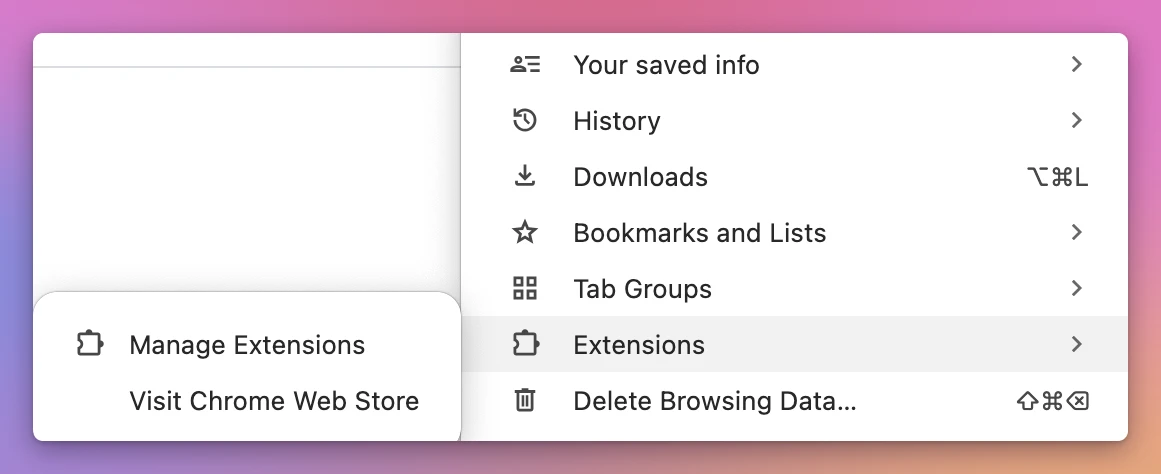
The puzzle-piece button in the toolbar has a Manage Extensions line at the bottom too. On the extensions page, click Keyboard shortcuts in the list on the left. In a narrow window that list is hidden: click the button with three lines next to the word Extensions to show it.
Find the Tab Reunion card. Its only row is Activate the extension, and the field next to it shows the keys:
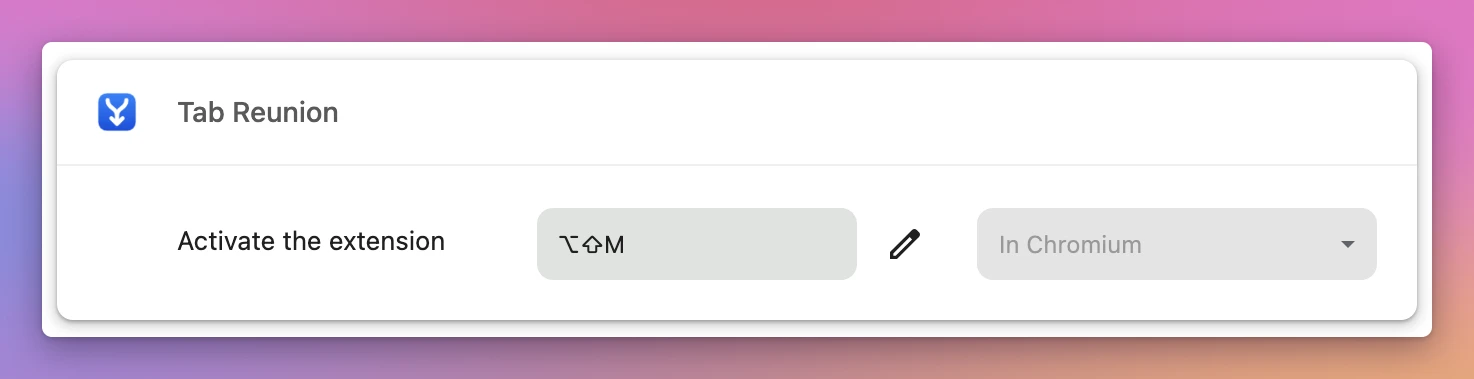
⌥⇧M is Option, Shift and M. If the field says Not set, Tab Reunion has no shortcut, and the toolbar button is the only way until you set one.
The menu on the right of the row read In Chromium in the Chrome build used here, and it was greyed out, so there was nothing to change there.
What if another extension uses the same keys?
To try it, a second made-up extension that asks for the same keys was added before Tab Reunion. The Keyboard shortcuts page showed ⌥⇧M on both cards, with no warning:
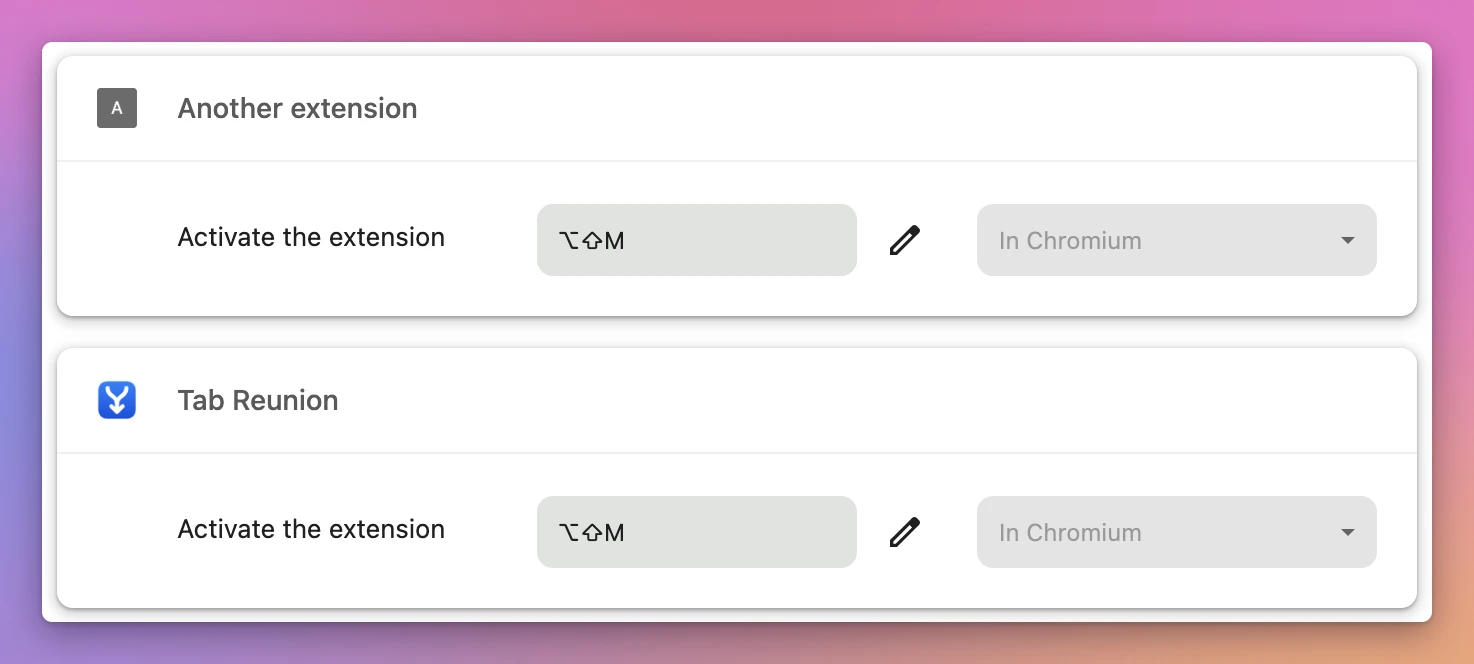
Pressing the keys did nothing in Chrome’s windows, while the toolbar button still merged them. So a shortcut that looks right on this page can still belong to another extension.
Clearing the other extension’s field wasn’t enough on the test Mac. The keys started working only after setting them again on the Tab Reunion card, as in the next section.
How do I set the keys myself?
On the Keyboard shortcuts page, click the pencil next to the Tab Reunion field. The field waits for keys. Press the combination you want, and it shows up in the field right away, with no button to save.
A letter alone isn’t accepted: pressing M showed “Include Ctrl, Alt, or ⌘” under the field. Control+Shift+M and Control+Shift+K both worked here. To empty a field, click its pencil and press Delete, and it reads Not set.
The new keys replace the old ones. After setting Control+Shift+M, pressing Option+Shift+M did nothing, and Control+Shift+M merged the windows.
Keys that another extension shows in its field weren’t taken: the Tab Reunion field kept saying “Type a shortcut”. Pick other keys, or clear that extension’s field first, then click Tab Reunion’s pencil and press them again.
Do I lose the shortcut after an update?
An extension added from a folder doesn’t update itself. When a new version comes out, download it again from your Polar receipt, copy its files over the old ones in the same folder, then click the reload arrow on the Tab Reunion card on the extensions page.
On the test Mac, keys set by hand were still there after the reload arrow. Keeping the same folder keeps your shortcut. If you load the new version from a different folder instead, check the Keyboard shortcuts page again afterwards.
Tab Reunion costs $20, paid once. It isn’t on the Chrome Web Store, so you add it with Chrome’s Developer mode, a switch on the extensions page that lets Chrome load an extension from a folder. The Tab Reunion page has the steps.
Get Tab Reunion
Too many Chrome windows? Move every tab into the window you're using, keeping tab groups, their order and pinned tabs.
See Tab Reunion → · Read the docs · $20. See the app page for tax details, with full source code.
Want me to talk about your product? You can sponsor this site.