
An app by Flavio
Tab Reunion
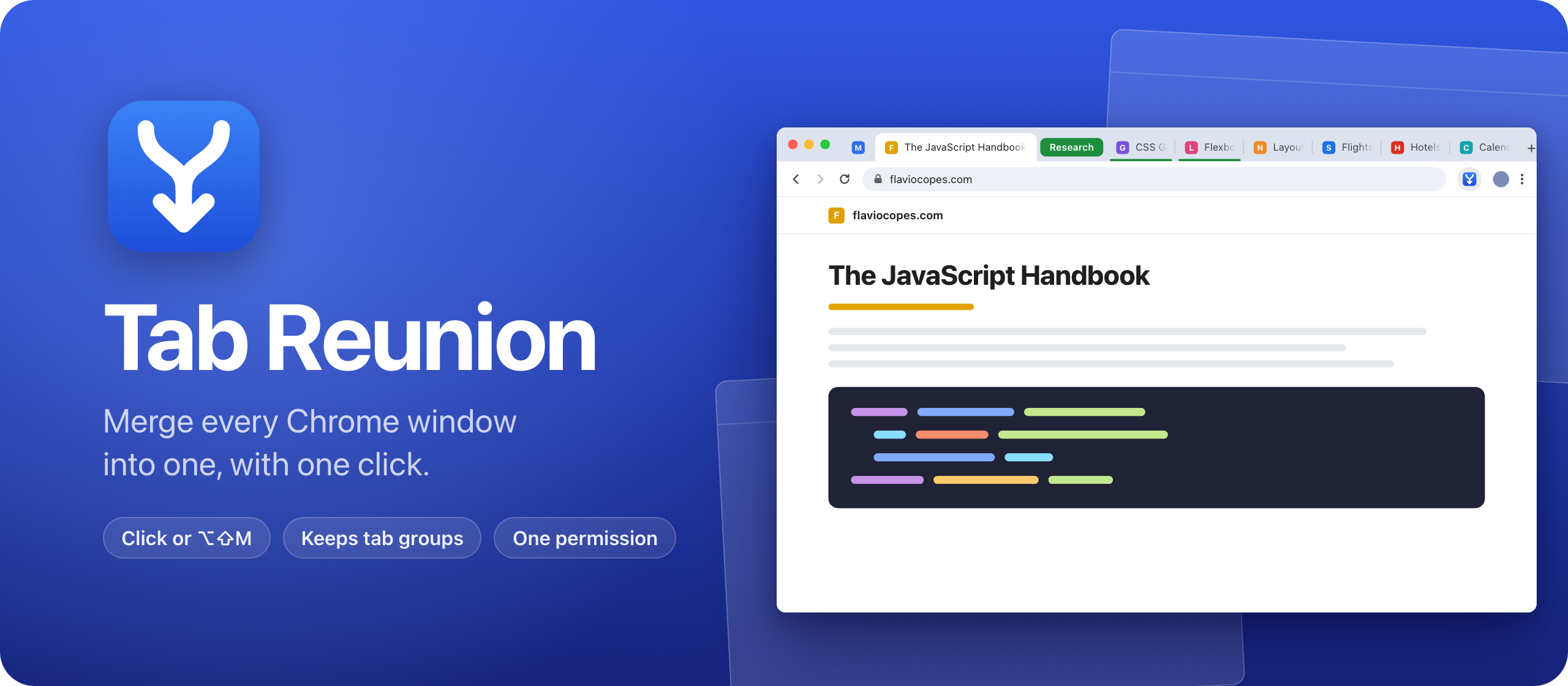
Too many Chrome windows? Tab Reunion moves every tab back into the window you're using, with tab groups, order and pinned tabs kept.
Buy Tab Reunion · $20One-time purchase. Tax included.
Chrome · macOS, Windows, and Linux
Latest version 1.3.0, released November 18, 2026
Chrome windows pile up. A link opens in a new window, you drag a tab out to see two pages side by side, and a few hours later there are five windows with a handful of tabs each.
Then you need that one page you had open this morning. You click through the windows one by one, or you open it again and now it’s there twice. The window with your trip research is somewhere behind the one with your work email.
Tab Reunion puts them back together. Click its button in Chrome’s toolbar, or press Option+Shift+M on a Mac (Alt+Shift+M on Windows and Linux), and every tab of every other window moves into the window you’re using. The empty windows close. Then it closes the blank tabs and the duplicates.
Here it is merging four windows:
The sites, tabs and groups in the video and the screenshots are made up.
Who it’s for
- People who live in Chrome all day. Email, calendar, a shared doc, three articles you meant to read. By the afternoon some links have opened in their own windows, and you can’t find the tab you need without clicking through all of them.
- Students and researchers. You keep a tab group for each topic, like “Sources” and “Thesis notes”. Groups end up split across windows when you drag one out to compare two pages, and you want them back together without losing their name and color.
- Anyone planning a trip or a purchase. Flights in one window, hotels in another, a third with reviews of the same two hotels. One click puts it all in one place and closes the hotel page you opened twice.
- People who drag tabs out by accident. You pulled a tab a little too far and it became a window. It happens a few times a day, and each stray window has one tab in it.
- Anyone with a laptop on a small screen. Five windows stacked on a 13-inch display means most of them are hidden. One window with groups is easier to scan than five you have to hunt for.
How it fits your day
Say it’s late afternoon and Chrome has four windows open, like this:
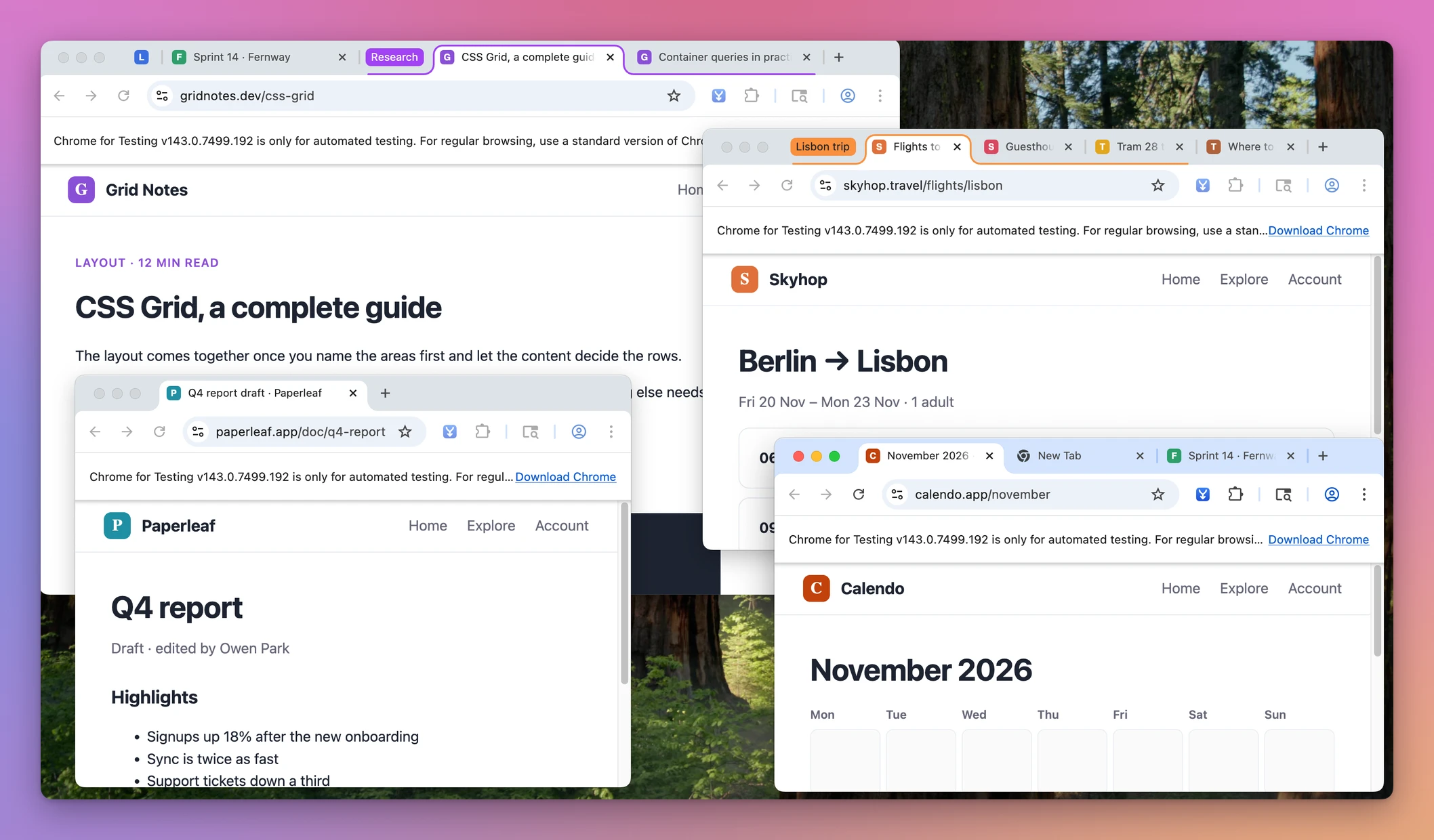
- Click into the window you want to keep. That’s where every tab will end up, so pick the one you were working in.
- Click the Tab Reunion button in the toolbar, or press
Option+Shift+M. - The tabs of the other windows arrive, window by window, each in the order it had. Your “Research” and “Lisbon trip” groups come over whole, still collapsed if they were.
- The windows that are now empty close.
- Tab Reunion tidies the merged window. Blank New Tab pages close, and when the same page is open twice, one copy stays.
- If it closed a page you wanted, open History → Recently Closed in Chrome’s menu and it’s there.
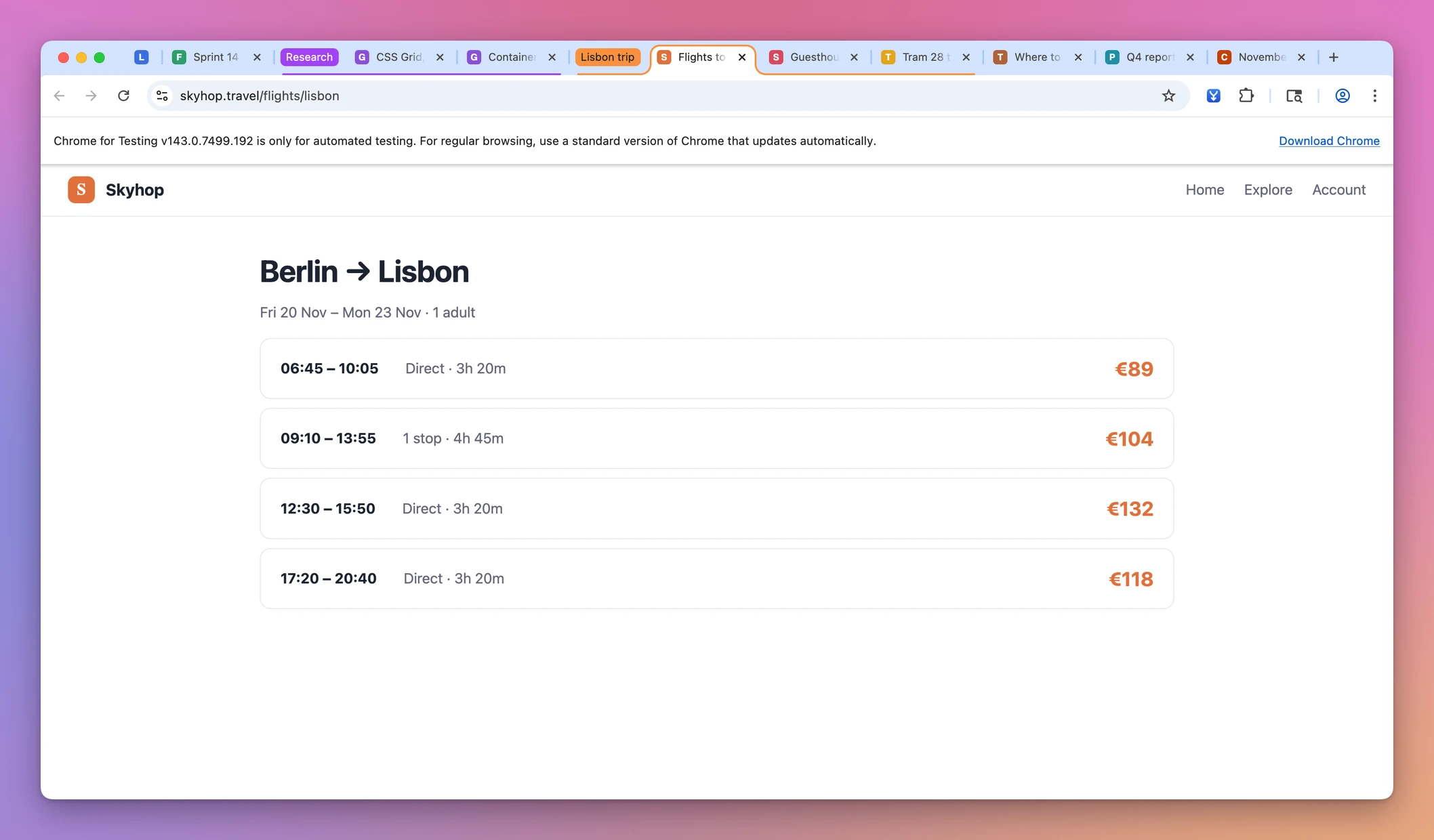
That’s the whole job. It takes as long as a click, and you can do it every time the windows pile up again.
What it does
Every tab comes over, in order
The window you clicked in stays. Tabs from each of the other windows are added at the end, window after window, in the order they had there. Nothing is shuffled or sorted.
Tab groups move whole
You don’t need to ungroup anything first. Tab groups come over whole, with their name and color, and a collapsed group stays collapsed.
Pinned tabs stay pinned
Chrome unpins a tab when an extension moves it to another window. Tab Reunion pins it again at the end, so your pinned Gmail or calendar is still a small icon on the left.
Blank tabs and duplicates close
At the end it tidies up. Empty New Tab pages close, and so do duplicates: when the same page is open twice, one copy stays.
Which copy stays? A pinned tab always wins. Otherwise the tab you’re looking at stays, and if it’s neither, the leftmost one. Pinned tabs are never closed.
Two tabs count as the same page when their address matches. A #section at the end of the address and a leading www. don’t make a difference, so www.example.com/page and example.com/page#top are one page.
The pages it closes go to Chrome’s Recently Closed list, so you can get them back. Several pages closed in one merge share one entry there, with each page listed inside it. Empty tabs aren’t saved, since there’s nothing to get back.
A list of sites you always close
If there are sites you always close anyway, you can list them. Right-click the Tab Reunion button and choose Options, then write one page per line. The list starts empty, and it’s saved as you type.
Each line matches that exact page. x.com closes the home page of x.com, not x.com/home. app.hey.com doesn’t close hey.com. Pinned tabs on that list stay open.
Incognito, popups and web apps stay apart
Incognito tabs never mix with your regular ones, and popups and installed web apps are left alone. If you allow Tab Reunion in incognito and run it from an incognito window, it merges only the incognito windows.
A shortcut you can change
The keyboard shortcut runs the same merge as the button. If the shortcut does nothing when you press it, a keyboard shortcut to merge Chrome windows shows how to check it and set your own keys.
Why not do it by hand
Safari has a Merge All Windows command for this. Chrome doesn’t.
With two windows you don’t need anything: drag the tabs across, or right-click a tab and use Move Tab to Another Window, as I show in how to merge two Chrome windows into one. For a single stray tab, putting a tab back into a Chrome window is a drag.
It’s with four or five windows, some of them with tab groups, that doing it by hand gets slow. You select the tabs of one window, move them, check where they landed, then do it again for the next window. Each group is one more drag by its label. Then you look for duplicates by reading every tab title. That’s what I built Tab Reunion for.
| By hand | Tab Reunion | |
|---|---|---|
| Five windows into one | One move per window, plus dragging each group | One click or one shortcut |
| Tab order | Depends on where you drop them | Kept, window by window |
| Tab groups | Drag each one by its label | Move whole, with name and color |
| Pinned tabs | Moved along with the rest, one window at a time | Pinned again after the move |
| Duplicates and blank tabs | Read every title and close them | Closed, and kept in Recently Closed |
| Incognito tabs | Easy to drag into the wrong window | Never mixed with regular ones |
What it doesn’t do
- It works in Chrome only. It’s a Chrome extension, on macOS, Windows and Linux. It doesn’t merge Safari or Firefox windows.
- It always merges into the window you’re in. It doesn’t ask which window to keep, so click into that window first.
- It merges all the other windows. You can’t pick two of five. For that, move the tabs by hand.
- It doesn’t save sessions or sort tabs. It doesn’t keep a list of your tabs for later, sort them by site or put them into groups for you.
- It doesn’t touch popups and installed web apps. Those windows stay open after a merge.
- It doesn’t update itself. It isn’t on the Chrome Web Store, so you add new versions yourself, as described below.
Questions
Will it close a tab I need?
It closes only blank tabs, the extra copy of a page that’s open twice, and the pages you listed in Options. Pinned tabs are never closed. Every real page it closes goes to Chrome’s Recently Closed list.
Does it read my browsing history?
Chrome describes the tabs permission that way. Tab Reunion uses it to read the address of the open tabs during a merge, to find blank tabs, duplicates and the sites you listed. It makes no network requests, and there’s no account or analytics.
Does it work on Windows and Linux?
Yes. It runs wherever Chrome does. The shortcut is Alt+Shift+M there, and Option+Shift+M on a Mac.
Can I undo a merge?
There’s no undo button. Pages it closed are in Recently Closed. To split windows again, drag a tab or a group out of the window, the way you’d do it in Chrome.
Why do I have to turn on Developer mode?
Tab Reunion isn’t on the Chrome Web Store, so Chrome only lets you add it from a folder with Developer mode on. The steps are below and take a minute.
What you get
Tab Reunion costs $20 including tax, paid once.
After purchase, download the ready-to-load Chrome extension ZIP from your purchase page.
Add it to Chrome
Tab Reunion isn’t on the Chrome Web Store, so you add it to Chrome yourself from a folder. It takes five steps.
You’ll turn on Chrome’s Developer mode for this. It’s a switch on Chrome’s extensions page that lets you add an extension from a folder on your computer instead of from the store.
- Unzip the extension zip from your purchase page.
- Move the unzipped folder somewhere it can stay, like your Documents folder. Chrome runs the extension from that folder, so don’t delete it.
- Type
chrome://extensionsin the address bar, press Return, and turn on Developer mode in the top right corner. - Click Load unpacked and pick the folder.
- Click the puzzle icon in the toolbar and pin Tab Reunion, so its button is always there.
An extension you add this way doesn’t update itself. When a new version comes out, download it again from your purchase page, copy its files over the old ones in the same folder, then click the reload arrow on the Tab Reunion card in chrome://extensions. Keeping the same folder keeps your shortcut and your list of sites.
The documentation covers installing, incognito windows and what to check when a merge doesn’t happen.
If Chrome’s window handling has you looking at other browsers, Chrome alternatives compared lists the options.
Under the hood (you can skip this)
This part is for the technically curious. You don’t need it to use Tab Reunion.
The merge runs in the extension’s background service worker, background.js. The shortcut is Chrome’s _execute_action command, so the key press and the button click run the same code. Ungrouped tabs move with chrome.tabs.move, and each group moves in one call to chrome.tabGroups.move, which is how it keeps its name, color and collapsed state. Chrome unpins a tab when an extension moves it to another window, so Tab Reunion pins it again at the end.
It asks Chrome for three permissions: tabGroups to move groups, tabs to read tab addresses so it can find empty tabs, duplicates and the sites you listed, and storage to remember that list. Chrome describes the tabs permission as reading your browsing history. Tab Reunion reads addresses only during a merge, makes no network requests, and has no account or analytics.