How to merge two Chrome windows into one, or combine all of them
By Flavio
Updated
Merge two Chrome windows by dragging tabs or with Move Tab to Another Window. With five windows, combine them all at once, groups and pinned tabs included.
To merge two Chrome windows, drag a tab from one window onto the row of tabs at the top of the other. It joins that window where you drop it.
If dragging is fiddly, right-click the tab and choose Move Tab to Another Window, then pick the window. To bring several tabs at once, click the first one, Shift-click the last one, right-click them and choose Move Tabs to Another Window. A window closes on its own once its last tab is gone.
That’s free, built into Chrome, and fine for two windows.
With five windows it gets slow, because you repeat it for every window and then check that your tab groups came through. Chrome has no command to combine every window at once. Safari has one, Merge All Windows, in its Window menu. For Chrome I built Tab Reunion, a small extension that adds that missing command.
How do I merge two Chrome windows?
There are two ways, and both are free.
Drag. Grab a tab and drop it on the tab row of the other window. Chrome’s keyboard shortcut list has no key for this, only the mouse.
Right-click. Right-click the tab and hover Move Tab to Another Window. The submenu lists New Window and then every other window, named after the tab it’s showing, like “Q4 report draft · Paperleaf and 3 Other Tabs”. Pick one and the tab moves to the end of that window.
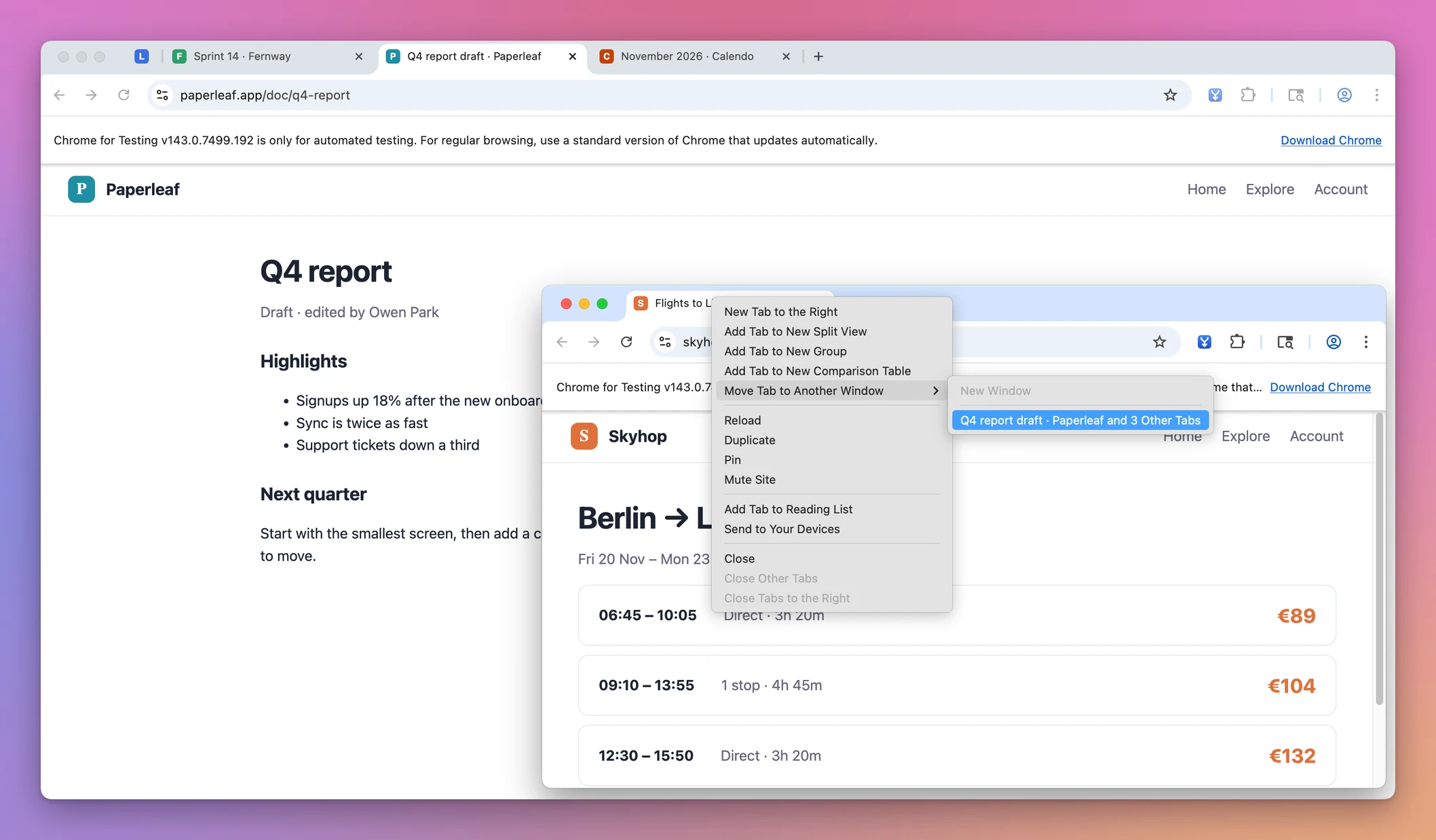
The tabs and sites in the screenshots are made up.
When two windows look alike in that list, give the main one a name. Right-click the empty space next to the New Tab button, choose Name window, and type a name like “Main”, so it’s easy to tell apart.
A pinned tab moved with the right-click menu stays pinned. A tab group comes over whole, name and color included, when you drag it by its name onto the other window’s tab row.
How do I combine all Chrome windows into one?
Here’s the difference in practice:
| Two windows | Five windows | |
|---|---|---|
| Drag tabs by hand | A few drags | Repeat for each window, one tab or one selection at a time |
| Right-click, Move Tab(s) to Another Window | One selection, one click | Four rounds, each with its own selection |
| Tab Reunion | One click | One click, groups, order and pinned tabs kept |
Tab Reunion moves the tabs of every other window into the one you’re in, from its toolbar button or Option+Shift+M (Alt+Shift+M on Windows and Linux). It costs $20, paid once.
If you’re after the shortcut, or the shortcut does nothing when you press it, see merge Chrome windows with a keyboard shortcut.
Load Tab Reunion
Tab Reunion isn’t on the Chrome Web Store, so you add it to Chrome from a folder. Download the extension zip from your Polar receipt, unzip it, and move the folder somewhere it can stay, like Documents. Chrome runs the extension from that folder.
- Open
chrome://extensionsand turn on Developer mode in the top right corner. That switch lets Chrome load an extension from a folder on your computer. - Click Load unpacked and pick the folder that contains
manifest.json. - Click the puzzle icon in the toolbar and pin Tab Reunion.
If you’ve never done this, load and reload the unpacked extension explains what Chrome does with that folder.
Merge every window into the one you’re in
Here are four windows with tab groups for a trip and for research, a pinned tab in the top left one, and the same “Sprint 14” page open twice:
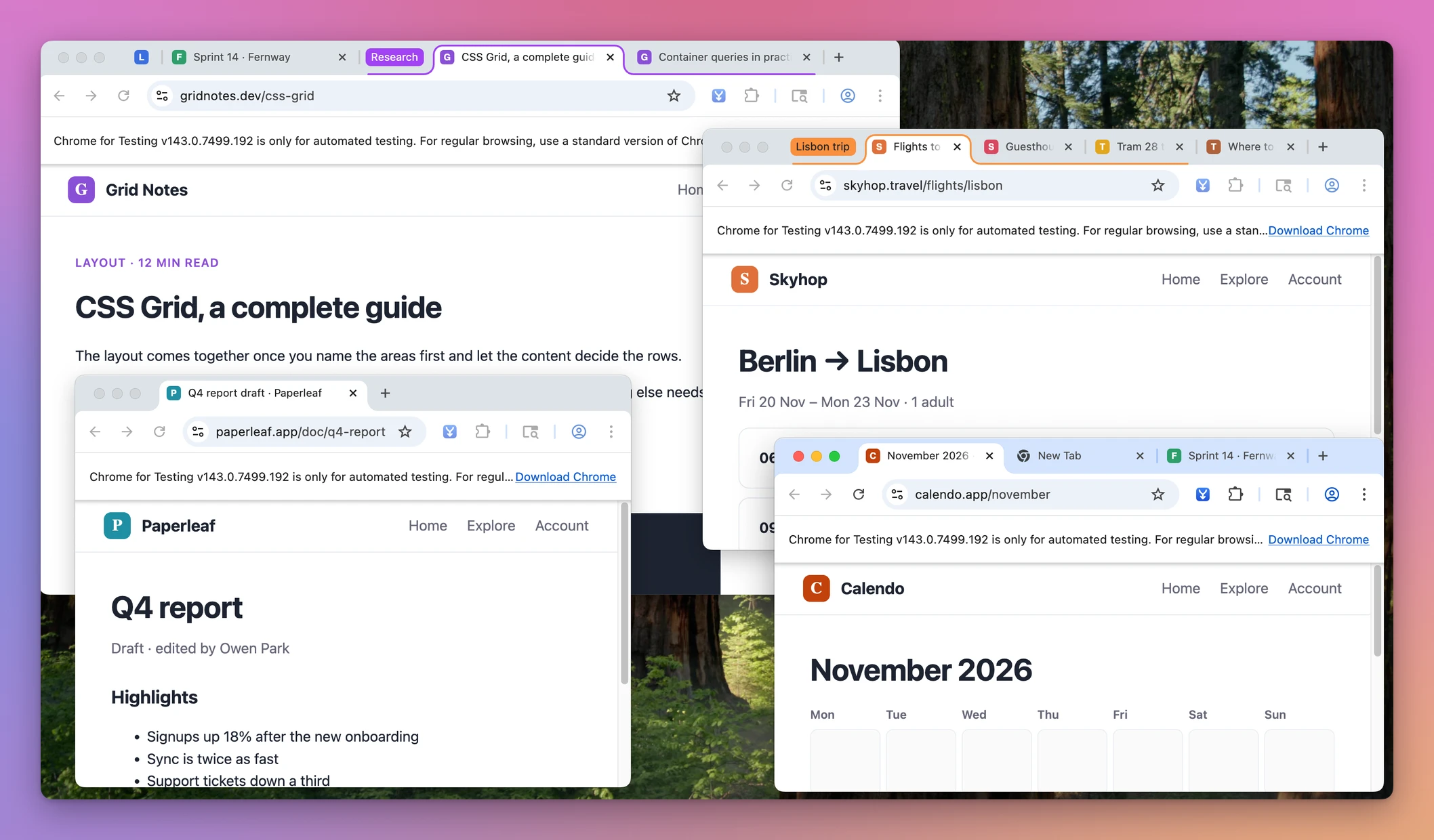
Click into the window you want to keep. Then click the Tab Reunion button, whose tooltip says “Merge all windows into this one”, or press Option+Shift+M (Alt+Shift+M on Windows and Linux).
The tabs of every other window move in, and the windows they came from close:
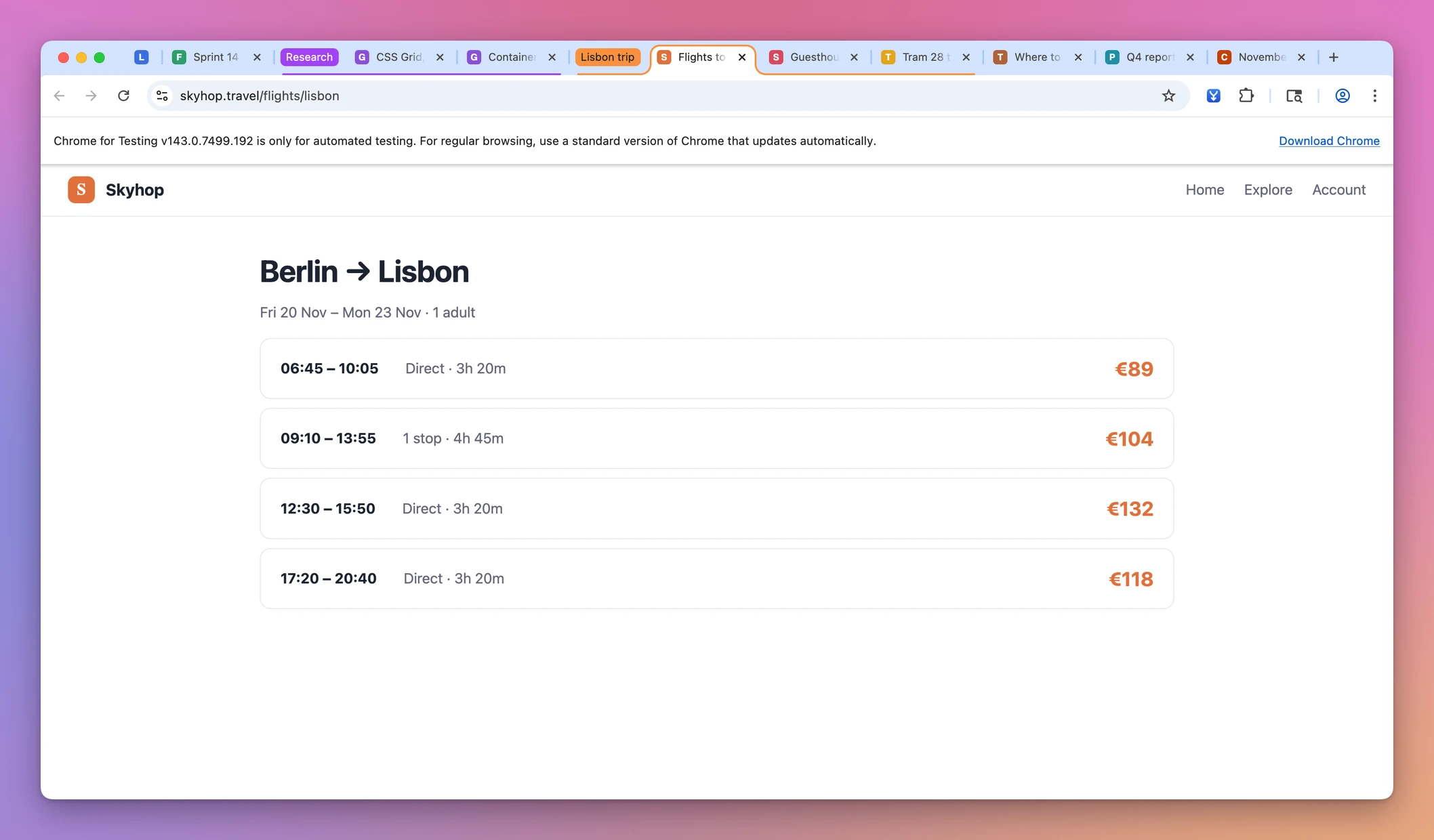
The second “Sprint 14” and the New Tab didn’t survive. Since 1.2 the merge ends with a cleanup that closes empty tabs and duplicate addresses.
What happened to each tab
To see every rule at work, I ran a merge in Chromium with Tab Reunion 1.2.0 on test pages served from my Mac. Window 1 was the one I clicked in:
| Tab | Started in | After the merge |
|---|---|---|
/mail, pinned | Window 2 | First tab of the window, pinned |
/blog | Window 1 | Kept |
/apps | Window 1 | Kept |
/docs/tabs and /docs/tabGroups, group “Research”, green | Window 2 | Moved as one group, still “Research”, still green |
/blog | Window 2 | Closed, same address as window 1’s copy |
/pricing | Window 3 | Kept, last tab |
| New Tab | Window 3 | Closed |
/apps#tab-reunion | Window 3 | Closed, same page as /apps |
/player | A popup window | Not touched, the popup stayed open |
Three windows became one, in 127 to 175 ms over three runs.
The pinned tab moved to the front, because Chrome keeps pinned tabs on the left, before the tabs that were already in the window. Groups keep their name, their color and their collapsed state. Tabs that sat next to each other still do.
/apps#tab-reunion counted as a copy of /apps. Tab Reunion compares addresses without the part after #, without www. and without a trailing slash. A different query string, like ?page=2, makes it a different page.
Which copy of a duplicate stays
When the same page is open more than once, one copy stays:
- A pinned copy always stays.
- Otherwise the active tab.
- Otherwise the leftmost copy, which means the one already in your window, before the ones that arrived.
Pinned tabs are never closed, even two pinned copies of the same page.
The active tab at that point isn’t always the one you were on. When Chrome moves a group into the window, it makes a tab of that group active. In my run, the window ended on /docs/tabs from the Research group, and the screenshot above ended on the first tab of the Lisbon trip group.
Closed pages go to Chrome’s Recently Closed list in the History menu. In my run, the list had one new entry, a closed window with 2 tabs: /blog and /apps#tab-reunion. Restoring it opens both in a new window. The New Tab never showed up in that list.
If a form is open in two windows, save it before you merge, or only one copy keeps your typing.
Close more pages on every merge
Right-click the Tab Reunion button and choose Options. The Sites to close box takes one page per line, saves as you type, and starts empty. Lines starting with # are ignored.
A line matches one exact page. x.com closes https://x.com/ and https://www.x.com/, but not x.com/home. app.hey.com doesn’t close hey.com or app.hey.com/inbox. A query string doesn’t matter, so x.com/home also closes x.com/home?lang=en. Pinned tabs stay open even when they match.
Windows that stay apart
The merge only takes normal windows with the same incognito state as the one you’re in.
Popups and installed web apps are different window types, so they stay open. If you installed Gmail as an app, its window is still its own window after a merge. Pressing the shortcut while a popup is focused does nothing at all.
Incognito tabs never mix with regular ones. Chrome doesn’t run extensions in incognito until you allow it: open the Tab Reunion Details on chrome://extensions and turn on Allow in Incognito. Then click the button in an incognito window, and only the incognito windows merge.
A window from another Chrome profile stays apart too. An extension runs in the profile where you loaded it.
If it doesn’t merge
If the button is missing, click the puzzle icon and pin Tab Reunion again. If its card on chrome://extensions shows an error, the folder moved or was deleted. Put it back, or click Load unpacked again and pick the new location.
An extension loaded this way doesn’t update itself. When you download a new version from your Polar receipt, copy its files over the old ones in the same folder, then click the reload arrow on the Tab Reunion card. Keeping the same folder keeps your shortcut and your Options list.
How it works, for the curious
You don’t need this part to use it.
For every other normal window with the same incognito state, Tab Reunion moves runs of ungrouped tabs with chrome.tabs.move and each group in one call to chrome.tabGroups.move, which is how a group keeps its name, color and collapsed state. When an extension moves a pinned tab to another window, Chrome unpins it, so Tab Reunion pins it again at the end.
Closed pages are moved into a minimized window and that window is closed, because a window close is what Chrome records in Recently Closed. Empty tabs are closed directly, so they stay off that list.
Version 1.2 asks for three permissions. tabGroups moves groups, tabs reads tab addresses so it can find empty tabs and duplicates, and storage keeps the optional list of pages to close. Chrome shows the tabs permission as “Read your browsing history”, because it exposes addresses and titles. The extension has no host permissions and makes no network requests.
Get Tab Reunion
Too many Chrome windows? Move every tab into the window you're using, keeping tab groups, their order and pinned tabs.
See Tab Reunion → · Read the docs · $20. See the app page for tax details.
Want me to talk about your product? You can sponsor this site.