
A developer tool by Flavio
Searchglass
Query Google Search Console performance, sitemaps and URL index status from your terminal or coding agent. Includes an agent skill.
Buy Searchglass · $19One-time purchase. Tax included. Source code included.
macOS or Linux · Node.js 22+ · Google OAuth setup
Latest version 2.1.0, released November 18, 2026
Your traffic dropped. Which pages, and why?
You open Search Console, see clicks going down, and start clicking. Set the date range. Compare to the previous period. Switch to the Pages tab. Export. Open the CSV. Filter one page, then switch to Queries to see what people searched. Repeat for the next page.
That’s fine once. It’s slow when you do it every month, for three sites, and you want an answer instead of a chart.
Searchglass gives your terminal and your coding agents read-only access to Google Search Console through a command-line tool. Ask which pages lost clicks, which search terms bring people to a page, or whether Google indexed a URL. Your agent can fetch the data, compare it and explain what it found. You can run the same commands yourself in Terminal.
Here’s a one-minute tour in Terminal, from the first query to installing the agent skill:
The hiking blog, its search terms and every number are fictional. The recording ran against a local stand-in for Google’s API.
Who it’s for
- Bloggers and indie publishers. You write tutorials and one post went from thousands of clicks to almost none. You want the list of pages that lost the most, with their search terms, without exporting two CSVs and joining them in a spreadsheet.
- Developers who use a coding agent every day. You already ask Claude Code, Codex or Cursor to fix things on your site. With the skill installed, you can ask it why a section lost traffic, and it fetches the numbers itself.
- People who just shipped a redesign or a migration. You changed URLs and want to check, page by page, that Google indexed the new ones and picked the right canonical.
- Anyone running several sites.
searchglass siteslists every property your Google account can access, and the same query works on each one with a different--site. - Developers who script their reports. The output is JSON. Pipe it into
jq, save it to a file every month, or feed it to a script that writes your SEO notes.
Find the pages that lost clicks
Here’s a monthly check, start to finish.
- Run
searchglass sitesand copy the exact property, likesc-domain:example.comorhttps://example.com/. - Export clicks per page for the last complete period, with
--dimensions page --all, intooct.json. - Run the same query for the period before, of equal length, into
sep.json. - Join the two files with
jqand sort by the change. The pages that lost the most come first. - For the worst page, run a query with
--dimensions query,pageand apagefilter. You see which search terms dropped, and whether impressions or position moved. - Run
searchglass inspecton that URL to check it’s still indexed, and which canonical Google chose.
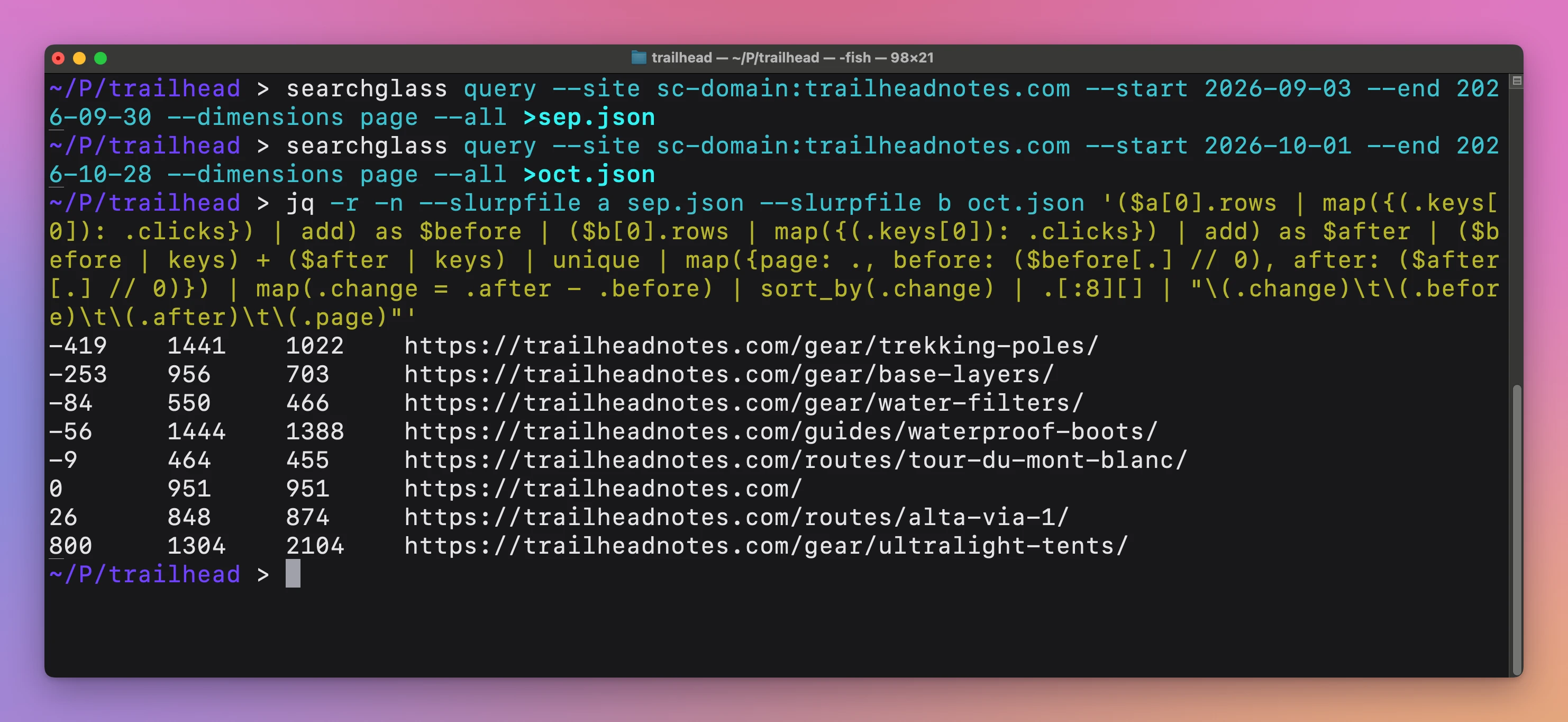
Or give the whole job to your agent:
Compare the last two complete months for my site. Find pages that lost clicks, inspect their search terms, and explain what the data supports.
The tutorial Find the pages that lost Google clicks by comparing two periods walks through this with real commands.
Query your search data
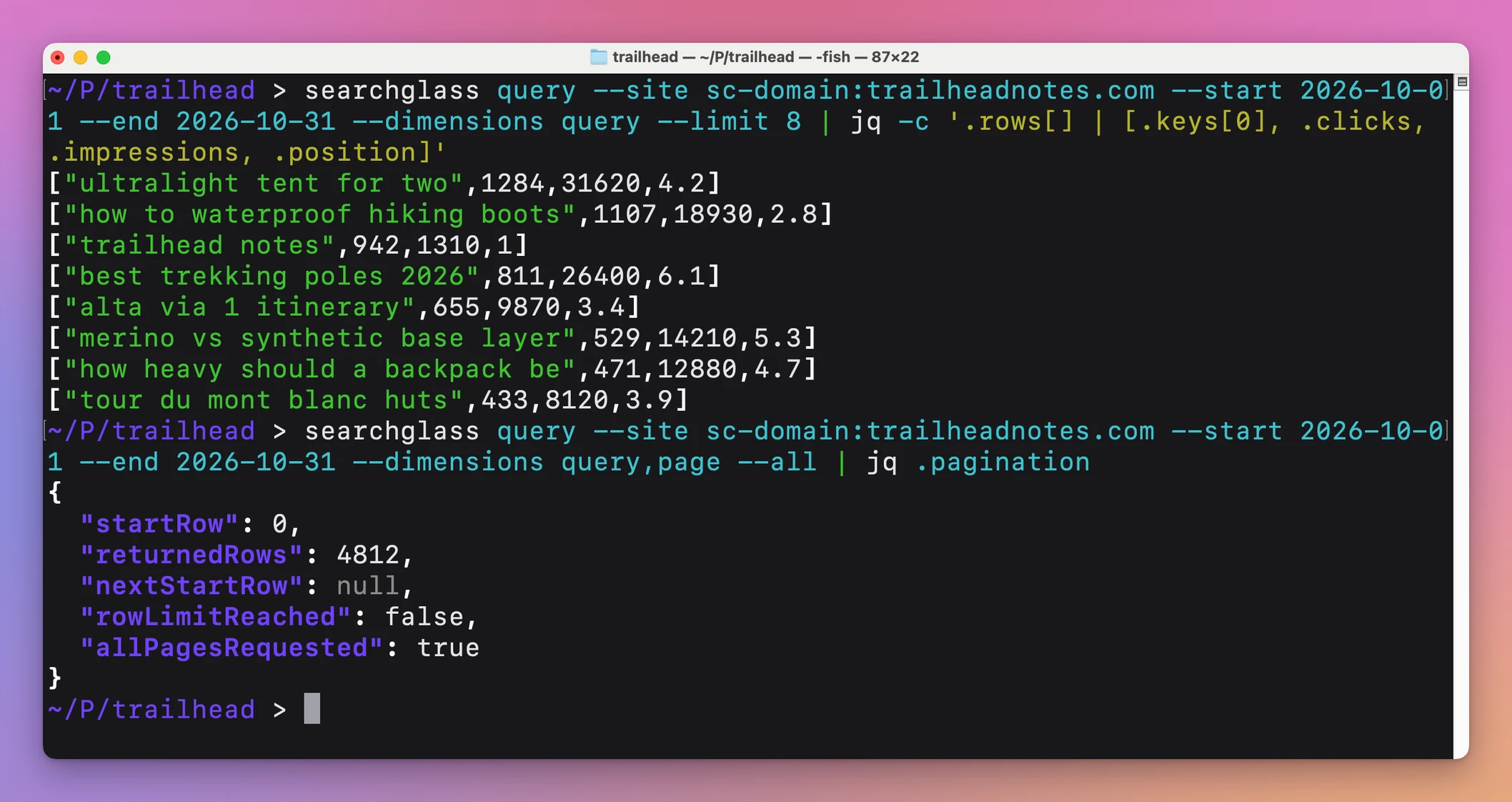
The searchglass query command returns clicks, impressions, click-through rate and average position. Group the results by search term, page, date, country, device or search appearance. Add filters and choose the dates you want to compare.
For example, this query groups performance by search term and page:
searchglass query --site https://example.com/ \
  --start 2026-10-01 --end 2026-10-25 \
  --dimensions query,page --all
Replace the example property with one returned by searchglass sites. The output is JSON, so an agent or script can read it without scraping a dashboard. CTR is a fraction, so 0.05 means 5%. Dates are inclusive and follow Google’s Pacific reporting calendar.
Without --all, a query returns up to 1,000 rows. --all fetches successive pages up to the configured row limit, 100,000 rows by default. Every response includes pagination details so the agent can see whether more rows may exist. Use --max-rows to change the limit or --start-row to resume.
Google still limits the data it returns and omits anonymized search queries. Pagination cannot recover those omissions. That’s also why query rows can add up to less than the property totals. Omit dimensions to get the totals.
Check properties, sitemaps and individual URLs
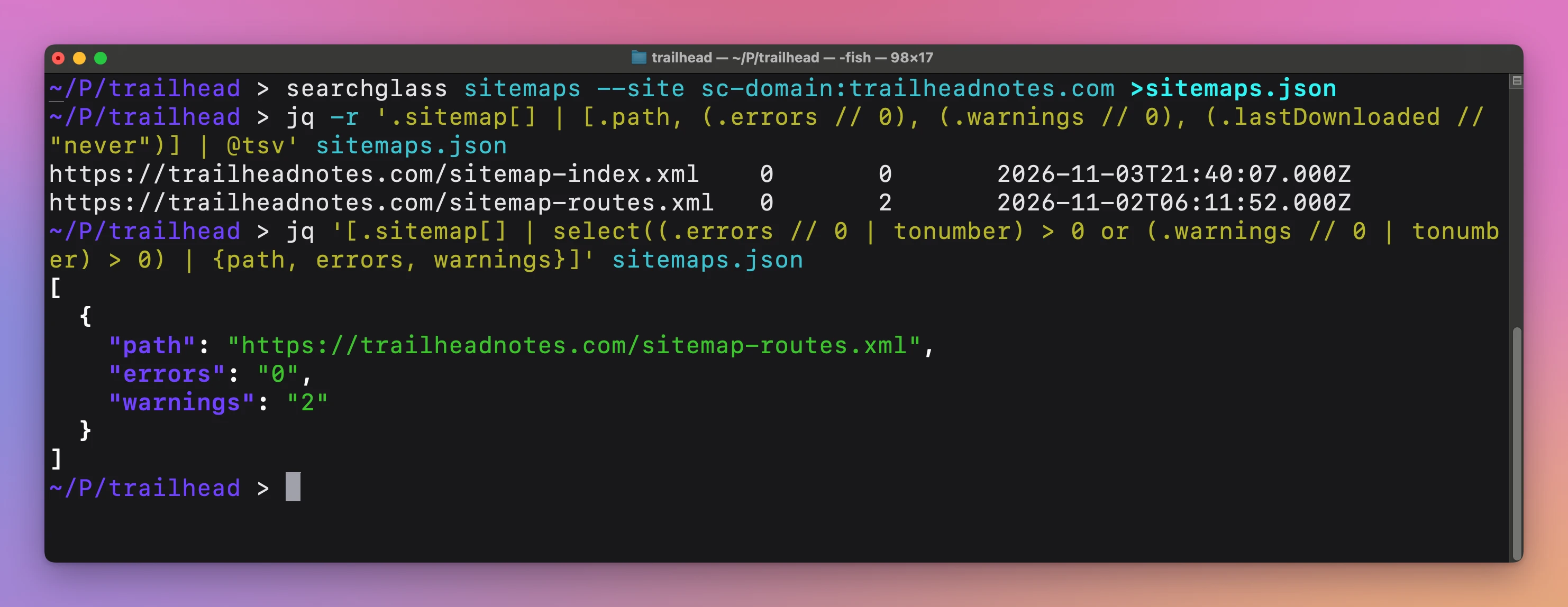
Searchglass lists the properties your Google account can access. It can also read submitted sitemaps, their warning and error counts, and the children of a sitemap index.
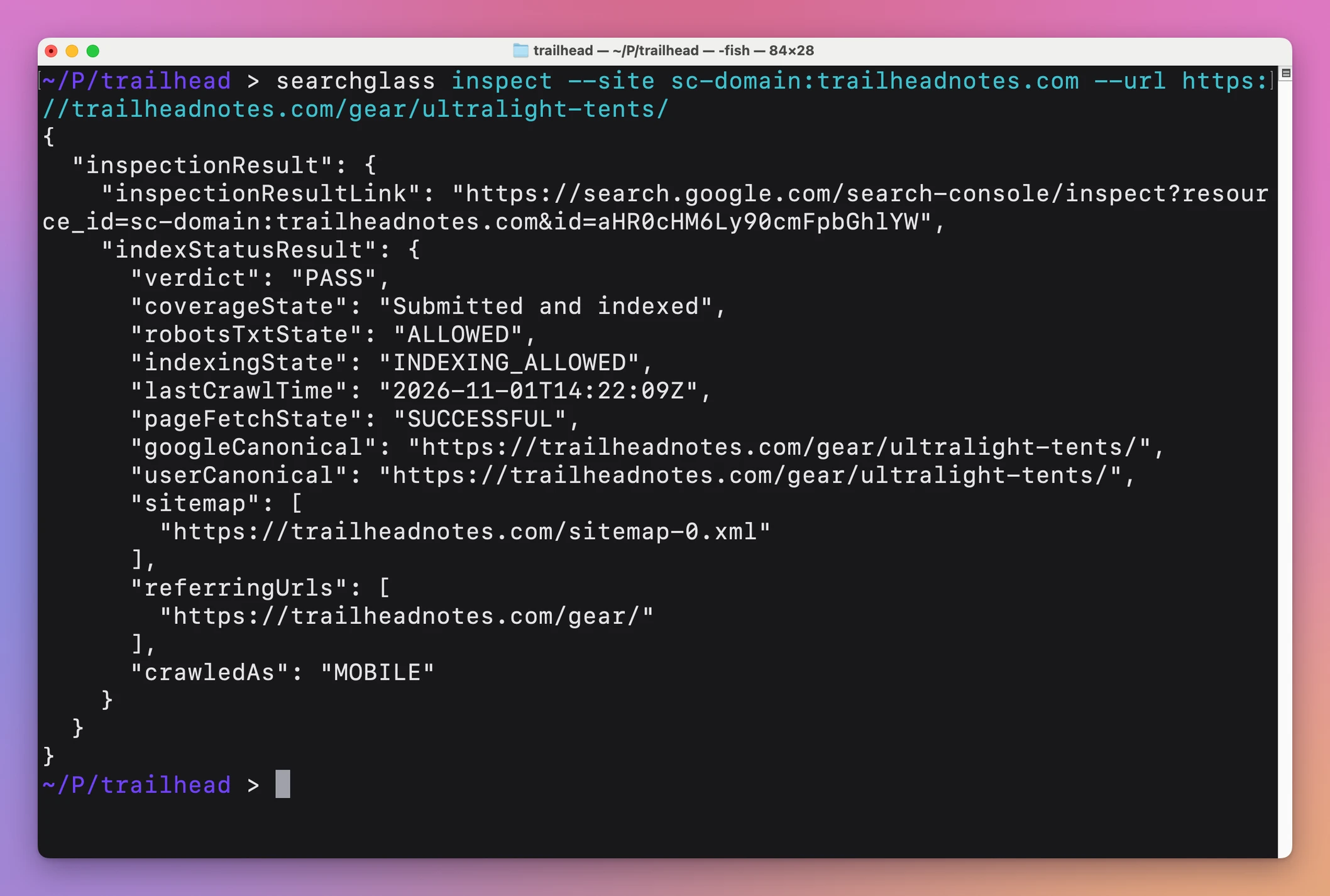
URL inspection returns the status of a page in Google’s index, including available crawl details and canonical URLs. It uses Google’s indexed version of the page. It does not run a live crawl or request indexing. The tutorial Check whether Google has indexed a page, from your terminal shows it on a real page.
The tool uses read-only access. It does not change properties or submit sitemaps.
Give your agent the skill
The purchase includes a skill that teaches an agent how to choose properties, build queries and interpret the results. It explains pagination, reporting dates and Google’s data limits.
Install it for Codex with:
searchglass skill install --target codexUse --target claude for Claude Code or --target cursor for Cursor. Agents can also discover the commands through searchglass capabilities --json.
The skill helps the agent distinguish a change in traffic from a list cut short by a row limit. It also explains why query rows can add up to less than property totals.
Why not use the Search Console website
The Search Console website is free and good. It shows the performance report, lets you compare two periods, and exports to CSV or Google Sheets. For a quick look at one site, use it.
It gets slow when you need to cross data. Comparing pages between two periods, then drilling into the search terms of each one, is a lot of clicking and exporting. The table in the browser shows up to 1,000 rows. And your coding agent can’t read a dashboard, so you end up pasting numbers into the chat.
| Search Console website | Searchglass | |
|---|---|---|
| Pages that lost clicks | Two exports, joined in a spreadsheet | Two queries and a jq line, or one request to your agent |
| Search terms for one page | Filter, switch tab, repeat per page | One query with a page filter |
| Rows | Up to 1,000 in the browser | Paginated with --all, up to the row limit you set |
| Your coding agent | Reads what you paste | Runs the queries itself |
| Several sites | Switch property, redo the clicks | Change --site |
| Format | Charts and CSV | JSON |
Install it and connect Google
You need macOS or Linux, a terminal, and Node.js 22 or later installed separately. The CLI has no npm dependencies.
Download the zip from your purchase page and unzip it. Open a terminal in that folder and run the installer:
./install.shThe installer copies Searchglass into ~/.local/share/searchglass/releases/<version> and links ~/.local/bin/searchglass to that copy. It uses your existing Node.js installation, without npm link. You can delete the downloaded folder afterward. Make sure ~/.local/bin is on your PATH. The included README covers this and uninstalling. For updates, download the new version from your purchase page and rerun its installer. Your saved Google connection stays in place.
Google setup takes a few steps before the first query. You provide your own Google Cloud project and OAuth client:
- Enable the Search Console API in your Google Cloud project.
- Configure the OAuth consent screen. If the app is in Testing, add the Google account you will use as a test user.
- Create an OAuth client with application type Desktop app and download its client JSON file.
- Make sure that Google account already has access to the Search Console properties you want to query.
Then sign in through your browser:
searchglass login --client ~/Downloads/client.jsonAfter that, agents can query your properties without signing in for every command. Google can expire or revoke the connection. OAuth apps in Testing can receive refresh tokens that expire after seven days, so you may need to reconnect.
The included README walks through installation and authentication. Google’s desktop OAuth guide and Search Console prerequisites explain its setup requirements. The documentation has every command.
Your connection stays on your machine
Searchglass is independent. The first searchglass login opens Google consent and saves its own credentials on your machine, in ~/.config/searchglass/credentials.json. Queries use only that saved login. Run searchglass logout to remove the local connection.
Searchglass talks directly to Google’s API. There is no hosted service to connect or subscription to maintain. Credentials stay on your machine, and a coding agent uses the CLI without needing to print your tokens.
The CLI requires internet access and the accounts described above. Any costs for your coding agent or other third-party services are separate from this purchase.
What it doesn’t do
This tool covers Search Analytics, property details, sitemaps and URL Inspection. Google’s API does not provide every dashboard report.
- No backlinks, Core Web Vitals or full page indexing report. Those are outside the API, so they’re outside this tool.
- No live crawl and no indexing requests. Inspection reads Google’s indexed copy.
- No write commands. It doesn’t submit sitemaps or change properties.
- No general web search or rank tracking. It reads your own Search Console data.
- No way around Google’s limits. Quotas, reporting delays and history limits still apply, and fresh performance data can change. Read the API reference and usage limits when planning large exports.
Questions
Do I need a Google Cloud project?
Yes. You create your own OAuth client of type Desktop app, and Searchglass signs in with it. The setup takes a few steps once.
I get a permission error. What’s wrong?
Usually the Google account doesn’t have access to that property, or the Search Console API isn’t enabled in your project. If consent expired, run searchglass login again.
What do I need to run it?
macOS or Linux, a terminal, and Node.js 22 or later.
Is the source code included?
Yes. The purchase page delivers a source ZIP along with the ready-to-install runtime.
I also want SEO checks on the pages themselves.
That’s SEO Bot, a Mac app and CLI that runs 16 SEO checks on your websites.
What you get
The $19 one-time purchase includes tax, the ready-to-install CLI and its agent skill.
Download the runtime ZIP from your purchase page. Reopen that page for later versions.
Download new versions from your purchase page, which always has the latest one. The purchase has no recurring charge.