Check your sitemaps' errors and warnings from the terminal
By Flavio
Updated
List every sitemap Google has for your site, read its error and warning counts, and see which ones are still pending, with the searchglass CLI.
You changed how your site builds its sitemap, or you moved to a new framework, and now you want to know if Google is happy with it. The usual answer is to open Search Console, pick the property, open Sitemaps and squint at the Status column. Do that for three sites and it’s a chore.
Searchglass is a command-line tool that reads Google Search Console. Its sitemaps command prints the same sitemap report as JSON: every sitemap Google knows about, when Google last downloaded it, and how many errors and warnings it found. Add a short jq filter and you get a one-line answer per site.
At the end you’ll have a command that lists your sitemaps, a filter that shows only the broken ones, and a check that exits with an error when something needs fixing. That last part is what makes it useful in a weekly script or in a coding agent’s hands.
One limit up front: Searchglass only reads. It can’t submit or delete a sitemap. That stays a button in Search Console.
What you need
Searchglass runs on macOS or Linux, with Node.js 22 or later installed separately, and it needs a Google OAuth setup. It has no npm dependencies and no Mac app.
To get it, download the ZIP and the SHA256SUMS file from your Polar receipt. In the download folder, verify the ZIP with shasum -a 256 -c SHA256SUMS on macOS, or sha256sum -c SHA256SUMS on Linux. Unzip it, open a terminal in the unzipped folder, and run the installer:
./install.shThe installer copies the files into ~/.local/share/searchglass/ and links the command at ~/.local/bin/searchglass. If your shell says “command not found”, add ~/.local/bin to your PATH.
You also need a Google Cloud project with the Search Console API enabled, and an OAuth client of type Desktop app. A Web application client won’t work. The Searchglass docs walk through those console screens. Your Google account must have access to the Search Console properties you want to read.
Then sign in once with the client JSON you downloaded:
searchglass login --client ~/Downloads/google-desktop-client.jsonFor the preflight check, confirm the version and that Google answers:
searchglass --version
searchglass auth status --check
searchglass 2.0.0auth status --check prints JSON with "connected": true and "verified": true when the login works. The site names in this tutorial, like hostingpicker.dev, are examples. Use your own.
Find the property name Searchglass expects
Every sitemap belongs to a Search Console property, and Searchglass needs that property’s exact name in --site. This trips people up because Google has two kinds of property. A domain property is written sc-domain:hostingpicker.dev. A URL-prefix property is written https://hostingpicker.dev/, with the protocol and the trailing slash. They’re different properties, with different sitemap lists, even for the same site. If you type the name from memory, you’ll often pass something Google doesn’t recognize. So start by asking for the list:
searchglass sitesThe output is JSON, with one entry per property your account can read. Each entry has a siteUrl and a permissionLevel. Copy the siteUrl as is.
To check a single property and your access level on it, pass --site:
searchglass sites --site https://hostingpicker.dev/Example 3: a property name Searchglass rejects. Say you type the bare domain:
searchglass sitemaps --site hostingpicker.dev{"error":{"message":"Invalid --site. Use sc-domain:example.com or https://example.com/."}}Searchglass checks the shape of the name before it calls Google. Errors go to stderr as JSON and the command exits with status 1. The fix is the name from searchglass sites, here https://hostingpicker.dev/. If you forget --site entirely, you get a different message:
{"error":{"message":"Provide --site exactly as returned by searchglass sites, for example sc-domain:example.com."}}List every sitemap Google knows about
The Search Console website shows the sitemaps you submitted, plus a status for each one. The API behind it returns the same list, and searchglass sitemaps prints it. This is the step that tells you what Google is working from. That matters more than what your site currently serves. If your build renamed sitemap.xml to sitemap-index.xml, Google may still be reading the old file, and its errors stay in the report until you deal with it. Without this list you’re guessing which file Google means when it reports a problem.
searchglass sitemaps --site https://hostingpicker.dev/If you’d rather click, this is the same list as the Sitemaps report in Search Console, under Indexing, where each submitted sitemap has its type, status and the date Google last read it.
The response is an object with a sitemap array. Google’s Sitemaps API reference documents each entry with this shape:
{
  "path": string,
  "lastSubmitted": datetime,
  "isPending": boolean,
  "isSitemapsIndex": boolean,
  "type": string,
  "lastDownloaded": datetime,
  "warnings": long,
  "errors": long,
  "contents": [
    {
      "type": string,
      "submitted": long,
      "indexed": long
    }
  ]
}
Here’s what each field tells you:
pathis the sitemap’s URL.lastSubmittedis when someone submitted it, andlastDownloadedis when Google last fetched it.isPendingis true when Google hasn’t processed it yet.isSitemapsIndexis true for a file that lists other sitemaps.typeis the format, such assitemap,rssFeed,atomFeedorurlList.errorsandwarningsare counts. Google describes warnings as generally non-critical issues with URLs in the sitemap.contentsbreaks the file down by content type, likeweb,imageorvideo.submittedis how many URLs of that type it lists.
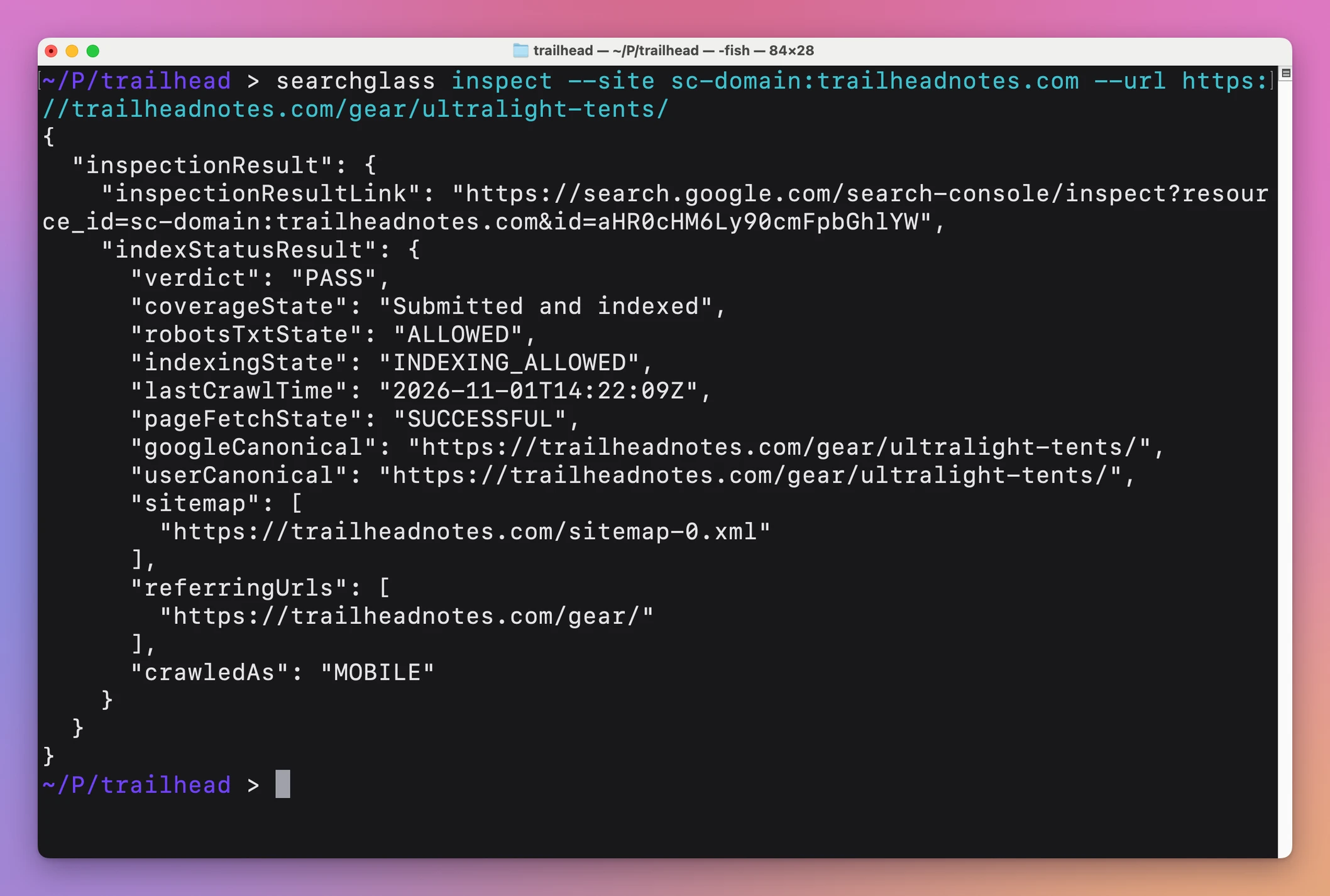
Google marks contents[].indexed as deprecated, so don’t build anything on it. To see which pages made it into the index, inspect them one at a time, as in checking whether Google has indexed a page. The inspection also tells you which sitemap Google found the page in:
Read the error and warning counts
Raw JSON is fine for one sitemap. For a site with five, or for three sites, you want a table you can read at a glance. Since Searchglass prints plain JSON on stdout, you can save it to a file and point jq at it. If jq is new to you, the jq command covers the basics. The filters below pull out the path, the two counts and the last download time. They use // 0 because a pending sitemap may not have every field yet. Without that fallback, a missing field shows up as null and breaks the number comparisons in the next filter.
Example 1: the main path, a site with one broken sitemap. Save the list, then print a table. The values below come from an example file shaped like Google’s response, not from a real property:
searchglass sitemaps --site https://hostingpicker.dev/ > sitemaps.json
jq -r '.sitemap[] | [.path, (.errors // 0), (.warnings // 0), (.lastDownloaded // "never")] | @tsv' sitemaps.json
https://hostingpicker.dev/sitemap-index.xml 0 0 2026-11-10T21:03:52.000Z
https://hostingpicker.dev/sitemap.xml 1 0 2026-11-09T04:27:45.000Z
https://hostingpicker.dev/blog/rss.xml 0 0 neverEach row is path, errors, warnings and last download. The index is clean. The old sitemap.xml has one error. The RSS feed has never been downloaded, which usually means it’s still pending.
To print only the sitemaps with a problem, filter on the counts:
jq '[.sitemap[] | select((.errors // 0 | tonumber) > 0 or (.warnings // 0 | tonumber) > 0) | {path, errors, warnings}]' sitemaps.json[
{
"path": "https://hostingpicker.dev/sitemap.xml",
"errors": "1",
"warnings": "0"
}
]Google documents the counts as long. The example file stores them as quoted strings, and tonumber handles them either way, so the filter works on both.
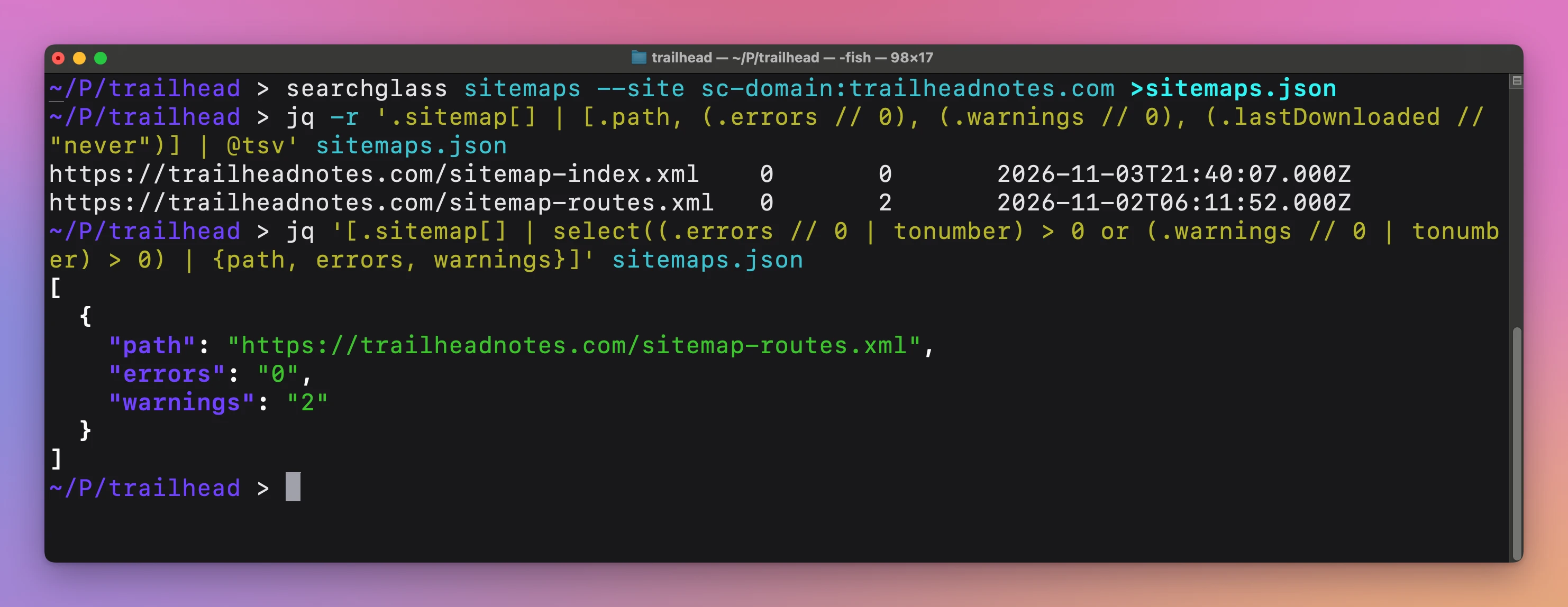
Here are the same two filters on trailheadnotes.com, a made-up hiking blog I use for screenshots. It has two sitemaps, and the routes one has 2 warnings:
And to list what Google hasn’t processed yet:
jq -r '.sitemap[] | select(.isPending) | .path' sitemaps.jsonhttps://hostingpicker.dev/blog/rss.xmlThe counts tell you that something is wrong, not what. The API has no field for the error messages. For those, open the property’s Sitemaps report in Search Console and click the sitemap’s row. Google’s Sitemaps report help lists the errors you can find there, like “URL not allowed” and “Invalid date”.
Look inside a sitemap index
Many sites publish a sitemap index: one file that points to several smaller sitemaps. Others serve a single file, like a dynamic sitemap.xml in Astro SSR. With an index, you usually submit only the index. When the index reports a problem, the useful question is which child file has it, because that’s the file you’ll fix. The plain sitemaps command lists what was submitted, so the children don’t appear on their own. Searchglass has two flags for going one level deeper.
Example 2: an index instead of a flat list. Pass the index URL with --index to list its children:
searchglass sitemaps --site https://hostingpicker.dev/ --index https://hostingpicker.dev/sitemap-index.xmlThe response has the same sitemap array as before, but each entry is now a child of that index, with its own errors, warnings and lastDownloaded. The jq filters from the previous section work on it unchanged, so you can save this output to a file and run the same table.
To read one sitemap by its URL, use --sitemap:
searchglass sitemaps --site https://hostingpicker.dev/ --sitemap https://hostingpicker.dev/sitemap.xmlGoogle’s API returns that single sitemap entry, with the fields described above. Use it when you only care about one file, like after a fix.
The two flags don’t mix. Searchglass refuses before it calls Google:
{"error":{"message":"Use either --sitemap or --index."}}Both flags also need a full URL. A relative path like /sitemap.xml fails with this:
{"error":{"message":"Provide a fully qualified HTTP or HTTPS URL."}}Fix the sitemap and check again
Once you know which file has errors, the fix happens in your site, not in Searchglass. Open the Search Console report for the error message, fix the generator or the file, and deploy. Then you need to know when Google has seen the new version. This is where lastDownloaded earns its place. If it’s older than your deploy, the counts you’re reading still describe the old file. Google re-reads sitemaps on its own schedule, so a clean deploy doesn’t show up right away. Without checking this field, you could decide your fix didn’t work when Google hasn’t looked yet.
searchglass sitemaps --site https://hostingpicker.dev/ --sitemap https://hostingpicker.dev/sitemap.xml | jq '{lastDownloaded, errors, warnings}'The output is one object with those three fields. Compare lastDownloaded with your deploy time.
Running the same command a second time is safe. Searchglass only reads, with the webmasters.readonly scope, so there’s nothing to undo. Each run gets a fresh access token from your saved login, and nothing about your property changes.
If you want Google to look sooner, Google’s help says you can resubmit after big changes. Searchglass can’t do that. Its docs say the CLI has no write commands for sitemap submission. Resubmit in the Sitemaps report in Search Console.
If the broken file is an old sitemap your site no longer serves, removing it from Search Console is also a website-only action. That one deletes the entry from the report, so make sure it’s the old file and not the one you rely on. To catch pages that still link to retired URLs, how to run SEO checks from the terminal covers a crawl-based check from your side, which complements Google’s view.
Run the check every week, or hand it to an agent
A sitemap usually breaks quietly: a deploy changes a date format, or a plugin update renames the file. You find out weeks later, when pages stop showing up. A small check that fails loudly fixes that. jq -e sets its exit status from the result: 0 when the filter returns true, 1 when it returns false. That turns the sitemap list into a pass or fail you can put in a script, a CI job or a reminder.
searchglass sitemaps --site https://hostingpicker.dev/ > sitemaps.json
jq -e '[.sitemap[] | (.errors // 0 | tonumber)] | add == 0' sitemaps.json
With the example file from earlier, one sitemap has an error, so this prints:
falseand exits with status 1. When every count is zero, it prints true and exits with 0.
Searchglass itself also signals failure: errors go to stderr as JSON, with a nonzero exit status. A script can tell a sign-in problem apart from a sitemap problem by checking which command failed.
If you work with a coding agent, install the bundled skill so the agent knows the commands:
searchglass skill install --target codexUse --target claude for Claude Code or --target cursor for Cursor, then reload the agent. Reinstalling an identical skill is safe. Replacing a different one needs --force. After that you can ask the agent to list the sitemaps for a property, flag any with errors, and look at the generator code in your project for the cause. The agent never sees your refresh token. Each command gets a fresh access token on its own.
If something looks wrong
- If you see
Not signed in. Run searchglass login --client /absolute/path/client.json., you haven’t logged in on this machine yet, orSEARCHGLASS_CONFIG_DIRpoints to a different folder. Runsearchglass login --clientwith your Desktop app client JSON. - If you see
Google connection expired or was revoked. Run searchglass login to reconnect., runsearchglass loginagain. While your Google OAuth app is in Testing, Google may expire refresh tokens after seven days. - If you see
Search Console HTTP 403:followed by Google’s message, your account lacks access to that property, or the Search Console API isn’t enabled in the OAuth client’s project. Check both, then confirm the name withsearchglass sites. - If the
sitemaparray is empty or missing a file you expect, you’re probably looking at the other property type. A sitemap submitted undersc-domain:hostingpicker.devdoesn’t show underhttps://hostingpicker.dev/. List both withsearchglass sites. - If a child sitemap doesn’t appear in the plain list, it was submitted through an index. Use
--indexwith the index URL. - If the counts haven’t changed after a fix, compare
lastDownloadedwith your deploy time. Google may not have re-read the file yet. Resubmit in Search Console if you need it sooner. - If you see
Unknown option '--submit', that’s expected. Searchglass is read-only and has no submit or delete flags. - If a request fails with
Google request timed out. Try again., Google didn’t answer within 30 seconds. Searchglass already retries rate limits and server errors up to three times, so wait a bit and run the command again.
Get Searchglass
Query Google Search Console performance, sitemaps and URL index status from your terminal or coding agent. Includes an installer, agent skill and full MIT source.
See Searchglass → · Read the docs · $20. See the app page for tax details, with full source code.
Want me to talk about your product? You can sponsor this site.