
An app by Flavio
Copy Verification Report
Compare a folder and its copy file by file on your Mac. See what's missing, extra or changed, checked by SHA-256, and save the result as a CSV.
Buy Copy Verification Report · $20One-time purchase. Plus tax where it applies.
macOS 14 or later · Apple silicon and Intel
You copied a shoot from the memory card to an external drive. Finder said the copy finished. Now you want to format the card for tomorrow, and a small voice asks: did every file really make it?
Finder can’t answer that. It tells you a copy ended, and Get Info tells you two folders are roughly the same size. One file missing out of 3,000, or a single photo damaged by a flaky cable, won’t change those numbers enough to notice.
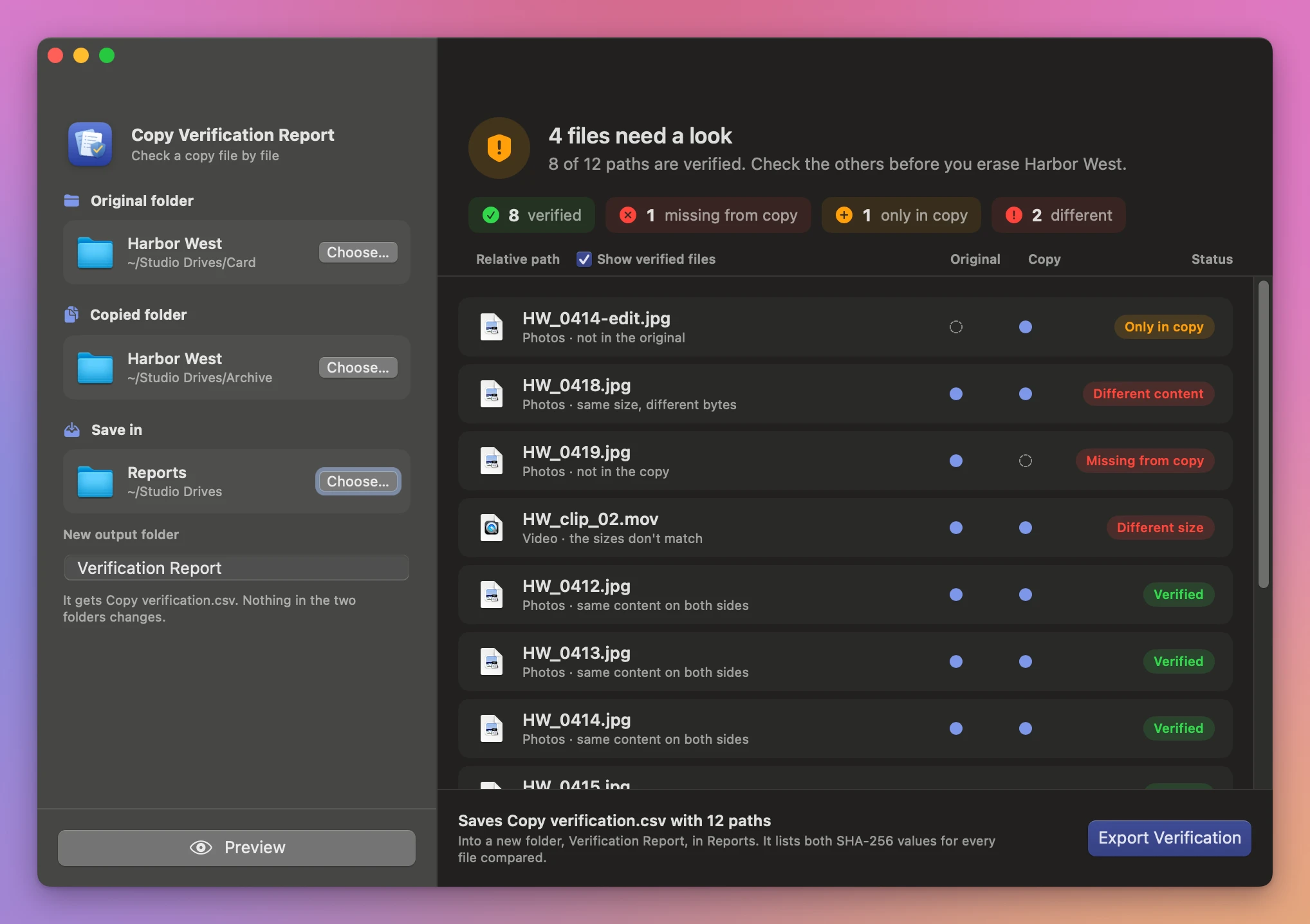
Copy Verification Report compares the original folder and the copy file by file. It matches each file by its path inside the folder, then reads both copies and compares their SHA-256 fingerprints. You get a list of what matched, what’s missing, what’s extra and what’s different, and a CSV you can keep.
Who it’s for
- Photographers and videographers. You offload a wedding from two cards to a drive before you reuse the cards. Run the check, see every file marked Verified, and format the cards knowing the copy is complete.
- Anyone moving to a new Mac or a new drive. You copied 15 years of documents and family photos to a new disk. Before you erase the old one, you want proof that nothing was left behind or arrived damaged.
- Small studios and archives. You keep a second copy of each finished project on another drive. Every few months you compare it with the original and file the CSV as a record of what matched on that day.
- Office managers moving to a NAS. You dragged the shared folder from the old server to the new one. The report shows the files that didn’t come over, so you can fix them before people start working on the new copy.
- Freelancers receiving files. A client sent the same folder twice, once by link and once on a USB stick. Compare the two and find the three files that differ before you start work on the wrong version.
From copy to proof
Say you’ve copied a shoot called 2026-11-14 Harbor West from a card to your archive drive.
- Under Original folder, click Choose… and pick the folder on the card.
- Under Copied folder, pick the copy on the drive.
- Under Save in, choose where to put the report, outside both folders. Name it in New output folder. The default is
Verification Report. - Click Preview. The app walks both folders, then reads every pair of same-size files and compares their content. On a big shoot this takes a while, because it reads every byte on both sides.
- Read the Status column. You want a long list of Verified. Anything else needs a look: Missing from copy, Only in copy, Different size or Different content.
- Click Export Verification. Click Show in Finder to open the folder with
Copy verification.csv.
If everything says Verified, you’re done. If a few files are missing, copy them again and run another preview. When the list is clean, export the CSV and keep it with the project.
Doing this by hand on 3,000 files means opening both folders in list view and comparing names and sizes row by row. That catches missing files if you’re patient. It can’t catch two files with the same size and different content, which is what a damaged copy looks like.
What it does
Matches files by their place in the folder
The app pairs files by their relative path, like Assets/Proof.txt. So two files both called Cover.jpg in different subfolders are each compared with their own counterpart, not with each other. Every subfolder is included.
Checks content, not only names
When both sides have a file at the same path, the app compares their sizes first. Different sizes are flagged right away as Different size. When the sizes match, it reads both files in full and computes a SHA-256 fingerprint for each. Equal fingerprints mean the content is identical. Different ones mean something changed, and the file is marked Different content.
The statuses
| Status | What it means |
|---|---|
| Verified | Same path, same size, same SHA-256 |
| Different size | Same path, different number of bytes |
| Different content | Same path and size, different SHA-256 |
| Missing from copy | Only in the original |
| Only in copy | Only in the copy |
| Could not verify | A file couldn’t be read, or changed while it was being read |
If a file changes while the app is reading it, the app doesn’t pretend it matched. It marks it Could not verify with the reason.
The CSV
Copy verification.csv has one row per path with four columns: Relative path, Status, Source SHA-256 and Copy SHA-256. It opens in Numbers, Excel or Google Sheets. Filter by status to see only the problems, or keep the whole file as a dated record of the check.
Read-only on both sides
The app never writes to the two folders you compare. It doesn’t fix, copy or delete anything. The report goes into a new folder at the place you chose under Save in, and the app won’t overwrite an existing folder with the same name.
Why not trust Finder’s copy
Finder’s copy is reliable most of the time, and it reports errors it notices. The trouble is the errors it doesn’t notice, and the copies you didn’t watch: a drag that was cancelled halfway, a drive that went to sleep, a sync tool that skipped files with odd names.
Get Info shows a folder’s total size and item count. If both match, the copy is probably fine, but “probably” is the problem when you’re about to erase the card. Terminal has diff -r and shasum, which can do this job if you’re comfortable writing and reading their output.
| Finder and Get Info | Copy Verification Report | |
|---|---|---|
| Missing files | Only if the item count is visibly off | Each one listed by path |
| Extra files in the copy | Only if the count is visibly off | Each one listed as Only in copy |
| Same size, damaged content | Not detected | Flagged as Different content |
| A record to keep | Nothing | A CSV with both SHA-256 values |
| 3,000 files | An hour of comparing rows | One preview |
| Your folders | Untouched | Untouched, read-only |
What it doesn’t do
- It doesn’t repair or recopy files. It tells you what’s wrong. You copy the missing or damaged files again yourself.
- It doesn’t compare permissions, dates or tags. It compares file content. Two files with the same content and different modification dates are Verified.
- It doesn’t look inside packages. macOS packages, like a Photos library or a Final Cut Pro library, are skipped along with symlinks and special files. They’re listed as skipped so you know. To check one, compare a regular folder of exported files instead.
- It doesn’t ignore any files. A
.DS_Storethat differs between the two sides shows up as a difference like any other file. - It doesn’t match renamed files. If a file was renamed in the copy, it shows as missing on one side and extra on the other.
- It compares two folders at a time, not a whole set of drives in one run.
Questions
Can it damage my original files?
Both folders are only read. The app writes nothing to them, and the report goes into a separate folder you choose.
How long does it take?
It depends on how much data there is and how fast the drives are. The app reads every file of equal size on both sides in full, so checking 200 GB means reading 200 GB twice. You can click Cancel at any point.
What is SHA-256?
A fingerprint computed from a file’s content. If one byte changes, the fingerprint changes. The CSV lists both fingerprints for every pair the app compared, so anyone can check them later.
Does anything get uploaded?
The files are processed on your Mac. The only time the app goes online is the daily update check.
Does it work on Intel Macs?
Yes. It runs on macOS 14 Sonoma or later, on Apple silicon and Intel.
The documentation explains each status in detail. If you need a list of what a folder contains to send with a delivery, Folder Manifest Maker writes one as a CSV and a printable PDF.
Buy Copy Verification Report
$20 plus tax where it applies, paid once. Download the app from the purchase page or your Creem receipt.
Unzip the download and drag the app to Applications. It runs on macOS 14 Sonoma or later on Apple silicon and Intel Macs. File processing happens on your Mac.
The app checks for updates once a day. When a new version is ready, click Install and Relaunch. To check anytime, choose Copy Verification Report → Check for Updates….