
An app by Flavio
Folder Manifest Maker
List every file in a folder with its path, size, date and optional SHA-256 checksum, as a spreadsheet and a printable PDF, made on your Mac.
Buy Folder Manifest Maker · $20One-time purchase. Plus tax where it applies.
macOS 14 or later · Apple silicon and Intel
The final assets for Harbor West are ready to hand over: 400 files in a dozen subfolders. The client asks for a list of everything you’re delivering. Their accounts team wants it as a spreadsheet, and the project manager wants a PDF to attach to the sign-off email.
Finder shows you the files, their sizes and dates in list view. It has no button to save that list. Copying names by hand loses the subfolder paths, and 400 rows is an afternoon of typing and checking.
Folder Manifest Maker walks the folder and every subfolder and writes the list for you. You get a CSV for the spreadsheet and a paginated PDF with your title on top. Each file is listed by its path inside the folder, with its size, its modification date and, if you want, a SHA-256 checksum that proves later what the file contained.
Who it’s for
- Agencies and freelancers. You close a project by sending the final files on a link that expires in seven days. The manifest goes with them, so the client can tick off what arrived and you have a record of what you sent if they ask in six months.
- Photographers and video producers. You deliver a drive to a client. A printed inventory in the box tells them what’s on it, folder by folder, without plugging it in.
- Archivists and librarians. A donor brings a hard drive of family papers. You record what was on it the day it arrived, with SHA-256 checksums, so anyone can check later that the files haven’t changed.
- Legal and compliance staff. You hand over a set of documents in a disclosure. The manifest lists exactly which files went out, with sizes, dates and checksums, and it’s easy to attach to a cover letter.
- Office managers cleaning up a shared drive. Before you reorganize or migrate it, you save a list of everything that was there. When someone asks where a file went, you can search the CSV.
From folder to manifest
Say you’re handing over the Harbor West project.
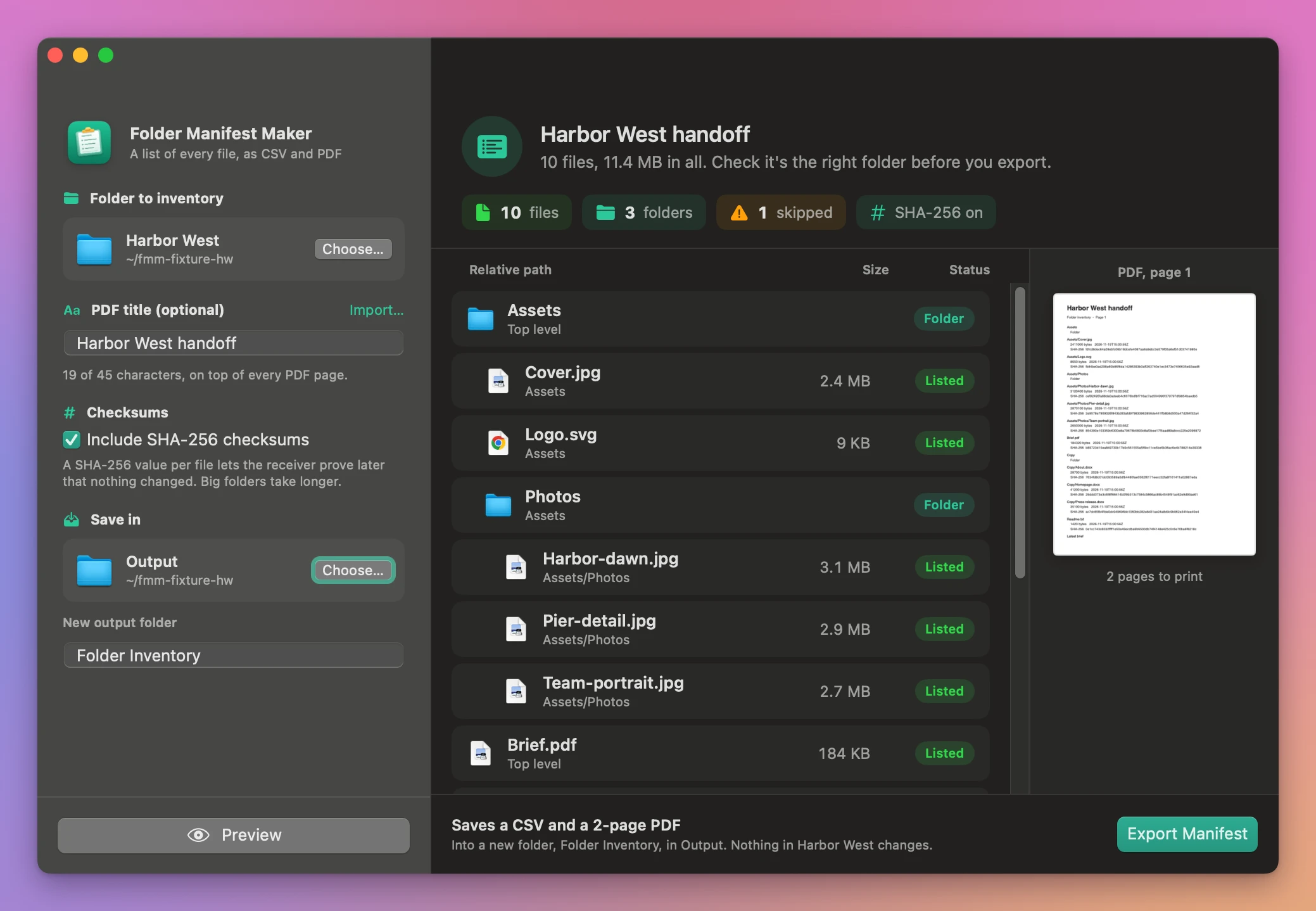
- Under Folder to inventory, click Choose… and pick the project folder.
- Type a title in PDF title (optional), like
Harbor West handoff. Leave it empty and the PDF uses the folder’s name. - Switch on Include SHA-256 checksums if the receiver needs to check file content, or if this is a record you’ll keep.
- Under Save in, choose where the manifest goes, and name it in New output folder. The default is
Folder Inventory. - Click Preview. The list shows every folder and file with its folder, its size and a colored pill, next to a picture of the PDF’s first page. Counts at the top tell you how many files, folders and skipped items there are. Scroll through and check it’s the right folder and nothing unexpected is in there, like a stray draft.
- Click Export Manifest, then Show in Finder.
The new folder holds two files: Folder manifest.csv and Folder manifest.pdf. Attach the PDF to your email and send the CSV to whoever wants to sort it. The whole job takes a couple of minutes, most of it spent reading the preview.
What it does
The CSV
Folder manifest.csv has one row per file and folder, with five columns:
| Column | Example |
|---|---|
| Relative path | Assets/Cover.txt |
| Type | File or Folder |
| Bytes | 13 |
| Modified (UTC) | 2026-11-17T09:42:10Z |
| SHA-256 | the checksum, when switched on |
It opens in Numbers, Excel or Google Sheets. Sort by size to find the heavy files, or filter by a subfolder to send one section of the list.
The PDF
Folder manifest.pdf is a US Letter document. Your title sits at the top of each page with “Folder inventory” and the page number. Each entry shows its path on one line, then the size in bytes and the date, then the checksum when you asked for one. Long paths wrap across lines instead of being cut off. It’s plain and readable, made for printing and attaching.
Relative paths
Paths start at the folder you chose. The manifest says Assets/Cover.txt, not /Users/yourname/Clients/2026/Harbor West/Assets/Cover.txt. The receiver sees the structure of the delivery, not the layout of your disk or your username.
Optional SHA-256 checksums
A SHA-256 checksum is a fingerprint computed from a file’s content. Change one byte and the fingerprint changes. With checksums in the manifest, the receiver can check a file months later and know it’s the one you sent. The preview takes longer with checksums on, because the app reads every byte of every file. On a folder of large videos, expect to wait.
Every subfolder, and nothing changed
The app goes through every level of subfolders. It only reads. Your files aren’t moved, renamed or touched, and the manifest goes into a new folder that the app won’t create on top of an existing one.
Why not list the files by hand
Finder’s list view shows names, sizes and dates, and you can expand subfolders. What it can’t do is save that view as a file. You can select files, copy and paste them into a document, but you get names without their folder paths, and you’d do it one folder at a time.
Terminal can print a list with ls -lR or find, if you’re comfortable there. The output isn’t a tidy spreadsheet, and it’s not something to send a client.
| By hand in Finder | Folder Manifest Maker | |
|---|---|---|
| 400 files in 12 subfolders | An afternoon of copying and checking | One preview |
| Folder paths | Lost when you copy names | Every entry has its relative path |
| Sizes and dates | Typed in one by one | Exact bytes and UTC dates |
| Checksums | Not available | Optional SHA-256 per file |
| Formats | Whatever document you typed in | CSV and a printable PDF |
| Your files | Untouched | Untouched |
What it doesn’t do
- It doesn’t check a manifest against a folder later. It writes the list. To compare a copy with the original, see below.
- It doesn’t look inside packages or follow links. macOS packages, like a Photos library or a Final Cut Pro library, are skipped along with symlinks and special files. Each one is listed as skipped in the preview and in the CSV.
- It doesn’t hide any files. Hidden files like
.DS_Storeare listed like any other file. Delete them before you preview if you don’t want them in the list. - It doesn’t add thumbnails, notes or a logo to the PDF. The title is one line of up to 45 characters.
- It doesn’t make other paper sizes. The PDF is US Letter.
- It doesn’t send or upload the manifest. You attach it to your email or put it in the box yourself.
Questions
Does it change anything in my folder?
No. It reads the folder and writes two new files into a separate output folder.
How long does it take?
Without checksums, about as long as it takes to list the files, usually seconds. With checksums, the app reads every file in full, so it depends on how much data there is and how fast the drive is. You can click Cancel at any point.
Can I use it on an external drive?
Yes. Choose the drive or any folder on it under Folder to inventory, and save the manifest anywhere outside that folder.
Does anything get uploaded?
The files are processed on your Mac. The only time the app goes online is the daily update check.
Does it work on Intel Macs?
Yes. It runs on macOS 14 Sonoma or later, on Apple silicon and Intel.
The documentation goes through every option. If you need to check that a copy of a folder matches the original, Copy Verification Report compares the two file by file. To send the folder itself as a clean ZIP for a Windows client, there’s Clean Client ZIPs.
Buy Folder Manifest Maker
$20 plus tax where it applies, paid once. Download the app from the purchase page or your Creem receipt.
Unzip the download and drag the app to Applications. It runs on macOS 14 Sonoma or later on Apple silicon and Intel Macs. File processing happens on your Mac.
The app checks for updates once a day. When a new version is ready, click Install and Relaunch. To check anytime, choose Folder Manifest Maker → Check for Updates….