How I use text expanding to save time
By Flavio Copes
How I use text expanding to save time answering repetitive emails, setting up snippets with abbreviations in the macOS app Dash to type long replies fast.
Before going to sleep, at 10pm, I answered the most important emails I had in the inbox.
I slept 8 hours straight (the minimum amount that makes me properly work as a human) and I woke up with 67 new emails.
I am launching my JavaScript Full-Stack Bootcamp and that’s part of the fun of doing a launch. I get a lot of emails from people asking questions, students that want to join the students plan, and also signup notifications.
Part of those emails want the same exact answer as a base, with some personalization. For example, every time I hand out a student’s or purchase power parity discount, there is a lot to write.
So I set up a way to make this process faster, without losing the personal touch that I want. By making it faster to answer common requests that take me a lot of time to answer, I can dedicate more time to answering less common requests.
There are many apps that can do this, but I had one already installed, so I used that.
It’s a macOS app called Dash. It helps us developers quickly find code documentation, and it’s very usable even in its free version.
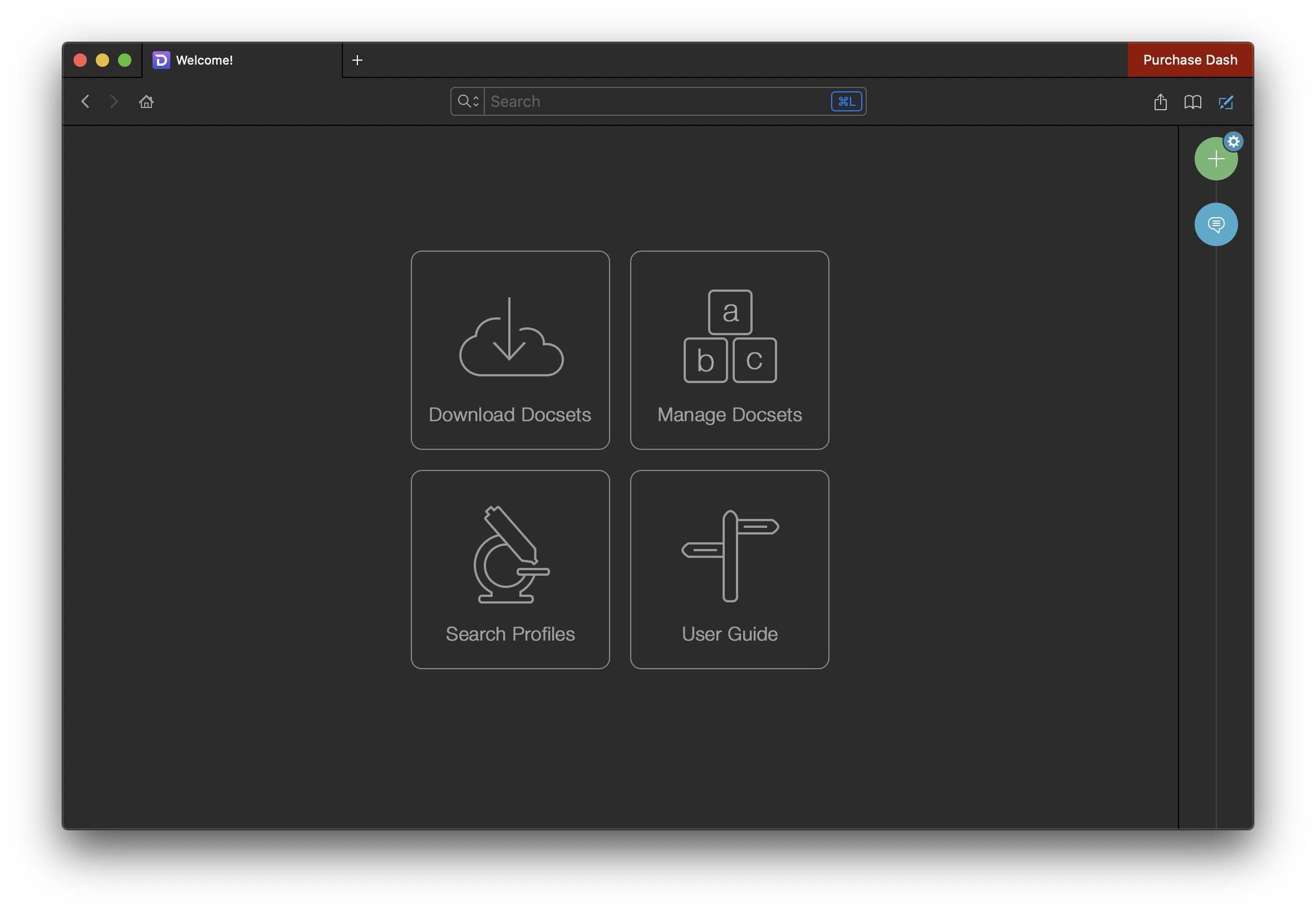
You can download the documentation for all the stuff you use:
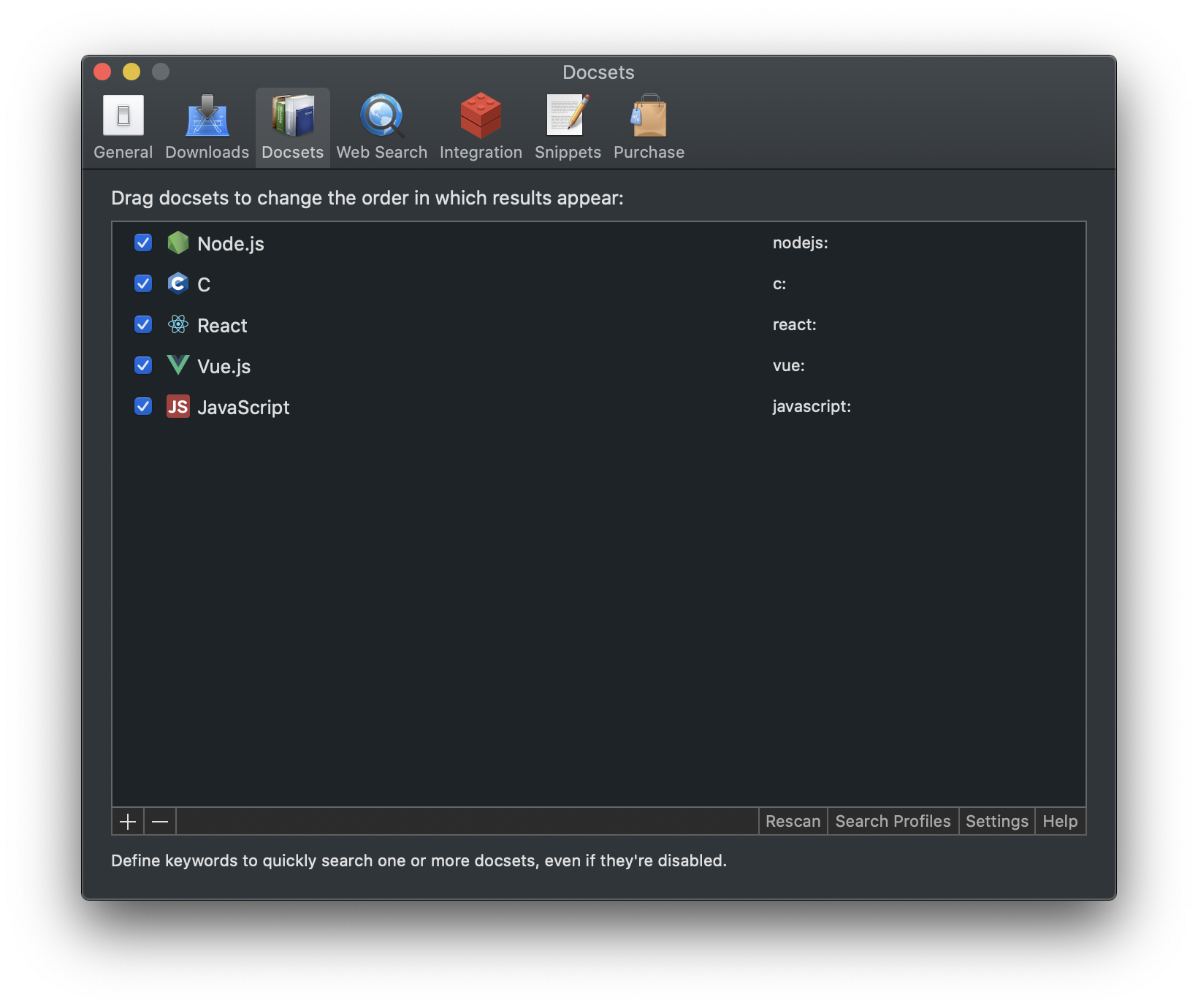
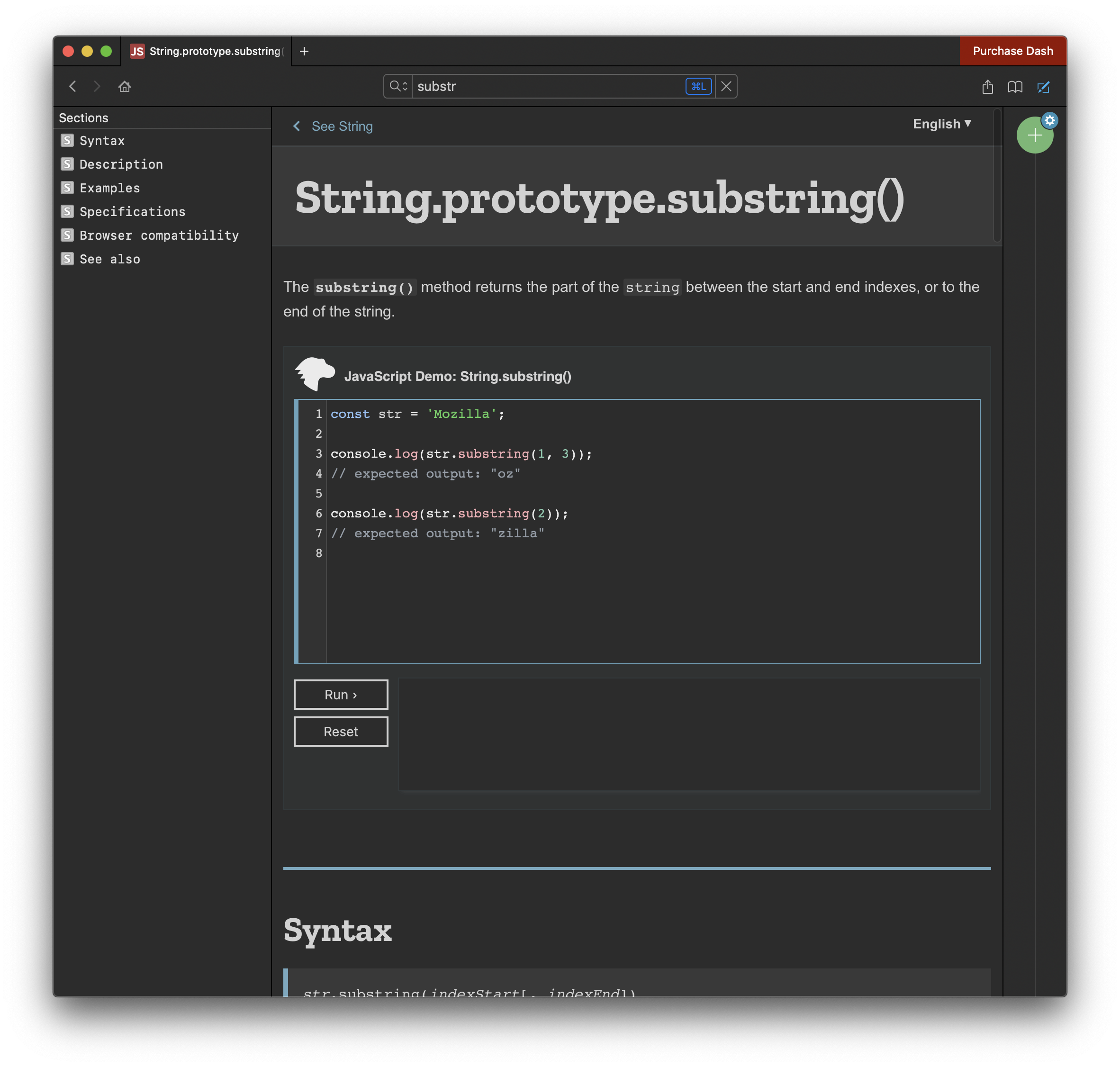
Then you can search for the things you need, without using Google all the time:
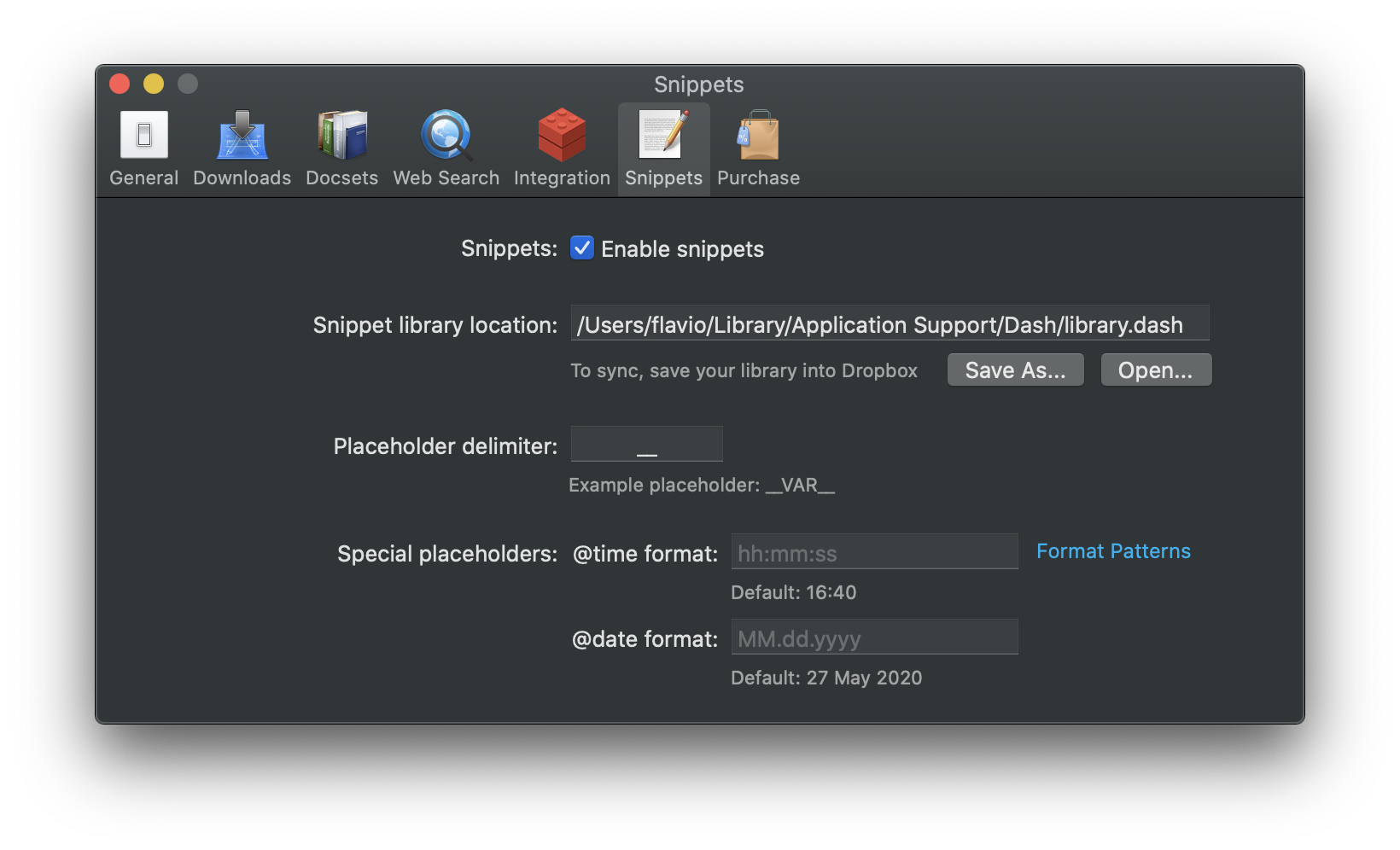
One feature this application has is called Snippets. You need to enable it in the settings:
Then you’ll see the New Snippet option in the File menu:
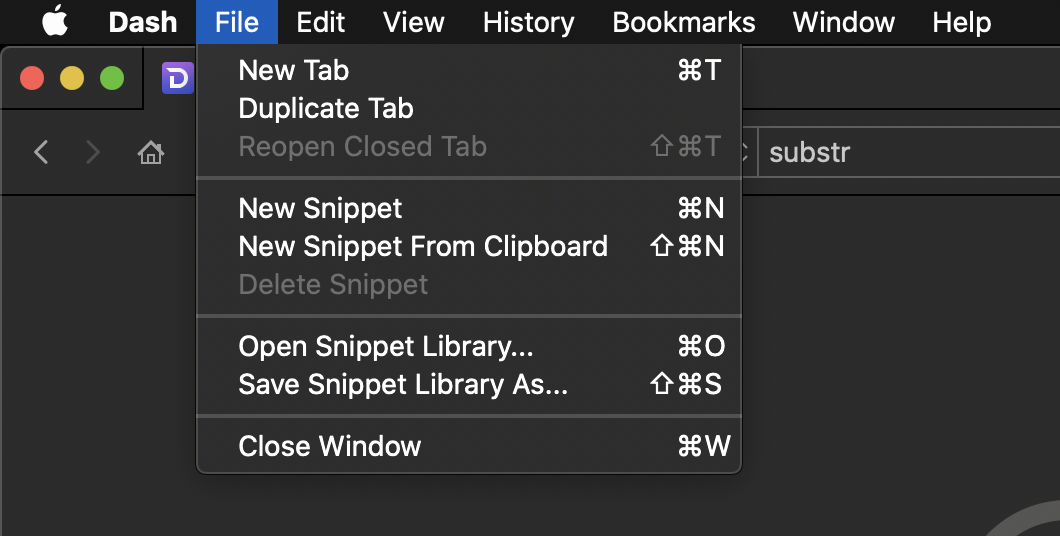
There we go:
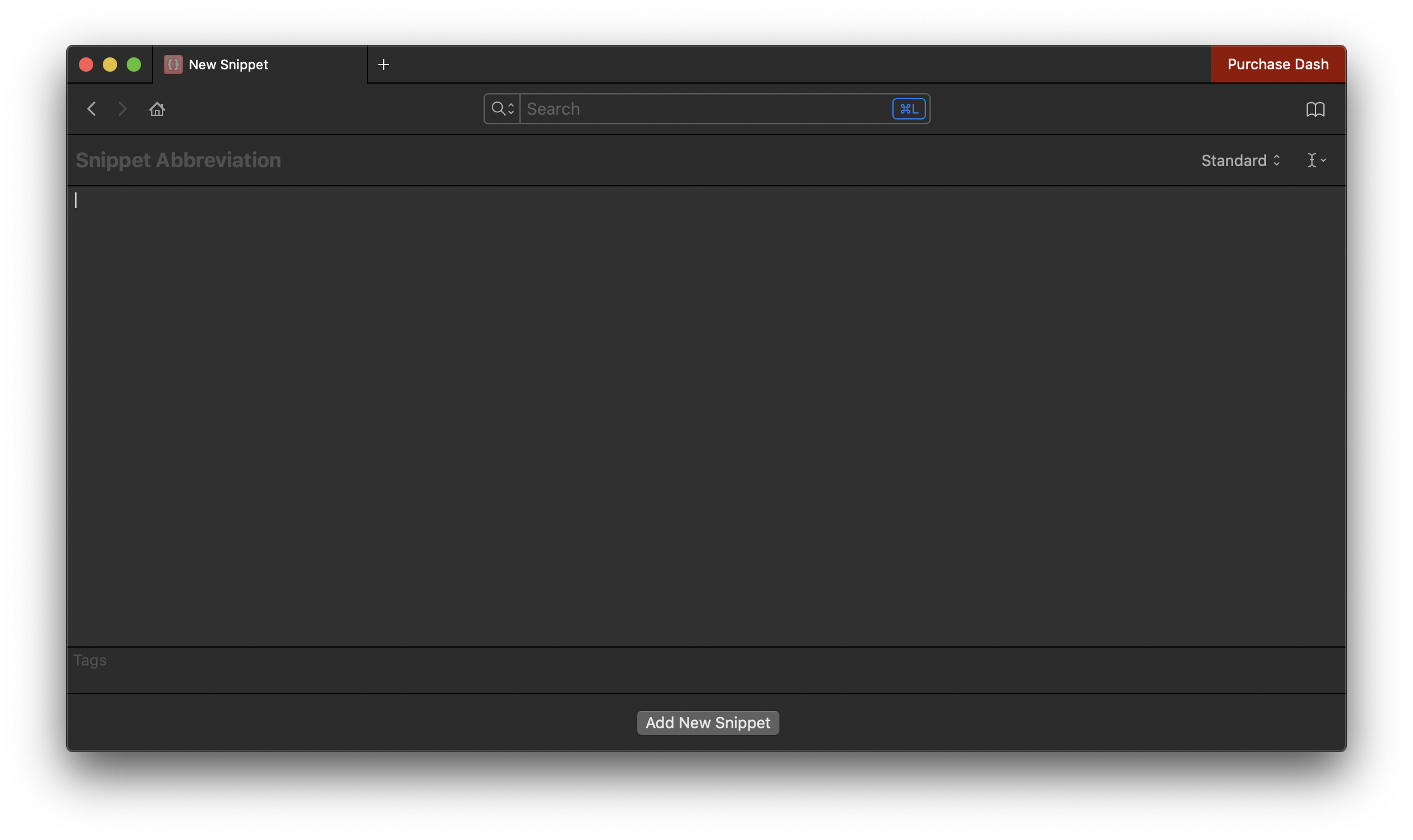
Now you can write some text in the main part of the window, and add the abbreviation you want. I start mine with the backtick, to make sure I do not accidentally trigger them, but you can use anything you want:
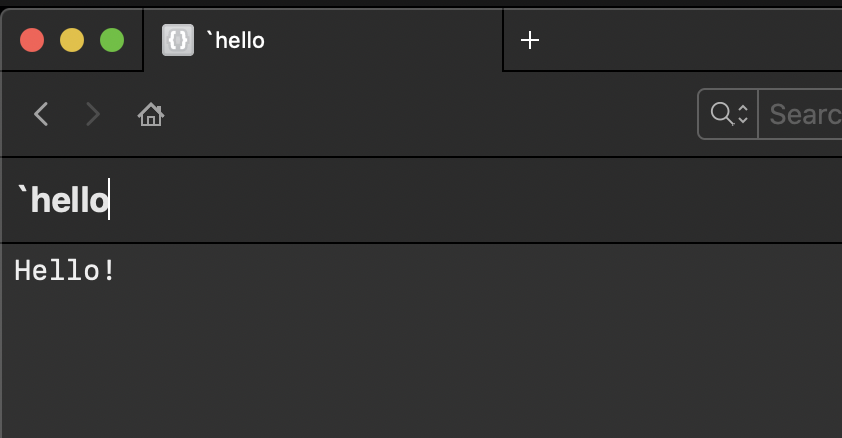
Now I can open any application, and typing the backtick followed by hello will automatically transform that to Hello!.
With longer text this will prove to be very useful.
One thing you can have is placeholders.
Click the far-right button and choose “Placeholder”
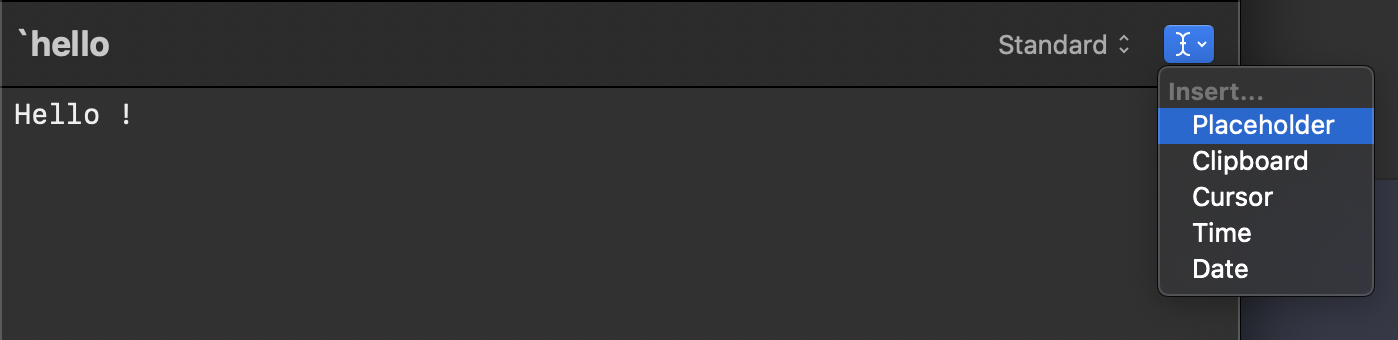
You’ll see it being added to the text:
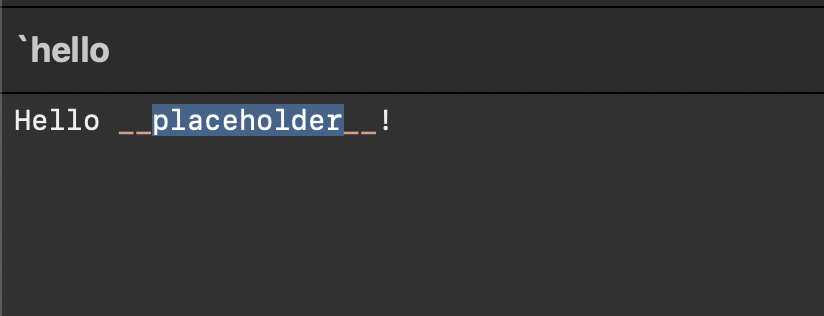
Now when I type my snippet abbreviation, I get a popup that lets me enter the value I want:
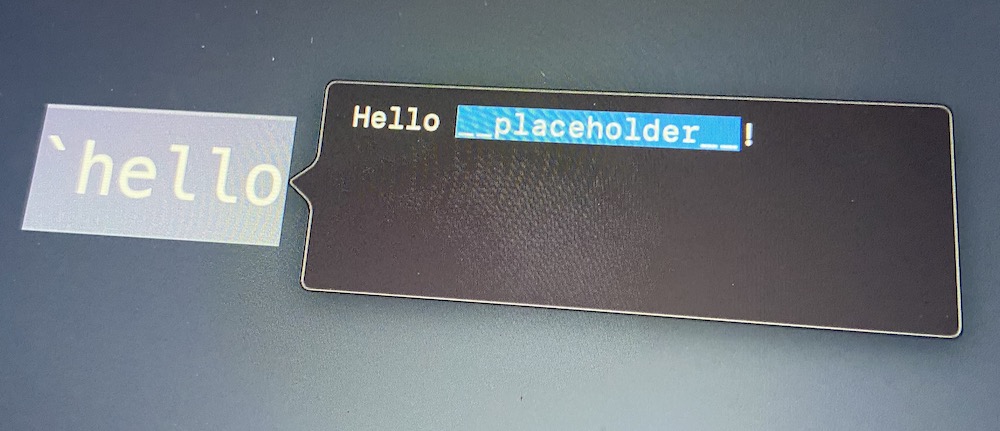
You can have multiple placeholders, and also you can use the other options to add the content of the clipboard, the date, place the cursor where you want… it’s handy.
It’s mostly meant for code snippets, but I found it very useful for this option, too.
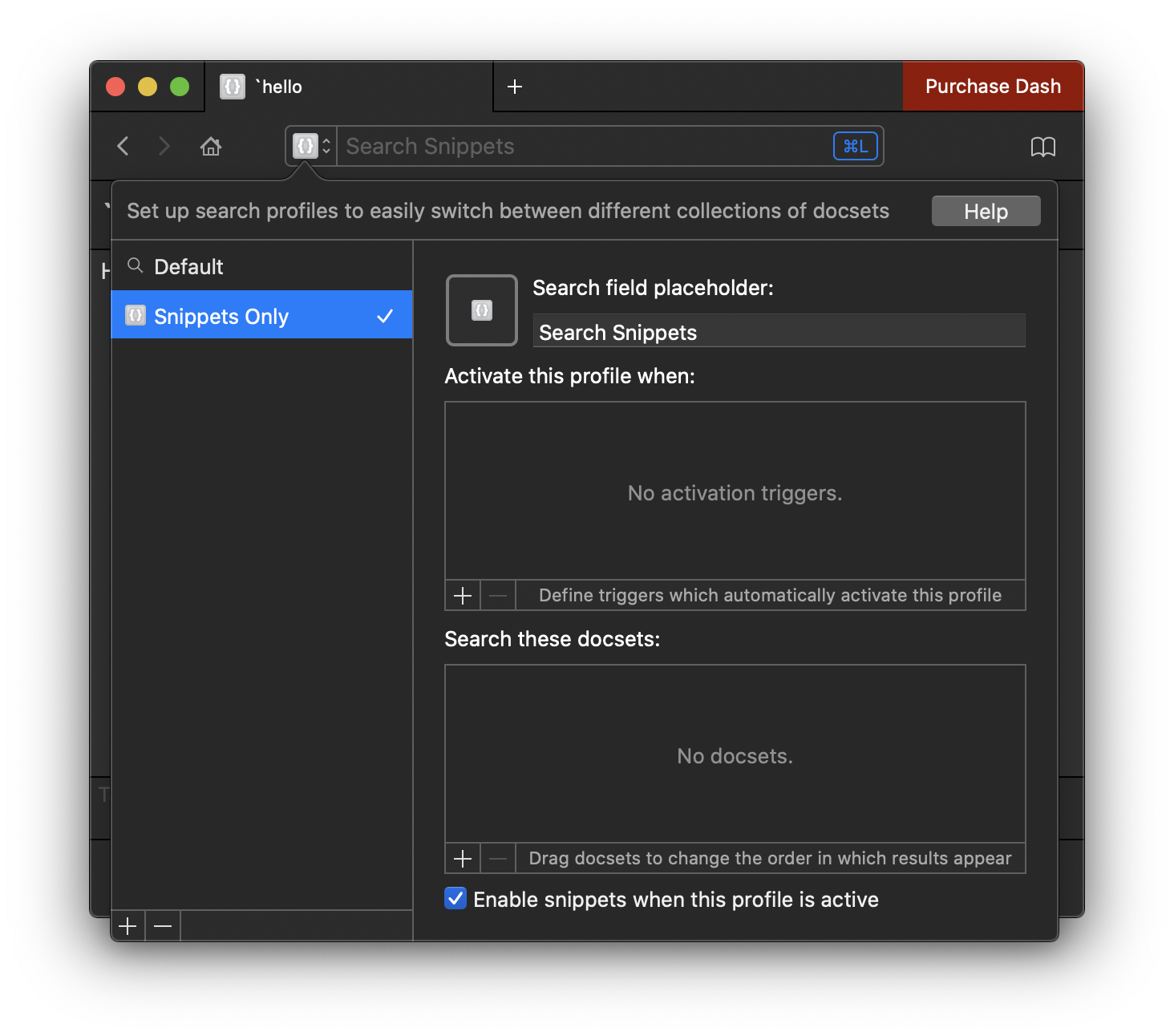
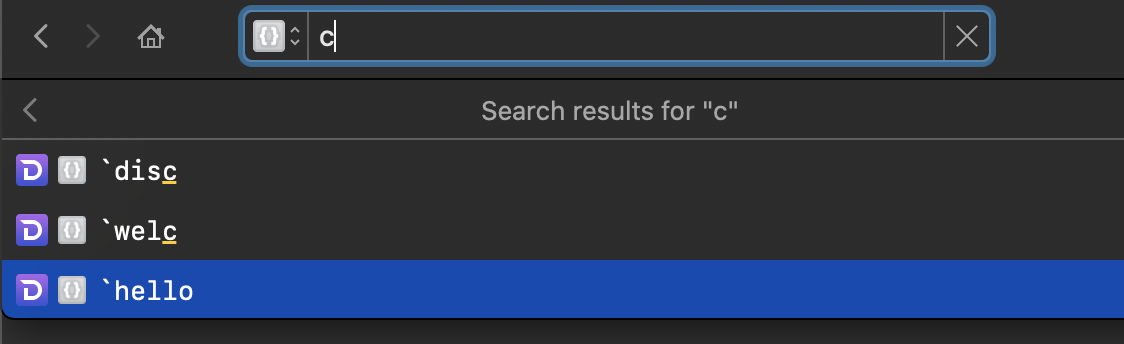
Once you have many code snippets, you’ll want to set up a search profile, so you can search just snippets instead of also searching in all the docsets you installed, to find them more easily.
Otherwise by default search will look everywhere, and it might be impossible to find your snippets quickly:
Want me to talk about your product? You can sponsor this site.
Related posts about tutorial: