How to install SQLite on Mac (it's already installed)
By Flavio Copes
SQLite comes preinstalled on macOS. Learn how to check your version, open the sqlite3 shell, upgrade with Homebrew, and browse a database with TablePlus.
On macOS, you don’t need to do anything to install SQLite. It’s preinstalled in all modern versions of macOS.
That’s because SQLite is not a database server. It’s a library that reads and writes a single database file, and macOS itself uses it everywhere, so the sqlite3 command-line shell ships with the system.
All you need to do is to open a terminal and run the
sqlite3command.
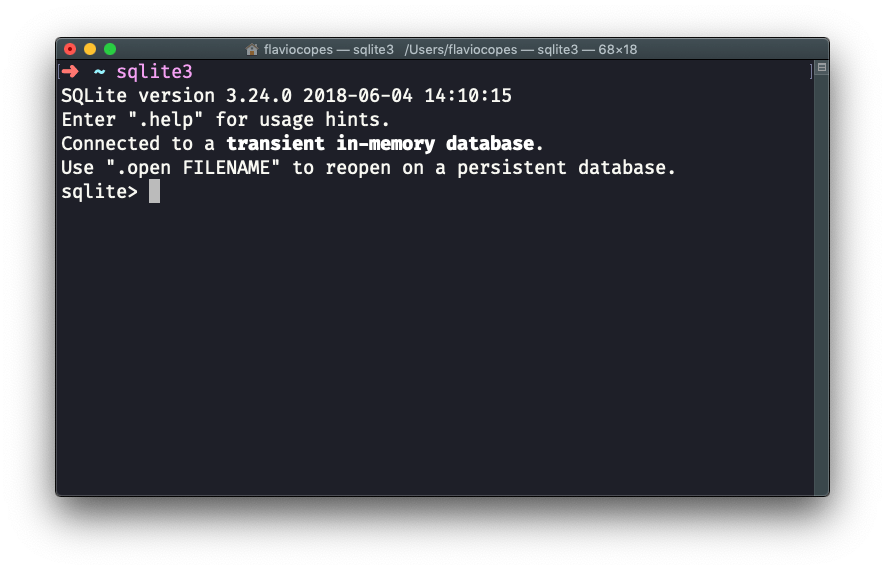
You get a sqlite> prompt where you can type SQL. Press ctrl-C 2 times to exit the SQLite executable, or type .quit.
Run without a file name, like we just did, SQLite works on a temporary in-memory database that disappears when you exit. To work with a real file, pass its path:
sqlite3 test.dbTo check which version you have:
sqlite3 --version
# 3.53.4 2026-07-24 19:02:57 ...
The system copy lags behind the latest release. That’s usually fine. If you need a newer version for a specific feature, install one with Homebrew:
brew install sqliteHomebrew installs it “keg-only”, meaning it does not replace the system sqlite3 on your PATH. Run brew info sqlite and it prints the exact path of the new binary, something like /opt/homebrew/opt/sqlite/bin/sqlite3.
On Windows, download the “Precompiled Binaries for Windows” bundle from the official SQLite download page. On Linux, your package manager has it: sudo apt install sqlite3 on Debian and Ubuntu.
Browse a database visually with TablePlus
A great software we can use to interact with a SQLite database is TablePlus. It comes with a free trial that’s perfect for our usage, because it’s not time-based but rather it limits the amount of concurrent connections you can make to the database.
Download it from https://tableplus.com. I know there are macOS, Windows and Linux versions.
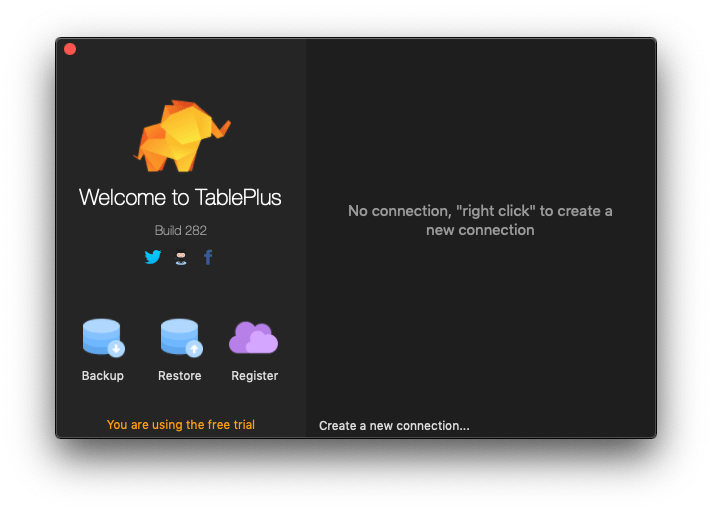
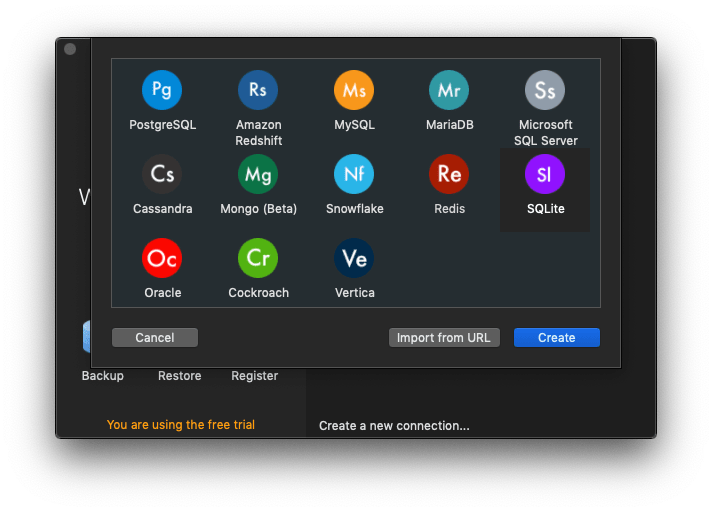
You create a new connection, choosing SQLite:
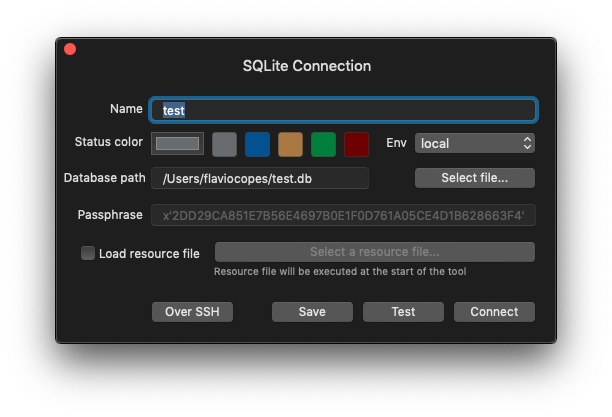
You select a name, and type a database path. I choose test.db, in the /Users/flaviocopes/ folder:
SQLite is pretty cool because the database is contained in a file, which you can put pretty much everywhere you want. This is radically different from PostgreSQL, and MySQL and other big DBMS.
If you’re wondering how SQLite compares to those bigger databases, I built a free Postgres vs SQLite vs MySQL comparison tool that lays out the differences.
Pressing Connect, the connection was successfully created:
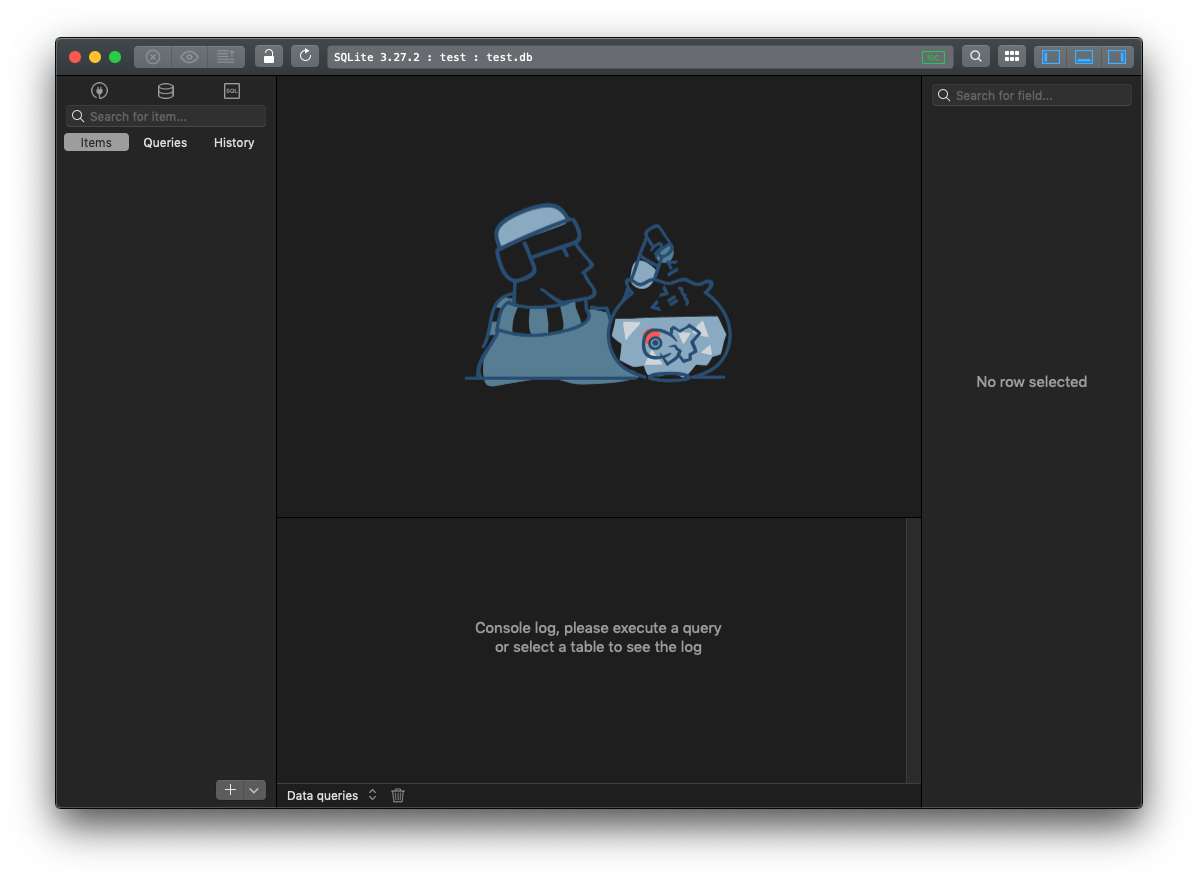
and I can see the file created in that folder, with zero KB of size:
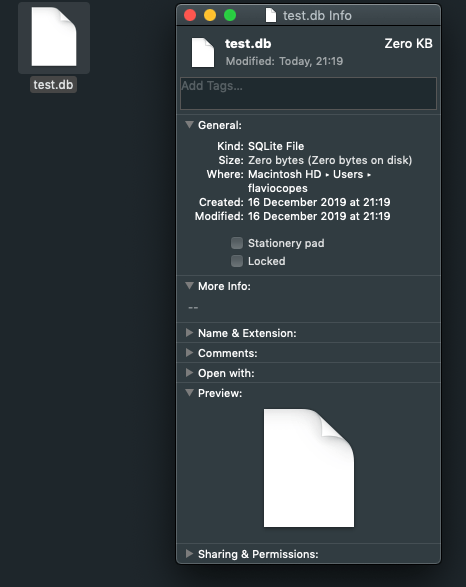
The zero bytes are not a bug. SQLite only writes the file header when you create the first table or insert the first data. An empty connection leaves an empty file.
One thing to watch out for: if you mistype the database path, SQLite does not complain. It just creates a new empty database at the wrong path, and you sit there wondering where your tables went. When a database looks mysteriously empty, check the path first. Inside the shell, .databases prints the full path of the file you actually opened.
Want me to talk about your product? You can sponsor this site.
Related posts about database: