How to configure HTTPS in a React app on localhost
By Flavio Copes
Learn how to configure HTTPS on localhost in a Vite React app with server.https, and generate a local SSL certificate with openssl.
If you built a React application with Vite and you’re running it locally on your computer, by default it is served using the HTTP protocol.
Any application running in production will be served using HTTPS, the secure version of HTTP.
You will get HTTPS almost with no effort in most cases, especially if you use a modern platform like Netlify or Vercel to serve your app.
But locally.. it’s a bit more complicated that we’d like.
Let’s see how you can do it!
Vite serves the app with npm run dev. HTTPS is configured in vite.config.js through server.https, not with an environment variable.
This post originally covered
create-react-app, where you setHTTPS=truein thestartscript ("start": "HTTPS=true react-scripts start"), plus the optionalSSL_CRT_FILEandSSL_KEY_FILEvariables to point at your own certificate. That still works if you maintain an old CRA project, but CRA is deprecated, so the rest of this post uses Vite.
First generate a local certificate. This step works for any local app, not just Vite.
Note: I ran these commands on macOS. Linux should work in the same way. I don’t guarantee for Windows.
In the project root folder, run:
openssl req -x509 -newkey rsa:2048 -keyout keytmp.pem -out cert.pem -days 365Now run:
openssl rsa -in keytmp.pem -out key.pemYou should now have the files cert.pem and key.pem in the folder.
Then point Vite at those files in vite.config.js:
import { defineConfig } from 'vite'
import react from '@vitejs/plugin-react'
import fs from 'fs'

export default defineConfig({
  plugins: [react()],
  server: {
    https: {
      key: fs.readFileSync('./key.pem'),
      cert: fs.readFileSync('./cert.pem'),
    },
  },
})
If you don’t want to run openssl yourself, the official @vitejs/plugin-basic-ssl plugin generates a self-signed certificate for you. Install it with npm install -D @vitejs/plugin-basic-ssl and add basicSsl() to the plugins array. You get the same browser warning either way, since the certificate is not trusted by your system.
Now run npm run dev and open https://localhost:5173 (or the port your app uses, if different). You should see a warning message like this one (the screenshot is from the original create-react-app version of this post, which ran on port 3008):
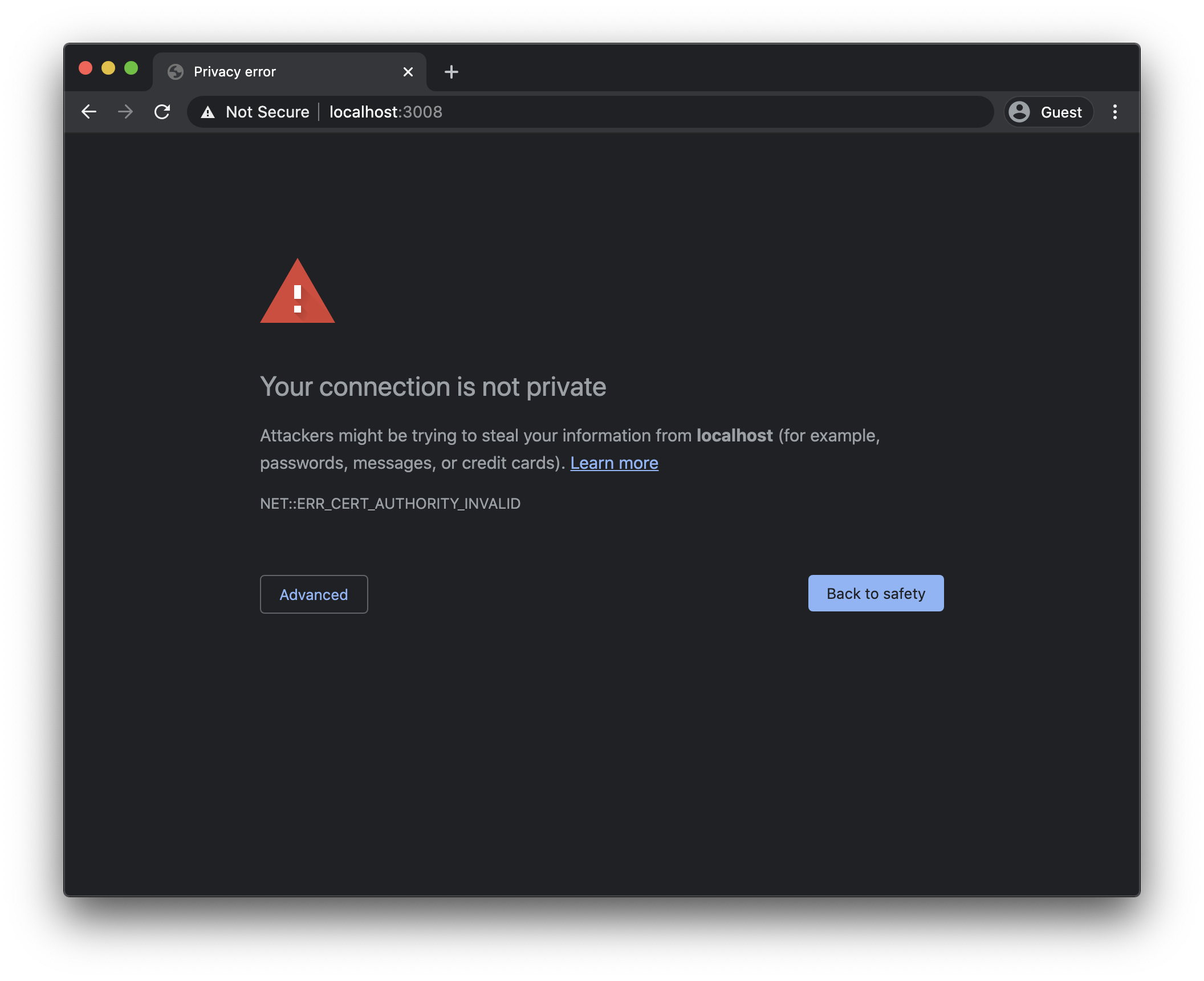
To fix it on macOS, follow the instructions of my tutorial how to install a local certificate in macOS.
Once you do, you will be able to see the app without problems, served using SSL. The warning is gone and the address bar shows the lock icon.
Want me to talk about your product? You can sponsor this site.