Fix the 'Missing write access' error in npm
By Flavio Copes
Learn how to fix the Missing write access to node_modules error when installing global npm packages, using a node version manager or a user-owned npm prefix.
The first time you try to install a package globally using npm, using the syntax npm install -g <package> on a Mac, or Linux, you might get a weird error, saying something like
Missing write access to /usr/local/lib/node_modules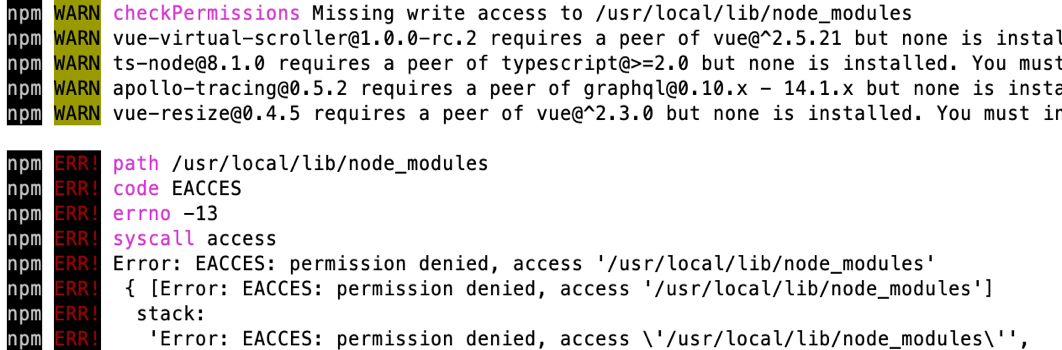
or something along those lines, followed by a long list of other errors of warnings, a consequence of the first error that’s printed to you.
This error is preventing us to install the package.
How do you fix this? It’s a permission error, which means you don’t have write access to the folder where Node stores the global packages.
The tempting fix is sudo npm install -g <package>. Don’t do that. It works once, but it leaves files owned by root in there, and the next install fails in a worse way.
You have 3 options. Let’s start from the one npm recommends.
Install Node with a version manager
npm’s own docs recommend this one: install Node through a version manager like nvm, fnm or asdf.
Those tools put Node and the global packages in a folder inside your home directory. You own it, so npm install -g works with no extra step. You don’t need to remove the Node you already have.
And if you only need a command line tool once in a while, skip the global install and run it with npx.
Change the folder npm uses for global packages
If you want to keep the Node you have, tell npm to use a folder you own. This is what the npm docs suggest:
mkdir -p ~/.local
npm config set prefix ~/.local
Then add this line to ~/.profile, so the shell finds the commands you install there:
PATH=~/.local/bin:$PATHIf you use zsh, which is the default on macOS, also add source ~/.profile to ~/.zprofile. Run source ~/.profile (or open a new terminal), then try the global install again, without sudo.
Take ownership of the folder
This is the fix I originally wrote this post about, and it still works if you are the only user of the computer. Run this command:
sudo chown -R $USER /usr/local/lib/node_modulesLet’s break it down:
sudo means we are running this command as root, the system super user. This is because we don’t have permission to write to that folder, but root will be able to fix any permission. This command also means the system will ask for your password to confirm.
chown is the command we use to change the owner of a file or folder. We set the -R option to change the owner recursively, so we also get owner access to all the files already contained in there.
$USER is an environment variable automatically set to your username.
And the final piece is the folder path.
Running this will make the folder yours, so you can safely run your npm install -g <package> commands!
Pay attention to the folder listed by the error message. If it’s different, update the chown command accordingly. On a computer shared with other users, don’t touch /usr/local and go with one of the first two options instead.
If you need to decode those permission strings you see in ls -l, I made a free chmod calculator that translates them for you.
Want me to talk about your product? You can sponsor this site.
Related posts about node: