Linux echo command: -e, -n, and examples in Bash
By Flavio Copes
Use echo to print text in Bash. Learn how -n removes the final newline, -e enables escapes, quoting works, and when to use printf instead.
The echo command prints its arguments, separated by spaces, followed by a newline. In Bash, echo -n leaves off that final newline, and echo -e interprets backslash escapes such as \n and \t.
For a hands-on exercise, practice quoting and writing output in the terminal course.
These examples use Bash, which is available on Linux and macOS. If your terminal uses zsh or Fish, run bash first to follow the Bash examples. No extra package is needed.
This example:
echo "hello"will print hello to the terminal.
echo -n: print without a newline
Use -n when the next output should continue on the same line:
echo -n "Hello "
echo "Flavio"
This prints Hello Flavio on one line. If you run only the first command, your shell prompt may appear beside the output because there is no final newline.
echo -e: interpret backslash escapes in Bash
Use -e to turn \n into a newline:
echo -e 'apple\nbanana'This prints apple and banana on separate lines. The single quotes preserve the backslashes so echo can interpret them.
You can use \t for a tab, or \\ for a literal backslash:
echo -e 'Name\tScore'In Bash, -E disables escape interpretation. Bash normally starts with escapes disabled, but the xpg_echo shell option can change that default.
Why echo -e may behave differently in another shell
Your shell usually runs its own built-in echo. Check which one you are using:
type echoBash, zsh, Fish, and the external echo program can have different defaults and option support. If echo -e prints -e literally, use printf instead:
printf 'apple\nbanana\n'To print a variable without interpreting its contents as options or escapes, use a fixed format:
message='Hello Flavio'
printf '%s\n' "$message"
Use printf '%s' "$message" when you do not want a final newline. This is also a safer choice for portable shell scripts.
Write output to a file
We can append the output to a file:
echo "hello" >> output.txt>> appends to the file. Use > to replace its contents, so be careful with an existing file.
Print variables and shell expansions
We can interpolate environment variables:
echo "The path variable is $PATH"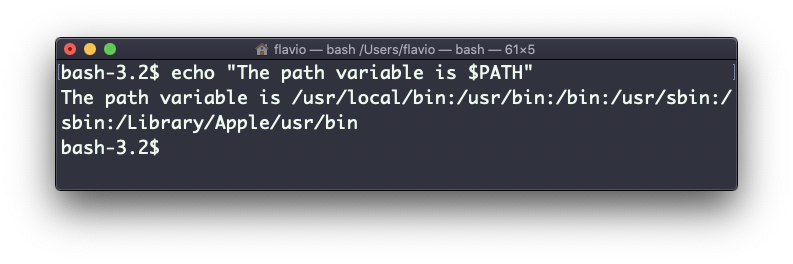
To print a literal $PATH, use single quotes or escape the dollar sign with a backslash. Double quotes allow variable expansion:
echo '$PATH'
echo "\$PATH"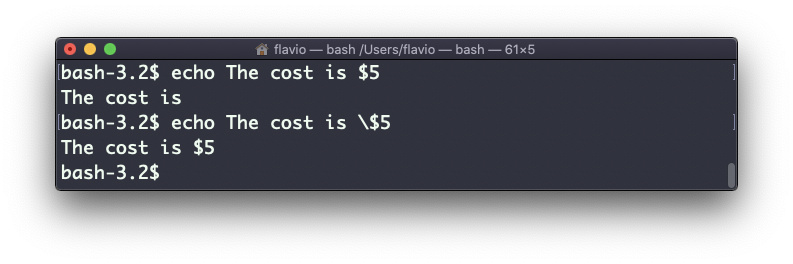
The shell expands variables and filename patterns before echo receives them.
We can echo the files in the current folder:
echo *We can echo the files in the current folder that start with the letter o:
echo o*Quote the pattern, as in echo '*', when you want to print the literal asterisk instead of filenames.
You can print your home folder path:
echo ~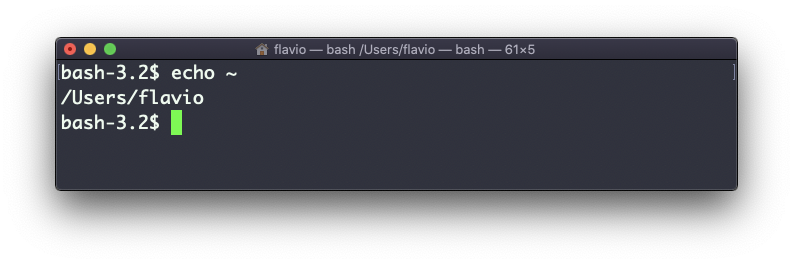
You can also execute commands, and print the result to the standard output (or to file, as you saw):
echo $(ls -al)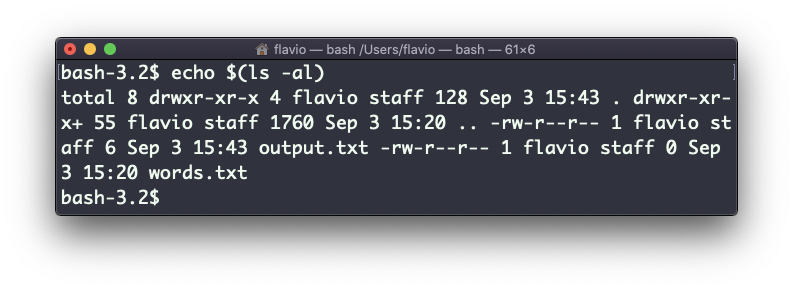
In Bash, an unquoted command substitution is split into words and can expand filename patterns. Wrap it in double quotes to preserve internal spaces and newlines. Command substitution still removes trailing newlines:
echo "$(ls -al)"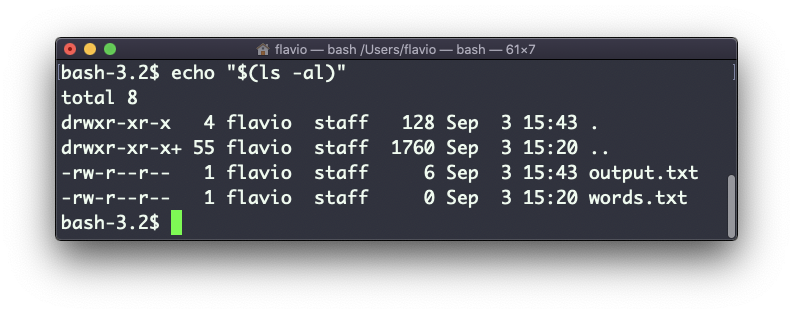
You can generate a list of strings, for example ranges:
echo {1..5}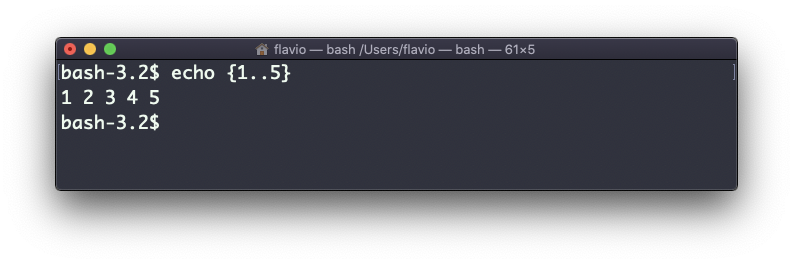
See the Bash echo documentation for the complete escape list and the xpg_echo option.
Want me to talk about your product? You can sponsor this site.