Linux commands: basename
By Flavio Copes
Learn how the Linux basename command returns the last portion of a path, so basename /Users/flavio/test.txt gives you back just the test.txt filename.
Suppose you have a path to a file, for example /Users/flavio/test.txt.
Running
basename /Users/flavio/test.txtwill return the test.txt string:
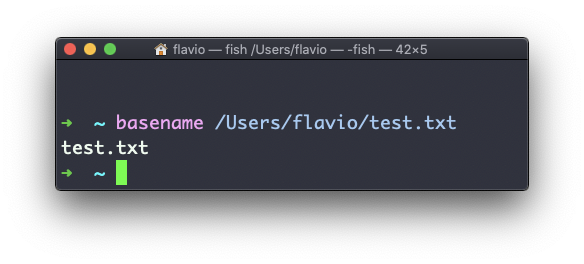
basename strips the directory part from a path and leaves the last portion. It exists for scripts: when a loop or a variable hands you a full path, and you only need the file name for a message, a log line, or a new destination.
A second argument removes a suffix, too:
basename /Users/flavio/test.txt .txt
# test
That’s handy when renaming or converting files. Here is a realistic loop that copies every .txt note to a .md file with the same name:
for file in /Users/flavio/notes/*.txt; do
  name=$(basename "$file" .txt)
  cp "$file" "$name.md"
done
The $(...) command substitution captures the output of basename into the name variable.
If you run basename on a path string that points to a directory, you will get the last segment of the path. In this example, /Users/flavio is a directory:
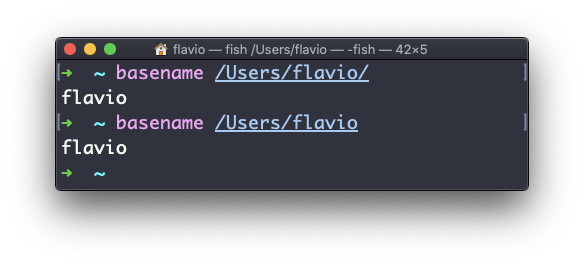
A trailing slash makes no difference: basename /Users/flavio/ also prints flavio.
One thing to keep in mind: basename works on the string alone. It never touches the filesystem, so it happily processes a path that doesn’t exist. Getting output is not a confirmation the file is there — check with ls when that matters.
The companion command dirname gives you the other half, the directory portion of the path. The two together let you take any path apart.
The basename command works on Linux, macOS, WSL, and anywhere you have a UNIX environment
Want me to talk about your product? You can sponsor this site.