Kitesurf: Cloudflare's browser built for AI agents
By Flavio
Updated
Tagged: Cloudflare
Kitesurf is Cloudflare's open source browser for AI agents. Learn how it runs on Workers, how it compares to Chromium, and how to run your own.
Kitesurf is a browser Cloudflare built specifically for AI agents. Instead of running Chromium behind the scenes, it runs directly on Cloudflare Workers using V8 isolates, WebAssembly, Rust, and parts of existing browser engines.
That setup cuts CPU and memory usage way down compared to Chromium. The trade-off is slower page loads and lower site compatibility.
Cloudflare open-sourced Kitesurf under the Apache 2.0 license on November 13, 2026, so you can run your own Kitesurf on your machine or deploy it to your Cloudflare account.
What caught my attention here is the starting point. Most tools in this space try to figure out how to shove Chrome into the cloud, while Cloudflare asked what an AI agent needs from a browser in the first place. If you want more on the agent side of this setup, check out browser agents in AI coding.
Why build another browser?
Chrome, Firefox, and Safari are built for humans. They carry tabs, extensions, themes, video and audio playback, smooth animations, accessibility tools, dev tools, and pixel-perfect rendering, and they have to stay stable while someone keeps dozens of tabs open for hours.
An AI agent usually needs a lot less:
- open a page
- run its JavaScript
- inspect the DOM
- click a button
- fill out a form
- pull out some data
- take a screenshot
- generate a PDF
The whole session might last a few seconds and then vanish once the job finishes.
You can spin up a full Chromium process for each of those quick jobs, and it works, but it gets expensive fast. Chromium eats a chunk of memory before the agent has even clicked anything, and juggling thousands of isolated browser processes adds real operational overhead. Kitesurf drops the pieces agents rarely touch and builds around short, isolated runs from the ground up.
How Kitesurf works
Rather than running everything inside one big process, Kitesurf splits a browser session across four separate Workers, laid out like this:
The Engine coordinates the session and holds its state. PageScript runs the page itself, PageRenderer turns the page into pixels or a PDF, and SandboxOutbound is the only piece allowed to touch the network. Because the Engine is the only stateful part, Kitesurf can throw away and recreate any of the other Workers whenever needed.
The Engine controls the session
The Engine is the public entry point for a session. It accepts REST API requests and Chrome DevTools Protocol connections, so when you hook up Playwright, Puppeteer, Chrome DevTools, or an MCP client, you’re talking directly to the Engine.
Inside the session, the Engine keeps track of state and coordinates calls to the other Workers. Keeping all state in one place makes the rest of the system much easier to tear down and replace if something crashes.
PageScript runs the website
Every page and out-of-process iframe gets its own PageScript Worker. That Worker starts with a clean globalThis, a DOM, and the Web APIs the page expects, then parses the HTML and CSS, builds the document, and runs the site’s JavaScript and WebAssembly. All of that page JavaScript runs inside the same V8 isolate as the page implementation, without spinning up a separate OS process for every tab.
One catch with Cloudflare Workers is that it blocks eval() and similar dynamic code generation for security reasons. Since plenty of real sites still rely on eval(), Kitesurf falls back to Boa, a JavaScript engine written in Rust, when it hits those calls. Code running through Boa won’t be as fast as code running straight in V8, so there’s a performance hit, though it keeps more sites working without weakening the Workers security model.
SandboxOutbound owns the network
Since a browser runs untrusted code pulled off the web, giving a page open network access is risky. Kitesurf routes every outbound request through a separate SandboxOutbound Worker instead.
SandboxOutbound handles the main document, scripts, images, fonts, CSS, and any fetch() calls. Along the way, it:
- attaches browser request headers
- enforces CORS
- filters requests and responses
- keeps a separate cookie jar for each page
- returns a
403response when a request violates a policy
Cloudflare enforces that boundary with Dynamic Workers, so a PageScript Worker can’t sneak around SandboxOutbound to talk to the network on its own. Any agent browsing the open web will eventually land on a broken or hostile page, so Kitesurf treats every page as untrusted from the first request.
PageRenderer produces the output
PageRenderer turns the page into visual output. It takes a representation of the page from PageScript, loads the fonts and images it needs, calculates the layout, and returns a PNG, JPEG, or PDF.
These Workers talk to each other over Workers RPC, so the Engine can call a method like renderFrame() and get the rendered image right back. Because PageRenderer holds no state, Kitesurf can kill a stuck renderer and spin up a fresh one without losing the rest of the session. A broken page might still give you a blank frame or a missing element, but it won’t knock over the whole browser service.
If you want to dig into the runtime underneath all of this, the workerd repository is the place to start.
Kitesurf reuses focused browser components
Writing a modern browser engine from scratch would take years, so Cloudflare assembled Kitesurf from existing open-source pieces. It uses Blitz for HTML parsing, layout, and rendering (Blitz itself builds on Servo components and Stylo, the CSS engine inside Firefox). Text layout and 2D graphics come from the Linebender libraries, and Krilla handles PDF generation.
Because all of those libraries are written in Rust, Cloudflare compiles them to WebAssembly and runs them directly inside Workers instead of wrapping a full browser binary in a Linux container.
The trade-off is compatibility. Chromium has decades of edge cases and browser quirks behind it, while Kitesurf is new and prioritizes the web platform features agents rely on most.
How Cloudflare tests browser compatibility
To track compatibility, Cloudflare runs Kitesurf against Web Platform Tests, the same shared test suite major browser vendors use. It passes over 235,000 subtests, with the highest scores in DOM, HTML, selection, SVG, encoding, CORS, and XHR:
| Area | Coverage |
|---|---|
| DOM | 97% |
| HTML | 96% |
| Selection | 99% |
| SVG | 97% |
| Encoding | 99% |
| CORS | 95% |
| XHR | 95% |
| URL | 83% |
Keep in mind that each standards test checks one isolated behavior at a time. A production website piles thousands of those behaviors together along with third-party scripts, custom fonts, weird CSS, browser detection, and anti-bot checks. A 97% pass rate on DOM tests tells you the core spec coverage is solid, while the real check is opening the site you care about in Kitesurf and running the exact task your agent needs to do.
How Cloudflare used AI to build it
Cloudflare also used coding agents to help build Kitesurf itself. The project grew out of an experimental browser called Obscura, and the team fed coding agents a clear architecture paired with a big suite of automated tests.
That’s a great match for a browser project, because browsers already have hundreds of thousands of objective standards tests. Web Platform Tests gave the agents small, concrete targets to fix one by one, backed up by Puppeteer integration tests against real sites and visual regression tests for rendered output.
Working inside a clear architecture with automated tests beats telling an agent to “build a browser” and hoping something usable comes out. The humans kept control of the architecture and trade-offs through code review, while the agents made small changes, ran the relevant tests, and got an immediate pass or fail. Even with that loop, Cloudflare still plans for things to break, which is why a bad renderer or an unsupported element degrades a single page instead of bringing down the whole service.
Kitesurf compared to Chromium
Cloudflare benchmarked Kitesurf against a warm Chromium pool across 14 URLs. Here are the median numbers across five runs:
| Task | Kitesurf | Chromium | Difference |
|---|---|---|---|
| Screenshot CPU | 380 ms | 1,173 ms | 3.1x less CPU |
| HTML extraction CPU | 229 ms | 877 ms | 3.8x less CPU |
| Screenshot memory | 57.8 MiB | 271 MiB | 4.7x less memory |
| HTML extraction memory | 39.4 MiB | 273.7 MiB | 7x less memory |
| Screenshot wall time | 1,148 ms | 637 ms | 1.8x slower |
| HTML extraction wall time | 820 ms | 472 ms | 1.7x slower |
Kitesurf uses 3.1x to 3.8x less CPU and 4.7x to 7x less memory, while a warm Chromium session finishes each request faster.
If you only care about wall-clock speed on a single screenshot, warm Chromium is faster. When you’re running thousands of short, isolated agent jobs in parallel, Kitesurf’s smaller footprint lets you fit far more concurrent sessions into the same CPU and memory budget.
How I would use Kitesurf
Don’t move an entire browser automation setup to Kitesurf on day one. Start with one small, disposable job against the real sites you need, track what breaks, and keep Chromium ready as a fallback.
1. Test the target site in the playground
Start in the Kitesurf playground.
Drop in a URL and let Kitesurf render it. The playground ships with Chrome DevTools, so you can inspect:
- the DOM
- console errors
- network requests
- the WebAssembly memory used by each isolate
Don’t stop at the screenshot. If your agent needs to click a button, check that it’s in the DOM. If the flow leans on JavaScript, watch the console and network panels. If there’s a form, fill it out and submit it right there.
That takes two minutes and tells you a lot more than a compatibility percentage.
2. Create a Browser Run API token
To talk to Kitesurf over REST or CDP, create a Cloudflare API token with the Browser Rendering - Edit permission and grab your Cloudflare account ID.
Export both as environment variables instead of hardcoding them in a script:
export CLOUDFLARE_ACCOUNT_ID='<YOUR_ACCOUNT_ID>'
export CLOUDFLARE_API_TOKEN='<YOUR_API_TOKEN>'
Kitesurf is free during the beta, within the usual Browser Run per-account limits.
3. Use a Quick Action for one-shot work
For screenshots, HTML, Markdown, PDFs, links, or any other one-step job, use a Quick Action.
Here’s a request that grabs a screenshot:
curl -X POST \
  "https://api.cloudflare.com/client/v4/accounts/$CLOUDFLARE_ACCOUNT_ID/browser-run/screenshot?browser=kitesurf" \
  -H "Authorization: Bearer $CLOUDFLARE_API_TOKEN" \
  -H 'Content-Type: application/json' \
  -d '{"url":"https://flaviocopes.com"}' \
  --output kitesurf.png
The browser=kitesurf query parameter tells Browser Run to use Kitesurf instead of its default Chromium browser.
The same API covers rendered HTML, Markdown, PDFs, accessibility trees, scraping, structured JSON, links, and crawling. You don’t need to spin up a Playwright session just to turn a URL into Markdown. A plain HTTP call is easier to run, retry, log, and put behind a queue.
This request returns the rendered page as Markdown inside the response’s result field:
curl -X POST \
  "https://api.cloudflare.com/client/v4/accounts/$CLOUDFLARE_ACCOUNT_ID/browser-run/markdown?browser=kitesurf" \
  -H "Authorization: Bearer $CLOUDFLARE_API_TOKEN" \
  -H 'Content-Type: application/json' \
  -d '{
    "url": "https://flaviocopes.com",
    "gotoOptions": {
      "waitUntil": "networkidle2"
    }
  }'
networkidle2 waits until the page has nearly finished its network activity. When you know the page structure, waiting for a specific CSS selector is faster and more precise.
Quick Actions also send back an X-Browser-Ms-Used header. Log it alongside the URL, the result, and whichever browser you picked so you can compare real usage numbers instead of guessing which engine is cheaper.
4. Use Playwright for a multi-step task
Once a job needs navigation, clicks, form input, or several reads from the same page, connect with Playwright over the Chrome DevTools Protocol.
Install the package without a bundled browser:
npm install playwright-coreSave this as kitesurf.mjs:
import { chromium } from 'playwright-core'

const accountId = process.env.CLOUDFLARE_ACCOUNT_ID
const apiToken = process.env.CLOUDFLARE_API_TOKEN

if (!accountId || !apiToken) {
  throw new Error('Set CLOUDFLARE_ACCOUNT_ID and CLOUDFLARE_API_TOKEN')
}

const endpoint =
  `wss://api.cloudflare.com/client/v4/accounts/${accountId}` +
  '/browser-run/devtools/browser?browser=kitesurf'

const browser = await chromium.connectOverCDP(endpoint, {
  headers: {
    Authorization: `Bearer ${apiToken}`,
  },
})

try {
  const context = browser.contexts()[0]
  const page = context.pages()[0] || await context.newPage()

  await page.goto('https://flaviocopes.com', {
    waitUntil: 'domcontentloaded',
  })

  console.log(await page.title())

  await page.screenshot({
    path: 'flaviocopes.png',
    fullPage: true,
  })
} finally {
  await browser.close()
}
Then run it:
node kitesurf.mjsThat’s standard Playwright code. The only Kitesurf-specific bit is the WebSocket URL and its browser=kitesurf query parameter.
Supporting CDP means your existing automation tools work without learning a new library, which was one of Cloudflare’s smartest choices here. Just keep in mind that speaking the same protocol doesn’t make Kitesurf behave identically to Chromium. Selectors, DOM operations, and routine navigation can work fine while a heavier rendering feature doesn’t.
5. Give an agent browser tools through MCP
Kitesurf can also sit behind an MCP server. Wire it up with chrome-devtools-mcp, which connects to Kitesurf’s CDP endpoint and exposes browser tools to your agent.
Inside an MCP client config, the command looks like this:
{
  "mcp": {
    "kitesurf": {
      "type": "local",
      "command": [
        "npx",
        "-y",
        "chrome-devtools-mcp@latest",
        "--wsEndpoint=wss://api.cloudflare.com/client/v4/accounts/<ACCOUNT_ID>/browser-run/devtools/browser?browser=kitesurf",
        "--wsHeaders={\"Authorization\":\"Bearer <API_TOKEN>\"}"
      ],
      "enabled": true
    }
  }
}
The outer format depends on your MCP client, but the parts that matter are the CDP WebSocket endpoint and the authorization header.
Don’t commit the real token. If your client supports environment variables or a secret store in its config, pass the token through that instead of writing it directly into a tracked file.
This setup fits agent tasks where browsing is one step in a wider job, like checking a docs page, pulling data from a JavaScript-rendered table, or taking a screenshot while working on something else. Keep the instructions narrow and the sessions short, since Kitesurf is built for quick single-purpose runs rather than long-lived sessions.
6. Keep Chromium as a fallback
In production, treat Kitesurf as the first try on jobs you’ve already tested against it. If the page fails to load, an expected selector is missing, the console reports an unsupported feature, or the output fails validation, retry with Chromium.
That fallback loop looks like this:
try Kitesurf
  -> validate the result
  -> return it if valid
  -> retry with Chromium if invalid
Match your validation to the job. Check that an extraction returned its required fields, verify that a screenshot has the expected response and image dimensions, and confirm that an interactive flow landed on the right URL or confirmation element.
That lets you use Kitesurf where it already works without pretending it matches Chromium everywhere. Keep a small canary suite of real URLs and run the same tasks on a schedule, because both Kitesurf and the sites you’re hitting keep changing.
Run your own Kitesurf
Cloudflare published the code in the cloudflare/kitesurf repository, just as they promised in the first announcement.
Next to Browser Run, there’s now a second way to use Kitesurf: build the engine and run it yourself.
| Browser Run | Your own Kitesurf | |
|---|---|---|
| Setup | An API token | Clone, build, deploy |
| Who runs it | Cloudflare | You, on your computer or in your account |
| Interface | Quick Actions and CDP | CDP only |
| Authentication | The API token | None, you add Cloudflare Access |
| Cost | Free during the beta | Free locally, Workers Paid plan to deploy |
| Chromium fallback | Remove browser=kitesurf | You run Chromium somewhere else |
| Can you change the engine? | No | Yes |
The packages folder mirrors the architecture from earlier: engine is the Worker that speaks CDP, page-script runs the page, page-renderer draws it, and core holds the Rust code for layout, paint, and the JavaScript engine.
Run it on your computer
You need Node.js 22 or newer, pnpm 9.15.4, and Bazelisk installed as bazel. Bazel downloads the Rust toolchain on its own.
On a Mac, you also need GNU tar:
brew install gnu-tarClone the repository, install the dependencies, and start the engine:
git clone https://github.com/cloudflare/kitesurf.git
cd kitesurf
pnpm install --frozen-lockfile
pnpm run dev
The first build compiles the Rust core to WebAssembly, so it takes a while. Once it finishes, Wrangler starts the engine on http://127.0.0.1:8787.
Open that address in Chrome and enter a URL. Chrome DevTools opens on the page Kitesurf rendered, just like the playground does.
Check that it is running
The engine exposes two small HTTP endpoints to verify it’s up. /health answers kitesurf: OK, and /json/version tells you what you’re talking to.
The playground at kitesurf.dev answers both, so you can try them before building anything:
curl https://kitesurf.dev/json/version{
"Browser": "Kitesurf/0.0.1",
"Protocol-Version": "1.3",
"User-Agent": "Mozilla/5.0 (X11; Linux x86_64) AppleWebKit/537.36 (KHTML, like Gecko) Chrome/145.0.0.0 Safari/537.36",
"V8-Version": "12.0.0",
"WebKit-Version": "537.36",
"webSocketDebuggerUrl": "wss://kitesurf.dev/devtools/browser"
}On your computer, replace https://kitesurf.dev with http://127.0.0.1:8787.
Everything else goes through CDP. Quick Actions belong to Browser Run and aren’t part of the open-source engine.
The playground also has shortcuts of its own that aren’t in the repository. This one saves a screenshot of my homepage without an account:
curl -o home.png 'https://kitesurf.dev/screenshot?url=https://flaviocopes.com'I got a 1920 by 1080 PNG back in 2.6 seconds. /pdf?url= returns a PDF, and /html?url= returns the HTML after the page’s JavaScript runs.
Connect Puppeteer
CDP clients connect to /devtools/browser. Unlike Browser Run, the open-source engine doesn’t ask for a token.
I ran this against the playground, and the only thing that changes with your own engine is the address.
Install puppeteer-core, which is Puppeteer without the bundled Chrome:
npm install puppeteer-coreThis script opens my homepage and saves a screenshot:
import puppeteer from 'puppeteer-core'

const browser = await puppeteer.connect({
  browserWSEndpoint: 'wss://kitesurf.dev/devtools/browser',
})

try {
  const page = await browser.newPage()
  await page.setViewport({ width: 1280, height: 800 })
  await page.goto('https://flaviocopes.com/')

  console.log(await page.title()) //Flavio Copes

  await page.screenshot({ path: 'flaviocopes.png' })
} finally {
  await browser.disconnect()
}
It took 1.9 seconds from goto() to the saved file, and here’s the screenshot:
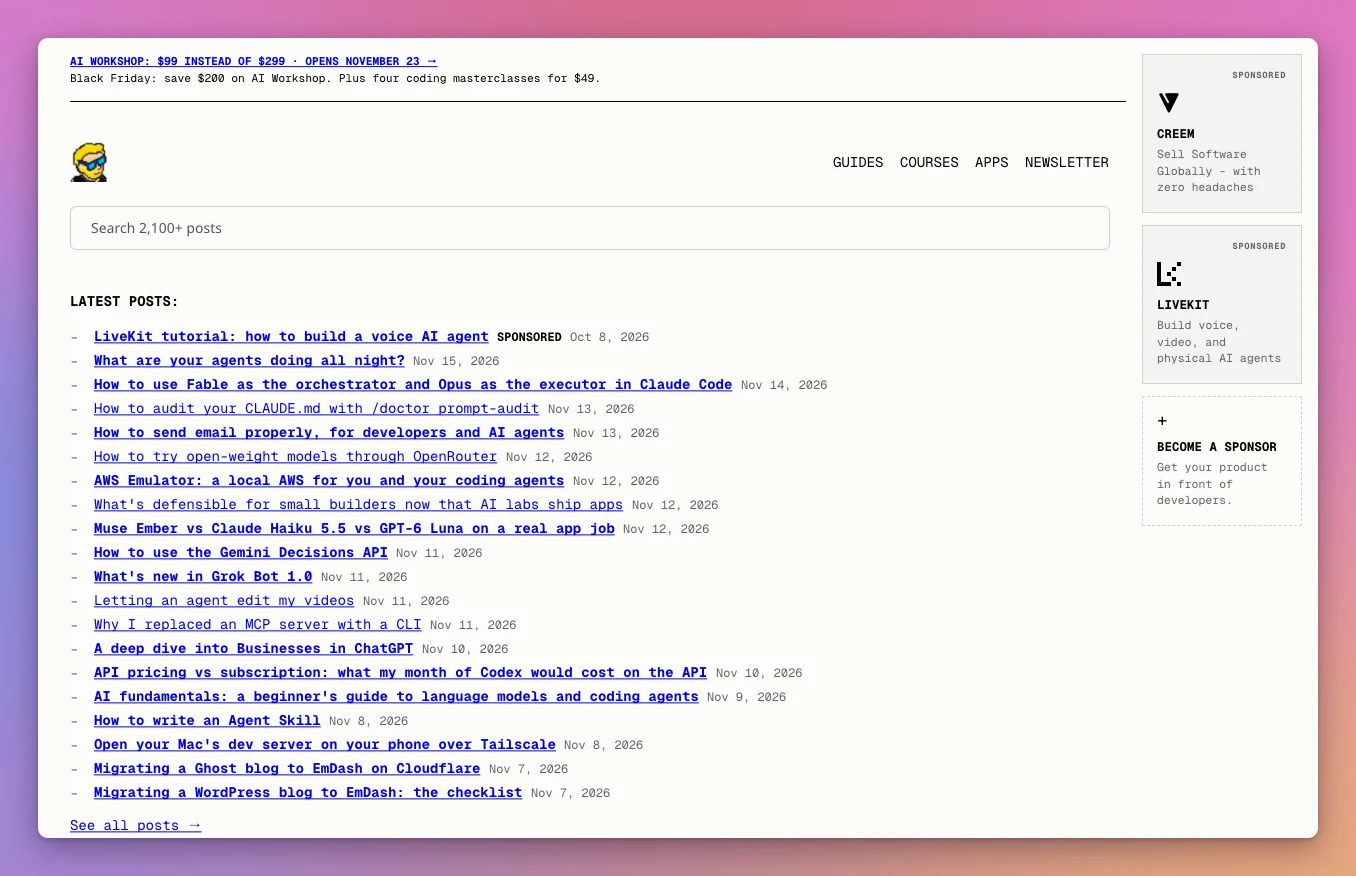
The web fonts, images, and two-column layout all came out right.
Watch out for deviceScaleFactor. I set it to 2 hoping for a sharper image, and the screenshot still came back at 1280 by 800 pixels.
For the engine on your computer, point Puppeteer at ws://127.0.0.1:8787/devtools/browser.
Deploy it to your Cloudflare account
One command builds the engine and deploys it with Wrangler:
pnpm run deployThe Worker is called kitesurf, so it ends up at kitesurf.<your-subdomain>.workers.dev.
You’ll need the Workers Paid plan. Kitesurf starts a separate Worker for each page and each renderer using Dynamic Workers, which have their own pricing.
Be careful here: the engine ships with no authentication. Anyone who has the URL can browse the web through it, connect Puppeteer, send requests out of your account, and burn CPU time on your bill. Your workers.dev URL is public by default, and a name like kitesurf isn’t hard to guess.
Put Cloudflare Access in front of the Worker. Turn Access on for all Workers in the account before you deploy, so you don’t leave the engine exposed between deploying and locking it down.
Once Access is enabled, Chrome will ask you to sign in. A script can’t do that, so create an Access service token, allow it with a Service Auth policy, and send it in two headers:
const browser = await puppeteer.connect({
  browserWSEndpoint: 'wss://kitesurf.<your-subdomain>.workers.dev/devtools/browser',
  headers: {
    'CF-Access-Client-Id': process.env.CF_ACCESS_CLIENT_ID,
    'CF-Access-Client-Secret': process.env.CF_ACCESS_CLIENT_SECRET,
  },
})
Should you run your own?
For real work, stick with Browser Run. You get Quick Actions, Chromium fallback is one query parameter away when a page fails, and Cloudflare keeps the engine updated.
The repository is better suited to a different job: reading how a browser is put together, tracking down why a page renders wrong, or patching the engine and sending the fix back.
If you want to contribute, open an issue first with a small page that reproduces the problem. A maintainer has to vouch for you before you can open a pull request.
When I would choose Kitesurf
Kitesurf fits short, isolated tasks on sites you’ve already tested:
- rendering JavaScript before extracting content
- taking screenshots for previews or reports
- generating PDFs
- inspecting the DOM, console, or network activity
- reading pages through an agent
- running lots of independent jobs in bursts
Reach for Chromium instead when you need:
- video or WebGL
- pixel-perfect rendering
- a real browser TLS fingerprint for a bot challenge
- a long authenticated session with persistent state
- maximum compatibility with an unknown website
Kitesurf isn’t a tool for bypassing bot protection. Swapping the user agent string won’t make it look like a regular person’s browser, and Cloudflare says upfront that it can’t complete bot-challenge handshakes that depend on real TLS fingerprints.
One practical note on running bursts: because Kitesurf sessions are cheap, it’s easy to hit a site harder than you meant to. Put rate limits on your jobs, respect robots.txt and site terms, and be careful with private data before pointing a batch of workers at someone else’s server.
The bigger idea
Kitesurf is part of a bigger shift at Cloudflare. With Temporary accounts, agents can deploy without stopping for signup. Cloudflare Artifacts gives them isolated Git repositories, and Kitesurf adds a browser built around how they work.
Platforms have always assumed a person is looking at a screen. Agents are a different kind of user with different strengths and limits, so Kitesurf isn’t trying to replace Chrome. It shows how you can build tools without pretending an agent is a tiny human clicking around a desktop.
If you control the site yourself, you can also skip the UI clicks and expose actions directly with WebMCP.
It’s still experimental, though you can read every line of the code now. If you try it today, use it selectively on tasks you can measure and keep a fallback ready. The architecture makes sense to me, too. Keeping sessions disposable, network access explicit, and components small and isolated lets compatibility work stay focused on the jobs agents need to run.
If you want to learn the platform underneath it, start with my complete Cloudflare guide or the free Cloudflare Handbook.
Want me to talk about your product? You can sponsor this site.
Related posts about cloudflare: