The definitive guide to JavaScript Dates
By Flavio
Tagged: JavaScript
A complete guide to JavaScript dates: create, parse, validate, format, compare, calculate, handle time zones, avoid DST bugs, and start using Temporal.
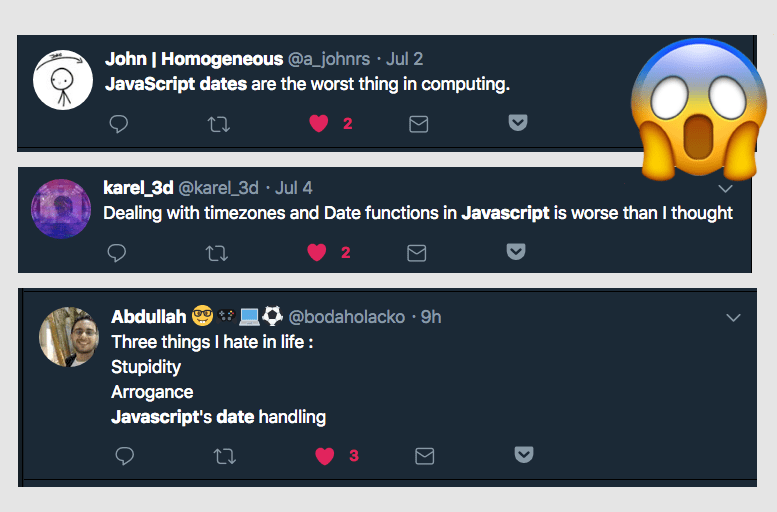
Dates look simple until time zones, daylight saving time, and user input get involved. Working with dates is one of the things developers complain about the most:
This guide covers the built-in Date object from start to finish. We will create dates, parse and validate them, read and change their values, format them, compare them, and do date arithmetic safely.
At the end, we will also see the new Temporal API. Temporal gives JavaScript a much better model for dates and times.
The most important thing to understand
A JavaScript Date represents one instant in time.
Internally, it stores a number. That number is the milliseconds elapsed since January 1, 1970 at 00:00:00 UTC.
const date = new Date('2026-08-10T09:30:00Z')

date.getTime() // 1786354200000
The Date does not store Europe/Rome, America/New_York, or any other named time zone.
Local methods interpret the instant using the computer’s time zone. UTC methods interpret the same instant as UTC.
This explains why the same Date can display a different hour on two computers.
Create a Date
There are 4 useful ways to create a Date.
Get the current date and time
Call new Date() without arguments to represent the current instant:
const now = new Date()If you only need the current timestamp, use Date.now():
const timestamp = Date.now()Date.now() returns a number and avoids creating a Date object.
Create a Date from a timestamp
Pass a timestamp in milliseconds:
const date = new Date(1786354200000)Unix timestamps are often expressed in seconds instead. Multiply those values by 1000:
const unixTimestamp = 1786354200
const date = new Date(unixTimestamp * 1000)
The timestamp 0 represents the Unix epoch:
new Date(0).toISOString()
// '1970-01-01T00:00:00.000Z'
Create a Date from a string
Use the standard date-time format when exchanging dates between systems:
new Date('2026-08-10T09:30:00Z')
new Date('2026-08-10T11:30:00+02:00')
Both strings represent the same instant.
Z means UTC. +02:00 is an explicit offset from UTC.
Avoid ambiguous strings such as these:
new Date('08/10/2026')
new Date('August 10, 2026')
Non-standard parsing can behave differently across runtimes. Parse the fields yourself, use a library, or require a standard format.
There is also a surprising historical rule:
new Date('2026-08-10')
// midnight UTC

new Date('2026-08-10T00:00:00')
// midnight in the computer's local time zone
The first string is date-only and uses UTC. The second contains a time but no offset, so JavaScript uses local time.
My advice is to always include Z or an offset when the value represents an instant.
Create a Date from components
Pass the year, month, day, and optional time components:
const date = new Date(2026, 7, 10, 9, 30, 0)This creates August 10, 2026 at 09:30 in the local time zone.
The month starts at zero:
0is January7is August11is December
The day starts at 1.
The complete order is:
new Date(year, month, day, hours, minutes, seconds, milliseconds)You need at least a year and month for this form. Missing values default to the first day of the month at midnight.
Create a UTC timestamp from components
Date.UTC() accepts similar components, but interprets them as UTC:
const timestamp = Date.UTC(2026, 7, 10, 9, 30)
const date = new Date(timestamp)
Date.UTC() returns a timestamp, not a Date.
The year 0 to 99 trap
The component-based constructor treats years from 0 through 99 as 1900 through 1999:
new Date(50, 0, 1).getFullYear() // 1950This old behavior also affects Date.UTC().
To create a year in that range, start with a known date and use setFullYear():
const date = new Date(0)
date.setUTCFullYear(50, 0, 1)
date.setUTCHours(0, 0, 0, 0)
Most applications never need ancient years. Still, this is good to know when building reusable date code.
Parse a date string
Date.parse() parses a string and returns a timestamp in milliseconds:
const timestamp = Date.parse('2026-08-10T09:30:00Z')It follows the same parsing rules as new Date(string).
I usually prefer new Date(string) when I need a Date, and Date.parse() when I need a timestamp.
Do not use either method as a flexible parser for user input. 03/04/2026 can mean March 4 or April 3, depending on the reader.
Check if a Date is valid
JavaScript can create an invalid Date without throwing an error:
const date = new Date('not a date')

date.toString() // 'Invalid Date'
Check its timestamp with Number.isNaN():
function isValidDate(date) {
  return date instanceof Date &&
    !Number.isNaN(date.getTime())
}
Use it like this:
isValidDate(new Date()) // true
isValidDate(new Date('not a date')) // false
Be careful with impossible calendar dates. Some inputs overflow instead of becoming invalid:
new Date(2026, 1, 31)
// March 3, 2026 in local time
If the user enters separate year, month, and day fields, check that the resulting components still match the input.
Read date and time components
Every local getter has a UTC counterpart.
const date = new Date('2026-08-10T09:30:45.123Z')Use these methods for the computer’s local time zone:
date.getFullYear()
date.getMonth() // 0 to 11
date.getDate() // 1 to 31
date.getDay() // 0 is Sunday
date.getHours()
date.getMinutes()
date.getSeconds()
date.getMilliseconds()
Use these methods for UTC:
date.getUTCFullYear()
date.getUTCMonth()
date.getUTCDate()
date.getUTCDay()
date.getUTCHours()
date.getUTCMinutes()
date.getUTCSeconds()
date.getUTCMilliseconds()
Notice the difference between getDate() and getDay().
getDate() returns the day of the month. getDay() returns the weekday, from 0 for Sunday to 6 for Saturday.
Get the time zone offset
getTimezoneOffset() returns the difference between local time and UTC, in minutes:
const offset = new Date().getTimezoneOffset()The sign often feels backwards. In UTC+2 it returns -120.
The value can also change during the year because of daylight saving time. Do not treat the current offset as a permanent property of a location.
Change a Date
Date objects are mutable. Setter methods change the original object.
const date = new Date(2026, 7, 10, 9, 30)

date.setDate(11)
The main local setters are:
date.setFullYear(year)
date.setMonth(month)
date.setDate(day)
date.setHours(hours)
date.setMinutes(minutes)
date.setSeconds(seconds)
date.setMilliseconds(milliseconds)
date.setTime(timestamp)
Most have UTC equivalents:
date.setUTCFullYear(year)
date.setUTCMonth(month)
date.setUTCDate(day)
date.setUTCHours(hours)
date.setUTCMinutes(minutes)
date.setUTCSeconds(seconds)
date.setUTCMilliseconds(milliseconds)
Setters accept overflowing values. JavaScript carries the overflow into the next unit:
const date = new Date(2026, 7, 10)

date.setDate(32)
// September 1, 2026
This behavior is useful for arithmetic, but it can also hide invalid input.
Clone a Date before changing it
Assigning a Date to another variable does not copy it:
const original = new Date()
const copy = original

copy.setDate(copy.getDate() + 1)
Both variables point to the same object. original changed too.
Create a real copy by passing the original date to the constructor:
const original = new Date()
const copy = new Date(original)

copy.setDate(copy.getDate() + 1)
You can also pass its timestamp:
const copy = new Date(original.getTime())Add or subtract time
There are two different questions we often describe as “add one day”.
The first means add exactly 24 hours:
const next = new Date(date.getTime() + 24 * 60 * 60 * 1000)The second means same local time tomorrow:
const next = new Date(date)
next.setDate(next.getDate() + 1)
Those results can differ across a daylight-saving transition.
Use timestamp arithmetic for elapsed time. Use calendar setters for local calendar arithmetic.
The distinction matters for deadlines, bookings, recurring events, and billing.
Get the number of days in a month
Day 0 means the last day of the previous month. We can use that overflow rule to get a month’s length:
function daysInMonth(year, month) {
  return new Date(year, month + 1, 0).getDate()
}

daysInMonth(2026, 1) // 28
daysInMonth(2028, 1) // 29
The month argument is zero-based here, just like the Date constructor.
Compare dates
Relational operators convert dates to timestamps:
const start = new Date('2026-08-10T09:00:00Z')
const end = new Date('2026-08-10T10:00:00Z')

start < end // true
For equality, compare timestamps explicitly:
start.getTime() === end.getTime()This does not work:
new Date('2026-08-10T09:00:00Z') ===
  new Date('2026-08-10T09:00:00Z')
// false
Dates are objects. === compares object references, not the stored instants.
To calculate elapsed time, subtract the timestamps:
const milliseconds = end.getTime() - start.getTime()
const minutes = milliseconds / 1000 / 60
Compare calendar dates
“Same day” needs a time zone.
If the computer’s local time zone defines the day, compare the local components:
function isSameLocalDay(first, second) {
  return first.getFullYear() === second.getFullYear() &&
    first.getMonth() === second.getMonth() &&
    first.getDate() === second.getDate()
}
If UTC defines the day, use the UTC getters instead.
For a named time zone such as Europe/Rome, format both values in that zone or use Temporal. Do not reset both dates to local midnight and assume the result works everywhere.
Sort dates
Subtract the dates inside sort():
dates.sort((first, second) => first - second)This sorts the array from oldest to newest.
Reverse the subtraction for newest first:
dates.sort((first, second) => second - first)Remember that sort() changes the original array.
Convert a Date to a string
The most useful conversion methods are:
const date = new Date('2026-08-10T09:30:00Z')

date.toISOString()
// '2026-08-10T09:30:00.000Z'

date.toUTCString()
// 'Mon, 10 Aug 2026 09:30:00 GMT'

date.toString()
// local date and time

date.toDateString()
// local date

date.toTimeString()
// local time
Use toISOString() when storing or sending an instant as text. Its output is standardized and always uses UTC.
Do not use toISOString().slice(0, 10) to get the user’s local date. That gives you the UTC date, which can be one day ahead or behind.
Format dates for people
Use Intl.DateTimeFormat for user-facing dates.
const date = new Date('2026-08-10T09:30:00Z')

const formatter = new Intl.DateTimeFormat('en-US', {
  dateStyle: 'long',
  timeStyle: 'short',
})

formatter.format(date)
// 'August 10, 2026 at 11:30 AM' in UTC+2
The result depends on the chosen locale and time zone.
Format in a specific time zone
Pass an IANA time-zone name through the timeZone option:
const formatter = new Intl.DateTimeFormat('en-GB', {
  dateStyle: 'full',
  timeStyle: 'short',
  timeZone: 'Europe/Rome',
})

formatter.format(date)
This is much safer than manually adding an offset. Europe/Rome includes the location’s daylight-saving rules. A fixed +02:00 offset does not.
You can try locales, time zones, and formatting options with my free JavaScript date formatting tool.
Format date parts
formatToParts() returns the formatted result as structured pieces:
const parts = new Intl.DateTimeFormat('en-US', {
  year: 'numeric',
  month: 'long',
  day: 'numeric',
}).formatToParts(date)
This is useful when you need custom markup around individual parts. Do not split a formatted string using spaces or punctuation, because those rules differ by locale.
Reuse formatters
Creating a formatter requires work. Reuse it when formatting many dates:
const formatter = new Intl.DateTimeFormat('en-US', {
  dateStyle: 'medium',
})

const labels = dates.map(date => formatter.format(date))
Store and send dates
If a value represents an exact instant, store one of these:
- an ISO string in UTC
- a Unix timestamp with a clearly documented unit
Example:
const saved = date.toISOString()JSON converts valid Date values to ISO strings:
JSON.stringify({ publishedAt: date })
// '{"publishedAt":"2026-08-10T09:30:00.000Z"}'
JSON does not restore the Date automatically:
const data = JSON.parse(json)

typeof data.publishedAt // 'string'
Create a new Date after parsing:
data.publishedAt = new Date(data.publishedAt)A birthday or calendar deadline is different. It might be better stored as the plain string 2026-08-10, without inventing a time or time zone.
For a future event tied to a place, store the local date and time plus the named time zone. Saving only its current UTC offset loses future daylight-saving rules.
Common mistakes
Here are the mistakes I see most often:
- forgetting that months start at zero
- confusing
getDate()withgetDay() - parsing ambiguous strings
- forgetting that date-only strings use UTC
- comparing two
Dateobjects with=== - changing a shared
Datethrough a setter - treating one day as always 24 hours
- using the computer’s local time zone by accident
- manually adding a fixed offset for a named time zone
- slicing an ISO string to get a local calendar date
- storing timestamps without documenting seconds or milliseconds
Most date bugs come from mixing 3 different concepts: an exact instant, a calendar date, and a date and time in a named zone.
Temporal: the modern JavaScript date and time API
The Temporal API gives each concept its own type.
Temporal.Instantrepresents an exact point in timeTemporal.PlainDaterepresents a calendar date without a time zoneTemporal.PlainTimerepresents a wall-clock timeTemporal.PlainDateTimerepresents a date and time without a zoneTemporal.ZonedDateTimecombines an instant with a named time zoneTemporal.Durationrepresents an amount of time
Temporal values are immutable. Methods return new values instead of changing the original one.
A quick Temporal guide
Use PlainDate for a date such as a birthday:
const birthday = Temporal.PlainDate.from('1990-08-10')
const nextWeek = birthday.add({ days: 7 })
Use Instant for an exact timestamp:
const publishedAt = Temporal.Instant.from(
  '2026-08-10T09:30:00Z'
)
Use ZonedDateTime for an event tied to a location:
const event = Temporal.ZonedDateTime.from(
  '2026-08-10T11:30:00+02:00[Europe/Rome]'
)
Temporal makes calendar arithmetic explicit:
const tomorrow = event.add({ days: 1 })
const in24Hours = event.add({ hours: 24 })
Those values can differ when daylight saving time changes.
Temporal ships natively in Firefox 139+, Chrome and Edge 144+, and Node 26 (the Current release line). Safari only has it in Technology Preview, and Node 24 LTS does not have it at all, so for those runtimes you need the official polyfill. Why use a preview version of a browser? explains that second install.
npm install @js-temporal/polyfillImport it like this:
import { Temporal } from '@js-temporal/polyfill'Read my complete guide to the Temporal API for time zones, durations, conversions, formatting, storage, testing, browser support, and migration from Date.
When should you use Date or Temporal?
Use Date when an existing browser API or library expects it. It is also fine for a timestamp that you only need to store, compare, or format.
Use Temporal for new date and time logic when your supported runtimes provide it, or when adding the polyfill makes sense.
Temporal is especially useful for:
- calendar dates without a time zone
- events in named time zones
- daylight-saving-safe arithmetic
- recurring dates and times
- durations and calendar calculations
You do not need to rewrite an entire application at once. Convert values at the boundary and move one date workflow at a time.
The key is to decide what each value means before writing the code.
Want me to talk about your product? You can sponsor this site.
Related posts about js: