How to use window.confirm()
By Flavio
Published · Updated
Tagged: JavaScript
Learn how to use the browser confirm() method to show a confirmation dialog that blocks the script and returns true or false based on the OK or Cancel button.
confirm() lets us ask confirmation before performing something. It shows a native browser dialog with an OK and a Cancel button, and returns true or false depending on what the user clicks.
This API dates back to the dawn of the Web, and is supported by every browser.
It’s very simple and I think it might come handy in many different cases without reaching for a custom-built UI.
Here’s how it works: you call confirm(), passing a string that represents the thing we want to confirm, which is shown to the user:
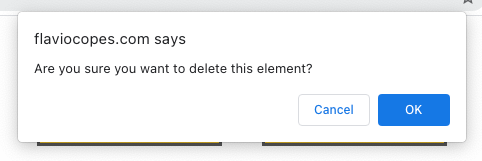
confirm("Are you sure you want to delete this element?")This is how it looks in Chrome:
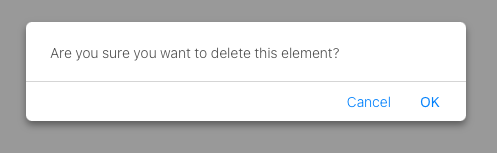
This is in Safari:
This is in Firefox:
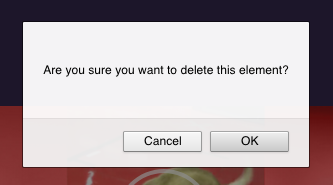
As you can see it’s rendered slightly differently in each browser, but the concept is the same.
You should call
window.confirm(), but sincewindowis implicit,confirm()works
The browser blocks the script execution until the user clicks any of the OK or Cancel button. You can’t escape from that without clicking a button.
The call to confirm() returns a boolean value that’s either true, if the user clicks OK, or false if the user clicks Cancel, so we can assign it to a variable, or also use it in a conditional:
const confirmed = confirm("Are you sure you want to delete this element?")if (confirm("Are you sure you want to delete this element?")) {
console.log('confirmed')
}A typical use is guarding a destructive action. If the user cancels, we exit early and nothing happens:
const deleteComment = (id) => {
  if (!confirm('Delete this comment?')) return
  fetch('/api/comments/' + id, { method: 'DELETE' })
}
Pressing the Esc key also dismisses the dialog, and counts as Cancel, so you get false.
What you can’t do with it
You control the message, and nothing else. You can’t style the dialog, you can’t change the button labels, and you can’t add an input field. The look is decided by the browser and the operating system.
When not to rely on it
One pitfall: browsers protect users from dialog abuse. If a page keeps firing dialogs, Chrome offers a checkbox to suppress them, and after that every confirm() call returns false immediately, without showing anything.
So don’t build a critical flow that assumes the dialog will always appear. For destructive actions in a polished product, a custom modal gives you full control. For internal tools, admin pages, and prototypes, confirm() is a great one-liner.
Want me to talk about your product? You can sponsor this site.
Related posts about js: