Installing Docker on macOS
By Flavio Copes
Learn how to install Docker Desktop on macOS, pick the Apple silicon or Intel build, move the app to Applications, and verify it works with docker version.
Before we can do anything interesting with our Dockerfile, we need to install Docker.
The exact installation instructions depend on your operating system.
The Docker Website contains detailed instructions for
I am a Mac user and I will show you the exact steps to install Docker on a Mac. If you use Windows or Linux, please refer to the instructions (I don’t have a Windows or Linux Desktop computer to try).
Docker Desktop for Mac is the name of the software you need to install. Download it from the Docker Desktop for Mac page.
As I write this (October 2026) the latest release is Docker Desktop 4.93. It bundles Docker Engine 29 and the docker compose plugin, so you get the CLI, the engine and Compose in one install.
Pick the build that matches your Mac:
- Apple silicon
- Intel chip
Docker supports the current macOS release and the two before it, and wants at least 4 GB of RAM.
On Apple silicon Rosetta 2 is optional now. Docker still recommends installing it with softwareupdate --install-rosetta, because a few command line tools built for Intel need it.
The installer is a .dmg file of around 600MB. Open it and you’ll be asked to move the Docker app to the Applications folder.
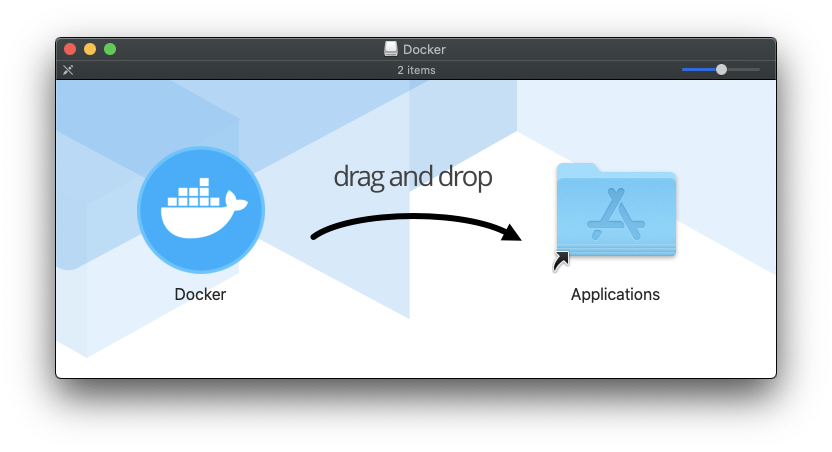
(The screenshots in this post are from an older Docker Desktop version. The steps are the same today.)
Do that, then run the app:
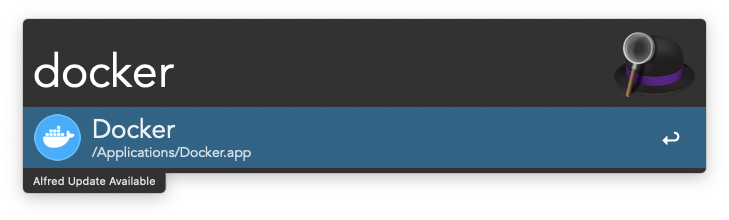
The first time it starts, Docker asks you to accept its Subscription Service Agreement.
It doesn’t ask for your password anymore. Since Docker Desktop 4.89 it installs the command line tools in ~/.docker/bin and adds that folder to your PATH, which needs no admin access.
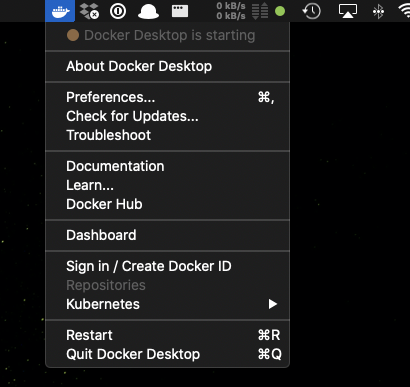
You will see the whale icon appearing in the Mac menu bar, initially informing you Docker Desktop is starting:
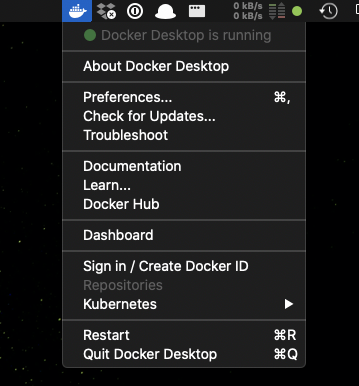
And when it’s done, you will get a green light:
Now you have the Docker command line tools installed.
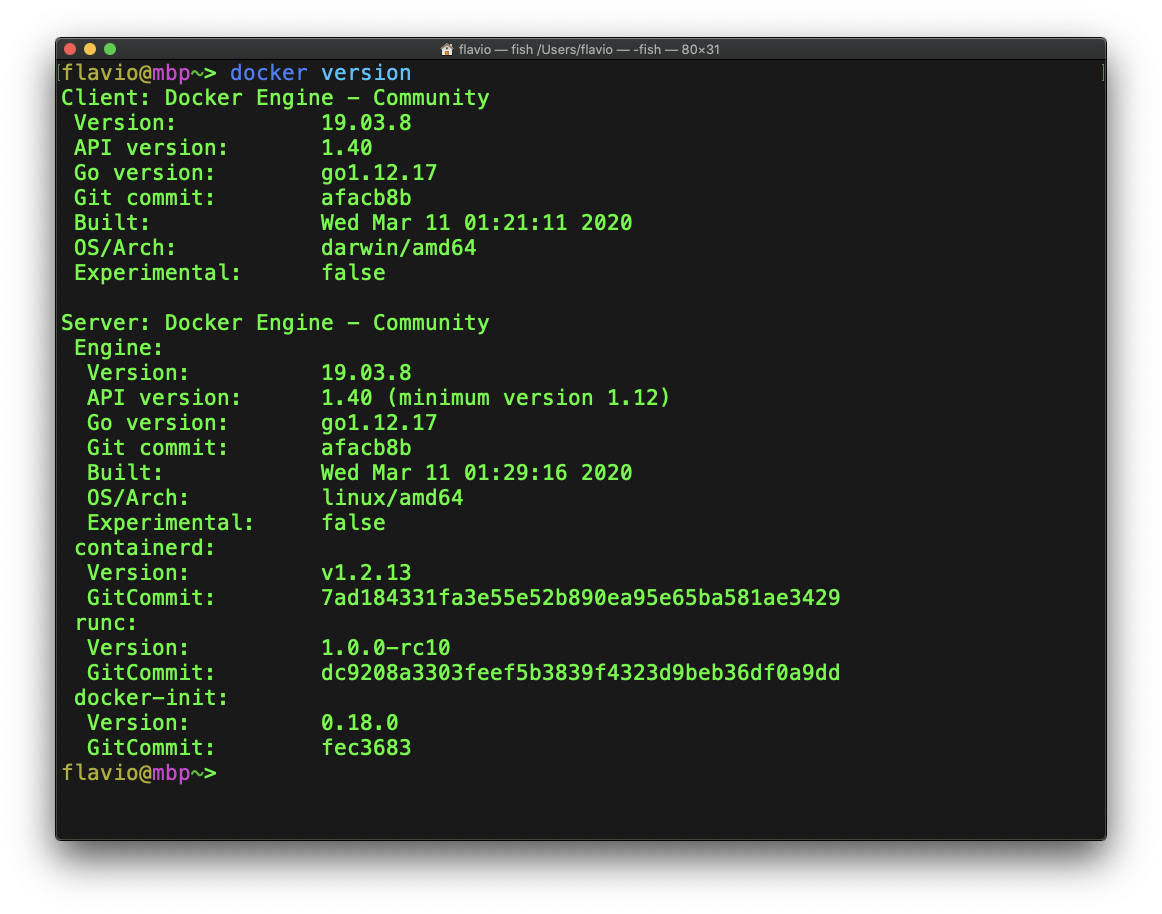
Open your terminal and run
docker versionto make sure everything worked fine. You should see both a Client and a Server section. If only the Client shows up, Docker Desktop is not running yet.
Want me to talk about your product? You can sponsor this site.
Related posts about docker: