How to set up a cron job that runs a Node.js app
By Flavio Copes
Learn how to set up a cron job that runs a Node.js app by writing a run.sh script, making it executable with chmod, and scheduling it through crontab -e.
To run a Node.js app on a schedule, wrap it in a small shell script and register that script with crontab. Cron, the scheduler built into Linux and macOS, will then run it for you, every day, every hour, whatever you need.
I use this for things like sending a daily report email or cleaning up old records in a database.
Create the script
Create a shell script in a file, for example called run.sh:
#!/bin/sh
node app.js
Give it execution rights:
chmod +x run.shYou could put the node command directly in the crontab, but I prefer the script. It gives you one place to add more steps later, like setting environment variables, without touching cron again.
Register the cron job
Then run:
crontab -eBy default this opens with the default editor, which is usually vim.
| Tip if you’re new to vim: use i to enter insertion mode, so you can type/paste, then esc and wq to save and quit.
Now you can add one line for each cron job.
The syntax to define cron jobs is kind of scary. A line has 5 time fields, in this order: minute, hour, day of month, month, day of week. A * means “every”. This is why I usually use a website to help me generate it without errors: https://crontab-generator.org/
I also built my own free cron builder that translates the expression to plain English and shows the next runs.
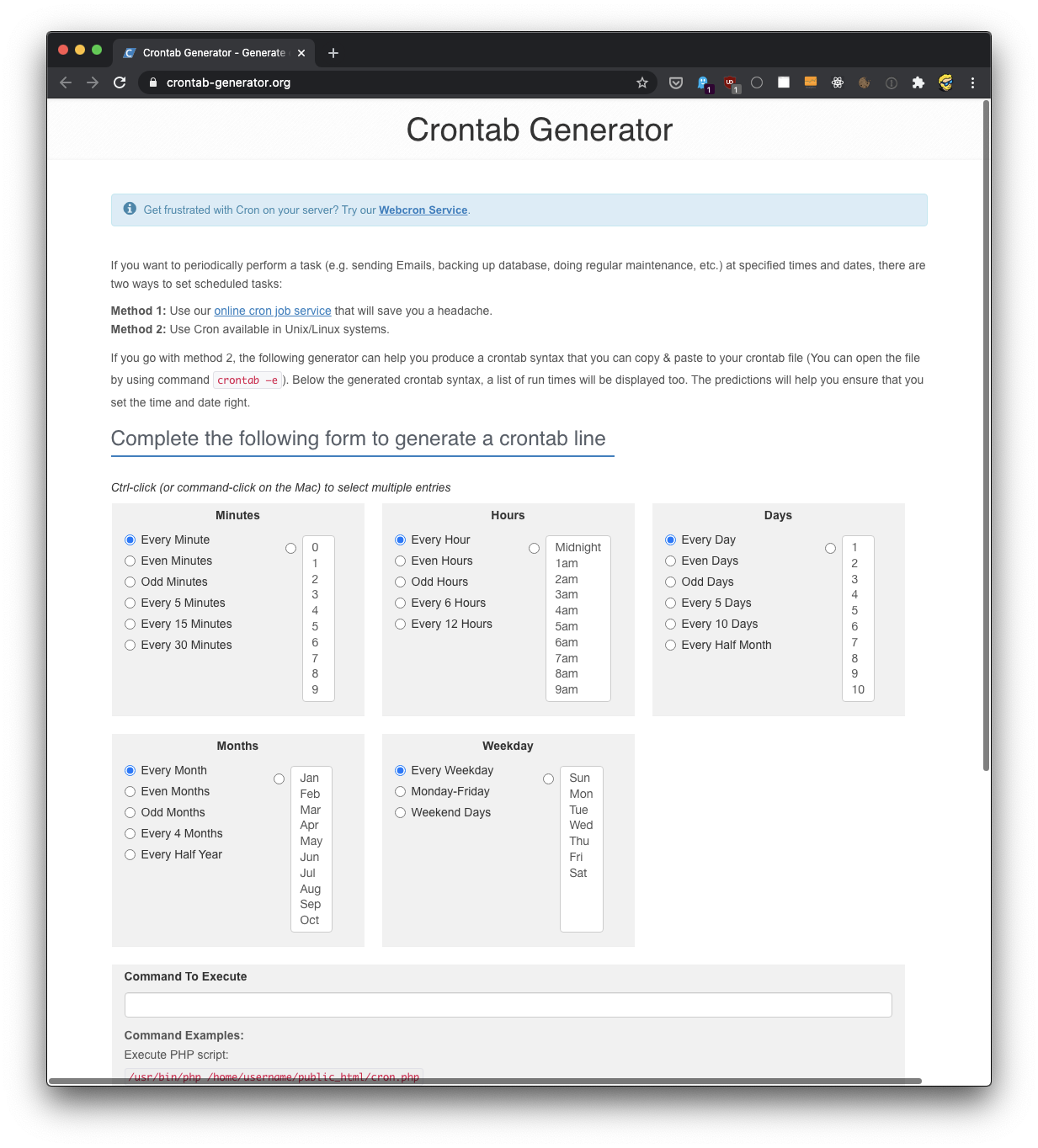
You pick a time interval for the cron job, and you type the command to execute.
I chose to run this every day at 10AM.
This is the crontab line I need to run:
0 10 * * * /Users/flaviocopes/dev/run.sh >/dev/null 2>&1Reading the fields: minute 0, hour 10, every day of the month, every month, every day of the week.
The >/dev/null 2>&1 part discards everything the script prints. If you’d rather keep the output, send it to a log file instead:
0 10 * * * /Users/flaviocopes/dev/run.sh >> /Users/flaviocopes/dev/cron.log 2>&1If all goes well, the cron job is set up.
Check and remove jobs
Once this is done, you can see the list of active cron jobs by running:
crontab -l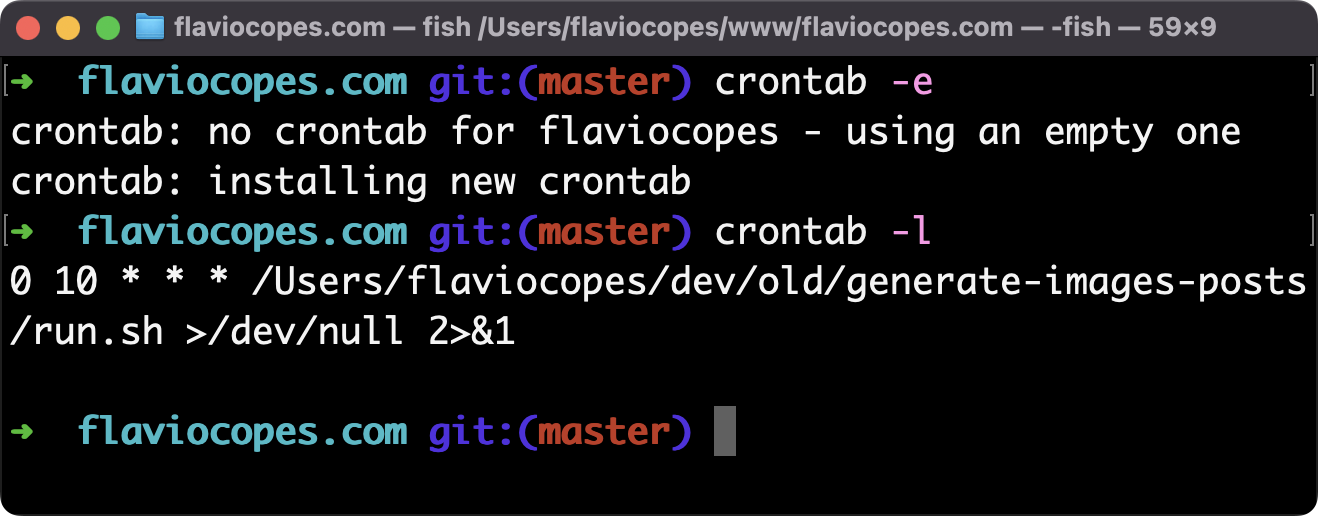
You can remove a cron job running crontab -e again, removing the line and exiting the editor.
What if the job doesn’t run?
The most common problem: the script works when you run it by hand, but does nothing under cron.
Cron runs your script with a minimal environment, not your shell environment. Your PATH is mostly empty, so node might not be found, especially if you installed it with a version manager.
The fix is to use absolute paths in the script. Find where Node lives with which node, then:
#!/bin/sh
cd /Users/flaviocopes/dev
/usr/local/bin/node app.js
The cd matters too. Cron doesn’t start in your project folder, so a relative path like app.js would fail without it.
I cover these gotchas, and more, in my deep dive into cron.
Want me to talk about your product? You can sponsor this site.
Related posts about node: