Open SSH to a DigitalOcean Droplet only from your IP, for a set time
By Flavio
Updated
Use Firewall Manager to allow port 22 on a DigitalOcean Cloud Firewall for your current IPv4 for 5 to 60 minutes, from the Mac app or the terminal, and close it when you're done.
A DigitalOcean Cloud Firewall rule that allows TCP 22 from your IP stays there until you delete it. When your IP changes, the old address keeps access and the new one is locked out. And a rule for 0.0.0.0/0 lets the whole internet knock on SSH.
Firewall Manager adds a port 22 rule for your current public IPv4 only, as a /32, for 5, 15, 30 or 60 minutes, and removes that exact rule when the time is up or when you click Close now. It’s a Mac app with a companion CLI, and both talk to the DigitalOcean API directly.
This is the Cloud Firewall in front of the Droplet. It doesn’t touch UFW on the server (see Enable UFW safely for that) or your SSH keys. If you’re starting from scratch, create your first VPS on DigitalOcean first.
Connect your DigitalOcean account
You need macOS 14 or later. Download the zip from your Polar receipt, unzip it, and move Firewall Manager to Applications before you open access for the first time. The cleanup job runs the CLI from inside the app bundle, so the path has to stay the same.
Create a custom API token in the DigitalOcean control panel with these four scopes:
account:readdroplet:readfirewall:readfirewall:update
Paste it in the app and click Connect DigitalOcean. If you already use doctl, Use doctl login imports the token of its default context instead. The token goes into the macOS Keychain, under the service com.flaviocopes.firewall-manager. The app and the CLI both read it from there.
Prepare the firewall
Temporary access only works on a firewall attached directly to one Droplet, with no tags, and that Droplet can’t have a second firewall attached. The app asks DigitalOcean before it opens anything, because a second firewall or a tag could allow SSH on its own.
If the firewall already allows SSH, from anywhere, the app won’t add a temporary rule on top of it. Close existing SSH access… removes the allow rules for exactly port 22, after you confirm. The confirmation says it plainly:
This removes existing allow rules for TCP port 22 from this firewall. Web traffic and other ports are kept. Existing SSH connections may remain active.
A rule for a range like 1-65535 or all also counts as SSH, and the app leaves it for you to fix in the DigitalOcean control panel.
Do this while you still have another way in, like the Droplet console in the control panel. An SSH session that’s already connected can stay up after the rule is gone, so open a new connection to check that it’s really closed.
Open SSH for 15 minutes
Select the firewall, keep 15 minutes (the default) or pick 5 minutes, 30 minutes or 1 hour, and click Open SSH:
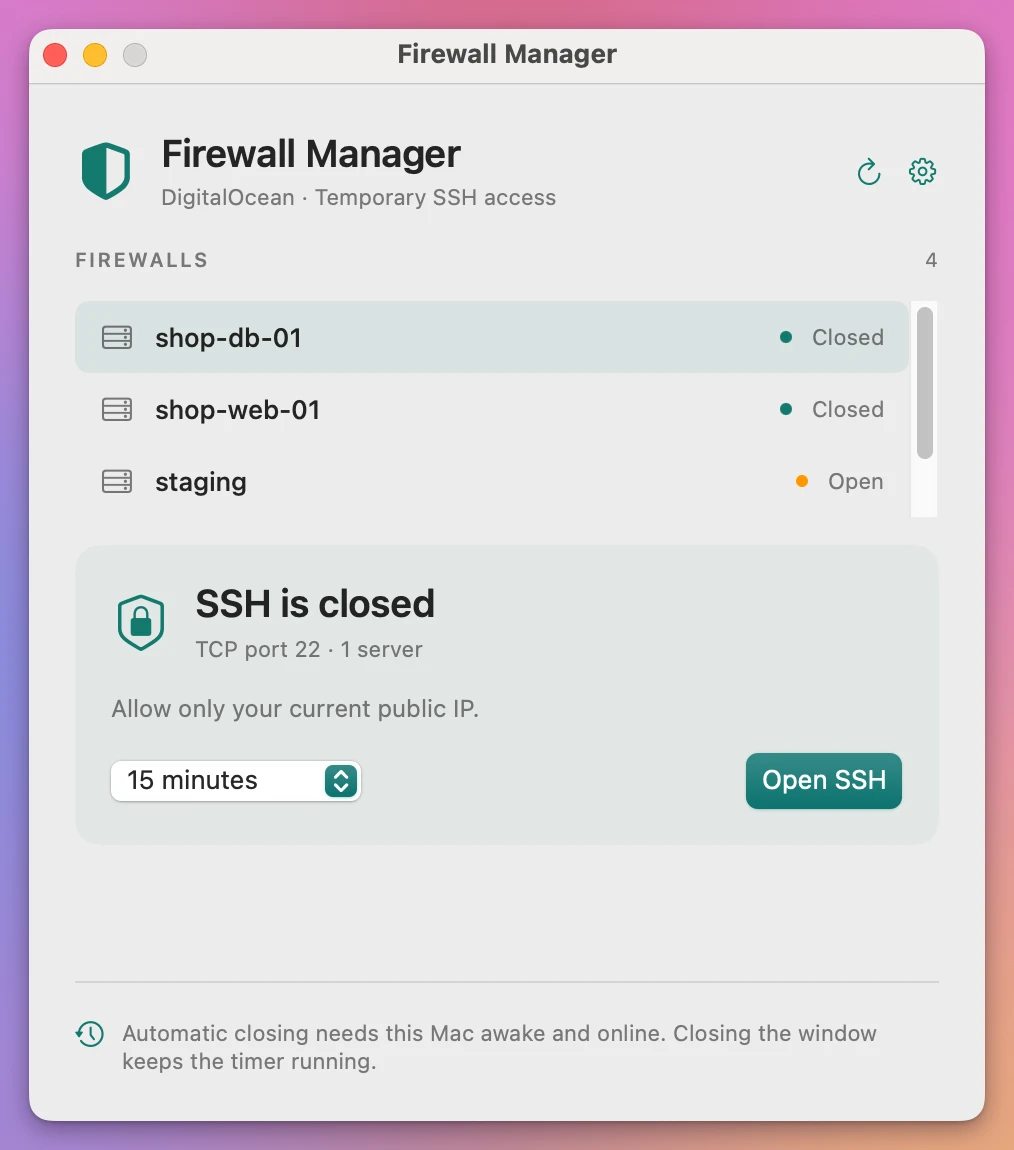
The app asks api4.ipify.org for your public IPv4, saves an access record, adds the /32 rule, and waits until DigitalOcean reports the change as applied. Then the panel switches to the countdown:
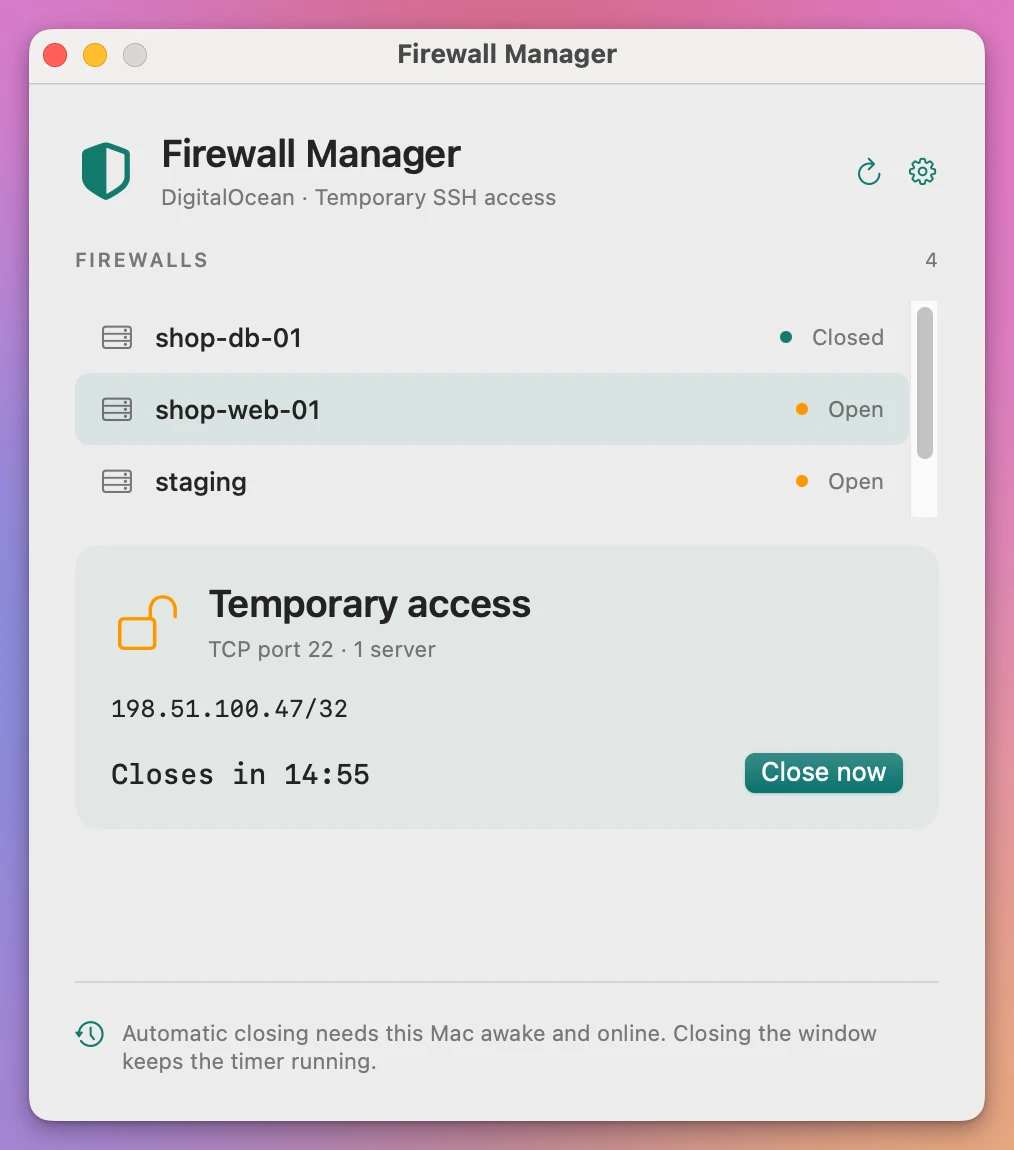
The firewalls and the IP in these screenshots are demo data. Now connect with your usual ssh command. When you’re done, click Close now.
If you move from home Wi-Fi to a phone hotspot, your public IP changes and the rule doesn’t follow. Close access and open it again from the new network.
What happens when time runs out
Opening access also installs a per-user launch agent, ~/Library/LaunchAgents/com.flaviocopes.firewall-manager.cleanup.plist. Every 15 seconds it runs firewall-manager watch, which closes expired access. It runs with the window closed and starts again at login.
It runs on your Mac, though, so it can only clean up while your Mac is awake and online, with a working token. If you close the lid with access open, the rule stays until the Mac wakes up. DigitalOcean doesn’t expire the rule on its side. When a close is more than 30 seconds late, the countdown reads Close overdue · retrying.
Closing removes only the rule the app created, matched by protocol, port 22 and your exact /32. HTTP, HTTPS, outbound rules and rules someone else added stay as they are.
Do the same from the terminal
In the app’s Settings, click Install Companion CLI. It links firewall-manager into ~/.local/bin, which has to be on your PATH. Then:
firewall-manager --helpFirewall Manager · DigitalOcean SSH access
firewall-manager list
firewall-manager status
firewall-manager open FIREWALL_ID --minutes 15
firewall-manager close FIREWALL_ID
firewall-manager run FIREWALL_ID -- ssh user@server uptime
firewall-manager block FIREWALL_ID --confirm
firewall-manager auth --stdin
firewall-manager auth --from-doctl CONTEXT
firewall-manager install-cli
capabilities Show supported tasks and release history (--json accepted)
watch Retry expired access cleanup (used by the background agent)
Tokens stay in macOS Keychain. Cleanup needs this Mac awake and online.list prints the firewalls as JSON, with their UUID in id, droplet_ids, tags and inbound_rules. status prints one line per firewall with ssh set to closed, temporary (opened by Firewall Manager) or unmanaged (an SSH rule from somewhere else), plus the access record when there is one. On my account it lists three firewalls, all closed. With jq it reads well:
firewall-manager status | jq -r '.[] | "\(.name) \(.ssh)"'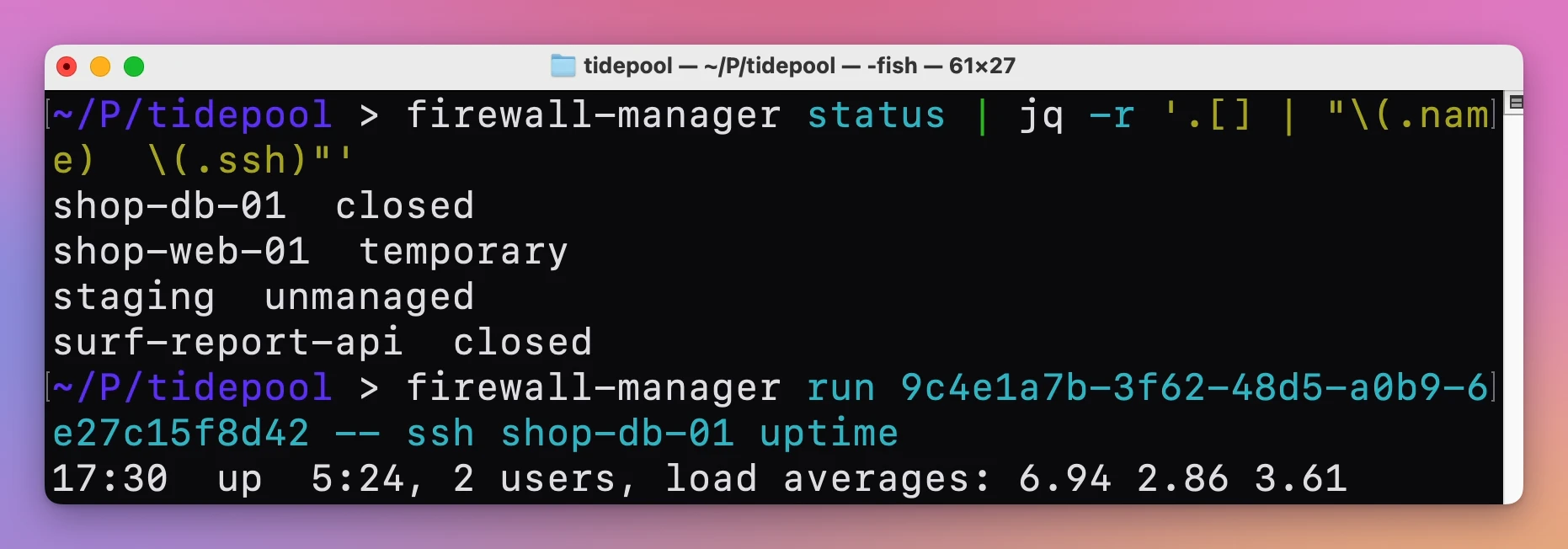
open and close work like the buttons, with the UUID from list:
firewall-manager open 9c4e1a7b-3f62-48d5-a0b9-6e27c15f8d42 --minutes 15
firewall-manager close 9c4e1a7b-3f62-48d5-a0b9-6e27c15f8d42
The CLI takes any number of minutes from 1 to 60, and 15 when you leave out --minutes. The app offers four choices.
run is the one I’d use for a single command. It opens access, runs the command after --, and closes access when the command exits:
firewall-manager run 9c4e1a7b-3f62-48d5-a0b9-6e27c15f8d42 -- ssh shop-db-01 uptimeIf the command is still running when the time is up, or when you press Ctrl-C, run stops it first and then closes access. Run one SSH command and close the firewall rule when it exits covers run with SSH and SCP.
The CLI and the app share the token and the access records, so a session opened in the terminal shows up in the window. The terminal equivalent of Close existing SSH access… is block FIREWALL_ID --confirm.
Tokens and the CLI
The CLI never takes a token as an argument, so it can’t end up in your shell history. Pipe it in, or import doctl’s:
firewall-manager auth --from-doctl defaultWhen you SSH into your Mac and run the CLI there, the login keychain is locked. Run security unlock-keychain first. The auth command checks this and tells you so.
firewall-manager capabilities --json prints the commands and the changelog as JSON, for coding agents.
When it refuses
These are the messages from the source, and what to do:
| Message | What to do |
|---|---|
| Temporary access needs a firewall attached directly to exactly one server, without tags. | Use a firewall for one Droplet only |
| Another firewall or tag attachment could also allow access. Review the server’s firewall attachments first. | Detach the second firewall from that Droplet |
| This firewall already allows SSH. Close its existing SSH access first. | Close existing SSH access… or block --confirm |
| A wider port range allows SSH. Review that rule in DigitalOcean; other ports will not be changed here. | Edit that rule in the control panel |
| This firewall already has tracked access. Close it before opening again. | Close, then open again |
| Wait for DigitalOcean to finish its current firewall change. | Try again in a few seconds |
| The firewall change is still unconfirmed. Its access record is kept so cleanup can retry. | Let the cleanup job retry, or close again later |
The access records live in ~/Library/Application Support/Firewall Manager/leases.json. They hold the firewall ID, the /32 and the deadline, never the token. If that file can’t be read, the app keeps it for recovery and won’t open new access, so don’t delete it. A bash script or another tool that edits the same firewall doesn’t know about these records, so use one of them per firewall.
A new token from Update token in Settings keeps the records, as long as it can see every firewall that still has open access. Close access before you click Disconnect DigitalOcean.
If you move the app, click Install Companion CLI again, and open access once from the new location so the cleanup job points to it. With the license key from your receipt entered in Firewall Manager → License…, updates install from Check for Updates….
Get Firewall Manager
Open DigitalOcean SSH access only for your current IP, with timed access, close-now controls and a companion CLI.
See Firewall Manager → · Read the docs · $20. See the app page for tax details, with full source code.
Want me to talk about your product? You can sponsor this site.