Run one SSH command and close the firewall rule when it exits
By Flavio
Updated
Use Firewall Manager run to open TCP 22 for your current IPv4, run one SSH or SCP command, and close that rule when it exits.
You need one command on a DigitalOcean Droplet, and you don’t want port 22 left open while you remember to close a timer. firewall-manager run opens TCP 22 for your current public IPv4, runs the command you put after --, and closes that rule when the command exits.
Firewall Manager is the Mac app and the CLI. The countdown in the window, and open --minutes, are the other way to do this. That walkthrough is Open SSH on DigitalOcean for a few minutes. Use it when you want a session you type into. Use run when the work is a single command.
Closing the rule blocks new connections. An SSH session that is already established may stay up. run exiting is not the same thing as the remote shell dropping. The app allows your current public IPv4 only. IPv6 behavior isn’t documented, so this page doesn’t guess it.
What you need
Firewall Manager needs macOS 14 or later, on Apple silicon or Intel. After purchase, download the ZIP from your Polar receipt, unzip it, and move the app to Applications. The token is a DigitalOcean custom token with account:read, droplet:read, firewall:read and firewall:update. Paste it into the connection screen and click Connect DigitalOcean, or use Use doctl login if doctl’s default context is already signed in. The token goes into the macOS Keychain. You don’t pass it as a command argument.
Temporary access needs a dedicated DigitalOcean Cloud Firewall attached to one Droplet, with no tag attachments, and that Droplet must have no other firewall attached. The app checks this before it opens access. HTTP, HTTPS and outbound rules are left alone. Create a DigitalOcean VPS is the Droplet side. Run remote commands is the SSH side. Firewall Manager does not replace your SSH client, and your key is still required.
Open Settings and choose Install Companion CLI. That links firewall-manager into ~/.local/bin. Put that folder on your PATH if it isn’t there. The preflight is a read:
firewall-manager statusThe Mac has to be awake and online for a close to finish. Sleep, shutdown, a lost connection, a revoked token or removing the app can leave the rule in place, because this version has no server-side timer. Do this while you still have another way in, such as the Droplet console.
Copy the firewall id from list
run takes a firewall UUID. A name you remember from the control panel is not that argument. list prints the firewalls as JSON, with the UUID in id, plus droplet_ids, tags and inbound_rules. status prints one line per firewall. ssh is closed, temporary (opened by Firewall Manager) or unmanaged (an SSH rule from somewhere else).
The help text from the temporary-access tutorial is the command list:
firewall-manager list
firewall-manager status
firewall-manager open FIREWALL_ID --minutes 15
firewall-manager close FIREWALL_ID
firewall-manager run FIREWALL_ID -- ssh user@server uptime
firewall-manager block FIREWALL_ID --confirm
firewall-manager auth --stdin
firewall-manager auth --from-doctl CONTEXT
firewall-manager install-cli
firewall-manager list
firewall-manager statusThe app page’s fictional demo, piped through jq, prints four lines:
shop-db-01  closed
shop-web-01  temporary
staging  unmanaged
surf-report-api  closed
If you’d rather click, the app window lists the same firewalls. It shows SSH as Closed or Open, so temporary and unmanaged both read Open there. The window doesn’t show the UUID, so run still needs list.
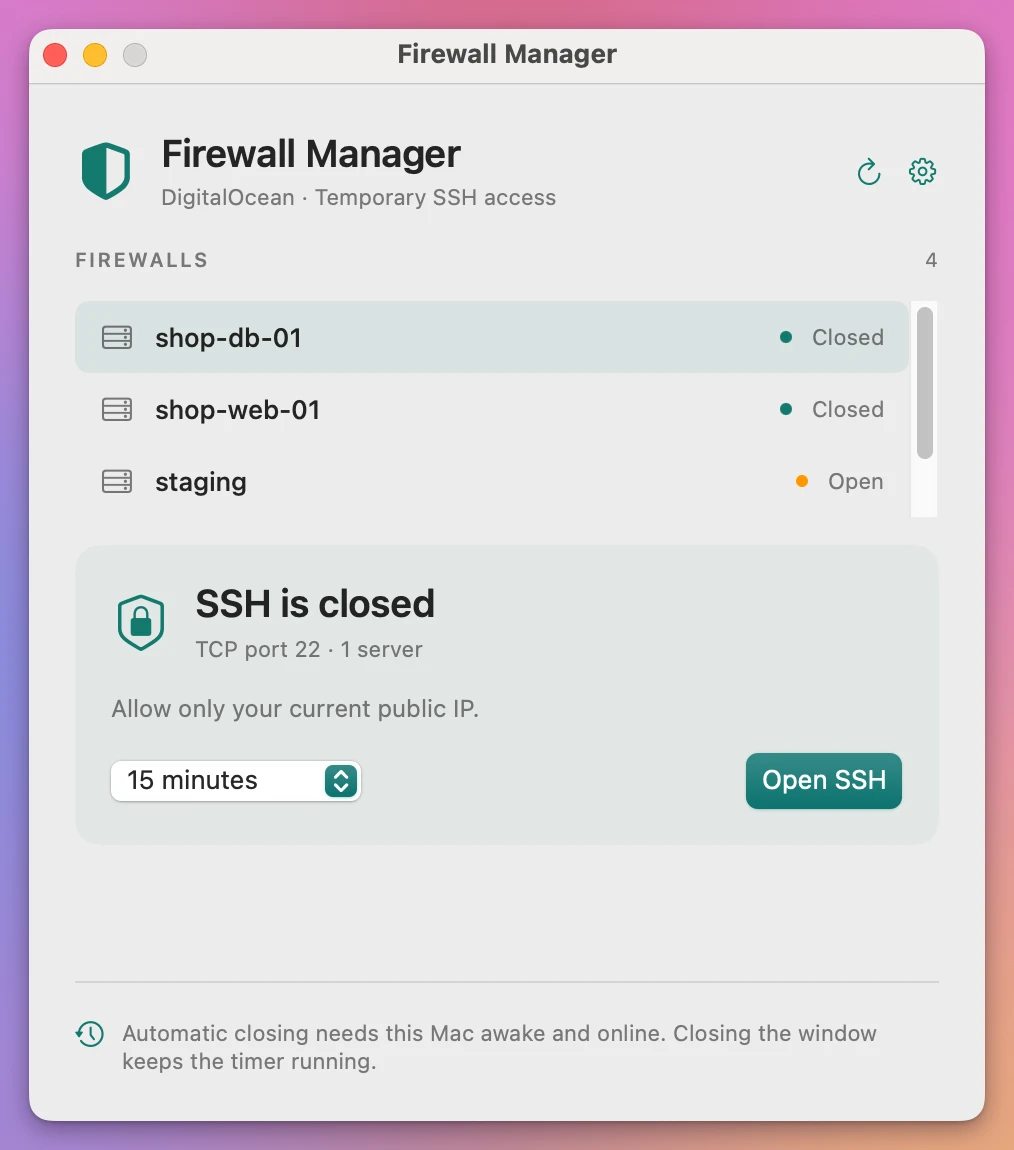
Those names and the UUID in the tutorial are examples. Copy id from your own list. unmanaged means SSH is already allowed by a rule Firewall Manager did not create. The app refuses to add a temporary rule over existing SSH access. Close existing SSH access… or firewall-manager block FIREWALL_ID --confirm removes existing rules for exactly port 22, after you confirm. A wider port range is left for you to edit in DigitalOcean.
open is the timed rule, not run. The CLI takes any number of minutes from 1 to 60, and 15 when you leave out --minutes. The app offers 5, 15, 30 or 60 minutes. The help line for run does not show --minutes. This page doesn’t add one.
Run one remote command
run is for a command that should take its firewall rule with it. The id comes first. -- ends Firewall Manager’s own arguments. Everything after -- is the local command, which is usually ssh plus a remote command. If you skip --, those words are not the remote command.
The rule is for your current public IPv4, as a /32, on TCP 22. When the command exits, run closes that rule. The docs also say run closes at its lease deadline. The temporary-access tutorial says that if the command is still running when the time is up, or when you press Ctrl-C, run stops the command first and then closes access. I am not attaching a minute count to that deadline, because the documented run line doesn’t take --minutes.
Example 1: uptime, then the rule goes away
The docs use a documentation address. Replace the user and the host with yours:
firewall-manager run FIREWALL_ID -- ssh admin@203.0.113.25 uptimeThe fictional demo on the app page runs ssh shop-db-01 uptime through run and prints:
17:30 up 5:24, 2 users, load averages: 6.94 2.86 3.61This is that demo in the terminal, with status first and then run:
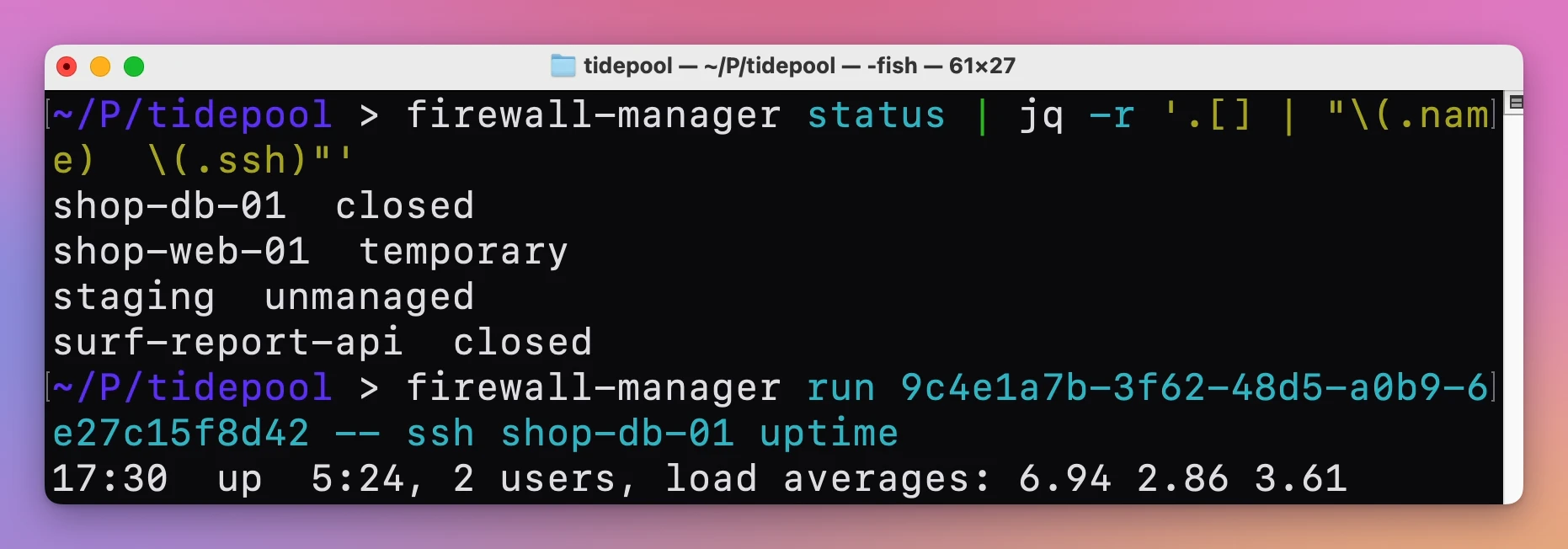
That line is the remote command’s output, from the demo, not a server of yours. Your uptime prints your server’s line. When it finishes, the rule closes. You do not click Close now for this path. A session you opened with open --minutes stays until you close it or the minutes end, which is why the other tutorial exists.
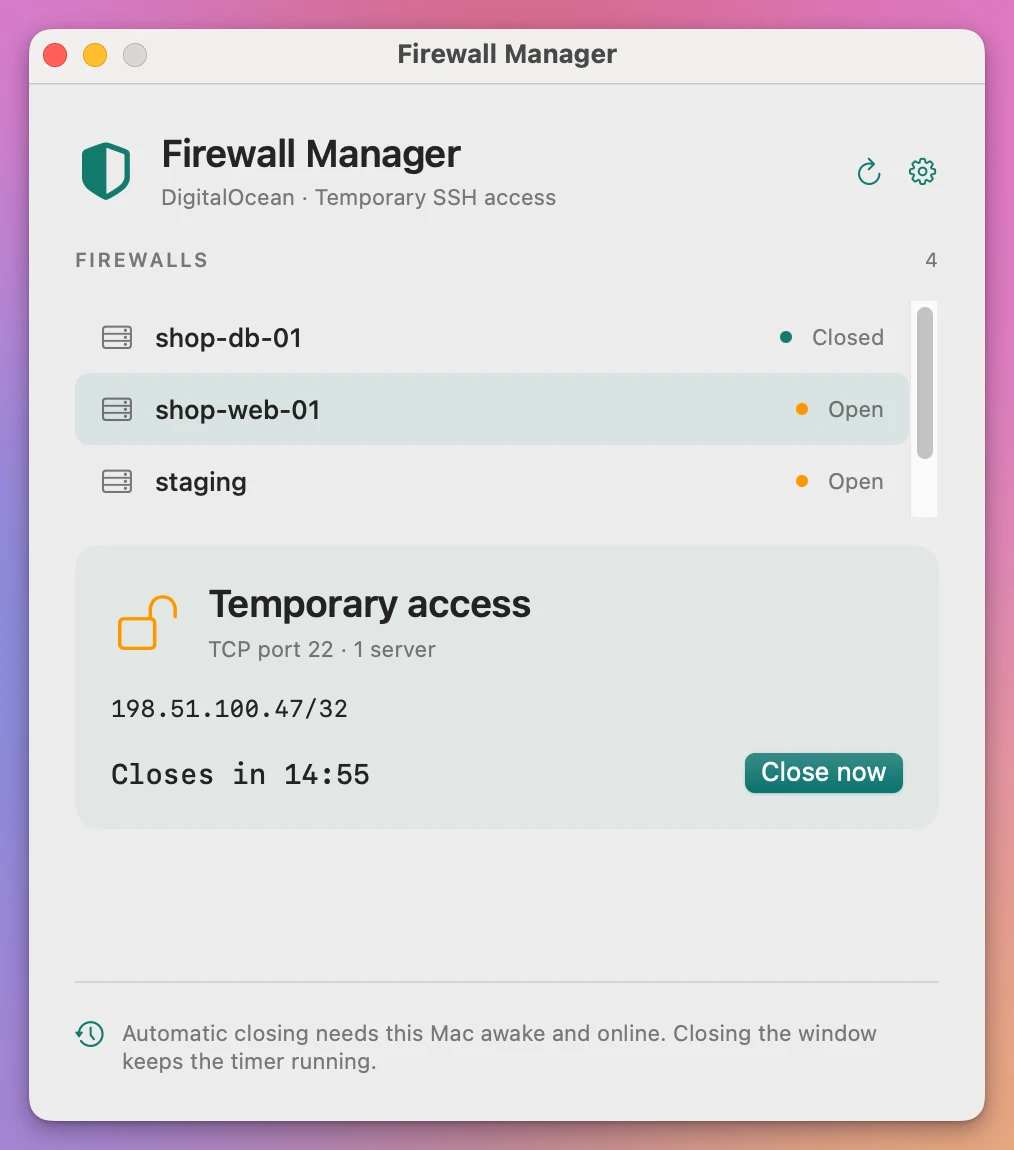
The app and the CLI share the Keychain token and the access records, so a run shows up in the window while it is open. The window refreshes every 15 seconds. A firewall with tracked access says Temporary access, with your /32, the time left and a Close now button. If you’d rather click, Close now is the same close the CLI does.
firewall-manager capabilities --json prints the command manifest for an agent. The docs don’t include a sample of that JSON, so this page doesn’t invent one.
Copy a file with the same open and close
The sales page says the CLI can run your SSH or SCP command and close the rule when the command exits. SCP is the same run with a different program after --. It is not a longer timer.
Example 2: scp instead of uptime
firewall-manager run FIREWALL_ID -- scp ./notes.txt admin@203.0.113.25:/tmp/notes.txtnotes.txt and 203.0.113.25 are examples. The firewall id is still the UUID from list. scp reads your SSH key the same way ssh does. Firewall Manager opens the /32, lets that one copy finish, and closes the rule when scp exits. A second firewall, if list shows one, is a different UUID and a different run. Don’t reuse the first id for the second Droplet.
A second run after the first has closed opens a new rule for whatever your public IPv4 is now, then closes that one too. It does not stack on a rule that is already gone.
If the first rule is still tracked, a second open is refused. The message in the temporary-access tutorial is This firewall already has tracked access. Close it before opening again. Close, then run again. That refusal is the opposite of a second rule stacked on the first. The records that make the refusal possible live in ~/Library/Application Support/Firewall Manager/leases.json. They hold the firewall id, the /32 and the deadline, not the token. Don’t delete the file to clear an error. The cleanup job uses it to retry.
Close, and test with a new connection
Undo for a rule that is still open is close:
firewall-manager close FIREWALL_IDrun already closes when the command exits. close is how you finish a rule that open left behind, or a run whose close did not confirm. Cleanup retries while the Mac is awake and online. The background job checks about every 15 seconds. If a close is more than 30 seconds late, the countdown reads Close overdue · retrying. Restore the network and check the token. There is no timer on DigitalOcean’s side.
Closing removes the rule Firewall Manager created, matched by protocol, port 22 and your exact /32. New connections from that address no longer get through. An established session may remain. The way to see the close is a new SSH, not the shell you already have:
ssh admin@203.0.113.25 uptimeRun that without firewall-manager run in front. A new connection from this Mac no longer matches the rule run created, so it does not get in. If it still connects, the rule is still there, or some other SSH rule is. status says temporary or unmanaged for those two cases. closed is the one you want after run finishes.
HTTP, HTTPS and the outbound rules stay as they were. run and close touch the SSH rule Firewall Manager created for this /32. They don’t rewrite the rest of the firewall. The rule is an IPv4 /32 only. The docs don’t describe an IPv6 address, so this page doesn’t guess one. If your SSH client prefers IPv6, that temporary rule is not what lets the connection in, and closing the IPv4 rule is not what stops it.
DigitalOcean’s hosting bill is separate. Nothing in the docs adds a charge for the temporary rule. The cost of a missed close is port 22 left open for your current address until the Mac can finish the job. Sleep, shutdown, a lost network or a revoked token all delay that. There is no timer on DigitalOcean’s side to close it for you. The Mac has to be awake for the 15-second check to run.
firewall-manager auth --from-doctl default imports a saved doctl login if you would rather not paste a token. Tokens piped into auth are read from stdin, never from the argument list, so they stay out of shell history.
Read a refusal before you retry
run either opens the rule or it stops with a message. Retrying the same command against the same id does not wear the refusal down. The message says which check failed. Those strings are from the app, quoted in the temporary-access tutorial.
Example 3: an id that is not ready, or a token that cannot finish the close
Copy the UUID again from list before you decide the id was wrong. A firewall that status marks unmanaged already allows SSH. run will not add a temporary rule on top of it. The message is This firewall already allows SSH. Close its existing SSH access first. A firewall that is temporary already has tracked access, and the message is This firewall already has tracked access. Close it before opening again.
A token problem shows up later, when the close cannot be confirmed. Close overdue · retrying means the Mac is late by more than 30 seconds. The access record is kept so cleanup can retry. The related message is The firewall change is still unconfirmed. Its access record is kept so cleanup can retry. Put the network back, keep the Mac awake, and let that job run. Replacing the token in Settings keeps the records if the new token can see every firewall that still has a session. Disconnecting DigitalOcean while a session is open drops the path the cleanup job uses. Close first.
Wait for DigitalOcean to finish its current firewall change. is the message when a change is already in flight. Wait, then status again. Another run during that wait asks for a second change before the first one is confirmed. The tracked-access check refuses that second rule. Wait for closed, then run the one command you still need.
If something looks wrong
If the message is This firewall already has tracked access. Close it before opening again., a rule is already open. firewall-manager close FIREWALL_ID, then run again. A second run does not add another /32 on top.
If the message is Temporary access needs a firewall attached directly to exactly one server, without tags., this firewall is attached the wrong way. Use one Droplet, no tags, and no second firewall on that Droplet.
If the message is Another firewall or tag attachment could also allow access. Review the server’s firewall attachments first., detach the extra firewall before you open access.
If the message is This firewall already allows SSH. Close its existing SSH access first., SSH is unmanaged. Close existing SSH access… or block FIREWALL_ID --confirm, while you still have the Droplet console.
If the message is A wider port range allows SSH. Review that rule in DigitalOcean; other ports will not be changed here., the rule covers more than port 22. Edit it in the control panel. Firewall Manager will not narrow it for you.
If the countdown says Close overdue · retrying, the Mac could not finish the close. It needs to be awake and online, and the token has to still see that firewall. Settings can take a replacement token without dropping the access records, as long as the new token sees every firewall that still has a session.
If you SSH into the Mac and the CLI cannot read the token, the login keychain is locked. security unlock-keychain first. The auth command checks for this and tells you so.
If run has exited and your old SSH window still answers, that is the established session. Open a new connection to see whether port 22 is actually closed.
Get Firewall Manager
Open DigitalOcean SSH access only for your current IP, with timed access, close-now controls and a companion CLI.
See Firewall Manager → · Read the docs · $20. See the app page for tax details, with full source code.
Want me to talk about your product? You can sponsor this site.