
A developer tool by Flavio
Releases Manager
See every app release on one timeline, find the projects with commits waiting to ship, and hand the next release to your coding agent.
Buy Releases Manager · $20One-time purchase. Tax included. Source code included.
macOS 14 or later · Apple silicon and Intel
Latest version 1.9.0, released November 20, 2026
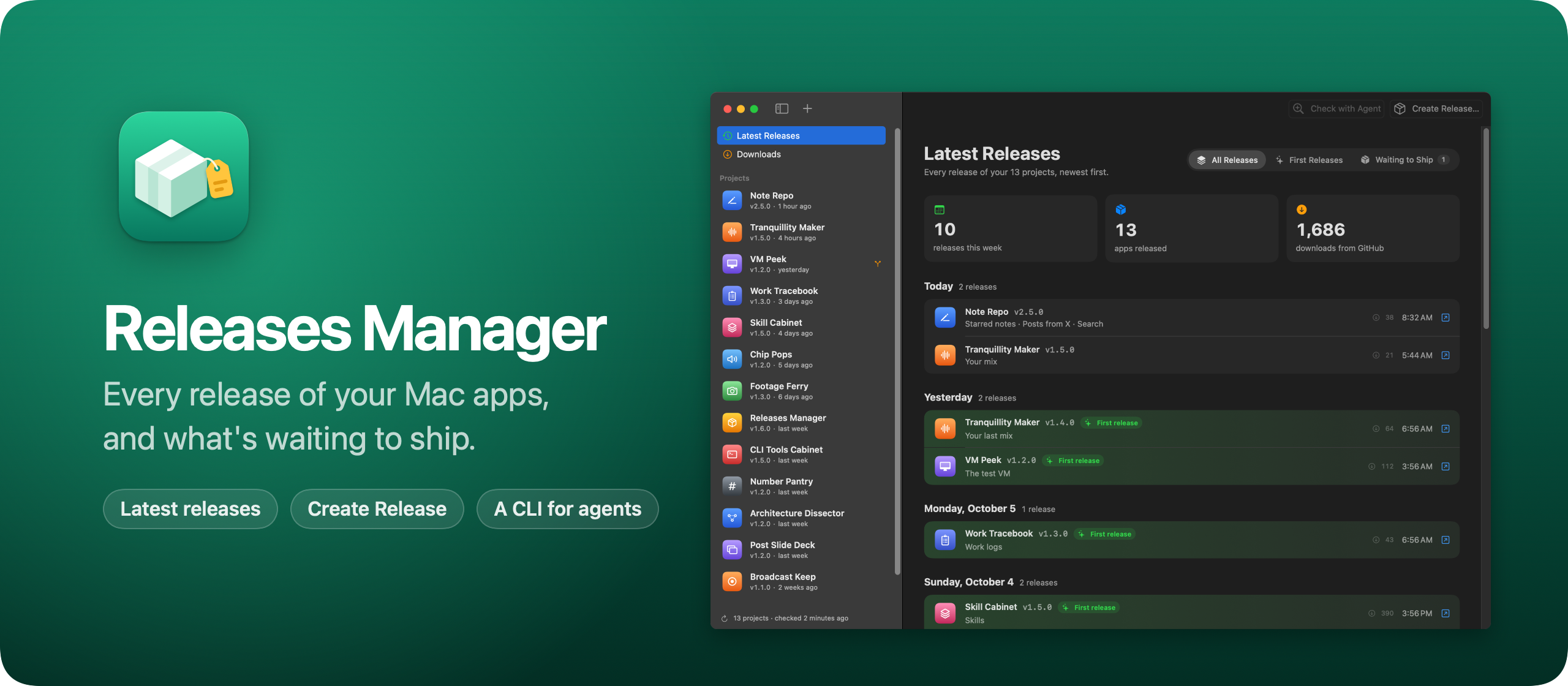
Ten repos, and no idea which ones need a release
Releases Manager is a macOS app that keeps track of the apps I make.
In September I released CLI Tools Cabinet, Note Repo, Tranquillity Maker and Skill Cabinet, and then new versions of three of them. GitHub shows one repo at a time, so I had no single place to see what I shipped and what was waiting for a release. Releases Manager is that place.
If you build several small apps or tools, you know the pattern. You fix a bug in one, add a feature to another, tweak a third. A week later you can’t remember which of them have commits that never went out, and which version number each one is on.
Releases Manager reads your project folders and their GitHub releases, and puts them in one window. It shows what you shipped, what’s waiting, and how many people downloaded each release. When something is ready, it writes the release prompt for your coding agent.
Here’s the app in a minute and a half, recorded with a fictional developer’s projects:
The projects, releases and download counts in the video and the screenshots are made up.
Who it’s for
- Indie developers with a dozen small apps. Each one lives in its own repo under
~/dev. You want one list of what’s out, what’s waiting, and what launched this month, without opening twelve GitHub tabs. - Developers who release with a coding agent. You already ask Codex or another agent to bump the version, write the notes and publish. Releases Manager fills in the prompt with the version, the repo and the commits since the last release, so you stop typing it from memory.
- People who sell or give away Mac apps through GitHub releases. You want to know if last week’s release got downloaded, per app, without adding analytics. Download counts come from GitHub’s own numbers. There’s a guide in See download counts for your GitHub releases across all your repos.
- Maintainers of a handful of CLI tools. Small fixes pile up in three tools at once. Waiting to ship shows each one with its commit count, so a Friday release round takes minutes.
- Anyone who forgets to bump the version. The project page shows the version in
project.yml,package.json, the Swift constant or the Xcode settings, next to the last release. A version that’s already newer than the last release shows up as ready to release.
Every release on one timeline
The home page is Latest Releases, every release of every project on one timeline, grouped by day. Each row shows what changed and how many people downloaded it. The changes come from the project’s CHANGELOG.md, or from the “What’s new” part of the release notes on GitHub. The release that launched an app gets a green background, so a new app stands out.
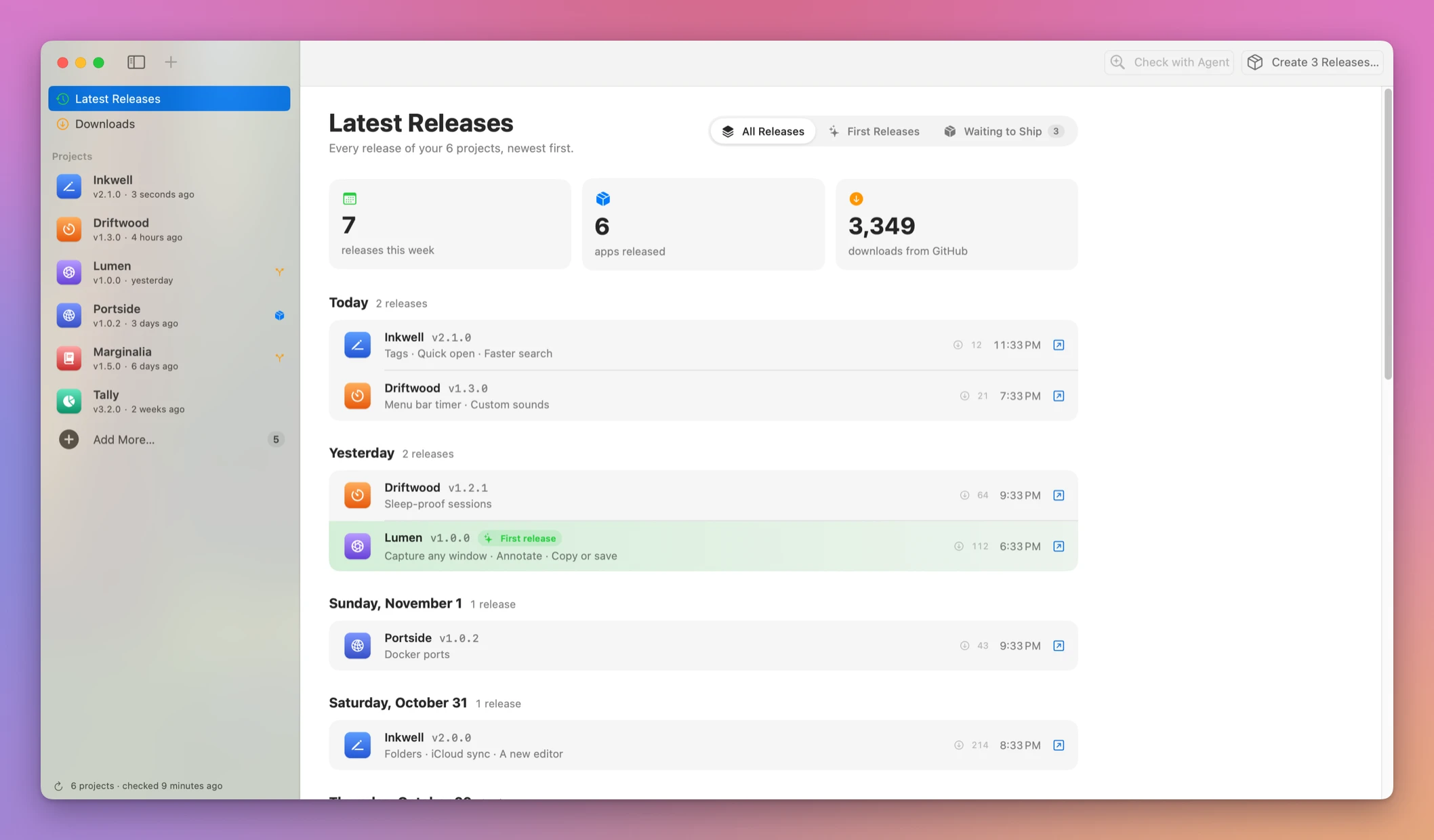
First Releases shows when each app first shipped, grouped into Today, Yesterday, Last 7 Days and then months. Downloads shows totals, the last 7 days, the most downloaded apps, and a chart per day or as a running total.
GitHub only reports the total so far for each file. Releases Manager saves a count every day it checks, which is how it builds the daily history. A project you add today starts its daily history today.
Waiting to ship
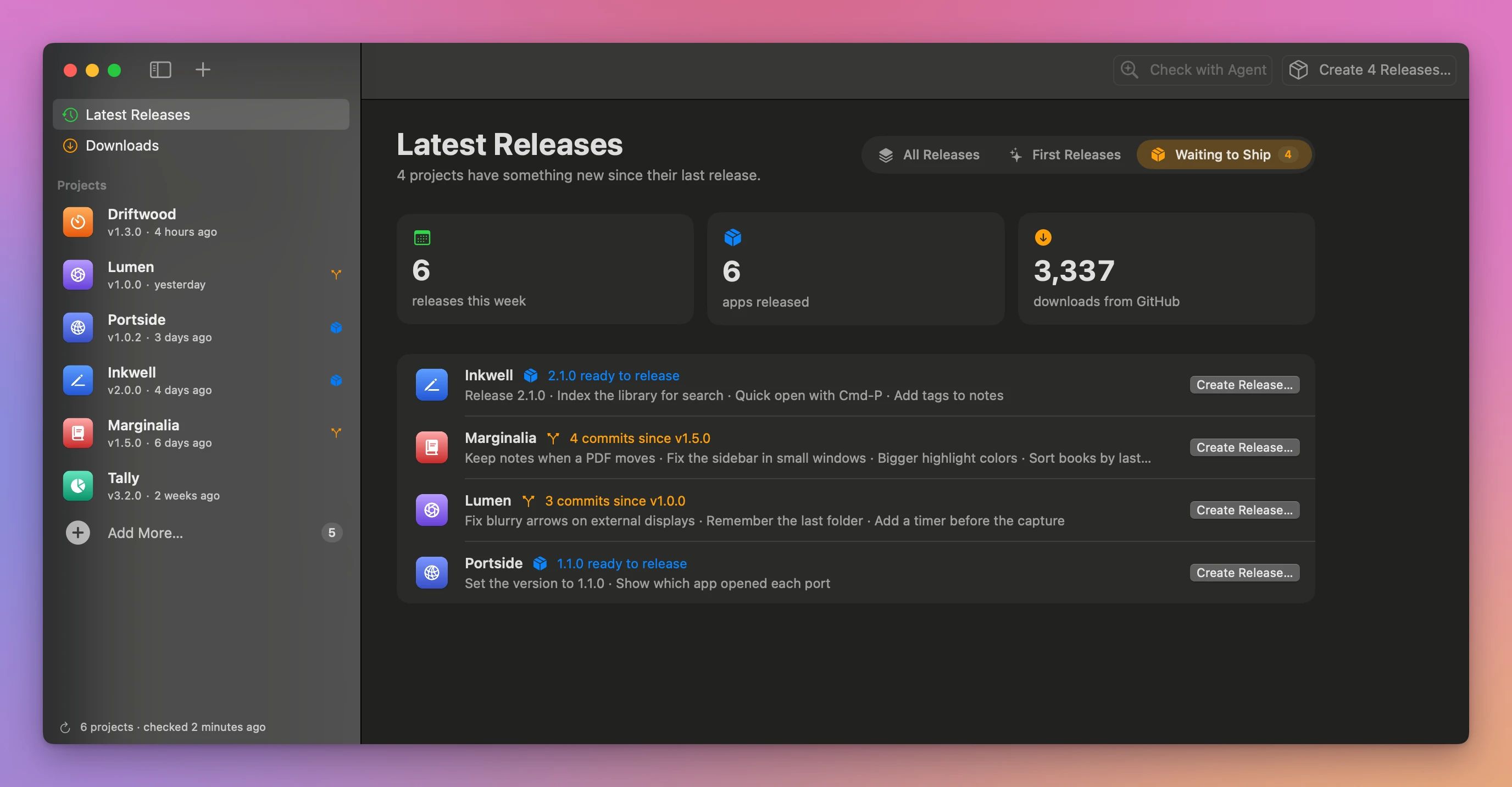
Above the timeline, Waiting to ship lists the projects with commits since their last release, and the ones whose version is already newer than the last release. That’s my to-do list for the week.
Each project has a page with its version and the file it comes from, its branch, the commits since the last release, and every release with its downloads.
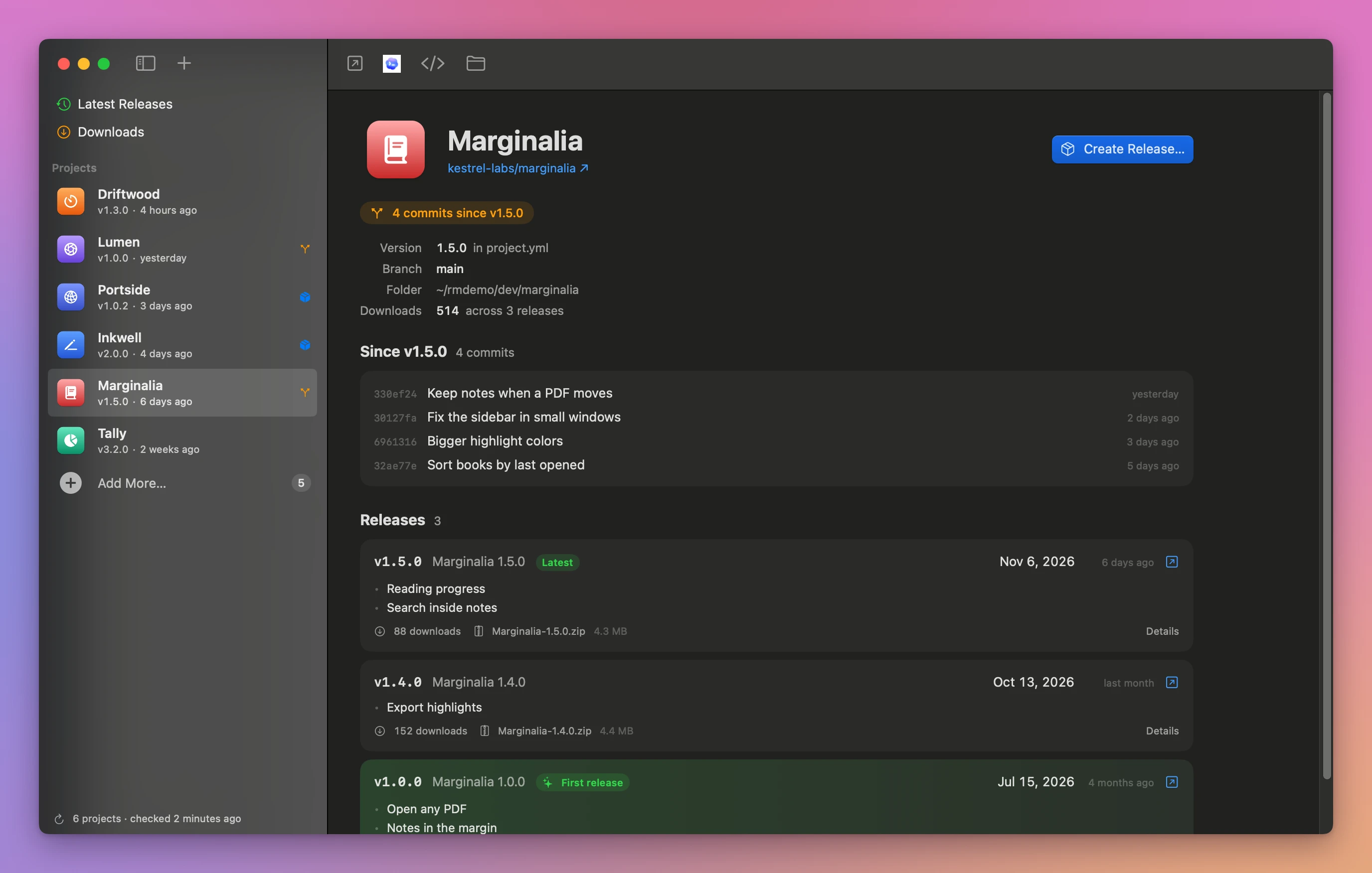
From there you can open the project on GitHub, in Cursor, in GitHub Desktop or in the Finder. The sidebar also marks projects with uncommitted changes as waiting for a commit.
Prepare the release
When something is ready, Create Release suggests the next version, with buttons for a patch, minor or major bump. It opens the project in Codex and puts the release prompt in the chat, with the version, the repo, and the commits since the last release. Nothing runs until I read it and send it.
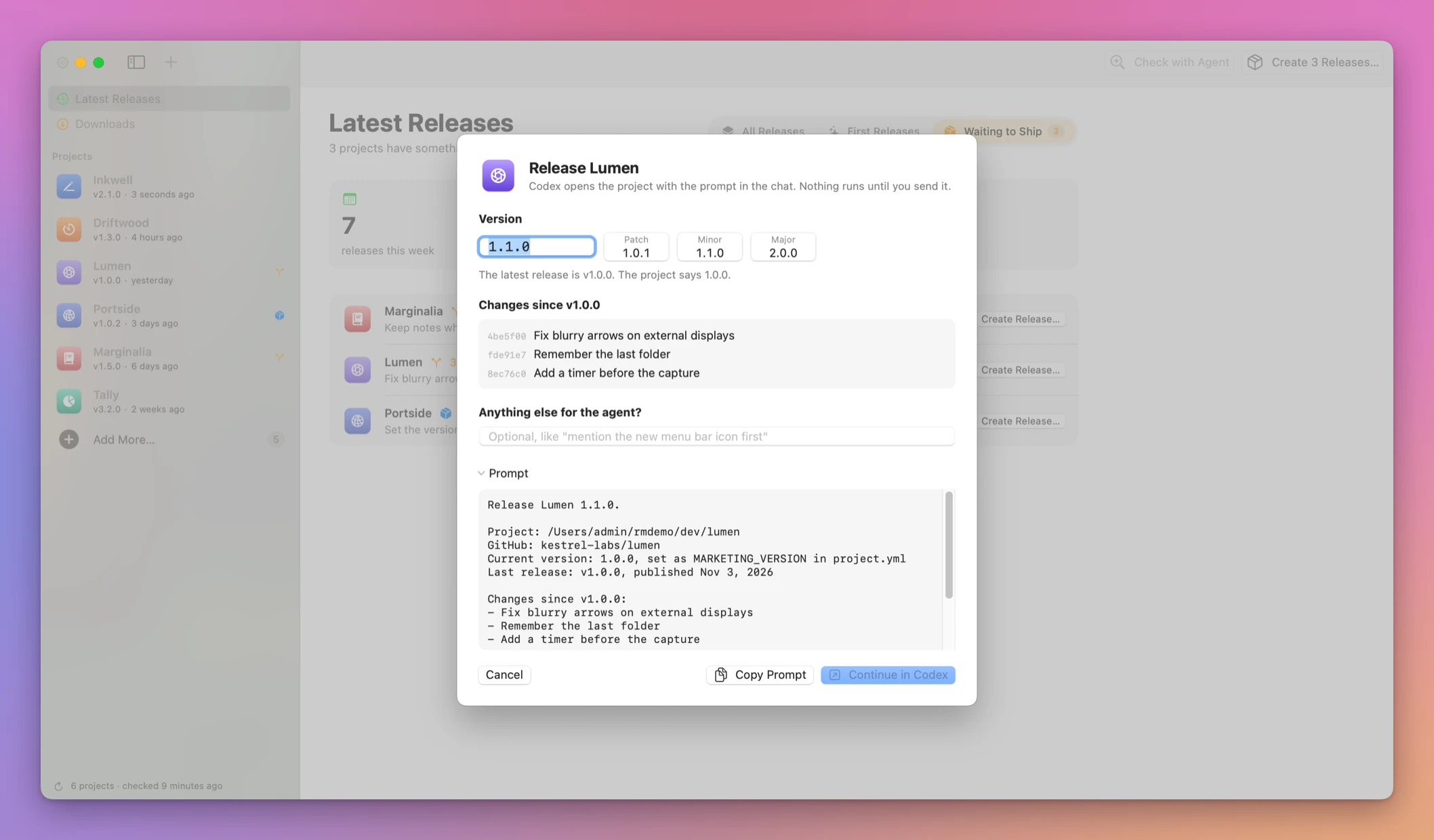
The prompt asks the agent to use the skill I wrote to publish my apps, and lists the steps for agents that don’t have it. It works for projects that aren’t on GitHub yet, too. The agent then creates the repo first.
Using another agent? Copy Prompt puts the same prompt on the clipboard.
When several projects are waiting, Create Releases… prepares them all in one Codex chat. Uncheck the ones to leave for later. If you aren’t sure which ones deserve a release, Check with Agent asks the agent to look at what changed in each project and recommend which to release and which to skip. It waits for your go-ahead before releasing anything.
A Friday release round
- Open Releases Manager. It refreshes when you switch to it, or press ⌘R.
- Click Waiting to Ship. Four projects are listed: two with commits since their last release, two with a version that’s already ahead.
- Click a project to read its commits. A README tweak alone isn’t worth a release, so leave that one.
- Click Create Releases… in the toolbar. Each project gets its next version. Change one to a major bump, uncheck the README-only project.
- Click Continue in Codex, read the prompt, and send it. The agent releases the projects one at a time.
- Next week, check Downloads to see if anyone picked up the new versions.
By hand, that round means opening each repo, running git log since the last tag, checking the version file, and writing a prompt for every project. With five projects, that’s five rounds of the same four or five steps before any release work starts.
Adding projects
To add a project, drop its folder on the window, or click Add More… at the end of the sidebar. It lists the apps and command-line tools next to my projects that aren’t in Releases Manager yet, the ones I worked on last first. The first time I opened it, it found 34 of them in my ~/dev folder. Clones of other people’s repos stay out, since Releases Manager knows my GitHub account from the projects I already track.
Hide a suggestion you don’t plan to ship with its eye button. Removing a project from Releases Manager leaves its folder alone. Double-click a project’s name to rename it in the app only, without touching the folder or the repo.
The releases command
Agents can do all of this without the window. The releases command does everything the app does, every command takes --json, and releases help --json describes them all:
releases recent
releases show tranquillity-maker --json
releases open drives the app. An agent can show me a project, or open its Create Release sheet with the version and the notes filled in, so I review it before anything happens:
releases open tranquillity-maker --release --bump minorOther commands list the projects waiting to ship (releases list --waiting), print the download history (releases downloads --by-day), or print a release prompt (releases prompt), with --codex to open it in Codex.
Private and local
Releases Manager reads my projects and their git history on my Mac, and has no accounts. It asks GitHub for the releases with the GitHub CLI’s token when I’m logged in, so private repos work too. The token stays in memory and never gets written to disk.
It also takes a token from GH_TOKEN or GITHUB_TOKEN. Public repos work without signing in, within GitHub’s limit for anonymous requests.
Under the hood it’s a Swift package with no dependencies: a core library with all the logic, and the SwiftUI app and the releases command on top of it. The app watches the list file, so a project an agent adds from the terminal shows up in the window right away.
Why not use GitHub
GitHub has all the raw data. Each repo has a Releases page, the compare view shows commits since a tag, and the API returns download counts for every release file. For one or two repos, that’s enough.
With ten or twenty repos, it’s a lot of tabs. There’s no page that lists every repo with unreleased commits. Download counts aren’t on the Releases page, and GitHub keeps only the running total, so you can’t see last week’s downloads unless you saved the numbers yourself. And your local version file, the one you bump before releasing, isn’t on GitHub until you push.
| GitHub by hand | Releases Manager | |
|---|---|---|
| Releases across 20 repos | 20 Releases pages | One timeline |
| Projects with unreleased commits | Compare view per repo | Waiting to Ship list |
| Local version ahead of the release | Open the version file | Shown on the project page |
| Downloads per day | Not kept by GitHub | Saved daily, with charts |
| Release prompt for your agent | Written by hand each time | Filled in with version and commits |
What it doesn’t do
- It doesn’t publish releases itself. It prepares the prompt. Your coding agent, or you, does the release.
- It doesn’t track releases outside GitHub. No App Store Connect, npm or Homebrew release lists.
- It doesn’t backfill daily download history. Daily counts start when you add a project. Earlier days are shown as an estimate.
- It doesn’t open other agents directly. The buttons open Codex. For other agents, use Copy Prompt.
- It doesn’t upload your code. It reads your folders on your Mac and only talks to GitHub’s API.
Questions
Do I need Codex?
No. Everything except Continue in Codex works without it. Copy Prompt gives you the prompt for any agent.
Does it work with private repos?
Yes, when you’re logged in with gh auth login or have GH_TOKEN or GITHUB_TOKEN set. The token stays in memory.
Which projects can it track?
Any local Git repo. It reads the version from project.yml, package.json, supported Swift version constants or the Xcode project settings. A folder with no release yet can still be tracked.
Does it work on Intel Macs?
Yes. It runs on macOS 14 or later on Apple silicon and Intel.
What you get
Releases Manager costs $20 including tax, paid once. The ZIP contains the notarized Mac app and the releases command.
Download and install
Unzip the download and drag Releases Manager to Applications. It runs on macOS 14 or later on Apple silicon and Intel Macs.
Choose Releases Manager → Check for Updates… to check right away, or let the app check once a day. Updates run without a license key. The setup guide shows how to use the bundled CLI.