
How to use Personalized PDF Watermarks
Personalized PDF Watermarks
Add a name or reference to every page of a PDF and save a separately named copy for each recipient.
Free to read. You can explore the guide before buying the app.
On this page
Install
Personalized PDF Watermarks requires macOS 15 Sequoia or later, on Apple silicon or Intel. Download the ZIP from the order page or your Creem receipt. Unzip it and move the app to Applications.
The app checks for updates once a day. When a new version is ready, click Install and Relaunch. To check anytime, choose Personalized PDF Watermarks → Check for Updates….
If your copy still asks for a key, download the latest version from your purchase page and replace the old app in Applications.
Prepare the files
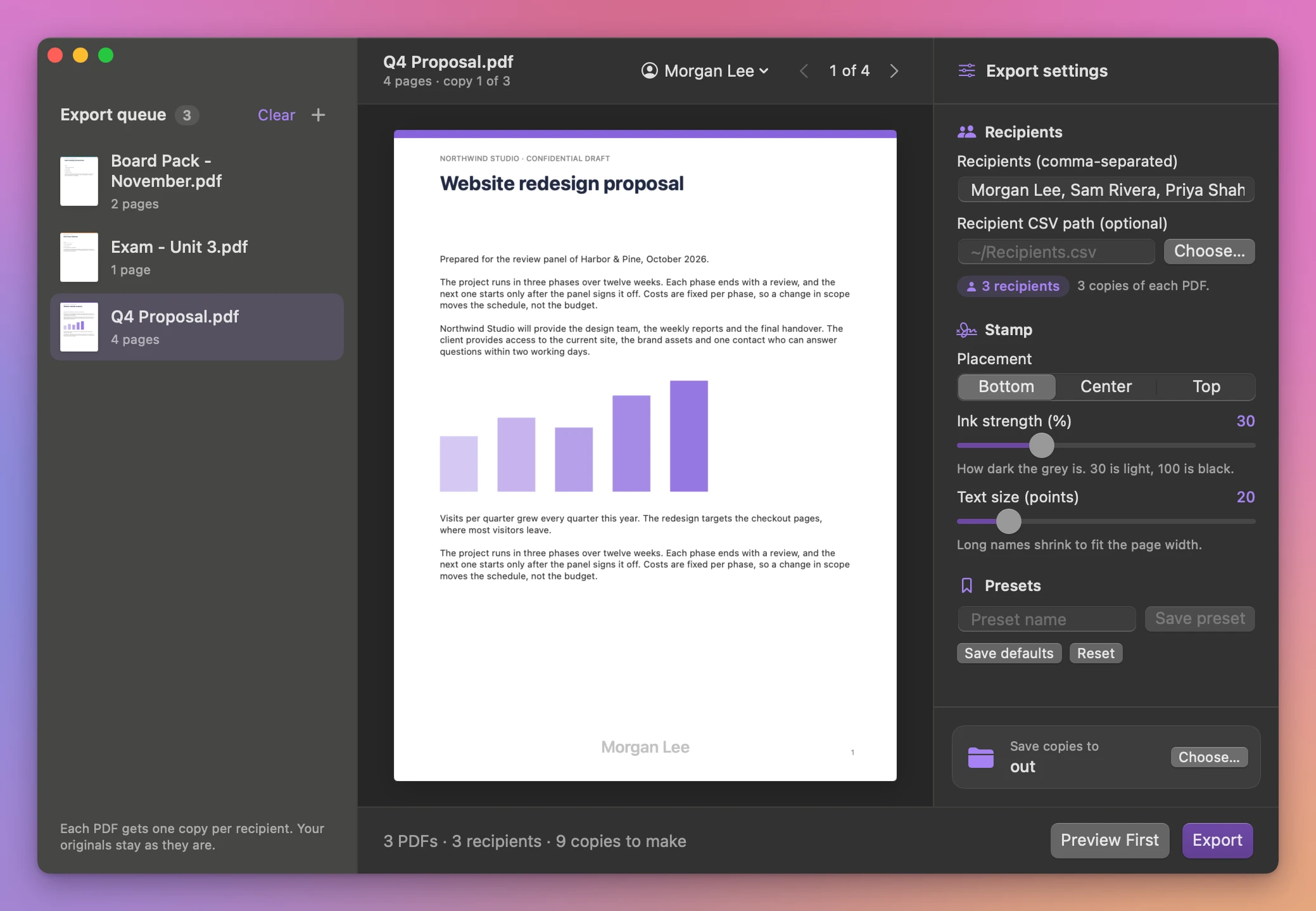
For a short list, put comma-separated names in Recipients. For a longer list, put the name in the first column of a UTF-8 CSV. You can call the header recipient. Quote names that contain commas, such as "Sam Rivera, PhD". Click Choose… next to Recipient CSV path to pick the file, or paste its path there.
Choose Top, Center, or Bottom for the stamp. The middle of the window shows the selected PDF with the name where the export puts it, and it follows the Ink strength and Text size sliders. Use the arrows to see other pages and the name menu to see another recipient’s copy. Preview First makes a temporary copy of the first PDF for the first name and opens it in Quick Look. Each source and name combination gives a new PDF.
Save and find the result
Click Choose… next to “Save copies to” at the bottom of Export settings, then click Export. The results list the copies under the PDF they came from, each with an Open button, and the queue marks every PDF as saved, failed or locked. Show output opens the folder in Finder. Existing files are kept and repeated output names get a number.
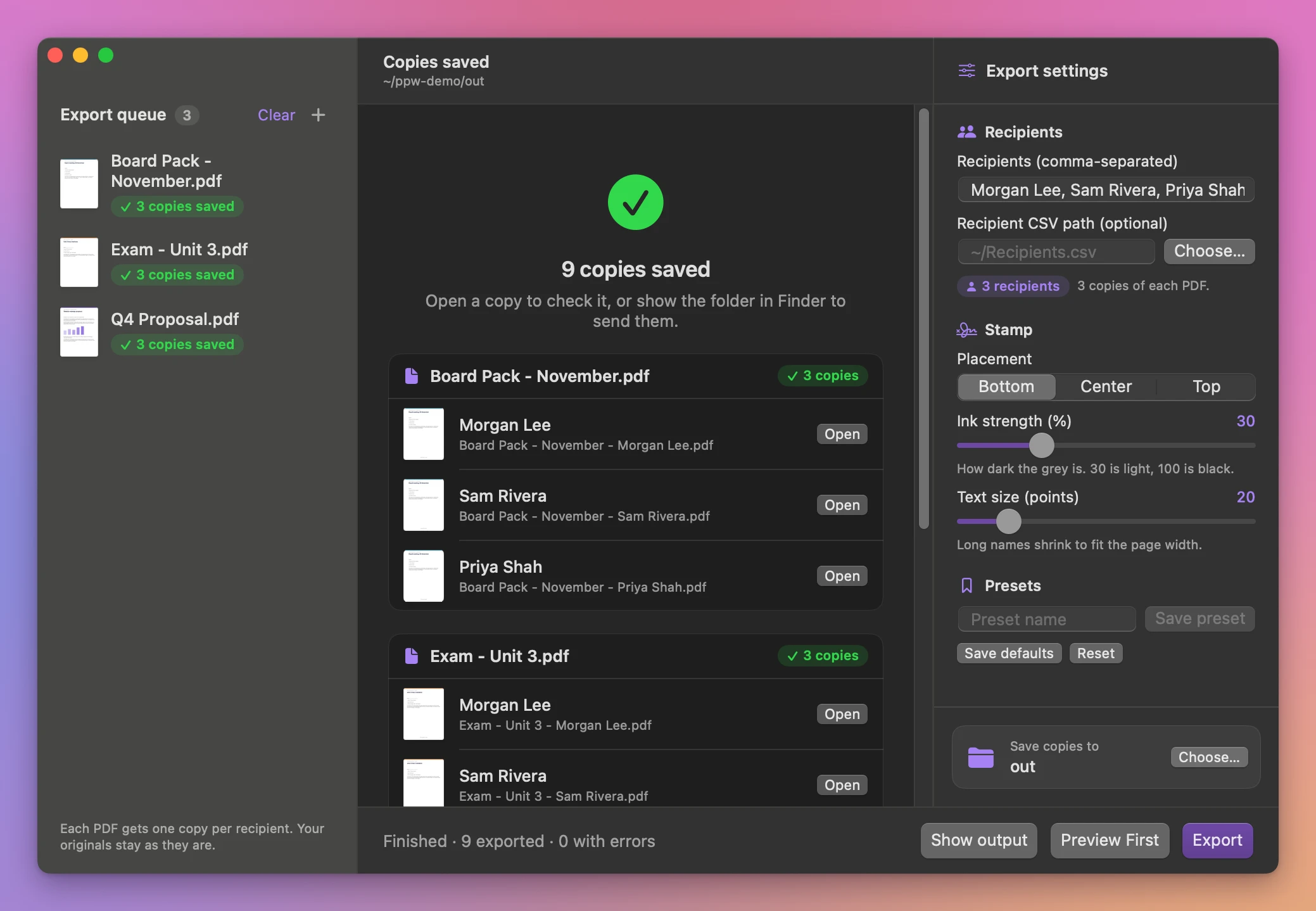
Cancel stops the batch. Copies that finished before cancellation stay in the output folder.
The stamp is an editable PDF annotation. Existing page text stays selectable. Export requires a PDF that allows annotations, and editing a signed document can invalidate its signature.
File processing happens on your Mac. The app uses the internet to check for and download updates.
See Personalized PDF Watermarks → · $20 including tax.