
An app by Flavio
Personalized PDF Watermarks
Type a list of names or point to a CSV, and save one copy of each PDF per person, with their name on every page. Everything runs on your Mac.
Buy Personalized PDF Watermarks · $20One-time purchase. Plus tax where it applies.
macOS 15 or later · Apple silicon and Intel
You’re sending a proposal to six people at a client. Or a workbook to the 40 people who bought your course. You’d like each copy to carry the reader’s name, so a forwarded file says whose it was, and nobody passes around an anonymous copy.
Doing that by hand means one text box per page, per person. A 20-page proposal for six people is 120 text boxes, six careful renames, and six chances to send Morgan the copy with Sam’s name on it.
Personalized PDF Watermarks does the repetitive part. You add the PDFs, type the names or point to a CSV, and click Export. You get one PDF per person, named after them, with their name on every page.
Who it’s for
- Consultants and agencies who send the same proposal or pitch deck to several people at one company. When a copy turns up at a competitor, the name at the bottom of every page tells you which one it was.
- Course creators and authors who sell a PDF workbook or ebook. Export the buyer list from your store as a CSV, keep the name or email in the first column, and stamp each copy before you send it.
- Board secretaries and HR teams who share confidential papers with eight board members, or a draft contract with three candidates. Each copy says who it was for.
- Architects and designers who send draft drawings out for quotes. Put “Draft for Acme Builders” on every sheet, so the drawings don’t come back months later as if they were final.
- Teachers with an exam paper or a worksheet for a class of 28. Paste the class list, and every student’s paper has their name printed at the top before it goes to the printer.
From one PDF to a copy for everyone
Say it’s a 20-page proposal for the six people on a client’s review panel.
- Drop
Proposal.pdfon the window, or click Add PDFs…. You can add several PDFs. Each one gets a copy per person. - In Recipients (comma-separated), type
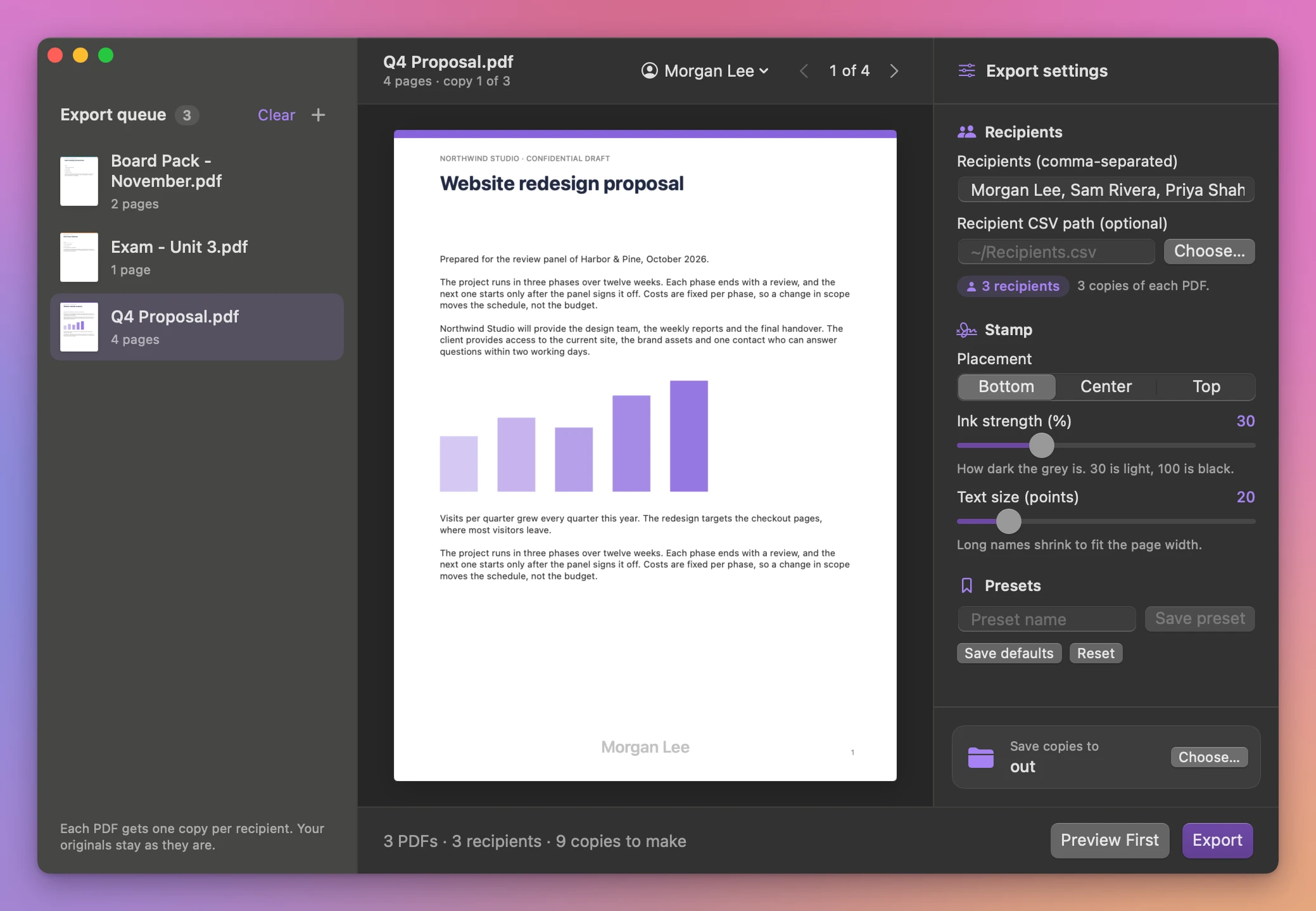
Morgan Lee, Sam Rivera, Priya Shah, Tom Becker, Ana Ruiz, Jon Park. For a long list, put the names in the first column of a CSV and paste its path in Recipient CSV path (optional). You can use both at once. - Pick Top, Center or Bottom in Placement. Leave the Ink strength (%) slider at 30 for a light grey, or drag it toward 100 for darker text. Text size (points) starts at 20.
- Look at the page in the middle of the window. It shows the selected PDF with the first name where the export puts it, and it changes as you move the sliders. Use the arrows to flip through the pages and the menu with the name to see another person’s copy. Check that the name doesn’t cover the page number or a signature line. Preview First makes a real temporary copy of the first PDF and opens it in Quick Look, if you want to see the file itself.
- Click Choose… next to “Save copies to”, pick a folder, and click Export.
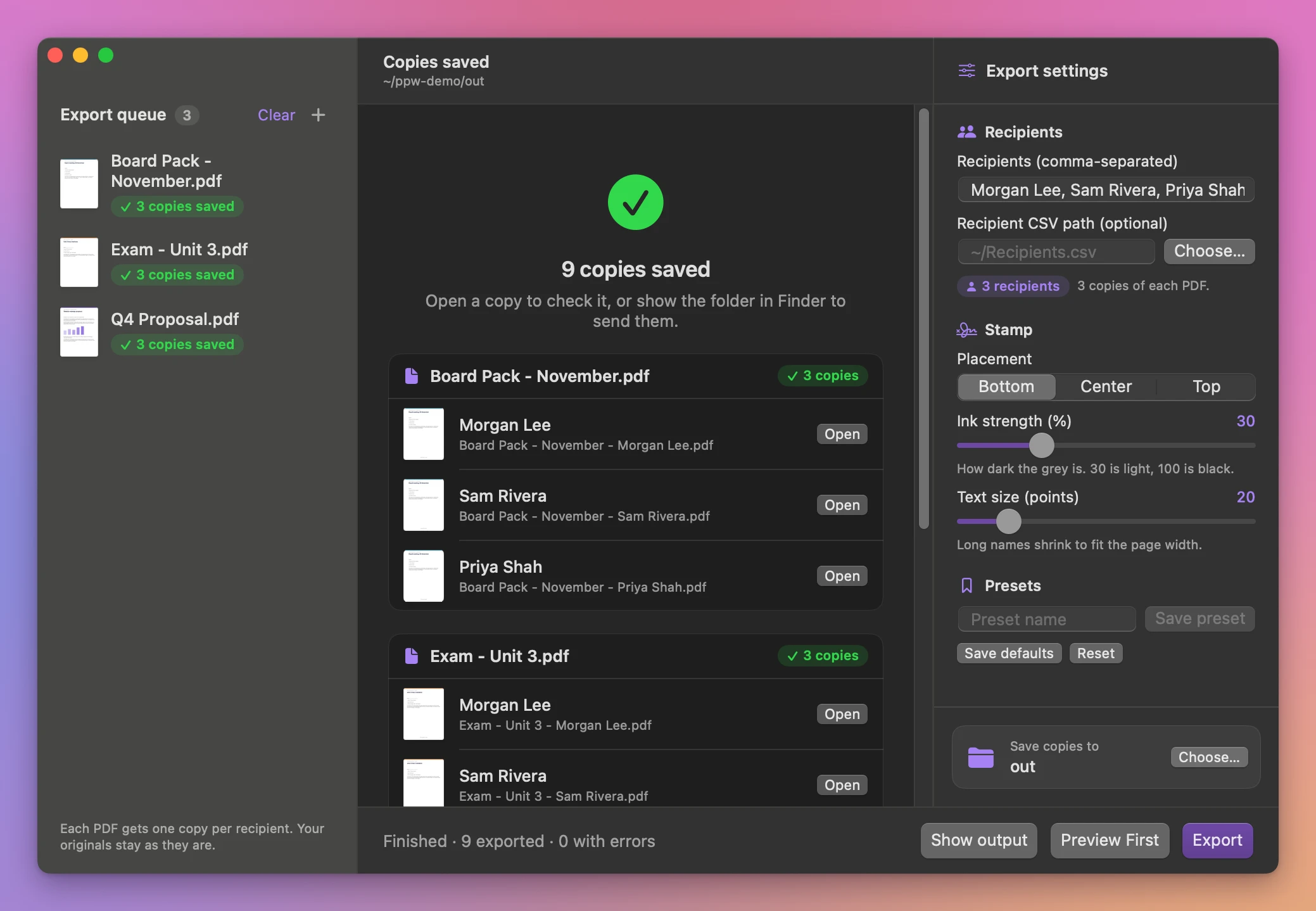
- The results list each copy under its PDF:
Proposal - Morgan Lee.pdf,Proposal - Sam Rivera.pdf, and so on. Click Open next to a name, or Show output to see the folder in Finder.
The footer ends with a line like “Finished · 6 exported · 0 with errors”. Three PDFs for twelve people is 36 files from the same click.
What it does
The name on the page
The name goes on every page of the copy, centered, in a semibold grey. Ink strength sets how dark that grey is, from 5% to 100%, and text size goes from 8 to 92 points.
A long name on a narrow page is made smaller until it fits the width. On a very small page where it would drop under 5 points, the app stops and tells you which page it doesn’t fit on. It never cuts a name off.
The stamp is a PDF annotation, set to print. The page itself isn’t redrawn, so the text you could select and search in the original stays selectable and searchable in every copy.
The recipient list
You can type names separated by commas, give a CSV, or both. The app reads the first column of the CSV. It skips a header row called recipient, so an export with that header works as it is. Names with a comma inside, such as "Sam Rivera, PhD", go in quotes, the way spreadsheet apps write them.
If the same name appears twice, you get one copy, not two. A CSV with a broken quote stops the export with a message instead of making copies with half a name.
Click Choose… next to the CSV path to pick the file, or paste its path in the field. To copy a path in Finder, select the file, hold Option, right-click it and choose Copy as Pathname.
File names and your originals
Each copy is called <original name> - <recipient>.pdf. A slash or a colon in a name becomes an underscore, since Finder can’t use them in file names. Very long names are shortened.
Your original PDFs are never changed. The app reads them and writes new files to the output folder. If a file with the same name is already there, the new one gets a number, like Proposal - Morgan Lee (2).pdf, and the old one stays.
Checks before a copy counts
After writing each copy, the app opens it again. It checks that it has the same number of pages as the original and that the name is on the first page. If that fails, the copy isn’t saved and the queue says which recipient had the problem.
A PDF that’s encrypted or doesn’t allow annotations gets a red Locked label in the queue as soon as you add it, and the results say why it was skipped. The other PDFs in the batch keep going. Cancel stops a running export, and the copies already saved stay in the folder.
Settings you reuse
Type a name next to Save preset to keep a set of settings, for example “Board papers, top, 50%”. Load it later from Presets. Save defaults makes the current settings the ones the app opens with, and Reset goes back to the original values.
Why not do it in Preview
Preview can add a text box to a page, and you can save the result as a new file. For one recipient, that’s fine.
For a list of people it gets slow. You add a box to every page and line each one up by eye. You save a copy and type the name into the file name. Then you remove all the boxes and start again for the next person. Six people and 20 pages is about 120 text boxes, and it’s easy to leave one page unstamped or send a file with the wrong name inside.
Online watermark sites can do batches, if you’re fine uploading a board paper to someone else’s server.
| By hand in Preview | Personalized PDF Watermarks | |
|---|---|---|
| 20 pages, 6 people | About 120 text boxes, placed by eye | One list of names and one click |
| Position | Lined up by eye on every page | Same place on every page |
| File names | Typed by hand for each copy | Proposal - Morgan Lee.pdf, made from the list |
| Checking | Open every file and scroll | Preview the first copy, and every copy is checked after saving |
| Your files | Stay on your Mac | Stay on your Mac |
What it doesn’t do
- It isn’t copy protection. The name is an annotation. Someone with a PDF editor who knows what they’re doing can delete it. It works as a visible reminder of whose copy it is, not as a lock.
- It doesn’t send the copies. You still email or upload each file yourself.
- One line of text, in grey. No logos, no images, no colors, no diagonal text across the page. The text can be anything you type, like
Draft for Acme Builders, but it’s the same line on every page of that copy. - No encrypted PDFs. A PDF with a password or one that blocks annotations is refused. Editing a signed PDF can also break its signature, so stamp before signing.
Questions
Are my original PDFs changed?
No. The app only reads them. Each copy is a new file in the output folder you choose.
Does anything get uploaded?
Nothing leaves your Mac. The PDFs are processed locally. The app uses the internet only to check for updates and download them.
Can a recipient remove their name?
Yes, with a PDF editor and some effort, because the stamp is an editable annotation. That’s also why the page text underneath stays selectable.
The documentation covers the settings in more detail.
What it needs
Personalized PDF Watermarks runs on macOS 15 Sequoia or later, on Apple silicon and Intel Macs. Files are processed locally.
The stamp is an editable PDF annotation. Existing page text stays selectable. Export requires a PDF that allows annotations, and editing a signed document can invalidate its signature.
Buy Personalized PDF Watermarks
$20 plus tax where it applies, paid once.
Download the app from the order page or your Creem receipt, unzip it and move it to Applications. I sign the app with my Apple Developer ID, and Apple notarizes the download.
The app checks for updates once a day. When a new version is ready, click Install and Relaunch. To check anytime, choose Personalized PDF Watermarks → Check for Updates….