
An app by Flavio
PDF Size Limit
Type the upload limit, compare page one before and after, and save a PDF copy that's checked to be under the limit, byte for byte. Nothing is uploaded.
Buy PDF Size Limit · $20One-time purchase. Plus tax where it applies.
macOS 14 or later · Apple silicon and Intel
Latest version 1.2.2, released November 20, 2026
The visa portal accepts files up to 2 MB. Your bank statements, scanned on the office copier, come to 7.4 MB. The deadline is tonight, and the form just says “File too large”.
So you start guessing. You export with Preview’s Reduce File Size, check the size in Finder, and find the text has turned to mush. You try an online compressor, which means uploading your bank statements to a stranger’s server. Then you try again with the other scan.
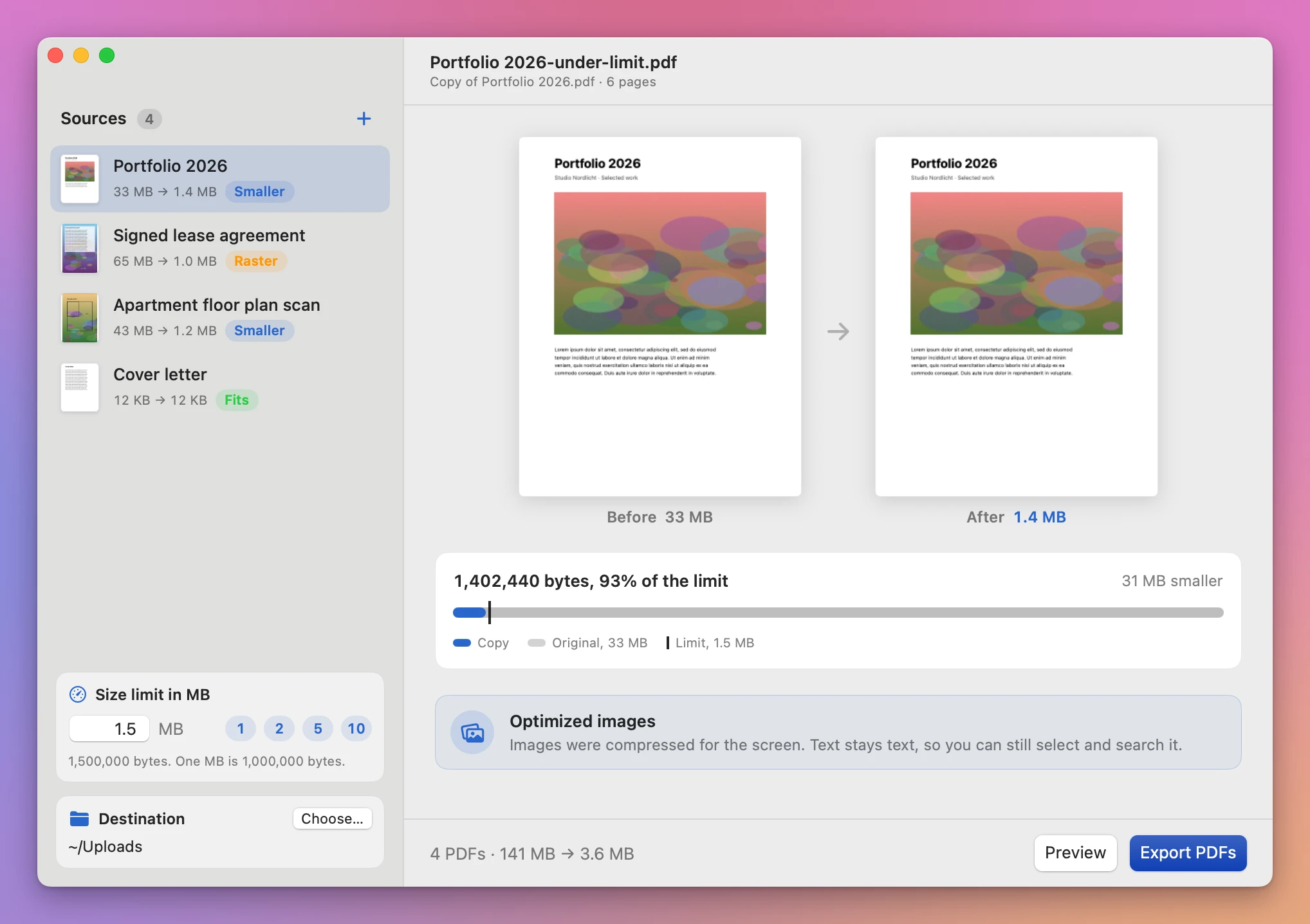
PDF Size Limit starts from the number the form gives you. Type 2, click Preview, and the app makes a copy that fits, shows you page one before and after, and tells you the exact size in bytes. The copy is checked against the limit again before it’s saved.
Who it’s for
- Visa, residency and university applicants uploading passports, bank statements and diplomas to portals that cap each file at 1, 2 or 5 MB. The phone scans are always bigger, and a rejected upload means starting the form again.
- Job seekers whose CV and portfolio PDF has to be under 2 MB for the application system, and whose portfolio full of project photos is 18 MB.
- Freelancers and small agencies sending invoices, proposals and tender documents through client portals and procurement sites, each with its own limit printed somewhere in small type.
- Anyone emailing a document to a mail server that bounces attachments over 10 MB. You want one copy that fits, not a link to a file-sharing service.
- Teachers and students submitting assignments with scanned pages to a learning platform that caps each upload, often at a size a five-page scan goes past.
How it fits the job
Say you have four scanned documents for an application, and the portal allows 2 MB per file.
- Open PDF Size Limit and click Add PDFs…, or drop the four PDFs onto the window.
- In Size limit in MB, type 2, or click the 2 next to the field. The app counts one MB as 1,000,000 bytes, so 2 means 2,000,000 bytes.
- Under Destination, click Choose… and pick a folder for the copies.
- Click Preview. Each PDF in the sidebar gets its new size and a label: Fits, Smaller or Raster. Select one to see page one under Before and After, its exact size in bytes on a bar next to the limit, and the method the app used.
- Look at the After page. Can you still read the small print? If the method says raster copy, the text can’t be selected anymore. That matters only if someone needs to copy from it.
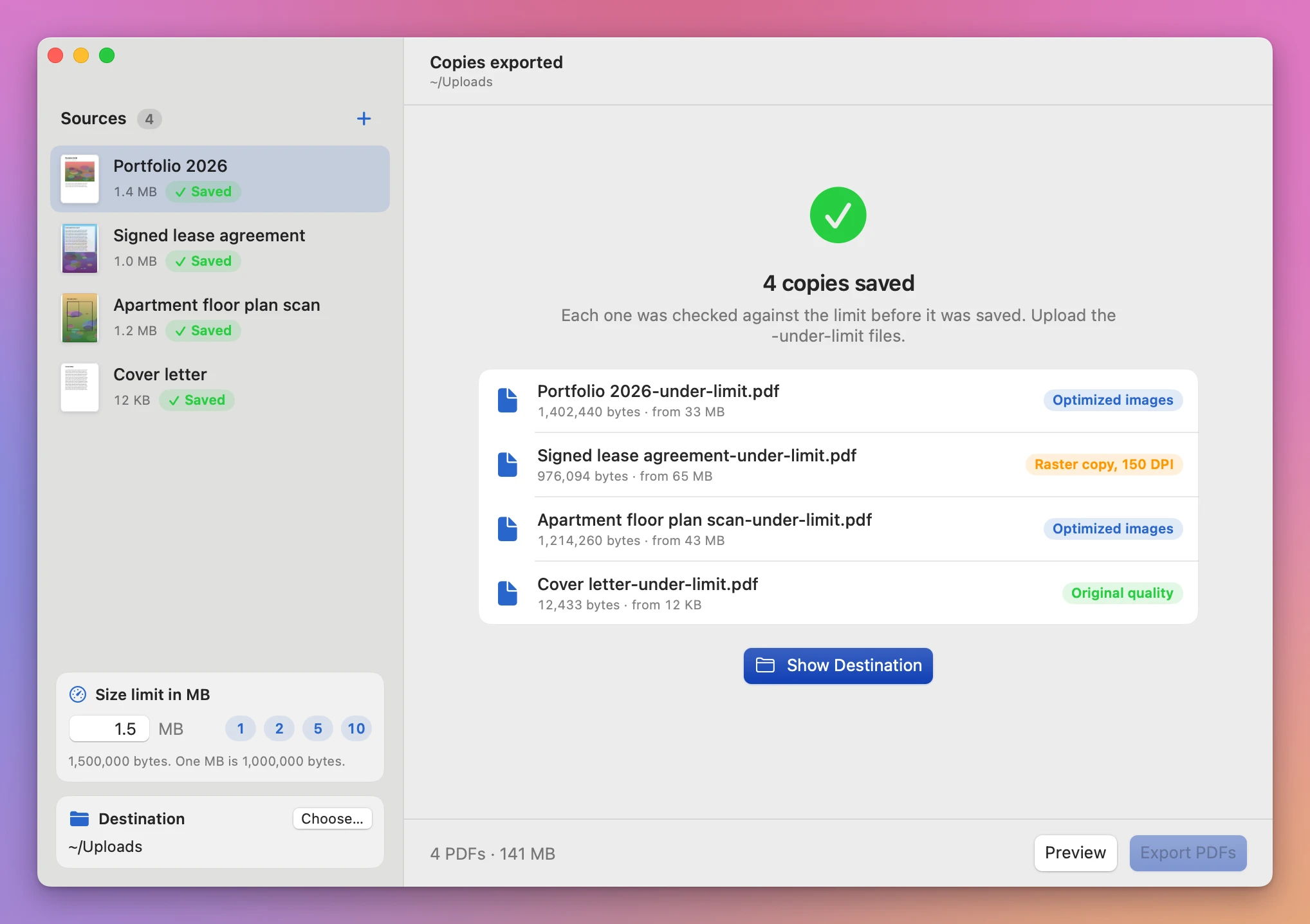
- Click Export PDFs. The report lists each copy with its exact size and method. Click Show Destination to open the folder, then upload the
-under-limitfiles.
By hand, each of the four documents is a round of reduce, check the size, check the text, and often try again. Here it’s one preview for all of them.
What it tries, in order
The app picks the gentlest change that fits, and stops there.
- The file already fits. It’s copied byte for byte, and the report says original quality. Nothing is recompressed.
- Optimized images. The app re-saves the PDF with its images compressed for the screen. Text stays text, so you can still select and search it. The report says optimized images.
- A raster copy. If that’s still too big, the app draws each page as a picture at 150 DPI, then 120, then 96, and keeps the first one that fits. The report says raster copy with the DPI, and the preview warns you: “Raster copies lose selectable text and links.”
If none of these fit, the app says “Unable to meet the limit at 96 DPI or above. Choose a larger limit.” and writes nothing for that file.
Checked before it’s saved
The size you see is the real size of the file, counted in bytes. Before saving, the app checks again that the copy is under your limit and that it has the same number of pages as the original. A copy that fails either check isn’t saved.
Counting a MB as 1,000,000 bytes also helps when a form isn’t clear about its units. Some sites mean 2 MB as 2,097,152 bytes. A copy under 2,000,000 bytes fits either way.
Your original stays as it is
The source PDF is only read. The copy goes into the destination with -under-limit added to its name, like Bank statements-under-limit.pdf.
If that name is already taken, the new copy gets a number. Files already in the folder are never replaced. Stop cancels the rest of a batch, and the copies already saved stay.
Why not use Preview’s Reduce File Size
Preview has a Reduce File Size filter in its export window. It has no setting for a target size. The result can still be too big for the form, or so compressed that small text is hard to read. Either way you find out after exporting, by checking the size in Finder and opening the file.
Online compressors do aim for small files. They also need you to upload the document, and these are often the most private files you have: passports, bank statements, contracts, medical letters.
PDF Size Limit aims for your number, shows you page one before and after, tells you the exact byte count, and keeps everything on your Mac.
| Preview or an online tool | PDF Size Limit | |
|---|---|---|
| Aims for a size | No target, you try and check | Starts from the limit you type |
| Checking the result | Open the file and check Finder | Page one before and after, exact bytes |
| Text stays selectable | Depends on the tool | Yes, unless a raster copy is needed, and it tells you |
| A batch of documents | One at a time | One limit for the whole batch |
| Your original | Easy to save over by mistake | Only read, copy saved with a new name |
| Privacy | Online tools upload your file | Nothing leaves your Mac |
What it doesn’t do
It doesn’t let you choose the compression level or the DPI. It tries its steps in order and keeps the first that fits.
The preview shows page one only. Open the saved copy and read the other pages, especially when the document has small print or detailed drawings.
A raster copy is a picture of each page. Text can’t be selected or searched, and links and fillable form fields stop working. Keep the original if you need those.
It doesn’t split a PDF into smaller parts or remove pages. If a 60-page document can’t fit even at 96 DPI, you’ll need a larger limit or a shorter document.
Locked or damaged PDFs need to be unlocked or repaired first.
For photos and images with their own upload rules, there’s Image Upload Fitter. For videos, Video Size Limit does the same job for an upload limit.
Questions
Does anything get uploaded?
Nothing leaves your Mac. The PDFs are read and compressed locally, and the app goes online only to check for updates.
Will my original PDF change?
The original is only read. The smaller version is a new file with -under-limit in its name.
What if the PDF already fits?
It’s copied exactly, byte for byte, with the new name, and the report says original quality. That way your upload folder has every document, whether it needed shrinking or not.
Can I use different limits for different files?
One limit applies to the whole batch. For a second limit, change the number, click Preview again, and export to the same or another folder.
Why did my copy become a raster copy?
The images alone weren’t enough to get under the limit, so the app made each page a picture. The pages look like the original at a lower resolution, but you can’t select the text. Try a larger limit if the form allows it.
The PDF Size Limit documentation explains each step of the export.
Use it on your Mac
PDF Size Limit runs on macOS 14 Sonoma or later, on Apple silicon and Intel.
Processing happens on your Mac.
Buy PDF Size Limit
$20 plus tax where it applies, paid once.
Download the ZIP after checkout, unzip it and drag the app to Applications. The download is signed and notarized.
The app checks for updates once a day. When a new version is ready, click Install and Relaunch. To check anytime, choose PDF Size Limit → Check for Updates….