
An app by Flavio
Image Upload Fitter
Type the width, height and KB limit an upload form asks for, and get JPEGs that fit, cropped or padded, each one checked on disk. A whole batch at once.
Buy Image Upload Fitter · $20One-time purchase. Plus tax where it applies.
macOS 15 or later · Apple silicon and Intel
The form says “Image must be 1200 × 1200 pixels, maximum 500 KB”. Your photo is 4032 × 3024 and 3.1 MB. So you crop it square by hand, resize it, export a JPEG, look at the size, and it’s 640 KB. You export again with lower quality. Then the next photo.
The size in pixels and the size in KB pull against each other. Fix one and you check the other again.
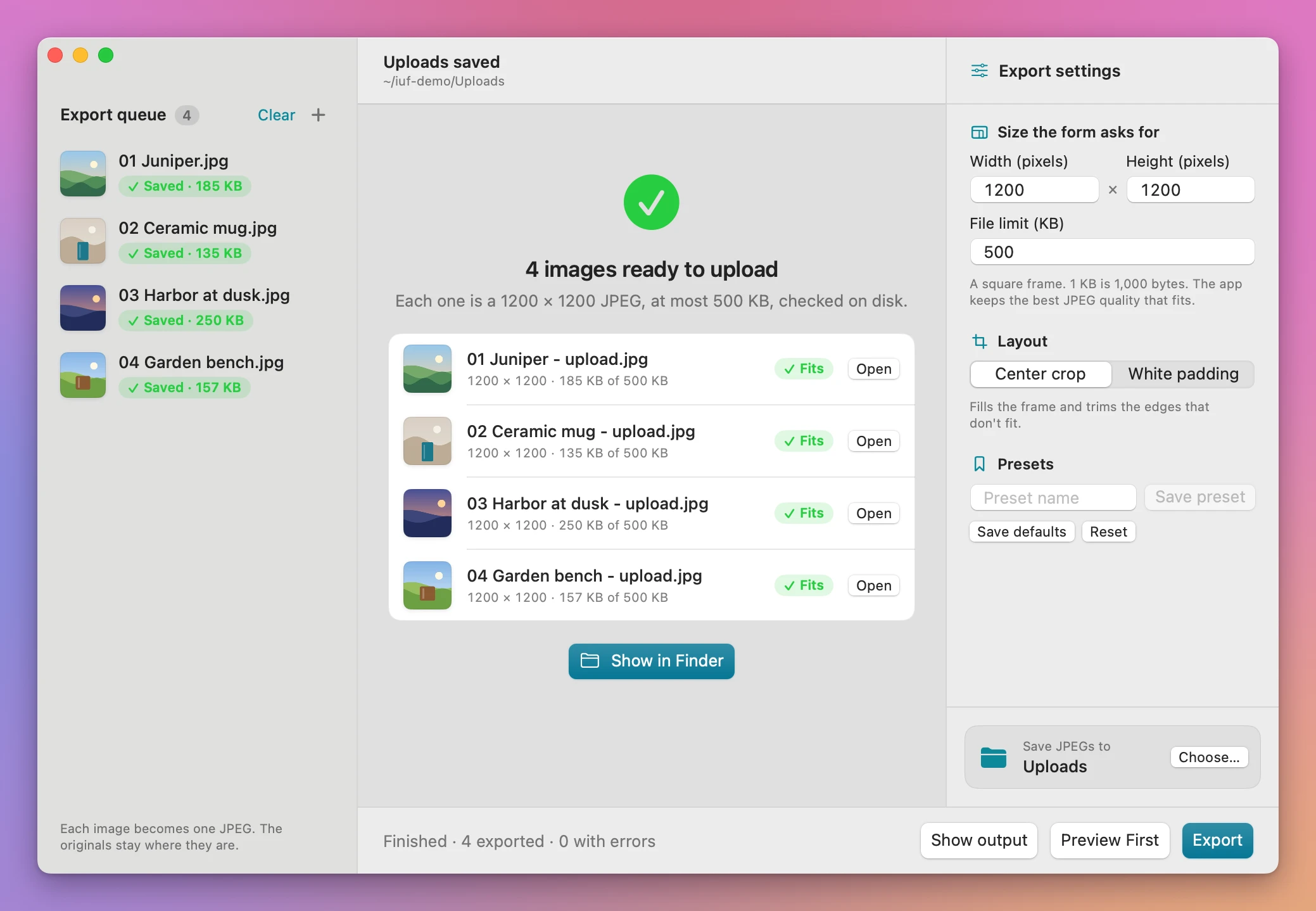
Image Upload Fitter takes all three as numbers. You type the form’s numbers, choose Center crop or White padding, add the pictures and click Export. Every JPEG comes out at exactly that size in pixels and under the limit, and the app checks the real file before it saves it.
Who it’s for
- Online sellers. Every marketplace and shop theme has its own image rules, and your product photos come off the phone at full size. Fit forty product shots to one square size in one batch, and save the numbers as a preset for each shop.
- People filling in forms with a photo. A school enrollment, a club membership card or a conference badge wants a square photo under 200 KB. The portal rejects anything else, often without saying which rule you broke.
- Real estate agents and car dealers. The listing site caps every photo, and a viewing gives you thirty pictures. Fit all of them at once instead of finding out which ones bounce on upload.
- Website and newsletter editors. The CMS wants header images at 1600 × 900 and a newsletter tool wants them small. Make every image in the post the same size, so nothing gets stretched or cropped by the template.
- Job seekers. An application portal wants a profile picture at a set size and under a small file size. Make one that fits without an image editor.
From a folder of photos to a folder of uploads
Say you’re listing a batch of products on a shop that wants 1000 × 1000 pixels, at most 300 KB.
- Add the pictures. Drag them onto the Export queue, or click Add Images…. The originals stay where they are.
- Type the rules. Enter 1000 in Width (pixels), 1000 in Height (pixels) and 300 in File limit (KB).
- Pick the layout. Center crop fills the square and trims the edges. White padding keeps the whole photo and fills the gap with white.
- Check the crop. Click a picture in the queue and the window shows it in the frame: with Center crop, the edges that get trimmed are dimmed around it. If the crop cuts off the product, switch to White padding. Preview First makes the real JPEG of the first picture and opens it in Quick Look.
- Save it for next time. Type “Shop 1000 square” in Preset name and click Save preset. Next week it’s in the Presets menu.
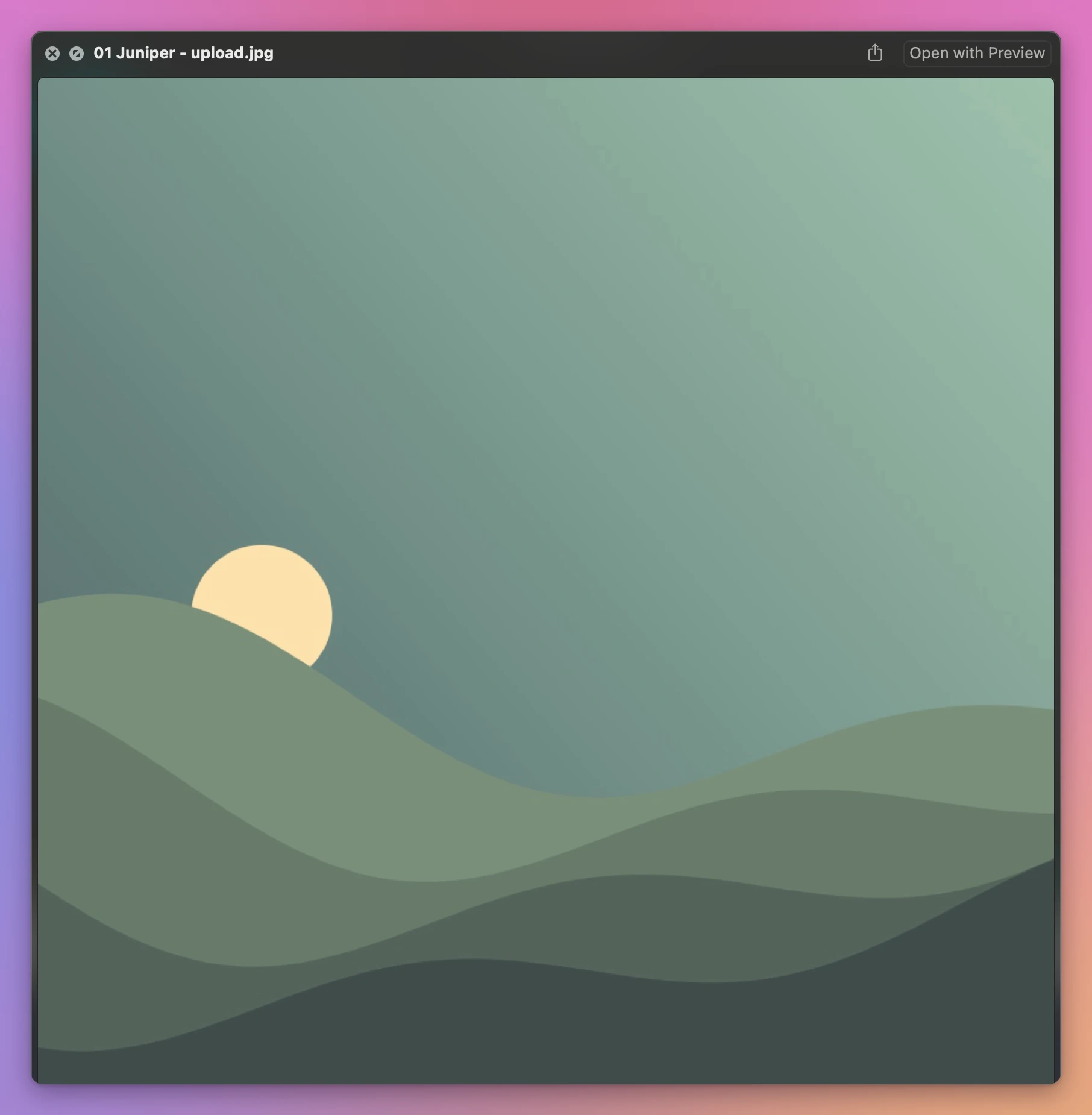
- Export. Under Save JPEGs to, click Choose… and pick a folder, then click Export. Each picture gets a green Saved label with its size, or a red Failed one, and the window lists every JPEG, like
01 Juniper - upload.jpg, with its size next to your limit and the reason for any that didn’t fit. Show in Finder opens the folder.
What it does
Exact pixels, every time
The JPEG is always the width and height you typed, from 1 to 6,000 pixels per side. After encoding, the app reads the file back and checks its dimensions. If they don’t match, the picture gets the error “The JPEG failed the dimension check.” and nothing is saved.
Crop or pad, never stretch
A landscape photo in a square box can’t keep everything without distortion. You pick what gives:
- Center crop scales the picture until it fills the box and trims what spills over, the same amount from each side.
- White padding scales the picture until it fits inside the box and fills the rest with white. Nothing is cut off.
The app never stretches a picture to fill a shape it doesn’t have.
Under the limit, at the best quality that fits
The app starts at the highest JPEG quality and steps down a little at a time. It keeps the first version that’s at or under your limit. So when 90% quality fits, you get 90%, and not 60%.
The limit is in decimal KB, the way most forms count: 1 KB is 1,000 bytes. You can enter from 1 to 100,000 KB.
If even very low quality is too big, the app says so: “The selected dimensions need more than 50 KB, even at very low JPEG quality.” Then use smaller dimensions, or a higher limit if the form allows it.
Photos come out the right way up
The app reads the rotation saved by the phone or camera, so a portrait photo stays portrait. Colors are converted to sRGB, which is what browsers and upload forms expect. Transparent areas in a PNG become white, because JPEG has no transparency.
The originals stay as they are
The app reads your pictures and writes new JPEGs into the folder you choose. When a name is taken it adds a number instead of replacing the file. The JPEG is a freshly drawn picture, and the app doesn’t copy the original’s metadata into it.
A file that isn’t an image gets “This image could not be decoded.” and the batch carries on. Cancel stops the batch and keeps the JPEGs already saved.
Why not resize in Preview
Preview is free and can do each part. Its Adjust Size sets a width and height, it crops a selection you draw, and it exports JPEGs with a quality slider. It can even resize several open pictures at once.
The trouble is the combination. Resize a landscape photo to 1000 × 1000 with proportions kept, and it comes out 1000 × 750. Turn proportions off, and it’s stretched. So you crop each one by hand first, then resize, then export, then check the size, then export again at lower quality when it’s over. For forty product photos that’s forty crops and about a hundred and fifty more clicks, with a size check after each one.
Some online resizers can do the size and the KB limit, one picture or a few at a time, after you upload them.
| By hand in Preview | Image Upload Fitter | |
|---|---|---|
| A different shape | Crop each picture by hand | Center crop or White padding for all of them |
| The KB limit | Export, check, try a lower quality | Steps down until it fits, keeps the best that does |
| Forty pictures | Forty rounds of crop, resize, export, check | One batch |
| Checking | You look at each file’s info | Dimensions and size checked on every JPEG |
| The same form next week | Remember the numbers | A named preset |
| Privacy | Online resizers upload your photos | Everything happens on your Mac |
What it doesn’t do
- It only saves JPEG. No PNG, WebP or HEIC output. Most upload forms take JPEG.
- It doesn’t pick the crop for you. Center crop always keeps the middle. A face near the edge of a wide photo may get cut. The preview in the window shows you before you export.
- It doesn’t edit the picture. No brightness, no retouching, no background removal.
- It doesn’t add detail to small pictures. A 400-pixel photo asked to be 1200 pixels gets enlarged and looks soft.
- It reads one frame. An animated GIF or a multi-page TIFF gives a JPEG of the first frame.
To clean the location and camera details out of photos while keeping their full size, there’s Photo Metadata Cleaner.
Questions
Are my original images changed?
They stay as they are. The app writes new JPEGs, named <name> - upload.jpg, into the output folder.
Does anything get uploaded?
The resizing runs on your Mac. The app uses the internet only to check for and download updates.
Which images can I add?
The usual photo formats macOS can open, like JPEG, PNG and HEIC from an iPhone. Each one becomes a JPEG.
Can I keep settings for different forms?
Yes. Save each set of width, height, limit and layout as a named preset, and pick it from the Presets menu. Save defaults makes the current settings the ones the app opens with.
What if one picture can’t fit the limit?
That picture gets a red Failed label and the results list the reason, that the dimensions need more than your limit,, and the rest of the batch exports as usual.
What it needs
Image Upload Fitter runs on macOS 15 Sequoia or later, on Apple silicon and Intel Macs. Files are processed locally.
Exports JPEGs and uses the first frame of a multi-frame image. The requested file-size and pixel limits must both be achievable.
The Image Upload Fitter docs cover each setting.
Buy Image Upload Fitter
$20 plus tax where it applies, paid once.
Download the app from the order page or your Creem receipt, unzip it and move it to Applications. I sign the app with my Apple Developer ID, and Apple notarizes the download.
The app checks for updates once a day. When a new version is ready, click Install and Relaunch. To check anytime, choose Image Upload Fitter → Check for Updates….