
How to use Image Upload Fitter
Image Upload Fitter
Make JPEGs that fit an upload form's width, height, and file-size rules. Preview a center crop or keep the whole image with white padding.
Free to read. You can explore the guide before buying the app.
On this page
Install
Image Upload Fitter requires macOS 15 Sequoia or later, on Apple silicon or Intel. Download the ZIP from the order page or your Creem receipt. Unzip it and move the app to Applications.
The app checks for updates once a day. When a new version is ready, click Install and Relaunch. To check anytime, choose Image Upload Fitter → Check for Updates….
If your copy still asks for a key, download the latest version from your purchase page and replace the old app in Applications.
Prepare the files
Enter the pixel dimensions for your form, from 1 to 6,000 per side. The file limit is in decimal KB, with 1 KB equal to 1,000 bytes. Center crop trims the edges and fills the requested frame. White padding keeps all of the picture and fills the extra canvas with white.
Click a picture in the export queue to see it in the frame before you export. With Center crop, the trimmed edges show dimmed around the frame. With White padding, you see the white bands, and a line under the picture says how wide they are. Preview First makes the real JPEG of the first picture and opens it in Quick Look.
The app starts with high JPEG quality and tries smaller encodings until the file fits. If a picture still exceeds the limit at very low JPEG quality, use smaller dimensions or a higher limit if the form allows it.
Save and find the result
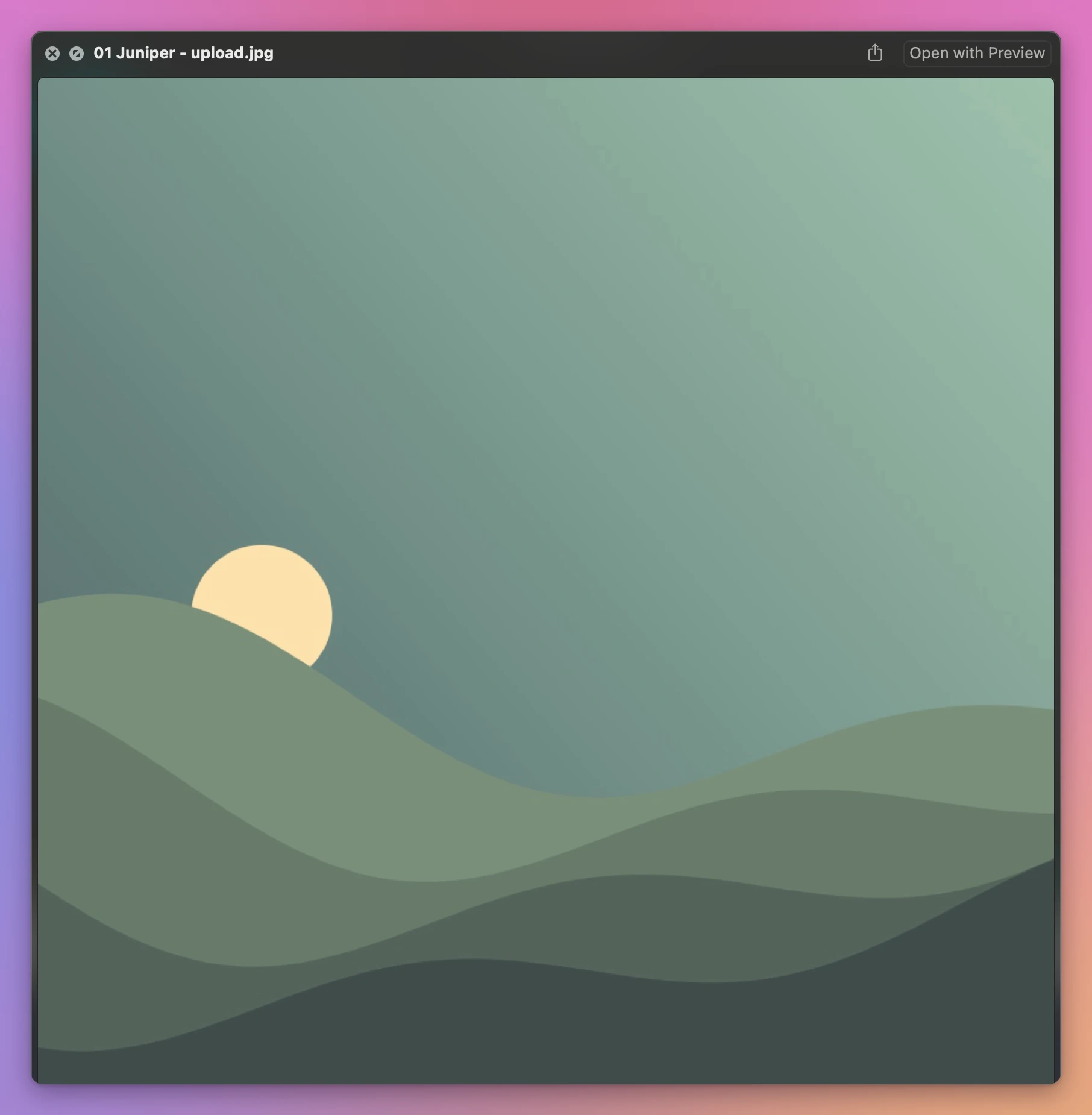
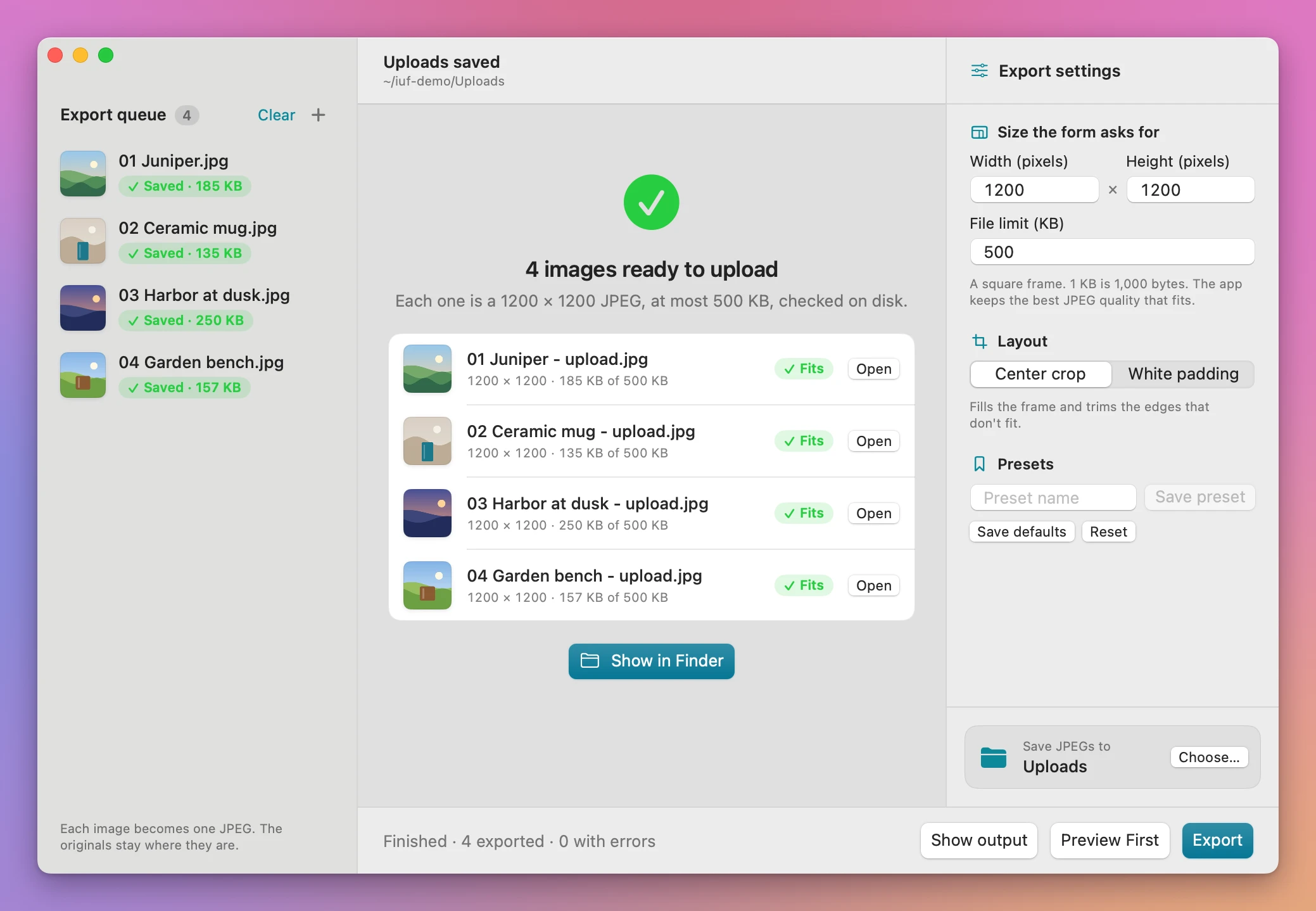
Under Save JPEGs to, click Choose… to pick an output folder, then click Export. Each picture in the queue gets a green Saved label with its file size, or a red Failed one. The window then lists every JPEG with its size in pixels and in KB next to your limit, and the reason for any picture that didn’t fit. Show in Finder or Show output opens the folder. Existing files are kept and repeated output names get a number.
Cancel stops the batch. Copies that finished before cancellation stay in the output folder.
Exports JPEGs and uses the first frame of a multi-frame image. The requested file-size and pixel limits must both be achievable.
File processing happens on your Mac. The app uses the internet to check for and download updates.
See Image Upload Fitter → · $20 including tax.