
An app by Flavio
Flashcard PDF Printer
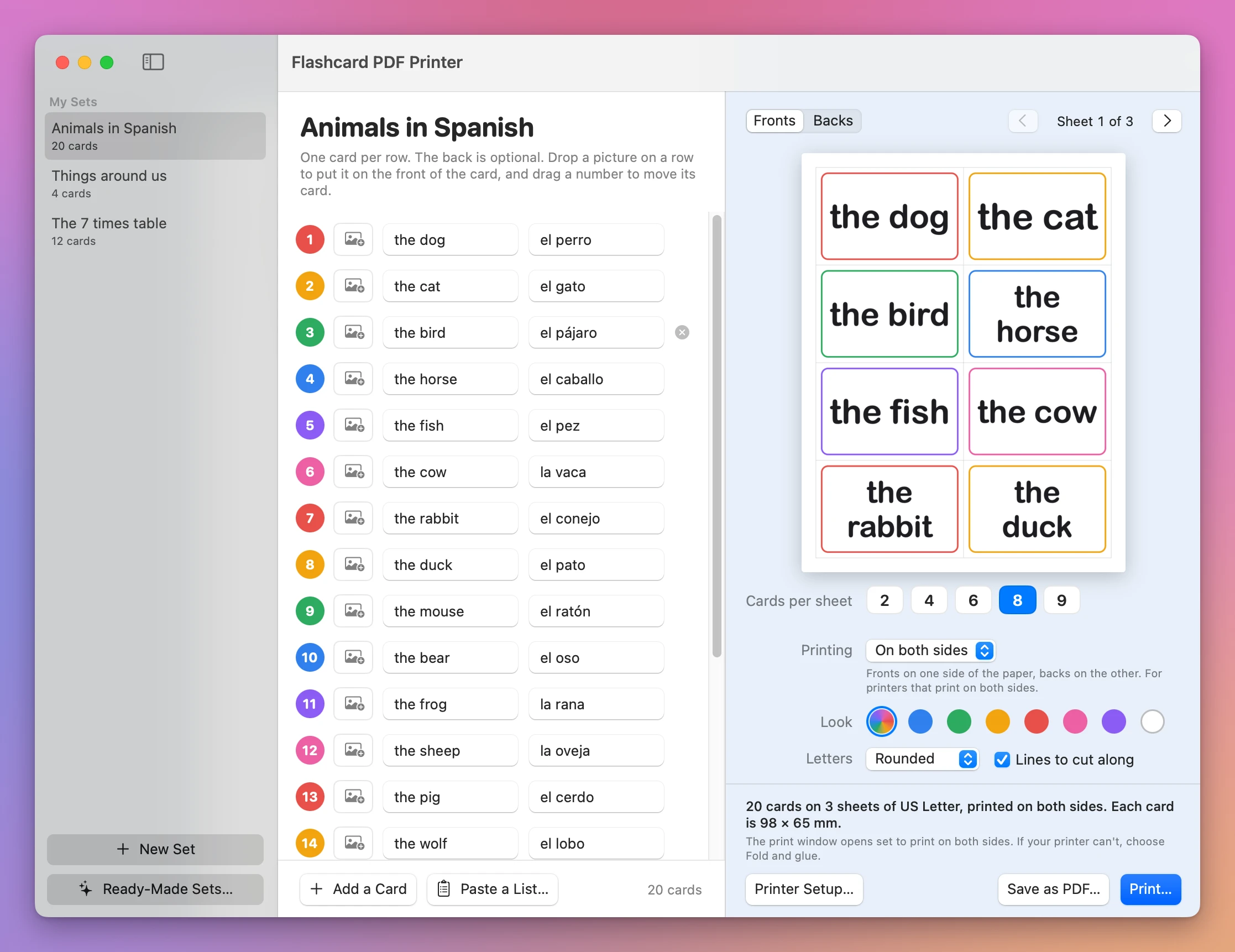
Type or paste a list of words on your Mac and print paper flashcards, or save them as a PDF. Each back is printed exactly behind its front.
Buy Flashcard PDF Printer · $20One-time purchase. Plus tax where it applies.
macOS 14 or later · Apple silicon and Intel
You have a list of words for tomorrow’s lesson, and you want them as cards the children can hold. In a word processor that’s an evening of drawing tables. Then you print on both sides, and the answer to 7 × 8 is behind 7 × 9.
Flashcard PDF Printer takes the list and makes the sheets. You pick how many cards go on a page, and each back is printed exactly behind its front.
$20 plus tax where it applies, paid once.
Start from a list
Paste a list with one card per line. Put a comma, a tab, a semicolon or a dash between the front and the back, like cat, el gato. A list copied from Numbers, Excel or Google Sheets works as it is.
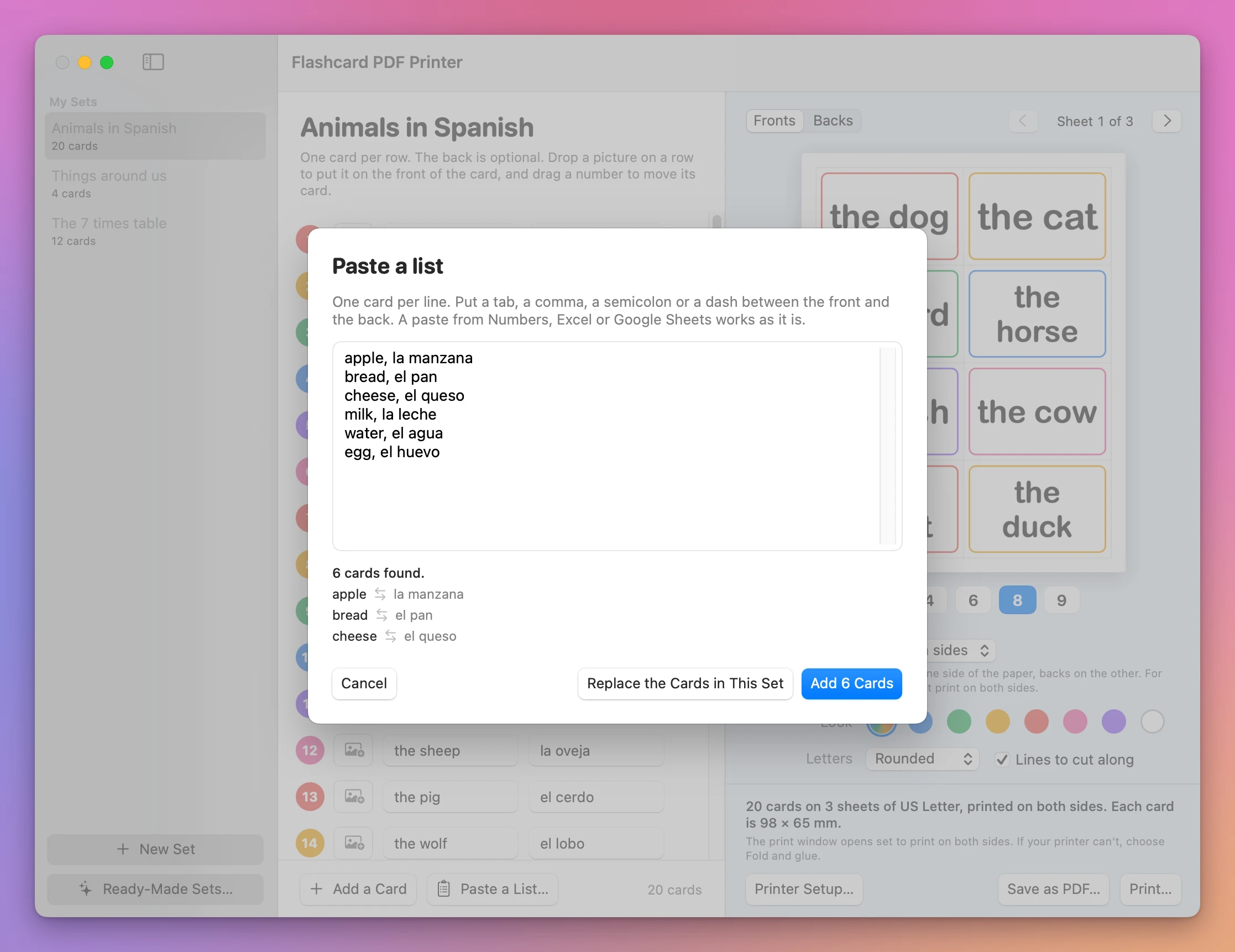
Before you add them, the window shows how many cards the list makes and the first three, so you see right away if a front and a back got mixed up.
You can also type the cards one by one. Type the front, press Return, type the back, press Return, and you’re on the next card.
Or start from a ready-made set
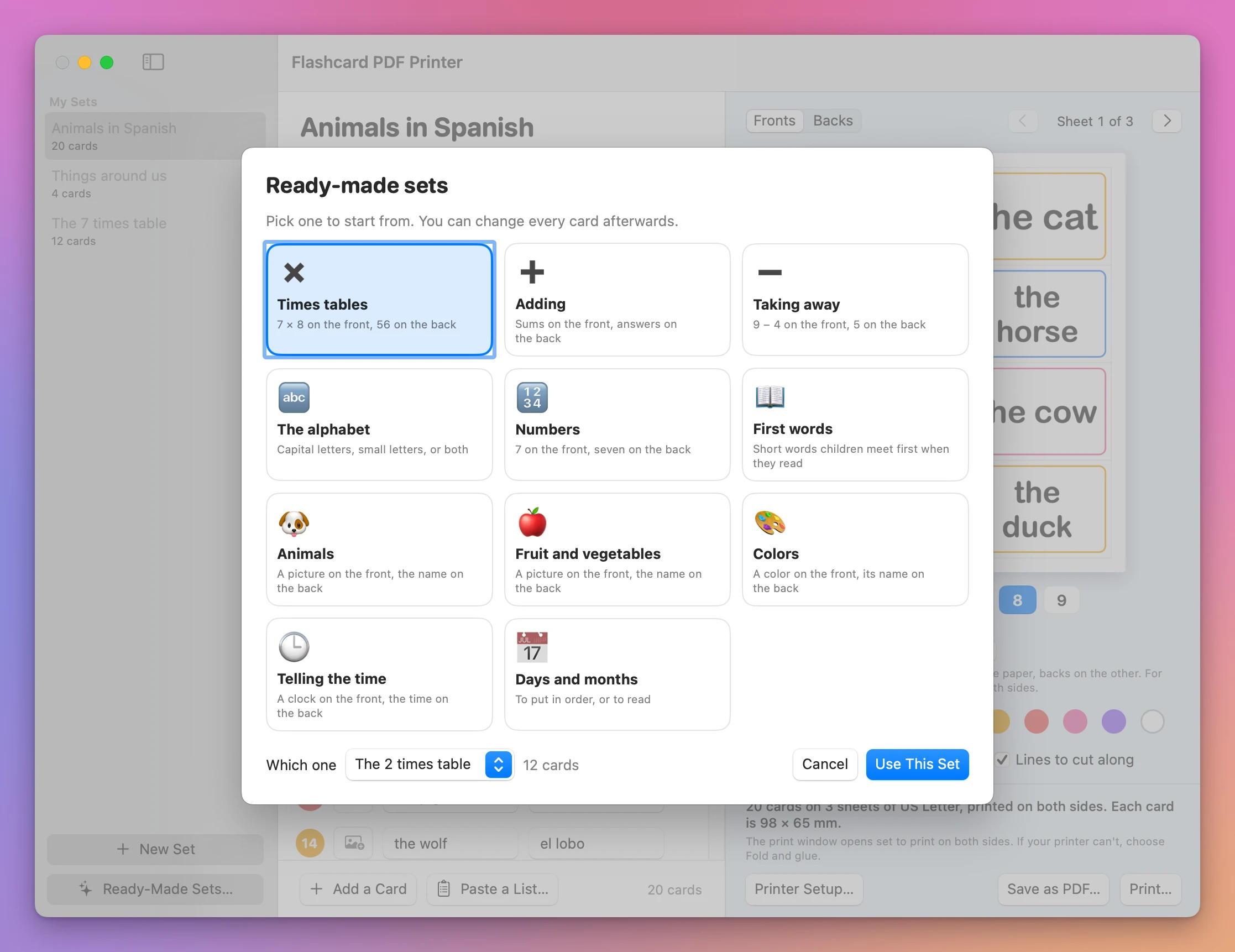
The app comes with sets you can print as they are or change: times tables from 2 to 12, sums, taking away, the alphabet, numbers, first words, animals, fruit and vegetables, colors, clocks, and the days and months.
The backs go behind the fronts
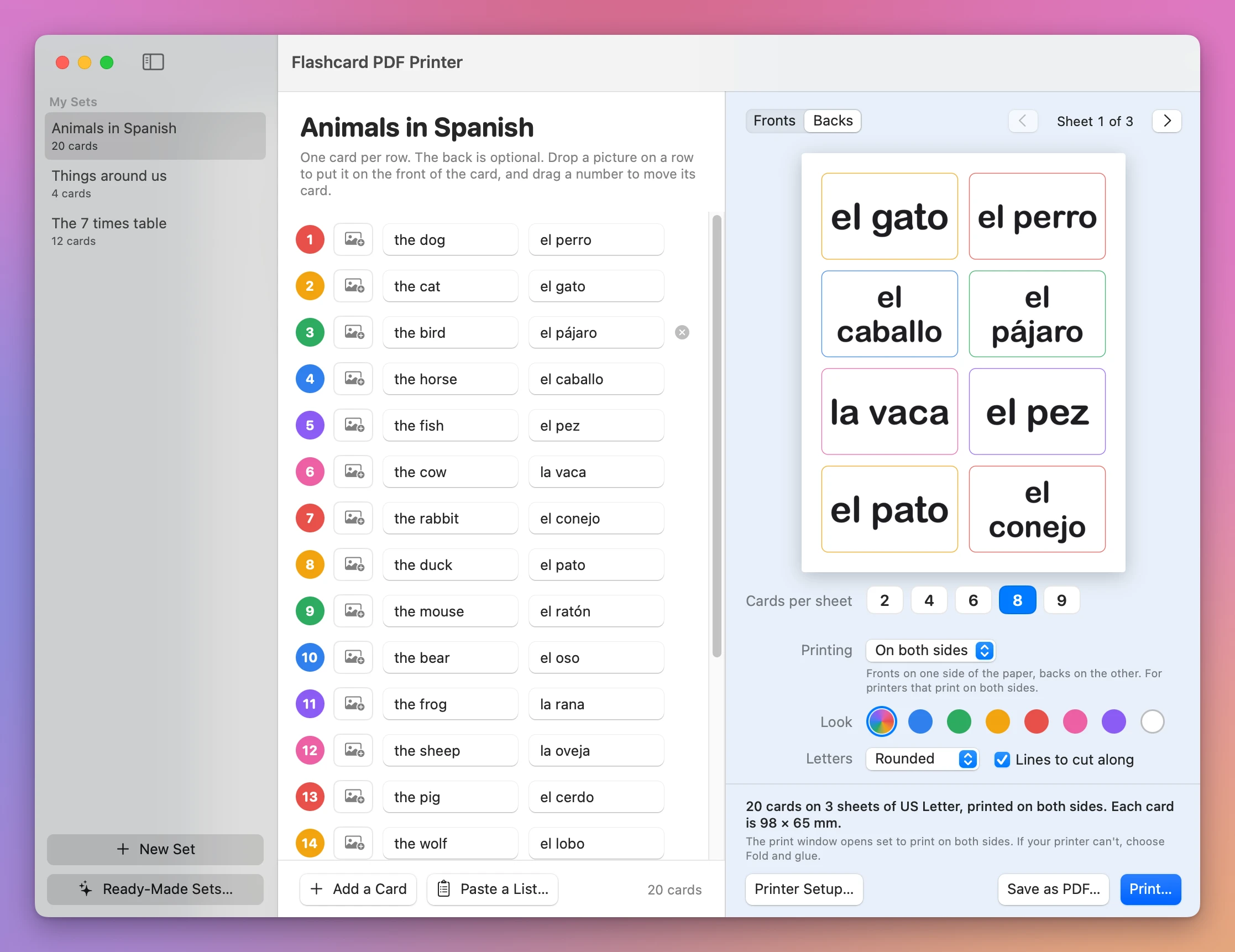
A printer that prints on both sides turns the sheet over, so the back of the card on the left has to be printed on the right. The app works that out for every layout. Click Backs and you see the other side of the sheet as it will print.
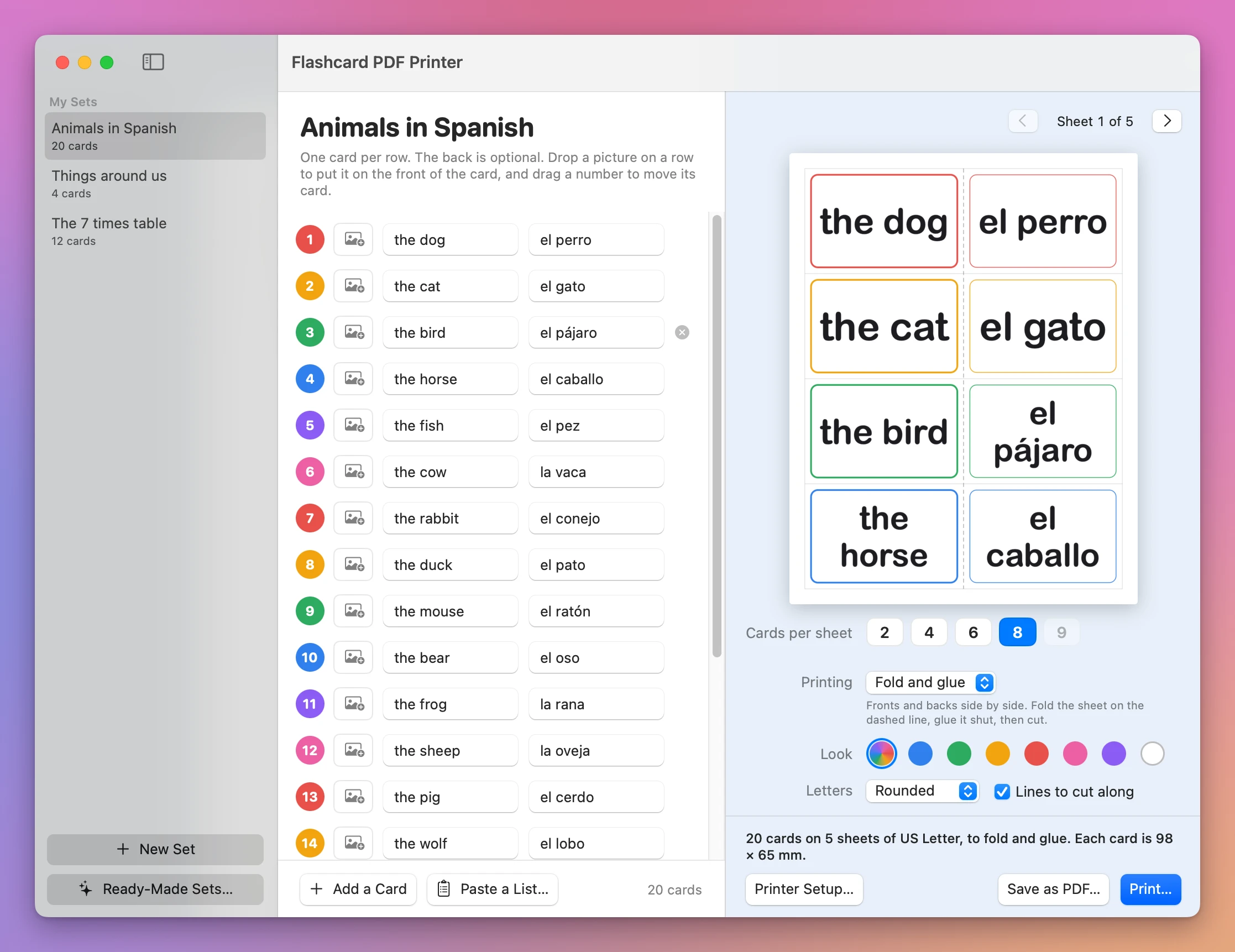
If your printer only prints one side, choose Fold and glue. Fronts and backs are printed side by side. You fold the sheet on the dashed line, glue it shut and cut.
Printers don’t all turn the paper the same way, and some place the second side a millimetre or two off. Printer Setup… has a test sheet for that. Print it on both sides and hold it up to a light: each number on the back should sit behind the same number on the front. If it doesn’t, pick the other way of turning the paper. If it’s close but not exact, read how far off on the test sheet’s rulers and move the backs by that much.
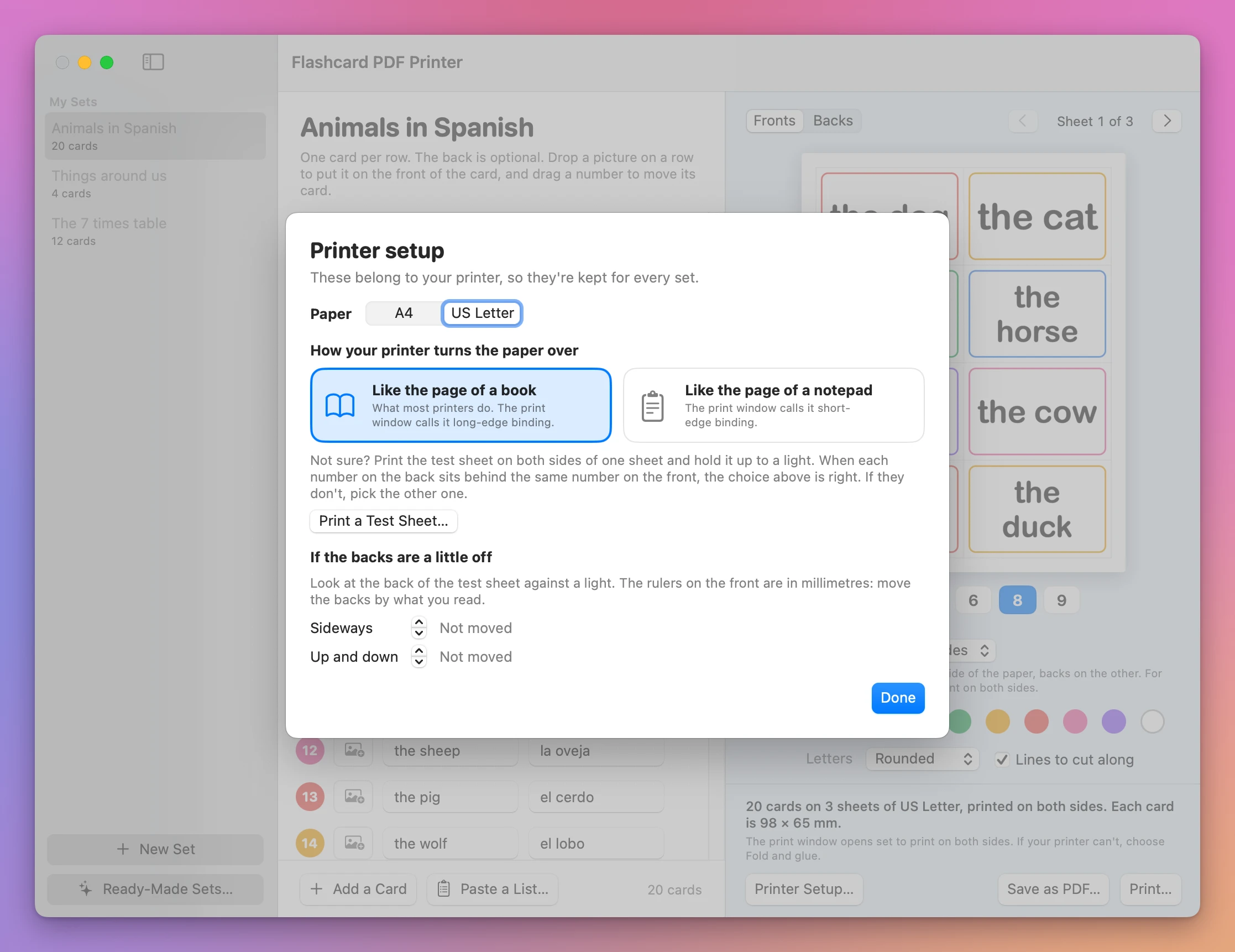
The app remembers this for every set, because it belongs to your printer.
Pictures and looks
Drop a picture on a card and it goes on the front, above the words. An emoji works as a picture too: type 🍎 as the front and it fills the card.
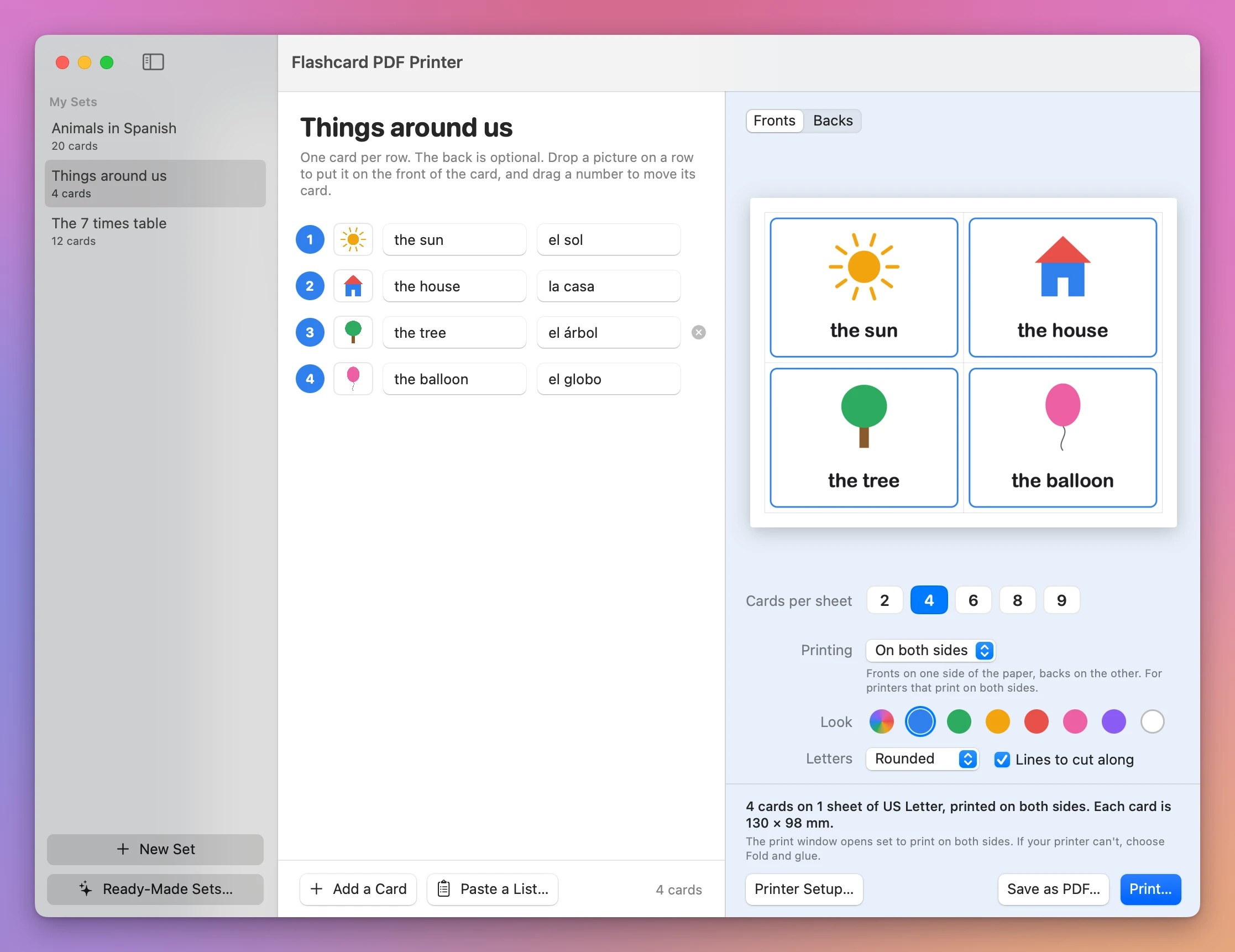
- Cards per sheet: 2, 4, 6, 8 or 9, on A4 or US Letter. The window tells you the size of each card in millimetres.
- Look: eight frame colors, from a rainbow that changes at every card to no frame at all. The app prints frames only, with no filled backgrounds, so a set doesn’t empty the ink.
- Letters: five kinds of lettering, with two (Comic and Chalkboard) that draw the letter a the way children learn to write it.
- The words are set as big as fits on the card, and a long word is never cut in two.
Print, or save a PDF
Print… opens the print window already set to print on both sides. Save as PDF… saves the same sheets as a file, to print at school or send to a colleague.
Your sets are saved as you type and listed on the left. File → Export Set… saves one as a single file, pictures included, that another teacher with the app can open.
What it doesn’t do
- It doesn’t quiz anyone. It’s for cards on paper, and there’s no study mode.
- It doesn’t write the cards for you. You bring the list, or pick a ready-made set.
- It doesn’t have templates for the perforated card sheets sold in shops. It prints on plain paper or card, and you cut along the lines.
- It doesn’t send anything anywhere. Your sets and your pictures stay on your Mac.
What it needs
A Mac with macOS 14 Sonoma or later, Apple silicon or Intel, and a printer. The app never asks macOS for a permission.
Print at 100%, without “scale to fit”. A page that’s shrunk moves every card a little, and the backs with them.
Flashcard PDF Printer is my own app. It’s not made by, affiliated with or endorsed by any maker of printers or paper.
Buy Flashcard PDF Printer and get started
Flashcard PDF Printer costs $20 plus tax where it applies, paid once. There’s no subscription.
After buying, you land on a page with a Download button and your license key. The receipt email from Creem has both too. Unzip the app and drag Flashcard PDF Printer to your Applications folder. It’s signed with my Apple Developer ID and checked by Apple, so it opens like any other app you download.
Enter the license key in Flashcard PDF Printer → License… to get updates automatically. A key works on 3 Macs. Once a day, the app checks for a new version, shows what’s new, and installs it with Install and Relaunch. Your receipt always has the latest version, too.