How to make multiplication flashcards to print on a Mac
By Flavio
Make times table flashcards on a Mac for free with a table in TextEdit, and write the answers on the backs by hand. Or pick a ready-made times table in Flashcard PDF Printer, which lays out the answers on the back of the sheet.
You want paper flashcards for a times table: 7 × 8 on the front, 56 on the back, twelve cards to shuffle and hold. You have a Mac and a printer.
The free way is a table in TextEdit, the writing app that comes with the Mac. You type the sums, print the page, cut the cards apart and write the answers on the backs by hand. The shorter way is Flashcard PDF Printer, a Mac app I built. It has every times table from 2 to 12 ready, answers included.
How do you make them for free in TextEdit?
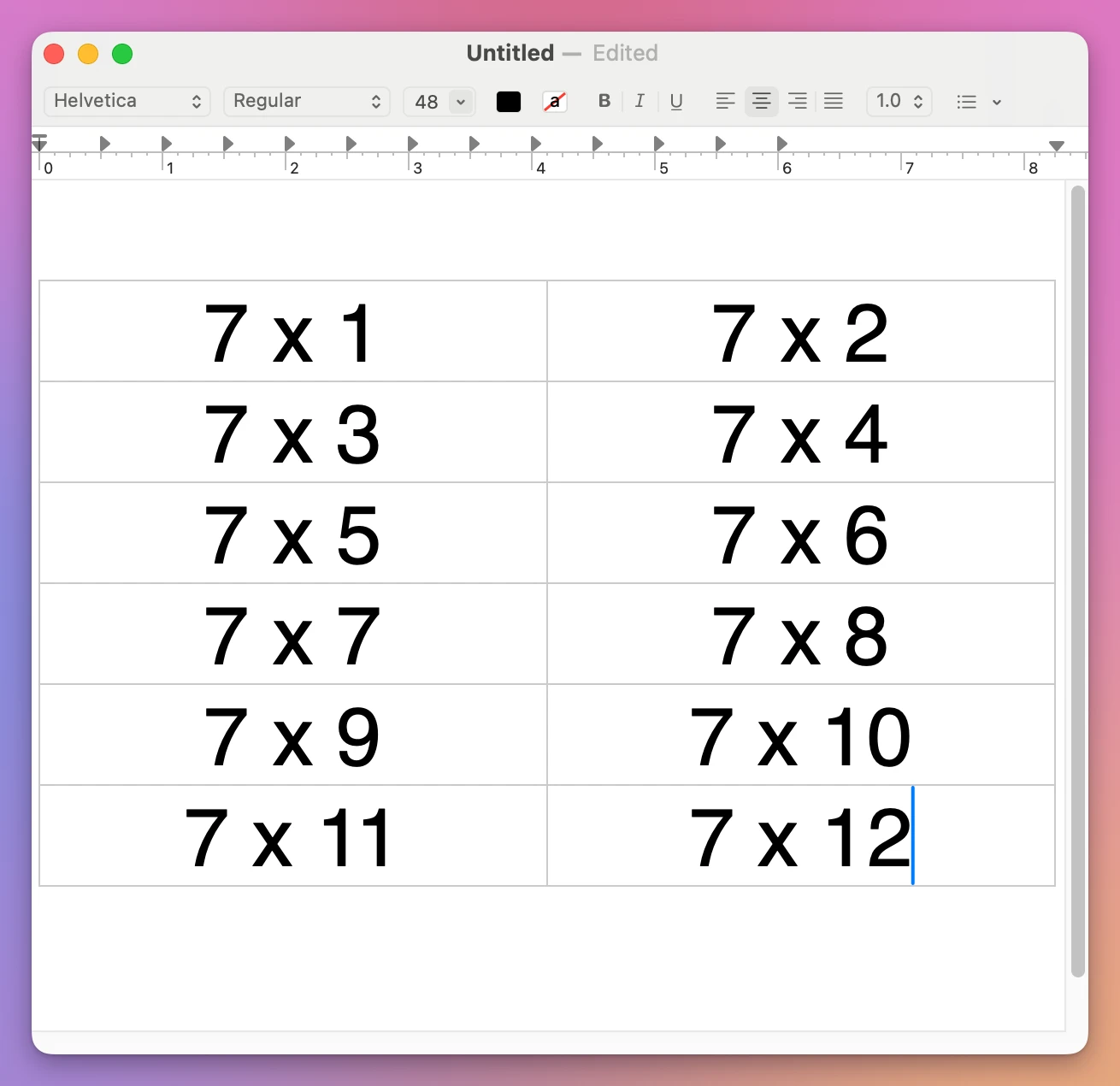
Here’s the 7 times table, made on a test Mac with macOS 15 Sequoia. The document was made up for this example.
- Open TextEdit. Here it opened an empty document called Untitled.
- Choose Format > Table…. A table appears in the document, and a small Table window opens next to it. Here the table started with 2 rows and 3 columns.
- In the Table window, click the arrows next to Rows until it says 6, and the arrows next to Columns until it says 2. That makes twelve cells, one for each card.
- Click the first cell and type 7 x 1. Press Tab to move to the next cell, type 7 x 2, and go on until 7 x 12. The keyboard has no × key, so the letter x stands in for it.
- Press Command-A to select everything. Click the size box in the toolbar, the one that says 12, type 48 and press Return. Then click the second of the four alignment buttons to center the sums.
- Press Command-P to print, and cut along the lines of the table.
- Write each answer on the back of its card with a pen.
What does the free way cost?
One times table took about ten clicks and 74 key presses for the sums. Then come twelve answers to write by hand, and the same again for every other table.
The cards are small, too. In TextEdit’s print window each cell was only as tall as its line of text, so the twelve cards were short strips that filled less than half of a US Letter page.
Printed answers need a second table on the other side of the paper. Its two columns have to swap places, because the sheet is turned over, and you line up the two sides yourself.
| A table in TextEdit | Flashcard PDF Printer | |
|---|---|---|
| The 12 sums | Typed by hand, 74 key presses | Picked from a list, nothing to type |
| The times sign | The letter x | × |
| The answers | Written on the backs with a pen | On a second page, mirrored to sit behind the sums |
| Size of a card | As tall as one line of text | 98 × 65 mm with 8 cards on a US Letter sheet |
| Lines to cut along | The borders of the table | Thin gray lines between the cards |
How do you make them with Flashcard PDF Printer?
Flashcard PDF Printer turns a list into sheets of cards, and it comes with sets that are already written. It costs $20, paid once.
- Open the app. The first screen offers three ways to start. Click Pick a Ready-Made Set.
- In the Ready-made sets window, click Times tables.
- Open the menu next to Which one and pick a table. The list goes from The 2 times table to The 12 times table.
- Click Use This Set.
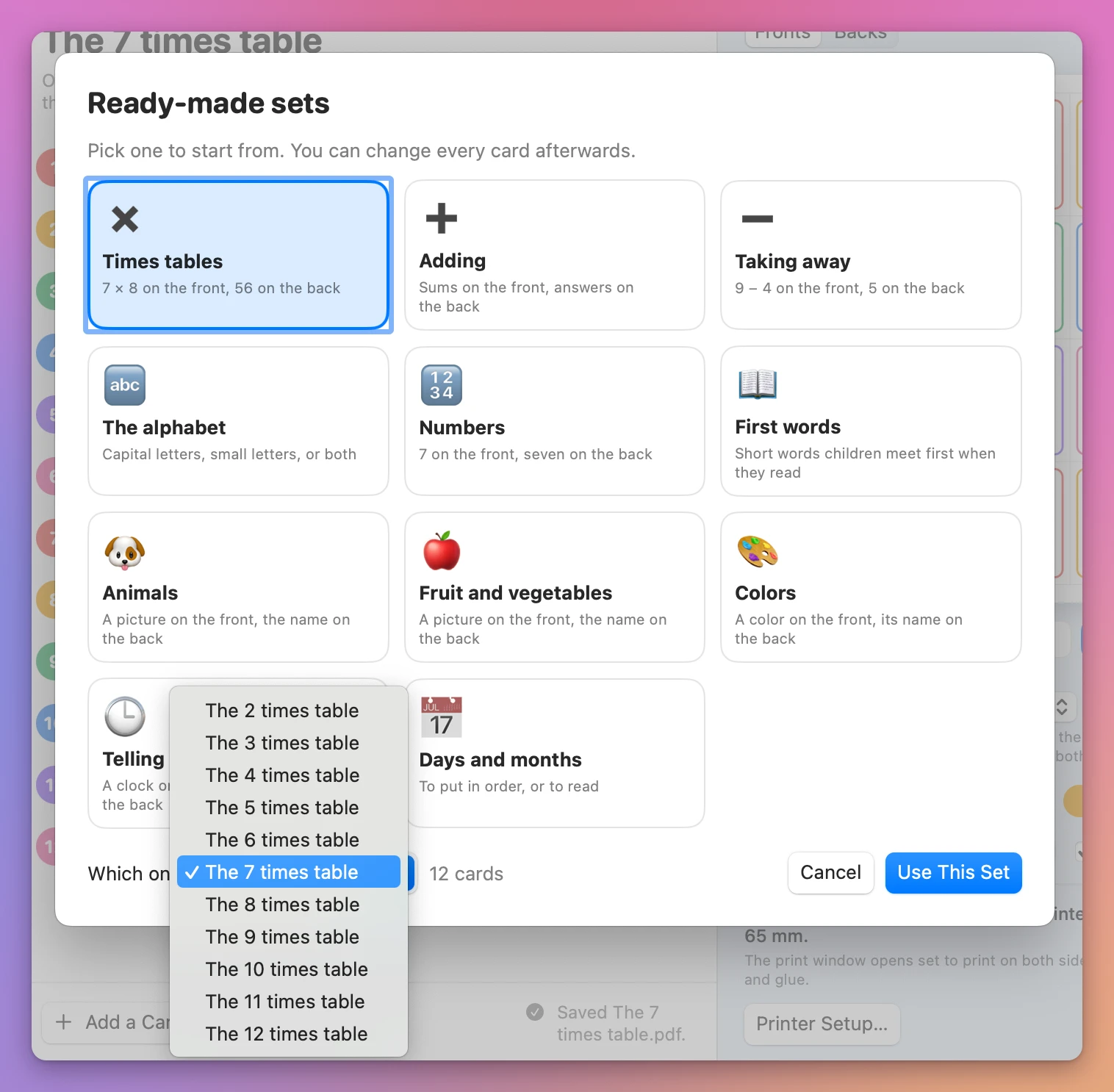
That was five clicks and no typing. The set opens with twelve rows, from 7 × 1 with 7 on the back to 7 × 12 with 84. A preview of the sheet is on the right, and the line under it says what you get: “12 cards on 2 sheets of US Letter, printed on both sides. Each card is 98 × 65 mm.”
Where do the answers go?
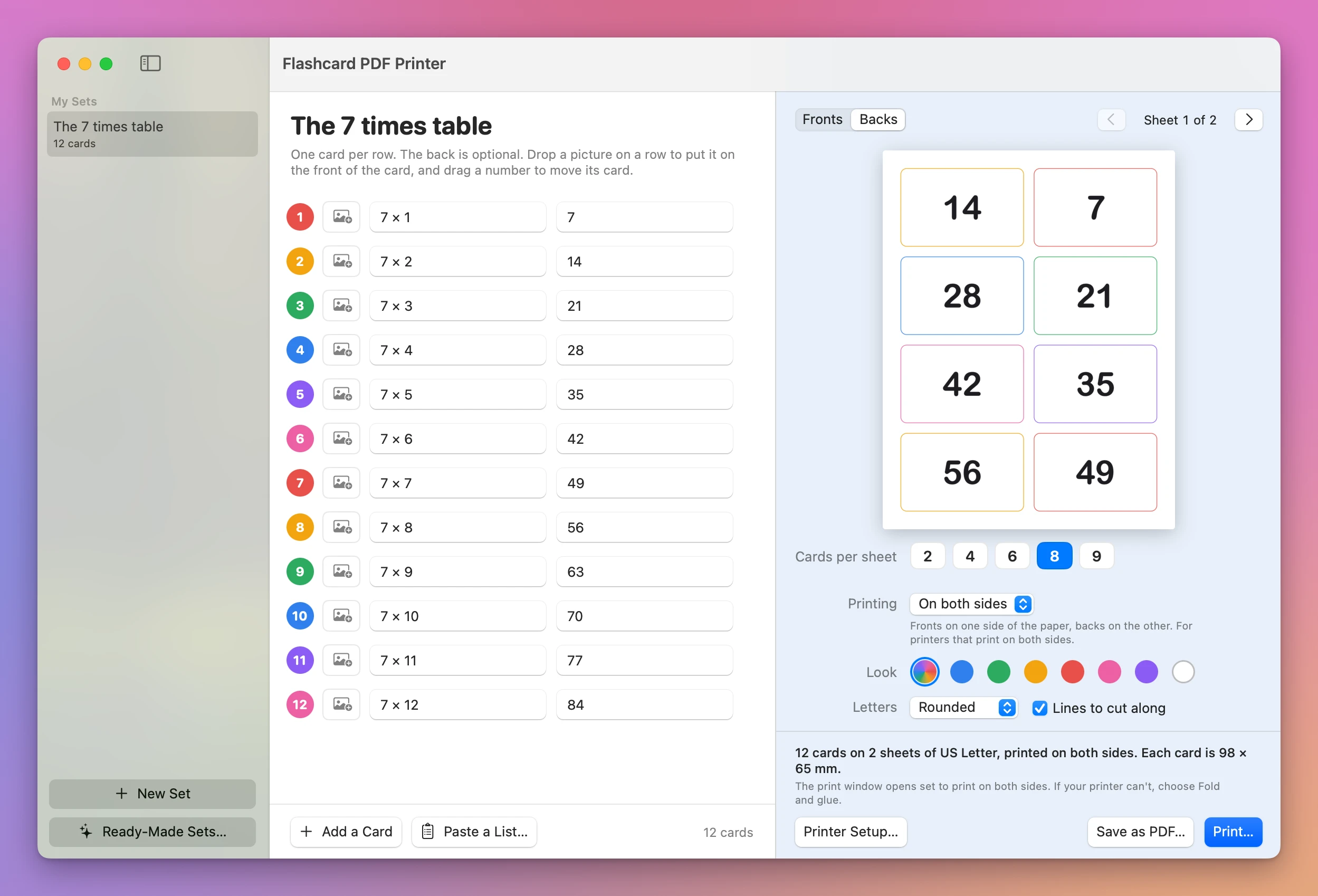
Click Backs above the preview and you see the other side of the same sheet. The answers are mirrored. 14 is on the left and 7 on the right, because the sheet gets turned over and 7 has to end up behind 7 × 1.
How many cards go on a sheet?
The set opened with 8 cards per sheet. Click another number next to Cards per sheet and the line under the preview changes. For the twelve cards of one table, on US Letter paper:
| Cards per sheet | Sheets | Size of each card |
|---|---|---|
| 2 | 6 | 197 × 130 mm |
| 4 | 3 | 130 × 98 mm |
| 6 | 2 | 98 × 87 mm |
| 8 | 2 | 98 × 65 mm |
| 9 | 2 | 87 × 66 mm |
With 8 per sheet, the second sheet has four cards and four empty spaces. If you print on A4, Printer Setup… has a Paper choice between A4 and US Letter.
How do you print them, or save a PDF?
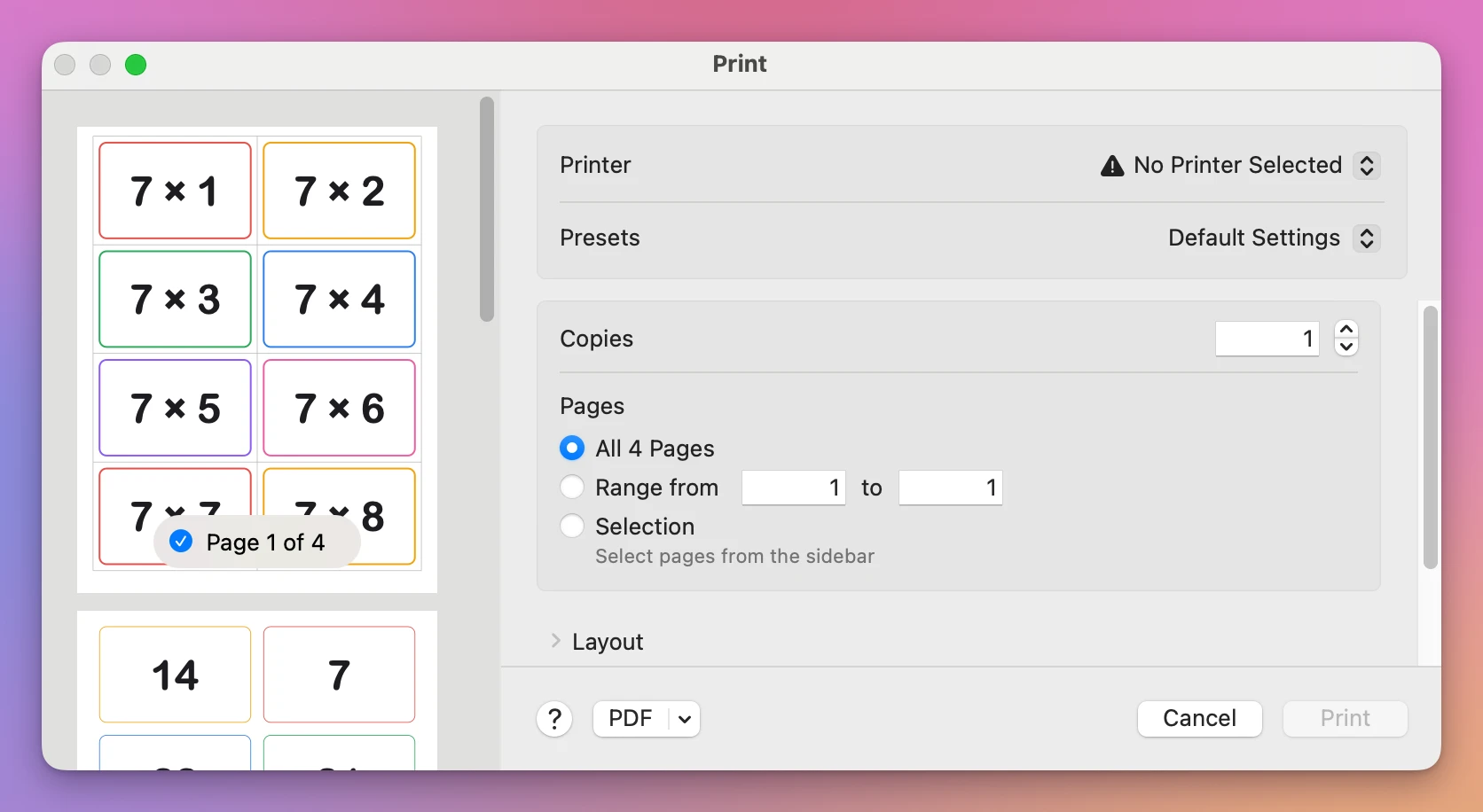
Click Print…. The Mac’s print window opens on All 4 Pages: a page of fronts and a page of backs for each of the two sheets. A note in the app’s window says “The print window opens set to print on both sides. If your printer can’t, choose Fold and glue.”
The test Mac has no printer. That’s why its print window says No Printer Selected and the Print button is gray.
Save as PDF… saves the same pages as a file. It asks for a name and a place, then the window confirms with “Saved The 7 times table.pdf.”
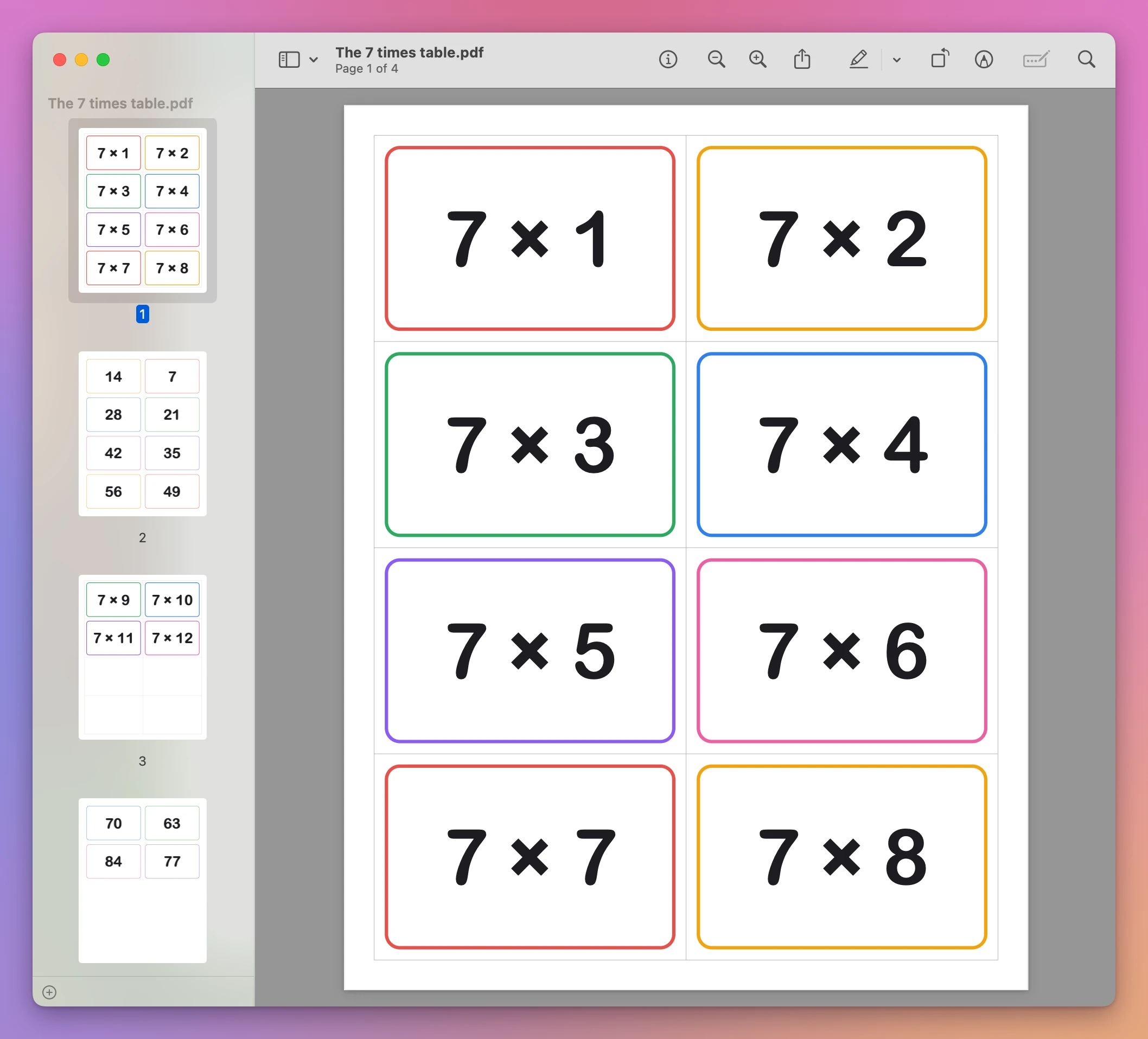
Opened in Preview, the file has four US Letter pages: fronts, backs, fronts, backs. The fronts have a thick colored frame and thin gray lines to cut along. The backs have a thin frame and no lines.
What about the other times tables?
Click Ready-Made Sets… under the list on the left and pick the next table. Each one becomes a set of its own under My Sets. After adding the 8 times table here, the list had both tables, with 12 cards each.
Get Flashcard PDF Printer
Turn a list of words into paper flashcards. Type or paste the fronts and the backs, or start from a ready-made set, pick how many cards go on a sheet, and print them or save a PDF. Each back is printed exactly behind its front.
See Flashcard PDF Printer → · Read the docs · $20. See the app page for tax details.
Want me to talk about your product? You can sponsor this site.