Run a Node.js script from your macOS menu bar
By Flavio Copes
Learn how to run a Node.js script from the macOS menu bar using AppleScript and the Script Editor, with a do shell script command.
I wanted to quickly add a fast way to run a Node.js script from the menu bar.
Many options exist, including making your own macOS menu bar app, or using 3rd party apps.
But macOS gives us an easy way as well, using good old AppleScript.
Setting up the Script menu
Open the Script Editor app on macOS
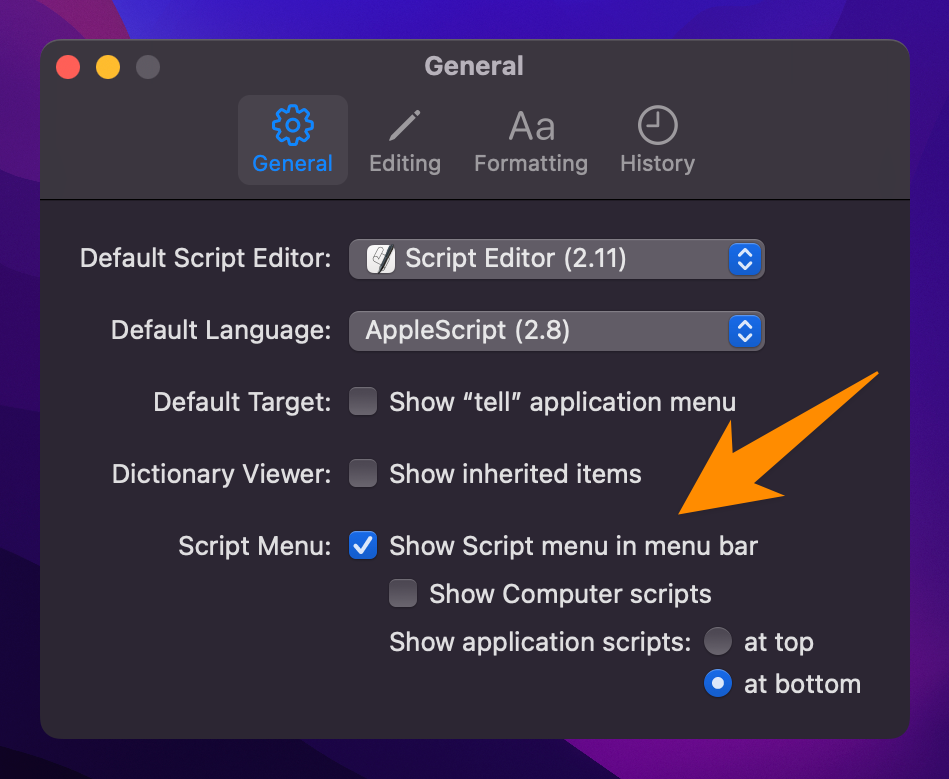
Open its settings and enable Show Script menu in menu bar:
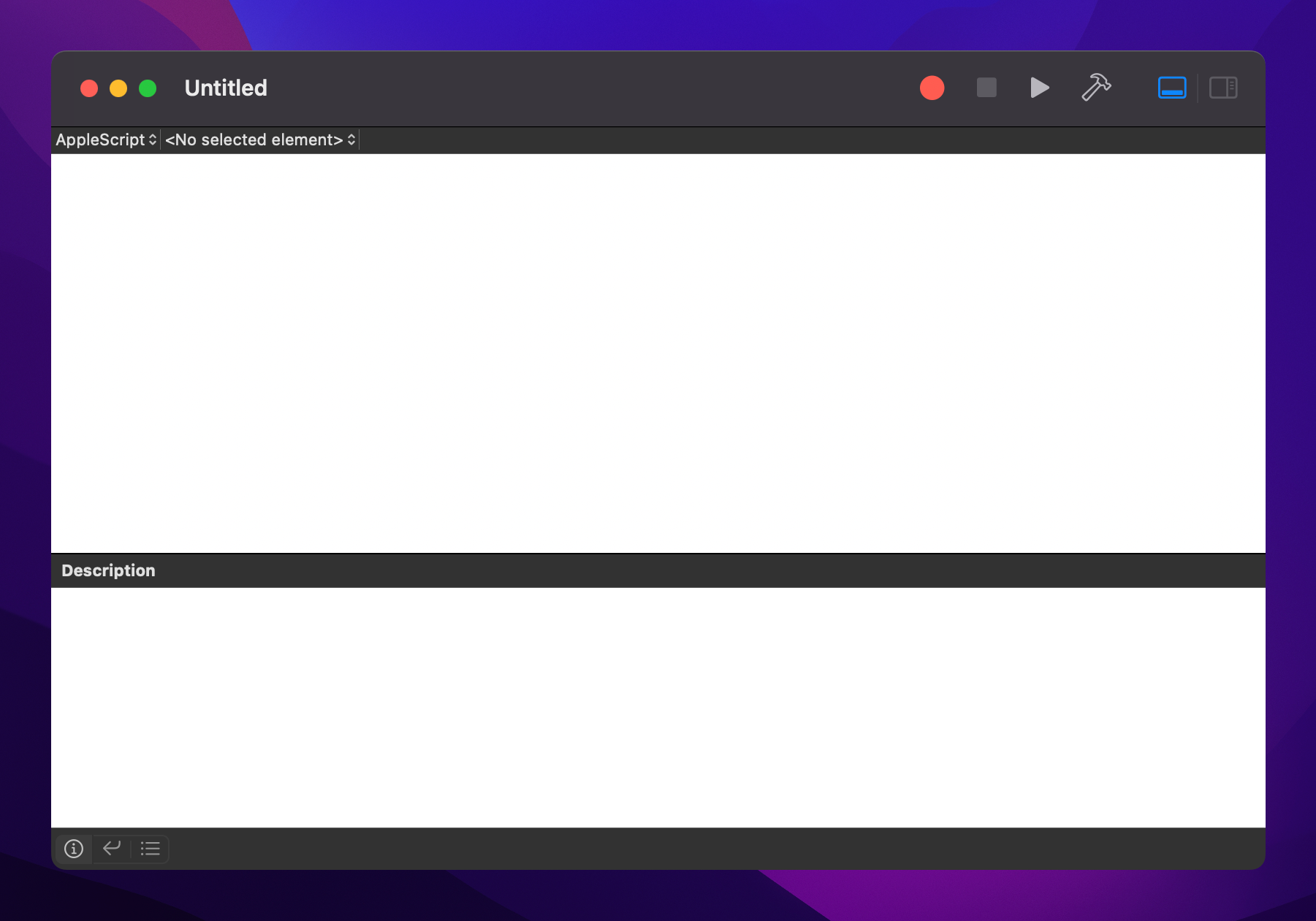
Now click the File → New menu to open the script editor:
Writing the script
To run my Node.js script I added this line
do shell script "cd /Users/myself/dev; /opt/homebrew/bin/node script.js"As a JS dev I must note that you can also use JavaScript for Automation (JXA) to do the same thing:
const app = Application.currentApplication()
app.includeStandardAdditions = true
app.doShellScript('cd /Users/myself/dev; /opt/homebrew/bin/node script.js')
but I prefer AppleScript in this case, feels more “native”.
I used cd so the .env file I put in that folder was picked up by Node.
Why the full path to node?
Notice I wrote /opt/homebrew/bin/node, not just node.
do shell script runs your command with a minimal environment. Your shell configuration files are not loaded, so the PATH doesn’t include the Homebrew folder.
If you write just node script.js, the script fails with a “command not found” error, even though node works fine in your terminal.
The fix: run which node in your terminal, and use the full path it prints. On an Apple Silicon Mac with Homebrew that’s /opt/homebrew/bin/node.
If the Node script itself crashes, AppleScript raises an error containing the script’s error output. Handy for figuring out what went wrong.
Saving and running it
Then I clicked the script name, added a good name, and saved into my user’s scripts folder, which can be found in ~/Library/Scripts
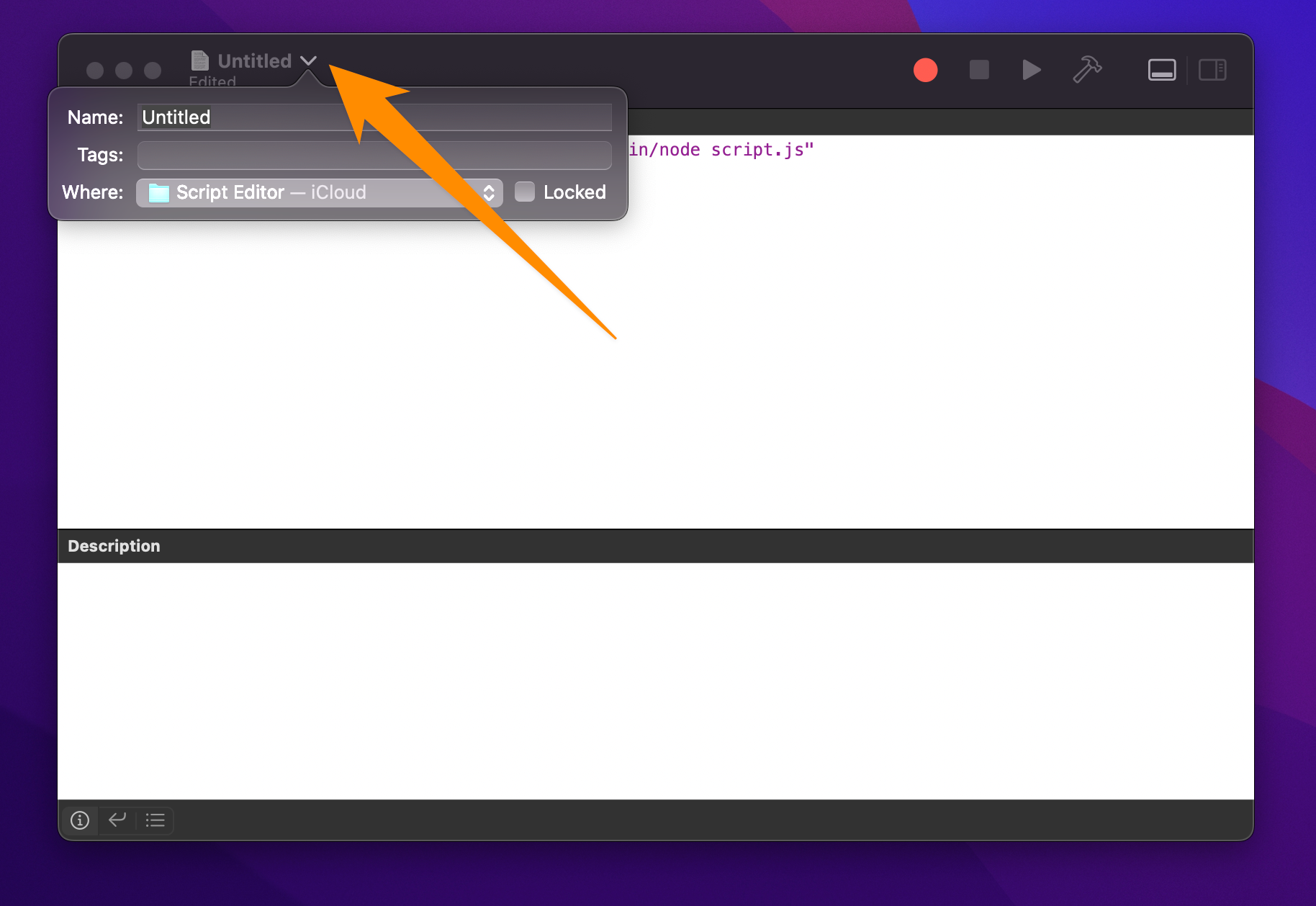
After all these steps, I was able to find my script in the menu bar, like this:

That’s it!
Now I can run it, and a spinning gear shows up, notifying me when it’s finished:

Pretty cool!
One last note: the menu bar script waits for the shell command to finish. This setup is great for quick tasks, like a script that syncs some files or posts something to an API. For a long-running script, like a server, this isn’t the right tool.
Want me to talk about your product? You can sponsor this site.
Related posts about mac: