Linux commands: xargs
By Flavio Copes
Learn how the Linux xargs command turns the output of one command into arguments for another, like piping cat into rm, plus the handy -p and -n options.
The xargs command is used in a UNIX shell to convert input from standard input into arguments to a command.
In other words, through the use of xargs the output of a command is used as the input of another command.
Here’s the syntax you will use:
command1 | xargs command2We use a pipe (|) to pass the output to xargs. That will take care of running the command2 command, using the output of command1 as its argument(s).
Let’s do a simple example. You want to remove some specific files from a directory. Those files are listed inside a text file.
We have 3 files: file1, file2, file3.
In todelete.txt we have a list of files we want to delete, in this example file1 and file3:
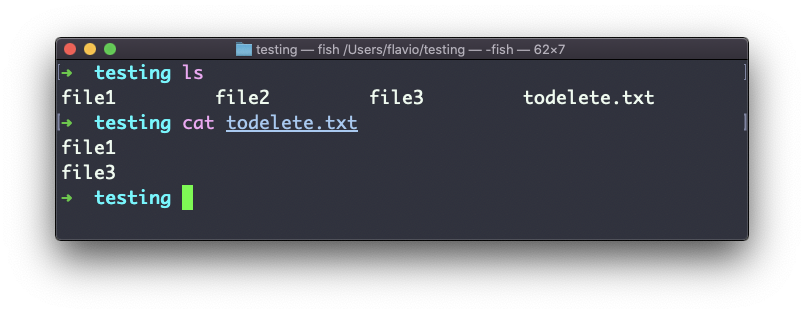
We will channel the output of cat todelete.txt to the rm command, through xargs.
In this way:
cat todelete.txt | xargs rmThat’s the result, the files we listed are now deleted:
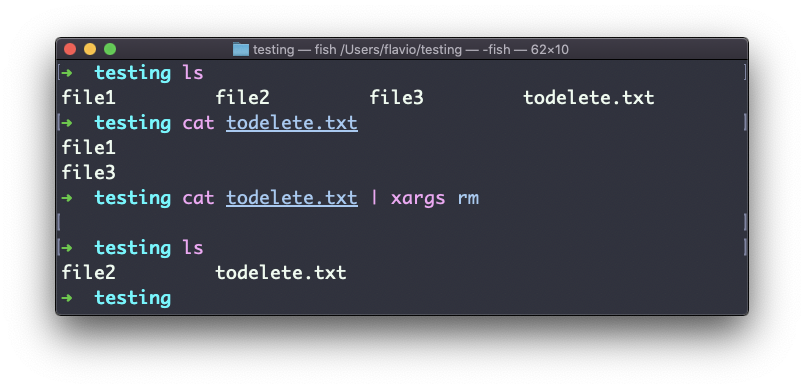
The way it works is that xargs collects the lines returned by cat and runs rm file1 file3 once, passing them all as arguments. If you want one rm call per line, add -n1.
This is the simplest usage of xargs. There are several options we can use.
One of the most useful in my opinion, especially when starting to learn xargs, is -p. Using this option will make xargs print a confirmation prompt with the action it’s going to take:
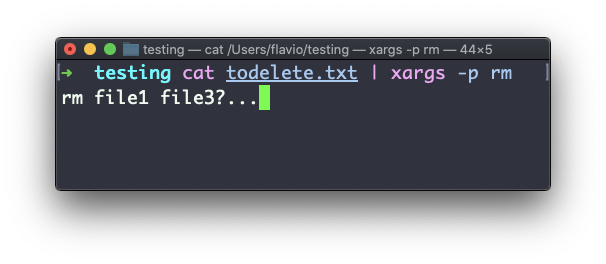
The -n option lets you tell xargs to perform one iteration at a time, so you can individually confirm them with -p. Here we tell xargs to perform one iteration at a time with -n1:
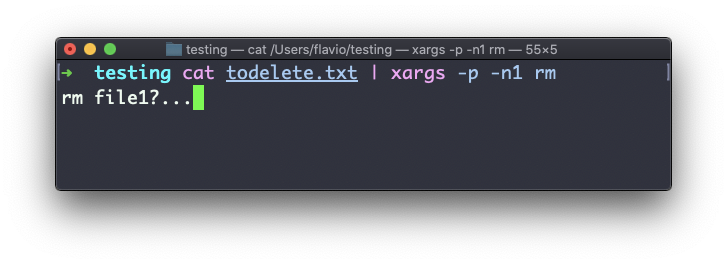
The -I option is another widely used one. It allows you to get the output into a placeholder, and then you can do various things.
One of them is to run multiple commands:
command1 | xargs -I % /bin/bash -c 'command2 %; command3 %'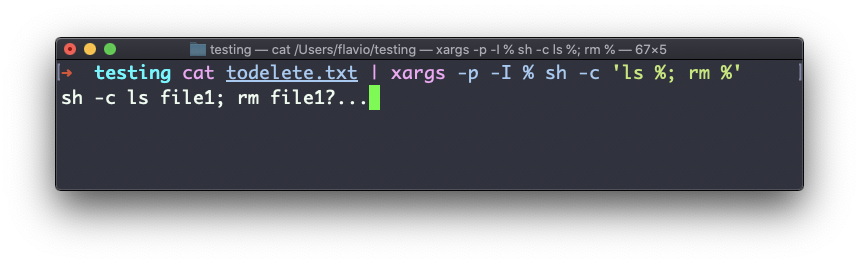
You can swap the
%symbol I used above with anything else, it’s a variable
The xargs command works on Linux, macOS, WSL, and anywhere you have a UNIX environment
Want me to talk about your product? You can sponsor this site.
Related posts about cli: