Linux commands: ps
By Flavio Copes
Learn how the Linux ps command lists running processes, how ps ax shows them all, and how to read columns like PID and STAT or filter the output with grep.
Your computer is running, at all times, tons of different processes.
You can inspect them all using the ps command:
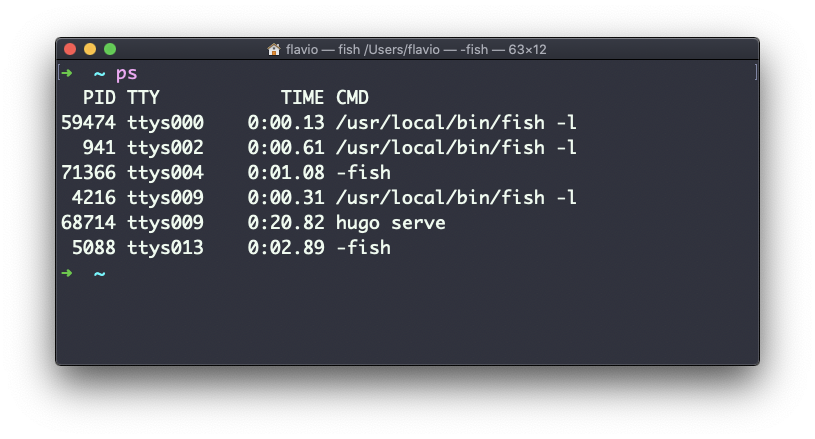
This is the list of user-initiated processes currently running in the current session.
Here I have a few fish shell instances, mostly opened by VS Code inside the editor, and an instances of Hugo running the development preview of a site.
Those are just the commands assigned to the current user. To list all processes we need to pass some options to ps.
The most common I use is ps ax:
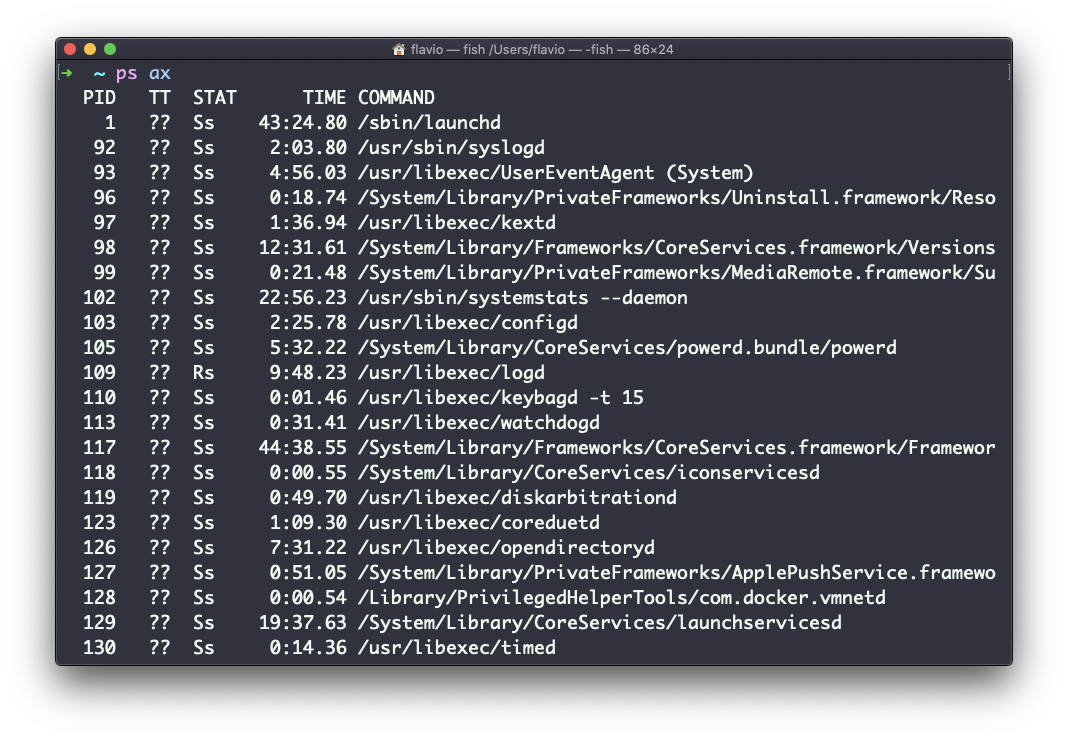
The
aoption is used to also list other users processes, not just our own.xshows processes not linked to any terminal (not initiated by users through a terminal).
As you can see, the longer commands are cut. Use the command ps axww to continue the command listing on a new line instead of cutting it:
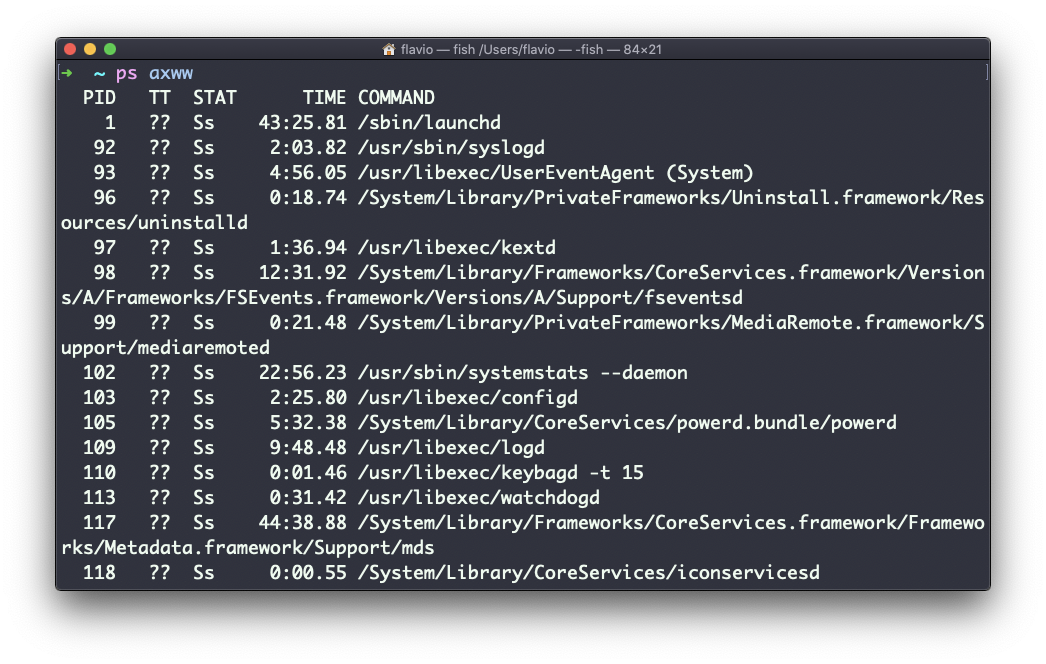
We need to specify
w2 times to apply this setting, it’s not a typo.
You can search for a specific process combining grep with a pipe, like this:
ps axww | grep "VS Code"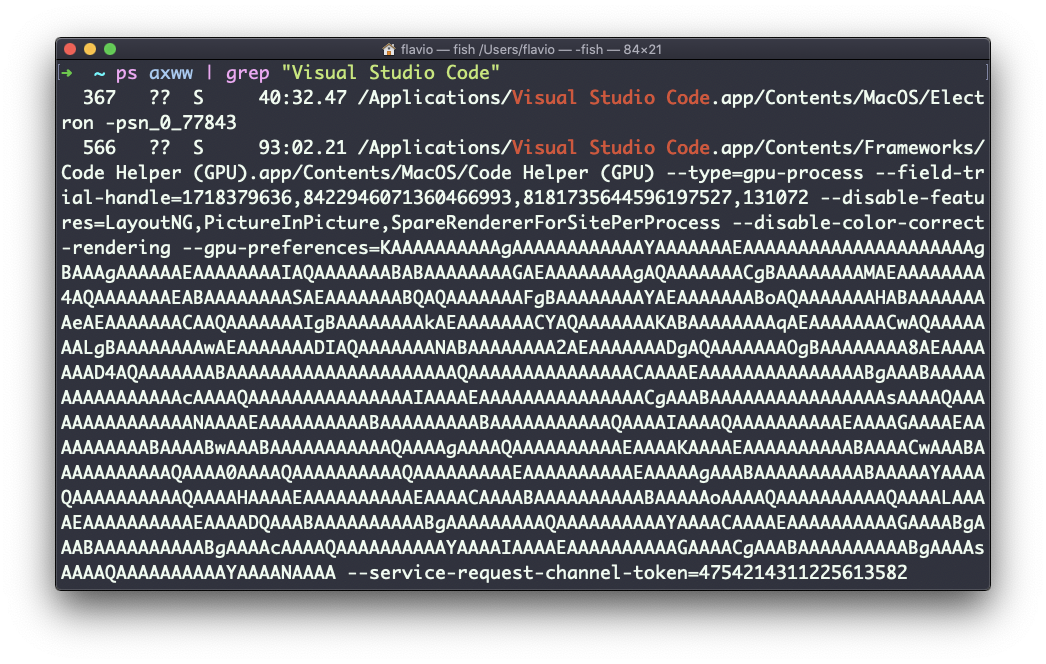
The columns returned by ps represent some key information.
The first information is PID, the process ID. This is key when you want to reference this process in another command, for example to kill it.
Then we have TT that tells us the terminal id used.
Then STAT tells us the state of the process:
I a process that is idle (sleeping for longer than about 20 seconds)
R a runnable process
S a process that is sleeping for less than about 20 seconds
T a stopped process
U a process in uninterruptible wait
Z a dead process (a zombie)
If you have more than one letter, the second represents further information, which can be very technical.
It’s common to have + which indicates the process is in the foreground in its terminal. s means the process is a session leader.
TIME tells us how much CPU time the process has consumed, not how long ago it started.
This command works on Linux, macOS, WSL, and anywhere you have a UNIX environment
Want me to talk about your product? You can sponsor this site.