Fix 'Your CLT does not support macOS 11' error
By Flavio Copes
How to fix the Homebrew 'Your CLT does not support macOS 11' error by removing the Command Line Tools and reinstalling them with xcode-select --install.
The fix for this error is to delete the Xcode Command Line Tools and install them again with xcode-select --install. Let me show you how I got there.
I got this error while using Homebrew to install a package on macOS, in my case rbenv:
➜ brew install rbenv

...

Error: Your CLT does not support macOS 11.
It is either outdated or was modified.
Please update your CLT or delete it if no updates are available.
Update them from Software Update in System Preferences or run:
  softwareupdate --all --install --force

If that doesn't show you an update run:
  sudo rm -rf /Library/Developer/CommandLineTools
  sudo xcode-select --install

Alternatively, manually download them from:
  ~https://developer.apple.com/download/more/~.

Error: An exception occurred within a child process:
  SystemExit: exit
Weird!
What this error means
CLT stands for Command Line Tools. It’s the package that gives you git, the clang compiler, make, and the macOS SDK headers, without installing the full Xcode app. Homebrew needs these tools to compile packages from source.
Each release of the Command Line Tools targets specific macOS versions. When I updated my Mac to macOS 11 Big Sur, the tools installed on my disk were still the ones built for the previous macOS version.
Homebrew checks the CLT version before building anything. It saw tools that didn’t support macOS 11, and stopped with this error instead of attempting a build that would likely fail.
The fix
The error message suggests running Software Update first. In my case, running softwareupdate --all --install --force didn’t help. Software Update didn’t offer me a newer version of the tools.
This can happen when the installed tools are out of sync with what the system expects, so the updater doesn’t see anything to update. That’s why the second suggestion in the message works: delete the tools entirely, then trigger a fresh install.
So I ran sudo rm -rf /Library/Developer/ and then sudo xcode-select --install.
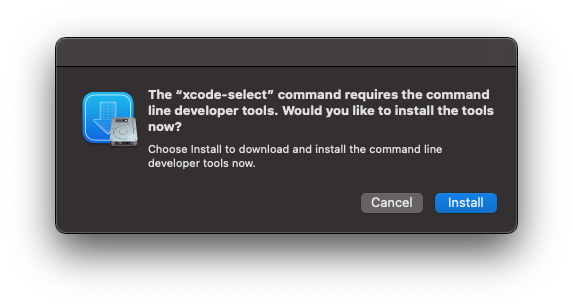
The xcode-select --install command opens a dialog asking to install the command line developer tools:
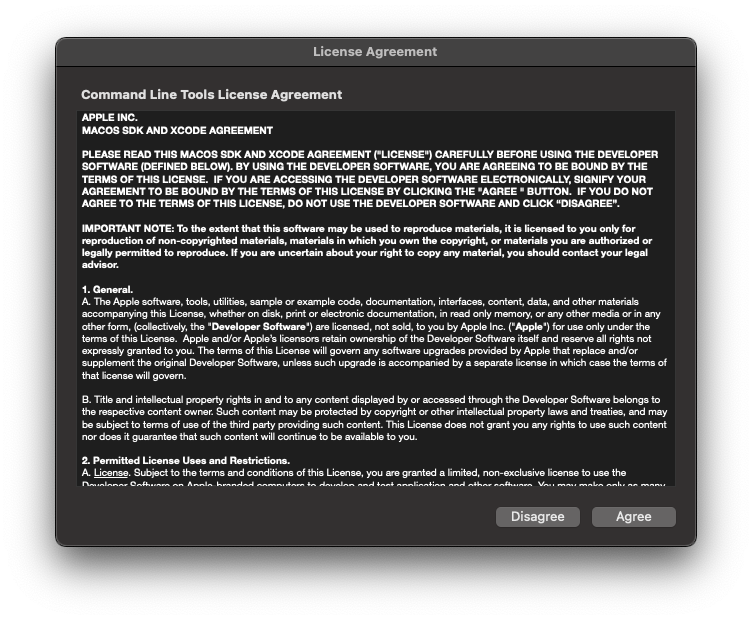
Click Install, accept the license agreement, and macOS downloads a copy of the tools that matches your current OS version:
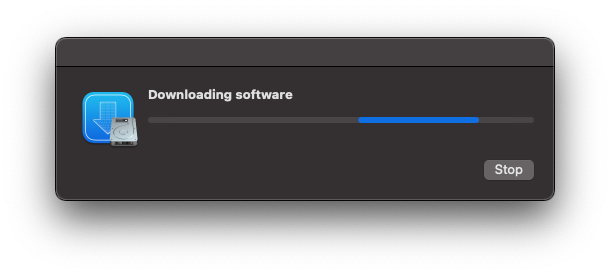
The download takes a few minutes. When it finishes you get a confirmation:
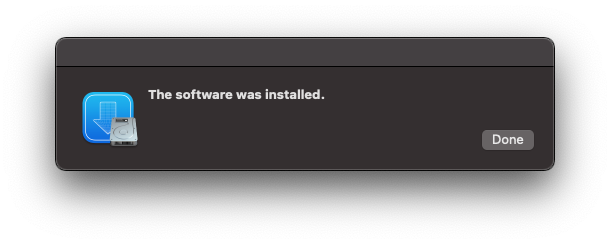
That’s it.
After doing this, brew install rbenv worked fine.
One thing to check first
Deleting /Library/Developer/CommandLineTools is safe. It only removes the developer tools, and the reinstall brings back a clean copy. You don’t lose Homebrew, your packages, or any project files.
If you see this error right after a macOS upgrade, expect it: the OS moved forward, the tools didn’t. Reinstalling them is the reliable way to get the two back in sync.
Want me to talk about your product? You can sponsor this site.
Related posts about mac: