How to add an “Open in Terminal” icon in macOS Finder
By Flavio Copes
Learn how to add an Open in Terminal button to the macOS Finder toolbar using an Automator app that runs AppleScript to cd into the current folder.
You can add an “Open in Terminal” button to the Finder toolbar by creating a small Automator application and dragging it into the toolbar. One click, and a new Terminal window opens already positioned in the folder you’re looking at.
I browse to a project folder in the Finder, then I want a terminal there to run some command. Without this button I’d have to open Terminal and cd manually.
Here’s what it looks like:
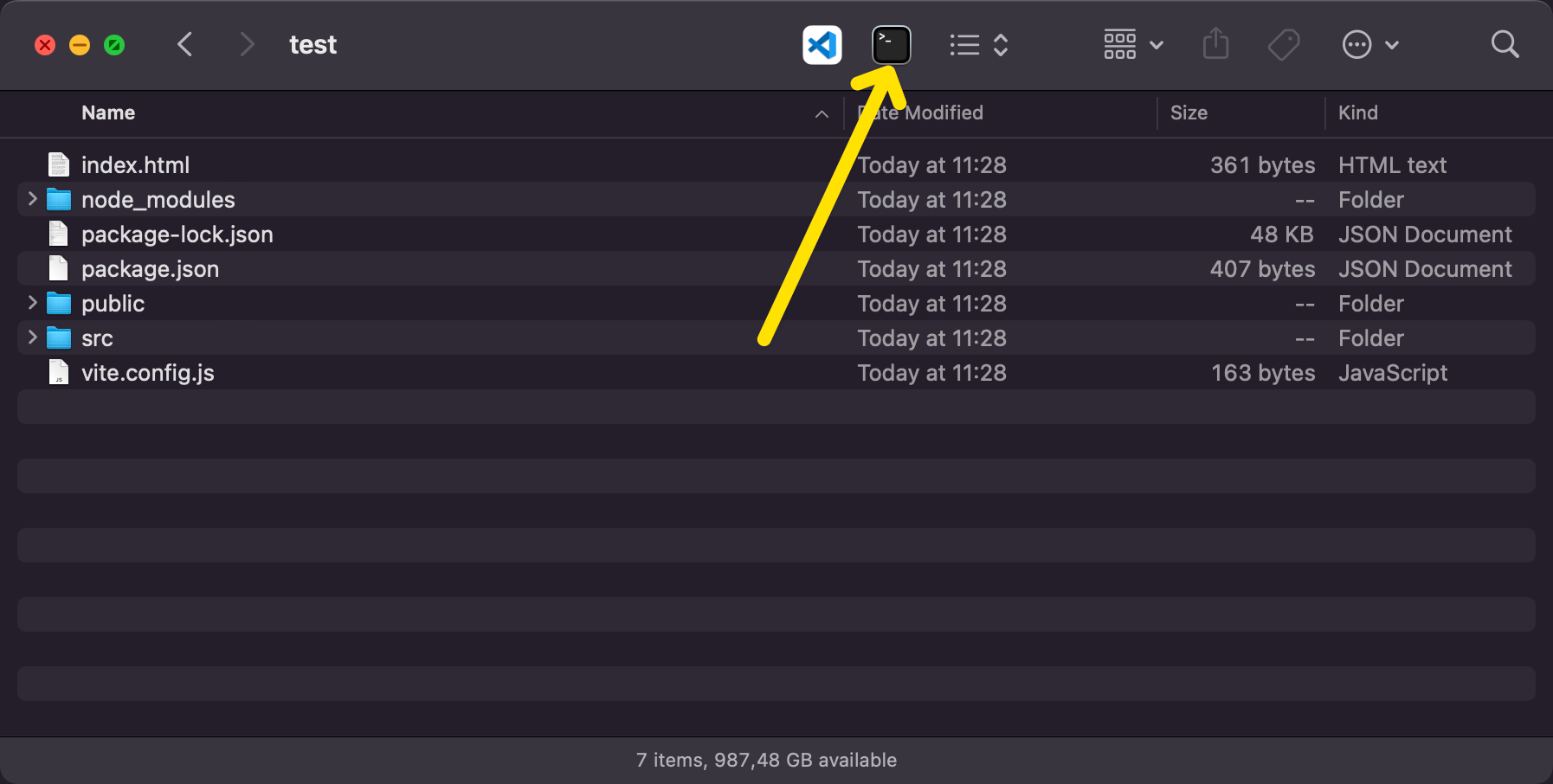
Here’s how you can do that too.
Create the app with Automator
Open Automator. Pick “Application”:
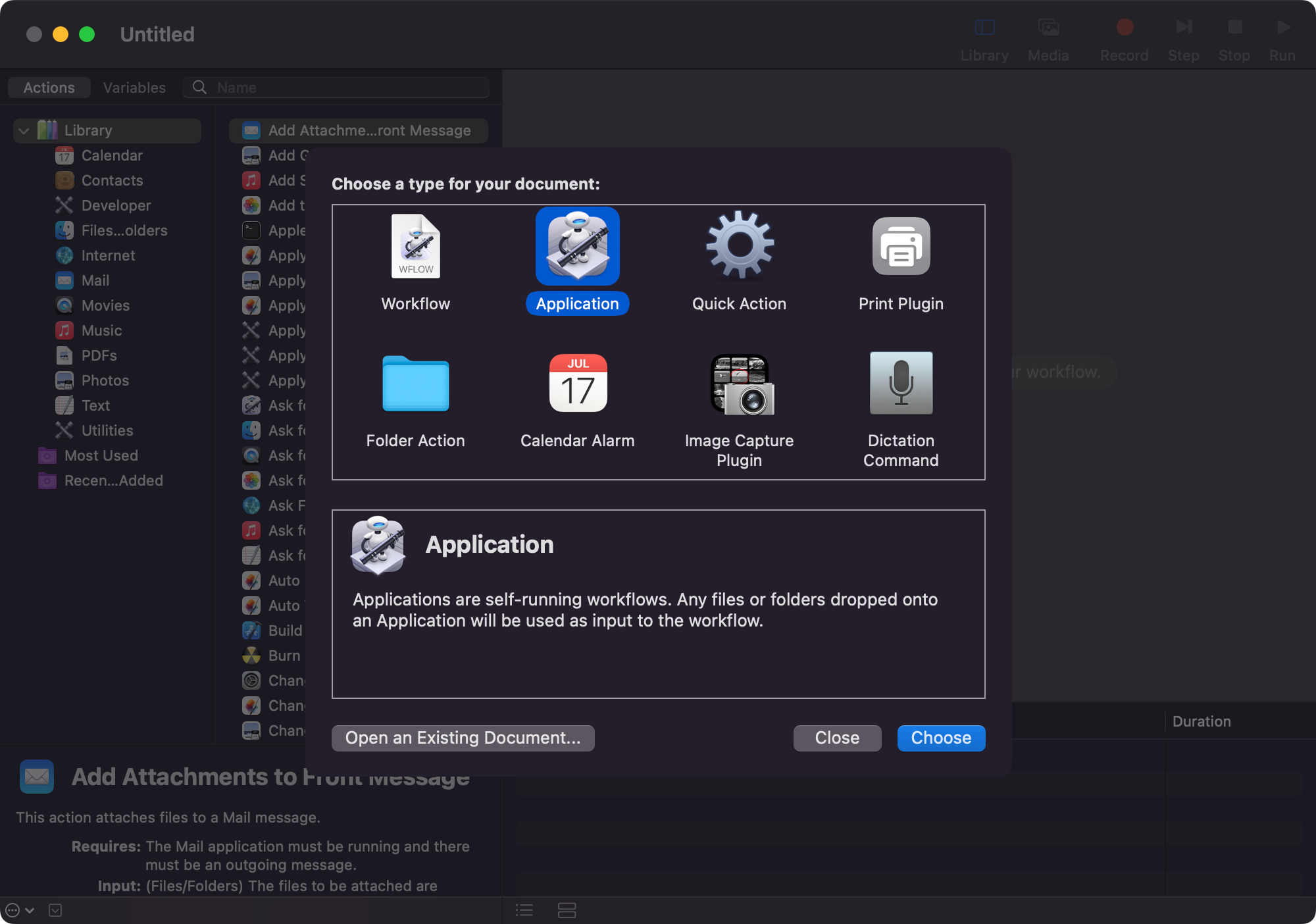
Search for “Run AppleScript” in the list of actions, and paste these lines:
on run {input, parameters}

	tell application "Finder"
		set myPath to (POSIX path of (target of front window as alias))
	end tell

	tell application "Terminal"
		do script "cd " & myPath
		activate
	end tell

	return input
end run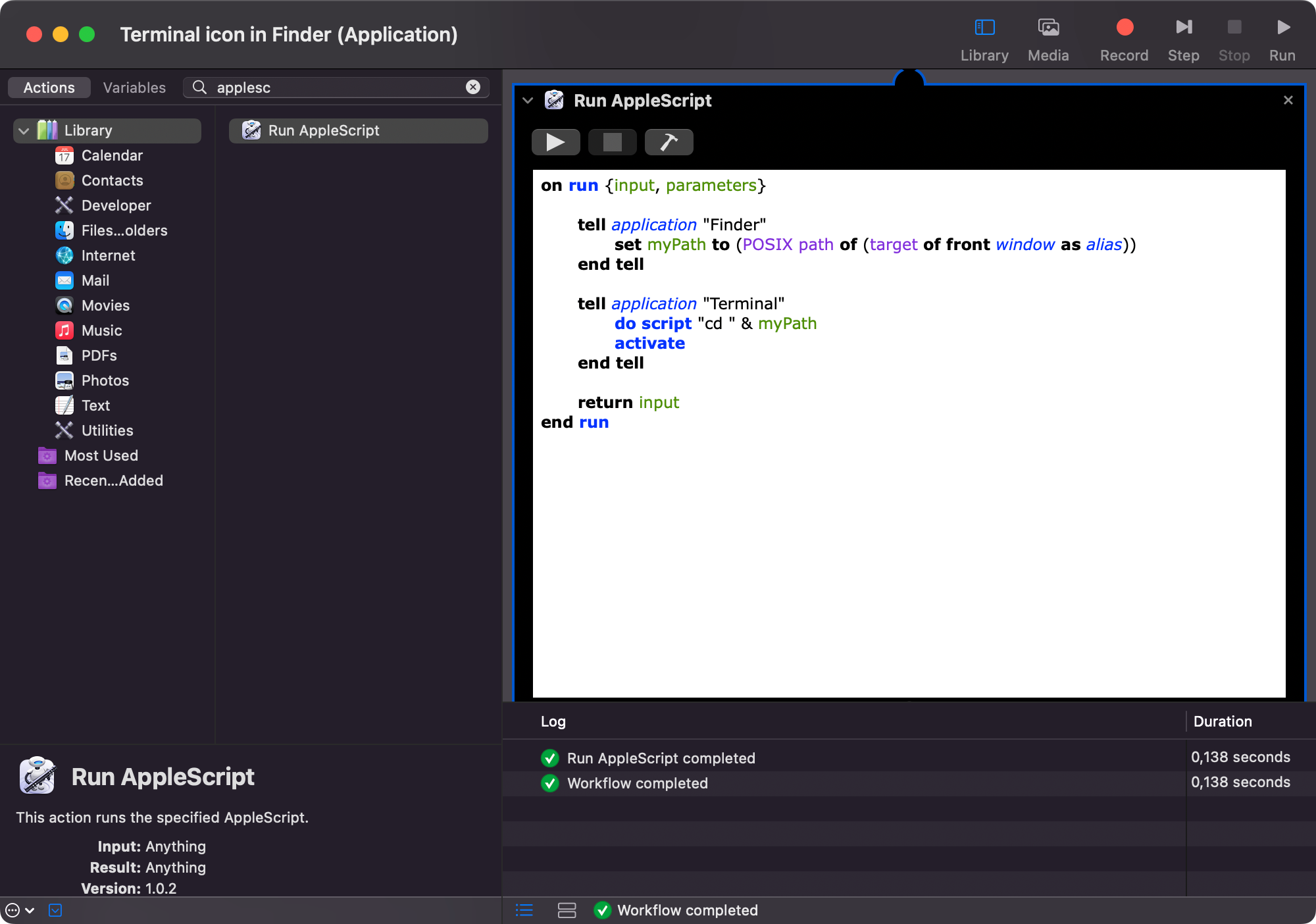
If you prefer you can use “Run Shell Script” instead, and write this bash script:
osascript -e '
tell application "Finder"
	set myPath to (POSIX path of (target of front window as alias))
end tell

tell application "Terminal"
	do script "cd " & myPath
	activate
end tell
'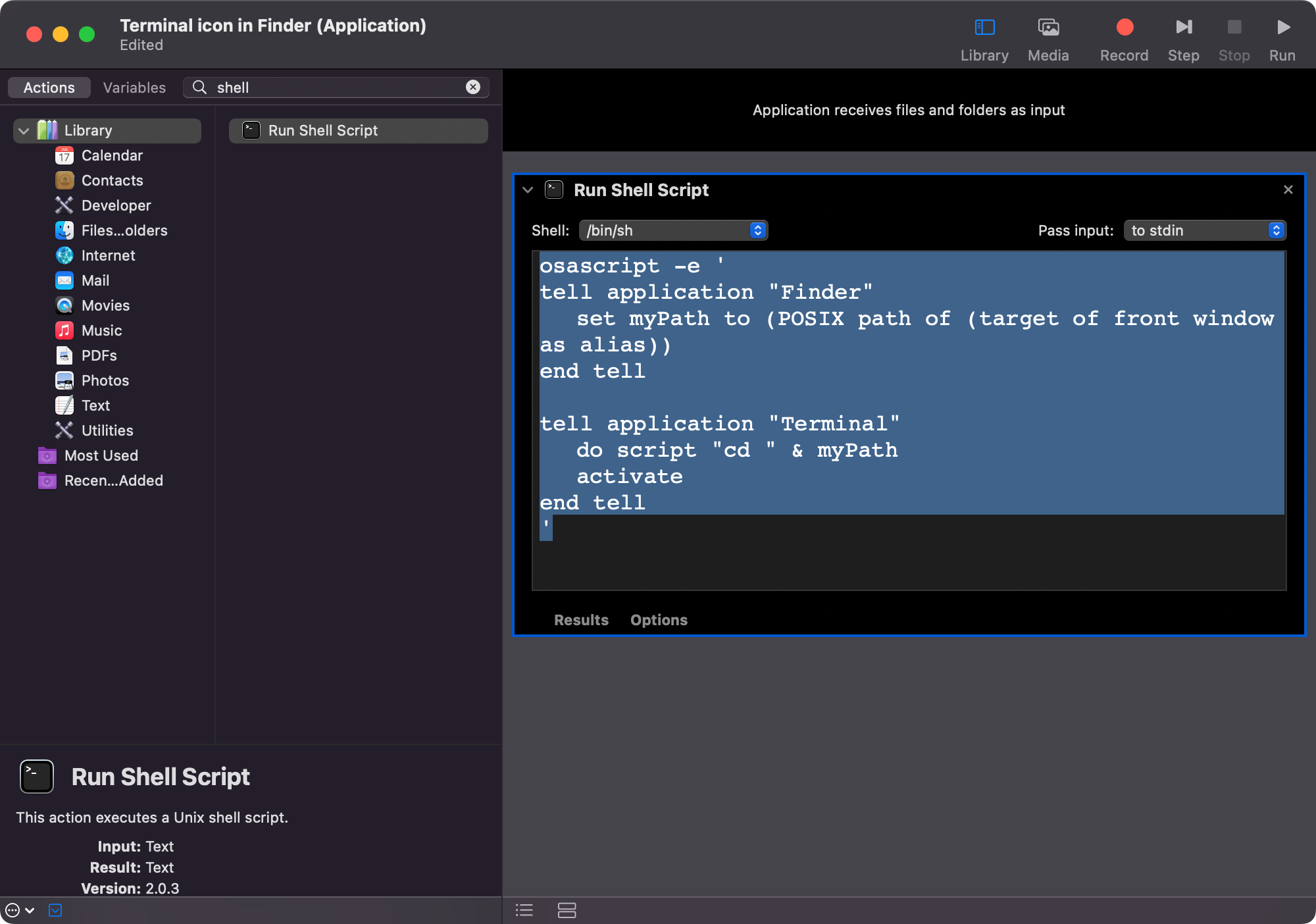
They do the same thing. osascript is the command line tool that runs AppleScript, so the second version is just the first one wrapped in a shell command.
How the script works
The first part asks the Finder for the folder shown in the frontmost window:
tell application "Finder"
	set myPath to (POSIX path of (target of front window as alias))
end tell
This gets the absolute path of the current open folder and stores it in the myPath variable. POSIX path converts it to the format the shell expects, like /Users/flavio/dev.
Then we tell the Terminal app to run the cd command with that path, and activate brings Terminal to the front. Note that do script opens a new Terminal window every time you click the button.
Assign the Terminal icon
Save this application in the Applications folder and then click Get Info to change its icon.
You can open Get Info on the Terminal app in the Utilities folder, and drag its icon to the top-left small icon to assign that icon to our new little app.
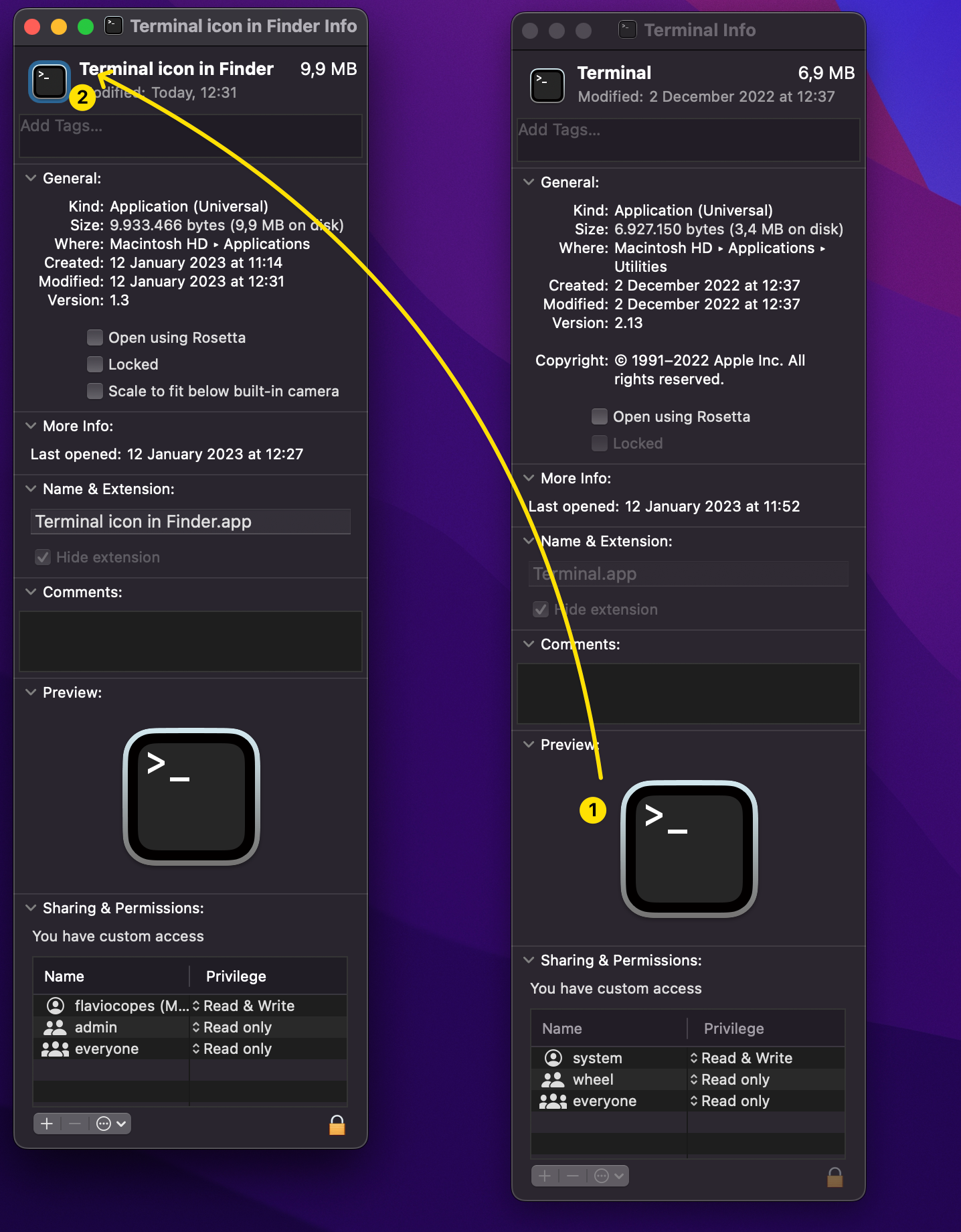
Finally keep the ⌘ command key pressed and drag the app in the Finder toolbar.
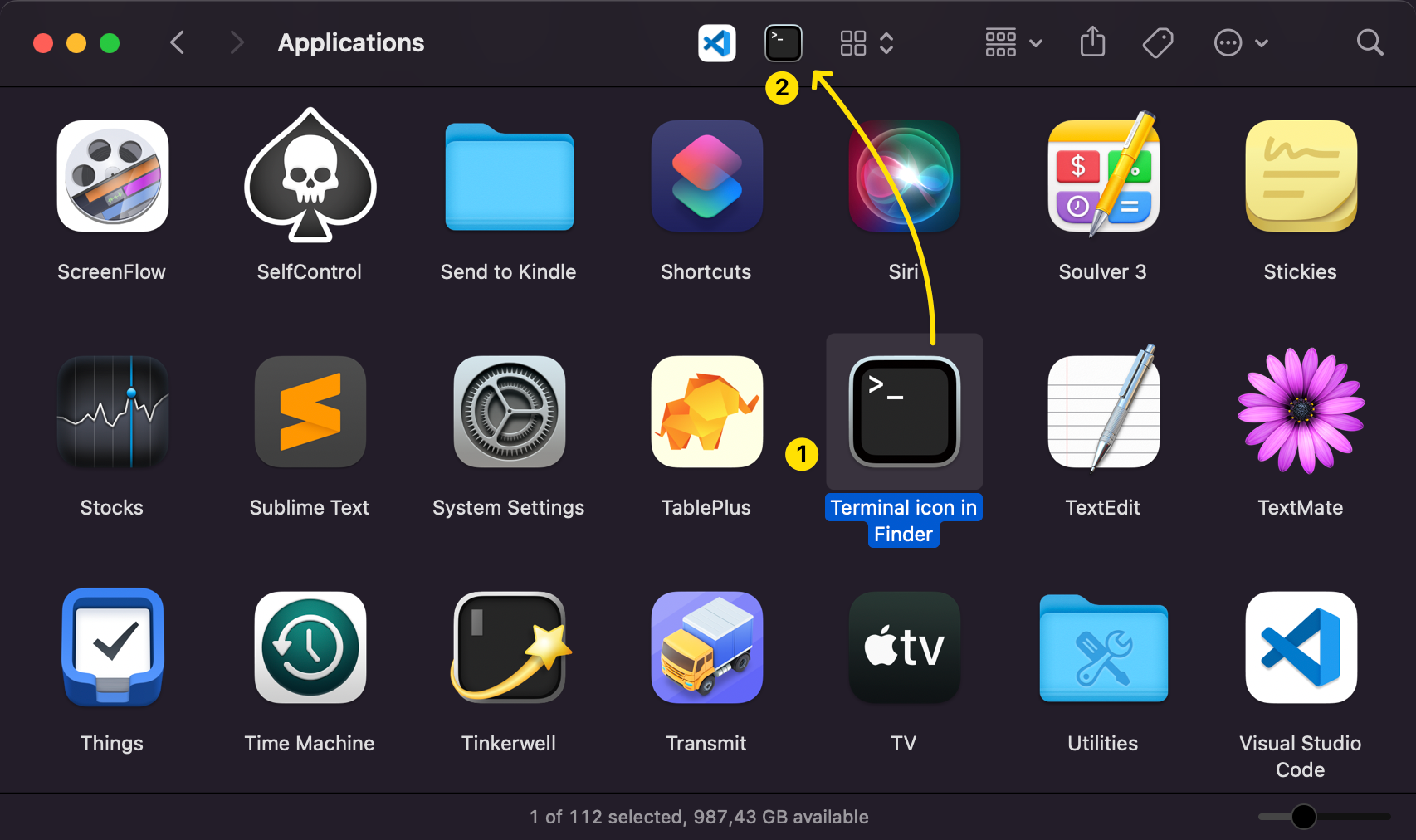
To remove it later, hold ⌘ again and drag it out of the toolbar.
If it doesn’t work
The first time you click the button, macOS asks for permission to control the Finder and Terminal. Approve both prompts. If you denied one by accident, go to System Settings, then Privacy & Security, then Automation, and enable them for your app.
One more thing to watch: folder names with spaces. The cd command breaks on them, because the path is not quoted. Fix it by changing the do script line to:
do script "cd " & quoted form of myPathThat’s it!
Want me to talk about your product? You can sponsor this site.
Related posts about mac: