Using Docker Desktop to manage a Container
By Flavio
Tagged: Docker
Learn how to manage a Docker container with Docker Desktop, using its dashboard to start, stop, and restart it, open a CLI, and view logs and stats.
Docker Desktop gives you a visual dashboard to start, stop, restart, and inspect your containers, without typing any command.
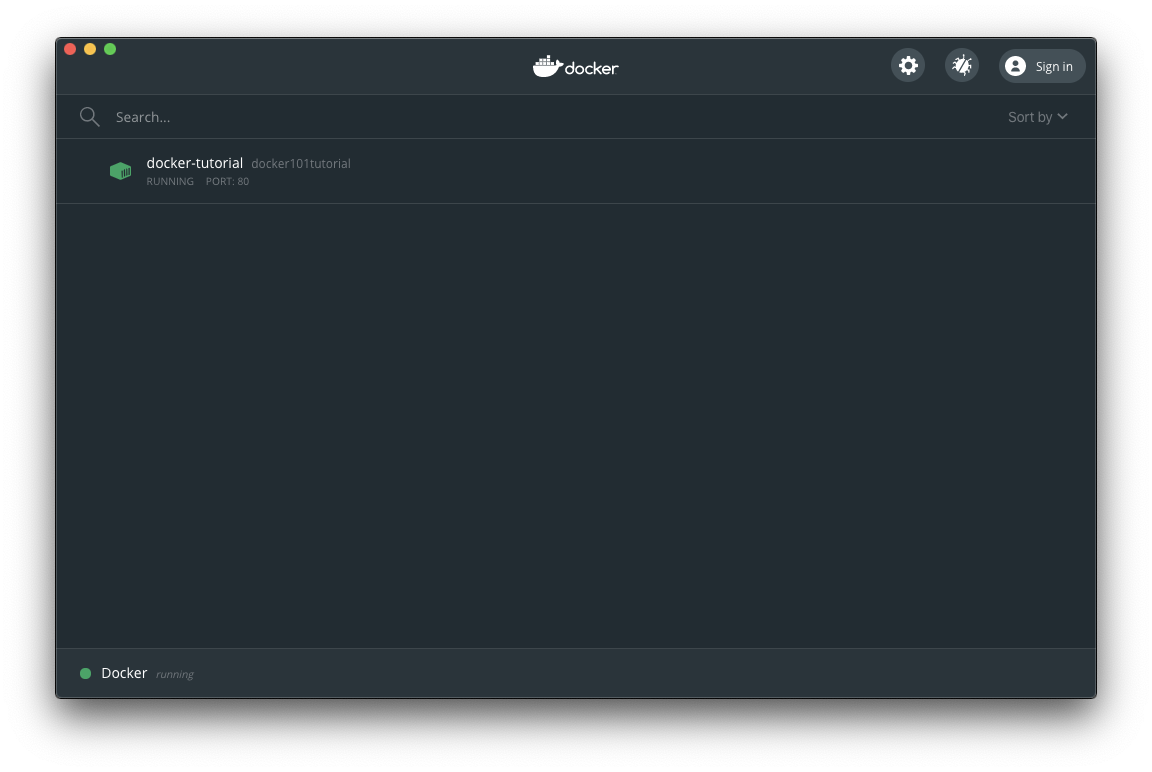
Once you start a Docker container, if you go and click the Docker icon in the toolbar and choose Dashboard, you will see it in Docker Desktop:
The container buttons
Now if you hover the container with the mouse, you will see 5 buttons:
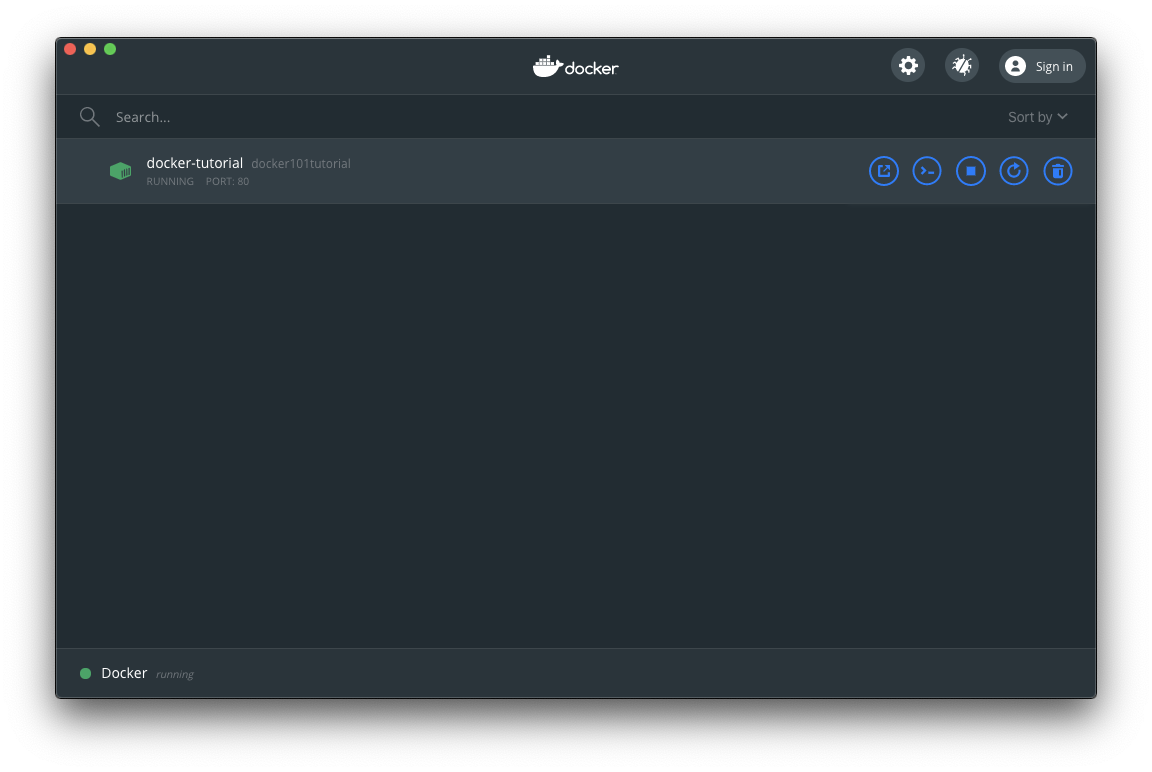
They are:
- Open in browser
- CLI
- Stop
- Restart
- Delete
You can manage your container lifecycle through them. They mirror the terminal commands: Stop is docker stop, Restart is docker restart, Delete is docker rm.
One thing to know about Delete: it removes the container and everything written inside its filesystem. Any data not stored in a volume is gone. The image stays on your machine, so you can create a fresh container from it any time.
Logs, inspect, and stats
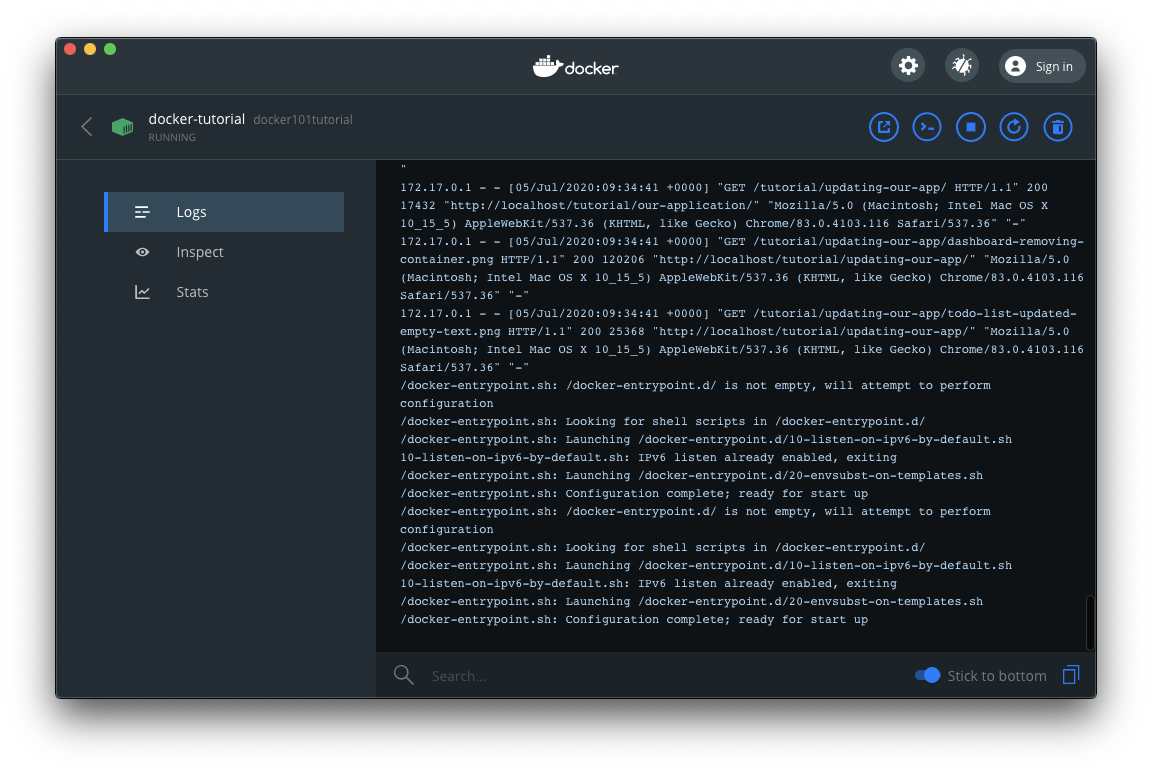
Clicking a container name in the list will reveal more data, including a Logs manager:
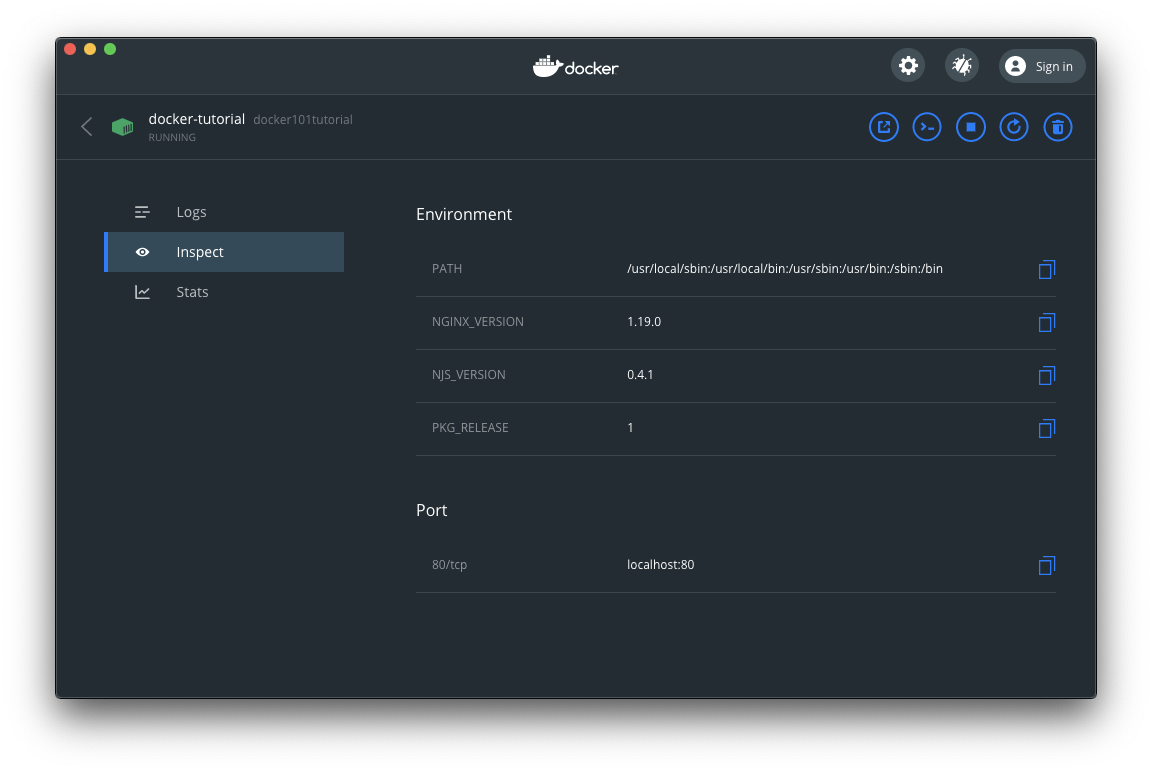
An inspector that tells you useful information about the container, like its environment variables and port mappings:
And stats about the container CPU, Memory, Network and Disk usage:
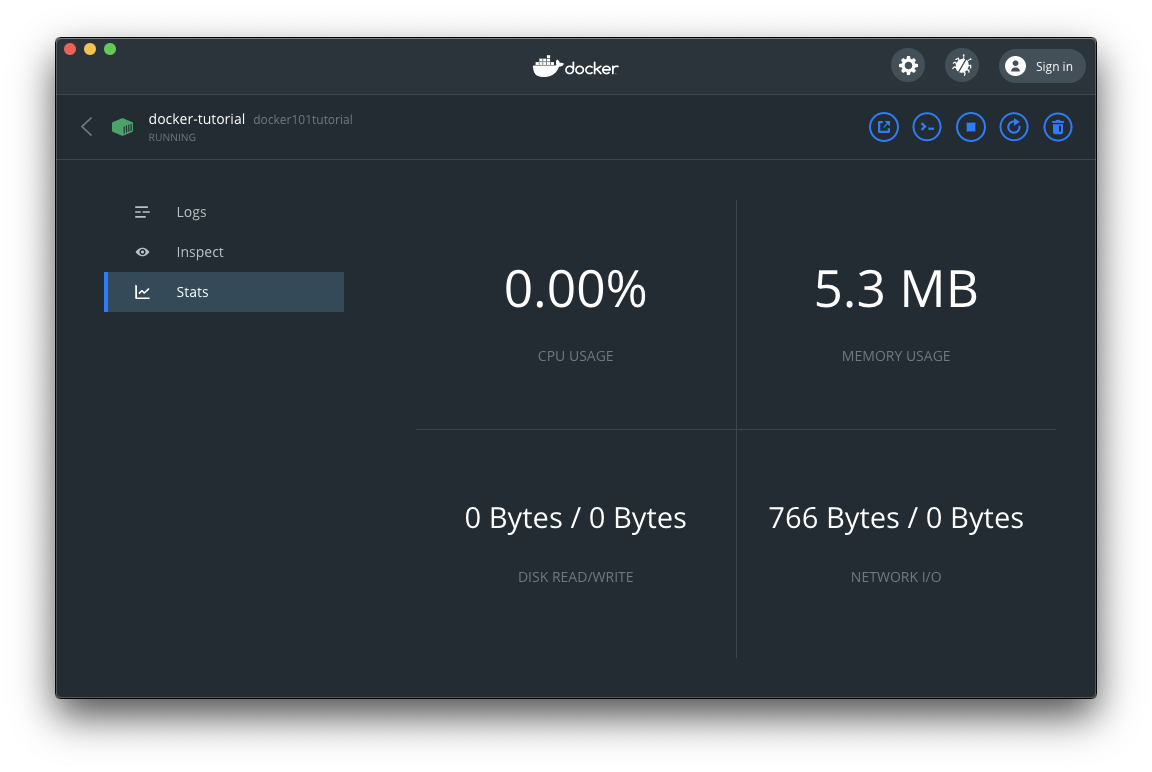
The logs view is the one I use most. When a container crashes at startup, the logs almost always tell you why.
Trying the lifecycle
Go back and click the Open in browser button and the http://localhost/tutorial URL will open (http://localhost redirects to http://localhost/tutorial in this app):
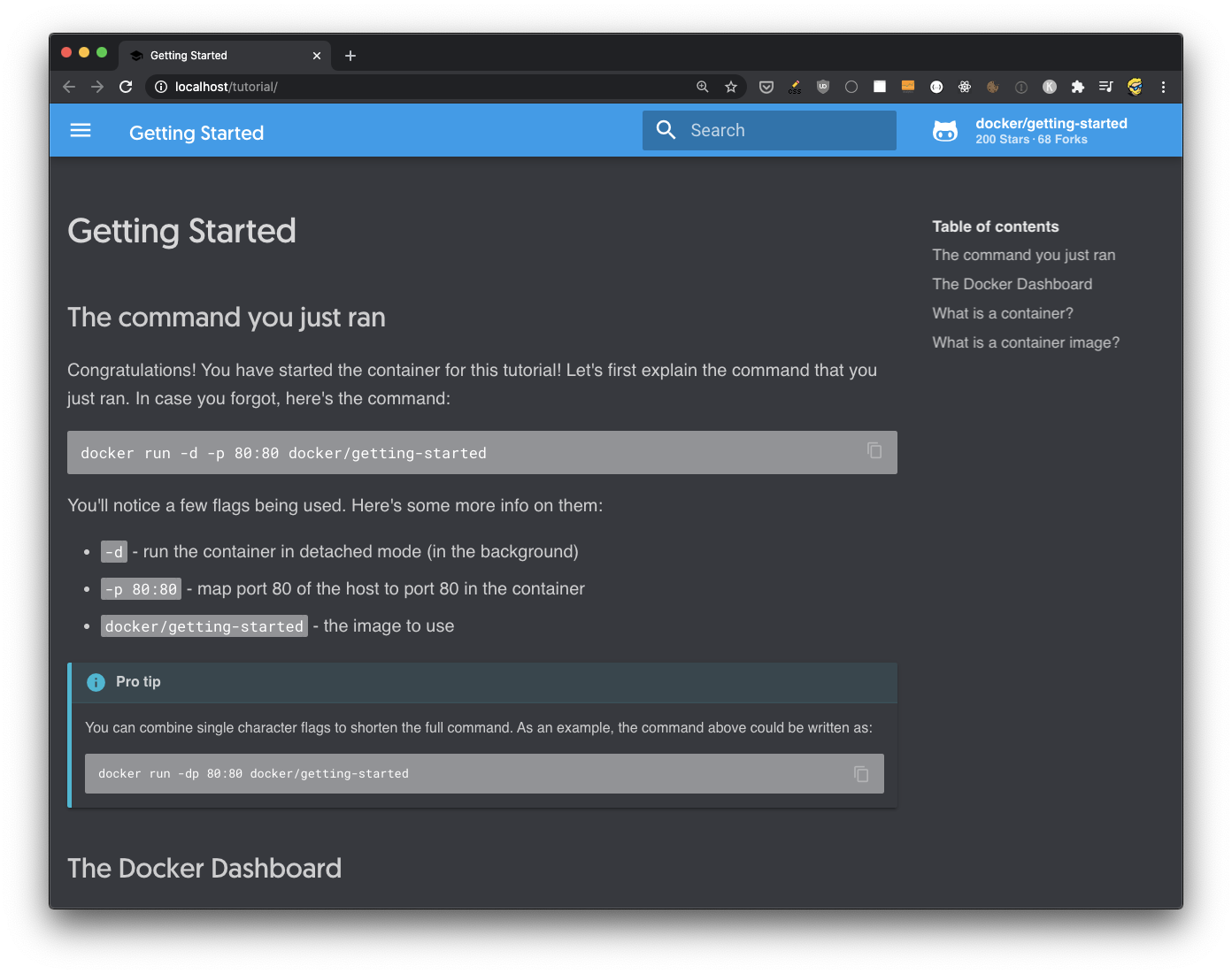
This is the content of a website that’s provided by our sample image. Now go back to Docker Desktop and press the Stop button
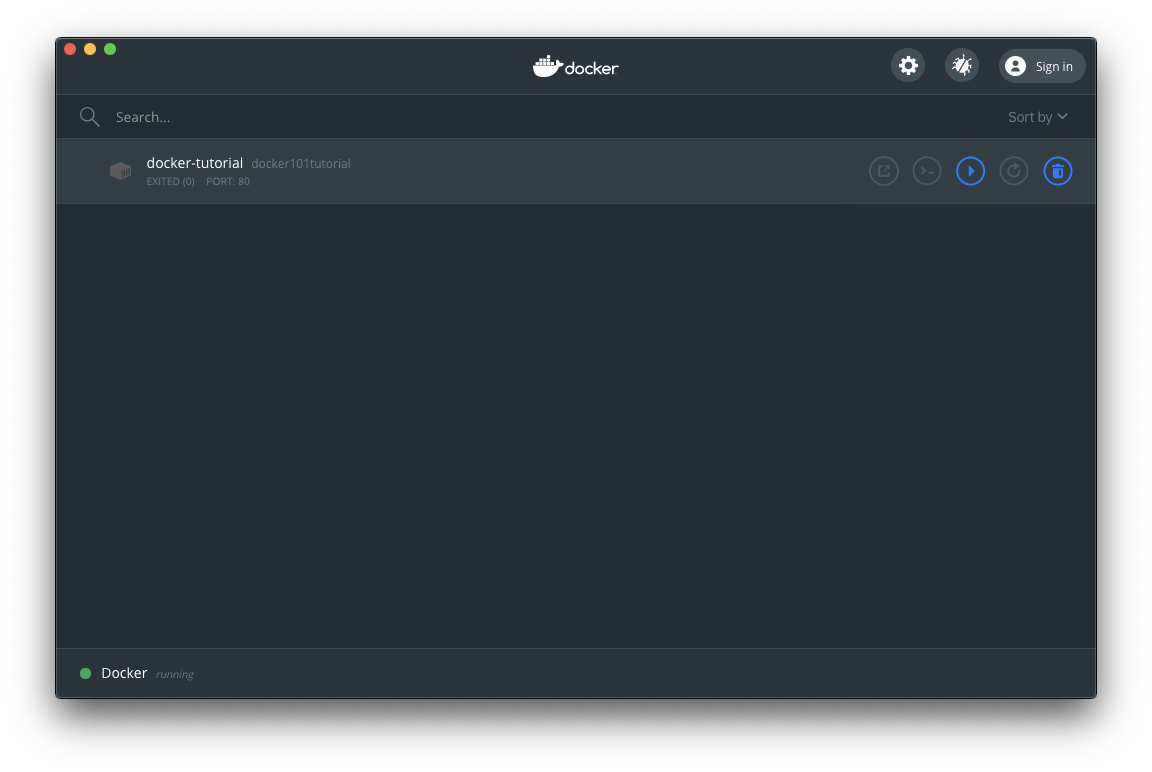
and refresh the page, it does not work any more:
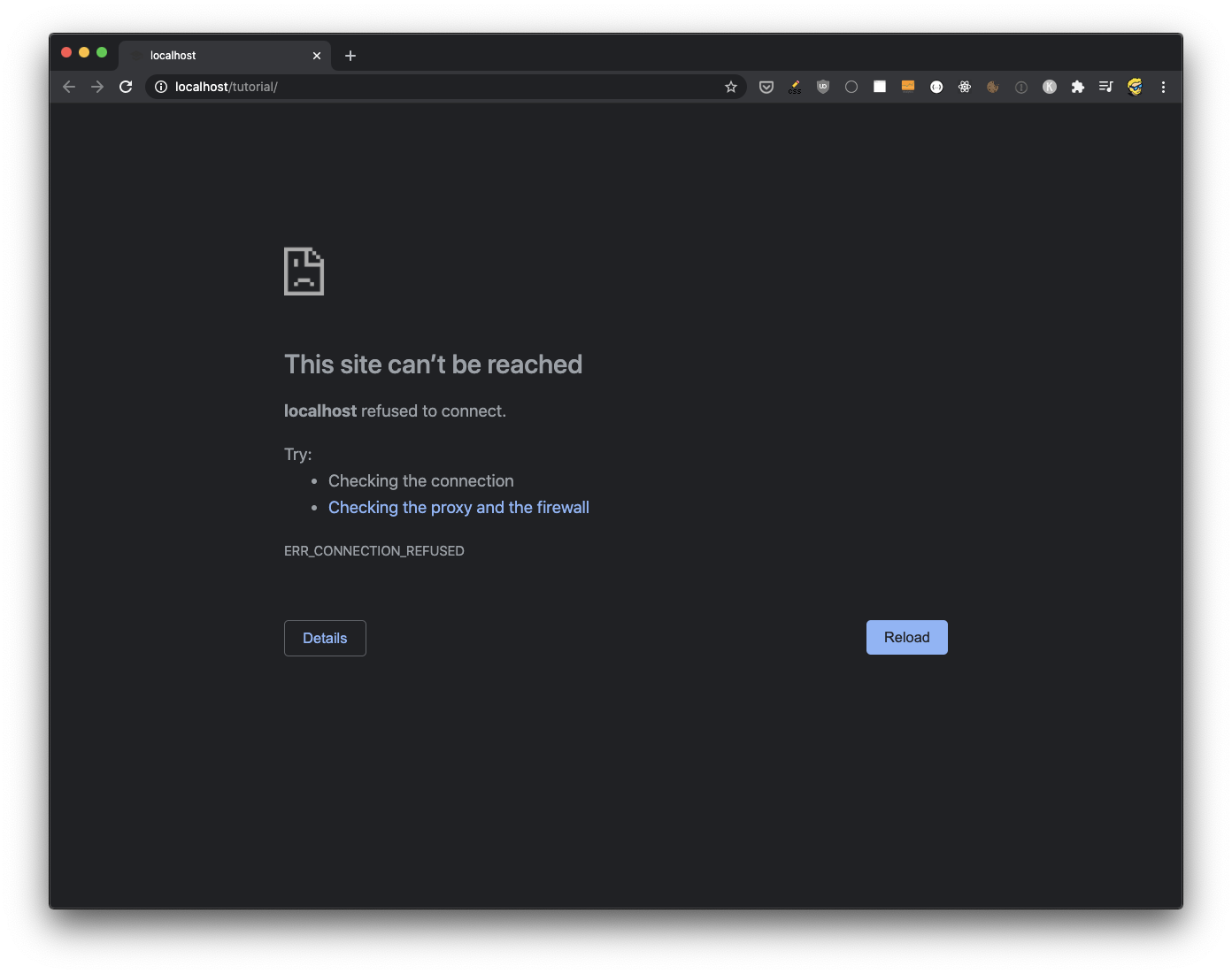
The connection is refused because stopping the container also stops the port mapping. Nothing is listening on port 80 any more.
Go back to Docker Desktop and press the Start button, it will work again. A stopped container keeps its filesystem and configuration, so starting it brings everything back as it was.
Try pressing the CLI button. A new terminal window will open and you will automatically be connected to the Docker Container, as the root user:
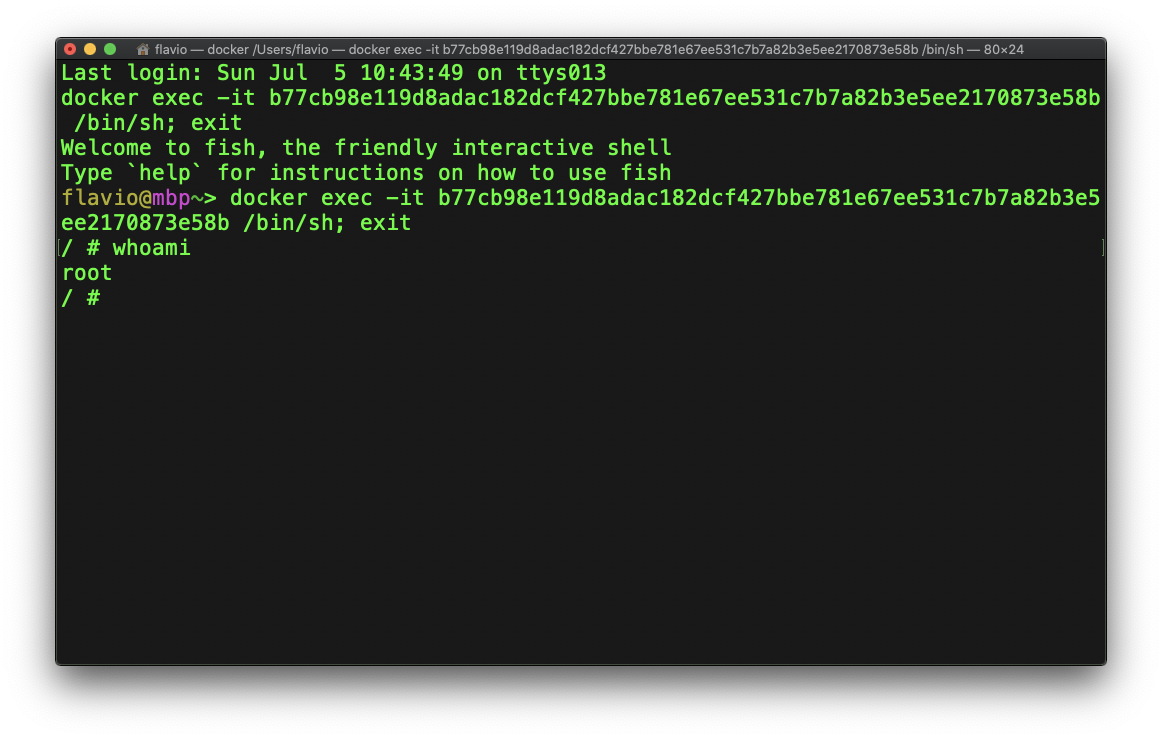
In the above picture the whoami command returns the current user name. This is the same as running docker exec with an interactive shell, handy when you want to look around the container’s filesystem.
Want me to talk about your product? You can sponsor this site.
Related posts about docker: