Working with Docker Containers from the command line
By Flavio
Tagged: Docker
Learn how to work with Docker containers from the command line, using docker ps to list them and docker container stop, rm, and inspect to manage them.
You can manage Docker containers entirely from the terminal: docker ps lists them, docker container stop stops them, docker container rm removes them, and docker inspect shows their full configuration.
The Docker Desktop application is awesome to work with containers locally via a graphical interface, but you are not required to use it. Everything it does, the CLI does too. Let’s go through the commands you’ll use every day.
Listing containers
The docker ps command lists the currently running containers:

This is the same as running
docker container ls.
In this case, container with name node-app and ID 739037a911e0 generated from the image examplenode, created 4 minutes ago, is up since 4 minutes, and the port 80 of the host machine is mapped to the container port 3000 using the TCP protocol.
Note that docker ps only shows running containers. Stopped ones are still there, just hidden from this view.
Stopping a container
When you know the container ID, you can stop the container by running
docker container stop <ID>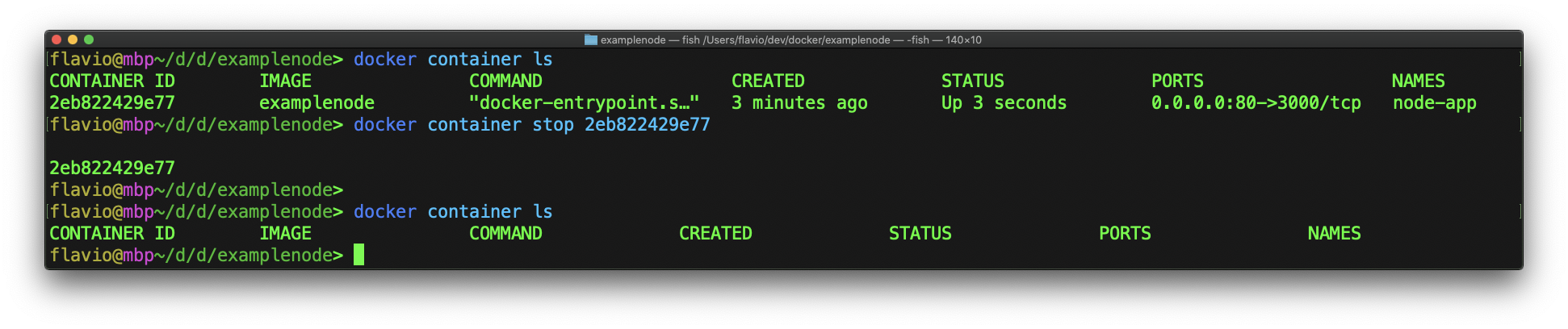
You can also pass the container name instead of the ID. docker container stop node-app works just as well, and names are much easier to remember.
Once a container is stopped, you can see it using docker container ls -a:

The -a flag means “all”, and includes stopped containers in the list.
Removing a container
A stopped container still exists on disk, with its filesystem intact. You can remove it using docker container rm:
docker container rm <ID>Here’s a pitfall: if the container is still running, this fails with an error saying you cannot remove a running container. Stop it first, or force the removal in one step:
docker container rm -f <ID>If you try to start a new container with a name that’s already taken by a stopped one, Docker refuses with a “name is already in use” error. Removing the old container fixes it.
Inspecting a container
You can inspect all the details about a container running docker inspect:
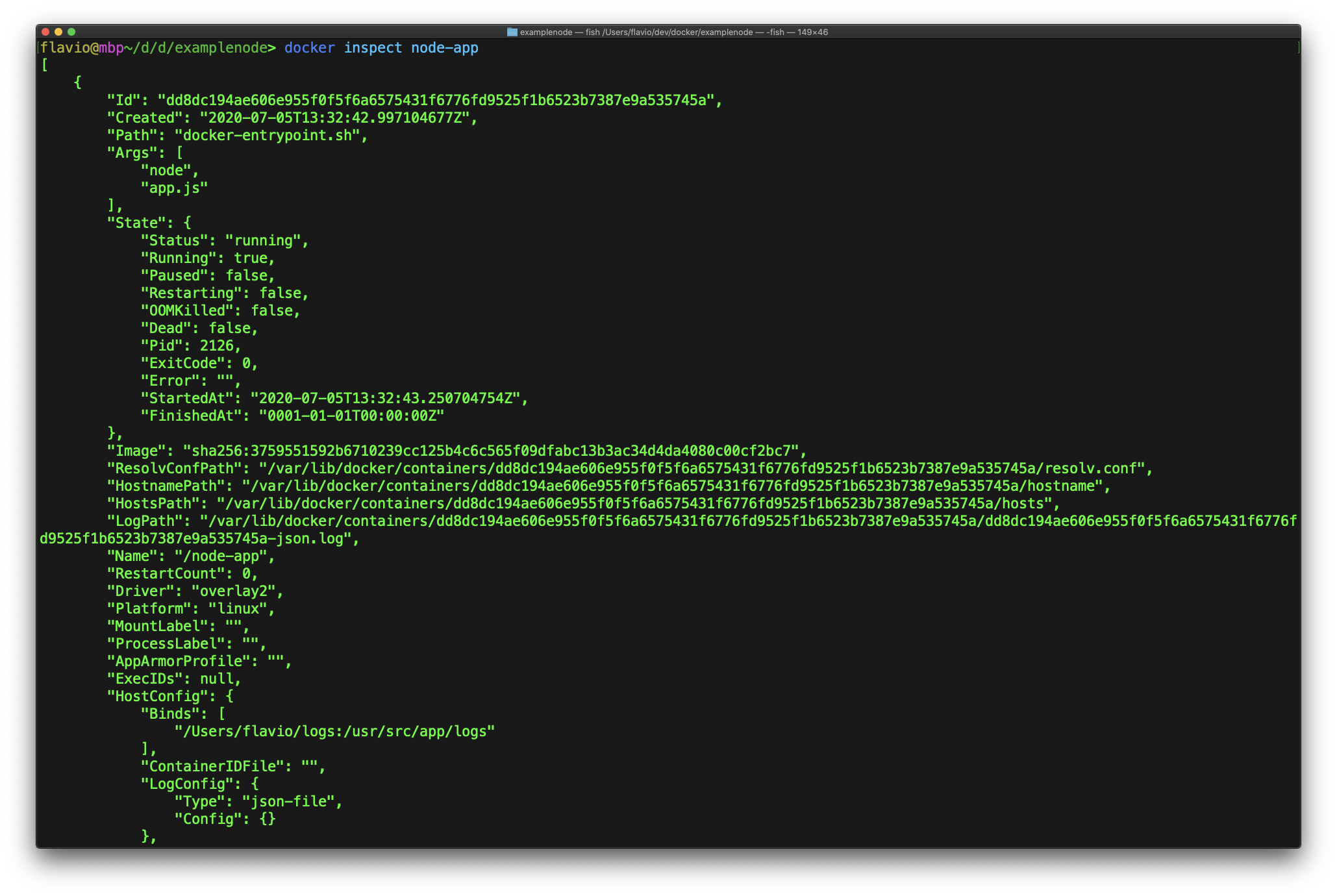
The output is a big JSON document with everything: environment variables, network settings, mounted volumes, the image it came from.
When a container misbehaves, the first thing I check is its logs:
docker logs node-appThis prints everything the container wrote to its standard output. Add -f to keep following the output live, like tail -f.
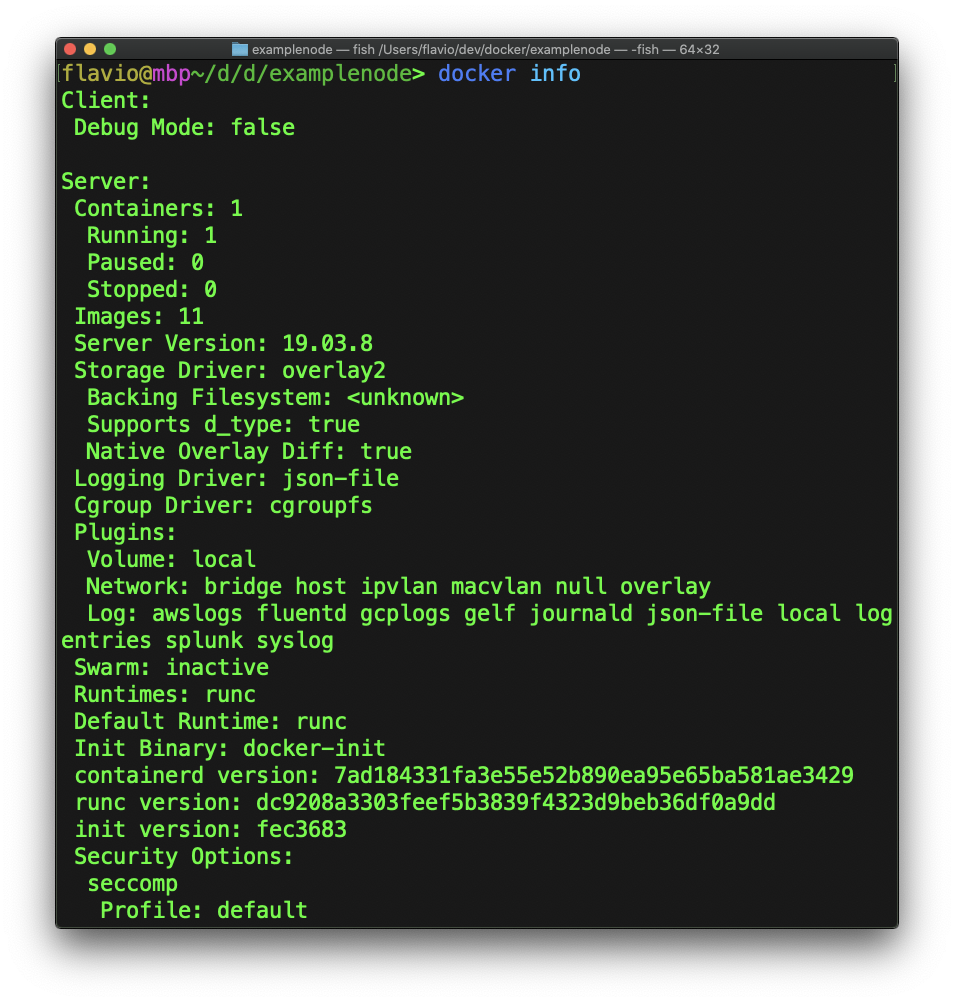
Another useful CLI command is docker info which gives you lots of information about the current state of your Docker installation, including the number of containers and images.
Want me to talk about your product? You can sponsor this site.
Related posts about docker: