How to make your S3 buckets public
By Flavio Copes
Make an AWS S3 bucket publicly readable with a bucket policy for s3:GetObject and the right Block Public Access settings. ACLs are off by default now.
I wrote about how to upload an image to S3.
After I had the S3 bucket ready, and the image was uploaded and then the URL was stored in my database, I realized the image was not accessible publicly in read mode.
The image was there, but could not be seen by anyone.
If I tried to access it, all I got was something like
<Error>
<Code>AccessDenied</Code>
<Message>Access Denied</Message>
<RequestId>E5FBYNEYEFNZH</RequestId>
<HostId>
iImqC8XkvmPP4/BJxNGDZrPrDr7us1u3UeZqH8prlv3dk69R9m7uOaaaZDvTLAtne2rLkRWZ4=
</HostId>
</Error>
Ok, I thought, it’s a permission issue.
So first I tried to edit the “Block public access” setting, disabling the block I had:
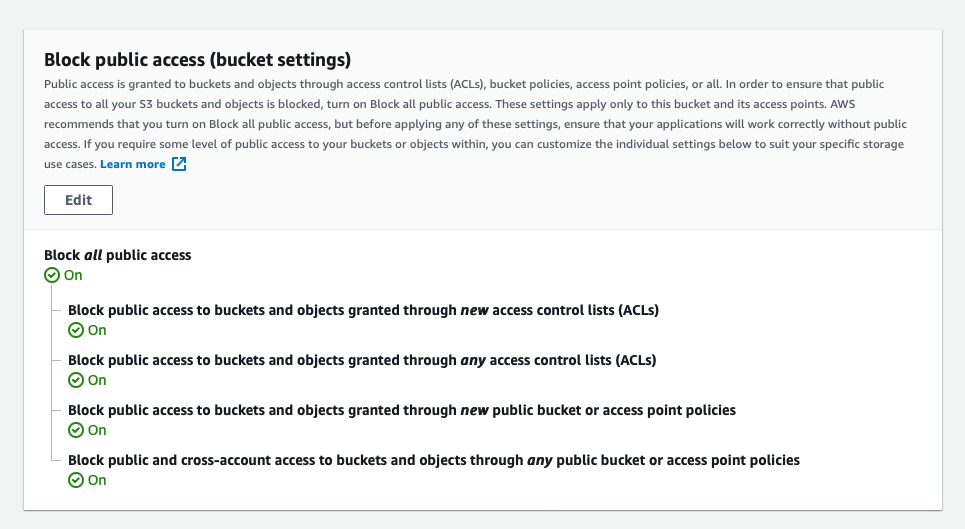
But this didn’t work by itself. The image was still inaccessible.
Back then I also tried setting Everyone (public access) to Read on a single file ACL:
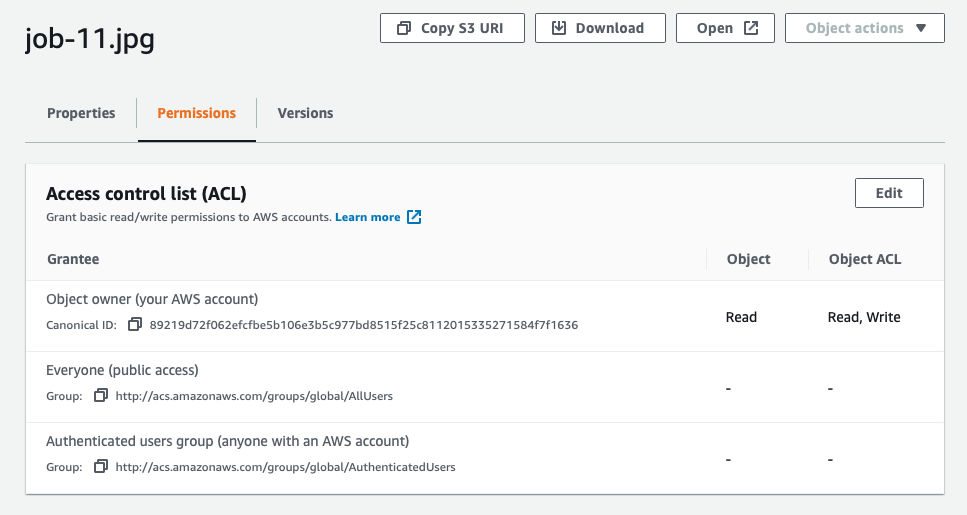
and that worked for the single file, when ACLs were still enabled.
I went to the general bucket permissions ACL panel and set the same thing for the whole bucket. It did not work as expected. People could not see the files publicly.
Turns out you need a Bucket Policy, from the bucket permissions page.
First make sure the two Block Public Access settings about policies are off, or S3 rejects a public policy. Then add this:
{
  "Version": "2012-10-17",
  "Statement": [
    {
      "Sid": "AllowPublicRead",
      "Effect": "Allow",
      "Principal": "*",
      "Action": "s3:GetObject",
      "Resource": "arn:aws:s3:::YOURBUCKETNAME/*"
    }
  ]
}
change YOURBUCKETNAME to your bucket name
You can leave the two settings about ACLs on. This is how my bucket ended up:
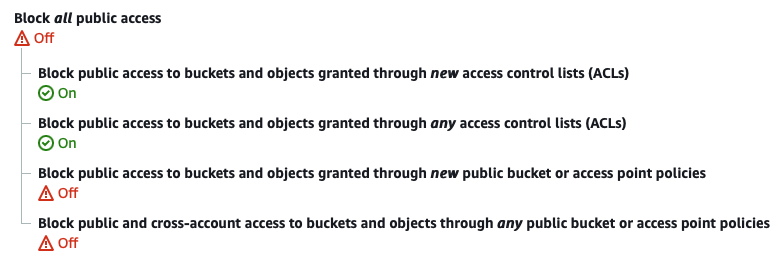
That’s it. Now my files (images in my case) were accessible from the public.
One more thing. New buckets have ACLs disabled by default (the Bucket owner enforced Object Ownership setting), so the per-file ACL trick I tried above does not even work anymore. The bucket policy is the way.
And don’t make a bucket public lightly. Only do this for files that are meant to be world-readable, like public images. Use signed URLs for private content.
Want me to talk about your product? You can sponsor this site.
Related posts about services: