
A developer tool by Flavio
Work Tracebook
Turn coding agents’ one-line reports into daily timelines, weekly views, and time estimates for every project on your Mac.
Buy Work Tracebook · $20One-time purchase. Tax included. Source code included.
macOS 14 or later · Apple silicon and Intel
Latest version 1.6.0, released November 20, 2026
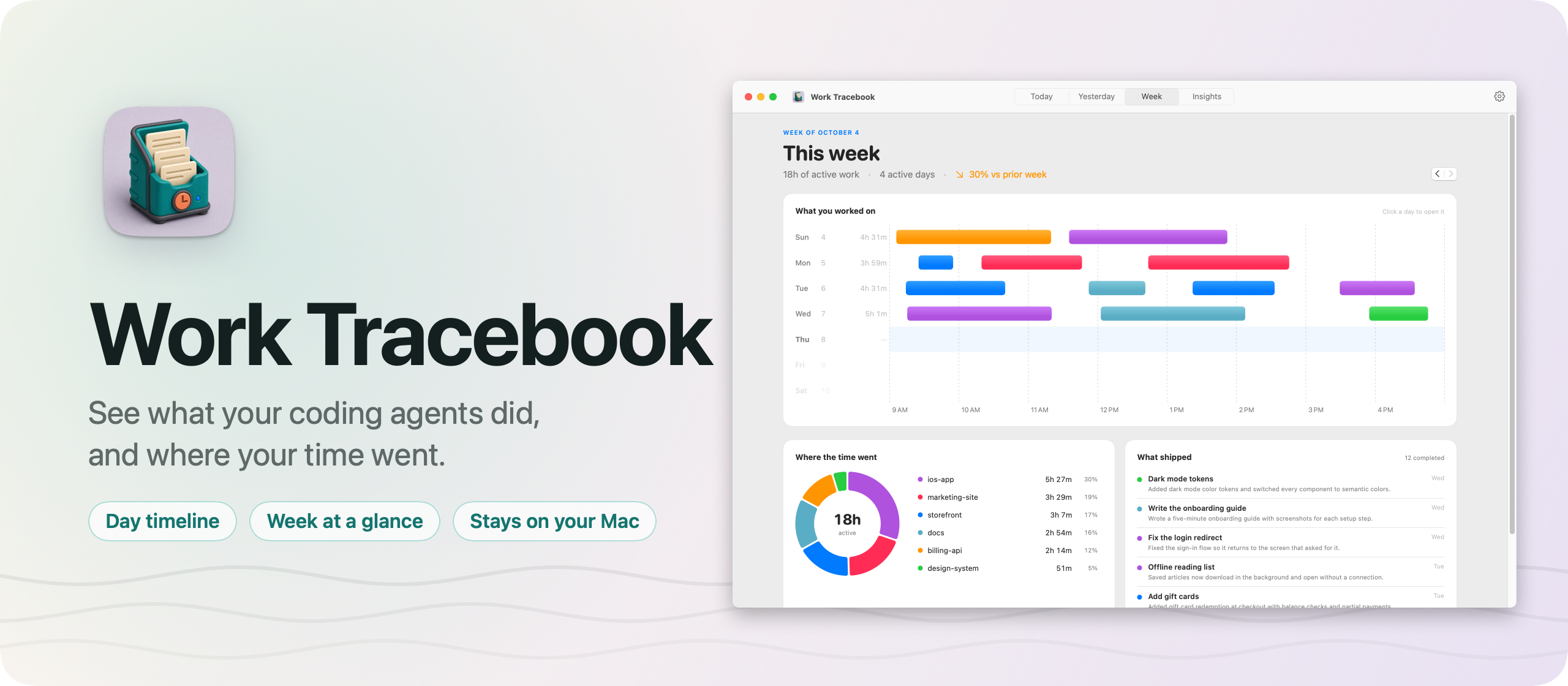
Six projects, three agents, one evening of “what did I do today?”
I run Codex and Cursor across a lot of projects every day. By the evening I often couldn’t tell you what actually got done, or where the hours went. The chats are spread over two apps and a dozen windows, and the git logs are in a dozen repos.
Work Tracebook is a macOS app that shows what your coding agents did for you. Each time an agent finishes something, it writes a one-line report with a small command. The app turns those reports into a timeline of your day, a view of your week, and an estimate of the time each project took.
Here’s the app in a little over a minute, with a made-up developer’s projects:
The projects, tasks and times in the video and the screenshots are made up.
Who it’s for
- Indie developers juggling side projects. You have a SaaS, two apps and a blog, and agents touch four of them on a good day. On Sunday you want to know which project got the week, and which one you keep promising to get to.
- Freelancers who bill by the project. A client asks what happened this week. The Week screen lists what shipped, with the agent’s own one-line summary for each task. The time is an estimate, but it tells you where to look before you write the invoice.
- People who leave agents running while they do something else. You start three tasks before lunch and come back to a list of what each one finished, in order, with the tasks still marked Doing.
- Anyone writing a weekly update or a standup. “Shipped ingredient search, fixed the pricing table on mobile” is already written, by the agent, at the moment it finished.
- Developers curious about their own rhythm. The 26-week heatmap and the time per project over 30 or 90 days show where your attention really goes.
Your day, in four screens
The app has four screens, one key away each, from ⌘1 to ⌘4.
Today and Yesterday open with the active time, the projects and the tasks. Under that there’s a timeline with one lane per project across the hours of the day, and a bar for every work session. Hover a bar and you see which tasks filled it. Then comes every task, once, with the latest report the agent wrote. Tasks still open say Doing, and you can close one with a final outcome. A task left open is marked Done after 24 hours.
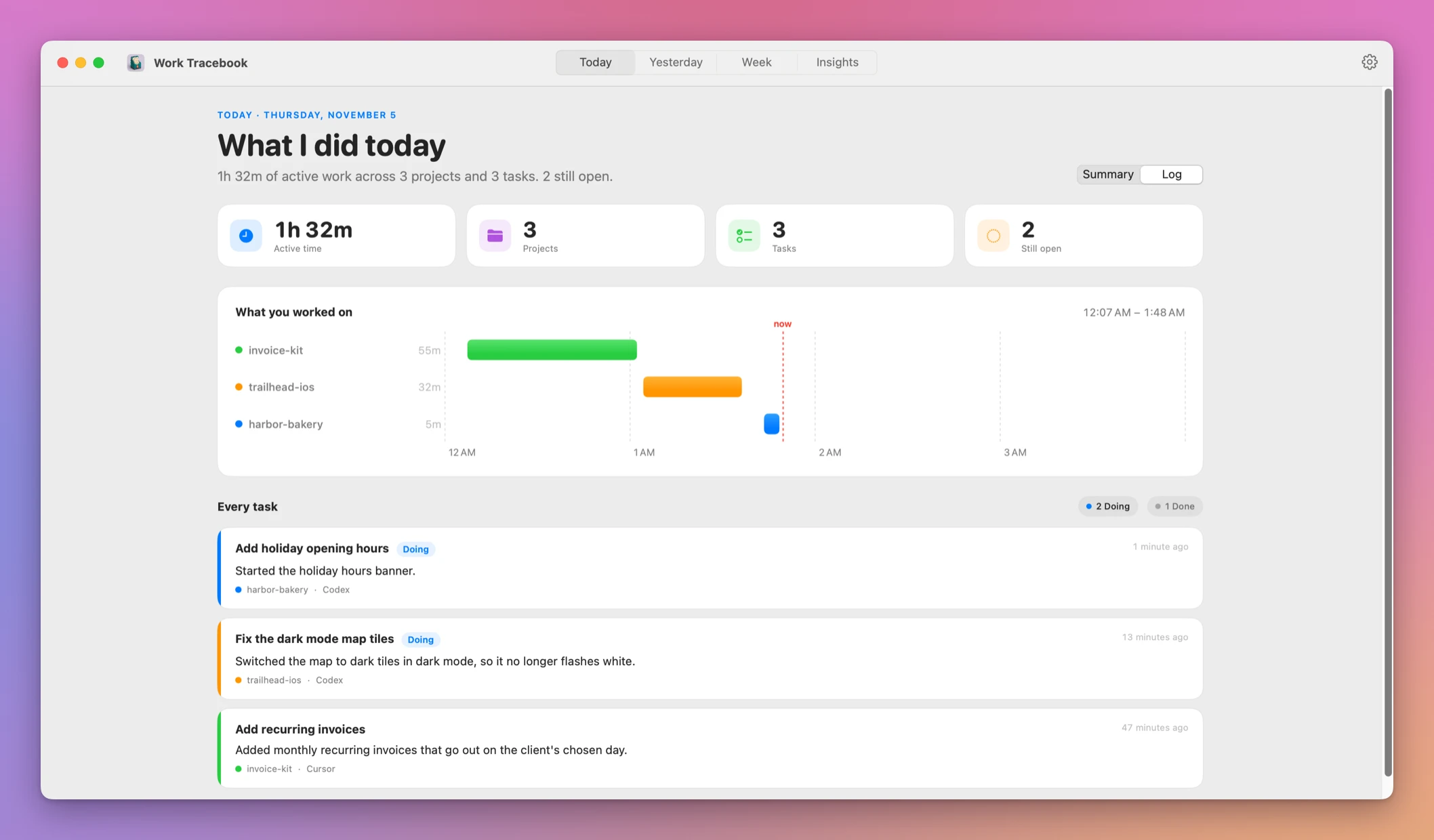
For a finished day, a local Ollama model writes one sentence per project, if you have one running. “Updated the software catalog by adding recent app launches” reads better at a glance than eight task titles. Without Ollama, the app shows the task titles.
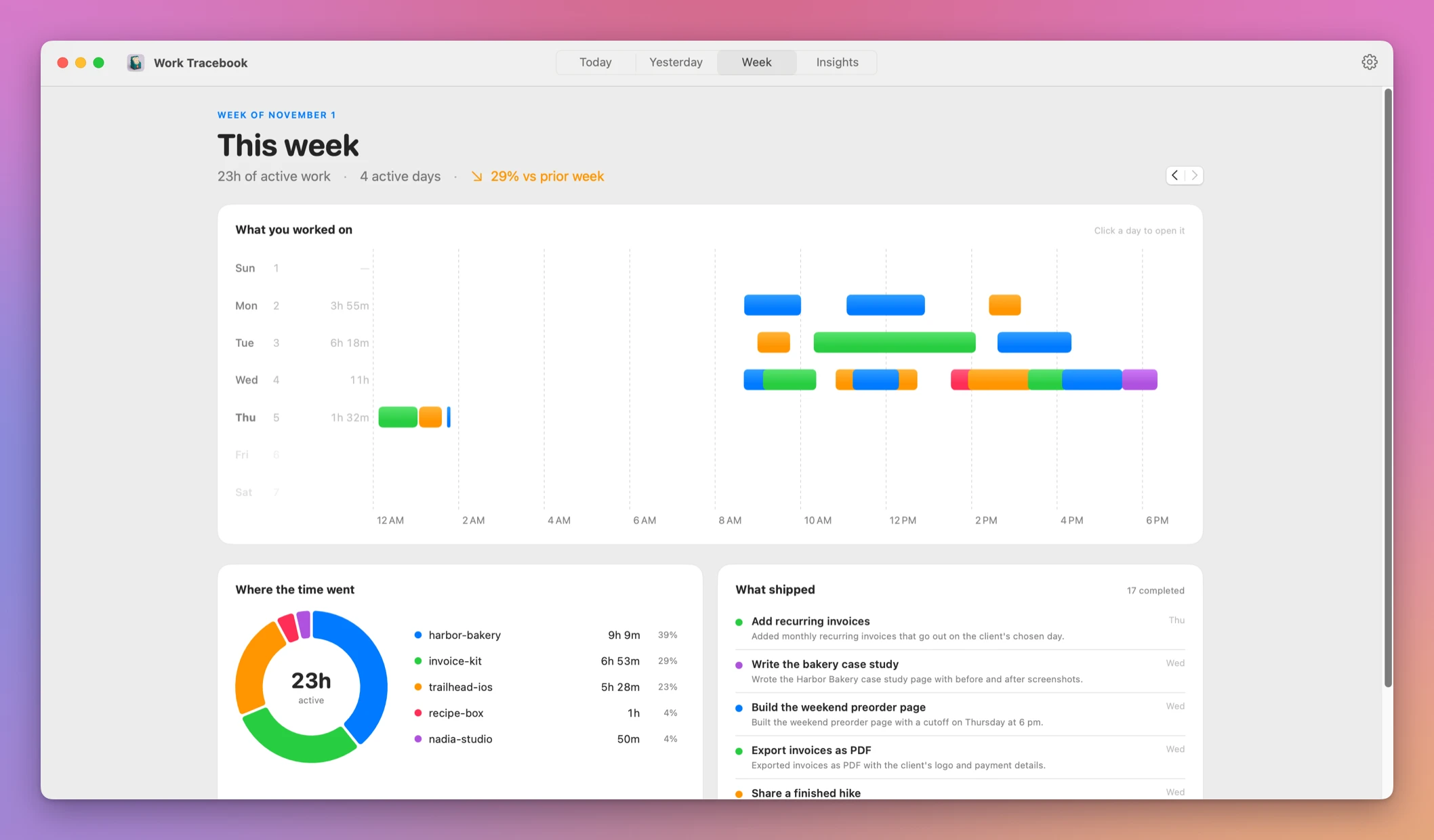
Week puts the seven days side by side, one row each, with the sessions colored by project. Next to it there’s a donut of where the week went and the list of what shipped. The arrow keys step back through earlier weeks.
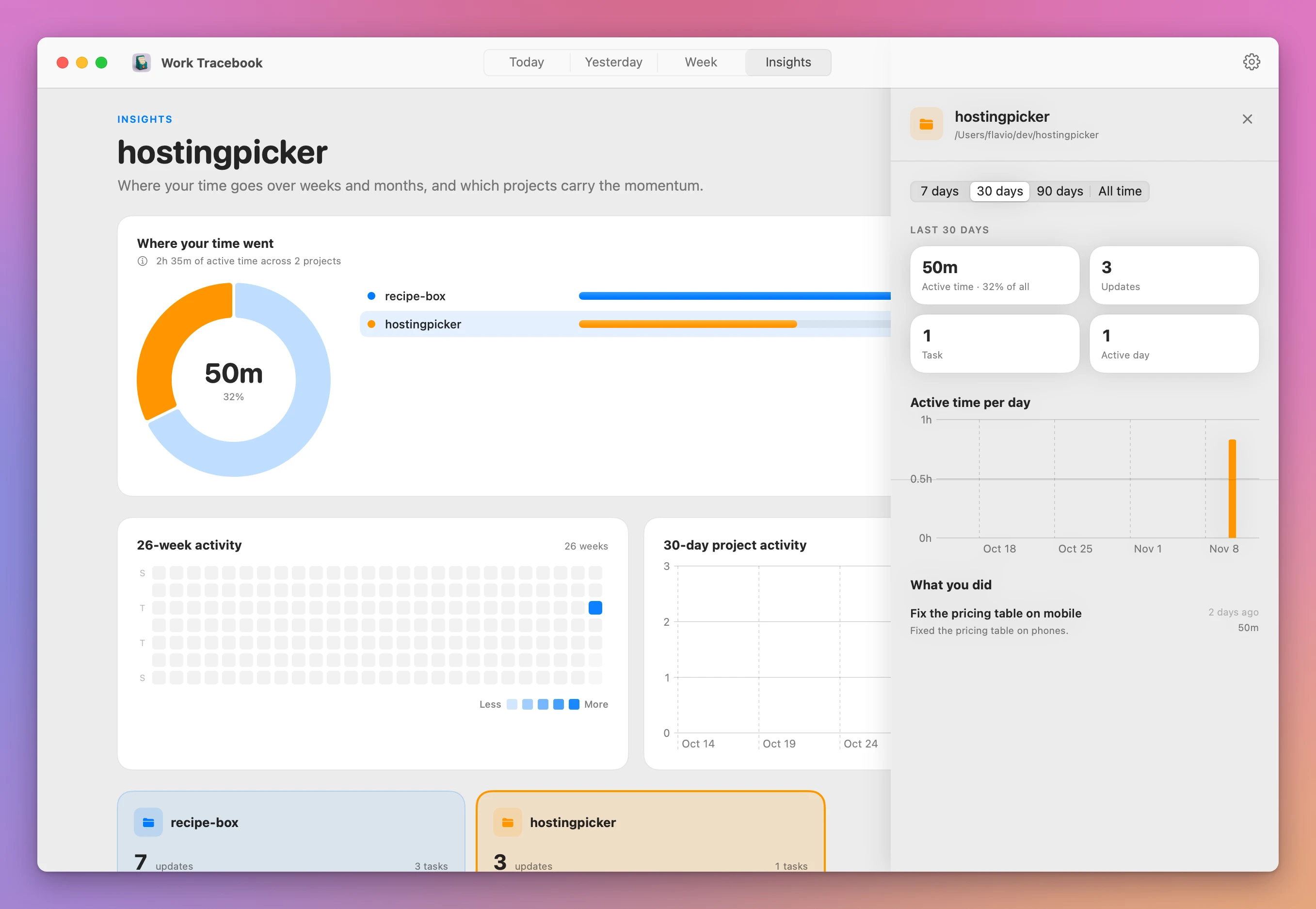
Insights is the long view: time by project over 7, 30 or 90 days or all time, a 26-week heatmap, and the busiest projects. Click a project and a panel opens with its time, its active time per day, and every task you did there. Right-click a project to hide it, and bring it back in Settings.
A week with it
- Open Work Tracebook the first time. The welcome screen installs the
factorylogcommand and checks that your login shell can find it. - Click to connect Codex or Cursor. For another agent, choose Copy the instructions and paste them into its standing instructions.
- Click Send a test report to check the setup without waiting for an agent. Then start a new agent session, so it reads the instructions.
- Work as usual. When an agent fixes the pricing table, it runs
factorylog start, thenreportandarchive. The task shows up on Today a second later. - At the end of the day, press ⌘1. You see the sessions per project and every task with its latest report.
- On Friday, press ⌘3. What shipped is your weekly update, and the donut shows the split between projects.
You don’t type anything into the app during the week. The agents do the writing.
How the agents report
Agents report through a small command-line tool, factorylog, that ships inside the app:
factorylog start --title "Add account settings" --summary "Started the settings screen." --source codexThen report adds a milestone and archive closes the task. Every command prints JSON, so an agent can read the task ID back and use it for later reports.
The setup handles the details that trip agents up. Connect Codex also adds the Work Tracebook folder to Codex’s writable roots, since its sandbox only lets commands write inside the project. If you use zsh and your shell can’t find factorylog, Add to PATH fixes it. You can come back to all of this in Settings → Integrations.
The reports are the agent’s own words, like “Added validation and tests.” Work Tracebook never reads your code, your diffs or your terminal. Agents log work that changes something, and skip questions and explanations.
The CLI writes the reports, and the app reads them from the same local file:
Where the hours come from
Agents report outcomes, not hours, so Work Tracebook estimates the time from when the reports arrive. Within a project, reports at most 45 minutes apart belong to one work session, and each session gets 5 extra minutes for the work before its first report. Those sessions are the bars on every timeline.
It’s an estimate, but it’s a useful one. Over the last 30 days it counted 105 hours of agent work for me, and almost three quarters of it went to this site.
Each project is measured on its own. When two agents work on two projects at the same time, both projects get the time.
Why not read your git log
Your git history and your agents’ chats already hold this information. git log --since=monday in each repo tells you what got committed. The chat apps list your conversations.
That’s one command per repo, and commits don’t say how long the work took or which agent did it. Agents don’t always commit, either. The chats are long, split between apps, and don’t add up into a week. A timesheet app would give you exact hours, but you’d have to start and stop the timer while the agents work.
| Git log and chats | Work Tracebook | |
|---|---|---|
| What got done today | git log per repo, then read chats | One screen, every task once |
| Time per project | Not recorded | Estimated from report times |
| The week at a glance | Assemble it yourself | Week screen with What shipped |
| Work across 26 weeks | Not practical | Heatmap and Insights |
| Who writes it | You | The agent, as it finishes |
| Where it lives | Repos and chat apps | One JSONL file on your Mac |
It stays on your Mac
Everything lives in one plain text file, ~/Library/Application Support/Factory Log/events.jsonl, one JSON line per report. Lines are only ever added, so you can read your whole history with cat if you want. There are no accounts and no server.
If you use Ollama summaries, the app talks to the Ollama service running on your Mac.
Under the hood
It’s one Swift package with three parts: a core library with the data model and every query, the command-line tool, and the SwiftUI app. The CLI and the app both go through the core, so they always agree on what’s in the log.
Several agents often report at the same time. Before writing, the CLI takes a lock on a file next to the log, checks the report against the task’s history, appends one line and flushes it to disk. The app watches the file and reloads when it grows, which is why a report shows up a second after the agent writes it. The charts are Swift Charts.
What it doesn’t do
- It isn’t a timesheet. The hours are an estimate of project activity from when reports arrive. Use them as a guide, not for exact billing.
- It only knows what agents report. An agent without the instructions, or work you do by hand, doesn’t show up. You can run
factorylogyourself, though. - It doesn’t read your code or chats. That keeps it private, and it also means a report is only as good as the agent’s summary.
- It doesn’t sync or share. One Mac, one log file. There’s no team view.
- Day summaries need Ollama. Without a local model you get task titles instead of a sentence per project.
Questions
Which agents work with it?
Setup connects Codex and Cursor in one click. Any other agent works if you paste the instructions into its standing instructions and it can write to the log folder.
Reports aren’t showing up. What do I check?
Run command -v factorylog in a new Terminal window. If it’s missing, revisit Settings → Integrations and check your PATH. If Send a test report works but agent reports don’t, start a fresh agent session and check its instructions and sandbox access.
Can I back up my history?
Yes. Back up the folder that holds events.jsonl. It’s plain text, one line per report.
Does it work on Intel Macs?
Yes. It runs on macOS 14 Sonoma or later, on Apple silicon and Intel.
Is the source code included?
Yes. The purchase page delivers a source ZIP along with the app.
The documentation covers setup and every command.
What you get
Work Tracebook costs $20 including tax, paid once. The purchase includes the signed Mac app and automatic updates.
Download and install
After purchase, download the signed and notarized Mac app ZIP from your purchase page.
Unzip the Mac app and drag Work Tracebook to your Applications folder. It runs on macOS 14 Sonoma or later, on Apple silicon and Intel.
Work Tracebook is signed with my Apple Developer ID and notarized by Apple.
Work Tracebook checks for updates once a day. Choose Work Tracebook → Check for Updates… to check now and Install and Relaunch to install.