Kindle not showing up on a Mac? Why, and what to try
By Flavio
You plugged your Kindle into your Mac and nothing appeared in the Finder. Here's where an older Kindle shows up, the Finder settings that can hide it, and why a Kindle from 2024 on never shows up there at all.
You plug your Kindle into your Mac with a USB cable, open the Finder, and there’s no Kindle anywhere.
There are two very different reasons. An older Kindle shows up as a disk named Kindle, like a USB stick, and when it doesn’t, it’s usually the cable, the Kindle’s lock screen or a Finder setting. A Kindle from 2024 on doesn’t show up in the Finder at all, whatever you do, because it connects to a Mac in another way.
Which Kindle do you have?
Amazon’s help page about connecting a Kindle by USB says that the Kindle Scribe and the Kindles released in 2024 need a separate app on a Mac, Amazon’s Send to Kindle for Mac, to move files over the cable. Kindles released before 2024, apart from the Kindle Scribe, don’t need it.
| Your Kindle | In the Finder | What you use on a Mac |
|---|---|---|
| Released before 2024 (not a Kindle Scribe) | A disk named Kindle, with a documents folder | The Finder |
| Released in 2024 or later, or a Kindle Scribe | Nothing | Send to Kindle for Mac, and its USB File Manager |
Where an older Kindle shows up
I tried this on a stand-in Kindle: an 8 GB disk image formatted FAT32 like a Kindle that shows up as a disk, named Kindle, with a documents folder in it. On a Mac it behaves like an older Kindle plugged in by cable. What’s different is that it has only the documents folder, and that plugging it in and unplugging it is opening and closing a file.
When the Mac sees it, the Kindle appears in the Finder’s sidebar under Locations, with an eject button next to it:
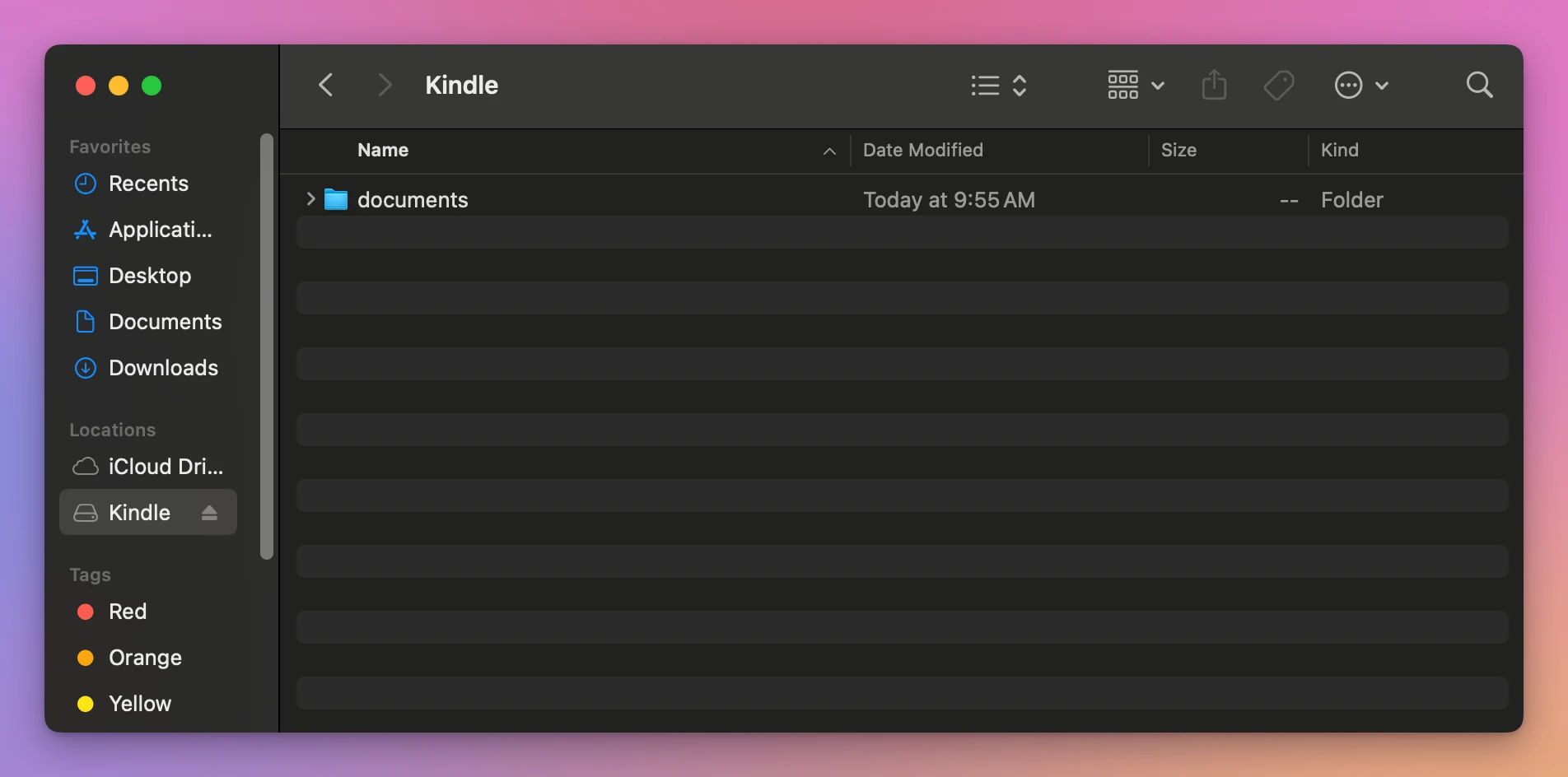
Your books go in documents, the folder Amazon’s help page tells you to drag them into.
If it’s not there
- The cable. Some USB cables only charge. If the Kindle charges but the Mac never sees it, try another cable, ideally the one that came with the Kindle.
- The lock screen. Wake the Kindle up and unlock it, then wait a few seconds.
- Another port. Plug the cable straight into the Mac, not into a hub or a keyboard.
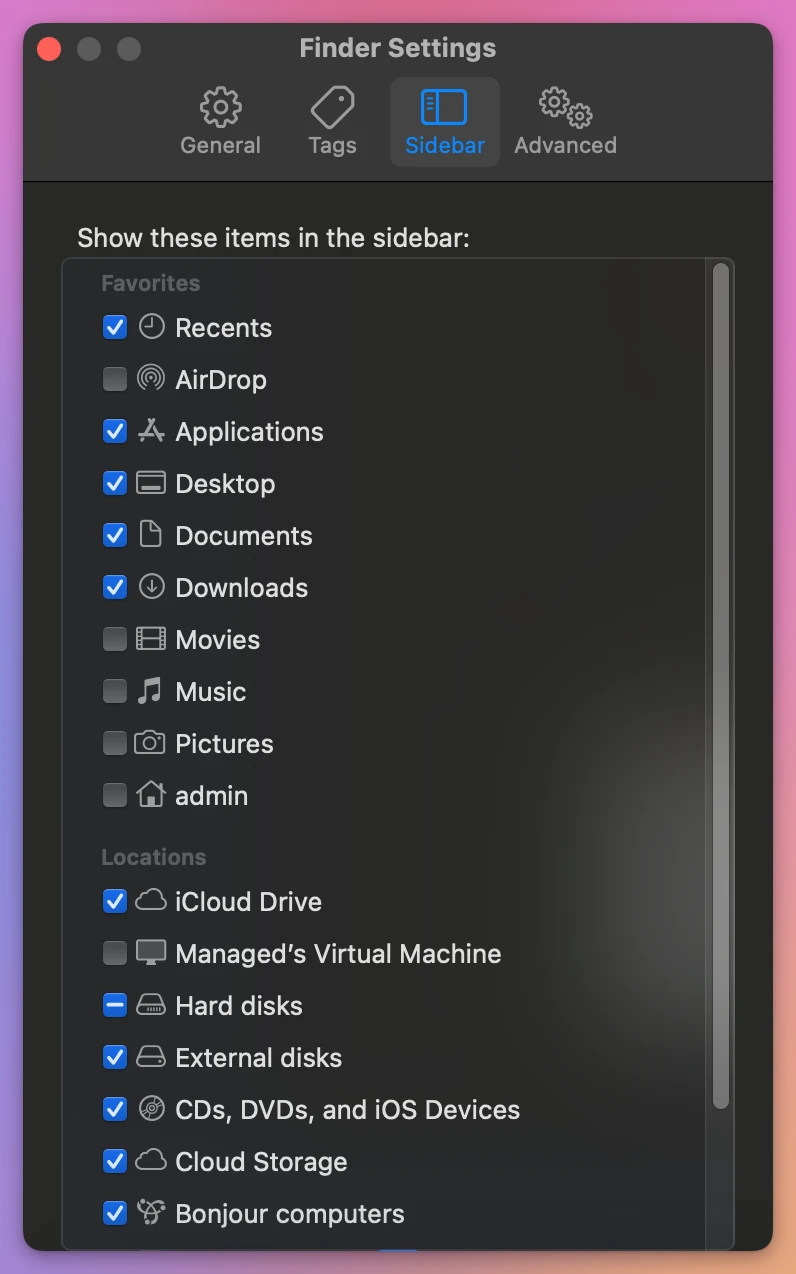
- The Finder settings. The Finder can hide external disks. Open Finder > Settings…, click Sidebar, and check that External disks is ticked under Locations:
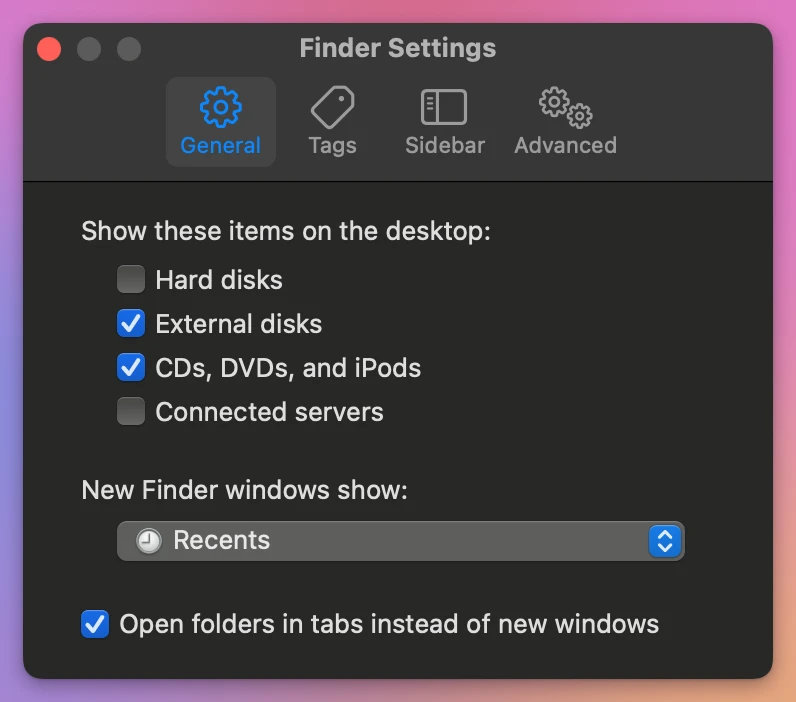
The General tab has the same choice for the desktop, under Show these items on the desktop:
If none of this helps, the Kindle is probably one that never shows up in the Finder.
A Kindle from 2024 on
For those, Amazon’s answer is its own app. The same help page says to install Send to Kindle for Mac, plug the Kindle in, sign in, and open the USB File Manager from the Tools menu. Then you drag books into the Kindle’s documents folder. Amazon lists these limits:
- It works on Intel Macs and Macs with M1 to M3 chips, with macOS 12 or later.
- It only does drag and drop.
- It doesn’t take more than 2,000 files at a time.
- If it doesn’t see the Kindle, close other USB file transfer apps, click Connect device, or unplug and plug the cable again.
I don’t have one of those Kindles, so I couldn’t try any of this.
Where the Finder stops
Even when the Kindle does show up, the Finder only shows file names in a folder. It won’t tell you which file is which book, how much room is left without a trip to Get Info, or that an EPUB you copied there won’t open on the Kindle.
| The Finder | Transfer for Kindle | |
|---|---|---|
| Kindle released before 2024 | A disk named Kindle | Found on its own, then Show Books |
| Kindle from 2024 on | Not shown | Not tested on one yet |
| What’s on it | File names in documents | Title, author, cover, format and size |
| Free space | Get Info on the disk | In the window, like “8.56 GB free of 8.57 GB” |
See what’s on your Kindle
Transfer for Kindle is a Mac app I made for the Kindle at the other end of the cable. It shows its books, sends your own books to it, copies books back and saves your highlights. It’s my own app, not made by, affiliated with or endorsed by Amazon. It costs $20, paid once.
With nothing plugged in, it waits and says what to check:
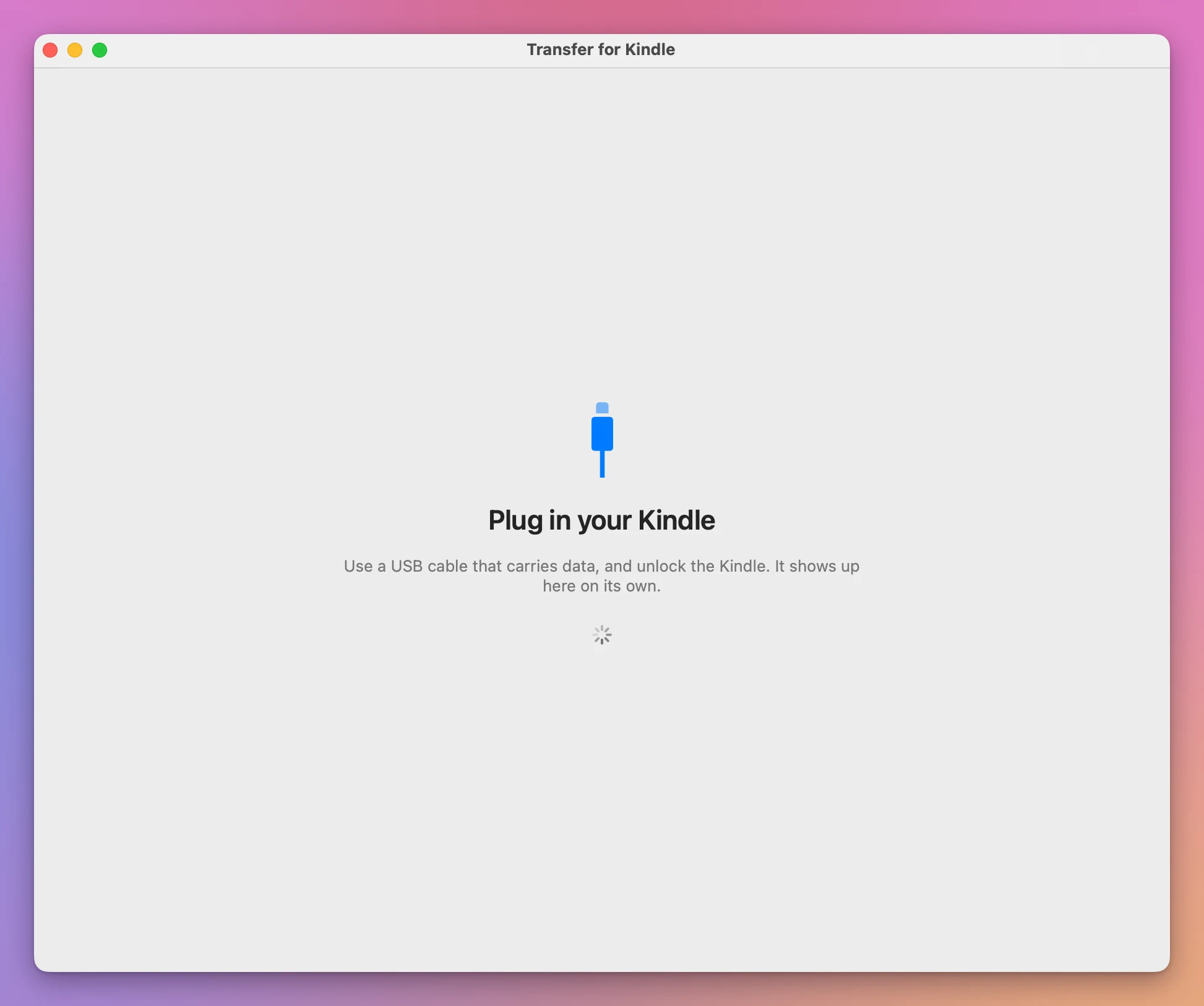
When I attached the stand-in Kindle, the window changed on its own:
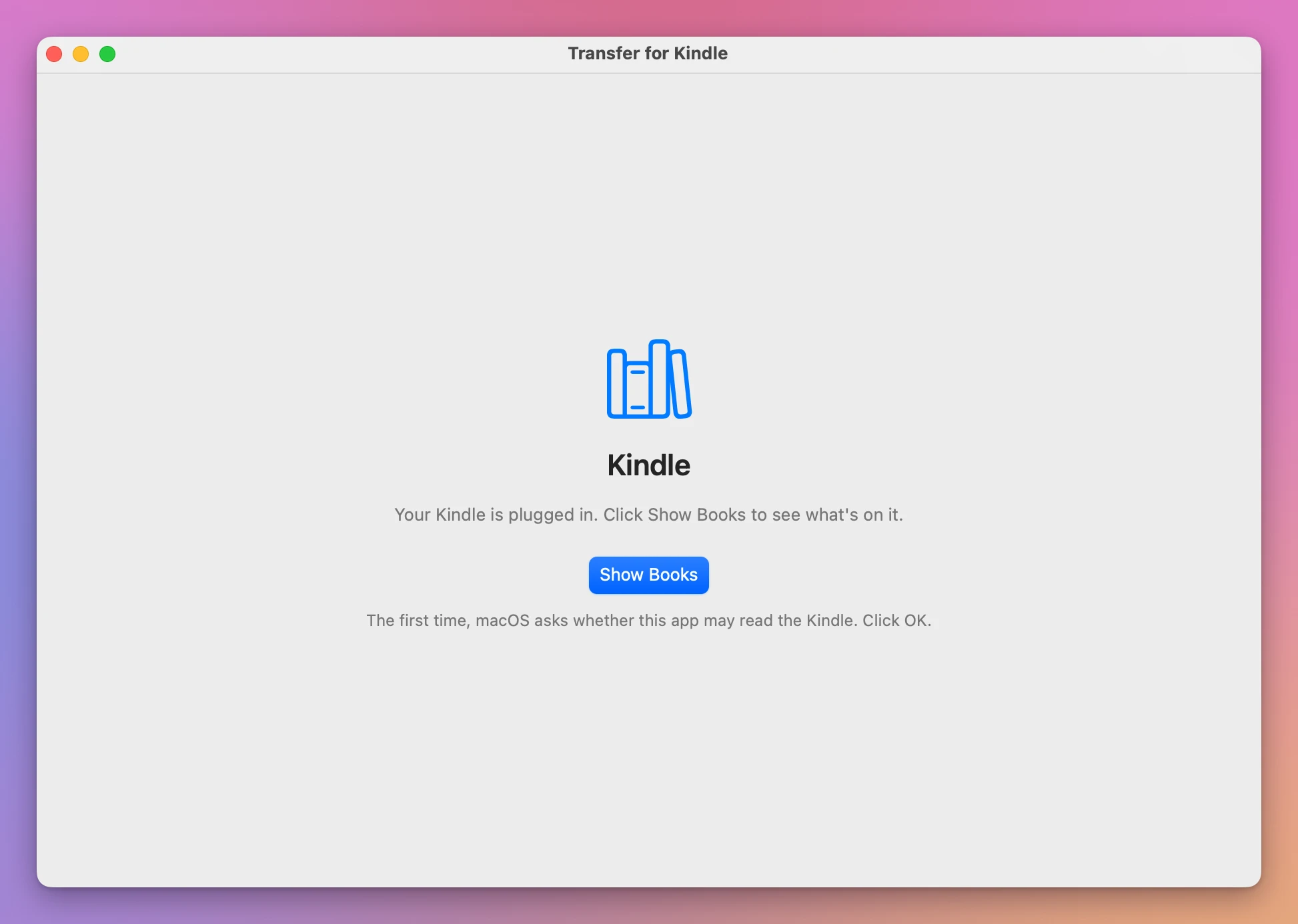
On my stand-in, which is a disk image, macOS didn’t ask anything when I clicked Show Books. I also used the app on my own Kindle, an older one that shows up as a disk, and it listed my books.
Kindles from 2024 on are the ones that never show up in the Finder. I haven’t been able to test the app with one of those, so I can’t tell you it works with yours.
Get Transfer for Kindle
Plug your Kindle into your Mac and see its books, send your own EPUB, PDF and other books to it by cable, copy books back, and save your highlights. An EPUB is turned into a book the Kindle opens, on your Mac, with nothing uploaded.
See Transfer for Kindle → · Read the docs · $20. See the app page for tax details.
Want me to talk about your product? You can sponsor this site.