
How to use Transfer for Kindle
Transfer for Kindle
Plug in your Kindle and see its books, send your own books to it by cable, copy books back to your Mac, remove a book, and export your highlights as Markdown, plain text or CSV.
Free to read. You can explore the guide before buying the app.
On this page
Install Transfer for Kindle
Transfer for Kindle runs on macOS 14 Sonoma or later, on Apple silicon and Intel Macs. After buying, download the app zip from your Polar receipt, unzip it, and drag Transfer for Kindle to your Applications folder.
The app is signed and notarized by Apple. Confirm Open at the normal first-launch prompt.
The app works without a license key. The key in your receipt turns on automatic updates: enter it in Transfer for Kindle → License…. Once a day, the app checks for a new version, shows what’s new, and installs it with Install and Relaunch. Transfer for Kindle → Check for Updates… checks right away. A key works on 3 Macs. Your receipt always has the latest version, too.
Plug in your Kindle
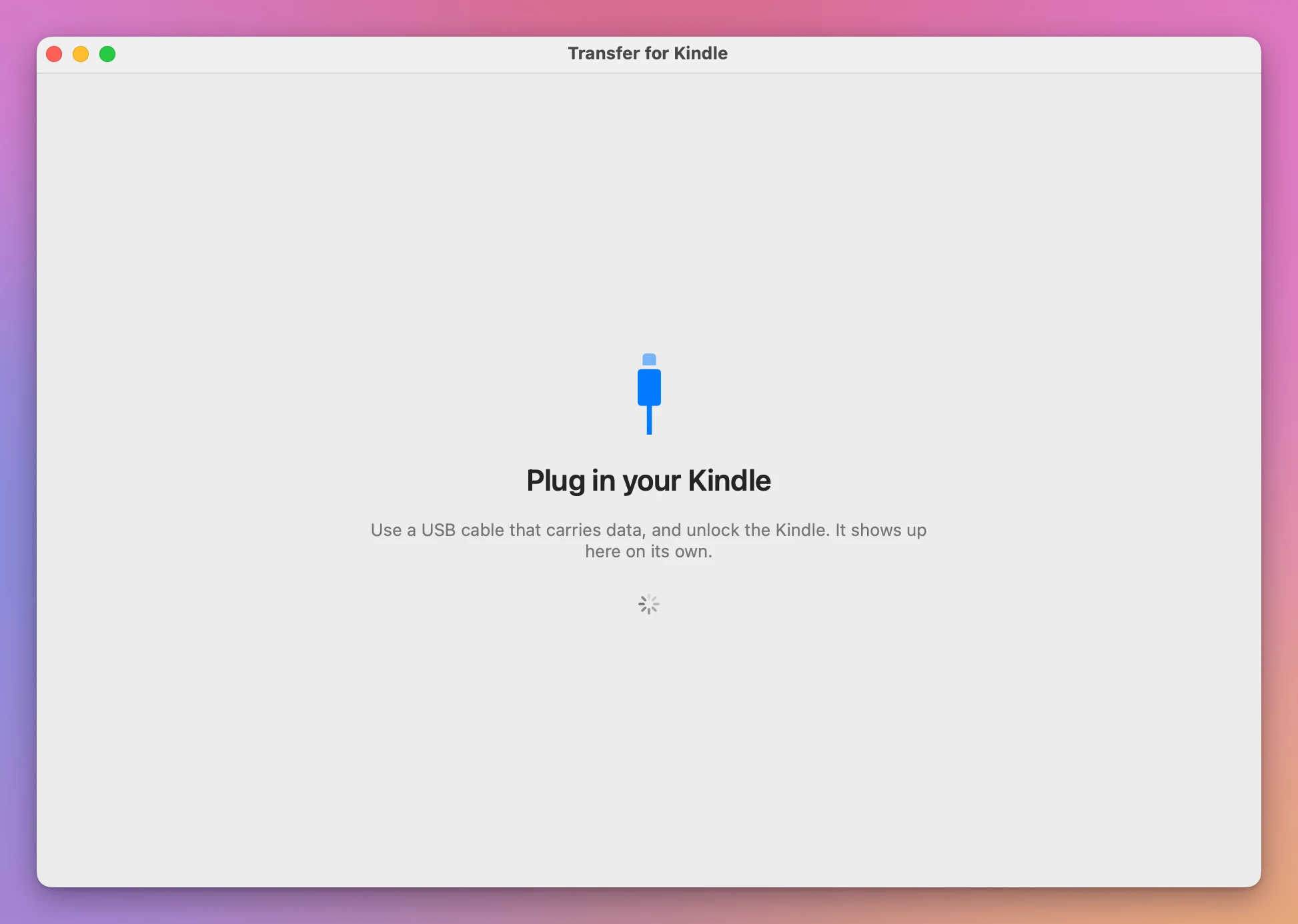
Open the app and it says “Plug in your Kindle”. Connect the Kindle with a USB cable that carries data (some cables only charge), and unlock it. The app looks for it every couple of seconds, so it shows up on its own.
There are two kinds of Kindle:
- An older Kindle shows up in the Finder as a disk named Kindle. The app says “Your Kindle is plugged in. Click Show Books to see what’s on it.” Click Show Books. The first time, macOS asks whether the app may read the Kindle: click OK.
- A Kindle from 2024 on doesn’t show up in the Finder. The app opens it on its own, with no button to click. I haven’t tested this kind on a real Kindle yet.
Looking for the Kindle reads nothing on it. The app reads the books only after it opens.
Your books
The top of the window has the Kindle’s name and how much room is left, like “11.24 GB free of 13.4 GB”. Books and Highlights switch between the two lists.
Every book has its cover, title and author when the file has them, then its format and size, like “MOBI · 2.1 MB”. A book without a cover gets a plain one with its format. A book with DRM says “Locked by the store (DRM): it can be copied as it is”.
A Kindle can’t open an EPUB copied onto it as it is, for example with the Finder. Such an EPUB says “The Kindle can’t open this EPUB. Drop the EPUB on this window to send it as a book the Kindle opens.” When the same book is already there as a .mobi, the line says so, like “Already on your Kindle as “Dracula.mobi”, which the Kindle opens. You can remove this EPUB.”
The list shows the books in the Kindle’s documents folder: PDF, MOBI, AZW, AZW3, KFX, PRC, TXT and EPUB files. My Clippings.txt isn’t listed, since it’s where your highlights are (see Highlights).
Send books
Drag books from the Finder onto the window, or click Send Books… (File → Send Books…, ⌘O) and pick them. They go one at a time, each on its own line in the panel at the bottom:
- “Turning it into a Kindle book…” while an EPUB is converted
- “Sending… 40%” while it goes to the Kindle
- “On your Kindle” when it’s there, or “On your Kindle as “Little Women.mobi”” for an EPUB
The top of the panel says “Sending 2 of 4”, then “All 4 books sent” or “3 sent, 1 not sent”. Clear empties it.
What goes as it is
PDF, MOBI, AZW, AZW3, KFX, PRC and TXT files go to the Kindle as they are, byte for byte. That includes books with DRM: they’re never opened.
EPUB books
A Kindle doesn’t open an EPUB copied by cable, so the app turns it into a MOBI book on your Mac, with nothing uploaded. It lands on the Kindle with the same name ending in .mobi.
The Kindle book keeps:
- the chapters, in reading order
- headings, paragraphs, bold and italics, lists, quotes and simple tables
- links, inside the book and to websites
- pictures, made smaller when they’re large
- the cover, the title and the author
- the table of contents, as a page at the end of the book with a link to each chapter
The EPUB’s own fonts and page layout don’t come along. The Kindle shows the book in its own font.
An EPUB with DRM can’t be read on a Kindle, so it isn’t sent: ““Book.epub” is locked with DRM, so it can’t be turned into a Kindle book.”
What isn’t sent
A file the Kindle can’t open is turned down before anything is sent, with a sentence that says what to do:
| You drop | The app says |
|---|---|
| A Word, Pages, RTF or OpenDocument file | Save it as a PDF and drop the PDF |
| A picture (JPG, PNG, HEIC, …) | It’s a picture, and a Kindle only keeps books |
| A ZIP, RAR or 7z archive | Open it first and drop the books inside it |
| A comic book archive (CBZ, CBR) | A Kindle can’t open it |
An .acsm file | It’s a ticket for Adobe Digital Editions, not a book |
| A folder | Open it and drop the books inside it |
A book that’s already there
The app never replaces a book on the Kindle. If a file with the same name is there, in any mix of capital and small letters, it says ““Little Women.mobi” is already on your Kindle, so it wasn’t sent again.”
If the Kindle is too full, it says how much the book needs and how much is free, and sends nothing.
Copy books to your Mac
Select one or more books (⌘-click to pick several) and click Copy to Mac…, or use File → Copy to Mac… (⇧⌘C), or right-click a book. Pick a folder, starting in Downloads, and click Copy Here.
Each book is copied as it is, books with DRM included. The line says “Copied to Downloads as “Walden.pdf””. If that name is taken in the folder, the copy gets the next free one, like Walden 2.pdf. Nothing on your Mac is replaced.
Remove a book
Select a book and press Delete, or right-click it and choose Remove from Kindle…. The app asks:
Remove “The Adventures of Sherlock Holmes” from your Kindle? The Adventures of Sherlock Holmes.mobi is deleted from the Kindle. It doesn’t go to a Trash, and copies on this Mac aren’t touched.
Keep is the default button, so Return and Escape keep the book. Only Remove from Kindle removes it, and only the book you picked. Copy it to your Mac first if you might want it back.
Removing a book deletes its file. Your highlights of that book stay in My Clippings.txt.
Highlights
Click Highlights at the top. The Kindle keeps every highlight, note and bookmark in one file, My Clippings.txt. The app reads it and lists the books on the left with their counts, like “3 highlights, 1 note”. Click a book to see its highlights in reading order, each with its page, location and date, like “Page 1 · Location 7-8 · Mar 3, 2025”. A note shows under the passage it’s on.
When you edit a highlight on the Kindle, it adds the new one to the file and keeps the old one. The app shows only the newer one, and leaves out entries that appear twice.
If there’s nothing yet: “Highlight a passage on your Kindle and it shows up here, with your notes and bookmarks.”
The app reads the words a Kindle writes in English and Italian, and the main ones in German, Spanish, French and Portuguese. When it can’t read a date, it shows it as the Kindle wrote it.
Export highlights
Pick the Format at the bottom:
- Markdown: each book as a heading, each highlight as a quote, with its page, location and date under it
- Plain Text: the same, without formatting
- CSV: one row per highlight, note or bookmark, with Book, Author, Type, Page, Location, Added and Text, for Numbers, Excel or Google Sheets
Click Export This Book… for the book on screen, or Export All… (File → Export All Highlights…, ⇧⌘E) for every book. Pick a folder and click Export Here. The file is named after the book, like Pride and Prejudice highlights.md, or Kindle Highlights.md for all of them. A second export next to the first gets the next free name, like Kindle Highlights 2.md.
Troubleshooting
Nothing shows up
Check that the cable carries data, not only power, and that the Kindle is unlocked. Try another USB port, or plug the cable straight into the Mac instead of a hub.
Kindles from 2024 on connect in a different way from the older ones, and I haven’t tested that on a real one yet.
Your Kindle didn’t open
The window says “Your Kindle didn’t open” with the reason and a Try Again button. The reason says what to do, like “Your Kindle didn’t answer. Unlock it, unplug it and plug it in again.” or “Your Kindle is busy. Wait a moment and try again.”
The Kindle was unplugged
If the cable comes out while a book is going, its line says “The Kindle was unplugged before this finished.” and the app goes back to “Plug in your Kindle”. Plug it in again and send the book again.
Your Kindle is full
“There isn’t enough room on your Kindle.” Remove a book from it, then send again.
See Transfer for Kindle → · $20 including tax.