What are the .LRV and .THM files on a GoPro card, and can I delete them?
By Flavio
Every GoPro video comes with a .THM and an .LRV file. Here's what they are, how to look inside them on a Mac, how much space they take, and when it's safe to delete them.
Open a GoPro’s card on your Mac and next to every video there are two more files: one ending in .THM and one ending in .LRV. The Finder calls them “Document” and nothing on the Mac opens them.
They’re the camera’s own helpers. The .THM is a small picture of the video, the thumbnail the camera shows when you browse what you shot. The .LRV is a low-resolution copy of the video, small enough for the GoPro phone app to play over Wi-Fi. Your video is the .MP4, and it doesn’t need either of them.
So yes, you can delete them. Once the videos are copied to your Mac, or joined, they have nothing left to do.
Which files are they?
Each video gets one of each, named after it:
| Video | Thumbnail | Low-resolution copy |
|---|---|---|
GX010141.MP4 | GX010141.THM | GL010141.LRV |
GH010142.MP4 | GH010142.THM | GL010142.LRV |
GOPR0150.MP4 (older cameras) | GOPR0150.THM | GOPR0150.LRV |
The .LRV swaps the second letter for an L. Older cameras keep the video’s name for both. The tutorial about GoPro file names has the whole scheme.
A long recording that the camera split into chapters has a pair for every chapter, so a recording in three files leaves six small files.
How do I find them all?
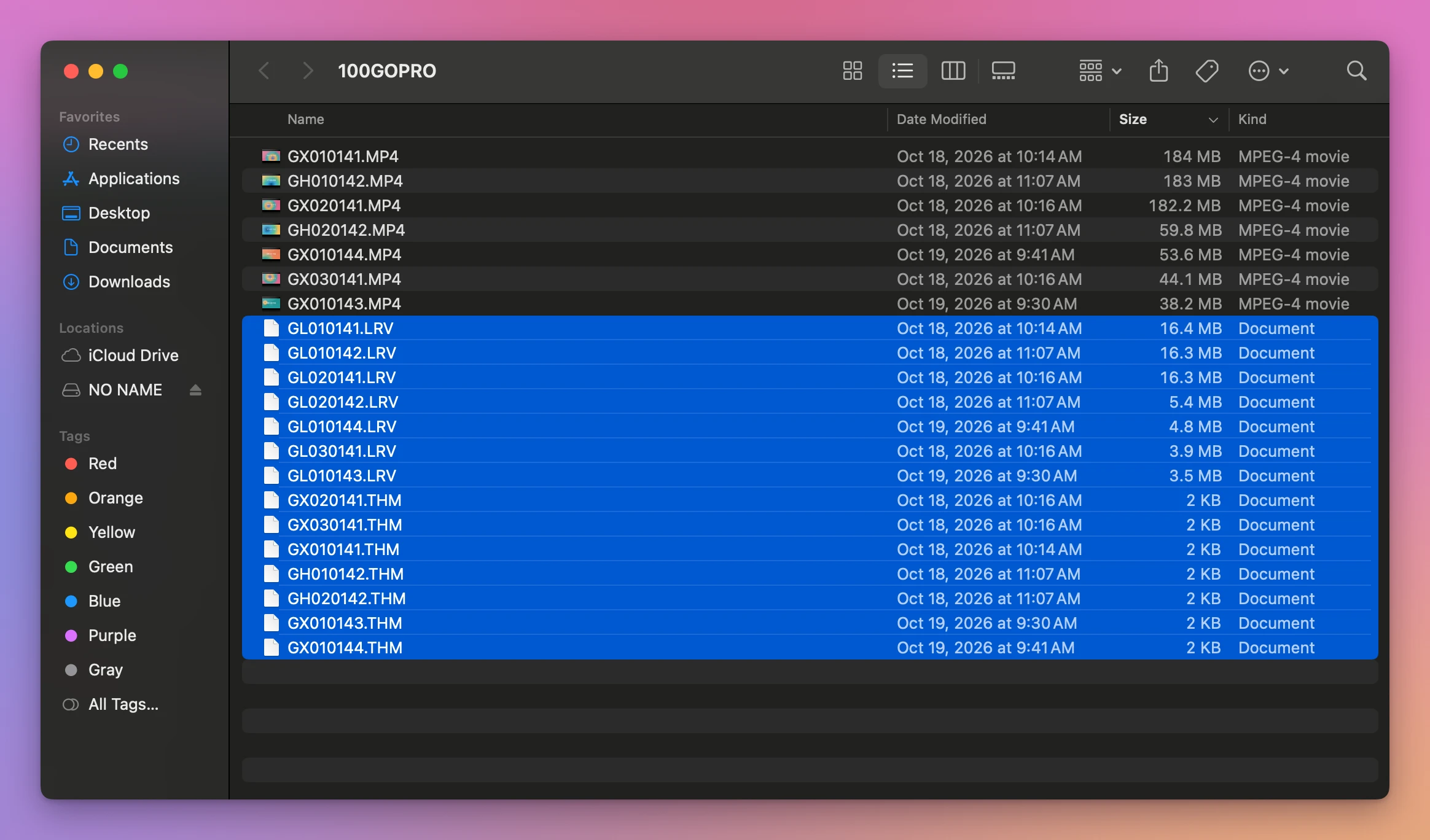
I tried this on a stand-in card: a disk image formatted like a camera’s card, named NO NAME, with made-up clips named the way a GoPro names them and their .THM and .LRV files. It has 7 videos and 14 small files.
Open DCIM, then 100GOPRO, choose View > as List, and click the Size column. The videos go to the top, then the .LRV files, then the .THM files at the bottom. Click the first .LRV, hold Shift and click the last .THM, and you’ve got all 14:
To see how much space they take, open the File menu while they’re selected, hold Option, and choose Show Inspector (Option-Command-I). It’s one window for the whole selection:
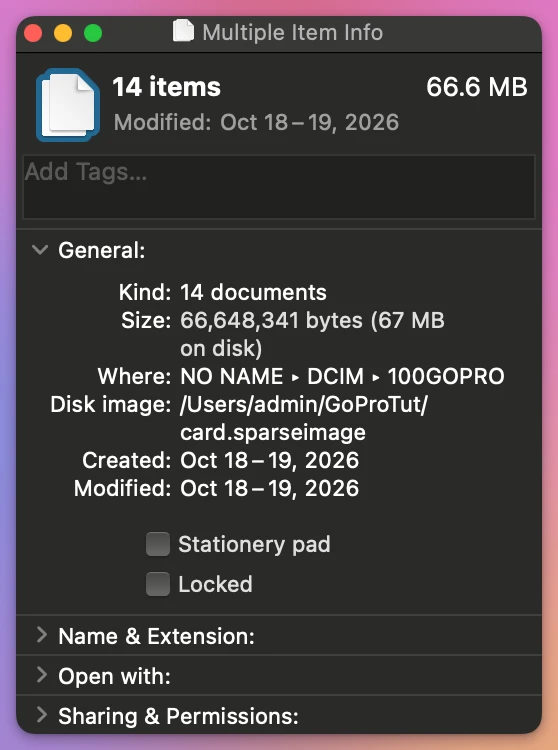
On the stand-in card, the 14 small files are 66.6 MB. Almost all of it is the .LRV files, between 3.5 MB and 16.4 MB each, since every .THM is 2 KB. My made-up .LRV files are only a guess at the real ones, so look at your own card for the real share: the steps are the same.
Can I look inside them?
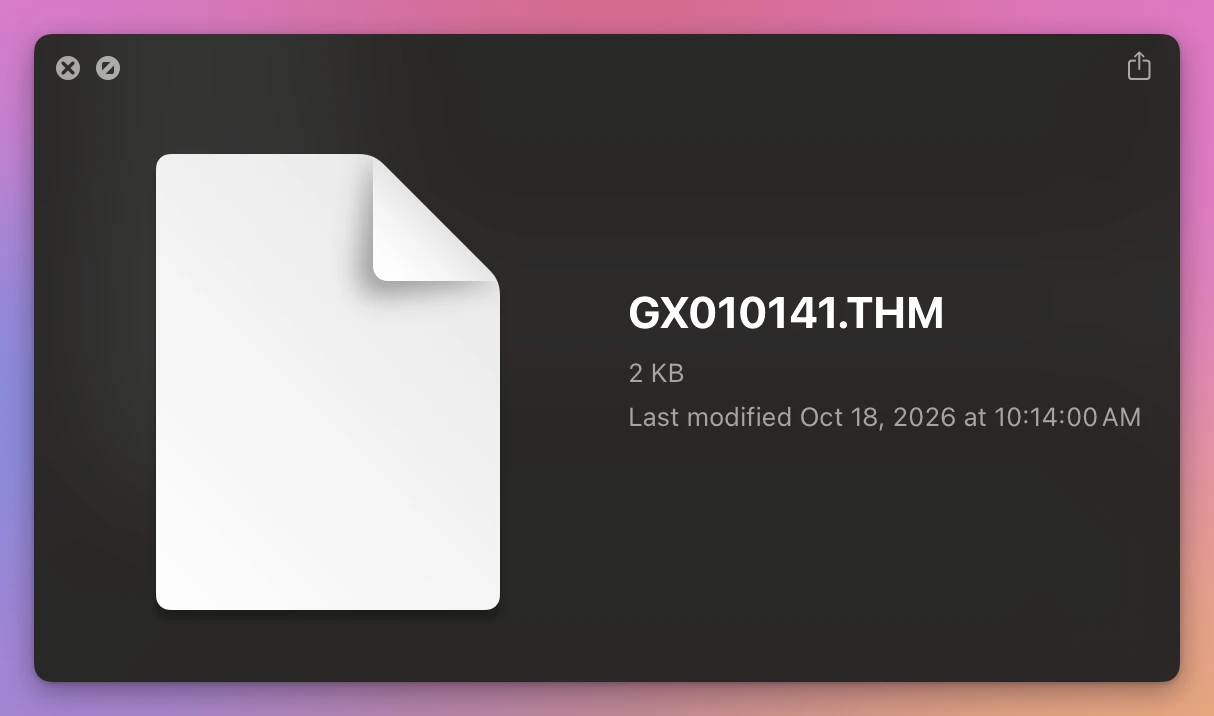
Not as they are. Selecting GX010141.THM and pressing the Space bar gave Quick Look’s blank page, with only the name and size:
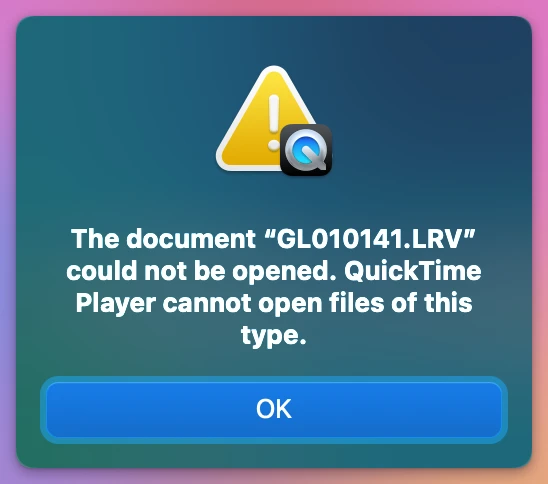
And opening GL010141.LRV with QuickTime Player was refused:
That’s only about the extension. A .THM file is a JPEG picture and an .LRV file is an MP4 video, with other names. Give a copy the usual extension and the Mac opens it. Do it on a copy, never on the card:
- Drag the file from the card to a folder on your Mac. That copies it.
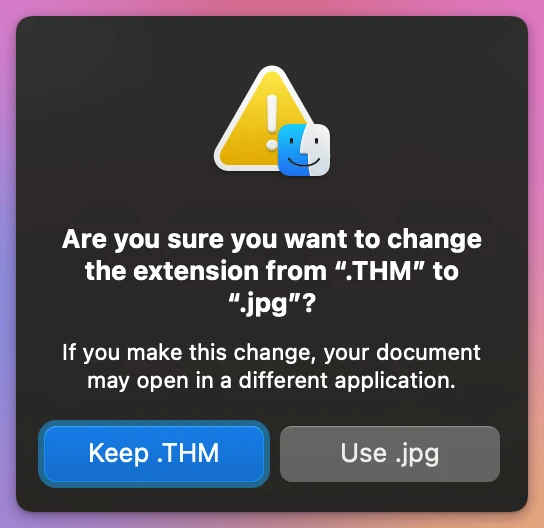
- Click the copy, press Return, and change
.THMto.jpg, or.LRVto.MP4. Press Return. - The Finder asks if you’re sure. Click Use .jpg (or Use .MP4).
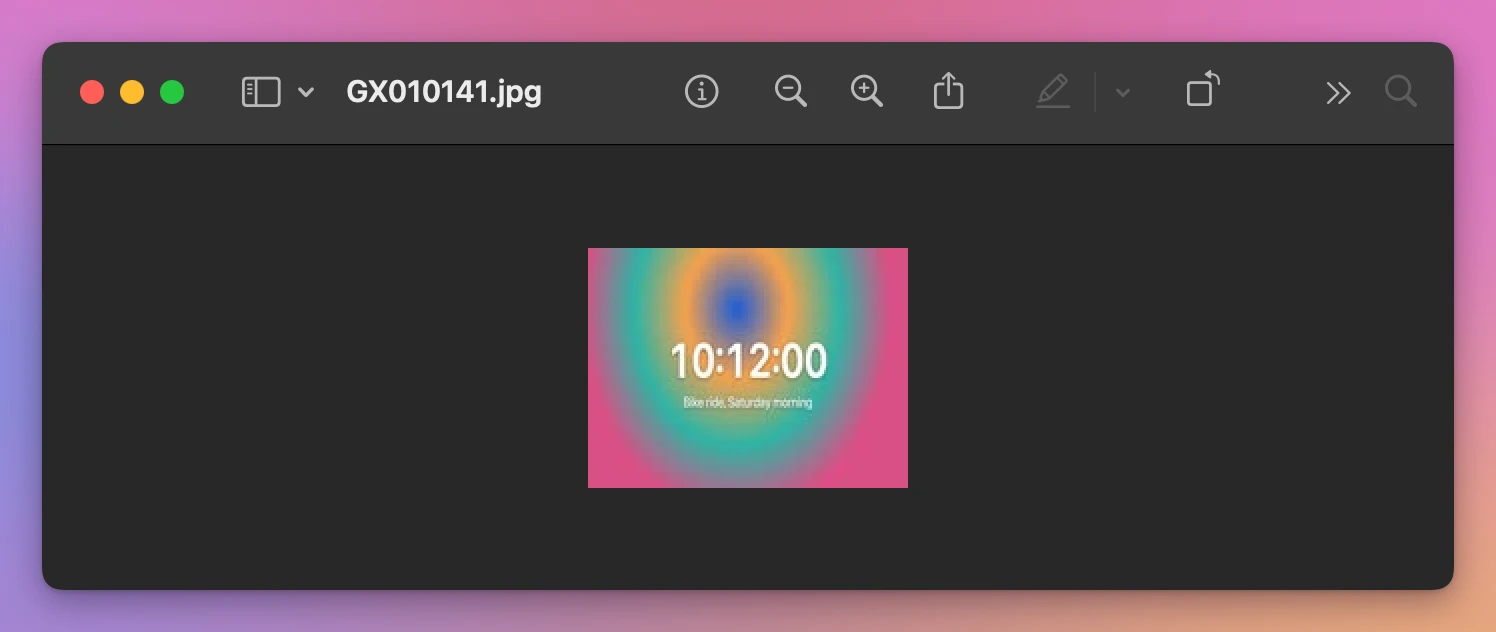
The copy of GX010141.THM opened in Preview as the first frame of the video, a small picture:
The copy of GL010141.LRV, renamed GL010141.MP4, played in QuickTime Player. Window > Show Movie Inspector shows how much smaller it is than its video, which is 1920 × 1080 at 12.16 Mbit/s:
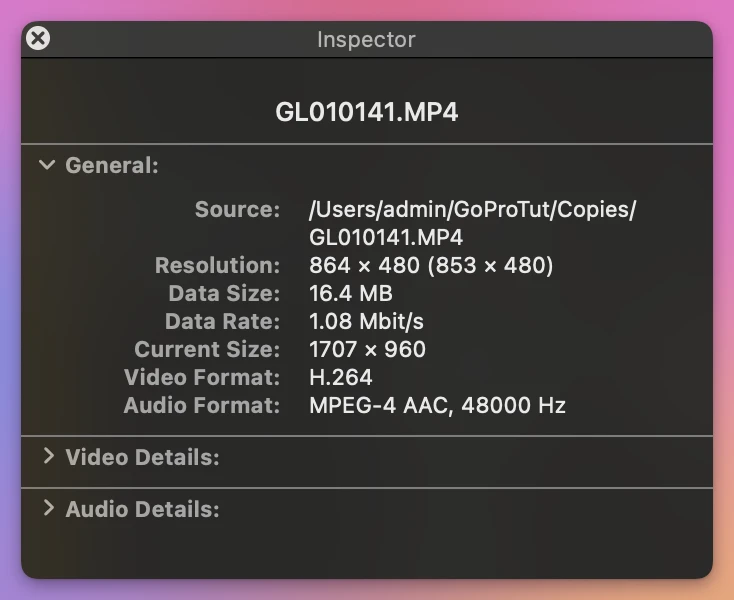
So the .LRV is the same chapter at a lower quality. It’s no backup: if you lose the .MP4, that’s all you have left of it.
When is it safe to delete them?
| Situation | Delete the .THM and .LRV? |
|---|---|
| The videos are copied to your Mac, or joined, and you’re clearing the card | Yes, they go with the videos |
| You’re deleting a video you don’t want | Yes, delete its two small files with it, or they stay behind |
| You want to keep the videos on the card and browse them on the camera or in the GoPro app | Keep them, the camera and the app show them as previews |
| You need room on the card but want to keep the videos there | You can, the videos play without them |
The one thing to watch: if you delete videos in the Finder, their small files stay on the card. Nobody uses them anymore, and they keep taking space.
And like anything you delete from a card on a Mac, they go to a Trash on the card itself and keep their space until you empty it. The tutorial about a card that’s still full after deleting explains how to get it back.
Remove them with the videos, in one click
Joiner for GoPro is a Mac app I made that joins a GoPro’s chapters back into one video, straight from the card. It’s not made by, affiliated with or endorsed by GoPro. It costs $20, paid once.
It doesn’t list the .THM and .LRV files, since they’re not videos to join. They come up after a join. I joined the two chapters of recording 0142 on the stand-in card, then clicked Move Originals to Trash… on its row. The confirmation had a box, ticked for me, for their small files:
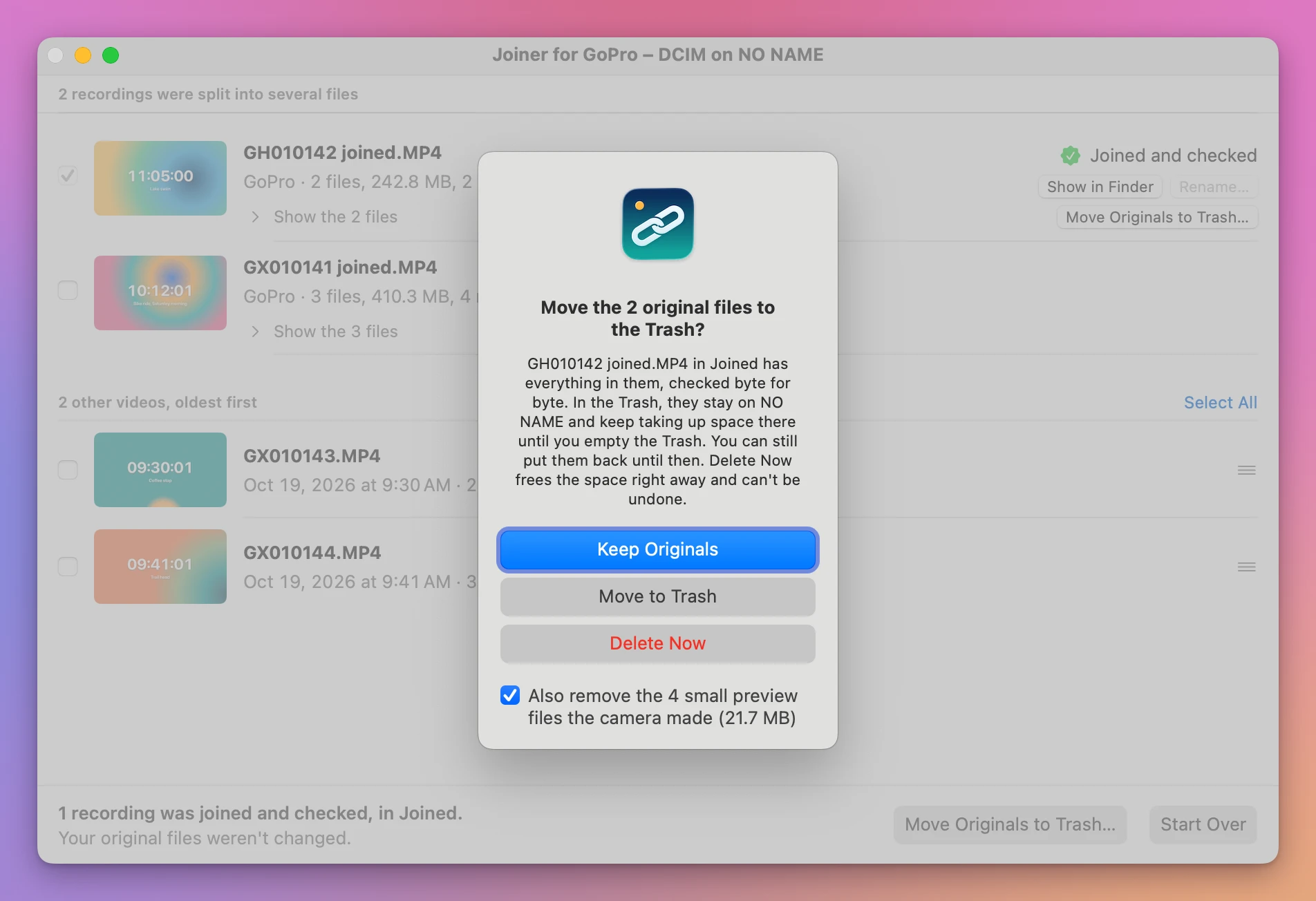
The 4 small files are the two .THM and two .LRV files of GH010142.MP4 and GH020142.MP4, matched by name. The ones of the other videos on the card aren’t touched. Keep Originals is the default button, so pressing Return doesn’t remove anything. Untick the box to keep the small files.
I clicked Move to Trash. The two chapters and their 4 small files went to the card’s Trash, and the line under the list said so:
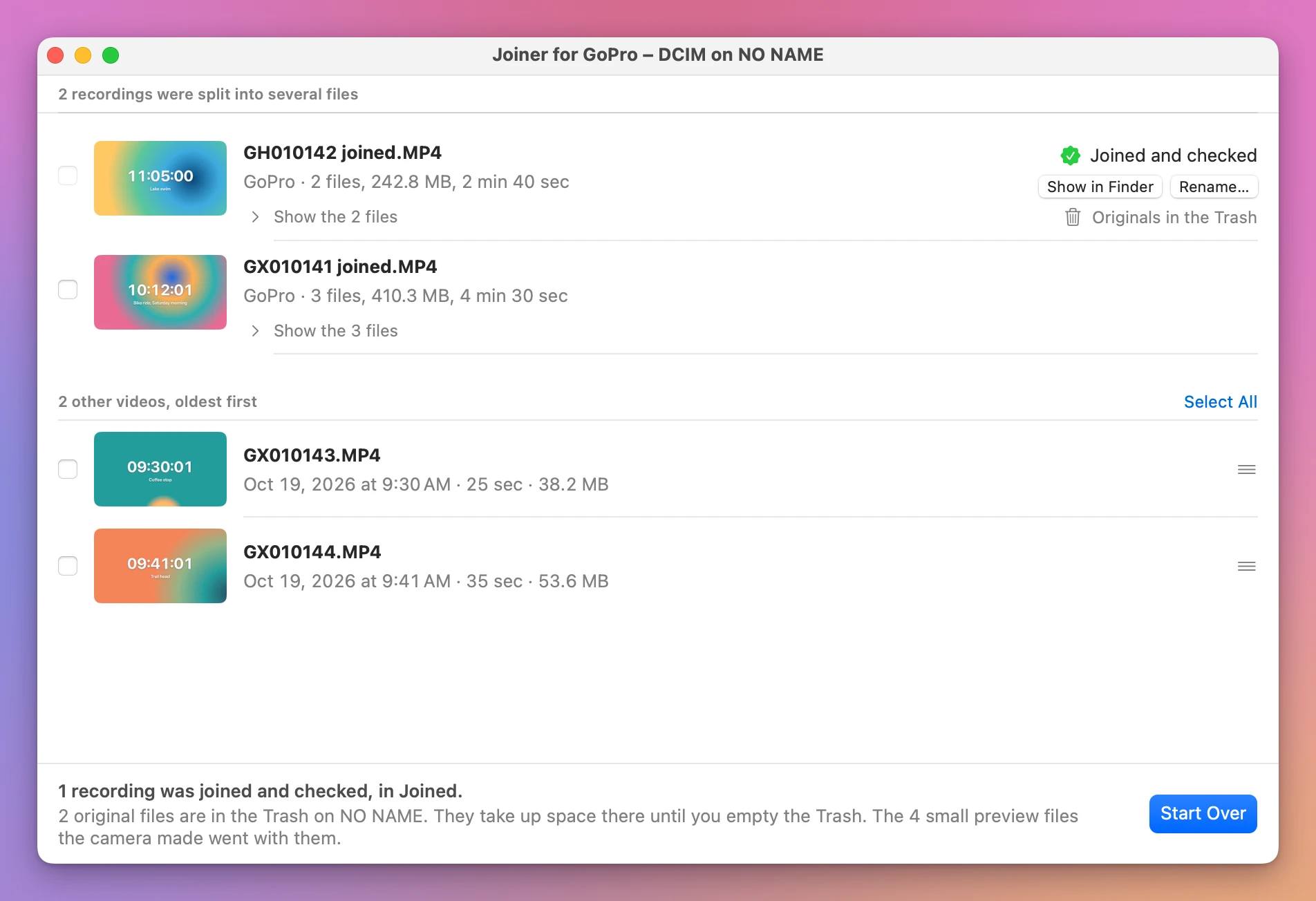
Delete Now in the same confirmation deletes them from the card right away instead, which frees the space and can’t be undone.
Get Joiner for GoPro
Put the chapters your GoPro split a long recording into back together, into one video on your Mac, straight from the card. Nothing loses quality, the GPS and motion data stay, and the small .THM and .LRV files can go with the originals.
See Joiner for GoPro → · Read the docs · $20. See the app page for tax details.
Want me to talk about your product? You can sponsor this site.